\n\tThis gallery is also available as a post in the TechRepublic Windows and Office Blog.
\n\t
\n\tIn last week’s post, Get the free 90-day evaluation of Windows 8 Enterprise, I showed you how to download the free 90-day evaluation copy of the final version of Windows 8 Enterprise and burn the ISO file to a bootable DVD using Windows 7’s Windows Disc Image Burner tool. While installing from a DVD is suitable in most situations, you may want to be able to install Windows 8 from a USB flash drive. Fortunately, doing so is not as difficult as it once was. In fact, Microsoft has a utility called the Windows 7 USB/DVD Download Tool that will allow you to convert the ISO image so that it can boot from a USB flash drive. (Keep in mind that while the tool has Windows 7 in its name, it will still work for Windows 8.)
\n
\n\tIn this article, I’ll show you how to download, install and use the Windows 7 USB/DVD Download Tool to transfer the Windows 8 Enterprise evaluation ISO to a bootable USB flash drive. Keep in mind that while I’ll use the Windows 8 Enterprise evaluation ISO as my example, this procedure will work with any Windows 7 or Windows 8 ISO.
\n
\n
\n
\n\tTo install the Windows 7 USB/DVD Download Tool, you need at least a Pentium 233 MHz processor and 50MB of free hard disk space. You can install the tool in Windows XP SP2, Windows Vista, or Windows 7 (32-bit or 64-bit). Your USB flash drive must be at least 4GB and it should not have any other files on it. In fact, I recommend that you perform a full format of your USB flash drive; just to be sure that it is error free.
\n
\n\tIf you are running Windows XP, you will need to download and install both Microsoft .NET Framework 2.0 and Microsoft Image Mastering API v2 before you install the Windows 7 USB/DVD Download Tool. Keep in mind that the most current version of the .NET Framework is 4.5, but if you only want to download 2.0, previous versions are available on the .NET site linked above.
\n
\n
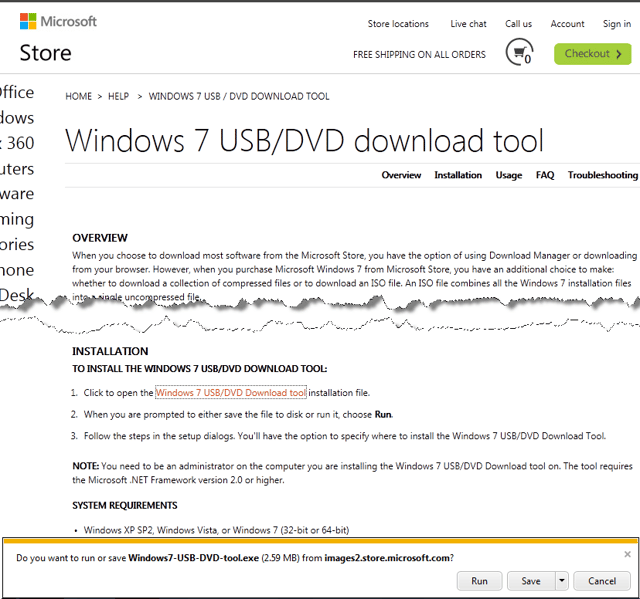
\n\tDownloading the tool is easy. To begin, head over to the Microsoft Store’s Windows 7 USB/DVD Download Tool page and scroll down until you see the download link. When you click it you’ll be prompted to either Run or Save the tool. For my example, I chose to save the file so that I could experiment with the tool on various machines.
\n
\n\tImages by Greg Shultz for TechRepublic.
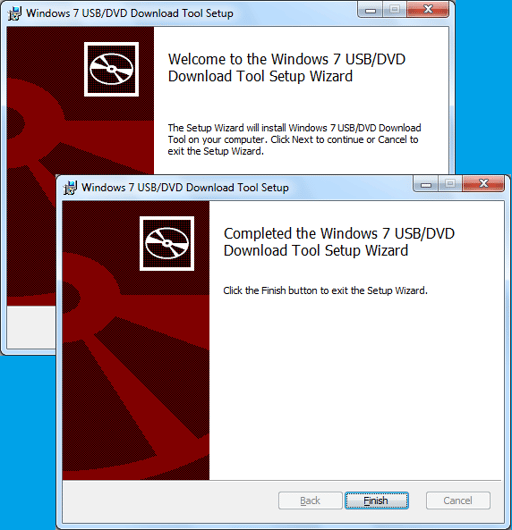
\n\tAs soon as you click Run, you’ll see the Windows 7 USB/DVD Download Tool Setup Wizard. The installation runs pretty quickly via the four step wizard and the first and last screens of the wizard are shown.
\n\t
\n\tImages by Greg Shultz for TechRepublic.
\n
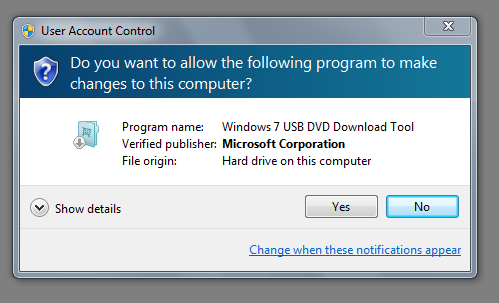
\n\tOnce the Windows 7 USB/DVD Download Tool is installed, I recommend that you insert your 4GB or larger USB flash drive and wait for it to be recognized. That way, the drive will be ready when you are running the tool. When the flash drive is ready, you can launch the Windows 7 USB/DVD Download Tool from the Start menu. As soon as you do, you’ll encounter a User Account Control dialog box like the one shown and will have to work through it.
\n\t
\n\tImages by Greg Shultz for TechRepublic.
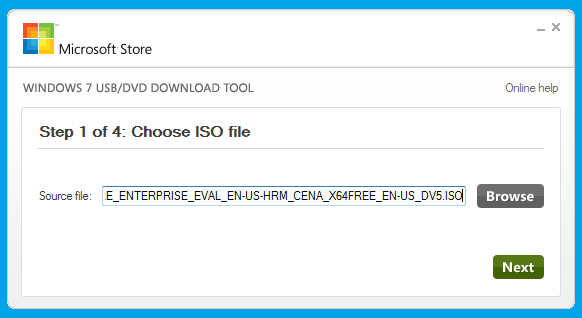
\n\tWhen the Windows 7 USB/DVD Download Tool displays its first screen, you’ll be prompted to locate and select the ISO file. (As a sidebar, I must point out that the first time that I saw this screen I was a little startled to see Microsoft Store in the title bar – I had expected a more traditional looking wizard interface, like the one from the setup. Not a big deal by any means, it just took a little getting used to.
\n
\n\tImages by Greg Shultz for TechRepublic.
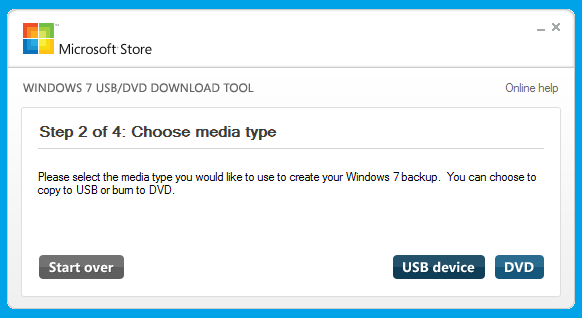
\n\tOn the second screen, you will click the USB device button. However, as you can see, you can just as easily select DVD as the media type. (If you are running Windows XP, which doesn’t include a tool like Windows 7’s Windows Disc Image Burner tool, this tool comes in handy if want to burn a Windows 8 ISO to DVD.)
\n
\n\tImages by Greg Shultz for TechRepublic.
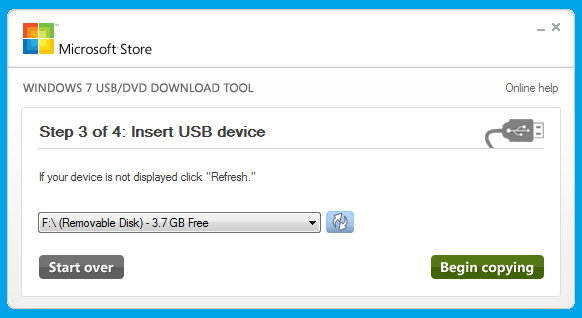
\n\tWhen the third screen appears, you should see your USB flash drive in the list box. If not, click the Refresh button adjacent to the list box. Once your drive appears, click the Begin copying button. As soon as you do, the Windows 7 USB/DVD Download Tool will perform a quick format of the flash drive, ostensibly to make it a bootable drive.
\n
\n\tImages by Greg Shultz for TechRepublic.
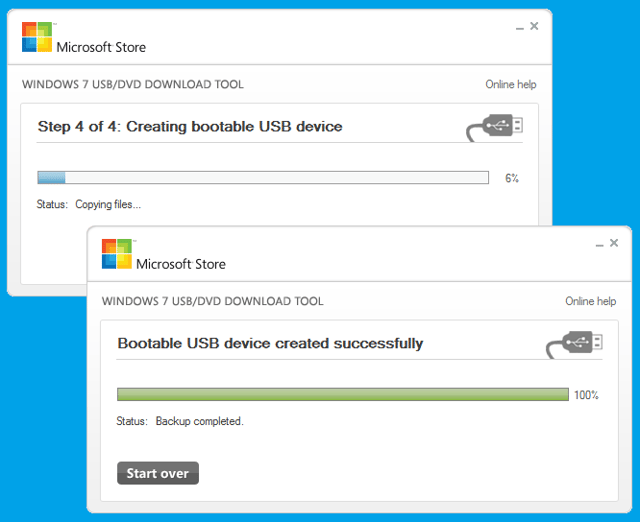
\n\tOnce the Windows 7 USB/DVD Download Tool begins copying the file to the drive, from start to finish the process will take anywhere from 5 to 10 minutes to complete depending on the speed of your flash drive. When it is done, the status will indicate Backup completed. The beginning and ending of the copy operation are shown. When the copy operation is done, just click the close button in the upper right corner.
\n\t
\n\tImages by Greg Shultz for TechRepublic.
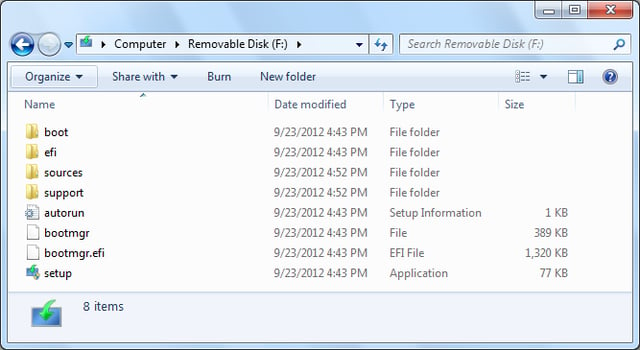
\n\tWhen the operation is finished, you can launch Windows Explorer and take a peek at the contents of your now bootable USB flash drive.
\n
\n\tImages by Greg Shultz for TechRepublic.
\n
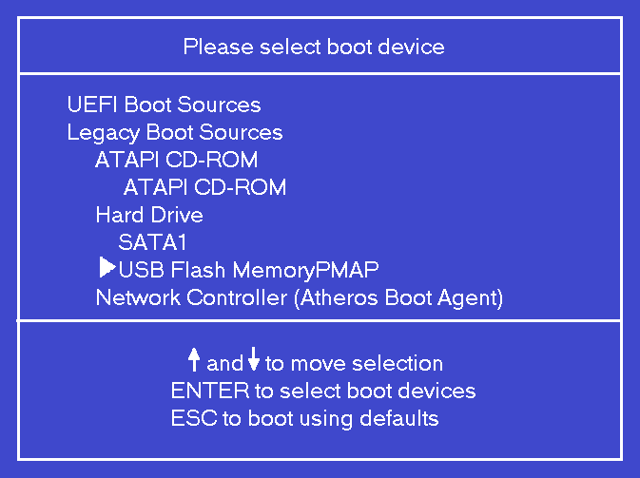
\n\tOnce you insert the bootable USB flash drive into the system on which you want to install Windows 8, restart the system, and then follow the onscreen instructions to access the boot menu. On my test system, the boot menu looked like the one shown. Using the down arrow, I selected the USB Flash MemoryPMAP option and pressed [Enter].
\n\t
\n\tImages by Greg Shultz for TechRepublic.
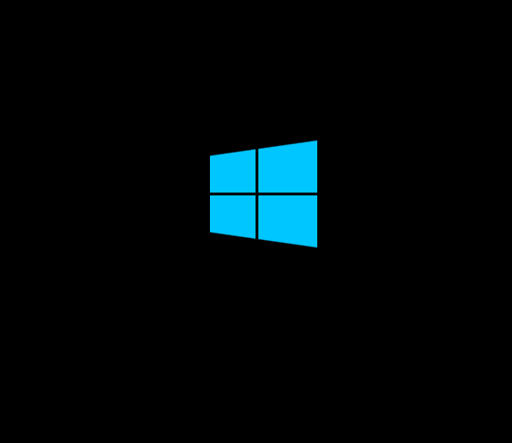
\n\tWithin a few moments, you’ll see the new Windows flag on the screen, indicating that Windows 8 Setup is being initialized.
\n
\n\tFor the best possible experience while you use the evaluation and for ease of disposal once the 90 days are up, I recommend that you install Windows 8 Enterprise to a VHD and use it in a dual-boot configuration as I showed you in the article titled Dual-boot Windows 7 and Windows 8 using a VHD.
\n\t
\n\tImages by Greg Shultz for TechRepublic.

My first computer was a Kaypro 16 \"luggable\" running MS-DOS 2.11 which I obtained while studying computer science in 1986. After two years, I discovered that I had a knack for writing documentation and shifted my focus over to technical writing.


