With a renewed interest on global warming, carbon footprints, and green technology, the power consumption of your personal computer is not a trivial matter. And if your PC happens to be a notebook, the amount of power consumed has a direct relationship to battery life. Minimizing power consumption will maximize battery life.
But how do you know how much power your PC is consuming? How do you troubleshoot the problem power draining functions?
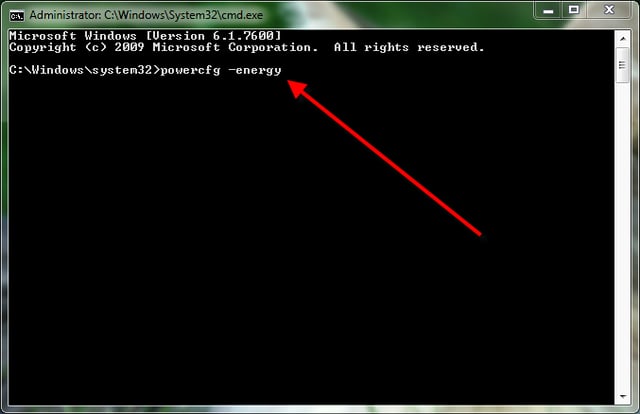
Well, with Microsoft Windows 7, you can use a small applet called the Power Configuration Utility. Run from the command line with the right switch, it will create a detailed file that thoroughly examines power usage on your personal computer. Here is how it works.
Create the report
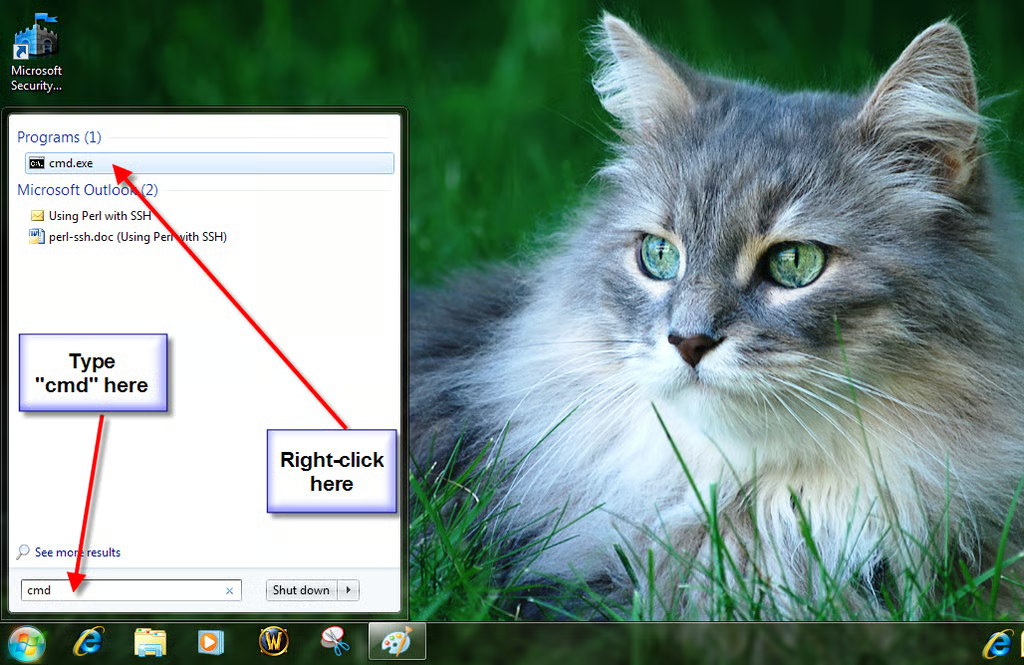
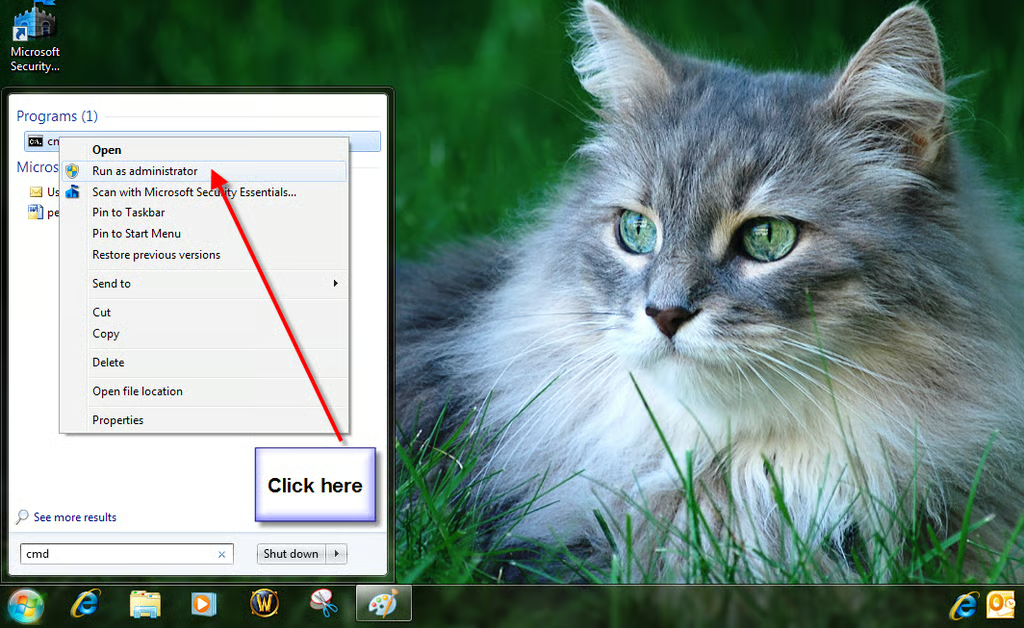
To create your energy report you will need to type a specific instruction on an elevated administrator-rights command line. Click the Start Menu button and type cmd into the search box as shown. The first application shown should be the command line executable file. Right-click on that file name.
This gallery is also available as a TechRepublic blog post and download.
Image created by Mark Kaelin for TechRepublic.
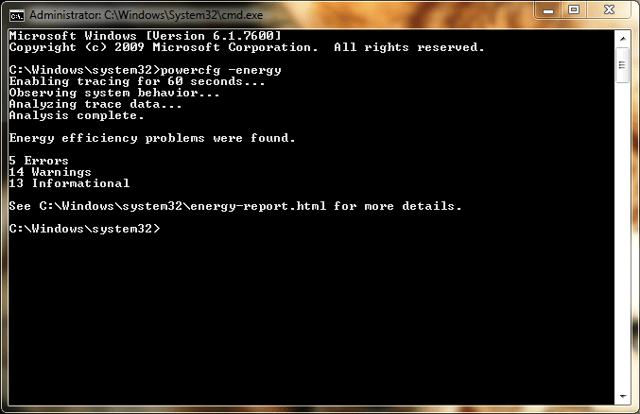
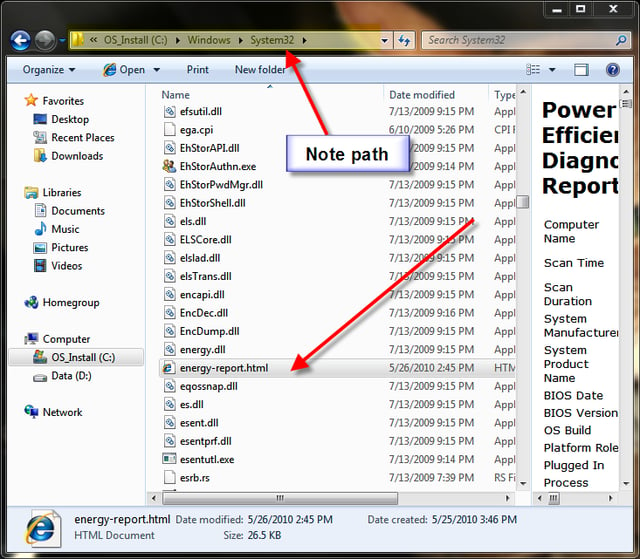
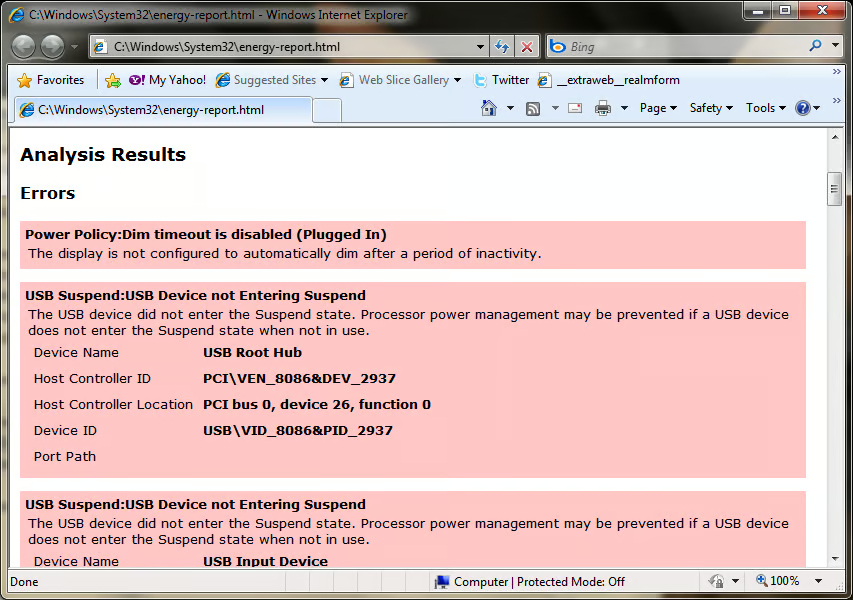
When you open the report you will find Analysis Results broken down into Errors, Warnings, and Information. For example, under the Errors category on my test machine, you can see where I have modified the power settings to prevent display dimming.
Bottom line
The Energy Report created using this method will give you a starting point for troubleshooting excessive power consumption, but how you apply what it tells you will vary depending on personal preferences and usage patterns. And while making some small modifications to your PC power profile will not necessarily save the Earth from doom, it couldn’t hurt.
This gallery is also available as a TechRepublic blog post and download.
Image created by Mark Kaelin for TechRepublic.

Mark W. Kaelin has been writing and editing stories about the information technology industry, software, hardware, gaming, finance, accounting, and technology geekdom for more than 30 years.


