\n\tBy Nick Hardiman
\n
\n\tSee the original blog post, “How to get started with Amazon’s Simple Storage Service.”
\n
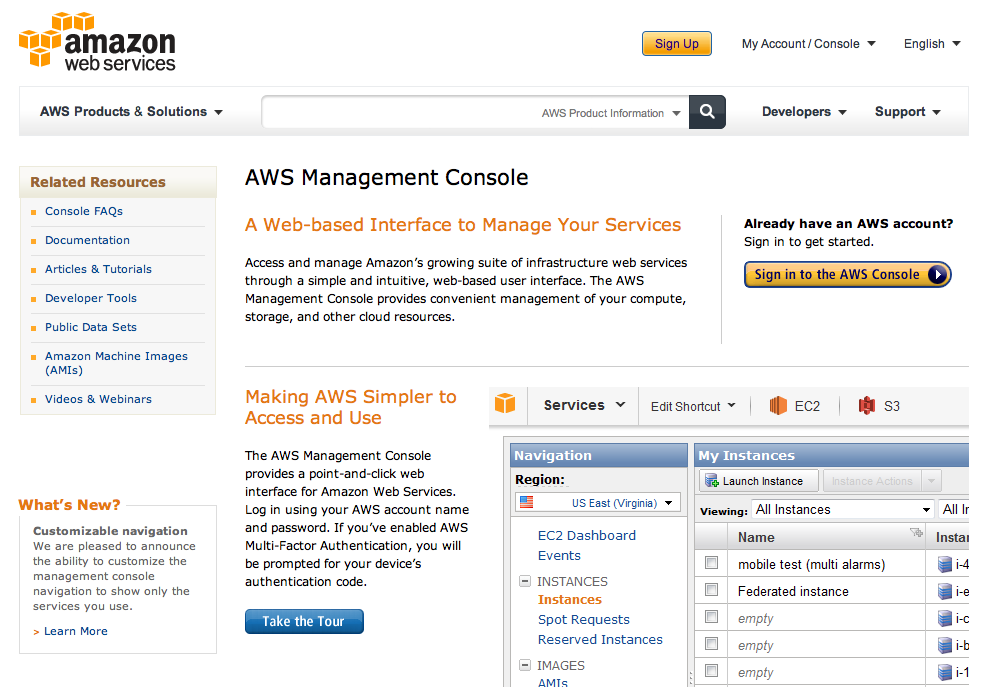
\n\tThe AWS (Amazon Web Services) home page is the gateway for the AWS management console.
\n
\n\tIf you are new to AWS, you must create an account before you can use AWS services.
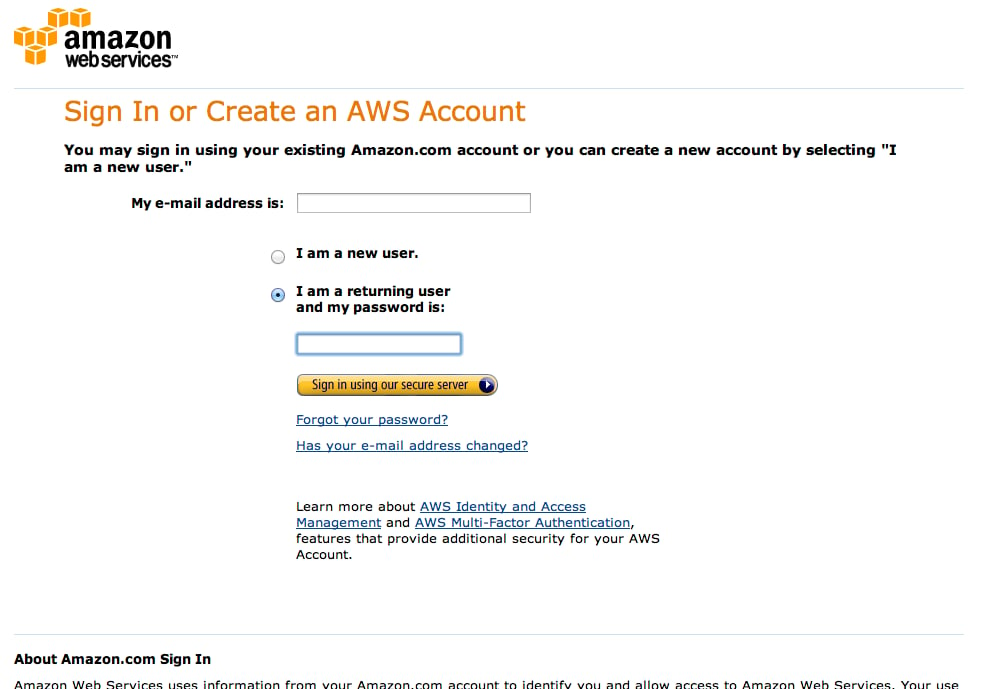
\n\tThe AWS login page is straightforward one-factor authentication (if you remember your account details, you’re in). After you have created an AWS account you can sign into the management console.
\n
\n\tAWS also offer safer and more flexible ways of controlling access \u2013 IAM (Identity and Access Management) and MFA (Multi-Factor Authentication).
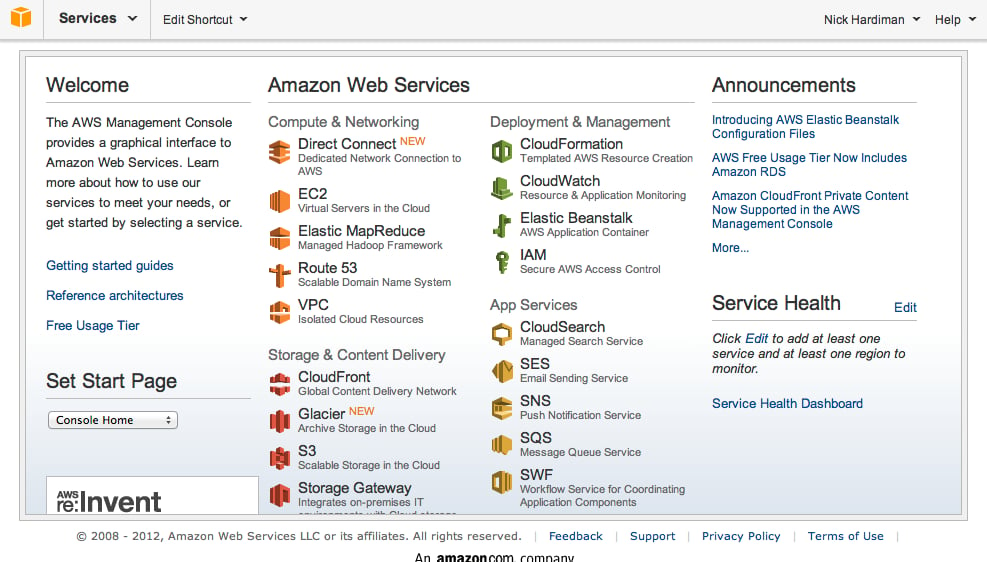
\n\tThe list of Amazon’s Web Services is so long doesn’t easily fit on a page. AWS constantly improve and extend their customer services.
\n
\n\tThe Services link in the top left is always available when you use the console. It displays the full set of services any time.
\n
\n\tNot all services are available through the management console – some can only be used with the command line interface or a program interface.
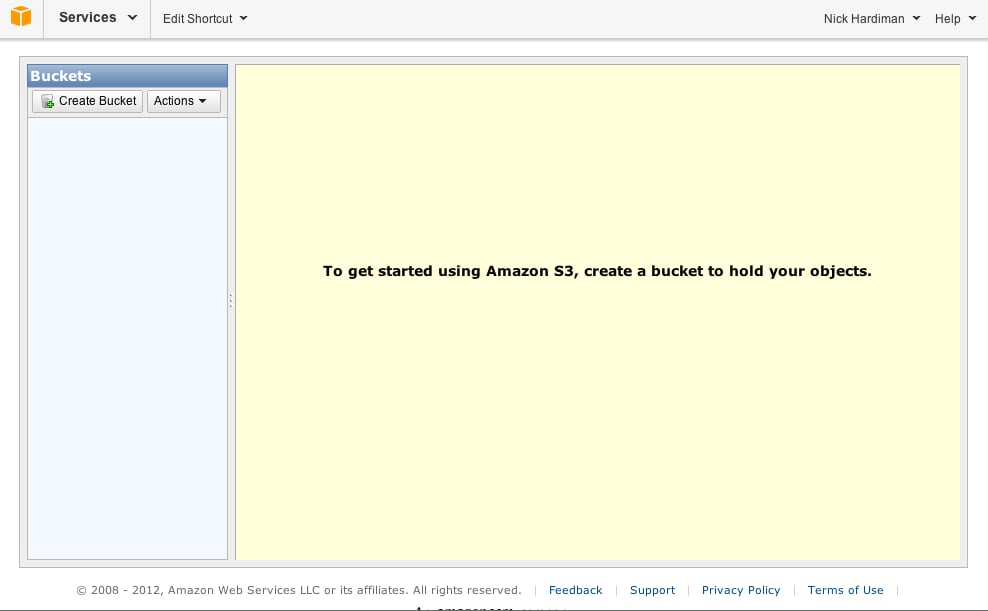
\n\tThe S3 management console is a web interface that allows non-technical people to use the S3 service. There is also a programmers’ interface and a set of command line tools for advanced users.
\n
\n\tUsing S3 means using buckets and objects. An object is a file, along with some background information. A bucket is a container to put them in.
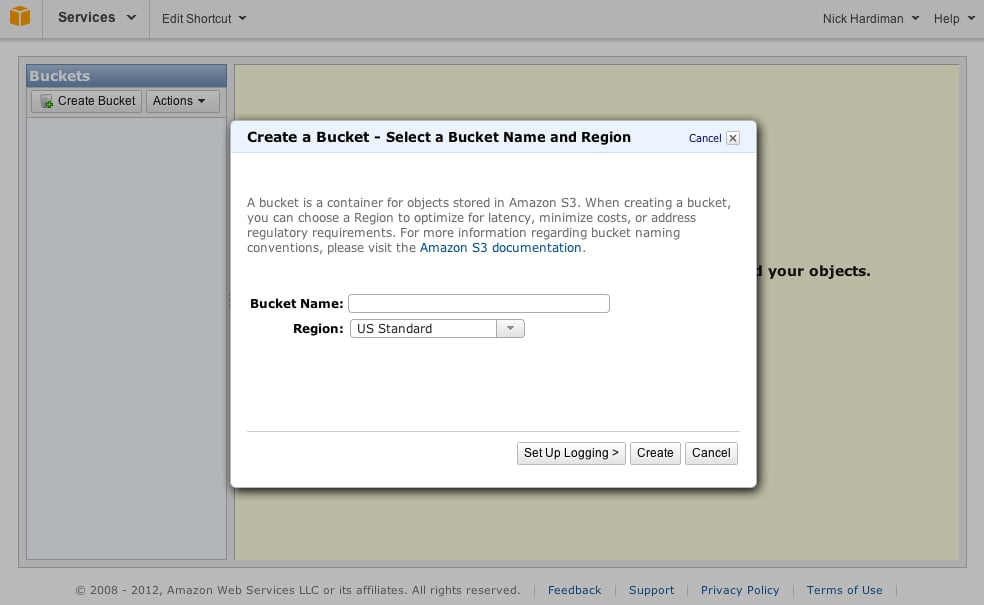
\n\tThis modal window \u2013 one of many in the AWS management console \u2013 allows you to create a bucket. Creating a bucket means typing in a name and choosing a region.
\n
\n\tEach bucket needs a unique label used to access the objects. That’s unique across the entire AWS S3 service, not just unique to you.
\n
\n\tYou are here (in terms of web breadcrumbs): Amazon Web Services > Storage & Content Delivery > S3 Scalable Storage in the Cloud > Buckets > Create Bucket.
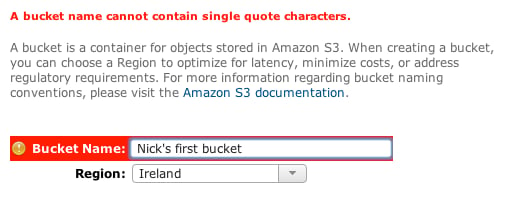
\n\tAWS highlights things it doesn’t like in red.
\n
\n\tThis bucket name breaks AWS rules. The characters allowed in a bucket name are pretty limited, and the restrictions vary from region to region.
\n
\n\t
\n\t
\n
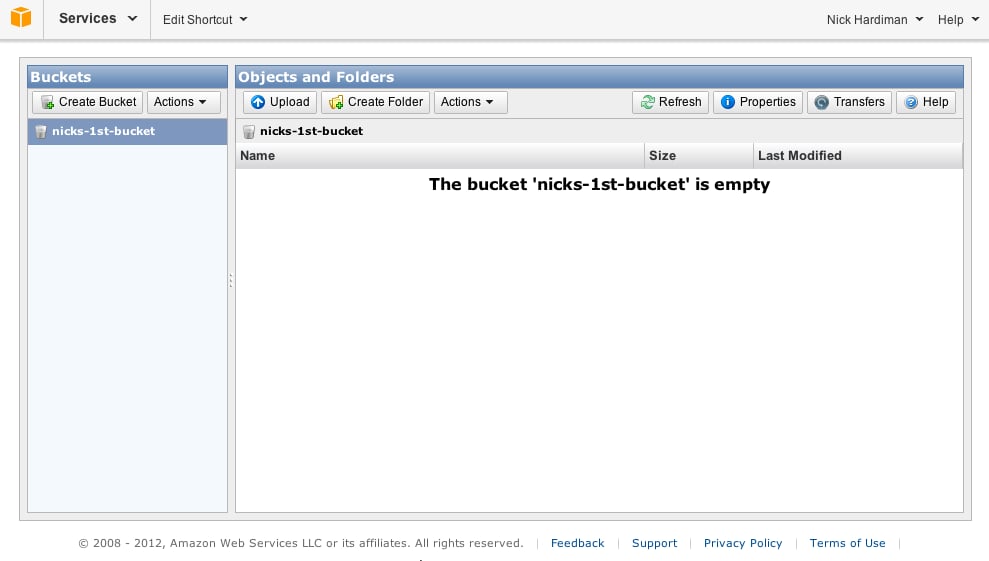
\n\tYour list of buckets appears in the left pane, and objects in a bucket appear on the right.
\n
\n\tUse the Upload button to add an object to this bucket.
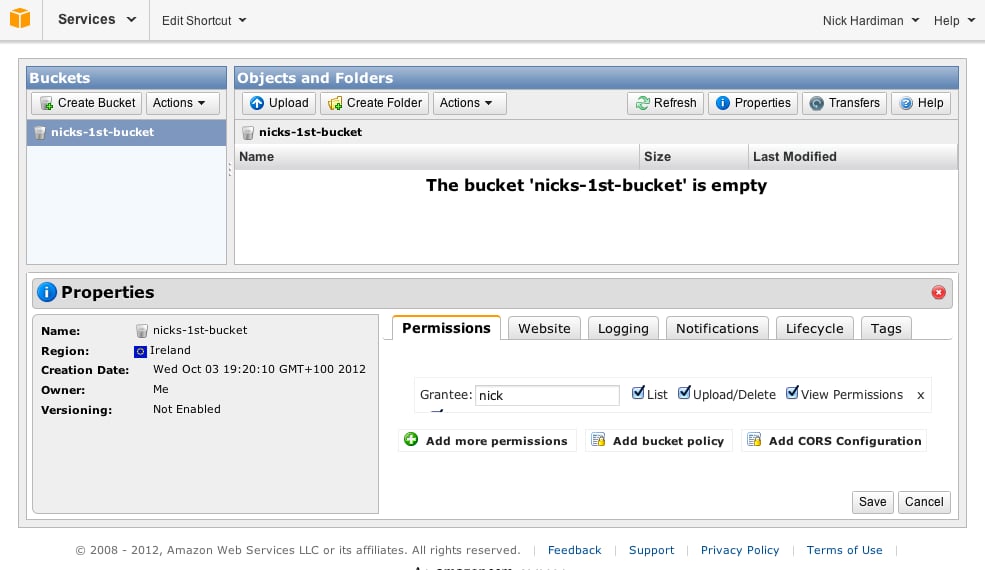
\n\tThe row of buttons are shortcuts for S3 actions. The Properties button opens a third pane in this AWS management console window.
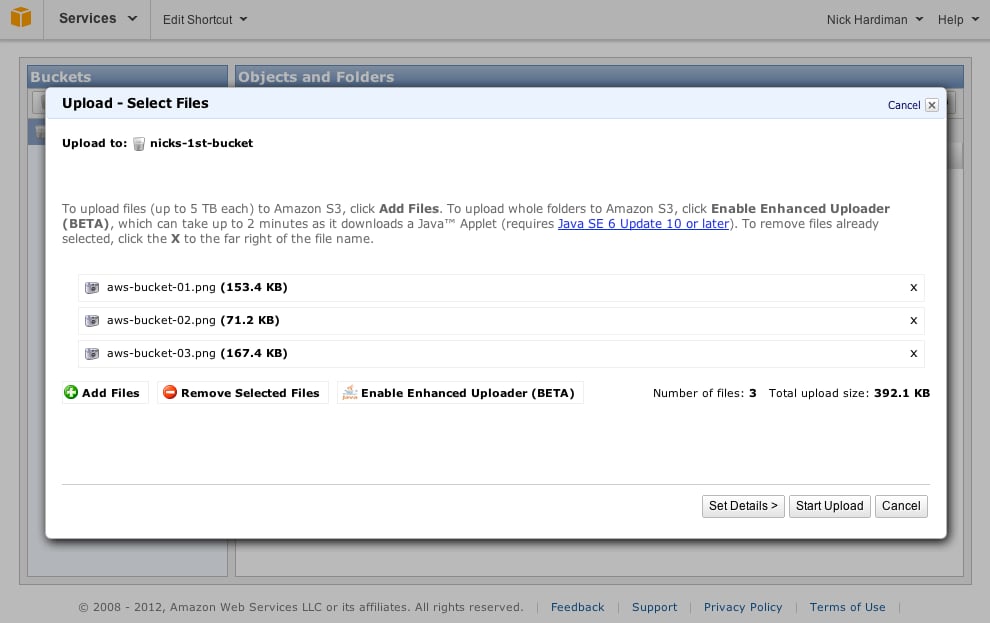
\n\tUse S3’s Upload window to pick objects for your bucket.
\n
\n\tThe Add Files button opens a file browser, to help you find what to upload from your computer to AWS S3.
\n
\n\tThe Start Upload button closes this Upload window and copies your files.
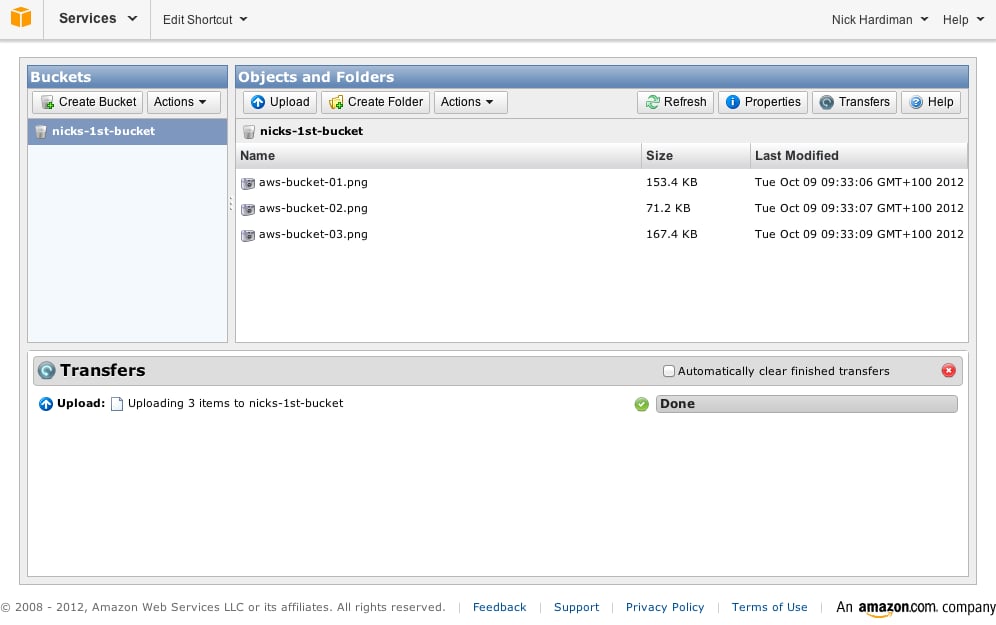
\n\tMessages about upload progress appear in AWS S3’s Transfers pane.

\n\tThe transfer pane displays upload speed. Copying a large file from your computer to S3 is usually quick using an business connection and slow using a domestic connection.
\n
\n\tThis 4GB virtual machine file is being uploaded using a domestic ADSL link. This file will take many hours to copy.
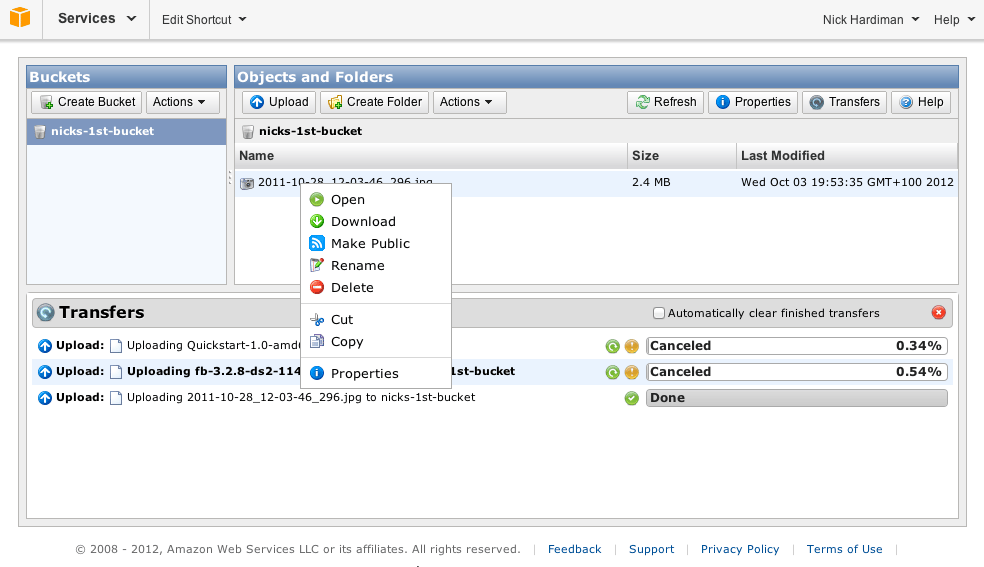
\n\tThe Actions menu helps you control your S3 objects. The menu pops up when you click the Actions button and when you right-click an object (or Ctrl-click using Mac OS X).
\n
\n\tIn addition to the Actions menu and a few buttons, there are other control shortcuts dotted around the console. File uploads can be paused and resumed using icons in the Transfers pane.
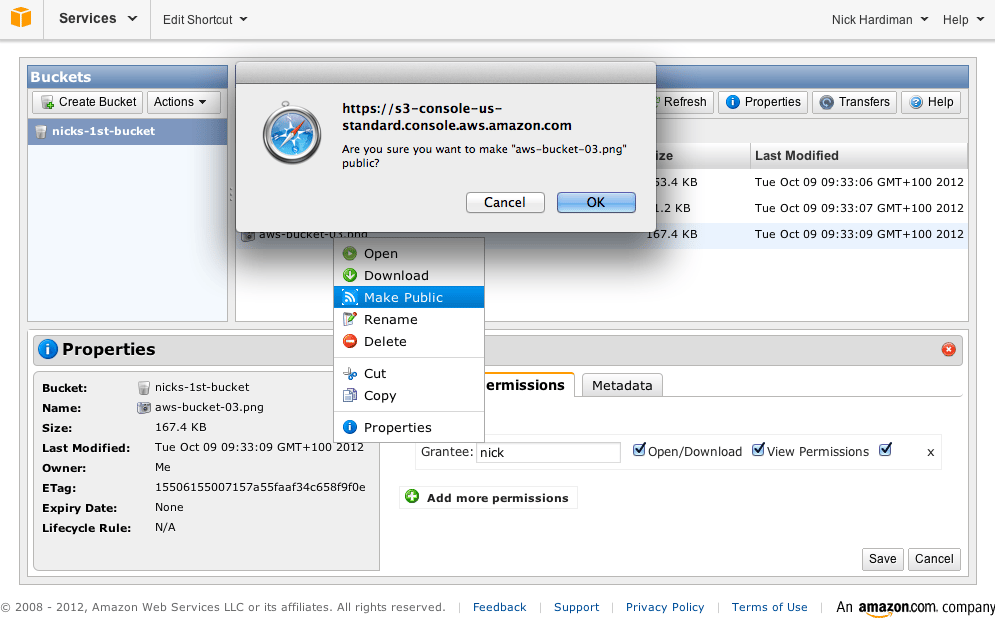
\n\tMake an object public to share it with the world.
\n
\n\tCheck who can do what by looking at the Permissions tab. By default objects are private. The only Grantee is you – no-one else has access.
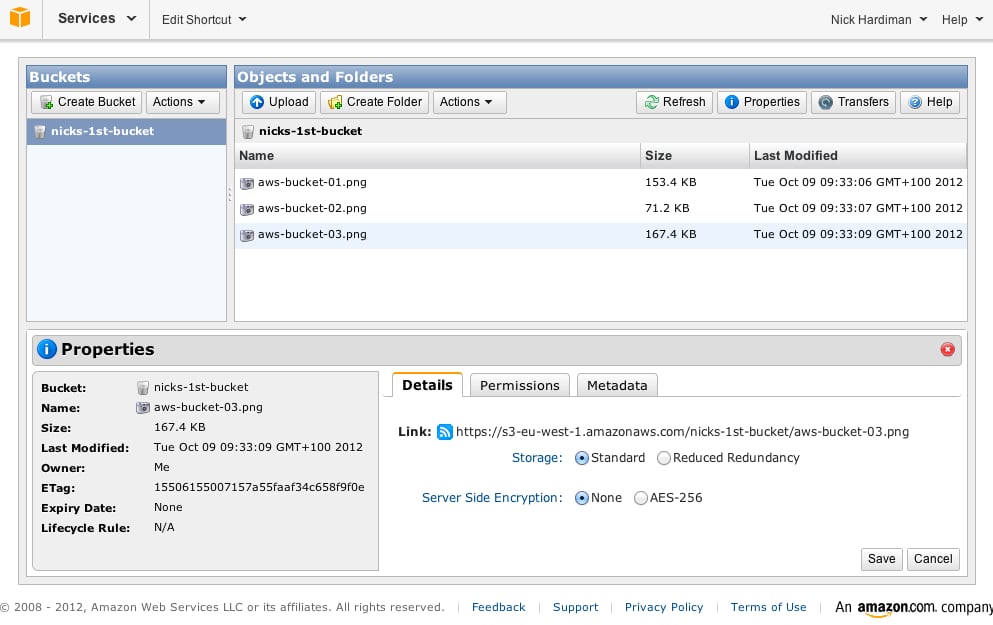
\n\tThe URL for the shared object is displayed in the Details tab. It looks something like this: https://s3-my-region.amazonaws.com/my-bucket/my-object.
\n
\n\tClick this link to test the download (to make sure you don’t get an Access Denied message) then pass it on to others.
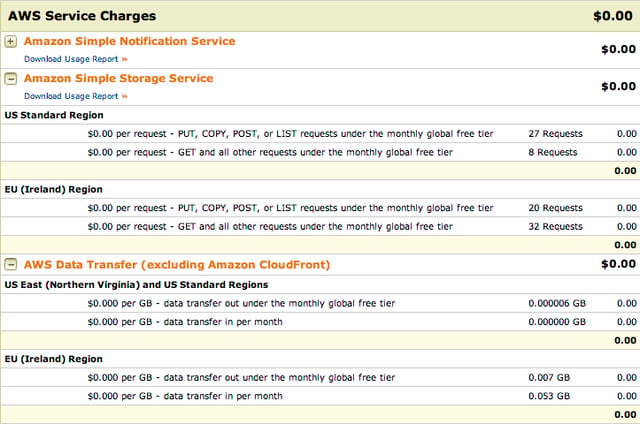
\n\tYour account activity shows how much you will be charged.
\n
\n\tAWS uses a freemium marketing model \u2013 if your activity all falls within their free tier, you won’t pay anything.
\n
\n\tClean up your S3 account by deleting old objects and buckets. And keep an eye on your bill \u2013 you don’t want any nasty surprises just because people like your files.

Nick Hardiman builds and maintains the infrastructure required to run Internet services such as the web. Nick deals with the lower layers of the Internet - the machines, networks, operating systems and applications. Nick's job stops there and he hands over to the designers and developers who build the top layer that customers use.


