\n\tThis gallery is based on the post, “ Getting started with HP Cloud Storage,” by Nick Hardiman. See the post for more detailed steps.
\n
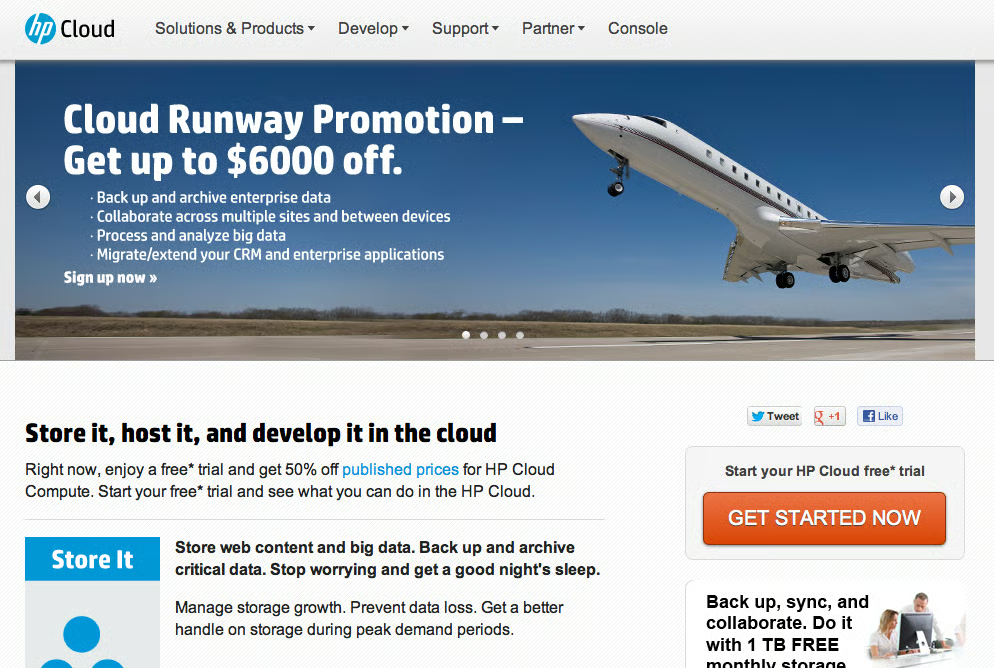
\n\tHP’s public cloud service landing page is at https://www.hpcloud.com.
\n
\n\tPress the big Get Started Now button to set up an HP Cloud account..
\n
\n\tClick the Console link top right to get to Login page.
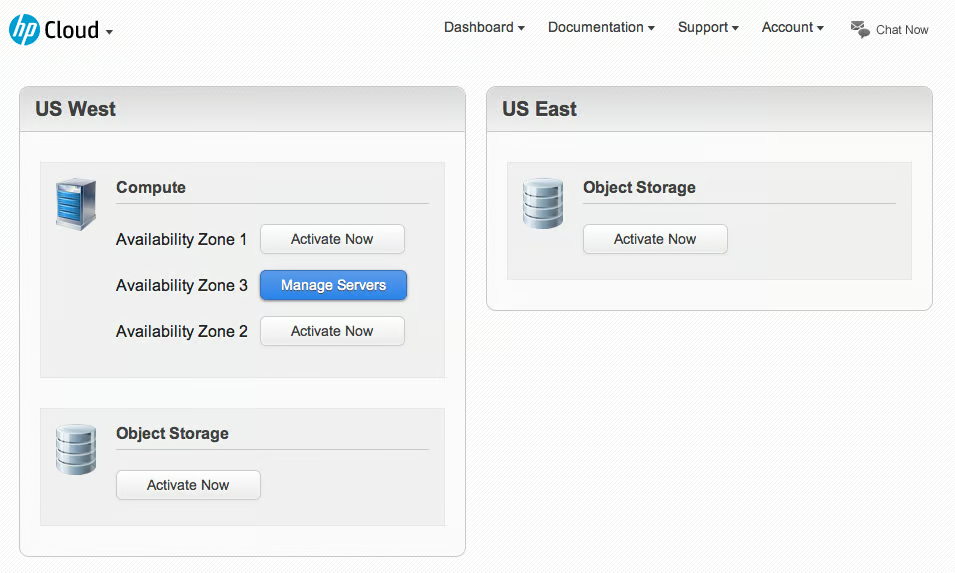
\n\tLog in at https://console.hpcloud.com/login to get to the dashboard.
\n
\n\tOne of the compute availability zones is activated. Look at the HP Cloud compute image gallery to make your own virtual machine.
\n
\n\tClick The Object Storage Activate Now button. An Activating… message appears, then the storage dashboard appears.
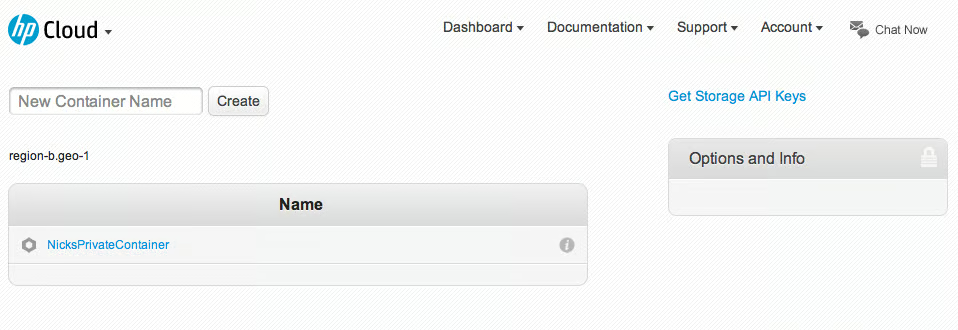
\n\tCreate a name for your new container, type your name in and click the Create button. You get your first line in the container list.
\n
\n\tClick the i information icon for container options: Make public, Activate CDN, and Delete.
\n
\n\tClick the container’s name for object options.
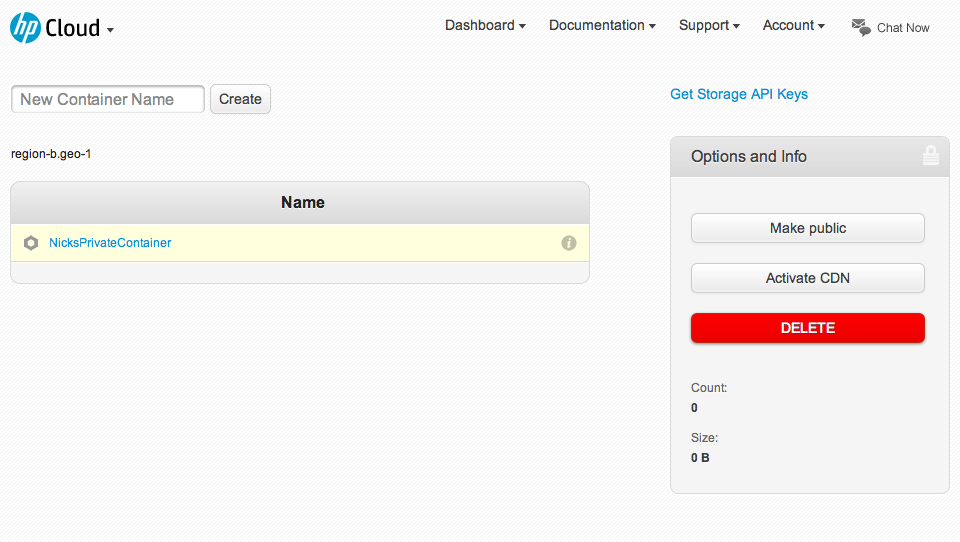
\n\tA container is private by default. No-one else can see the files you upload.
\n
\n\tUse the Make public button to let the world get your objects.
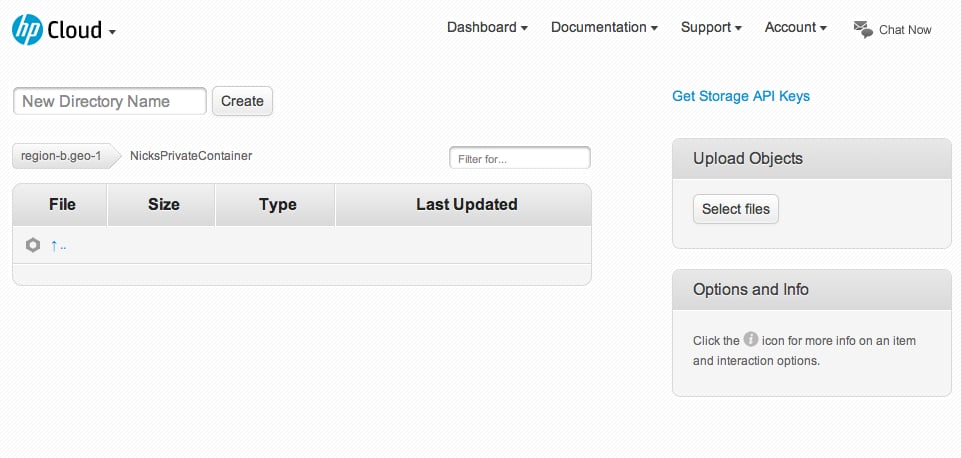
\n\tUse the Select files button to open a file browser on your computer.
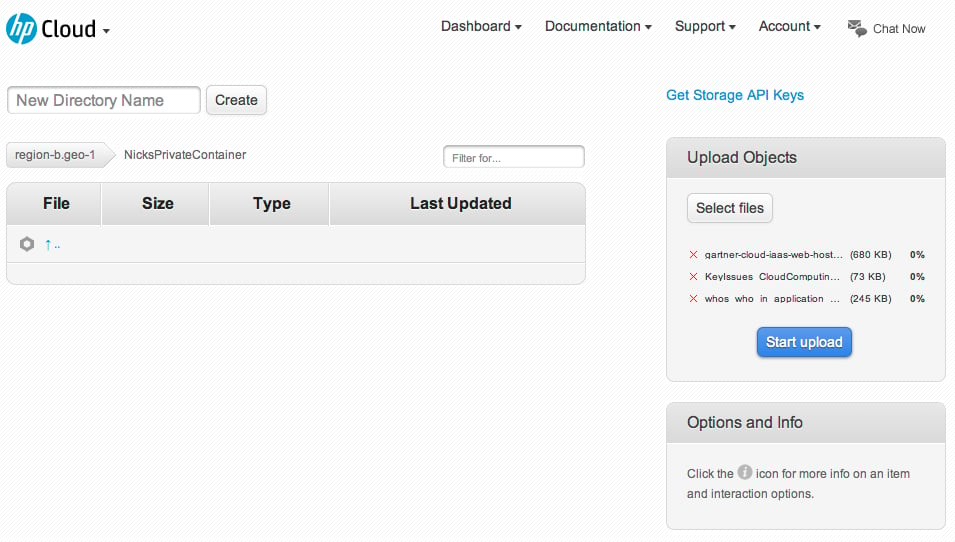
\n\tChoosing files is not the same as uploading files. You can delete some files from the upload list and add others.
\n
\n\tWhen you are ready, hit the Start upload button.
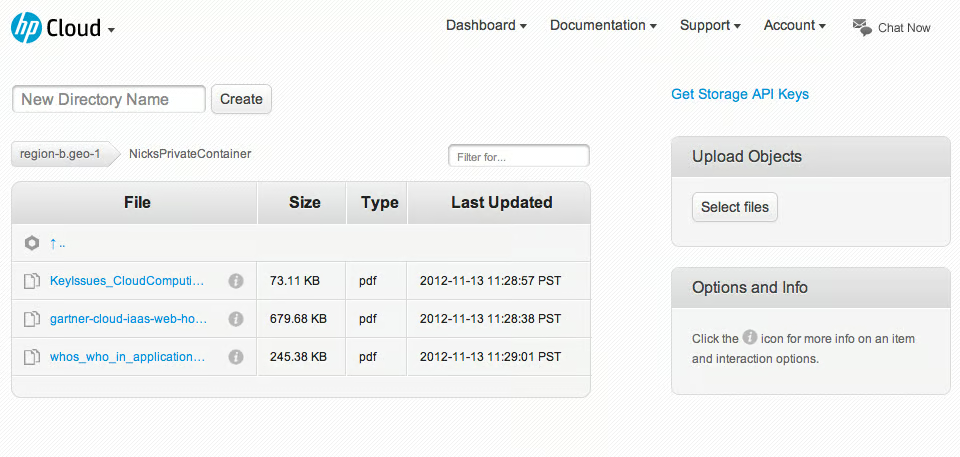
\n\tUploaded files appear in the list.
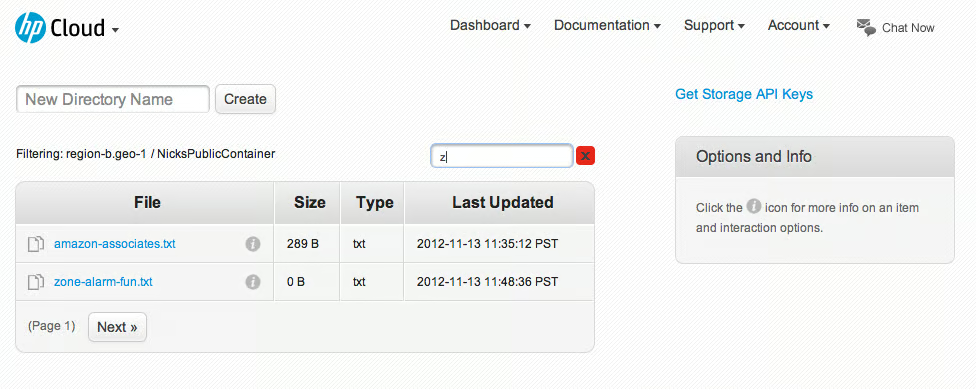
\n\tIf you uploaded hundreds of files to your container, the filter text box comes in handy.
\n
\n\tType in characters and the control panel displays matching names from your file list.
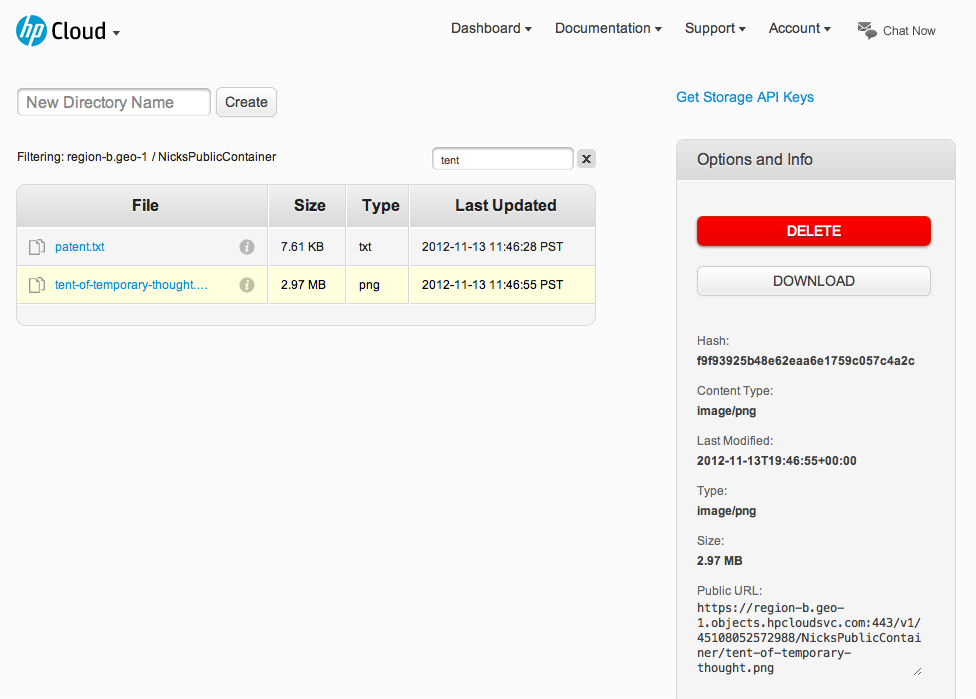
\n\tIf you make a container public, each file can be downloaded by anyone.
\n
\n\tThe public URL of a file looks something like this.
\n
\n\thttps://region-b.geo-1.objects.hpcloudsvc.com/v1/45108052572988/NicksPublicContainer/my-picture.png

Nick Hardiman builds and maintains the infrastructure required to run Internet services such as the web. Nick deals with the lower layers of the Internet - the machines, networks, operating systems and applications. Nick's job stops there and he hands over to the designers and developers who build the top layer that customers use.


