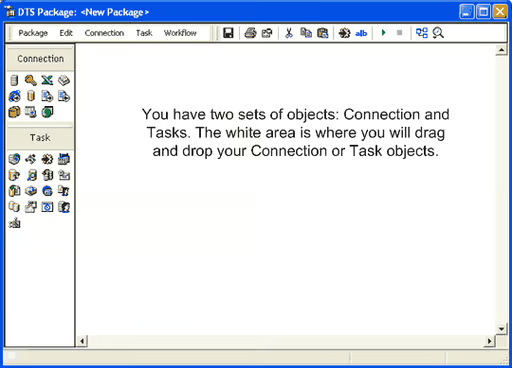
DTS is a set of related tools that enable you to manipulate or transform data from various sources. To create a DTS package, you can use the DTS wizards to move data. You can also use the more advanced DTS Designer, which lets you create a multitude of packages and workflows. You can connect to a data store, create tasks that allow you to FTP data, and create your own tasks using a scripting language. Adding DTS to your repertoire will bring a whole new dimension to your skill set.
In this screenshot gallery, Stephen Warren shows you how to customize data transfers with SQL Server and DTS.
To access the DTS Designer, open Enterprise Manager from the Start Menu, right-click on Data Transformation Services, and choose New Package.
Click each image for a full size version.
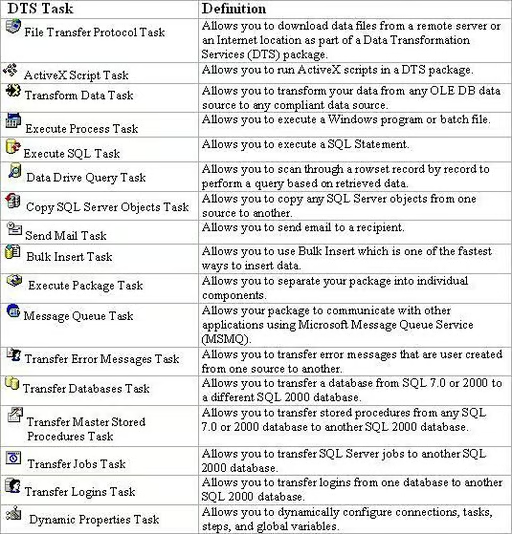
There are 17 task options to choose from.
Let’s create a package that will do the following:
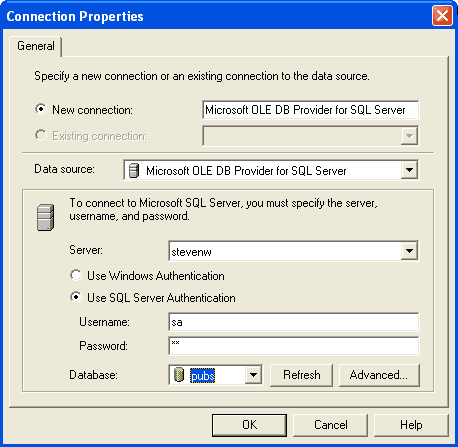
First, open the DTS Designer and add the Microsoft OLE DB Provider For SQL Server connection. Specify the pubs database and the authentication method.
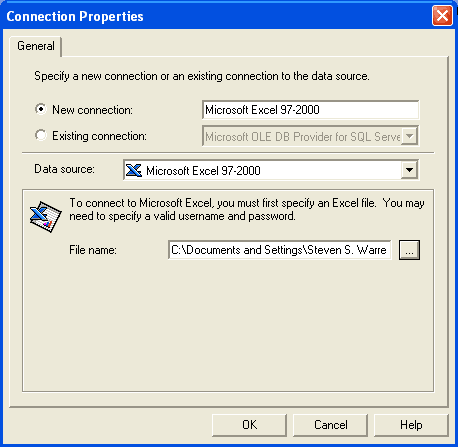
Next, choose Microsoft Excel 97-2000 and specify the Excel document.
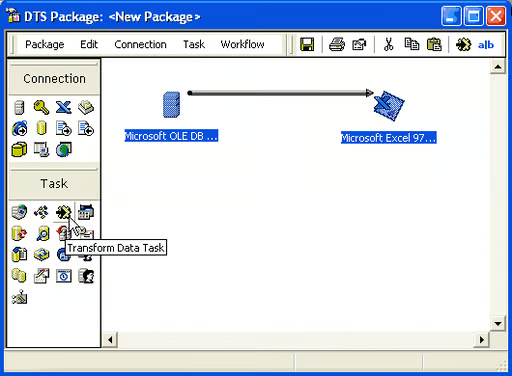
Once you have created your source and destination, hold down the [Ctrl] key and select both the OLE DB and the Excel connections. Then, choose the Transform Data Task.
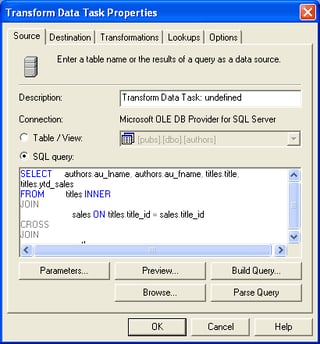
The DTS Designer will present the Transform Data Task Properties dialog box, where you can build your query.
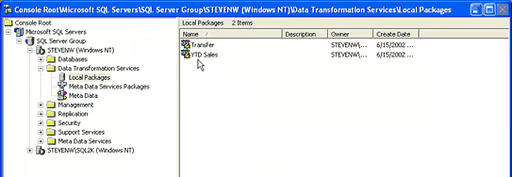
You can choose the Destination tab to view your table and the Transformations tab to define the transformation between your source database and your destination database. When you are finished, click OK and save your package by clicking the Save button on the toolbar. Enter the name and location of the package and click OK. Now you are ready to view your packages and test them. To do this, open Enterprise Manager and expand Data Transformation Services. Choose Local Packages, and right-click and execute the package.
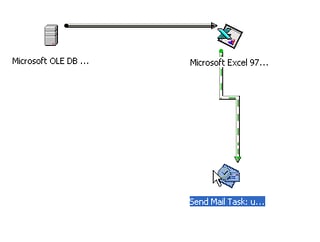
You can take this example one step further by adding a Send Mail task so that every time you run the package, it sends the YTD spreadsheet to the appropriate managers.
Bill Detwiler is the Editor for Technical Content and Ecosystem at Celonis. He is the former Editor in Chief of TechRepublic and previous host of TechRepublic's Dynamic Developer podcast and Cracking Open, CNET and TechRepublic's popular online show. Previously, Bill was an IT manager in the social research and energy industries. He has bachelor's and master's degrees from the University of Louisville, where he has also lectured on computer crime and crime prevention.


