\n\tDespite the Microsoft Windows 7 graphical user interface, with its advanced features like Snap, Shake, and Peek, there are still plenty of good reasons to use the command prompt. If you find yourself using the command prompt for several different tasks, you may want to take a few minutes to customize it. By adjusting the font, screen size, and background color, you can make several versions of the command prompt environment, thereby associating each specific command prompt shortcut with each specific task.
\n\t
\n\tCreate the shortcut
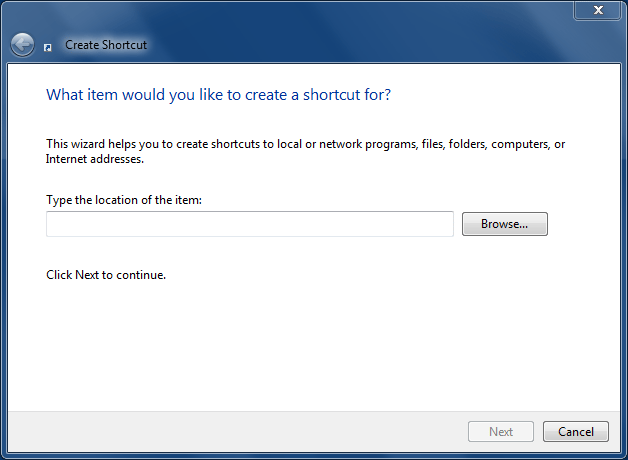
\n\tThe customization is accomplished by adjust property settings located in a Windows shortcut. The first step is to create a command prompt shortcut. There are several ways to do this, but for our purposes we’ll use the direct method.
\n\t
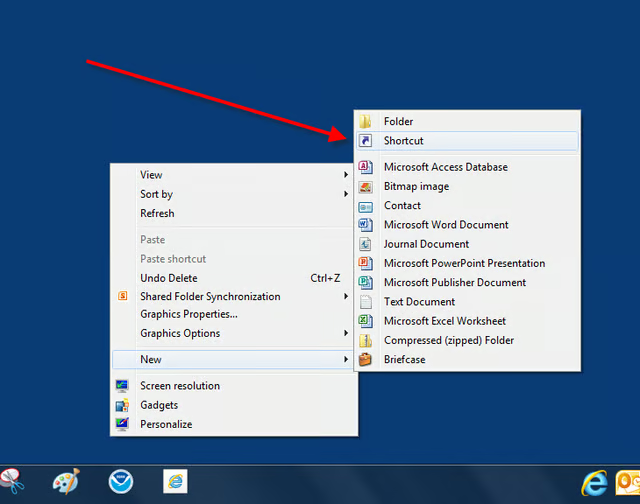
\n\tRight-click on any blank part of the Windows 7 Desktop and navigate to the New | Shortcut menu item.
\n\t
\n\tThis gallery is also available as a TechRepublic blog post and download. The gallery was orginally published in October 2010. Image created by Mark Kaelin for TechRepublic.
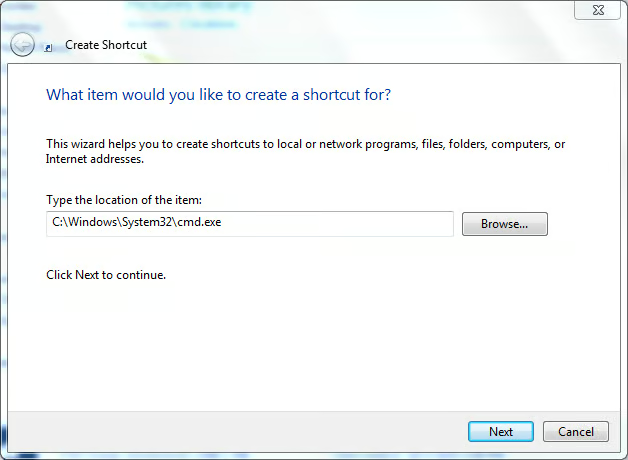
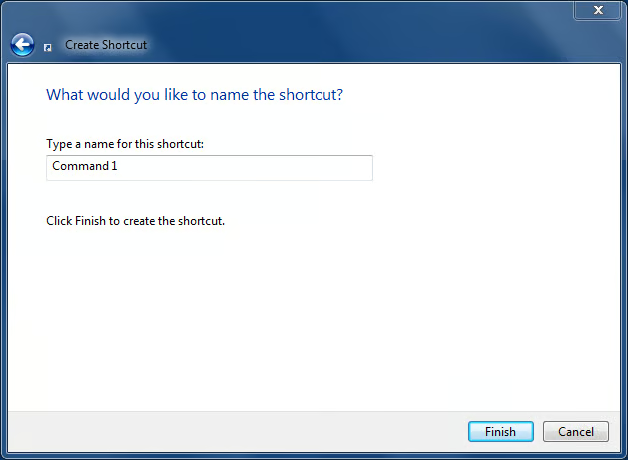
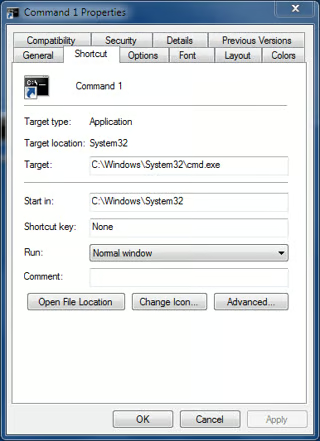
There is now a new Command 1 shortcut on the Windows Desktop. Right-click that new shortcut and navigate to the Properties menu item to get the Properties screen.
This gallery is also available as a TechRepublic blog post and download. Image created by Mark Kaelin for TechRepublic.
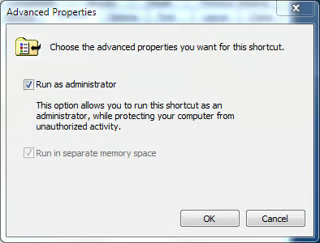
Many times you need to run a command prompt with administrative privileges. You can make your customized shortcut run as administrator every time by clicking the Advanced button under the Shortcut tab and clicking the appropriate checkbox as shown. Click OK to put it into effect.
This gallery is also available as a TechRepublic blog post and download. Image created by Mark Kaelin for TechRepublic.
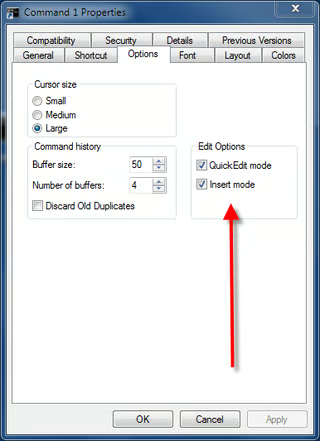
Under the Options tab, you can change the size of the command prompt cursor and change the two Edit Options checkboxes. Quick Edit mode allows you to paste text from the Windows clipboard into the command prompt without having to use the menu paste control. Insert mode, when checked, allows you to insert text at the cursor. If you unclick Insert mode, text will overwrite whatever text is there.
This gallery is also available as a TechRepublic blog post and download. Image created by Mark Kaelin for TechRepublic.
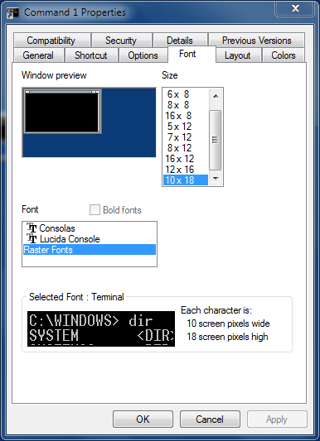
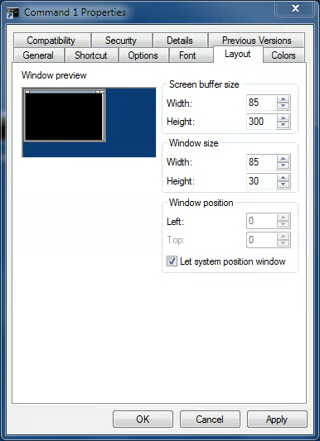
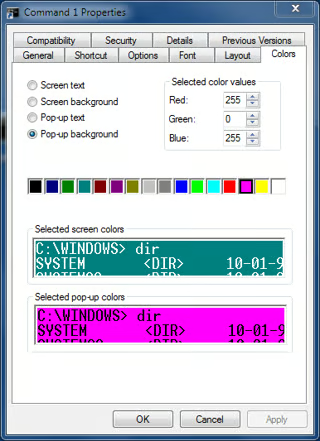
Under the Colors tab of the Shortcut Properties screen you can change the color scheme this particular command prompt will use. Note, the colors chosen are for instructional purposes only.
This gallery is also available as a TechRepublic blog post and download. Image created by Mark Kaelin for TechRepublic.
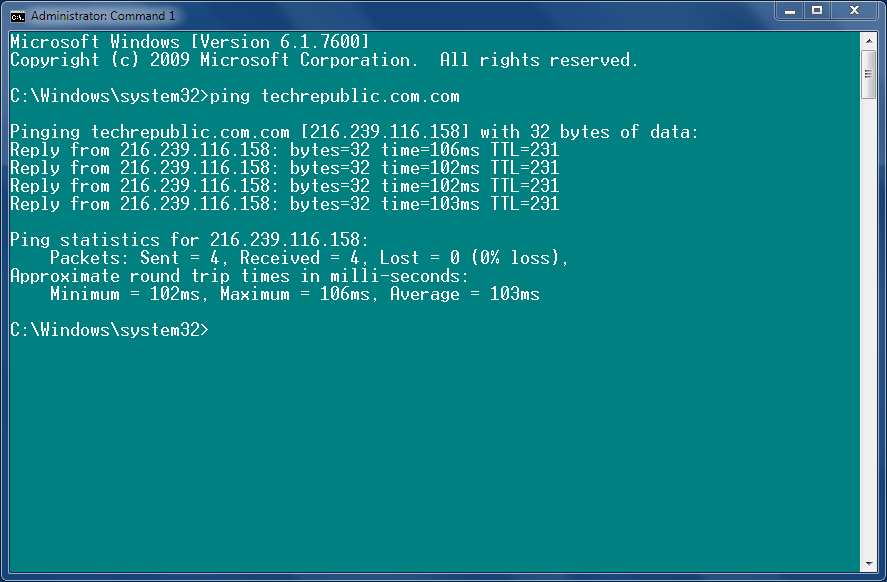
Click OK when you have all of the configuration settings the way you want them. My settings are a bit of an exaggeration, but you get the idea. By using a specific combination of Properties settings you can establish a set of command prompt shortcuts, each with visible cues to help you keep track of which prompt is running and what task needs to be accomplished.
This gallery is also available as a TechRepublic blog post and download. Image created by Mark Kaelin for TechRepublic.

Mark W. Kaelin has been writing and editing stories about the information technology industry, software, hardware, gaming, finance, accounting, and technology geekdom for more than 30 years.


