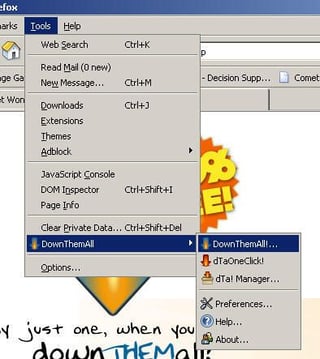
Using the DownThemAll (dTa) Mozilla Firefox extension, you can quickly and easily download multiple images and links from a Web page. In this gallery and related blog post, Bill Detwiler shows you why he thinks dTa is definitely the right tool for the job.
Once installed, you can quickly access DownThemAll through Firefox’s Tools dropdown menu.
Submitted by Bill Detwiler
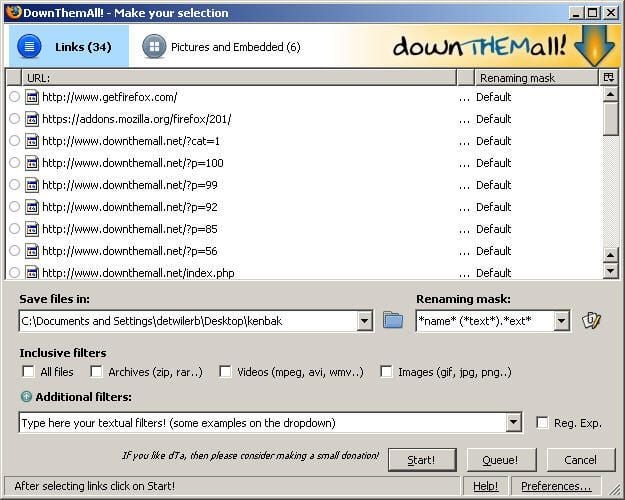
DownThemAll’s main window has two tabs–Links and Pictures and Embedded. Both funtion in the same way, letting you select the desired items to download, specify the target folder, apply any renaming options, and start the process.
Once dTa starts, it automatically analyzes the open Web page and creates a list of links, images, and embedded objects.
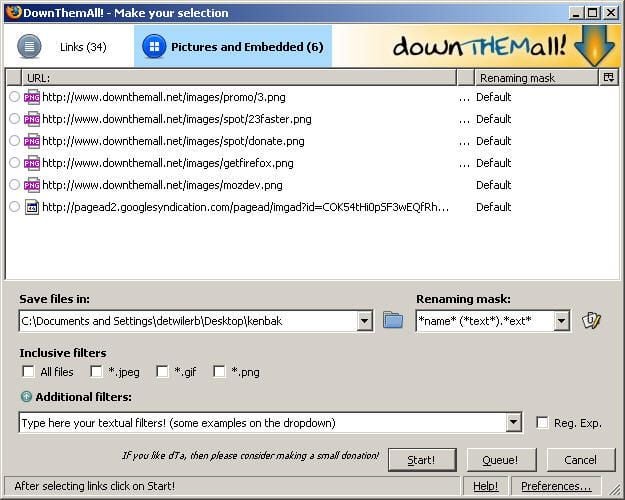
I use the Pictures and Embedded tab most often. With just a few clicks, I can download all the images on any Web page.
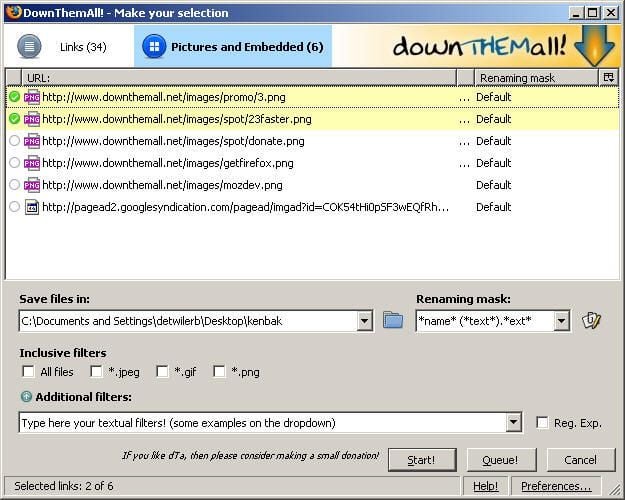
By clicking individual images you can mark them for retrieval.
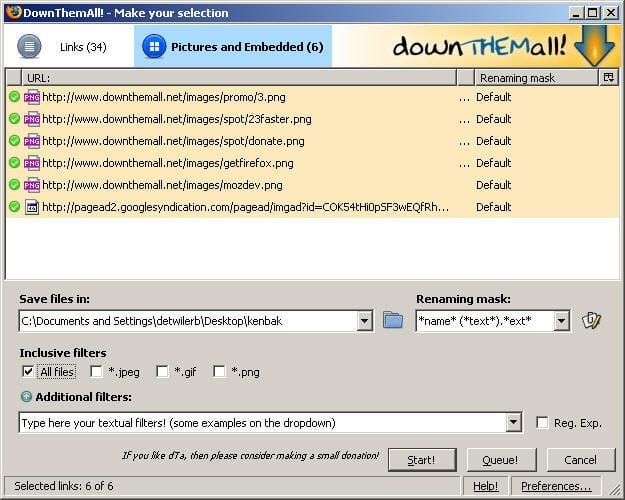
Checking the All files option will mark all detected images and embedded files. Using the other file extension check boxes, you can also select only .jpeg, .gif, or .png files.
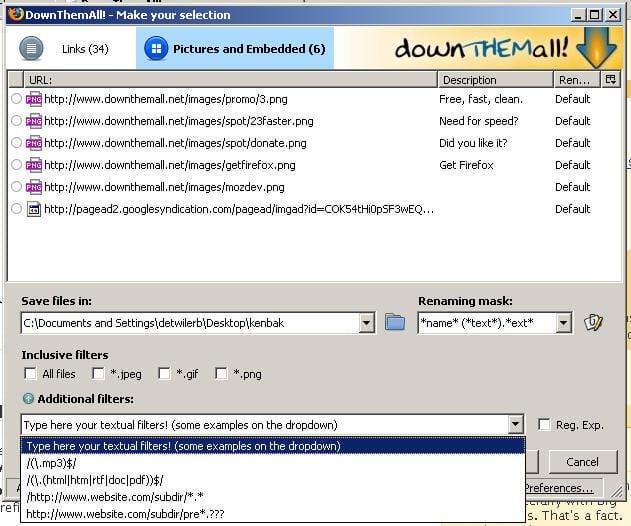
DownThemAll also allows you to select items using several canned or a custom text filter. This feature is handy for downloading multiple images/links with a common text string.
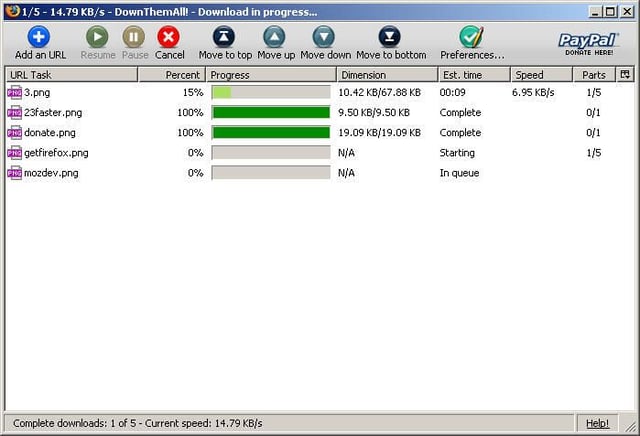
Once download process starts, the dTa! Manager opens and tracks the download progress of each file. You can pause and restart the download process, reorder individual downloads, or cancel the retrieval of some or all files.
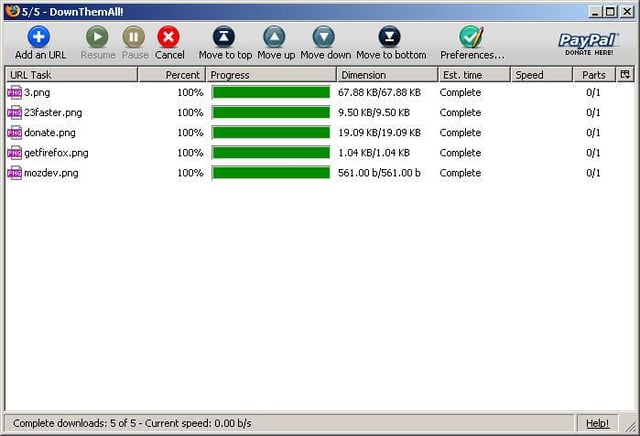
Here the DownThemAll Manager shows a completed set of downloads.
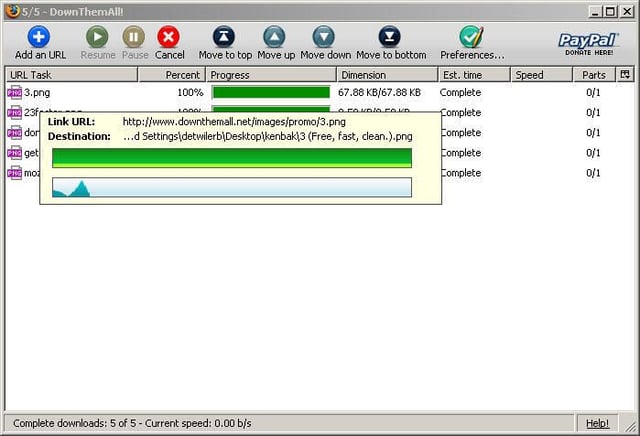
Mousing over each individual download will give you a little information about each file.
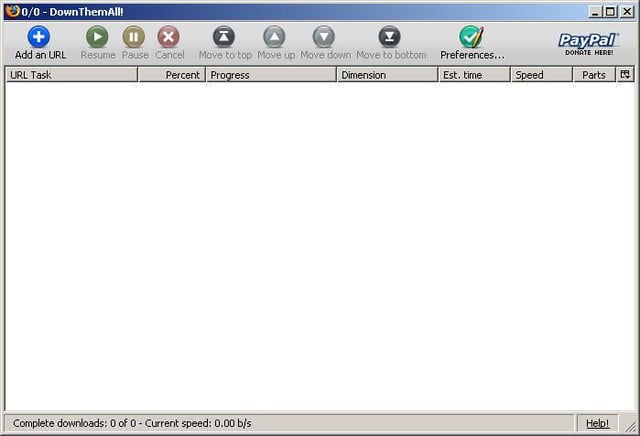
If you start the Download Manager directly from the DownThemAll dropdown menu, it will normally be empty–unless you have paused downloads waiting for retrieval or downloads in progress. You can also manually add a URL to target with DownThemAll.
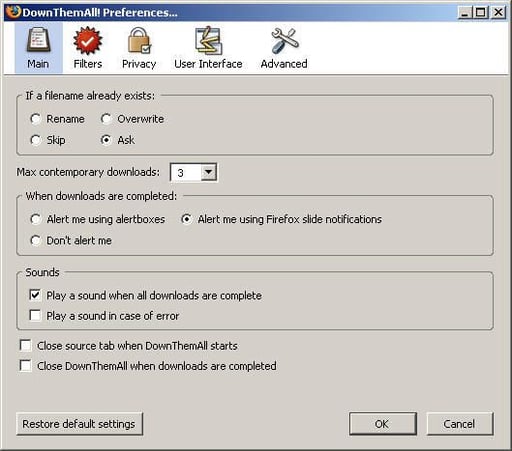
From the Main preferences windows, you can configure a variety of dTa options.
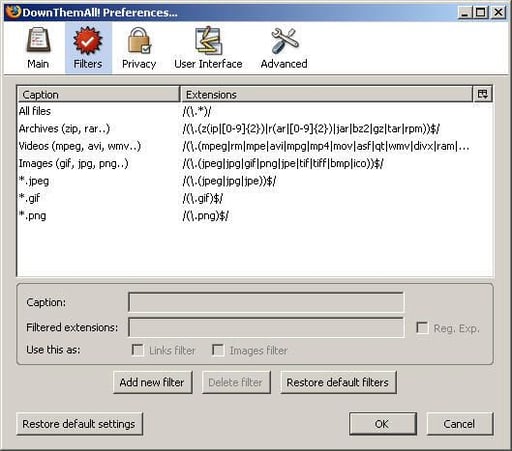
On the Filters window, you can create, edit, or delete filters used to select links and images from Web pages.
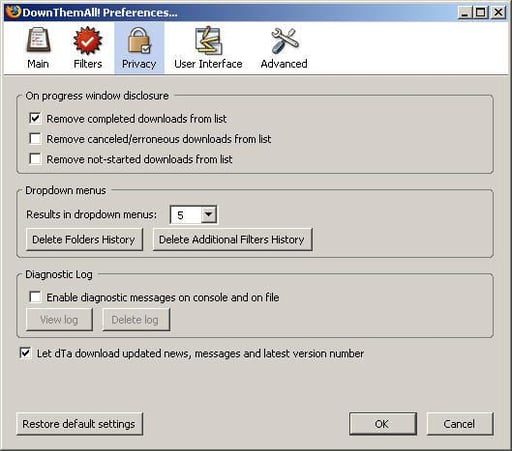
Through dTa’s Privacy settings you can manage how much information DownThemAll retains from sessions to session.
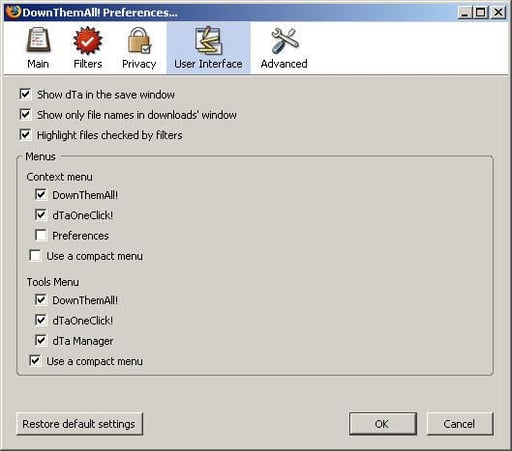
I’ve stuck with the default DownThemAll UI, but you can customize the dTa to fit your needs.
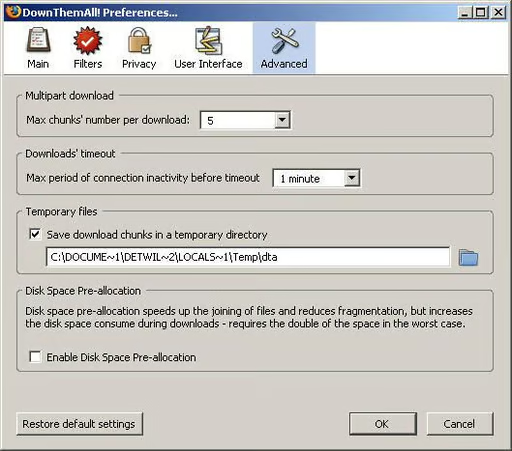
Under Advanced Preferences, you can configure dTa’s multipart download settings, timeout length, temp file location, and enable or disable disk space pre-allocation.
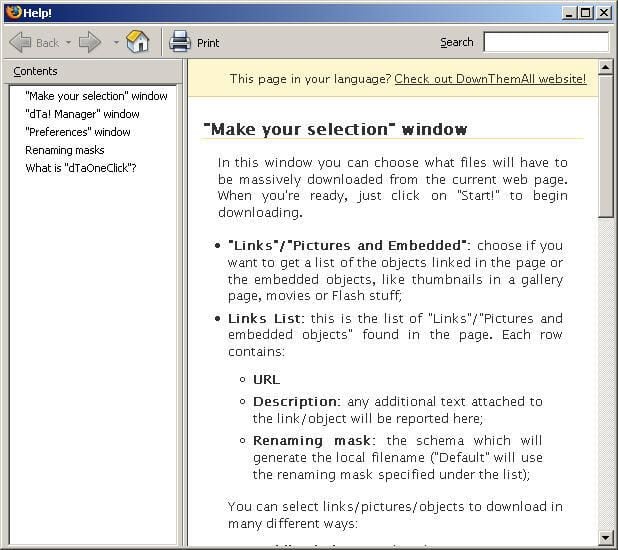
DownThemAll’s help file is limited but adequate.
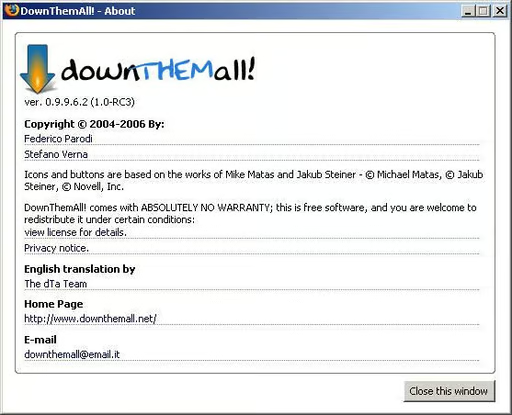
If you need additional DownThemAll support, you’ll find a link to the DownThemAll Web page on the About window.
Bill Detwiler is the Editor for Technical Content and Ecosystem at Celonis. He is the former Editor in Chief of TechRepublic and previous host of TechRepublic's Dynamic Developer podcast and Cracking Open, CNET and TechRepublic's popular online show. Previously, Bill was an IT manager in the social research and energy industries. He has bachelor's and master's degrees from the University of Louisville, where he has also lectured on computer crime and crime prevention.


