
\n\tThese days, it’s easy to add faces and expressions and gestures to your digital conversations with the help of video communications tools. Here are five apps you can use on PC, Mac, and a host of mobile devices.
\n
\n\tNote: If you’d prefer to view this information as a blog post, check out this entry in our Five Apps blog.
\n
\n\tPhoto: iStockphoto.com/bluebird13

\n\tIf you have a Google+ account, you can create a hangout where one or more of your friends can join you for a video chat. The whole thing is easy to set up and use (but a bit difficult to find, at first).
\n
\n\tStart by going to your Google+ page. In the Hangouts area on the right, click Start A Hangout. Specify whether you want to invite everyone in your circles or just selected people and then click Hang Out.
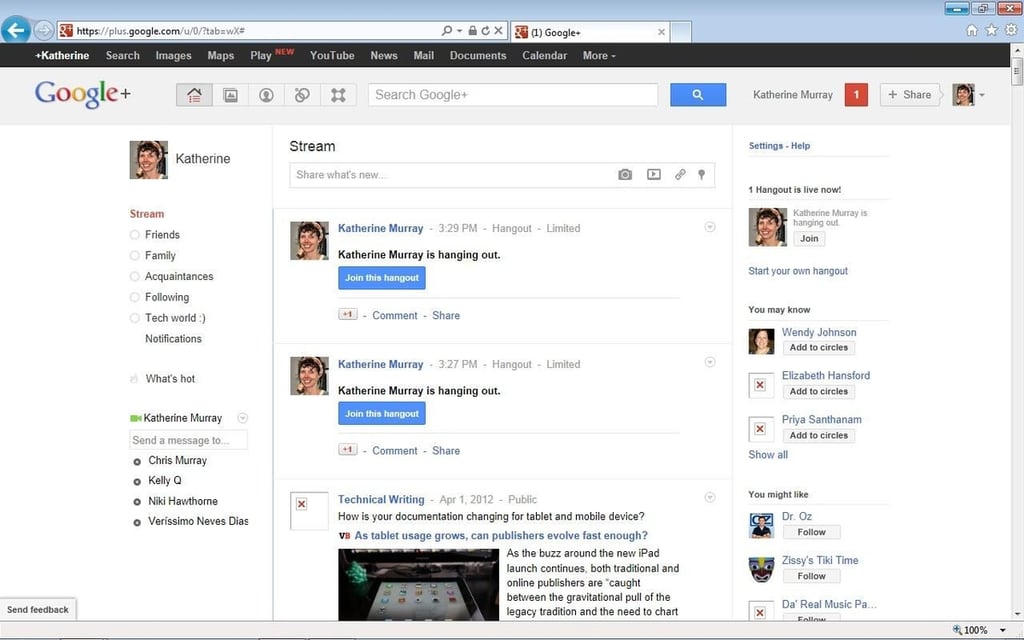
\n\tIf none of your contacts are playing around on Google+, you’ll see a sad little robot telling you the whole place is empty. But you can still send an invitation or two. When those folks log on to Google+, they’ll be notified that they have been invited to a hangout. Others in your circles can also see that you’re hanging out because it’s plastered all over your Google+ page.

\n\tTango is a popular video communications app that is similar in approach to Skype — free calls between mobile devices or between computers and phones, as long as you’ve downloaded and installed Tango. I have a Windows Phone and downloaded Tango, but unfortunately I couldn’t try out the video feature.
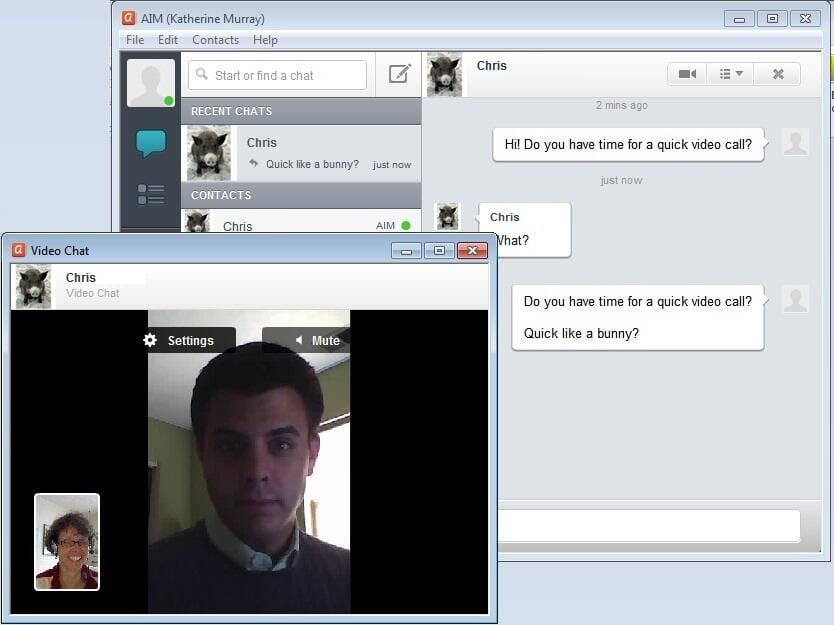
\n\tThe AIM chat service now pulls together all your contacts from a variety of places (like Facebook and Twitter) and coordinates your communications in one easy-to-track place. For video communications using your AIM account, it seems to be a passable service, although video isn’t its primary offering.
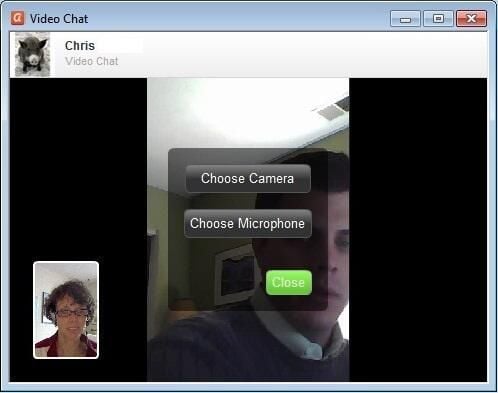
\n\tYou can start a chat session and click the video camera icon to open up a video call window. The rest is pretty straightforward. One odd thing here is that both my webcam and my microphone were turned off by default at first. So if others can’t see or hear you during your video call, click Settings and make sure both the camera and mic are active.
\n
\n\tYou can also use AIM’s Video Chat tool on the Web to have a quick video call without logging in anywhere or downloading the AIM client to your desktop. It’s pretty basic but does the trick when you want a fast face-to-face.

Katherine Murray is a technology writer and the author of more than 60 books on a variety of topics, ranging from small business technology to green computing to blogging to Microsoft Office 2010. Her most recent books include Microsoft Office 2010 Plain & Simple (Microsoft Press, 2010), Microsoft Word 2010 Plain & Simple (Microsoft Press, 2010), and Microsoft Word 2010 Inside Out (Microsoft Press, 2010).


