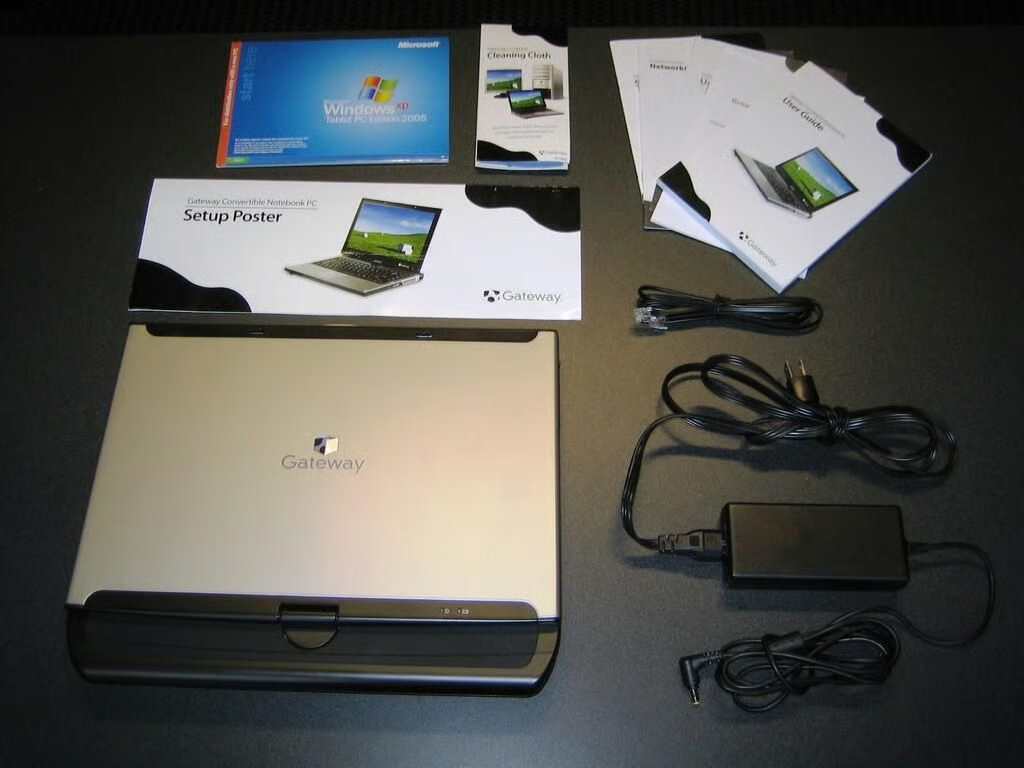
I used Gateway’s M280-E convertible tablet PC for several months. While I enjoyed the machine’s ample power and many useful features, this hefty notebook is far too heavy for my needs. As a frequent traveler and telecommuter, I need a laptop that balances portability and power. The M280-E definitely sacrifices portability for power.
By Bill Detwiler
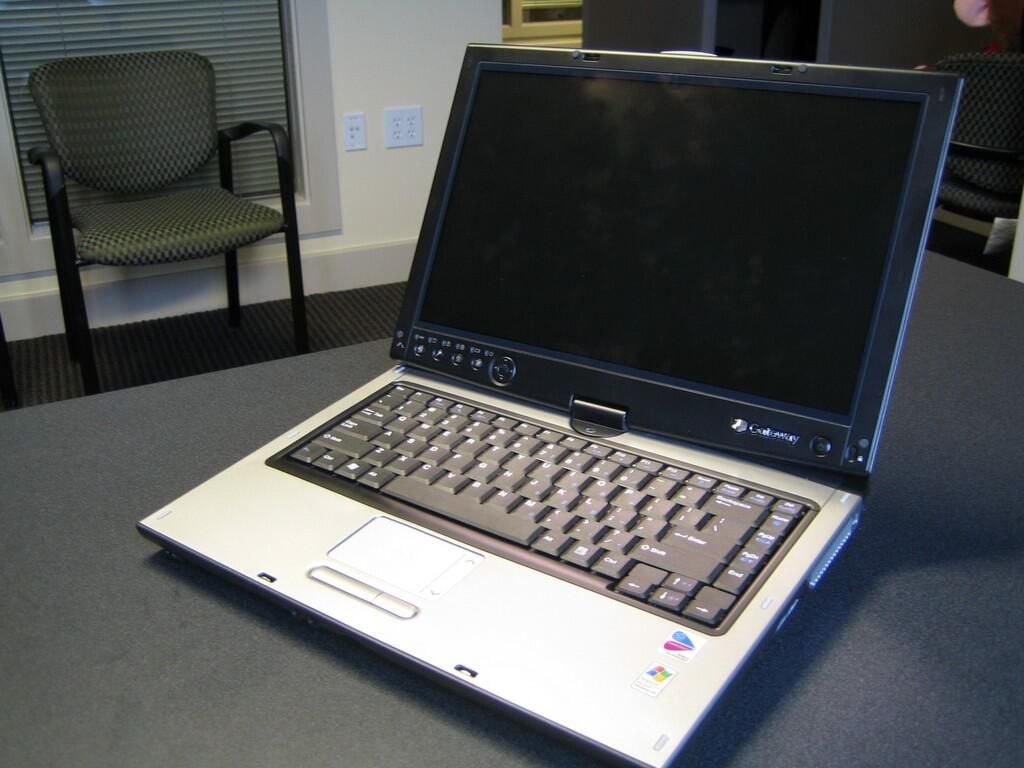
In September 2005, Gateway renamed many of its laptops depending on the target audience–consumer, small/medium business, or enterprise. The M280-E has since been reconfigured and as of this writing is offered as the M285-E.
Although the M285-E offers a newer Core 2 Duo processor, upgraded video adapter, and larger hard drive, the unit’s exterior and general functionality are the same. A well-equiped M285-E retails for $1579.00.
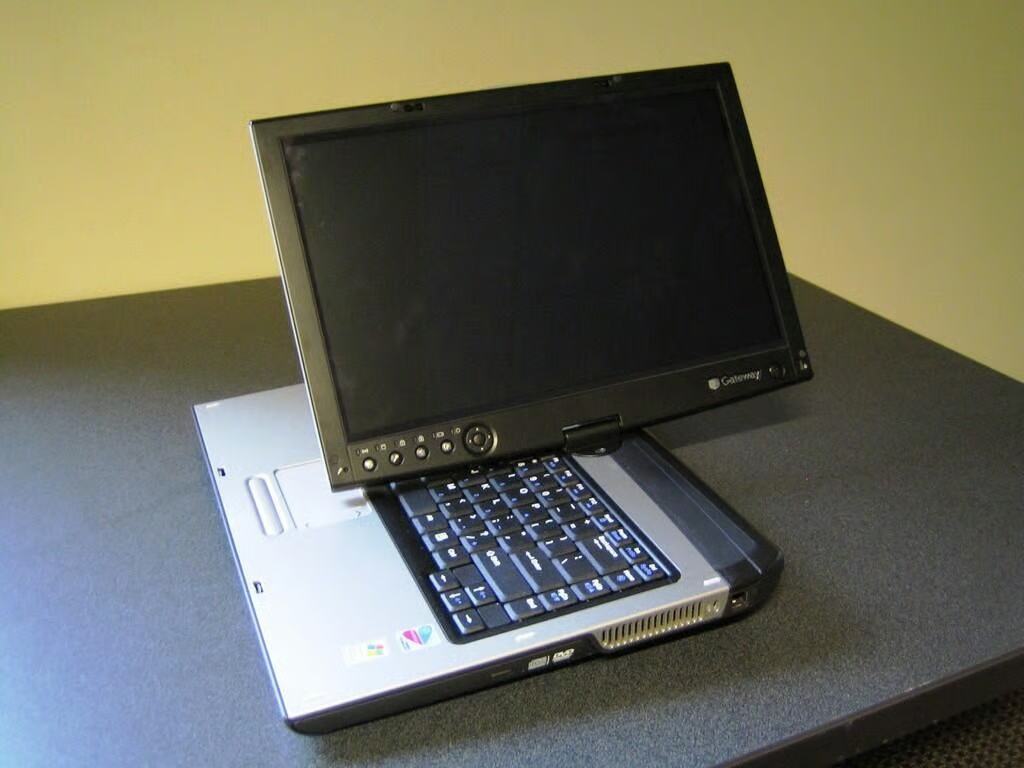
As a convertible, the M280-E can function a traditional laptop or tablet. I like convertibles better than pure tablets, as you get the best of both worlds.
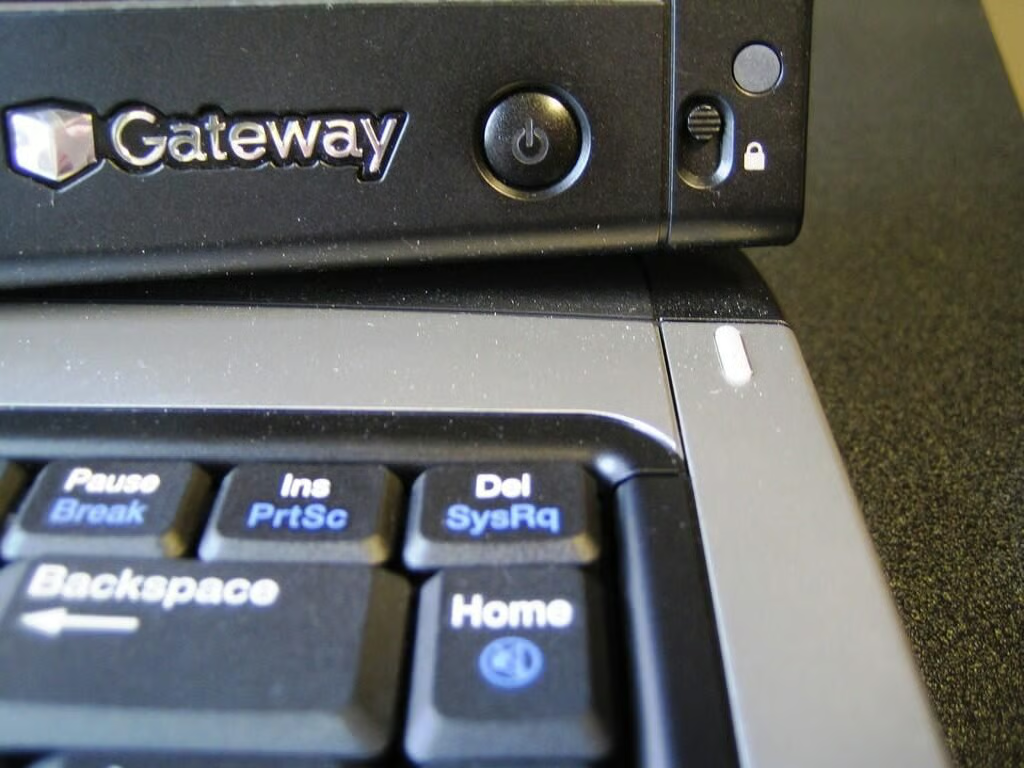
The power the button is located on the LCD panel’s bottom, left corner. Engaging the power button lock will prevent the M280-E from being accidently turned off when in tablet mode.
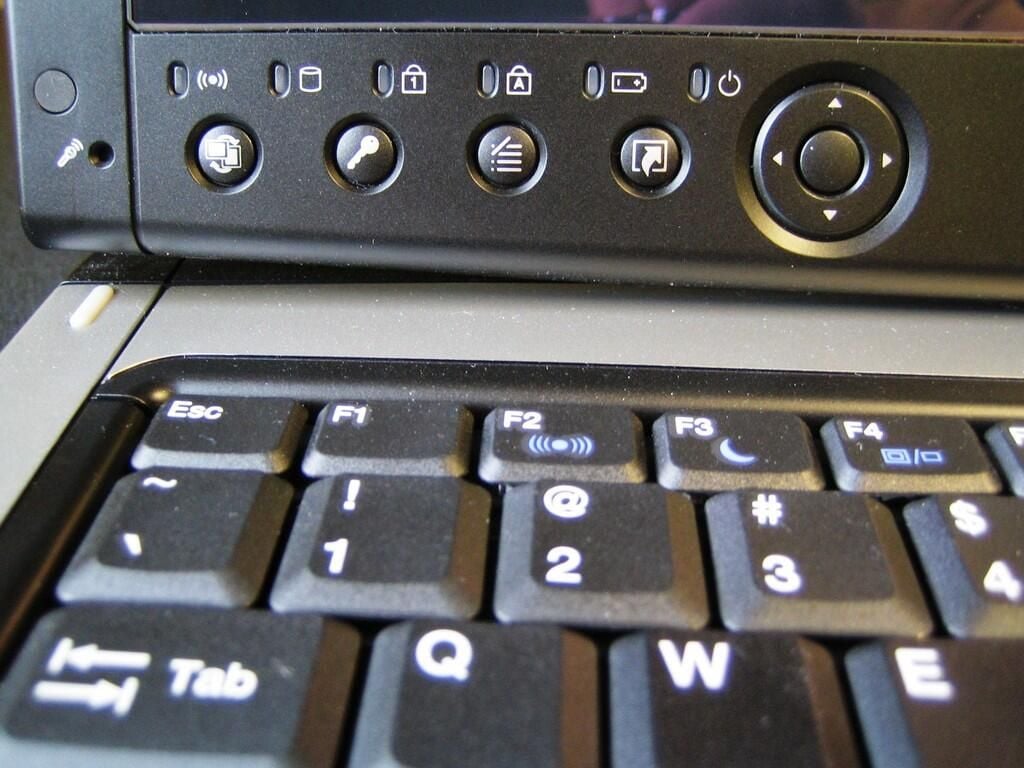
The wireless network, hard drive activity, Num lock, Caps lock, battery charge, and power lights are located on the LCD panel’s bottom, left corner.
Here, you will also find the M280-E’s conveniently-located tablet control buttons and the integrated microphone.
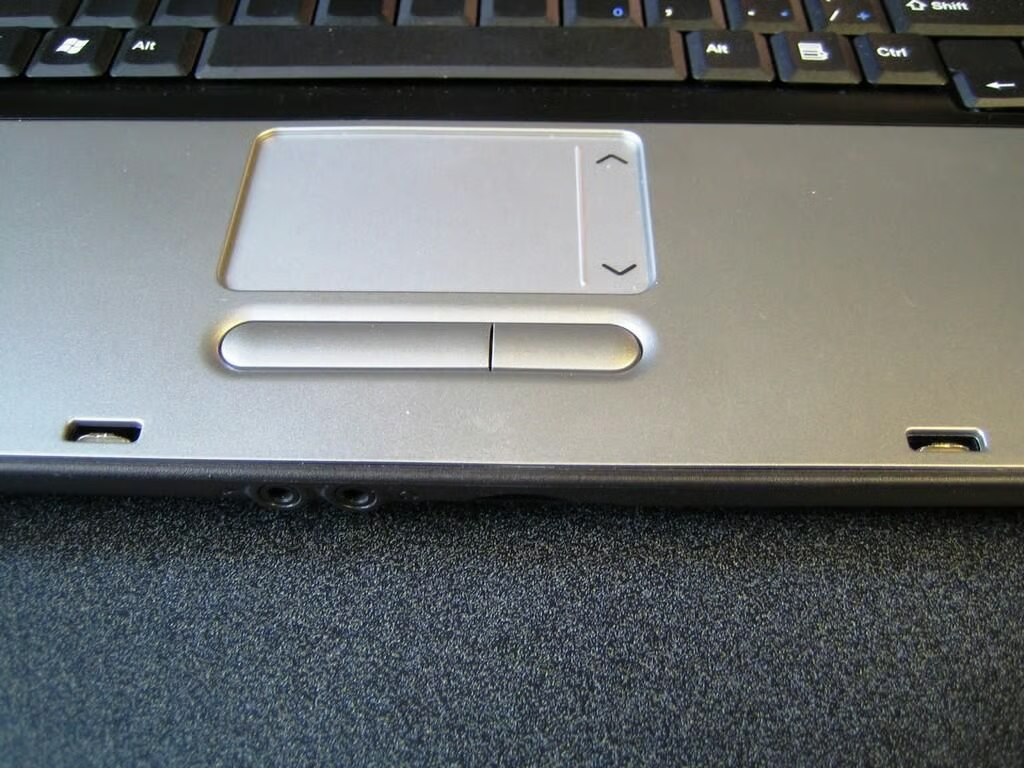
I don’t like touchpads. If I’m going to use a laptop for any length of time, I always connect a traditional mouse our trackball.
Despite my aversion, the M280-E’s EZ Pad touchpad worked well and provides an handy scroll zone on the right side.
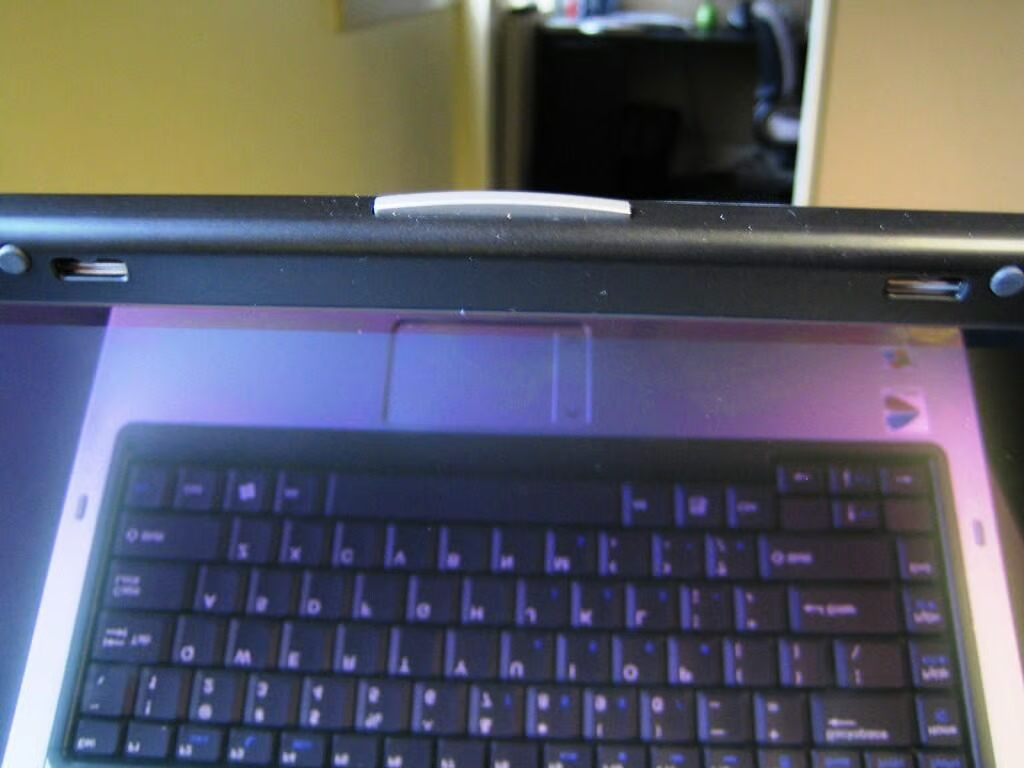
To open the M280-E, press the silver latch release on the front of the LCD panel.
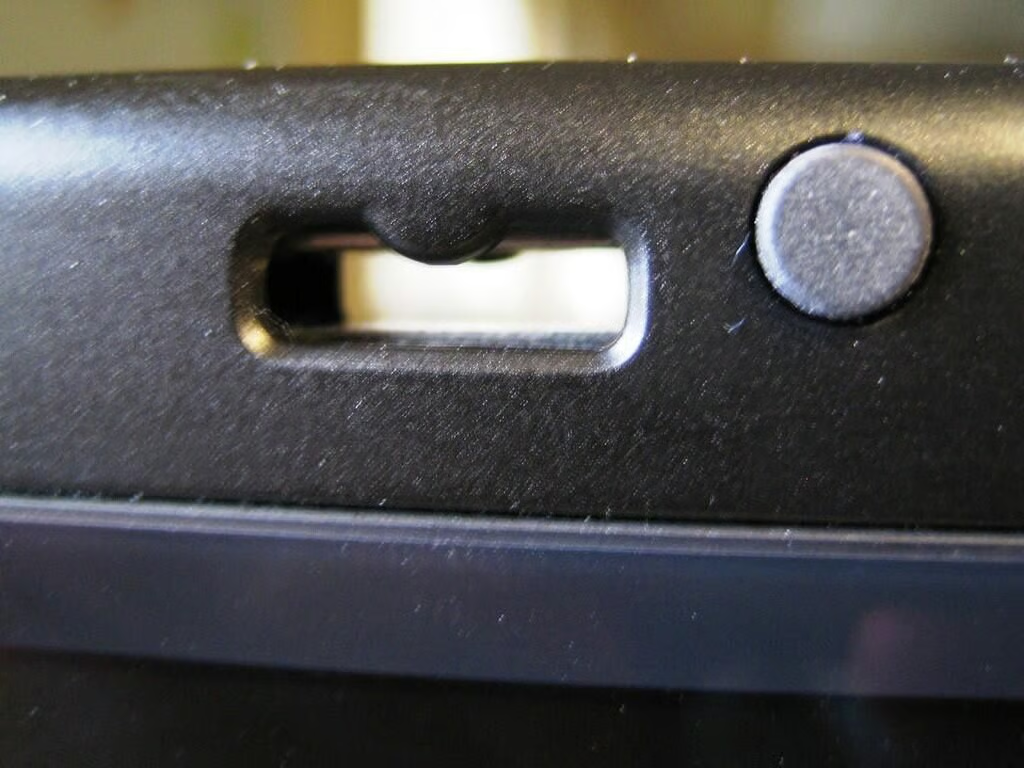
One either side of the LCD panel’s latch release are two holes, which contain magnets. The magents attrach the metal LCD panel latches on the M280-E’s case.
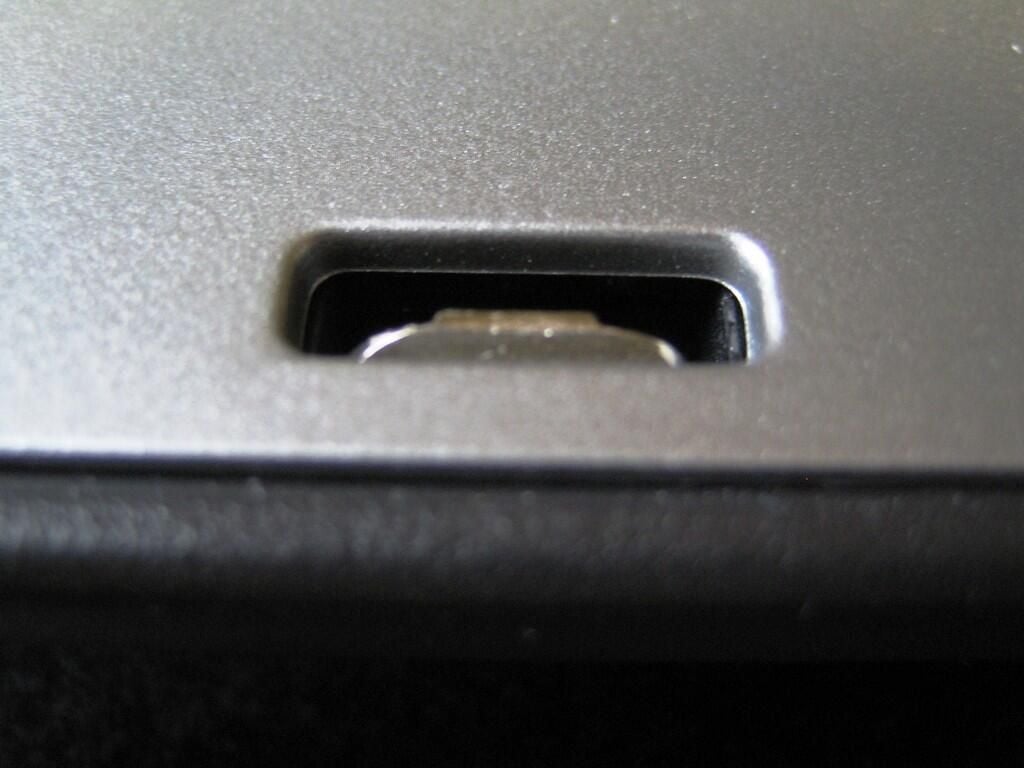
When you press the LCD panel against the case, two metal latches are pulled upward into the LCD panel, where they fasten the panel to the case.
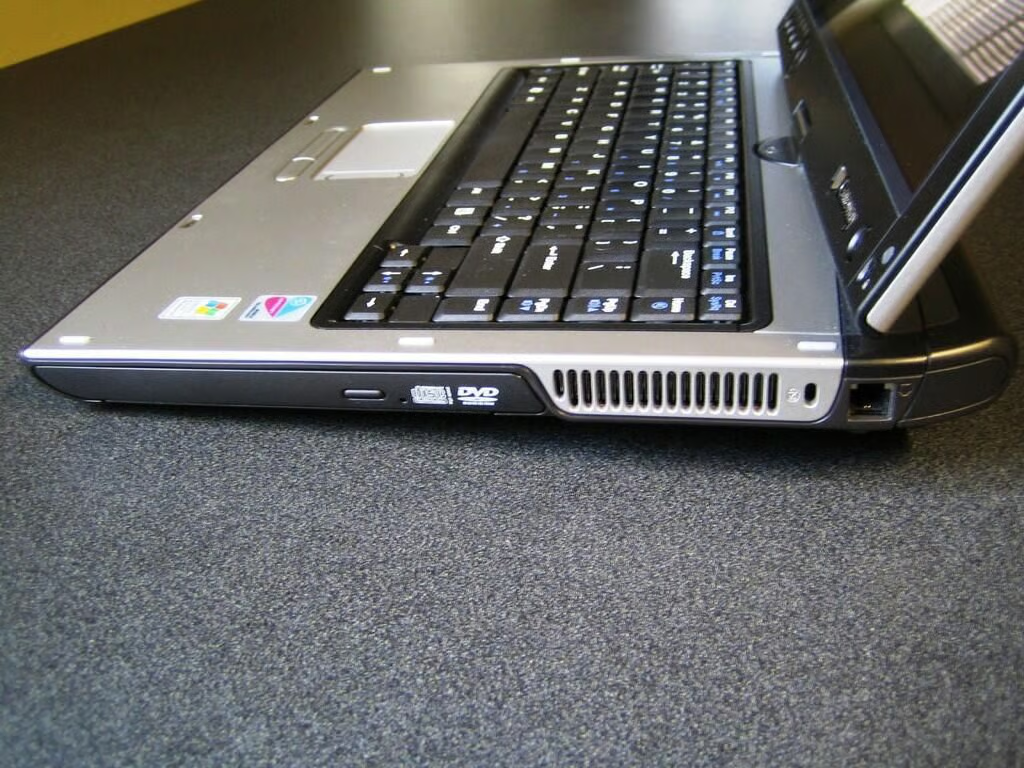
The M280-E’s right side contains the modular bay, ventialation fan, cable lock slot, and modem jack. The modular bay is used for a CD drive, DVD/CD-RW drive, multi-format DVD -RW drive or multibay battery. My M280-E test unit had the 8X Multi-Format Double Layer DVD Writer.
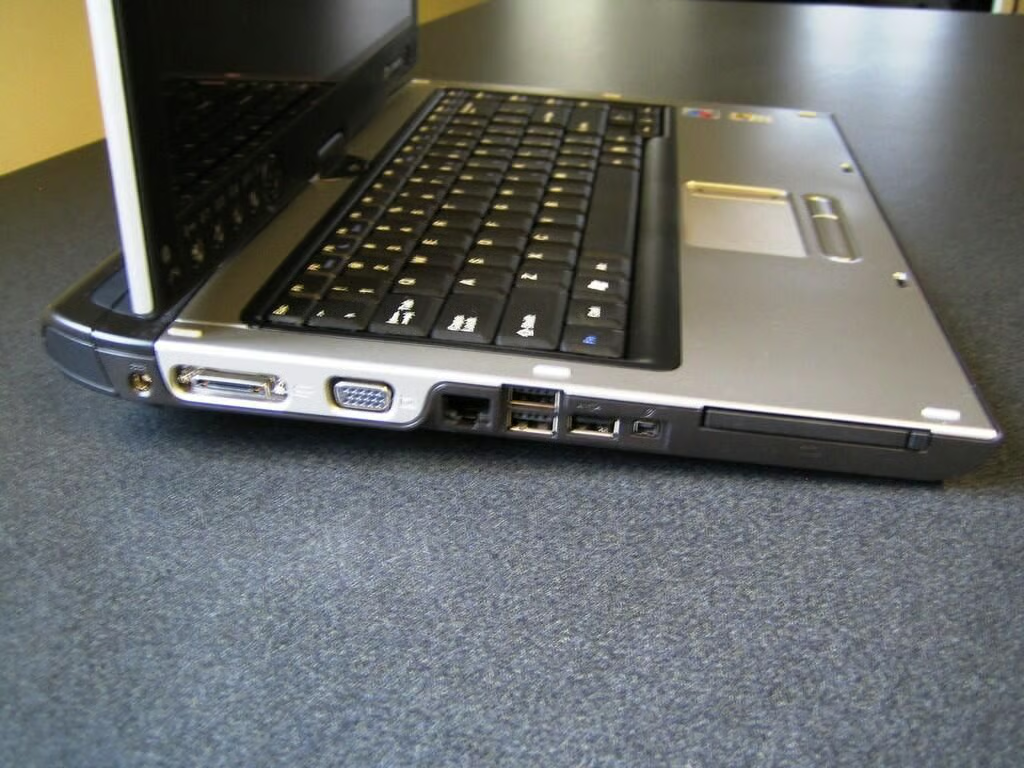
The M280-E’s left side has the power connector and most of the unit’s many ports–a docking port, external VGA monitor port, ethernet jack, three USB ports, IEEE 1394 port, and single PC Card slot.
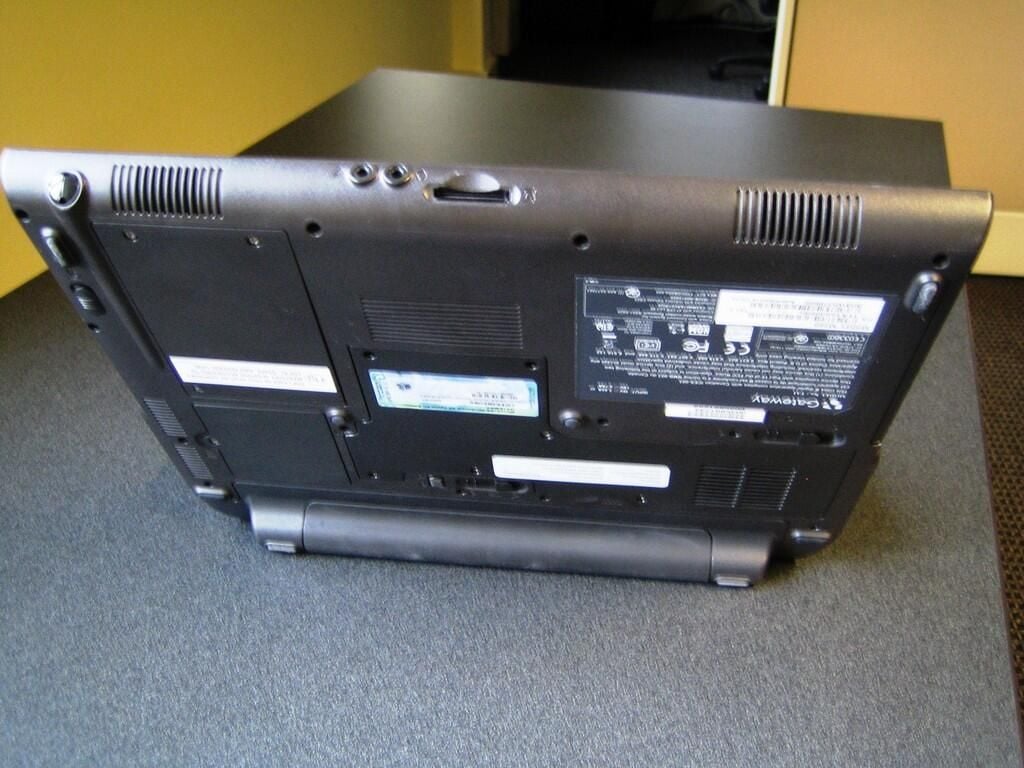
At the front of the M280-E, you’ll find the unit’s cordless pen, a 3.5 mm headphone jack, 3.5 mm microphone jack, memory card reader, and two speakers.
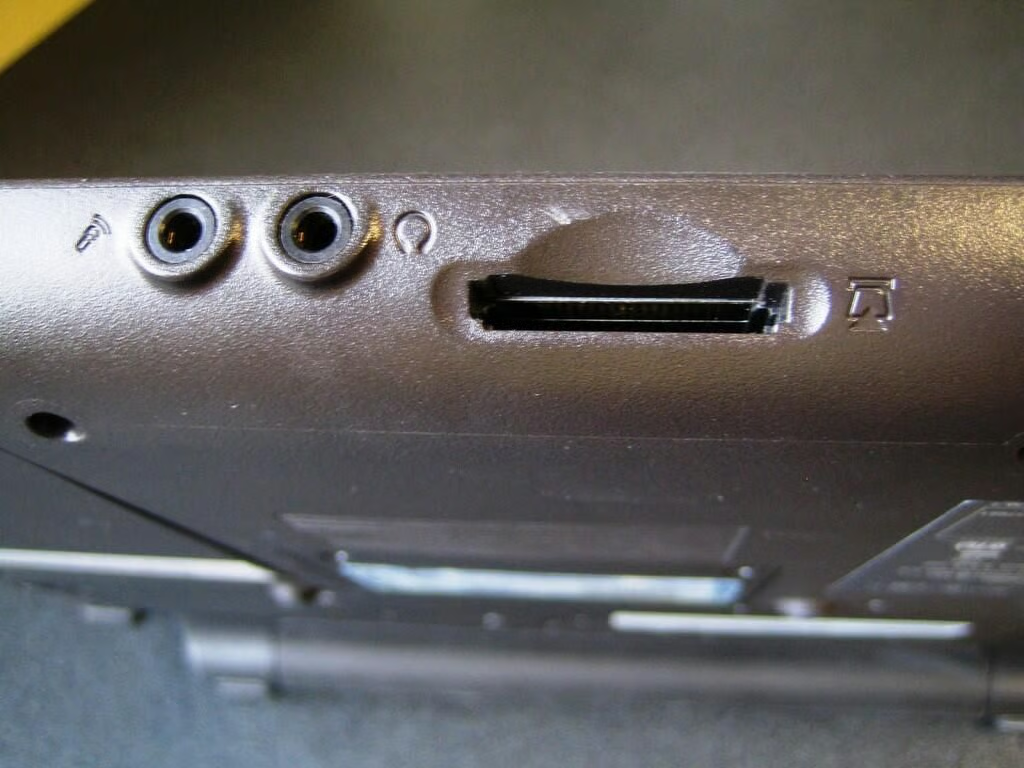
The memory card reader supports Memory Stick, Memory Stick Pro, MultiMediaCard, and Secure Digital.
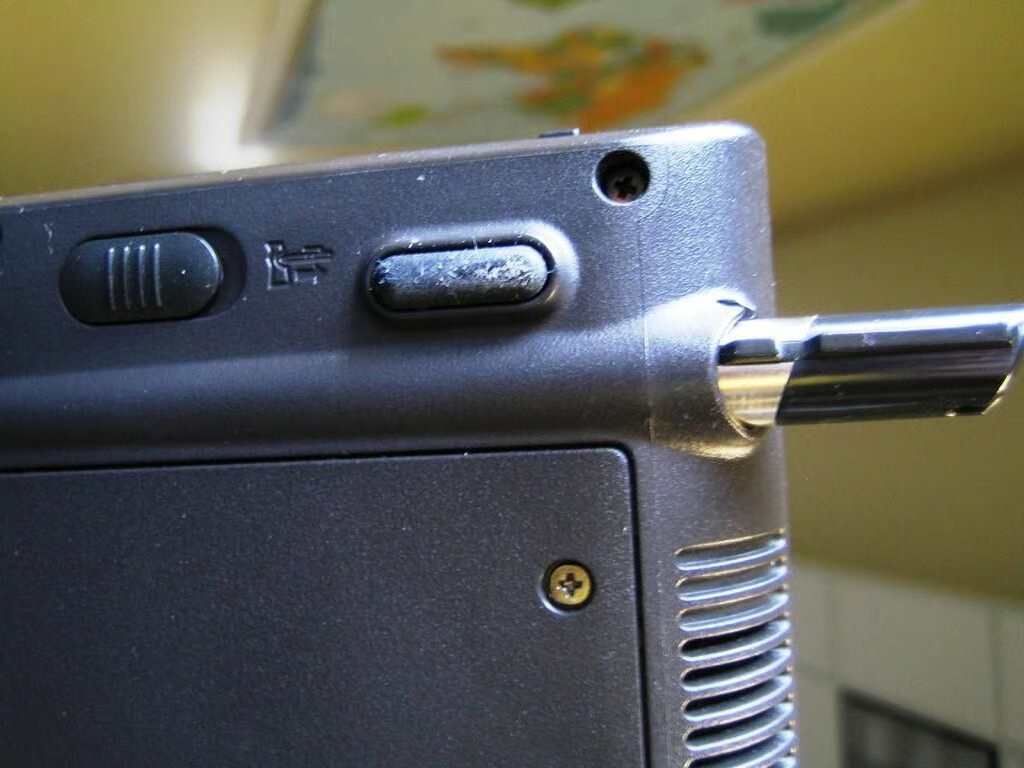
The M280-E conveniently stores the unit’s pen under the base. Sliding the pen latch forward will release the pen while an internal spring pushes the pen slightly outward for easy access. This pen storage and release system worked reasonably well, although I was able to get the pen stuck inside the unit. Luckily, the pen has holes for a lanyard, which I used to pry the pen out with a bent paperclip.
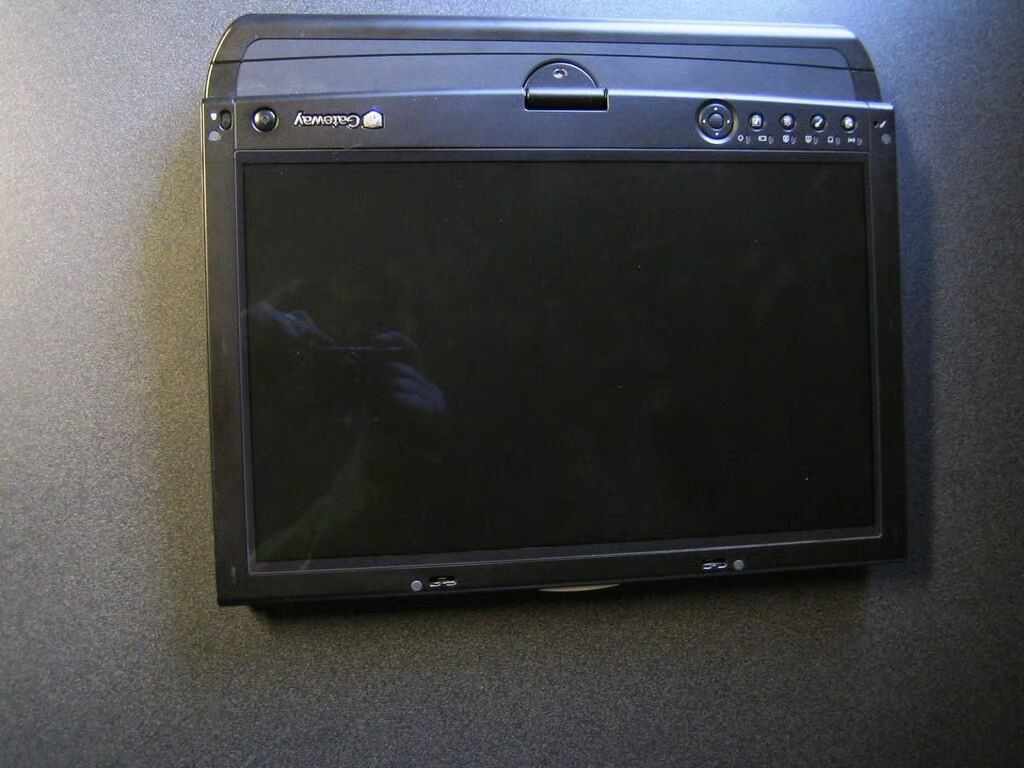
In tablet mode, the M280-E is easy to use. The pen is responsive and tablet control buttons are effective.
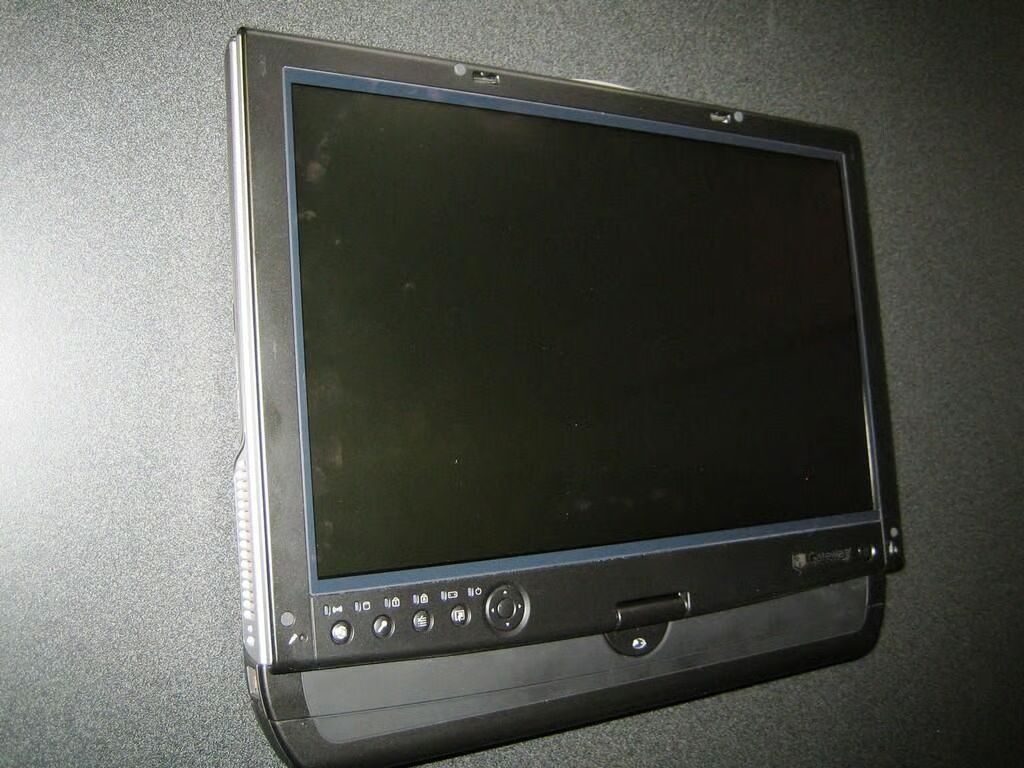
Unfortunately, the unit’s black exterior and screen show every fingerprint and smudge.
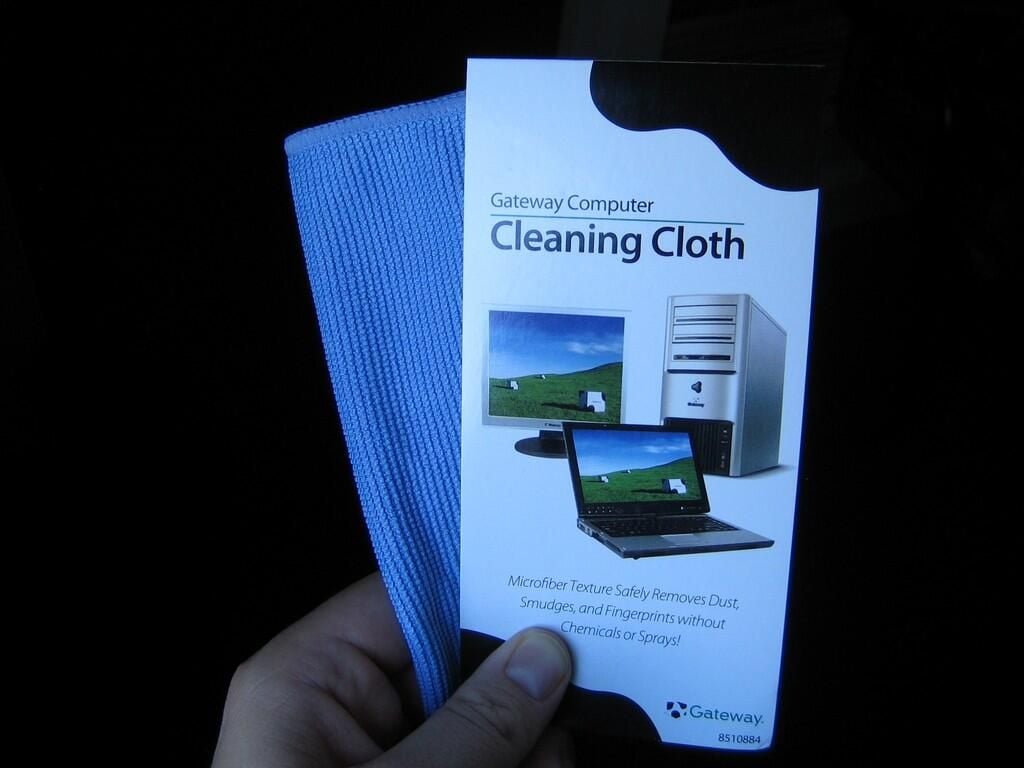
Gateways appears to have anticipated the smudging problem, and provides a handy cleaning cloth.
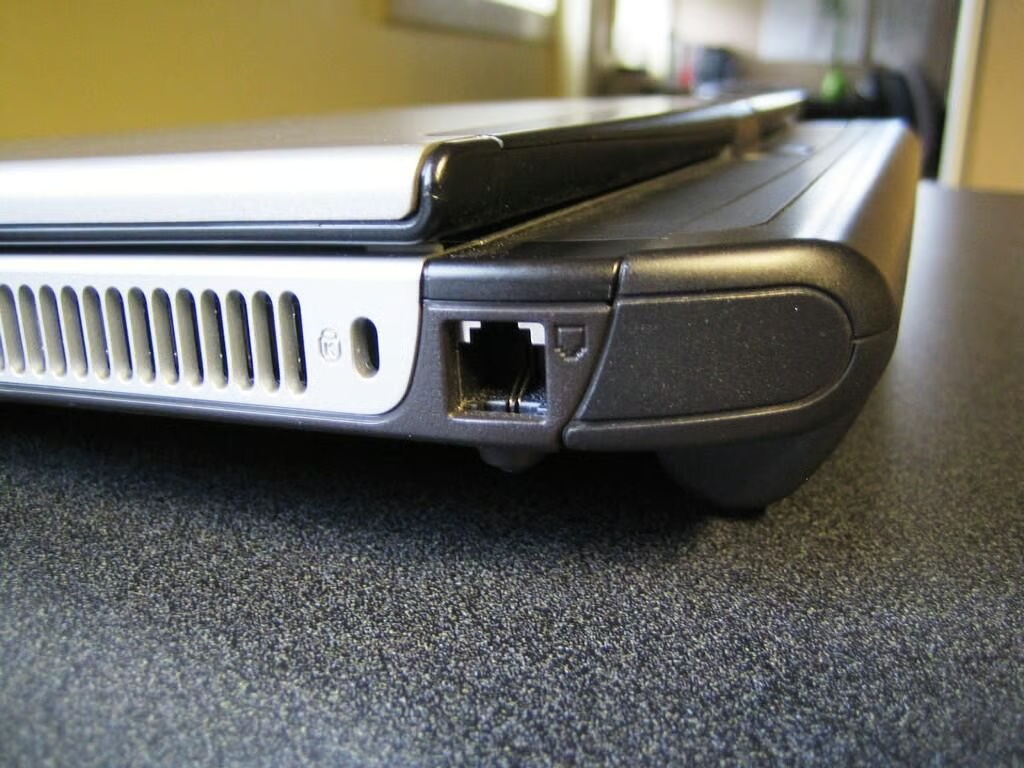
My test unit came with the optional 12-cell battery, provided between 4 and 5 hours of computing time.
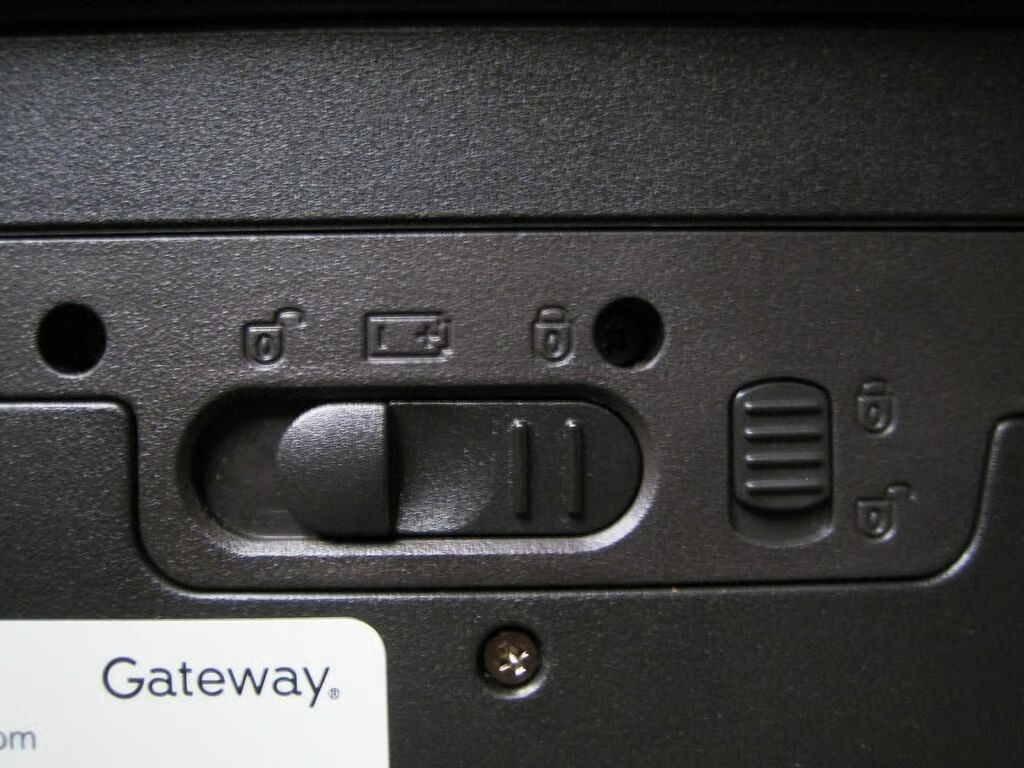
You can quickly remove the main battery by sliding the battery lock to the unlocked position and then sliding the battery release latch.
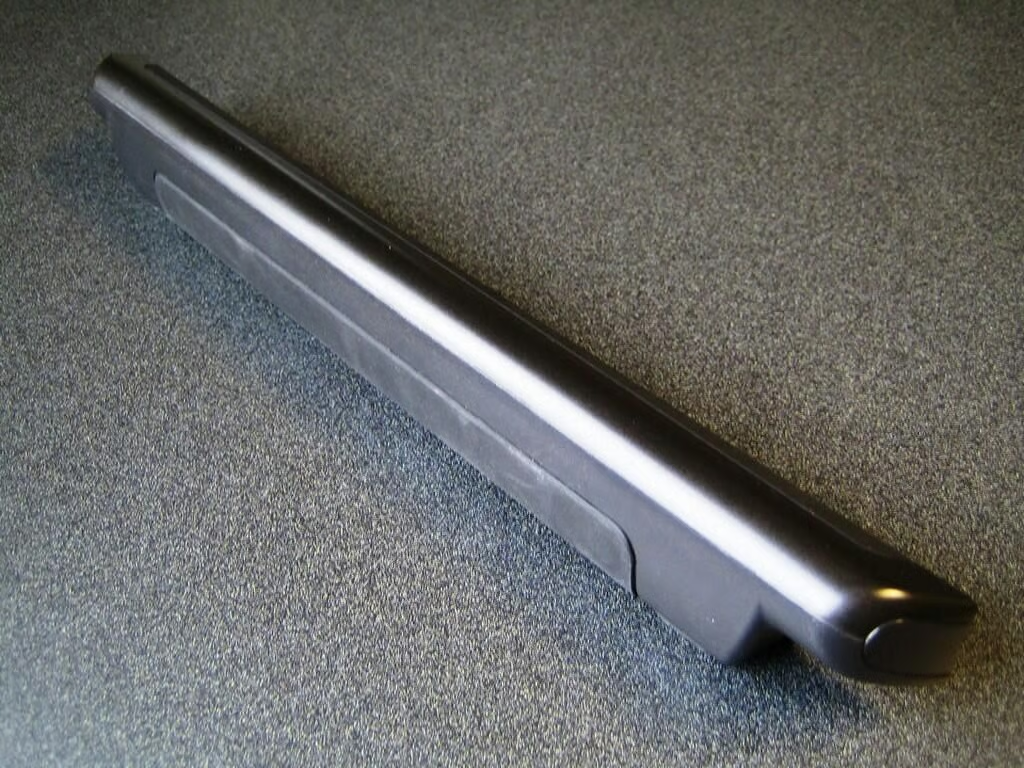
The optional 12-cell Li-Ion battery is significantly larger and heavier than the standard 8-cell battery. You’ll definitely sacrifice portability for performance.
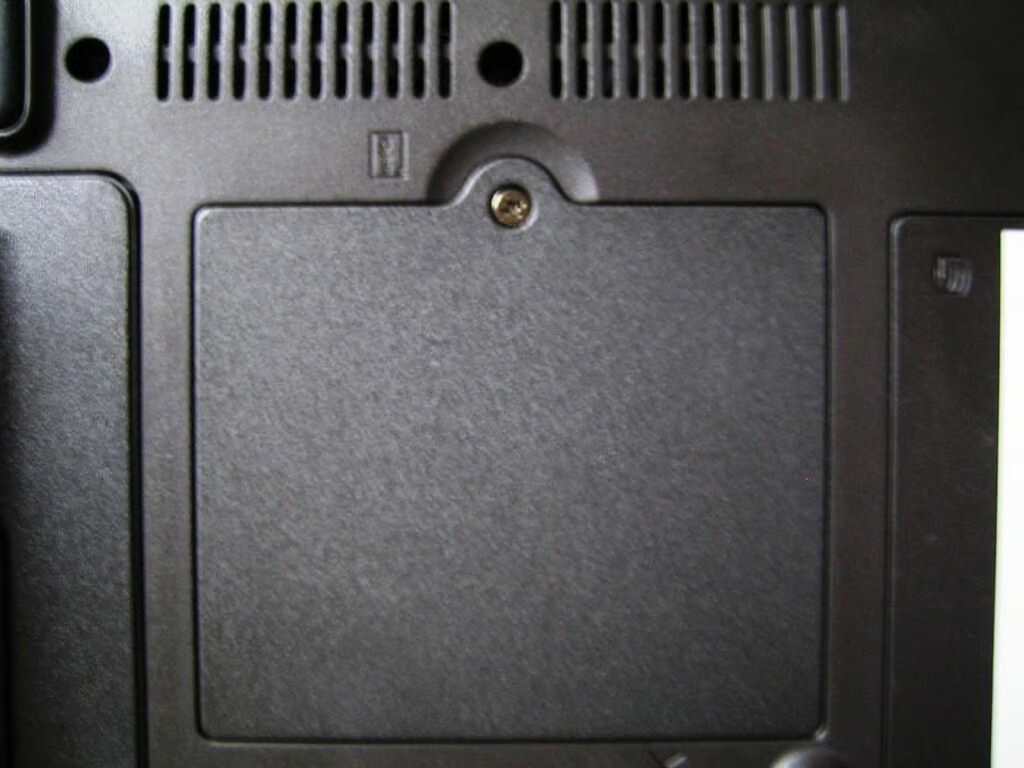
By removing the m-PCI bay cover, you can access the Intel wireless network adapter and the motherboard’s CMOS battery.
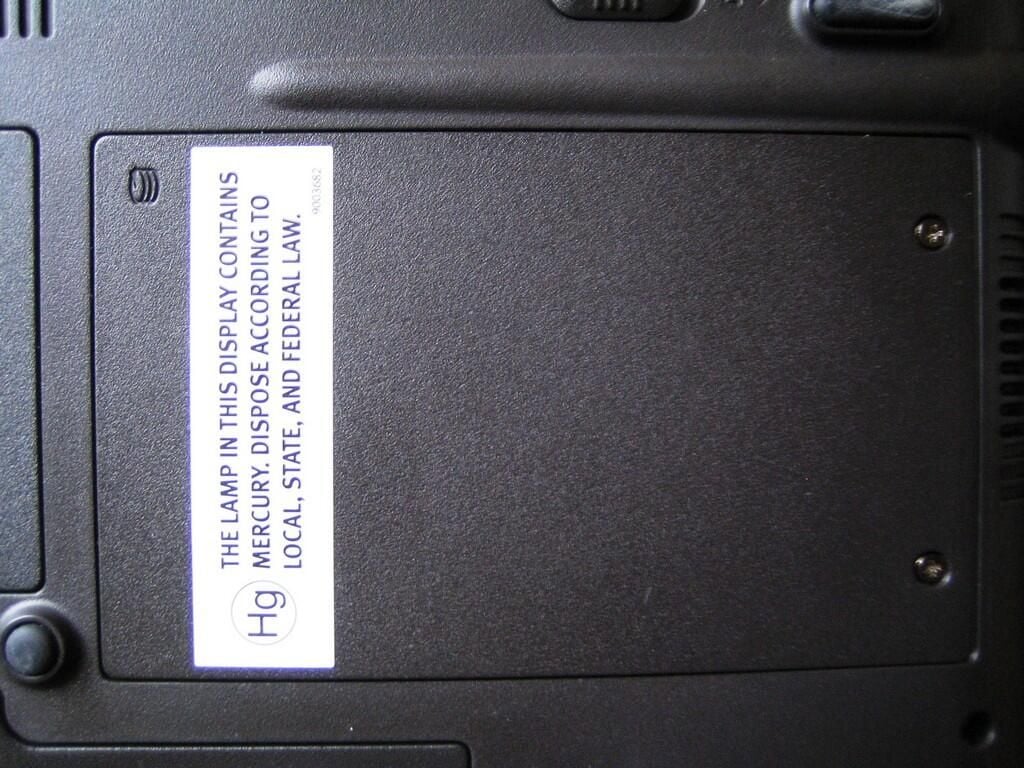
You can access the hard drive by loosening the hard drive cover screws.
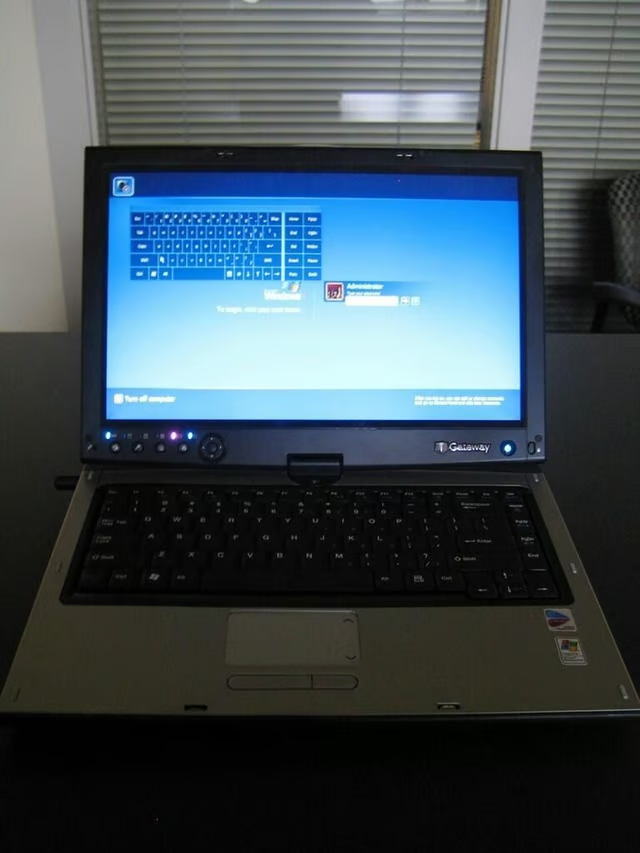
The M280-E’s 14-inch wide-screen LCD supports a native resolution of 1,280×768–in line with many 12.1-inch laptops. Traditional laptops of this size often have 15.4-inch screens and increase the resolution up to 1,680×1,050.
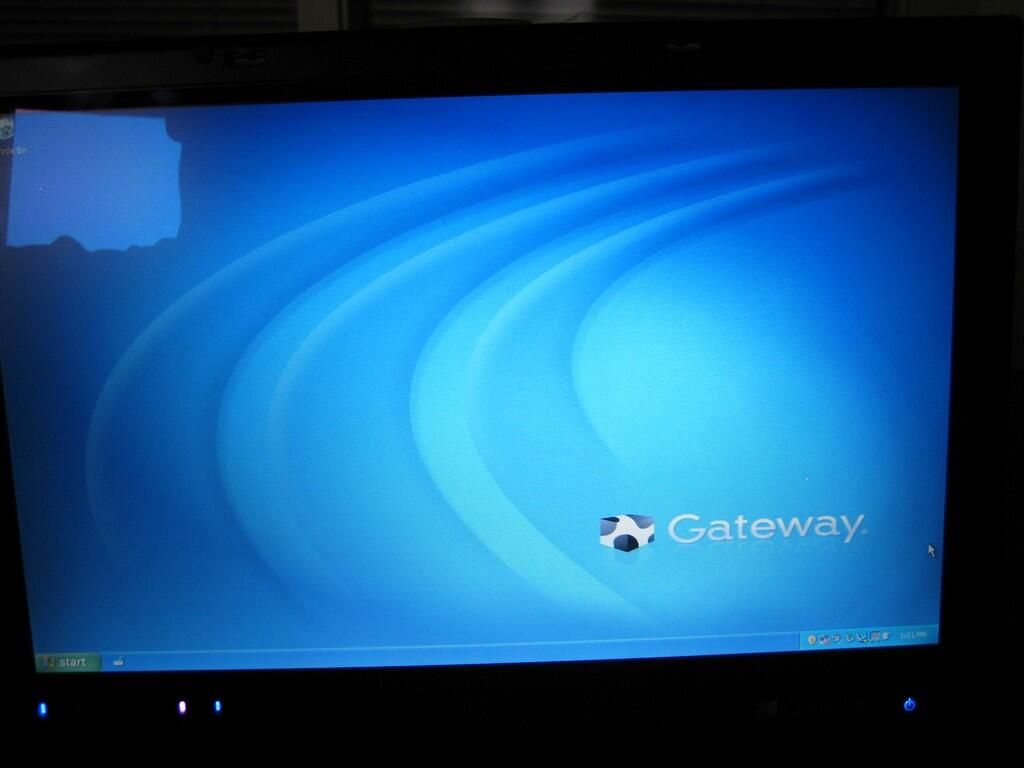
The display wasn’t extremely bright, but the lighting was even and worked well in a variety of environements.
Bill Detwiler is the Editor for Technical Content and Ecosystem at Celonis. He is the former Editor in Chief of TechRepublic and previous host of TechRepublic's Dynamic Developer podcast and Cracking Open, CNET and TechRepublic's popular online show. Previously, Bill was an IT manager in the social research and energy industries. He has bachelor's and master's degrees from the University of Louisville, where he has also lectured on computer crime and crime prevention.


