\n\tWindows 8 is not the only Microsoft product that is moving from a mouse-centric view of the world to one that embraces touch- and pen-driven actions as well — Microsoft’s other cashcow, Office, has also received an interface touch-up.
\n
\n\tWe were given the opportunity to put Office 2013 through its paces during Microsoft’s TechEd conference last week.
\n
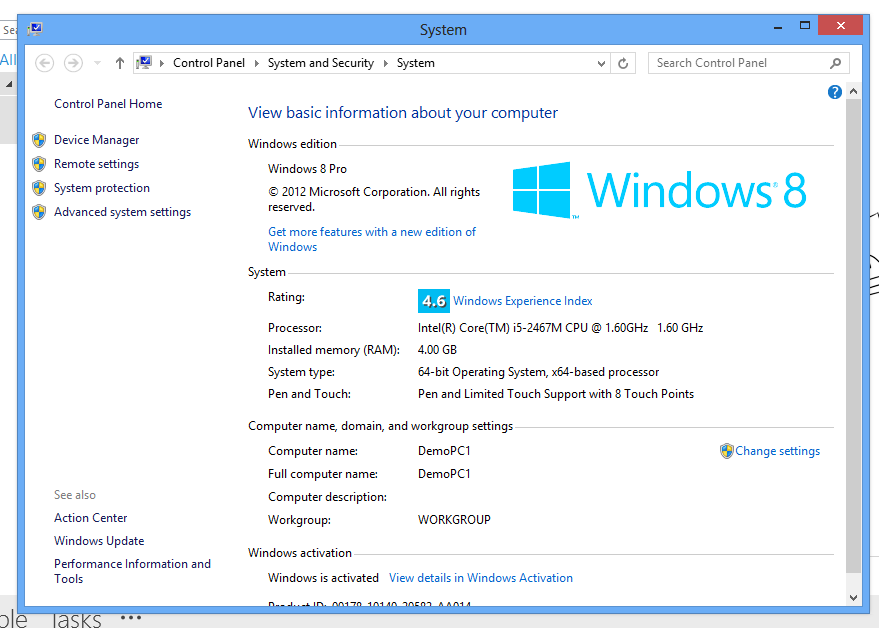
\n\tThe hardware used was a Samsung Series 7 tablet that had Windows 8 Pro installed and packed an Intel Core i5 processor with 4GB of RAM.
\n
\n\tBut the most interesting aspect was the choice of input devices: a bluetooth keyboard and stylus were supplied.
\n
\n\tThis meant that any scrolling action needed to occur via the use of fingers, as it is not possible to move any viewpoint with the stylus. I would prefer that there was a way to scroll with a stylus by hitting one of the buttons, or adding a new one on the side, that enabled a scroll mode. Something like IE’s scroll mode when the middle mouse button is depressed would be nice.
\n
\n\tAfter a couple of hours with the device, and being questioned as to why I would want such a mode (presumably this has never occurred to the design teams at Microsoft or Samsung), I still believe that this is a major oversight at the worst, and a sheer annoyance at the very least.
\n
\n\tHaving to switch from pen-driven input to finger-driven input may only take a second of your time, but each second of movement adds up very quickly.
\n
\n\tMaybe I do not grok finger- and pen-driven navigation yet, but it strikes me as strange that I can have the full range of input operations with a mouse or sole use of finger, but not sole use of a stylus.
\n
\n\tEnough ranting; let’s move on to the program at hand: Office 2013.
\n
\n
\n\tChris Duckett attended TechEd as a guest of Microsoft.
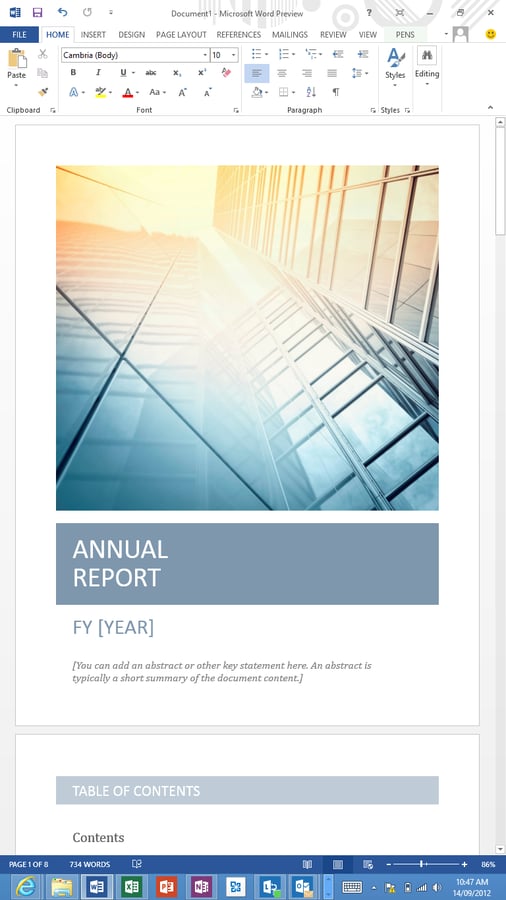
\n\tThis is Word 2013. Nothing completely revolutionary at this point, but it will serve as a basis for the new reader view on the next page.
\n
\n\tA look on the lower right of the ribbon shows a toggle that will hide and unhide the ribbon. If you still carry a grudge against the ribbon, at least you can make it go away until you need to use it.
\n
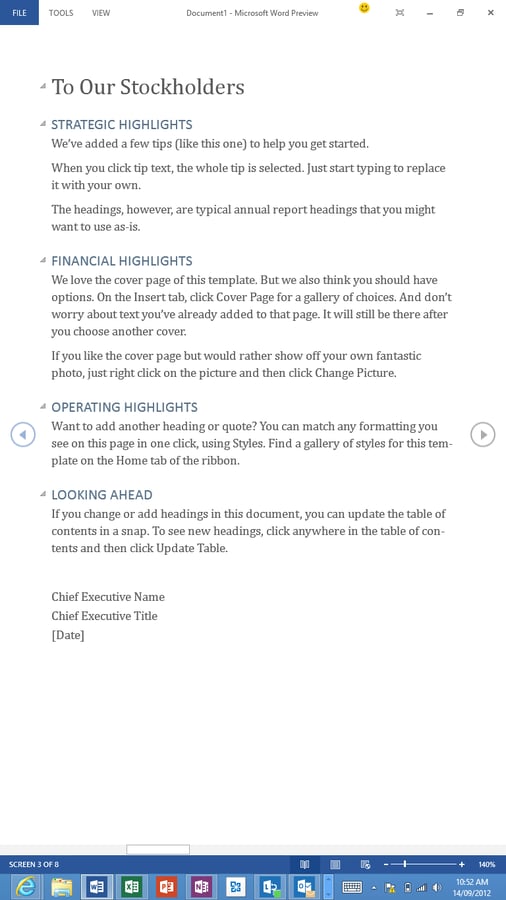
\n\tWord arrives with a new reader mode that removes most of the chrome.
\n
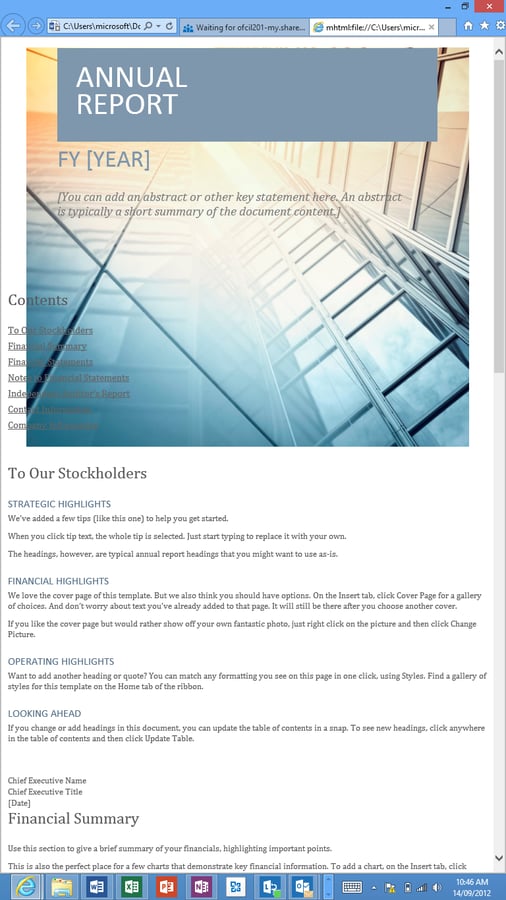
\n\tCompare the above image to the document’s original format.
\n
\n\tIt’s reassuring to see that no matter what version of Word you use, its export-to-HTML feature is as terrible as ever.
\n
\n\tI looked through the code, and it is still full of tags and stylings that give web developers and designers nightmares.
\n
\n\tBest to avoid it wherever possible.
\n
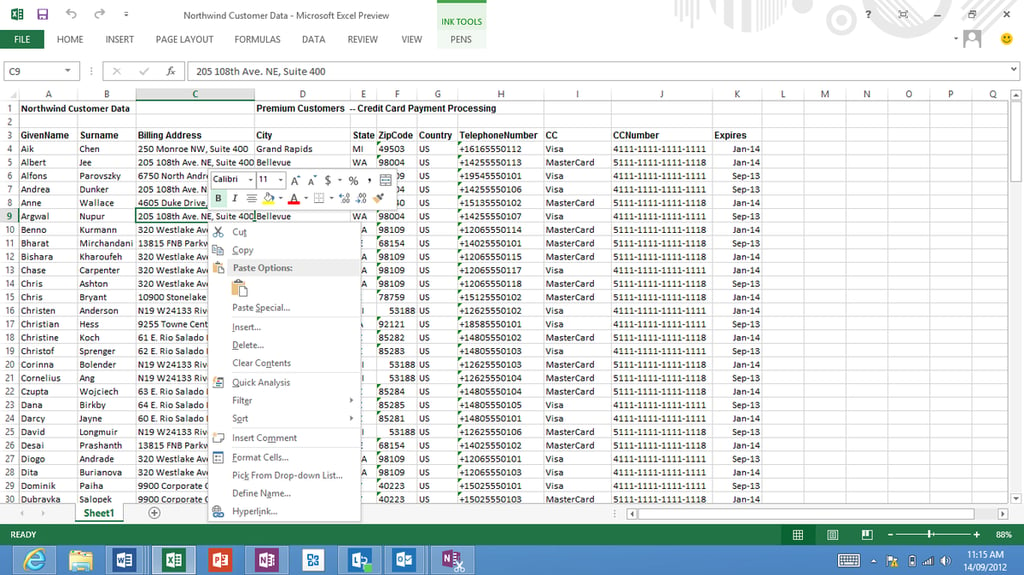
\n\tThe new Excel desktop version with hidden ribbon.
\n
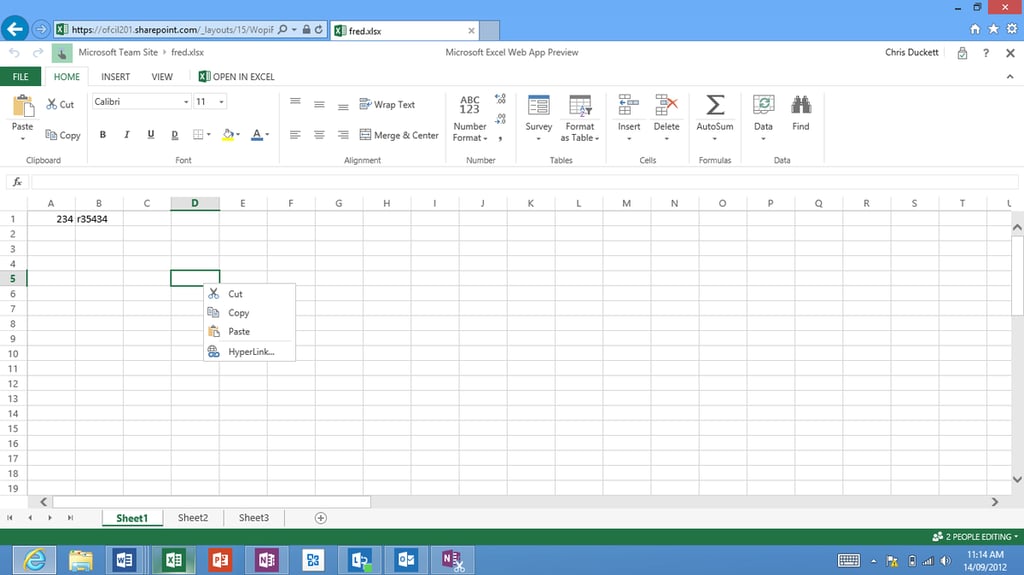
\n\tThe web app version of Excel is included with Office 365 subscription plans.
\n
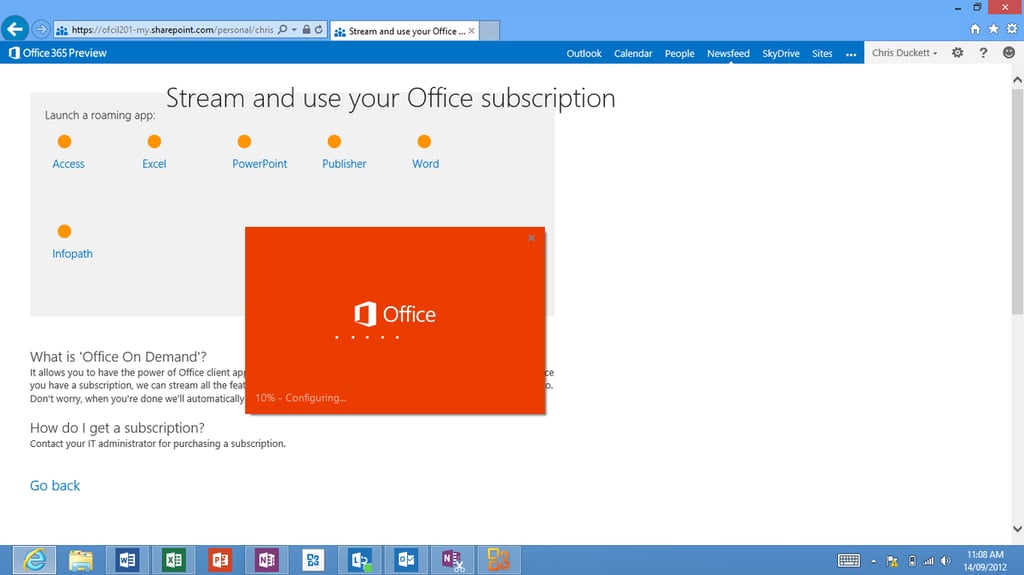
\n\tOffice on Demand allows users to download and use a fully featured Office application for a one-time use on a new computer without violating the terms of Micrsoft’s seat licence. A PC running Windows 7 or 8 is needed.
\n
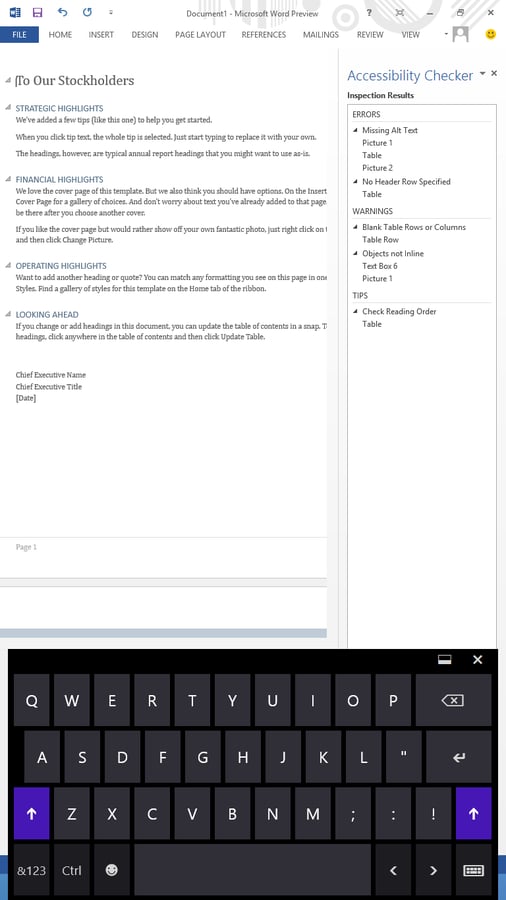
\n\tAs Office on Demand streams a full-featured version of the Office application, a casual glance is not enough to reveal whether the app is the desktop or On Demand version.
\n
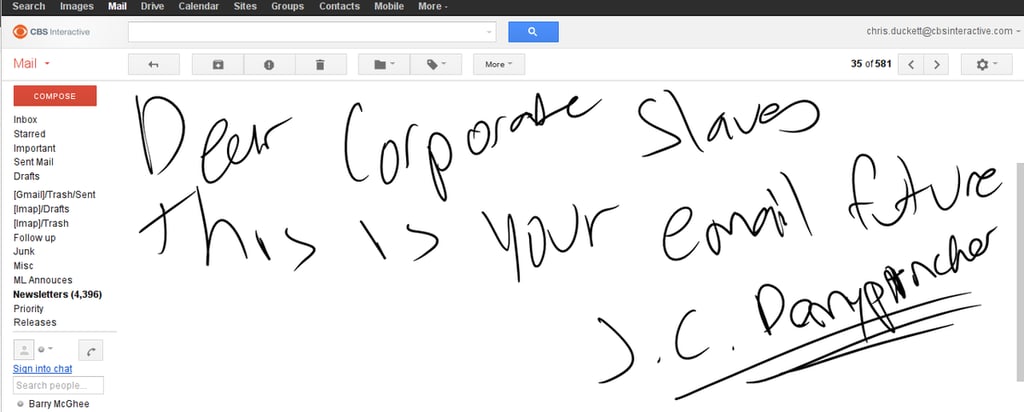
\n\tAfter a couple of hours with a slate and a stylus, I had a lucid moment where I saw the future. It involves PHBs and handwritten emails.
\n
\n\tI hope I’m wrong.
\n
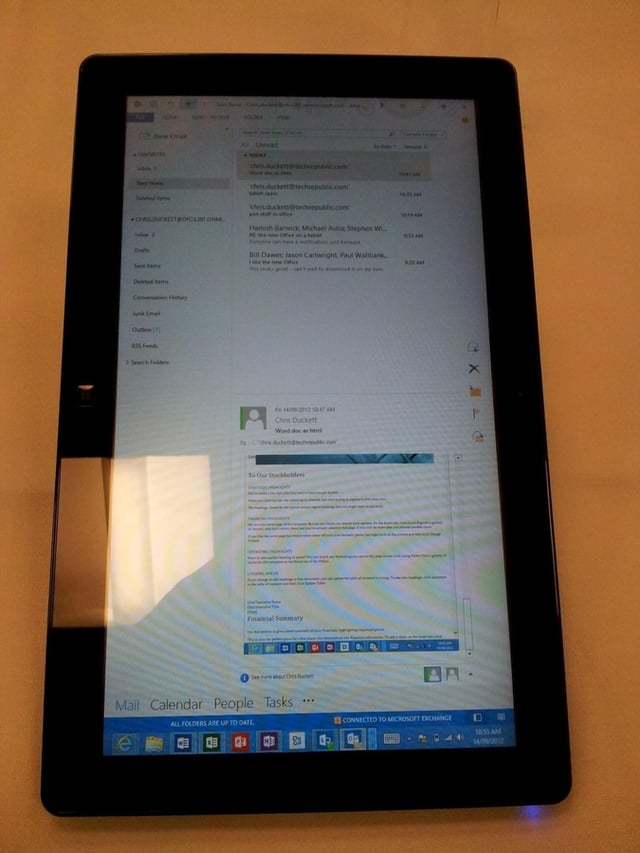
\n\tUsers who enjoy having their screens rotated 90 degrees of the norm will not face any issues in Office.
\n
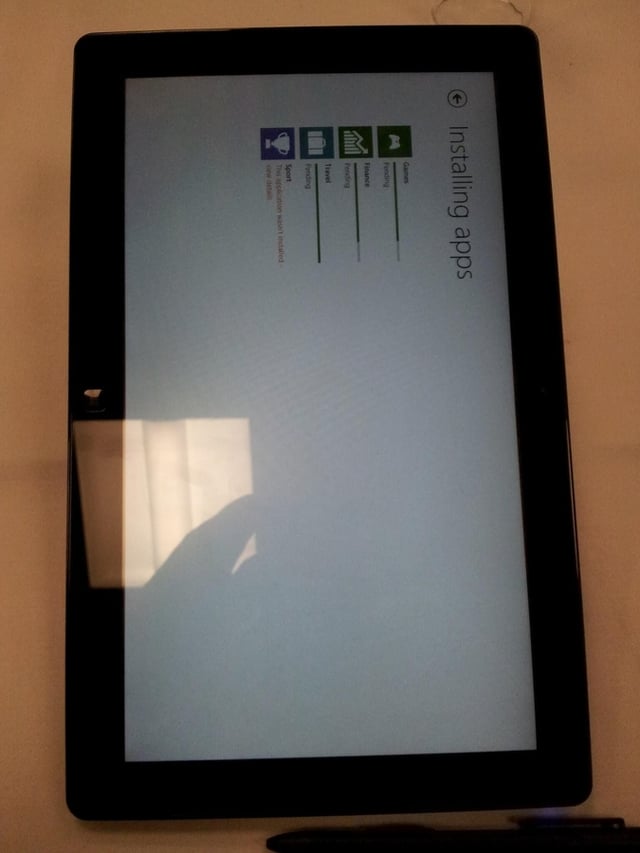
\n\tOn the other hand, there are some programs within Windows 8 that fail to work properly with a portrait orientation.
\n
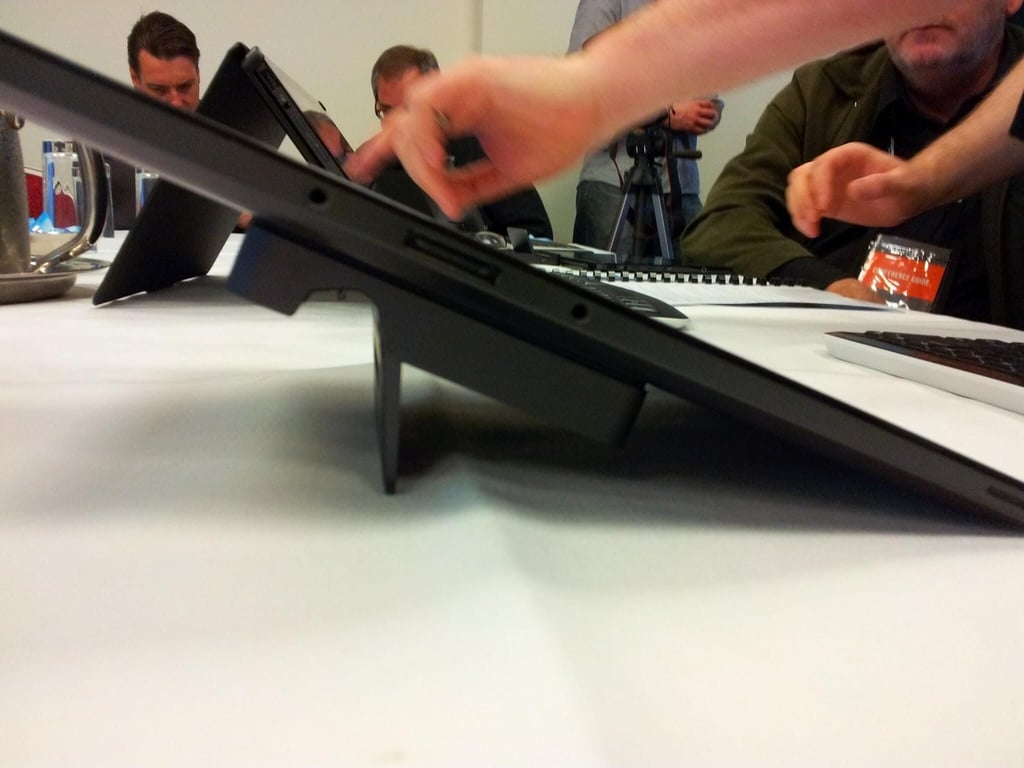
\n\tThe Series 7 comes with a dock that works well in landscape mode, but is able to plug in to the slate in portrait mode.
\n
\n\tIn a pinch, the dock can be turned upside down to make it slightly above the horizontal stand, but is not recommended.
\n

Some would say that it is a long way from software engineering to journalism, others would correctly argue that it is a mere 10 metres according to the floor plan. During his first five years with CBS Interactive, Chris started his journalistic adventure in 2006 as the Editor of Builder AU after originally joining the company as a programmer. Leaving CBS Interactive in 2010 to follow his deep desire to study the snowdrifts and culinary delights of Canada, Chris based himself in Vancouver and paid for his new snowboarding and poutine cravings as a programmer for a lifestyle gaming startup. Chris returns to CBS in 2011 as the Editor of TechRepublic Australia determined to meld together his programming and journalistic tendencies once and for all.


