With the release of the iPhone 4 and iOS4, Apple has added support for multiple Exchange accounts on the devices that support the latest iPhone OS. This may not seem like a significant enhancement, but depending on how a person uses their iPhone, it could be a very welcome feature.
I use my iPhone with my work Exchange account as well as a number of IMAP accounts. At Westminster College, our IT department also uses a common account for many tasks, including software license management and support subscriptions so that employee turnover does not create gaps in service and support coverage. Beyond this need for a shared account, there are often other reasons why people need to sync multiple Exchange accounts (permanently or temporarily), which include:
In this tutorial, I show how to add a second Exchange account to your iPhone; specifically, I add the aforementioned common support account that is shared among my IT staff. Note: This process will work on any iPhone that supports iOS4 — the 3G, 3GS, and 4; original iPhone owners cannot run iOS4 and, therefore, won’t be able to use these instructions.
This tutorial is also featured in a Smartphones blog post.
Steps for adding a second Exchange account
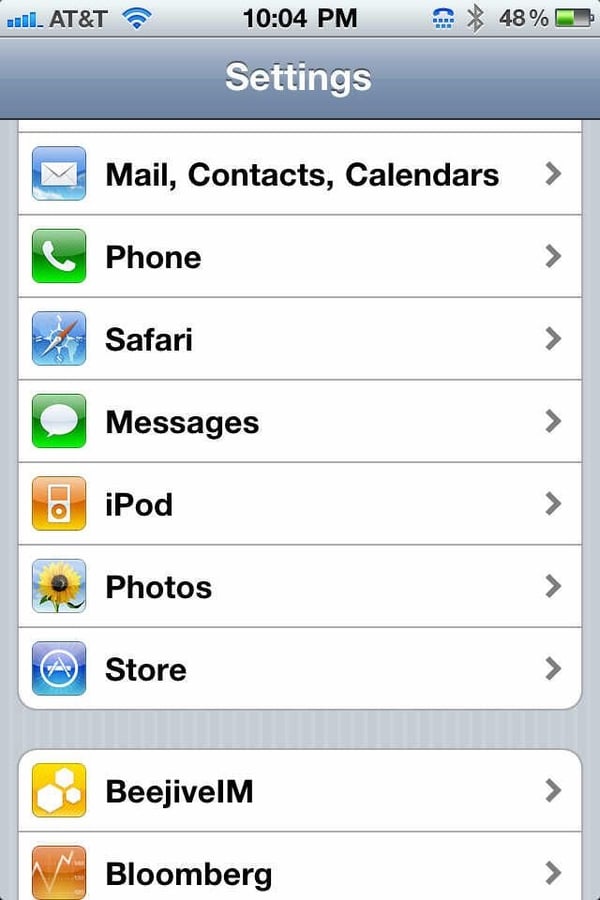
The first step to adding a second Exchange account is to go to the Settings page on your iPhone. On this page, tap the Mail, Contacts, Calendars option.
Screenshot by Scott Lowe for TechRepublic.
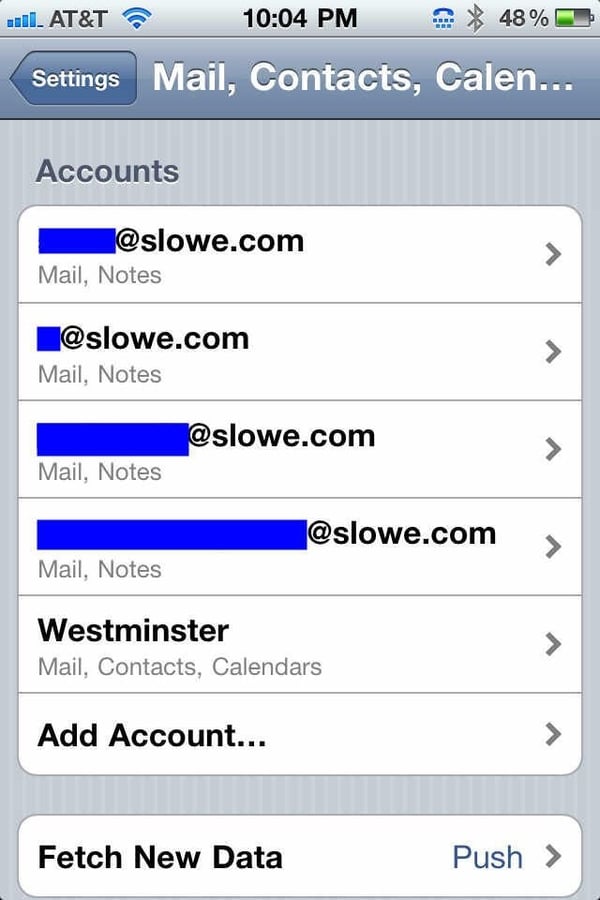
On the Mail, Contacts, Calendars page, you’ll see a list of all of the accounts you currently sync to your iPhone, along with the kinds of items that are being synchronized with each account. To add a new Exchange account, tap the Add Account option.
Screenshot by Scott Lowe for TechRepublic.
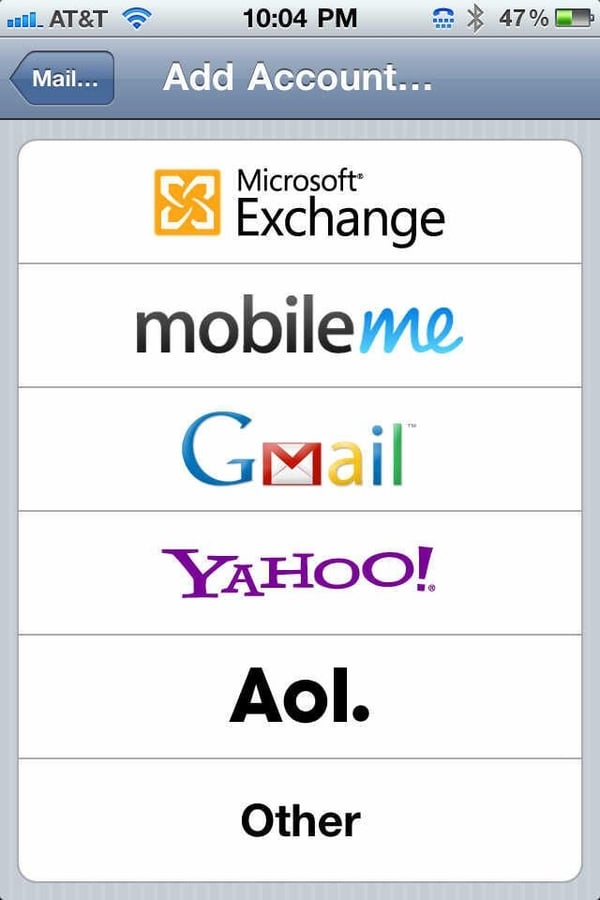
iOS4 supports a number of formats, including Microsoft Exchange. Tap the Microsoft Exchange option.
Screenshot by Scott Lowe for TechRepublic.
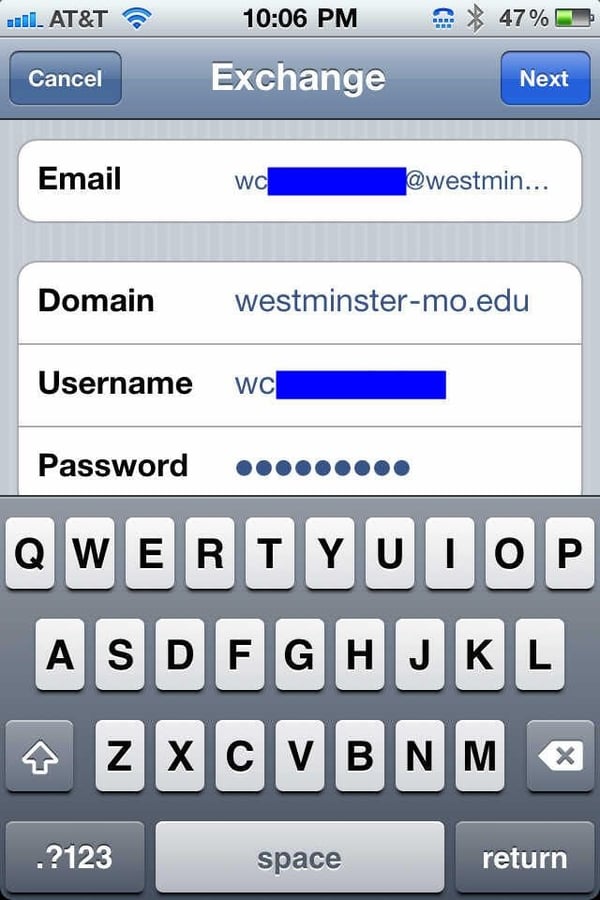
Exchange accounts initially require the full account email address, the domain in which the account resides, and the account username and password.
Screenshot by Scott Lowe for TechRepublic.
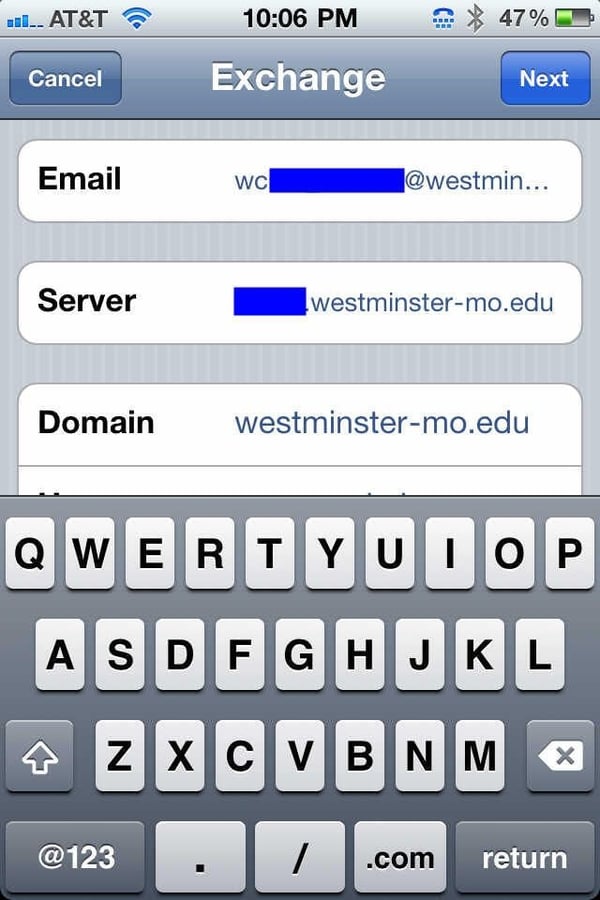
Once you provide these details, tap the Next button. If the iPhone is not able to identify a server on which the account resides, the account page comes back up with a request for the additional piece of information.
Screenshot by Scott Lowe for TechRepublic.
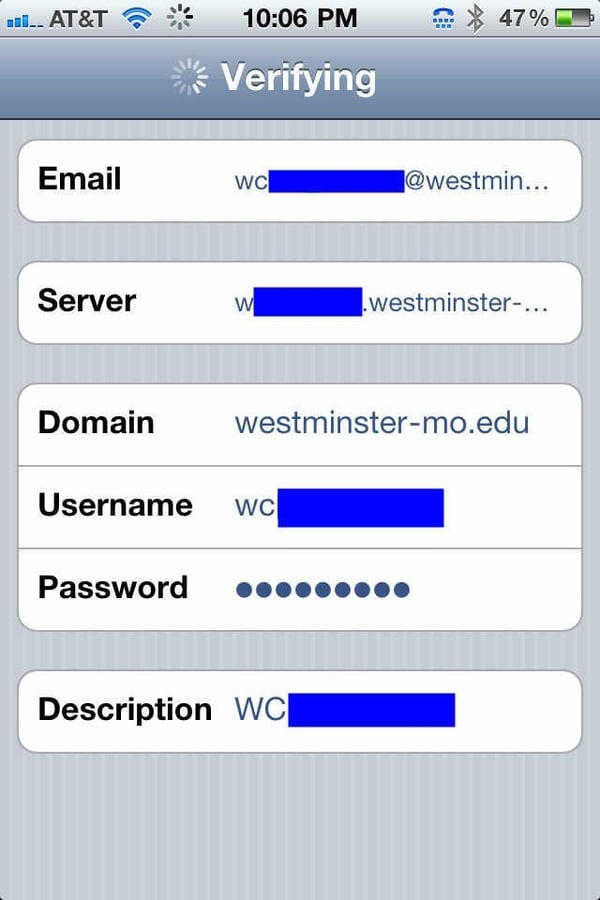
Once you provide the necessary information, the iPhone verifies the account details.
Screenshot by Scott Lowe for TechRepublic.
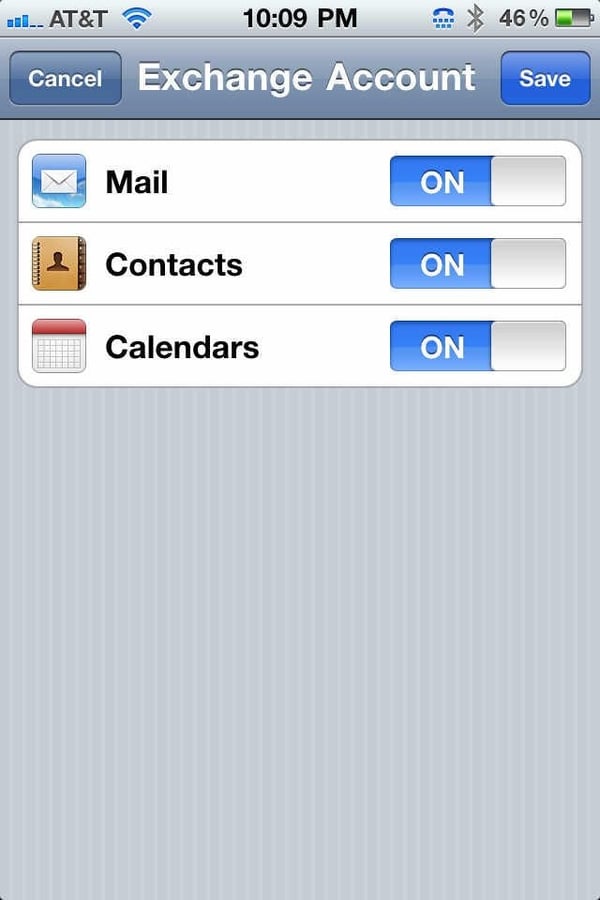
Assuming that your iPhone is able to verify account details, the next page of the new account creation process asks you to decide what kind of information you’d like to sync to your iPhone. You can choose to sync mail, contacts, and calendars. If you want to disable syncing certain information, tap the On button to change it to Off.
Screenshot by Scott Lowe for TechRepublic.
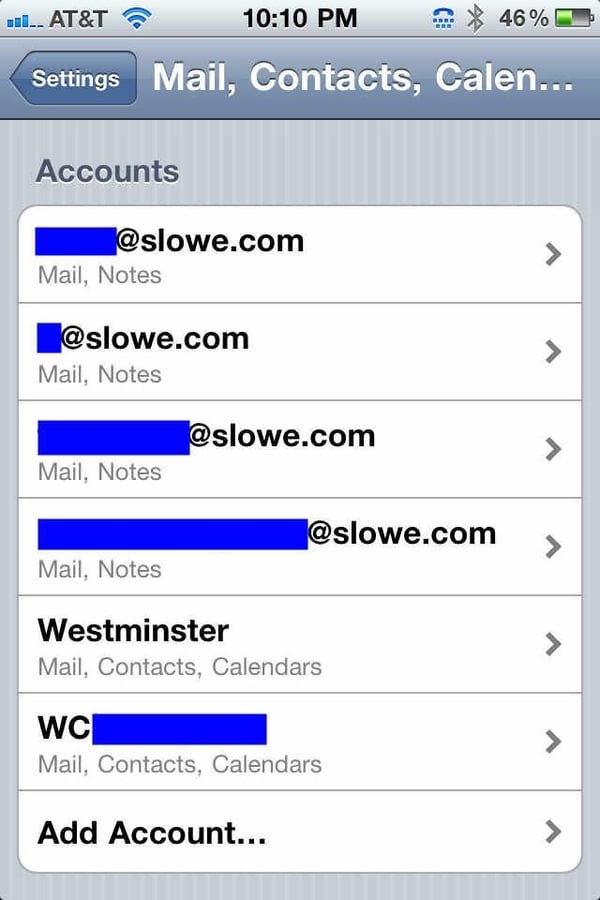
At this point, the new Exchange account is fully configured and shows up in the list of accounts on the iPhone Settings page.
Screenshot by Scott Lowe for TechRepublic.
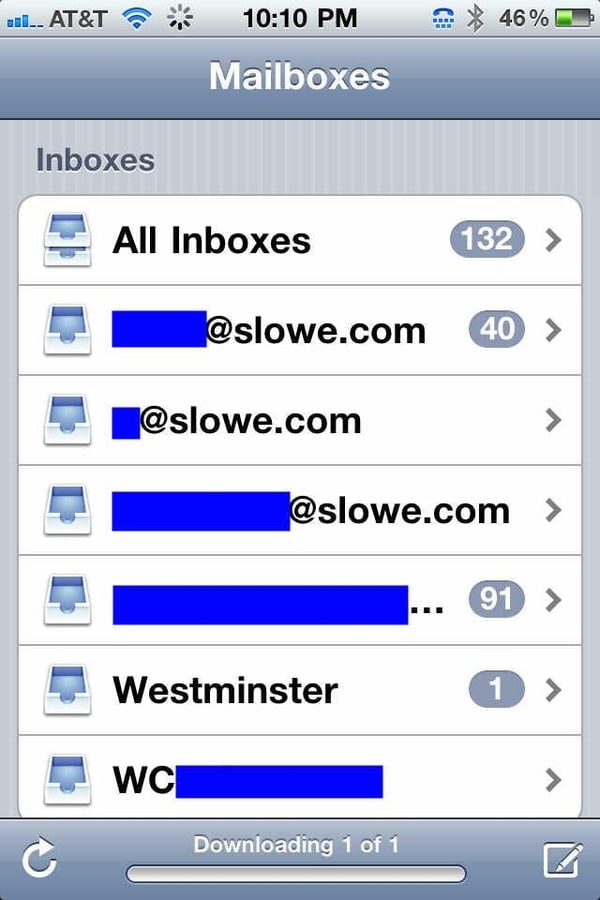
Now that the account is created, it’s time to use it by tapping the Mail icon on the iPhone. This image and the next one show the account pages that I see when I tap the Mail icon on my iPhone. This figure is a list of the inboxes associated with each of my configured accounts.
As you add multiple email accounts, take note of iOS4’s new All Inboxes common mailbox. In this mailbox, you will find an aggregated view of all of the inboxes for all accounts you have configured on the iPhone.
Screenshot by Scott Lowe for TechRepublic.
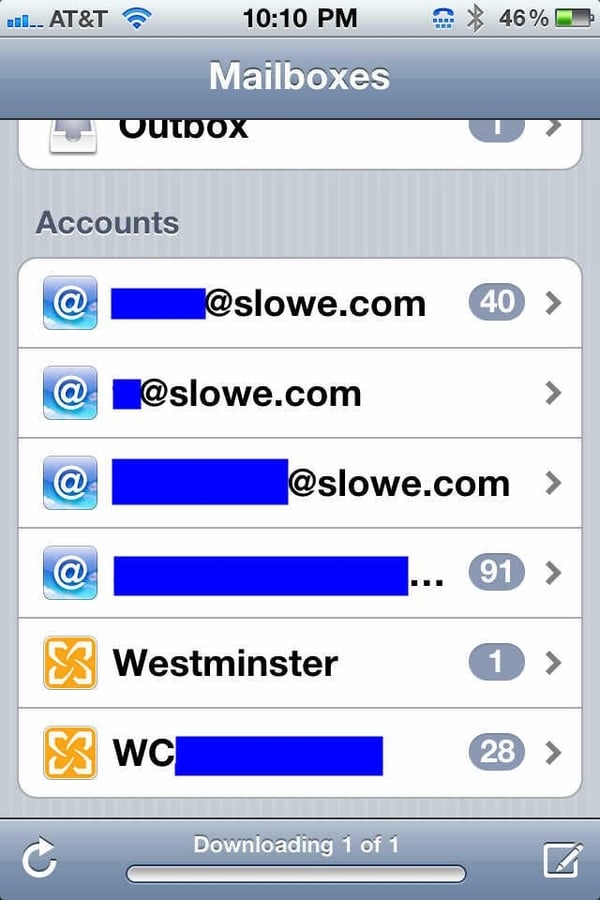
Scrolling lower on this page reveals the screen in this figure, which is the list of actual accounts. The Inbox links open the individual inboxes for each account. The full account links allow me to choose folders other than the Inbox to view messages. For my Exchange account at Westminster, I use this link a lot since I make liberal use of rules and subfolders to manage my email.
Screenshot by Scott Lowe for TechRepublic.
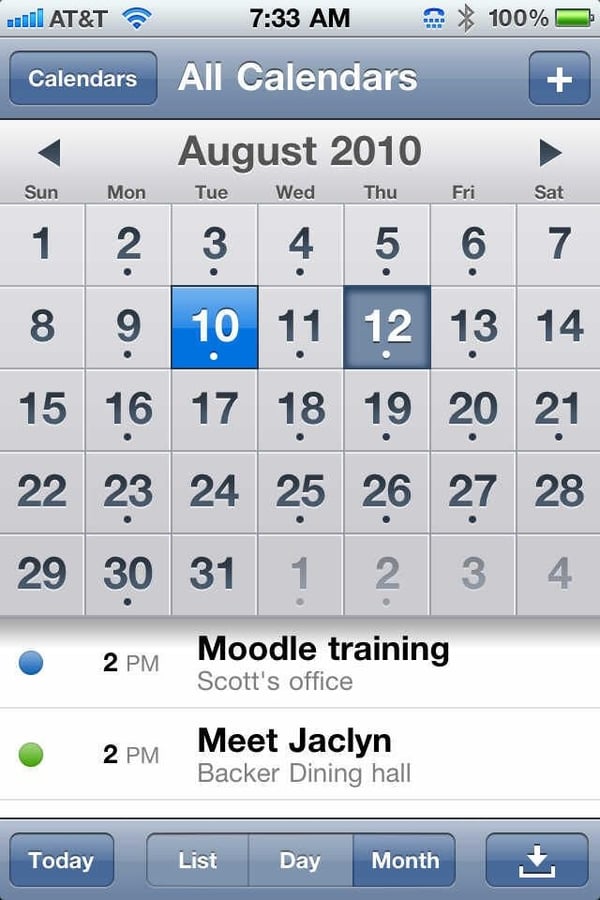
One area that can cause confusion has to do with the synchronization of multiple calendars. If you opt to sync multiple calendars, you can decide how calendar items should appear for each account. In this figure, you’ll notice that there are two appointments for the exact same time on the iPhone’s calendar view. While I strive to meet everyone’s needs on campus, it’s tough to be in two places at once! If you look carefully, you’ll notice that each appointment has a different colored circle next to it.
Screenshot by Scott Lowe for TechRepublic.
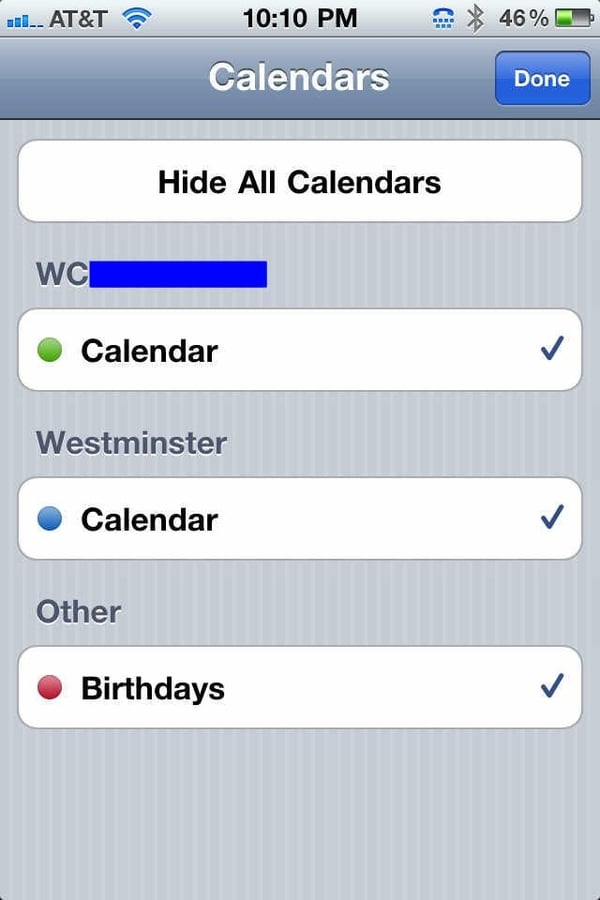
Each color is associated with a different account. To see which account is associated with a particular color, tap the Calendars option in the upper left-hand corner of the screen to get a look at the screen. If you’d like to stop displaying one of the calendars, tap it to remove the checkmark at the right-hand side of the screen.
Summary
If you’ve set up other Exchange accounts on your iPhone, this should be a familiar process. However, as you add multiple accounts to your iPhone, you need to make sure you don’t confuse messages sent to different accounts, particularly as you use the iPhone’s new common inbox (the All Inboxes image) and single calendar views.
Screenshot by Scott Lowe for TechRepublic.


