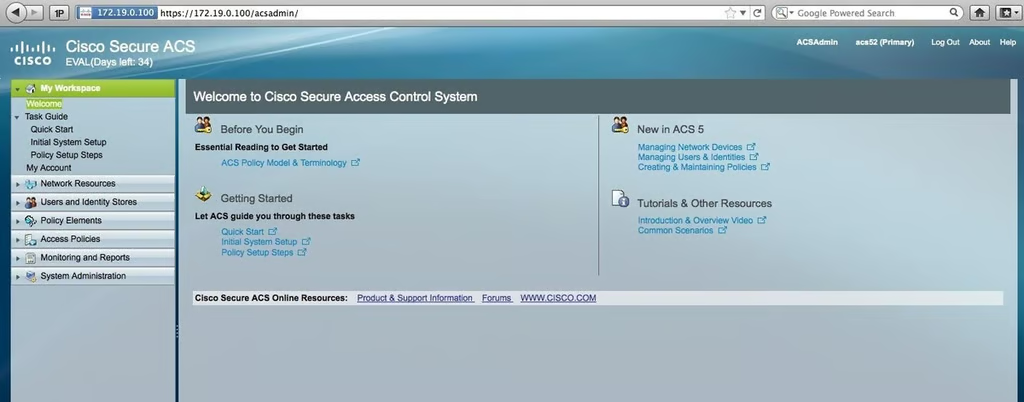
\n\tTo log in to the ACS server (I’m assuming its already running on the network) you can browse to the IP address or name of the server.
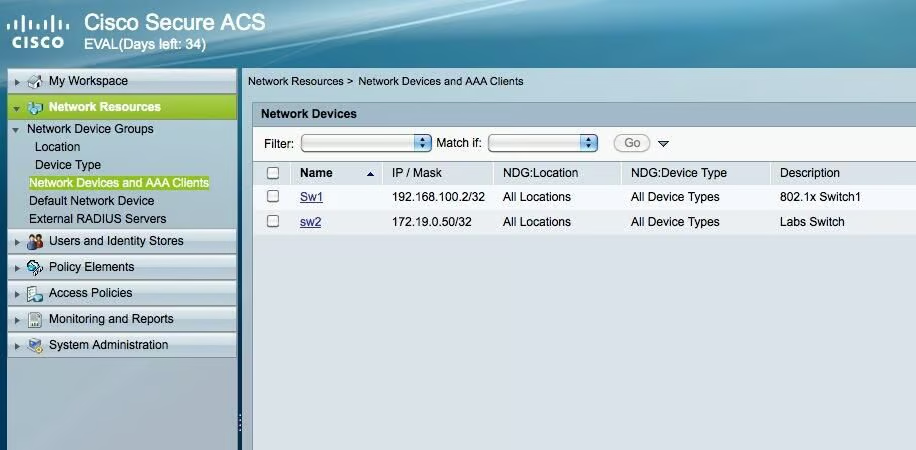
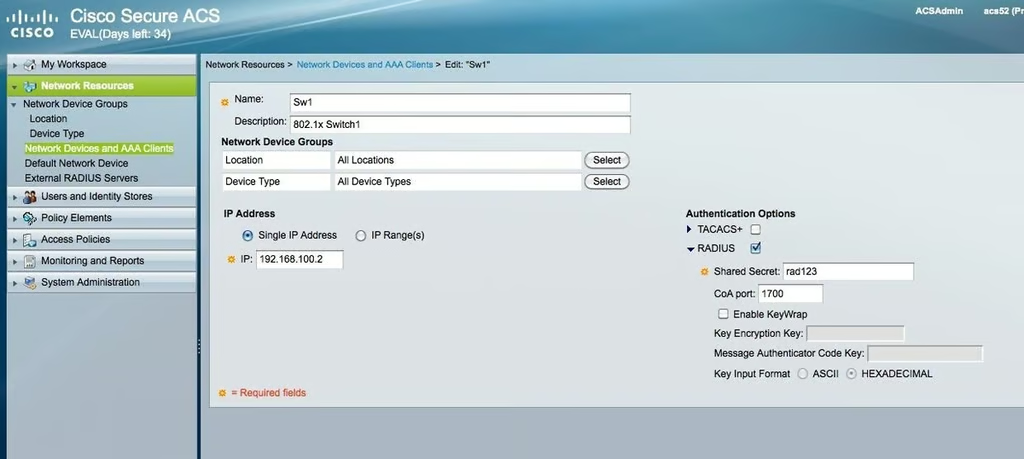
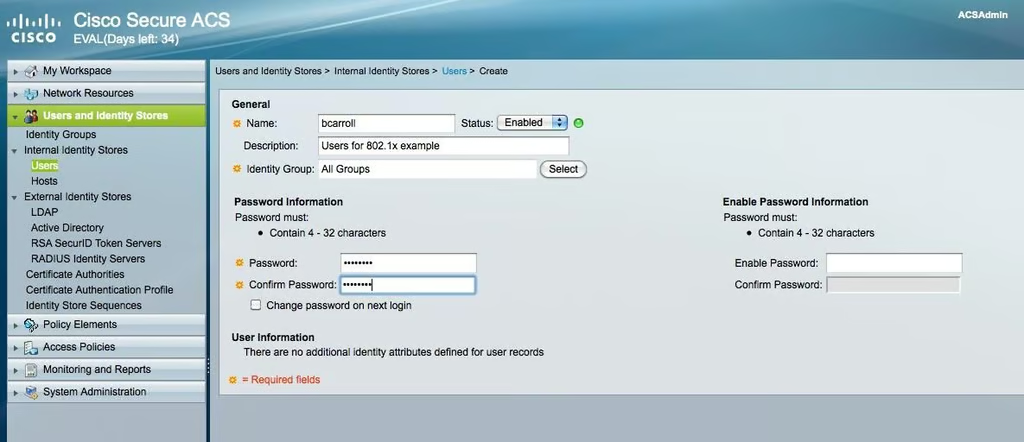
\n\tBrowse to Users and Identity Stores | Internal Identity Stores |Users.
\n
\n\tOnce there, click the Create button on the bottom and add your users. I’ve added a user with the name bcarroll.
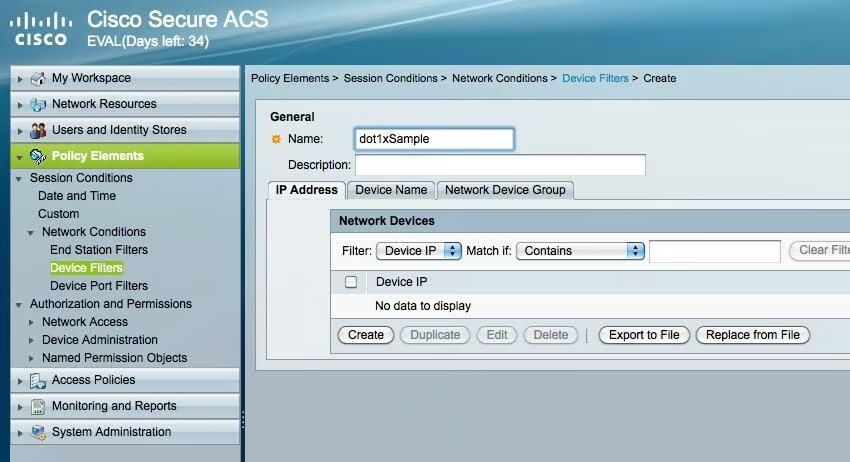
\n\tNavigate to Policy Elements | Session Conditions | Network Conditions | Device Filtersand click Create.
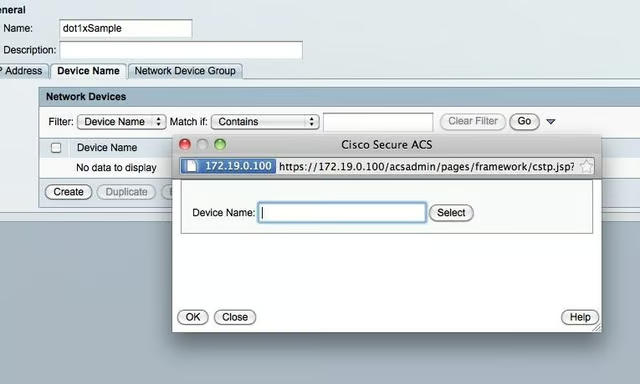
\n\tNow add the device name by selecting the Device Name tab and again clicking Create. This part can cause some issues. If you are not allowing pop-ups it may appear that nothing happens. In my case, I had to switch from a Safari browser to a Firefox browser.
\n
\n\tOnce the pop-up appears you will see an empty form box to add the device to. You can’t type in the box, rather you click the Select button and select the device from the list.
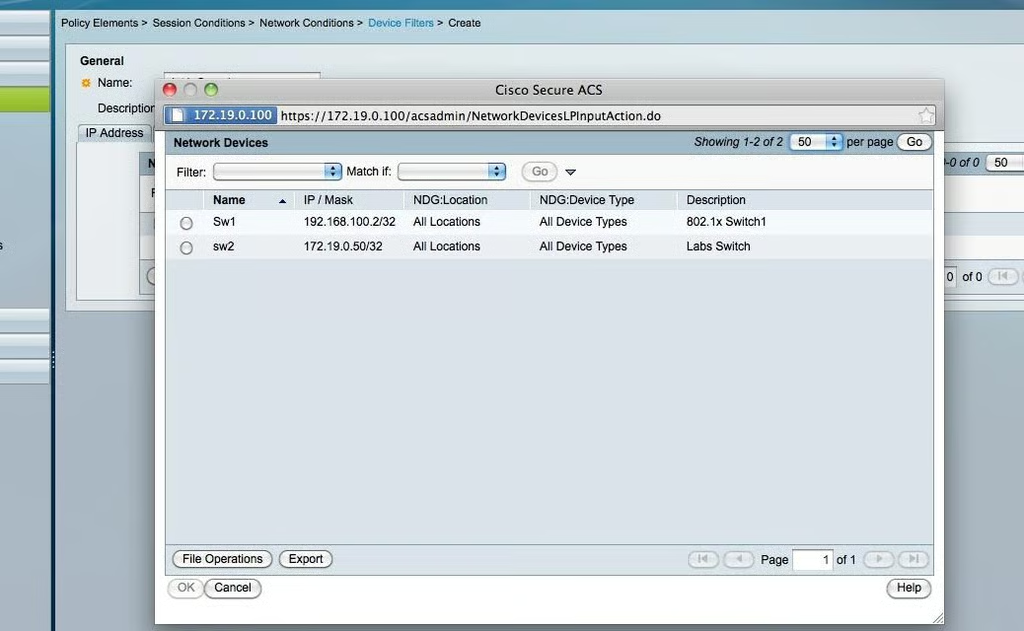
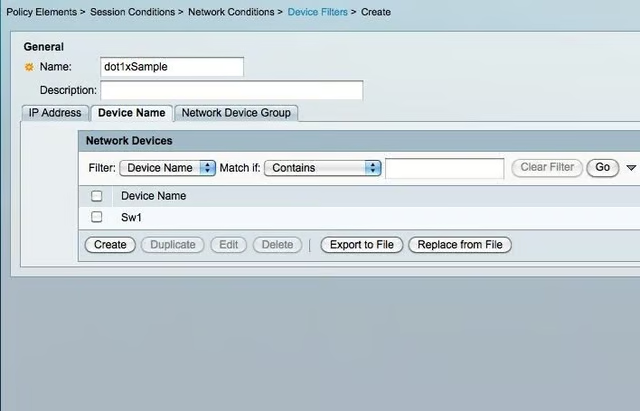
\n\tOnce your switch is selected you will click ok a few times until you get back to the main ACS page and the switch is reflected in the list.
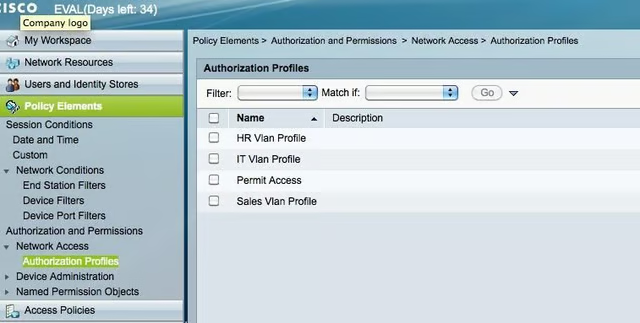
\n\tBrowse to Policy Elements | Authorization and Permissions | Network Access | Authorization Profiles.
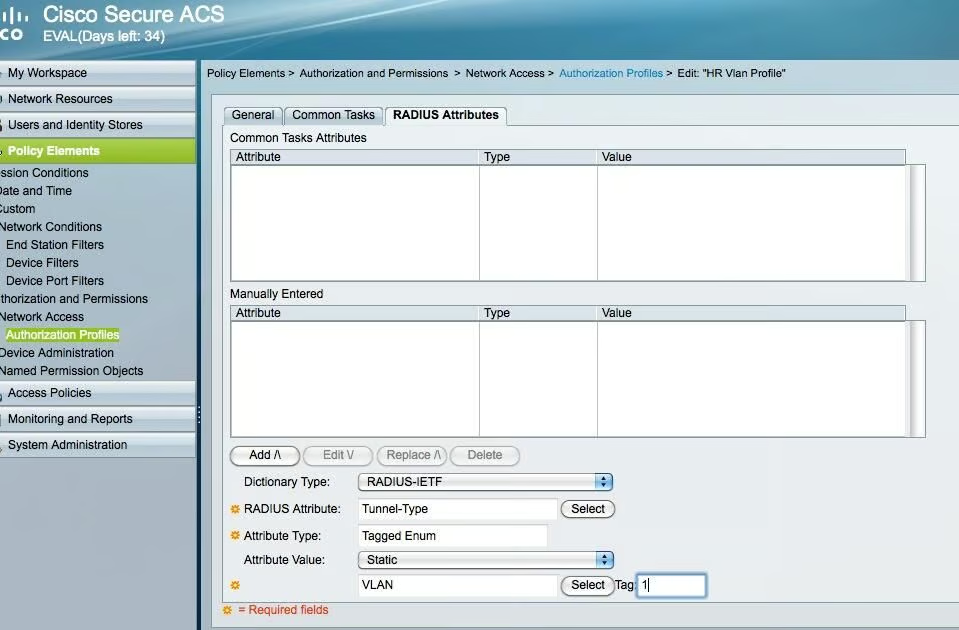
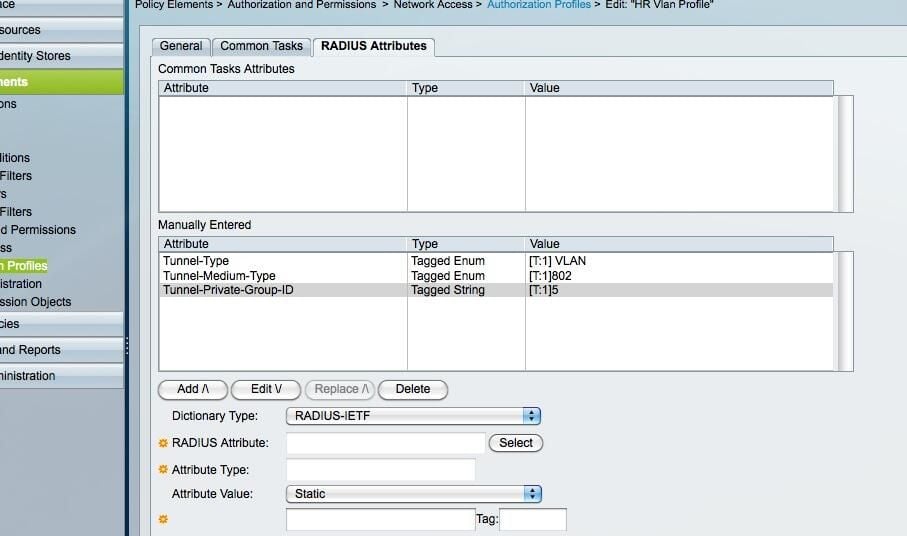
\n\tIn the example, I’ve defined a few attributes for HR, specifically:
\n
\n\t
\n\t
\n
\n
\n\tYou have to define attributes for each profile separately.
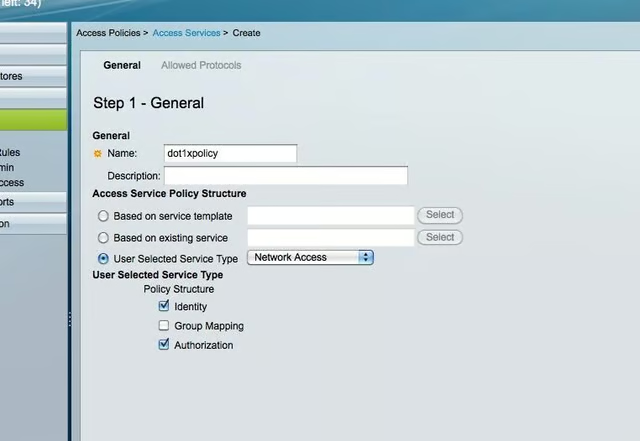
\n\tNavigate to Access Policies | Access Services. I’ve done a User Selected Service Type of Network Access and left the default selections of Identity and Authorization. At the bottom of the page, click Next.
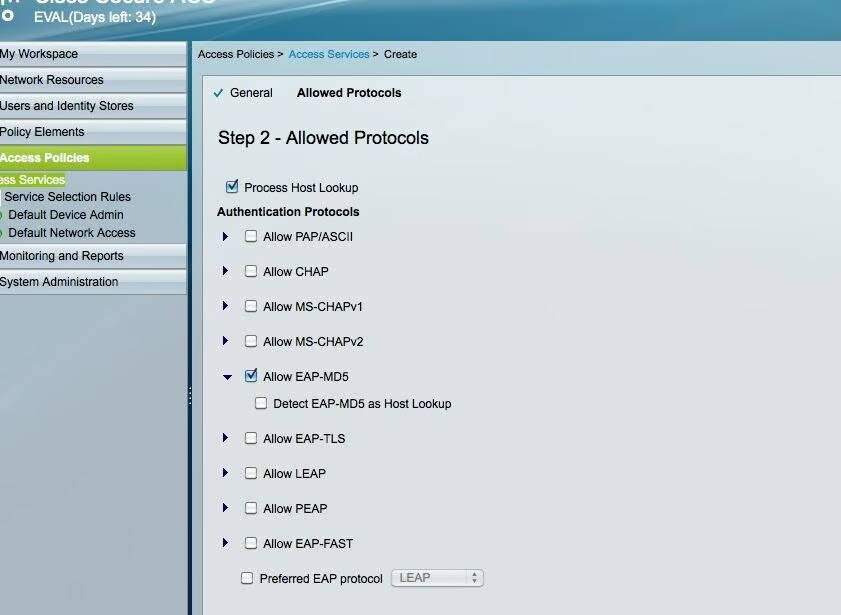
\n\tThis is where you select the protocol you want to use., I am going to use EAP-MD5. Once you select your protocol, click Finish.
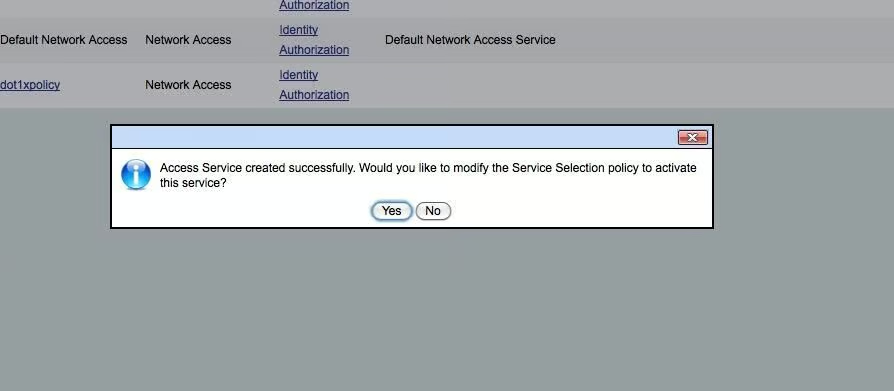
\n\tNext, you should see a pop-up asking if you want to modify the Service Selection policy to activate the server. You want to answer Yes here. This will then take you to the rules page.
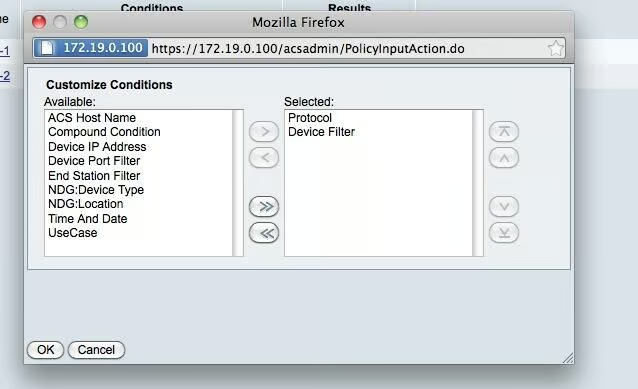
\n\tOn the Rules page click Customize and add Device Filter to the right hand menu. If it’s not there, you will not see it as a condition.
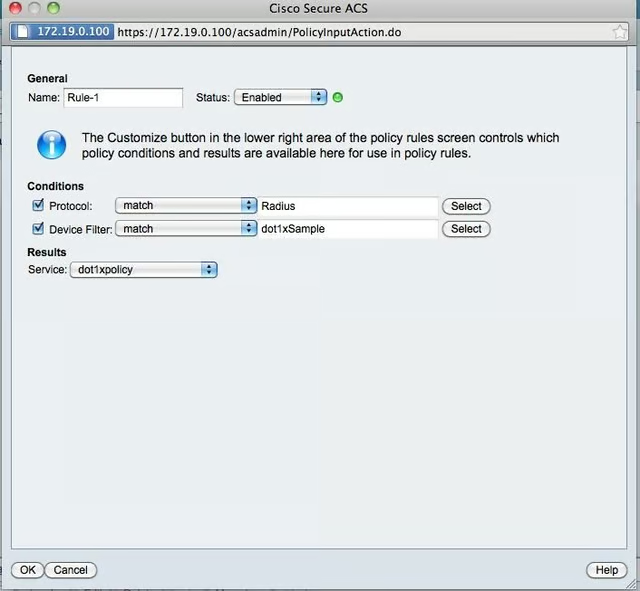
\n\tAnd now when you add or modify Rule-1, you should see the conditions. You’re now done on ACS.
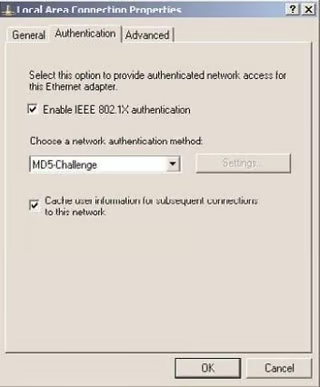
\n\tFinally edit your Windows adapter to enable 802.1x authentication and select MD5 Challenge. You’ll get a little balloon window to authenticate the next time you connect that host to the port configured for 802.1x.

Brandon Carroll has been in the industry since the late 90s specializing in data networking and network security in the enterprise and data center. Brandon holds the CCIE in security and is a published author in network security.


