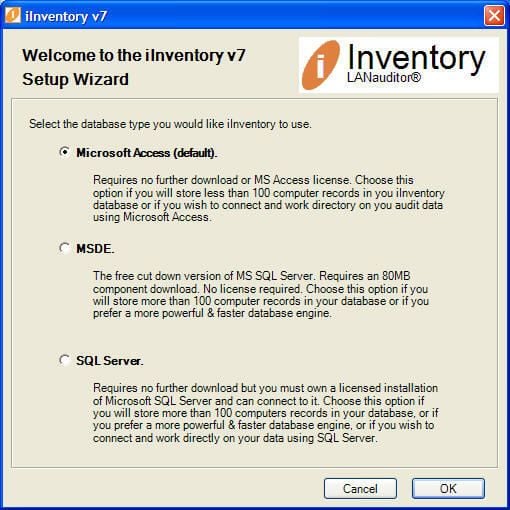
iInventory provides you with a number of choices when it comes to where you want to store your asset records. For small installations with fewer than 100 assets to track, iInventory can save the information into an Access-compatible database. Medium-sized installations that track more than 100 assets may want to use the MSDE version of Microsoft SQL Server. You can also opt to save the tracking information into a full-fledged SQL Server database. If you do not already have SQL Server in your organization, you must install it before using iInventory.
This gallery is also available as a TechRepublic article and as a TechRepublic download.
A free demo of iInventory is available as a download in the TechRepublic Software Library.
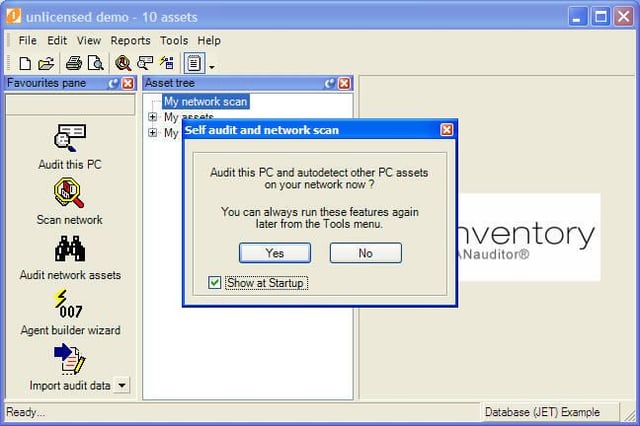
Each time you start iInventory, the product offers to perform a scan of the local system as well as a scan of the network, which determines if there are any available assets that iInventory can track.
If you want to disable this startup option, clear the checkbox next to “Show at Startup.”
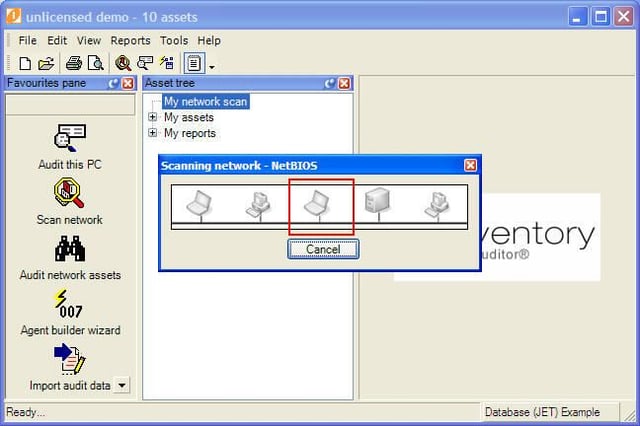
When iInventory performs a scan of your network, it pops up a window that lets you know that it’s doing something. While not informational, it’s nice to know that the product is doing something and is not hung.
In cases in which you can’t run a scan in this way, iInventory’s Web site offers you some ideas for completing your audit:
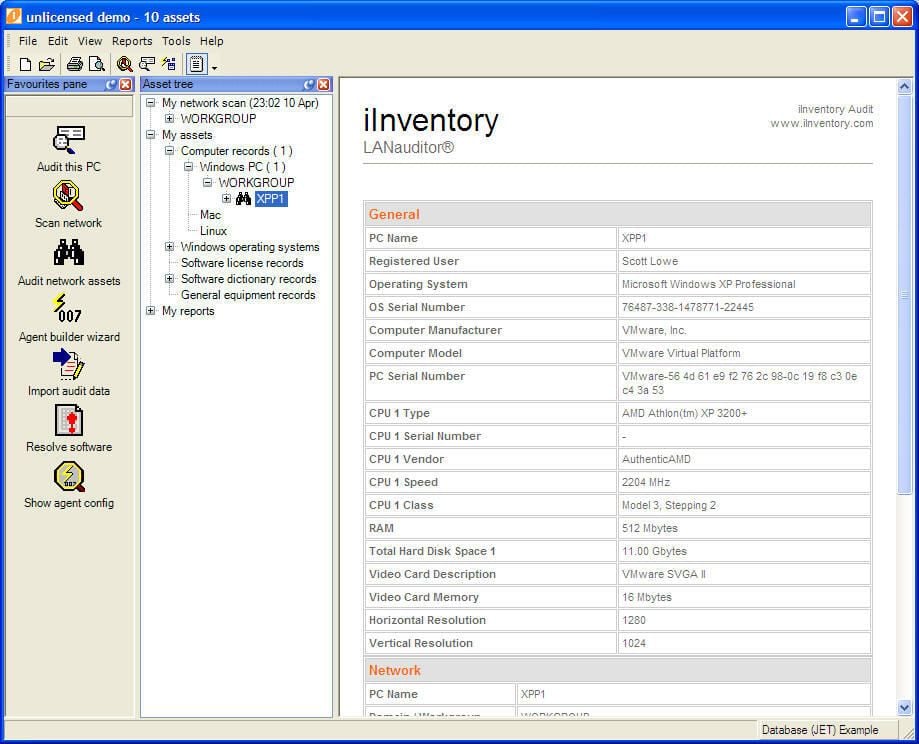
This screen shows you the details obtained from a local scan, which scans the local computer for inventory information. iInventory captures a significant amount of information and presents it in a readable table.
After you have multiple machines scanned, this display can be used to determine how many and which machines have specific versions of software. You’ll see this feature later.
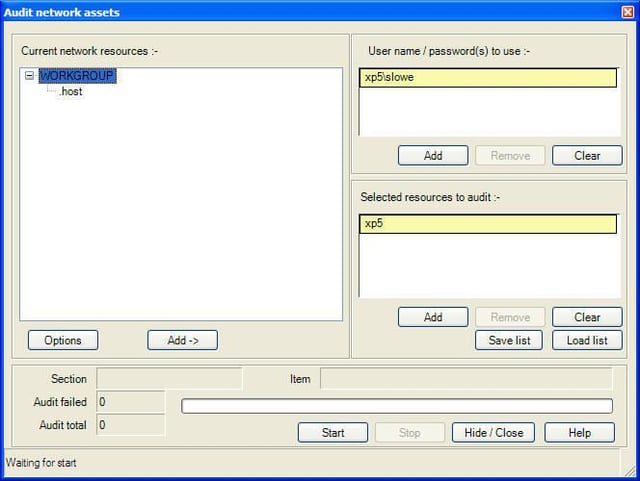
You might have some machines that are not a part of your domain or are not, for whatever reason, discoverable by iInventory. You can selectively scan these assets by providing a machine name or IP address and credentials that can be used to perform the scan.
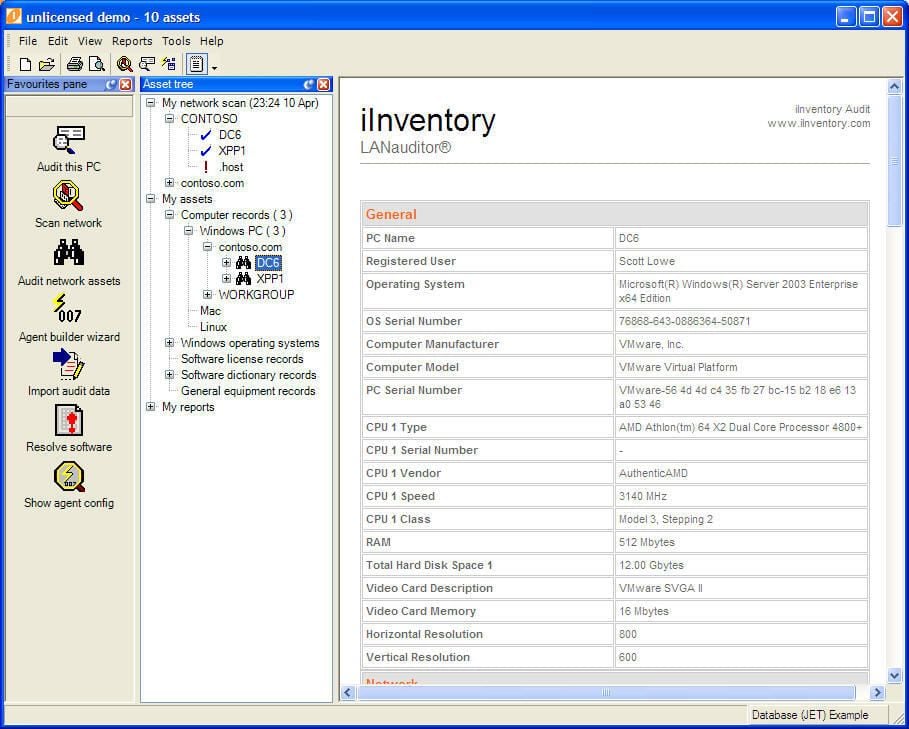
In this screen shot, you can see that a second machine (DC8) has been scanned. Further, the machine named XPP was moved into the contoso.com domain and now appears in that list.
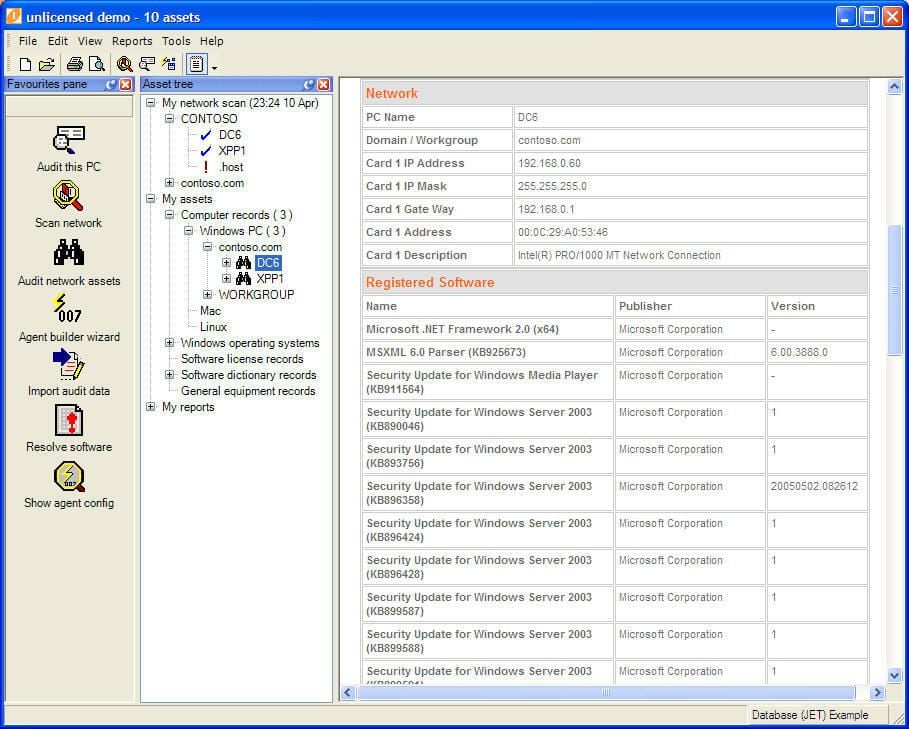
Here are more iInventory-provided details about the server named DC8. Here, you can see network adapter information as well as a list of some of the software installed on the server
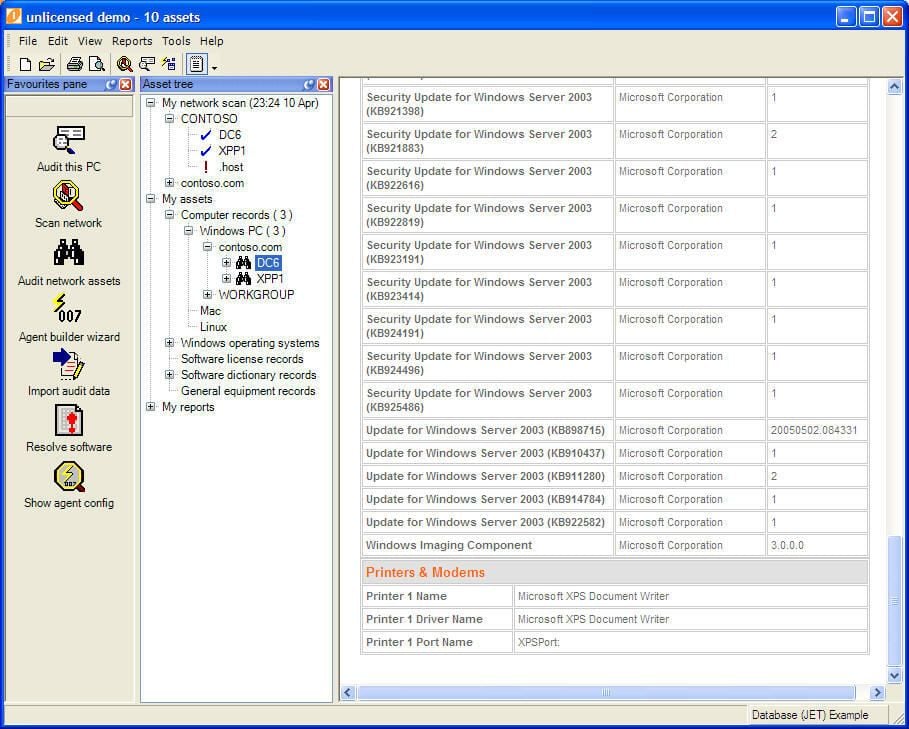
This screen gives you a look at the final screen of overall information for the server named DC8. Note that this is not the only information provided by iInventory’s audit process.
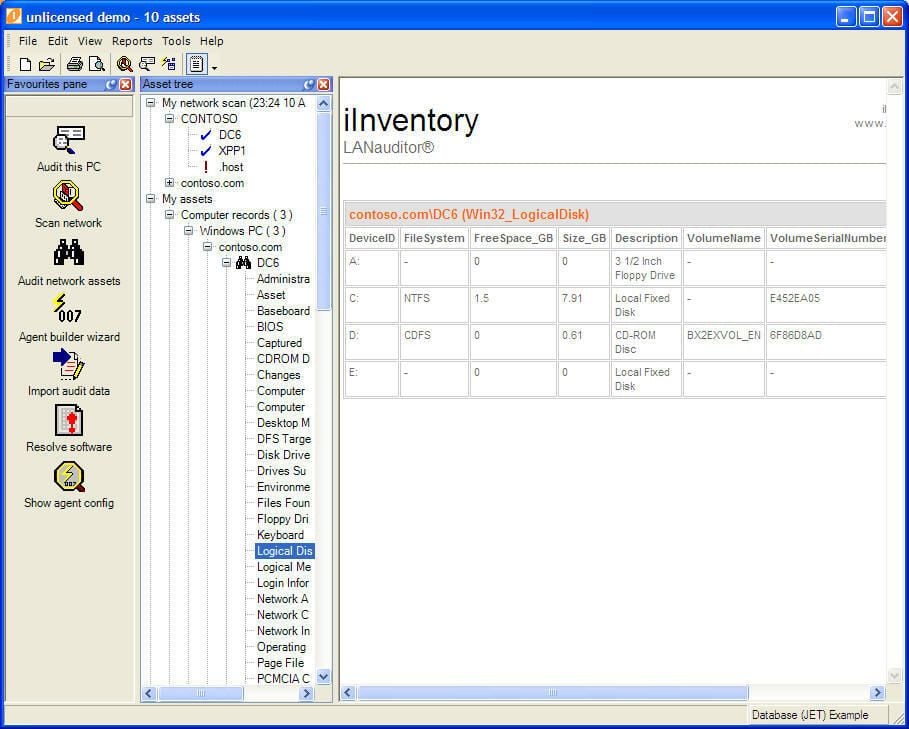
Besides the overall information you saw in the last three screens, iInventory provides you with granular information regarding just about every possible aspect of the system. Take a look at the available options under the DC8 heading in this screen. Also note that iInventory tracks overall disk space utilization, making it an ideal tool, if run on a regular basis, for tracking storage trends over time.
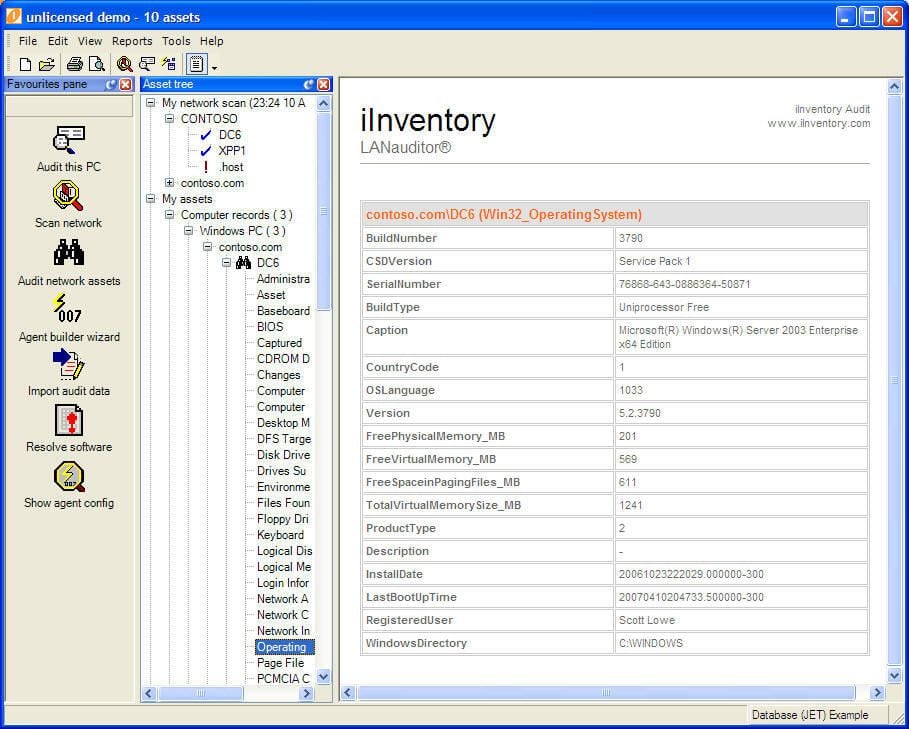
Do you need to figure out which servers have undergone the upgrade to Service Pack 1 or 2 and which ones are still waiting? This is one of the nuggets of information captured by iInventory. iInventory also captures memory utilization, making it possible to track which servers might be in need of an upgrade.
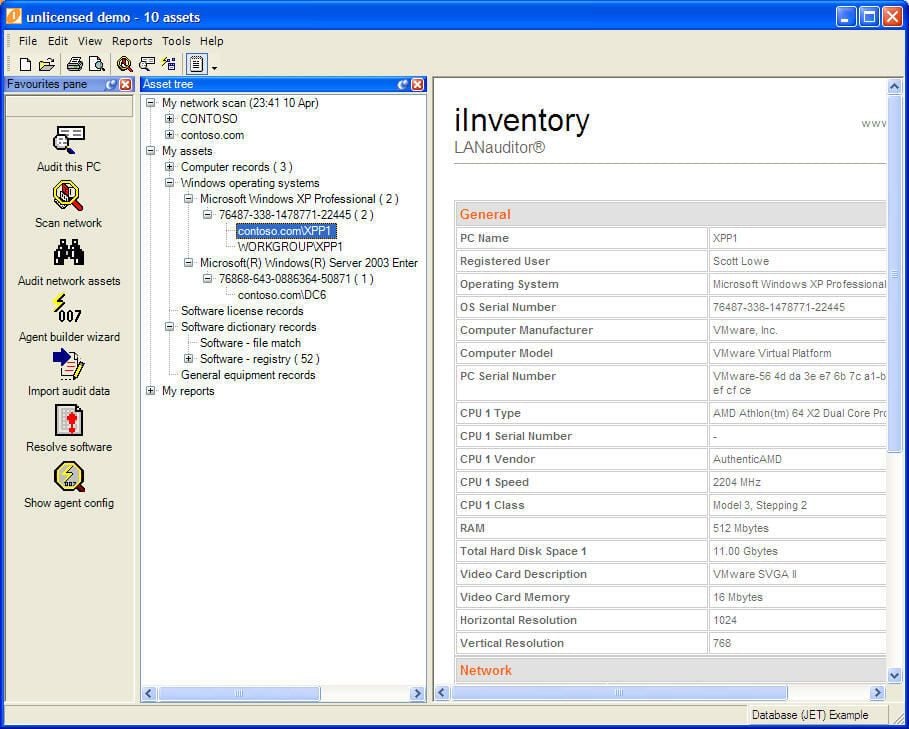
Once scanned, your assets are broken down by operating system. Here’s another look at the Windows XP system named XPP1, now a part of the contoso.com domain. Below the Windows XP entry, note that there is a list of available Windows Server 2003 servers.
This screen shows two systems named XPP. One was from a scan before the computer was added to the contoso.com domain and can be safely removed.
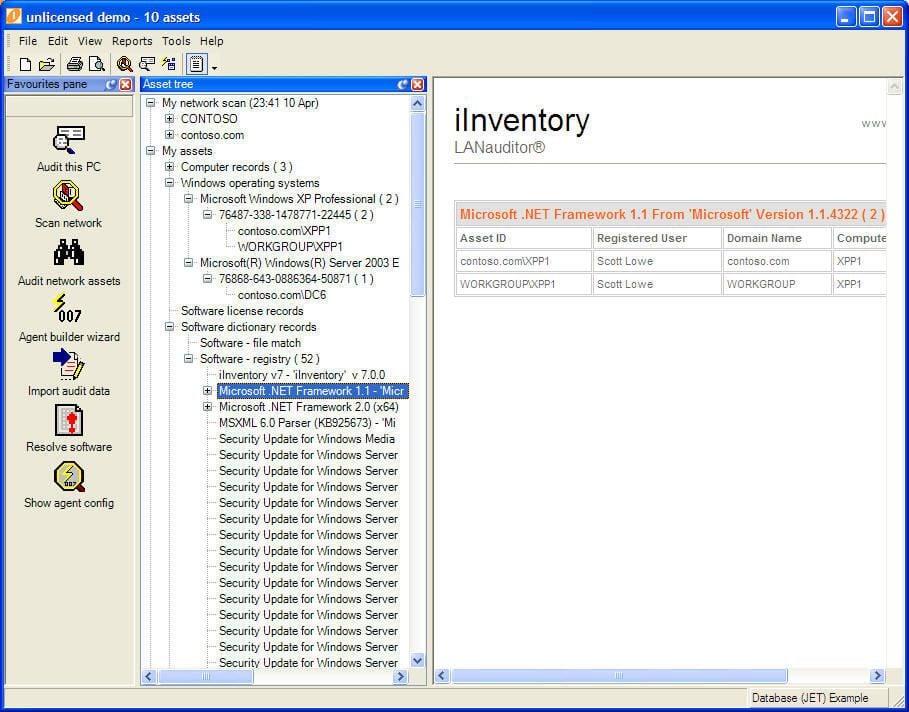
Asset tracking is important in any organization, but so is keeping current with patches and updates and keeping track of the systems to which licensed software has been installed.
iInventory’s software dictionary records can give you a picture of which systems have certain software. In this example, you can see a list of computers to which the .NET Framework 1.1 has been installed.
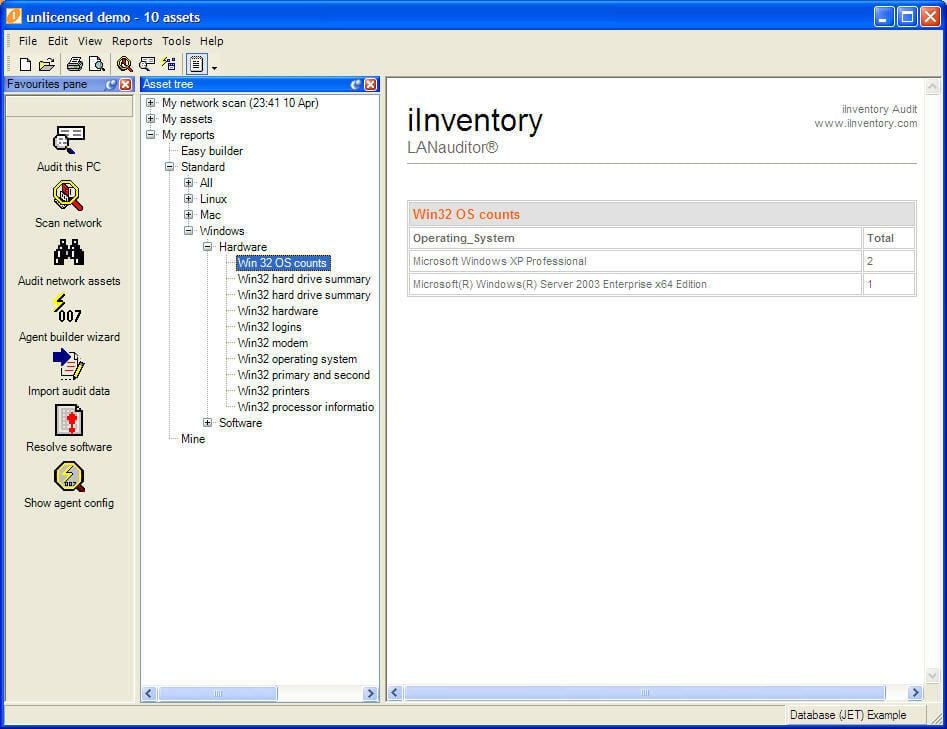
Do you have any rogue operating systems out there? Or, do you need to verify your operating system count for your Microsoft licensing agreement? Let iInventory do the work!
On this screen, note that iInventory is tracking two Windows XP systems and one Windows Server 2003 system.
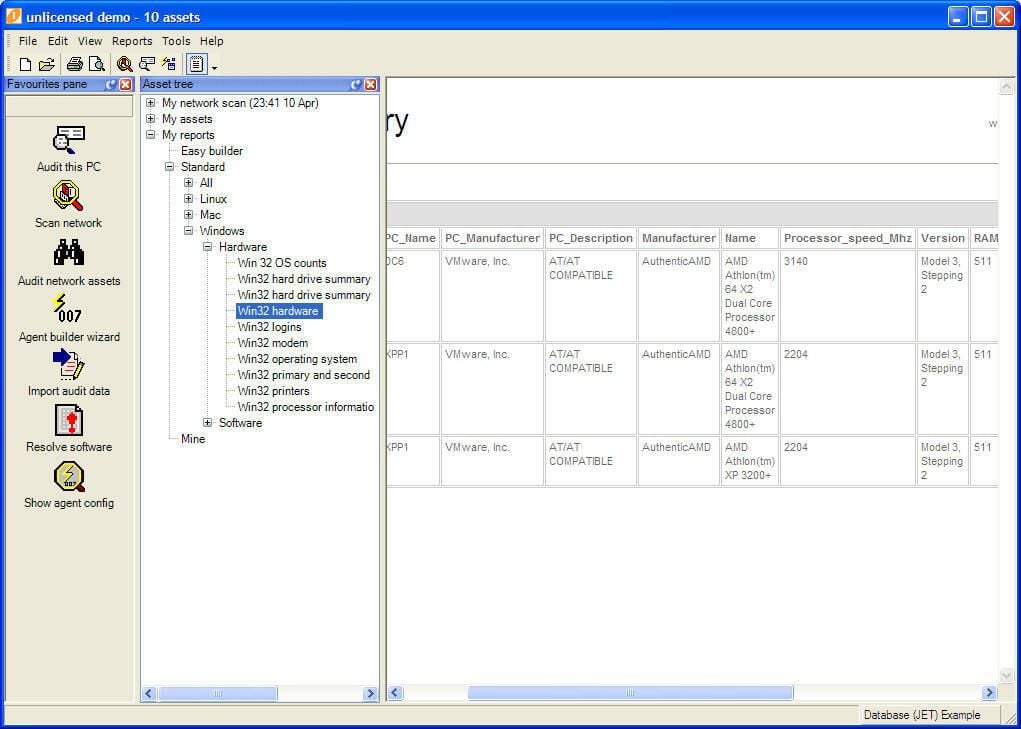
When it comes to making hardware upgrade decisions, not every organization is able to say “we replace every computer every three years on the dot.” Instead, many organizations must make year-to-year determinations based on available budget and existing computer performance. Two key performance indicators for computers have always been processor type/speed and the amount of RAM. Another one of iInventory’s standard reports shows you the full name and speed for every processor in your organization and the amount of RAM in the associated computer. This goes way beyond many standard inventory spreadsheets that just include speed and total RAM! Now you can see which processors are dual-core, and therefore make better upgrade decisions.
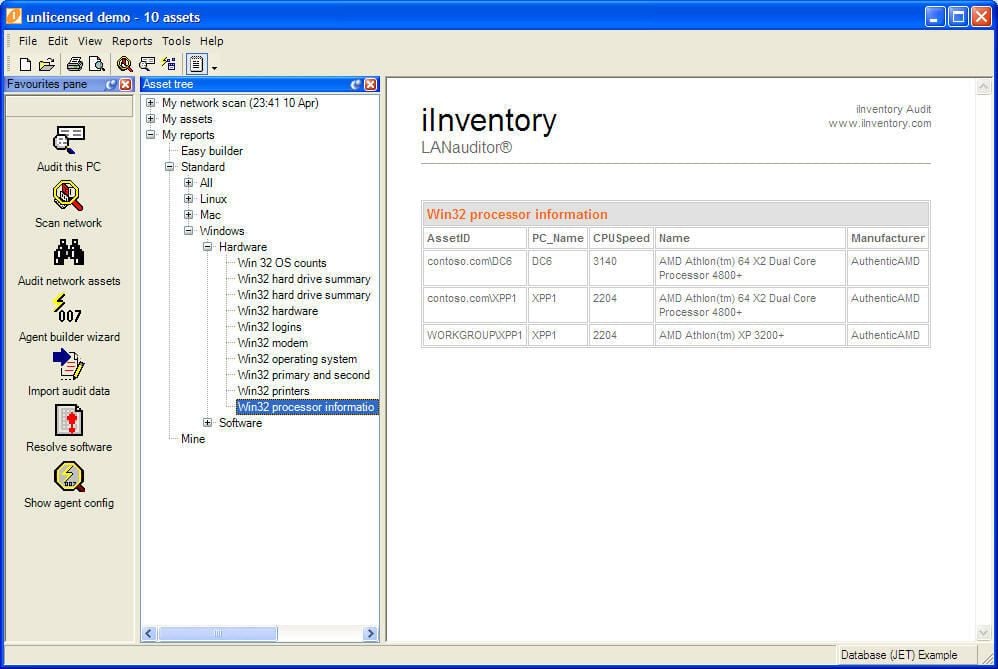
This report is very similar to the hardware report, but lists just the processor type and speed associated with each asset.
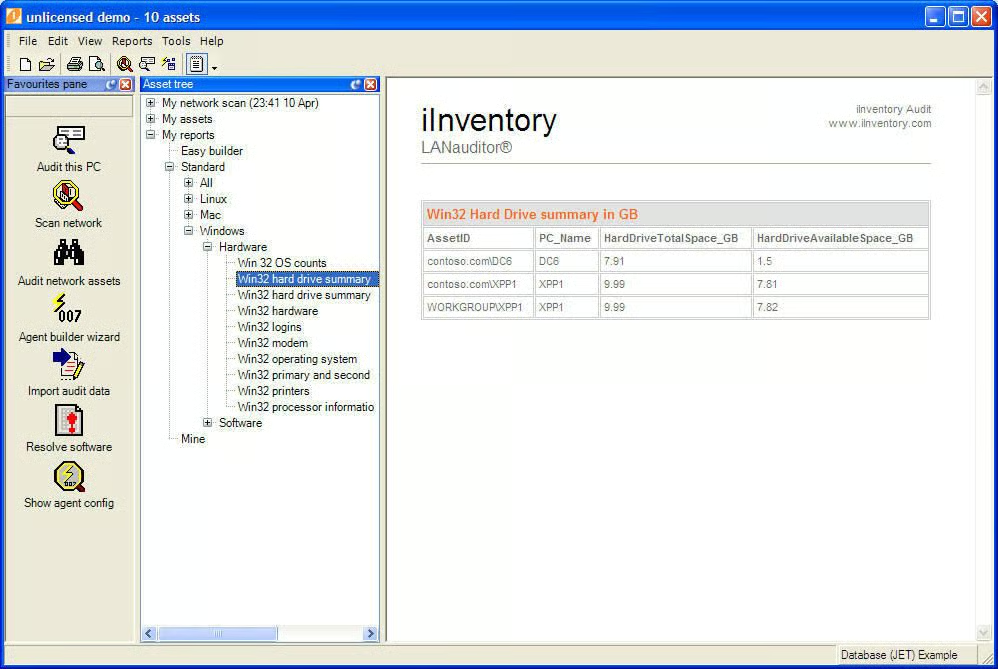
Earlier you saw a screen that, along with other information, gave you a look at how much hard drive space was available in your system. The Win32 hard drive summary report shows you the same information, but in a much more concise fashion.
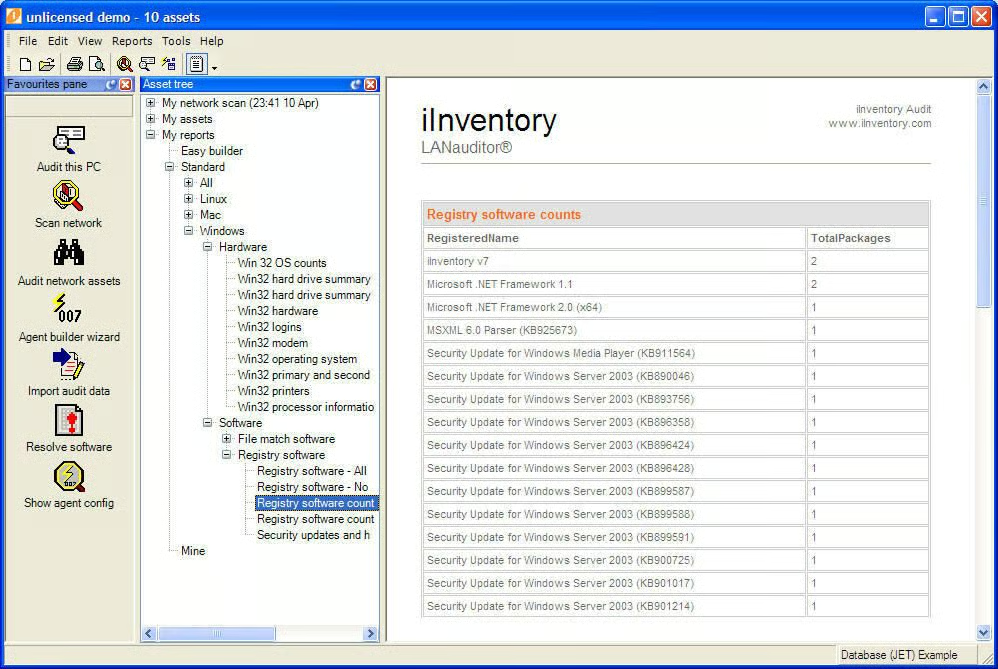
From a licensing perspective, keeping track of the number of installations is critical. This software report scans the registry for installed software and displays the number of instances found in your scanned assets.
You can also use file-matching to determine the software that is installed on a machine. For example, if iInventory finds “Word.exe” it will assume that Word.exe is the Microsoft Word executable and increment the license count for that software.
Speaking of which, you can also tell iInventory how many licenses you own for a particular product and let it do the compliance checking for you.
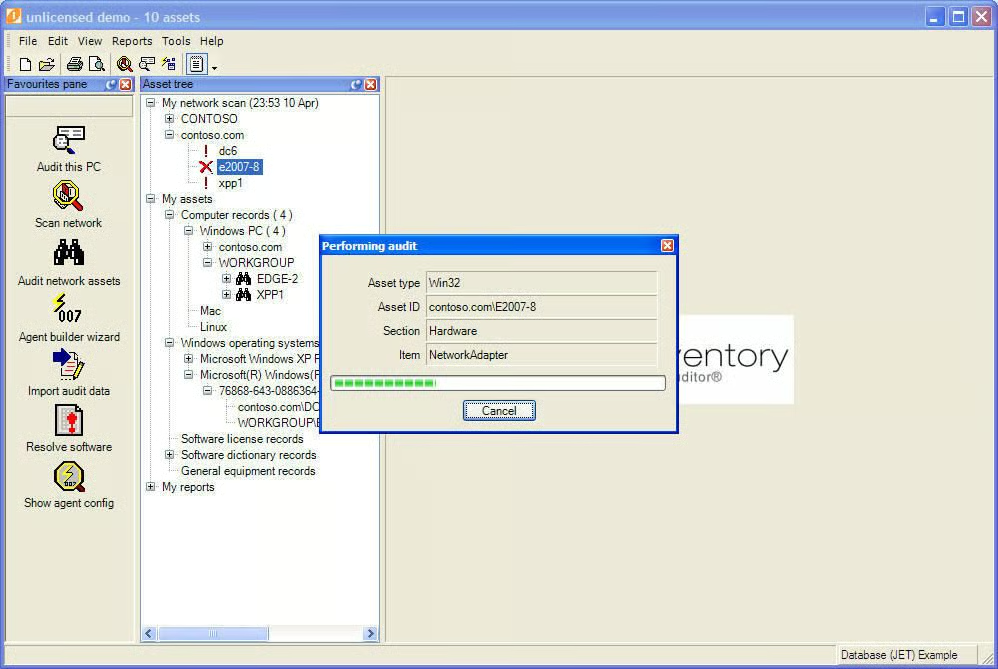
Over time, you’ll probably add an asset or ten to your organization. When iInventory scans that asset, the software provides you with a status window outlining the scan’s progress.
—–
Review:
I found iInventory to be an excellent tool when it comes to keeping track of computer and software assets. With prices starting at $5.50 per seat for 2,500 seats up to $21 per seat for 11 seats, smaller organizations might not find it quite as valuable as larger ones, though.
For complete pricing, go to iInventory’s price list.
One major feature offered by iInventory is its capability to scan Linux and Mac workstations, which might soften the financial blow for smaller organizations that need to include these kinds of assets in their scans.
The kind of information provided by iInventory can also be invaluable when it comes to software compliance audits, so the cost may be justified there as well.
iInventory, as of this writing, would scan both Windows Server 2003 and Vista machines, but these operating systems cannot house the software. Instead, you must install iInventory into an XP machine or a Windows 2000 server. I initially ran into installation problems when trying to install to Windows Server 2003 and did not even consider this possibility. In my opinion, this is a huge problem that the company should address as soon as possible.
Once I had that out of the way, when I launched the iInventory executable I downloaded from their site, the installation program for Microsoft Virtual Server 2005 started. The iInventory download is a self-extracting installer and, for whatever reason, the installation routine kicked off a different setup.exe file that just happened to be on my system. Once I moved iInventory’s installer to a different location, it installed without a hitch.
This gallery is also available as a TechRepublic article and as a TechRepublic download.

With close to twenty years of experience in Information Technology, Scott has experience across the board in the industry. Recently, Scott left his position as Vice President and CIO for a small private college to launch a consultancy -- The 1610 Group -- aimed at the SMB space and K-12 and higher education.


