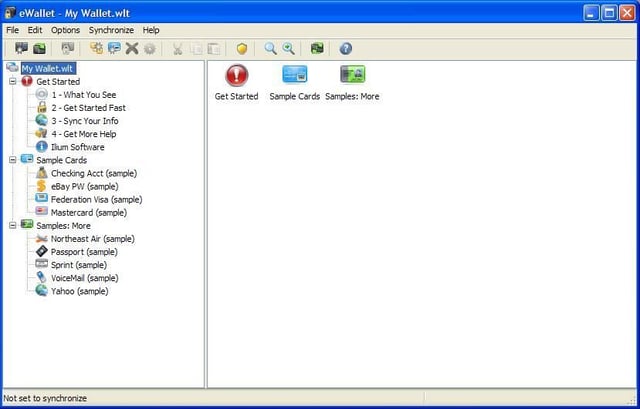
Ilium Software’s eWallet software is designed to let you securely carry all of your vital data (social security numbers, bank account logins/passwords, and more) with you on your mobile phone or PDA. eWallet 6 offer 2560bit AES FIPS encryption so your data is secure.
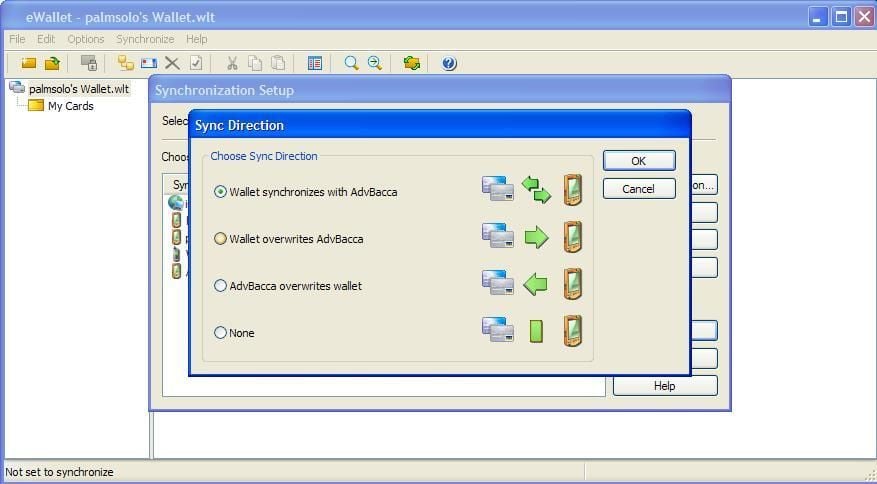
You can sync your secure wallet data between your PC and mobile devices.
The easiest way to get started with the application is to create your “virtual wallet” on your PC and then sync it to you mobile devices.
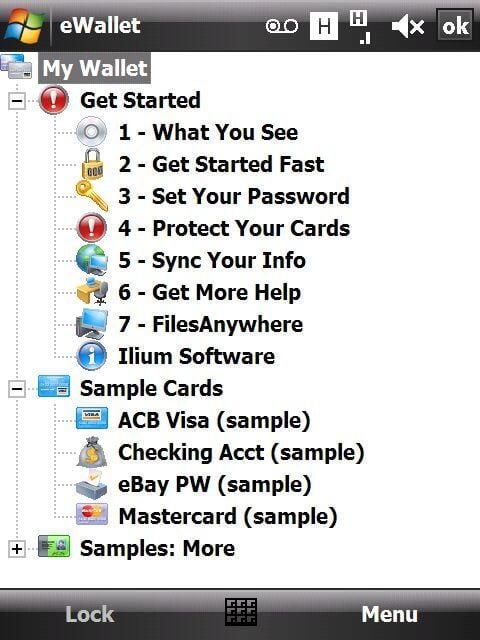
The main eWallet display shows your data “cards” just how you set them up with categories and subcategories.
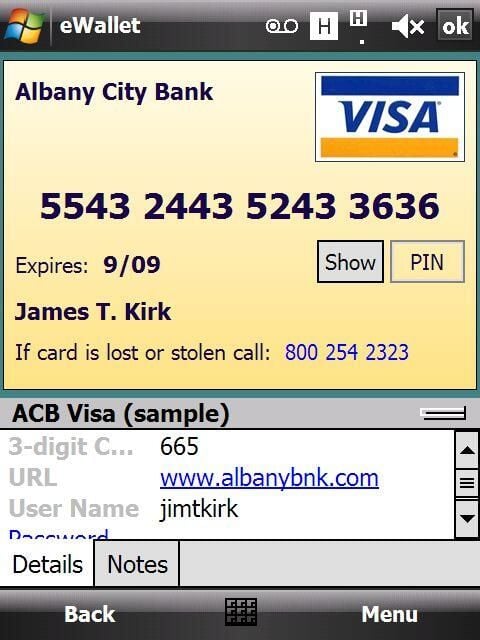
You can store data, such as your credit card information, in eWallet 6.0 and rest assured that it is secure.
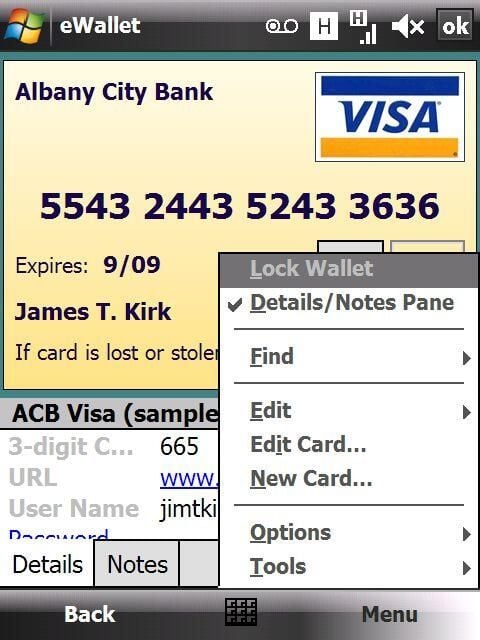
The right soft key has a few menu options available for you to find data, edit cards, view and change your options, and more.
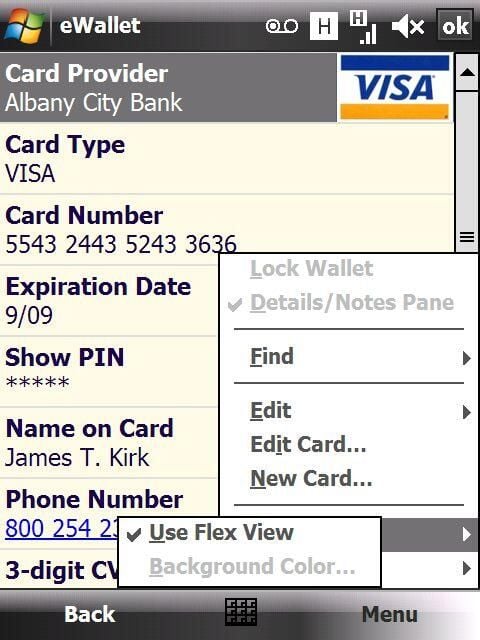
The two options available while you are in a secure card are to Use Flex View and change the background color. Flex View is the basic database view that is not in the form of a card.
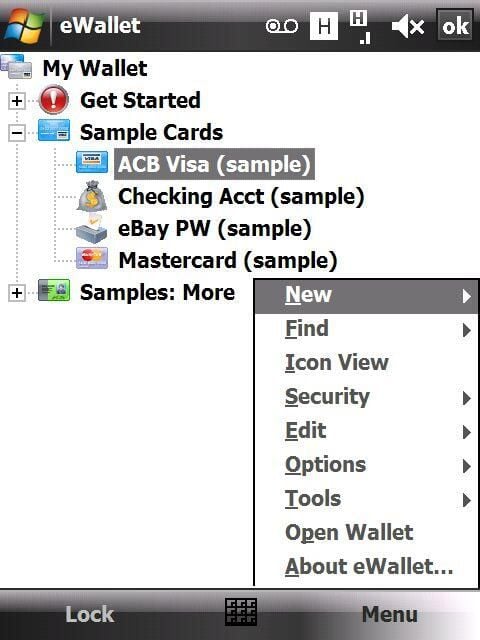
While in the main view of the program, you can see there are several choices available. You can create a new card, category, subcategory or wallet, find information, switch views, set security, edit cards, and more.
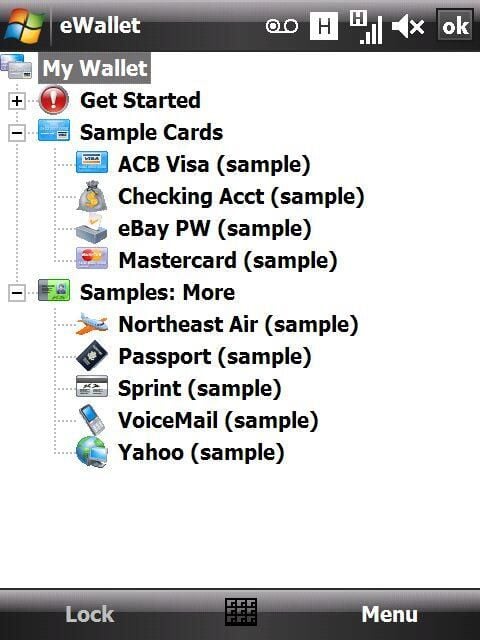
In this List view you can see all of your data and established categories. You can also switch to icon view.
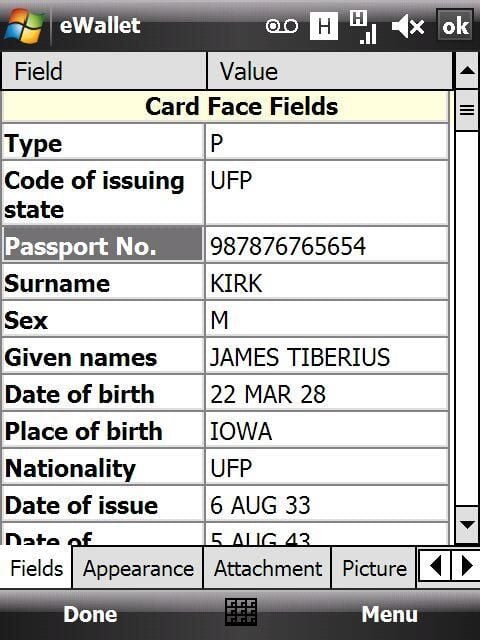
Data is entered into each database field in the card.
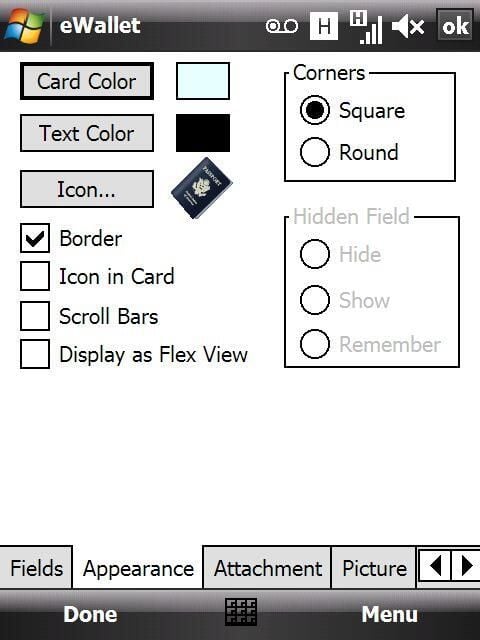
You can modify and set the card color, icon, text, borders, and more in eWallet 6. You can also scan in your real cards and use them as images.
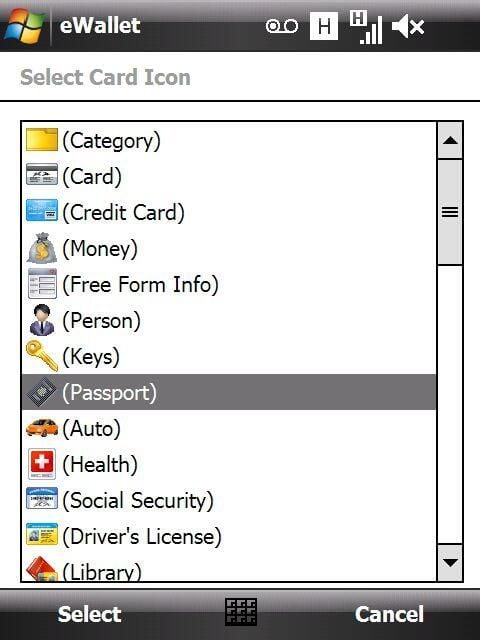
There are many icons installed with the program so you can use the ones already available without any further work on your part.
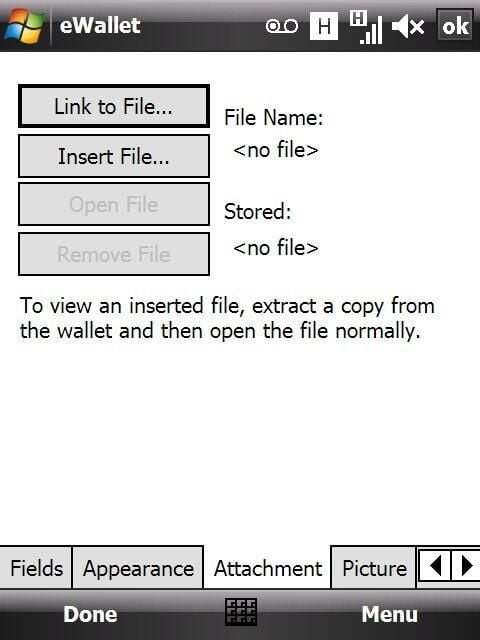
You can link to documents on your device with the attachment option.
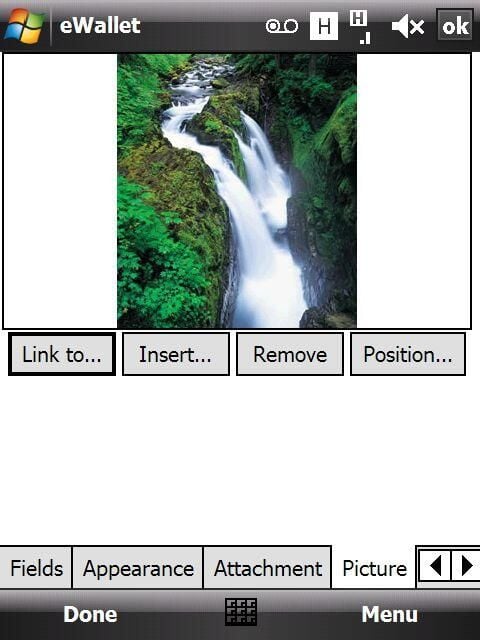
Photos can be used in you cards as well.
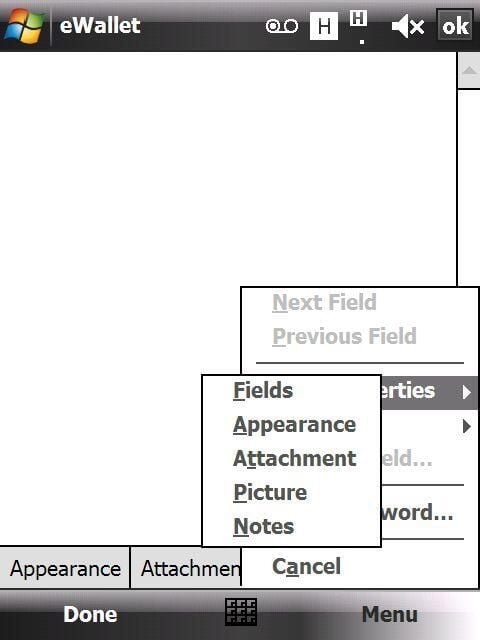
You can add notes to each card. The right menu lets you jump between the tabs used to customize your card.
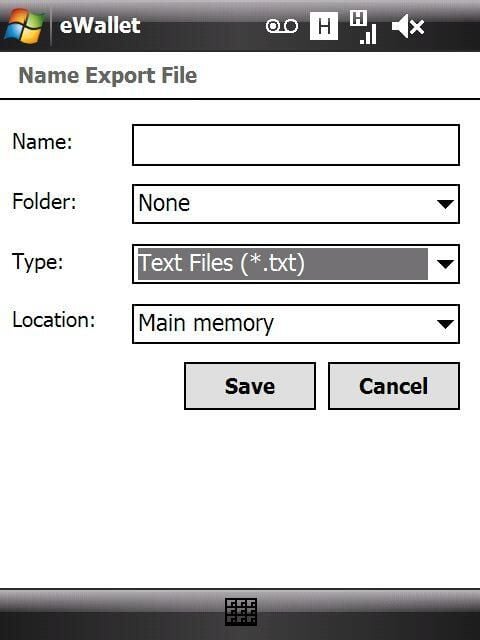
If you want to make a data dump you can export your eWallet data in text format for viewing in another application or for printing.
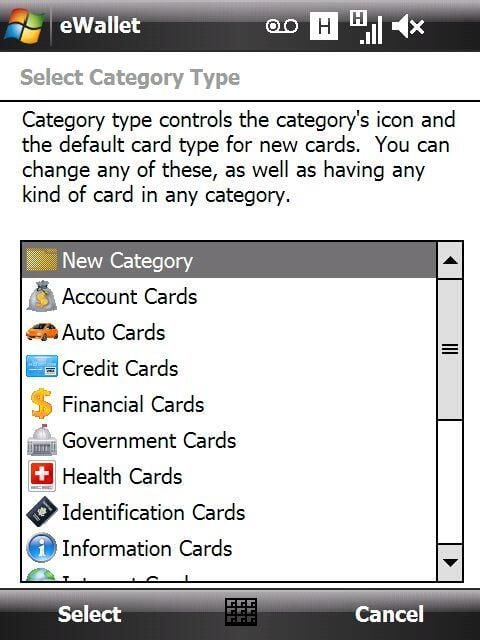
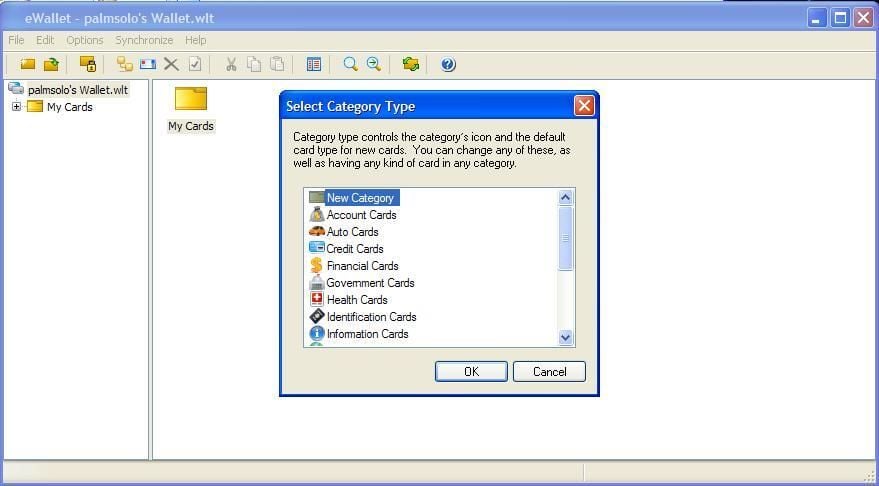
Cards are organized into categories that you can customize and manage.
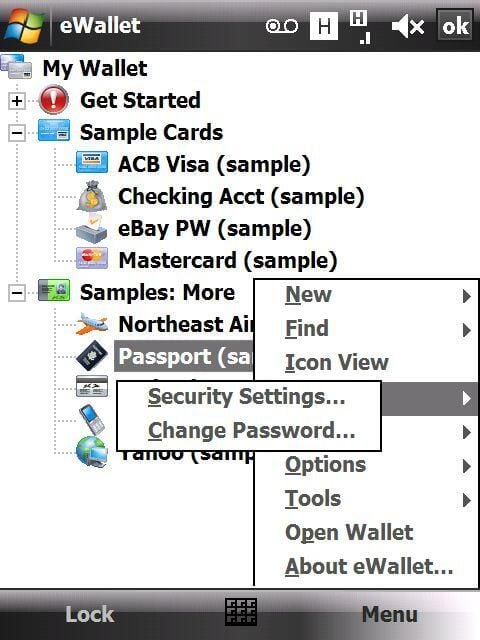
There are a couple of security options accessed by the right menu in the main display.
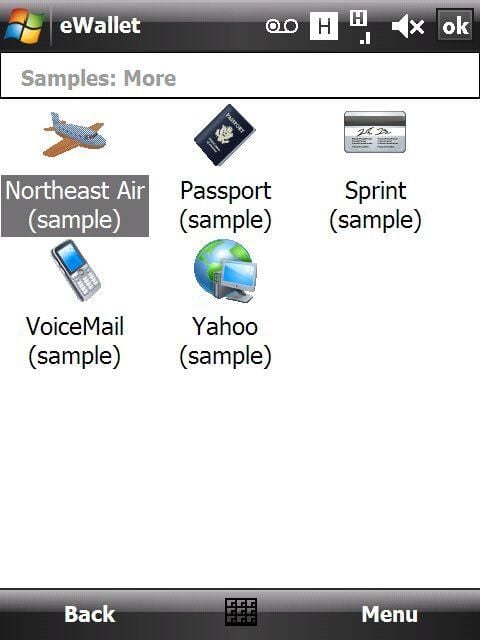
You can view your data in list mode or icon mode.

Thumbnail 1 for eWallet gallery

Thumbnail for eWallet gallery


