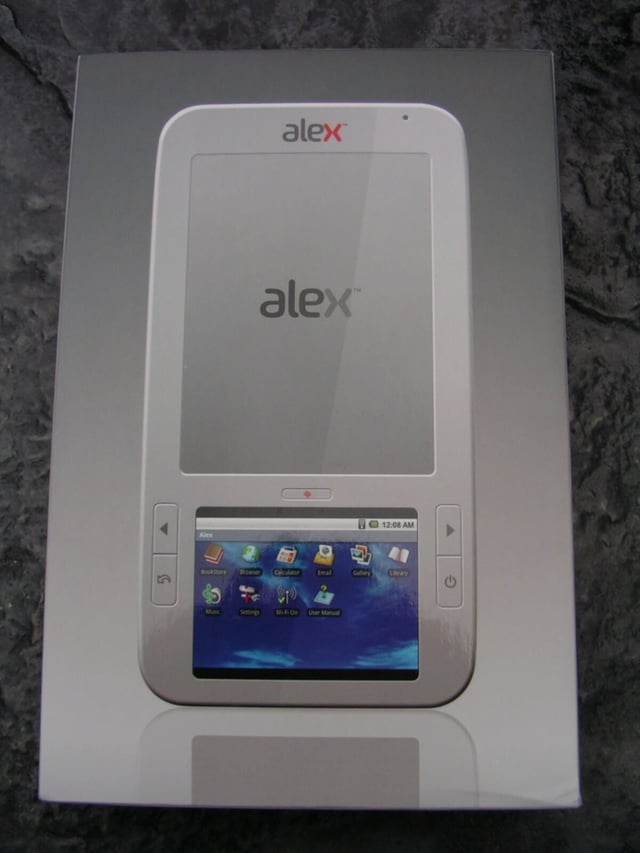
One of the electronic book readers I saw at CES 2010 in January that piqued my interest was the Spring Design Alex eReader since it had a full 6 inch eInk display on the top and a full 3.5 inch capacitive touch color display on the bottom with Google Android powering the device. The Barnes & Noble Nook is also powered by Android with both an eInk and color display, but a much more limited color display. I spent last weekend with the Alex eReader and found several things to like about it, but there are a couple other aspects that will prevent me from buying one for myself at this time. Check out my hands-on video and detailed thoughts and experiences with the device on my ZDNet Mobile Gadgeteer blog post.
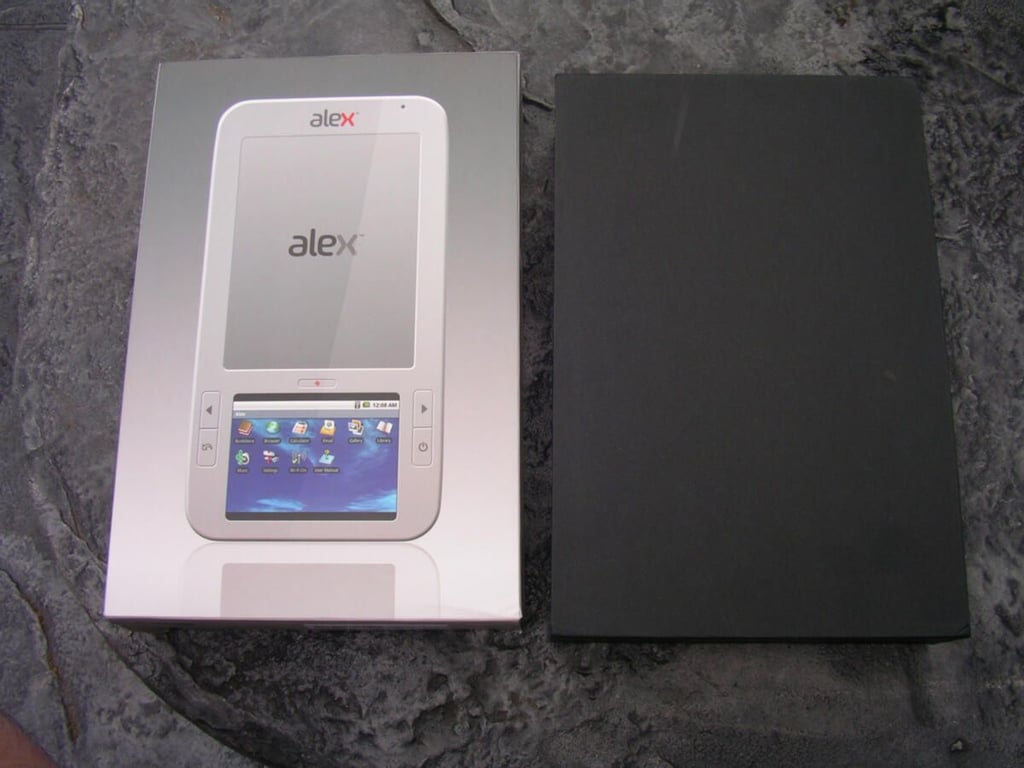
Inside the outside cover you can find the black solid box containing the Alex.
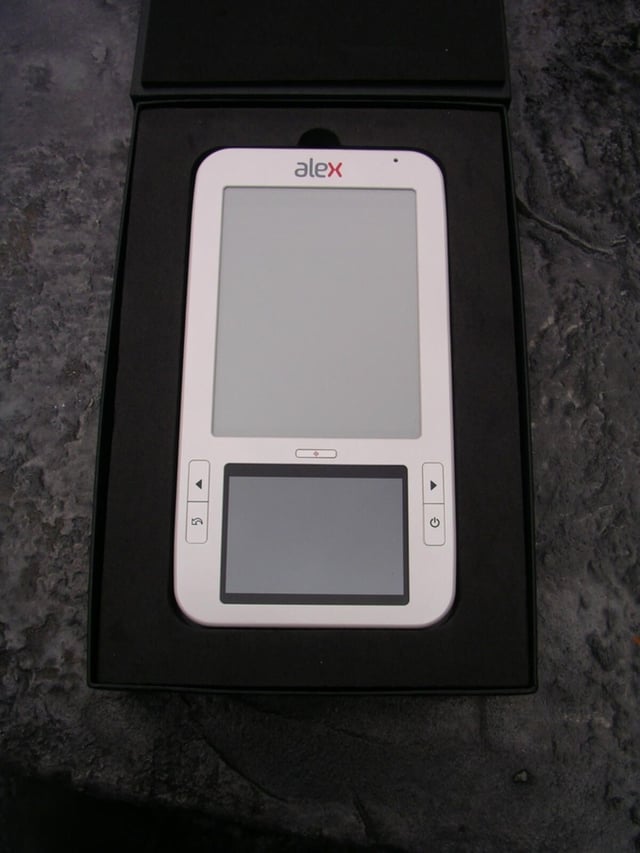
The Alex eReader is secure in a bed of foam to protect it in the retail box.
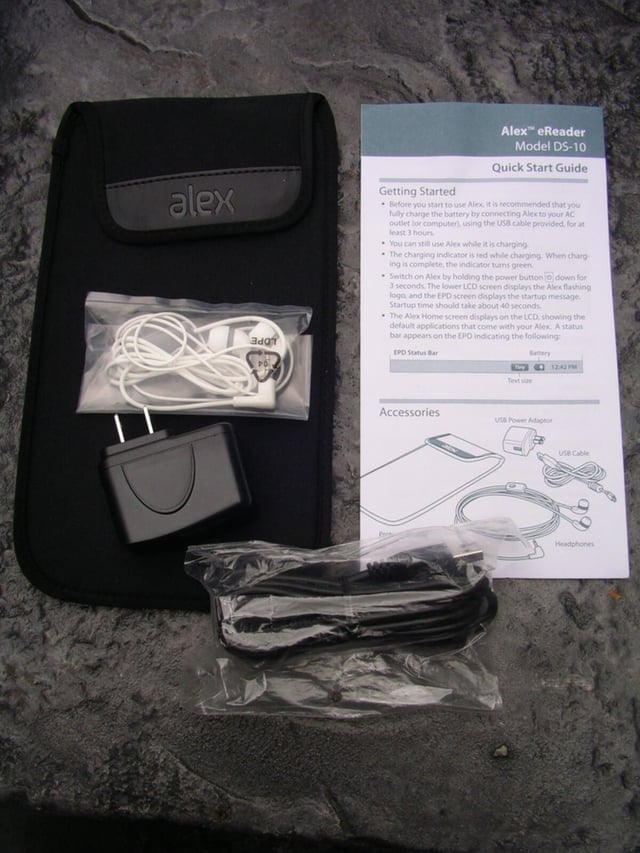
The cable, charger, case, and Quick Start Guide are below the Alex.
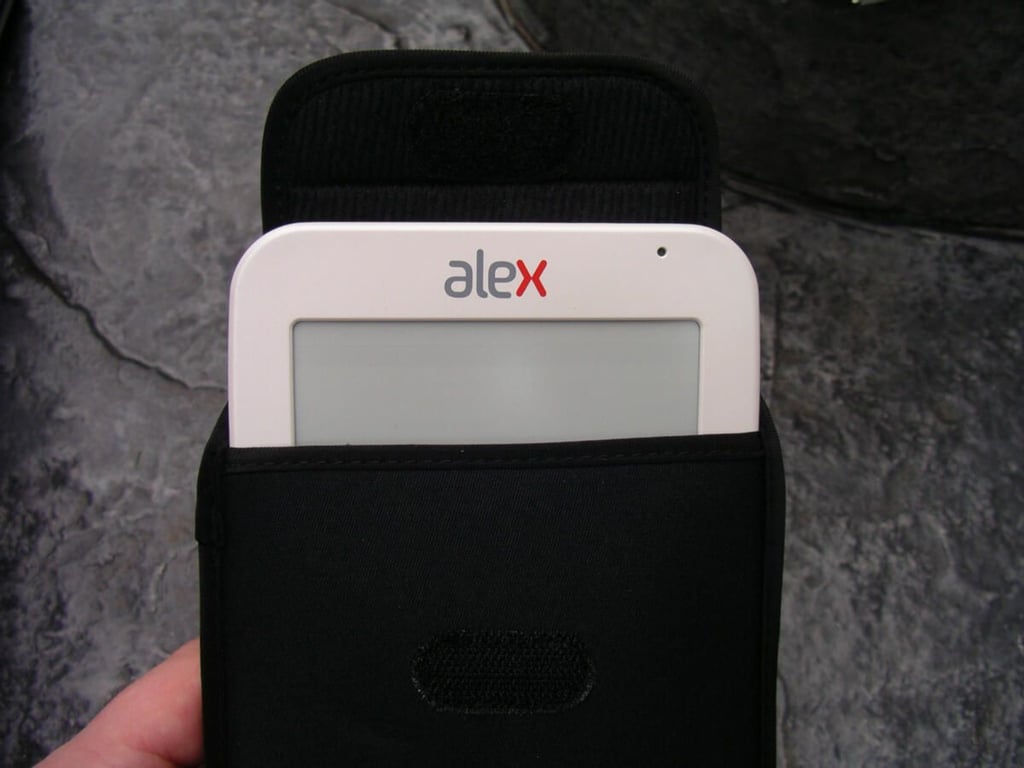
Spring Design includes a decent slip case for you to protect your Alex.
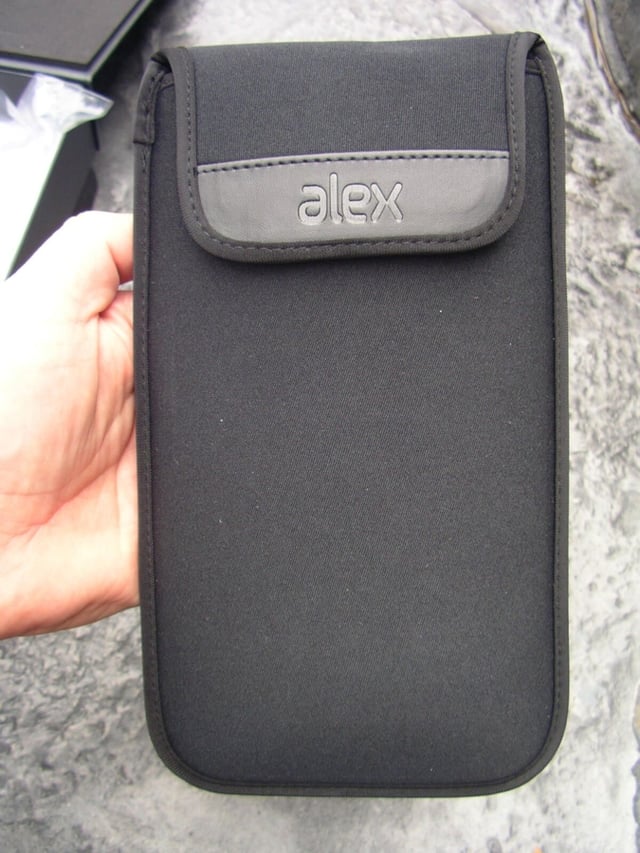
Here you can see the closed up slip case.
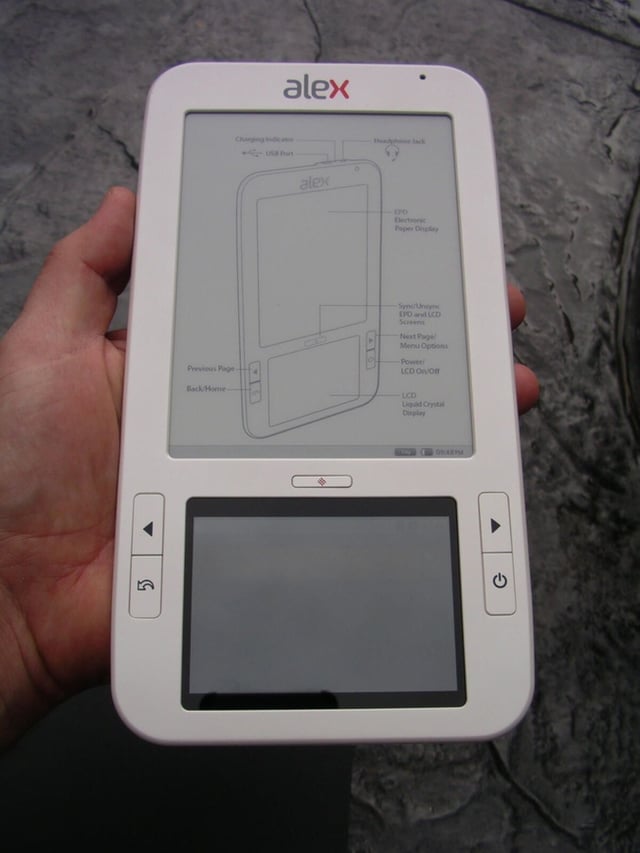
The Alex has two screens to give you a reading and Google Android experience.
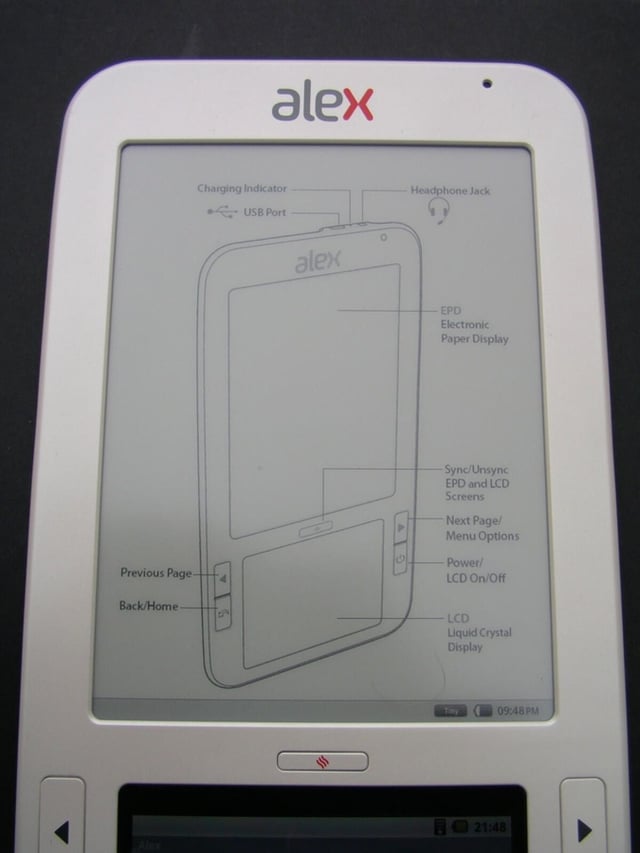
There is a 6 inch eInk display on the upper part of the front.
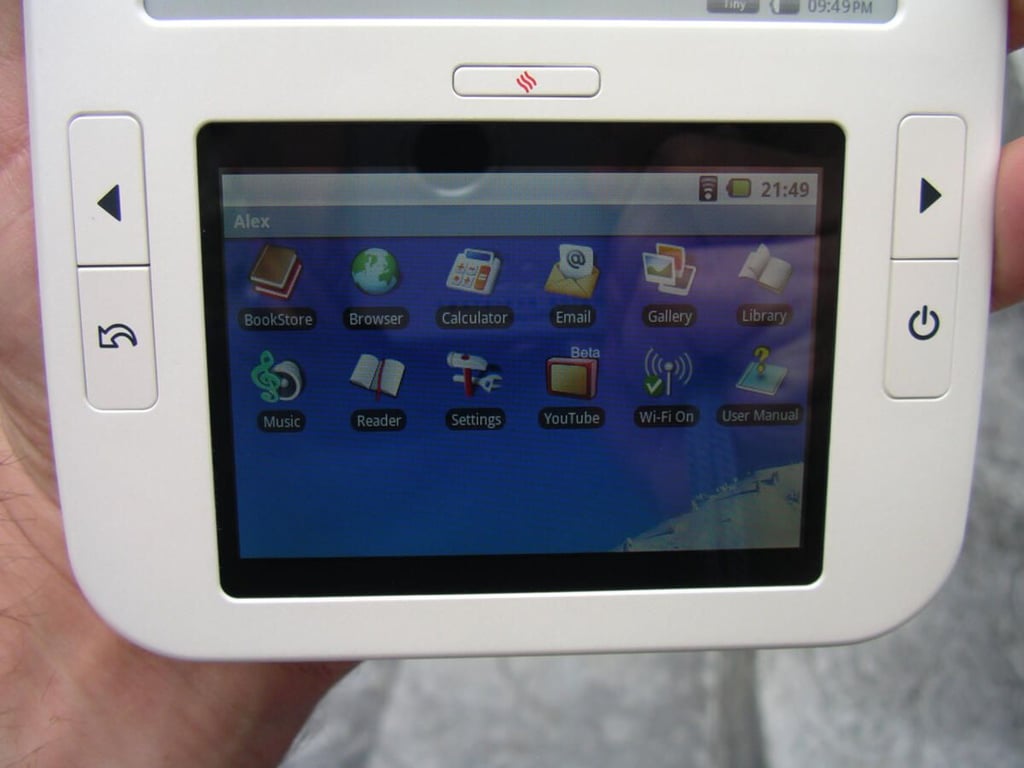
A full color 3.5 inch color display is found on the bottom of the front.
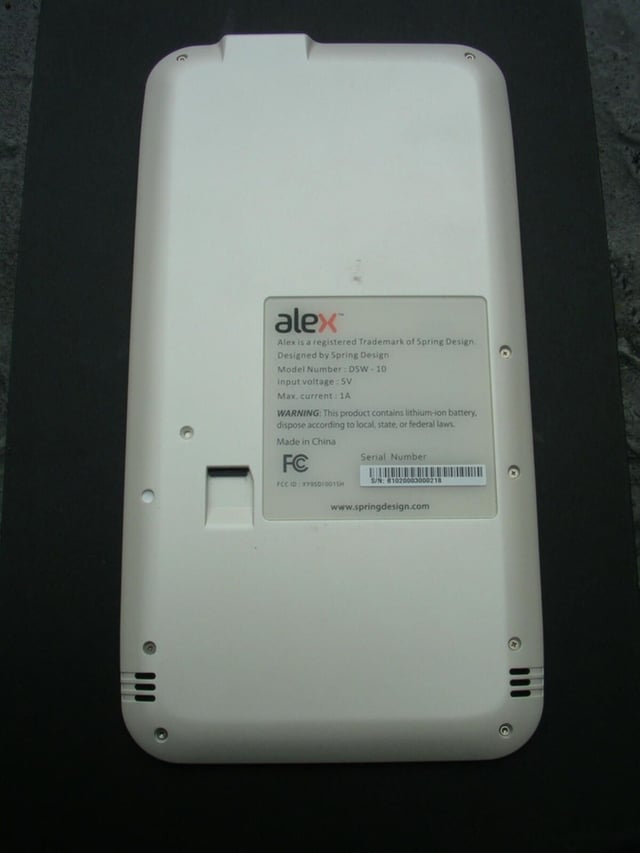
The back contains the microSD card slot and stereo speakers.
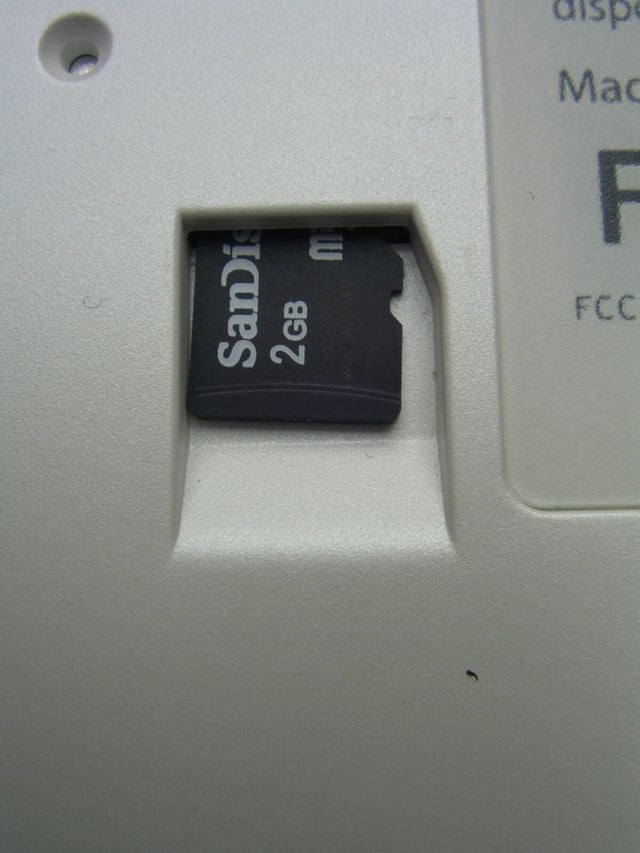
You can easily slide the microSD card in and out of the Alex eReader.
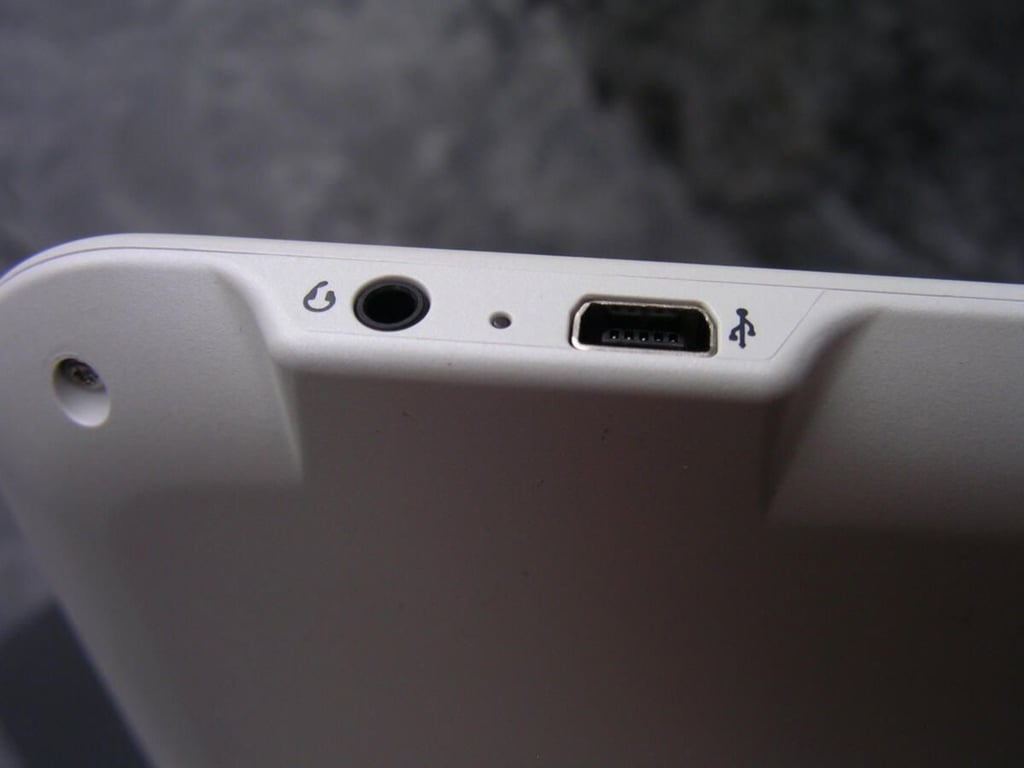
The 2.5mm headset jack, charging indicator light, and miniUSB port are found on the top of the Alex.
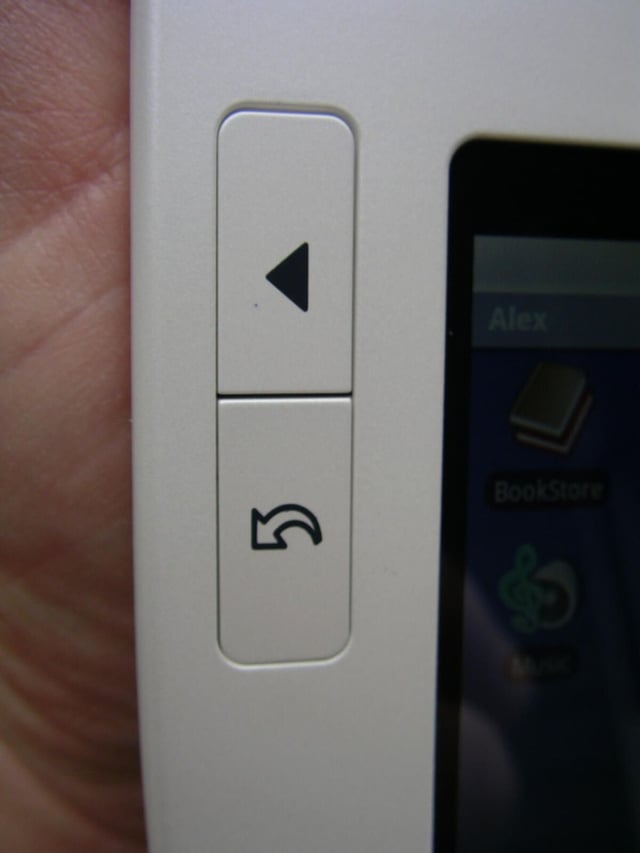
The previous page and back/Home button are on the left side of the 3.5 inch color display.
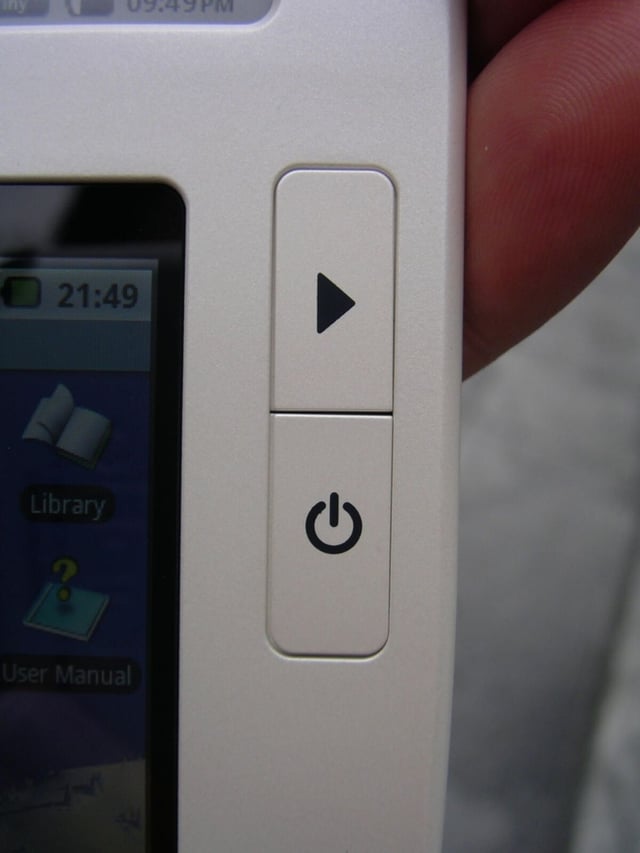
The next page/menu and power buttons are found on the right side of the color display.
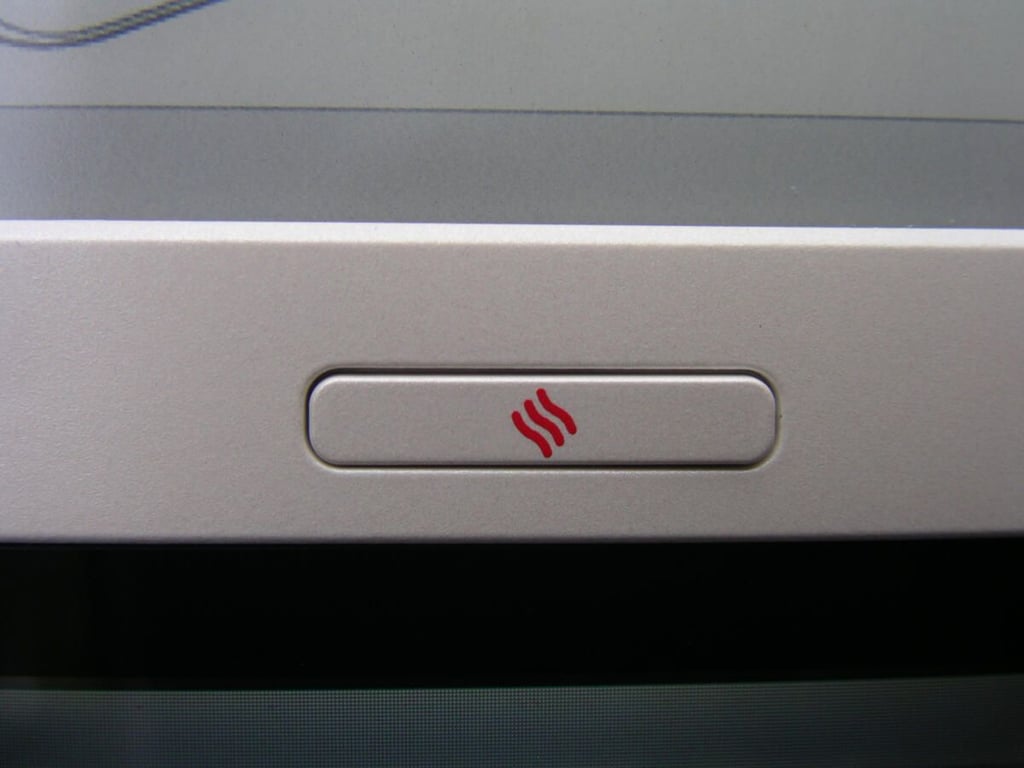
This cool button lets you sync your lower and upper displays so you can view the same content on both screens.
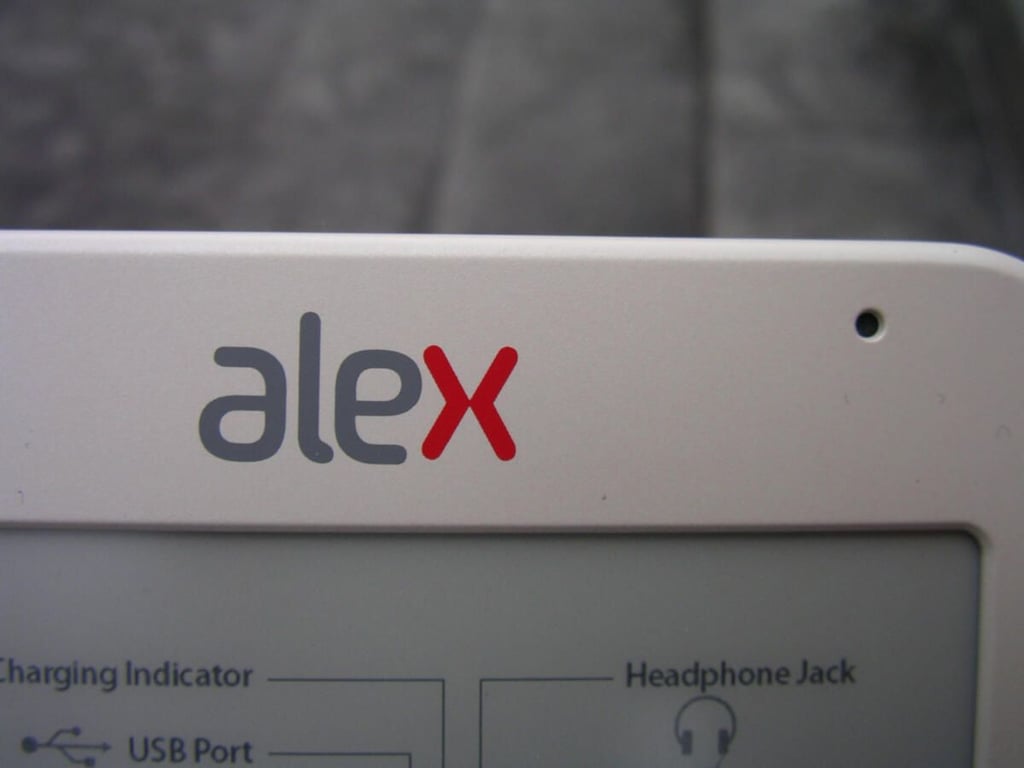
There is a microphone on the upper right of the front, adjacent to the Alex label.
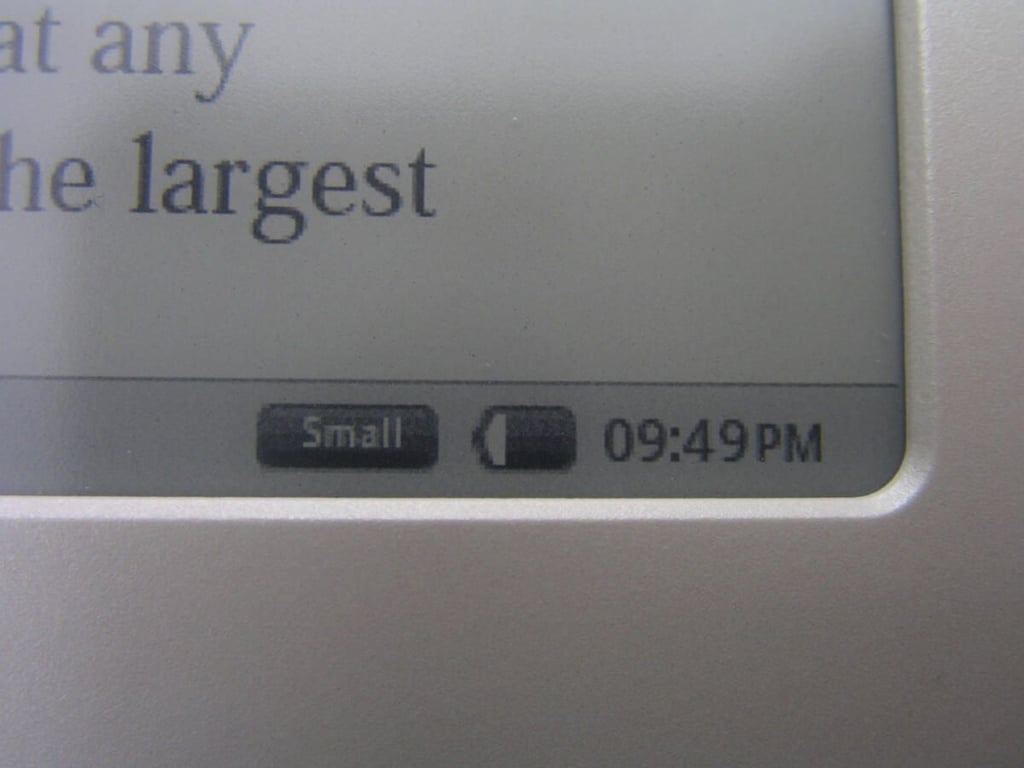
The text size, power indicator, and time are found on the lower right of the eInk display.
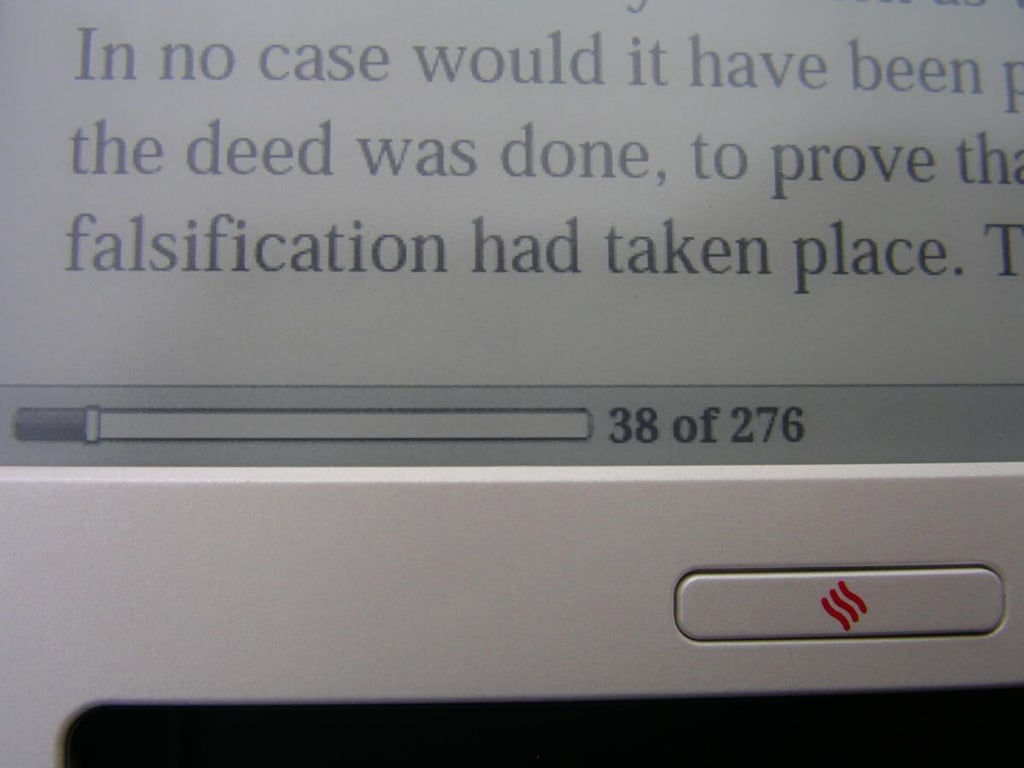
The page location information is found on the lower left.
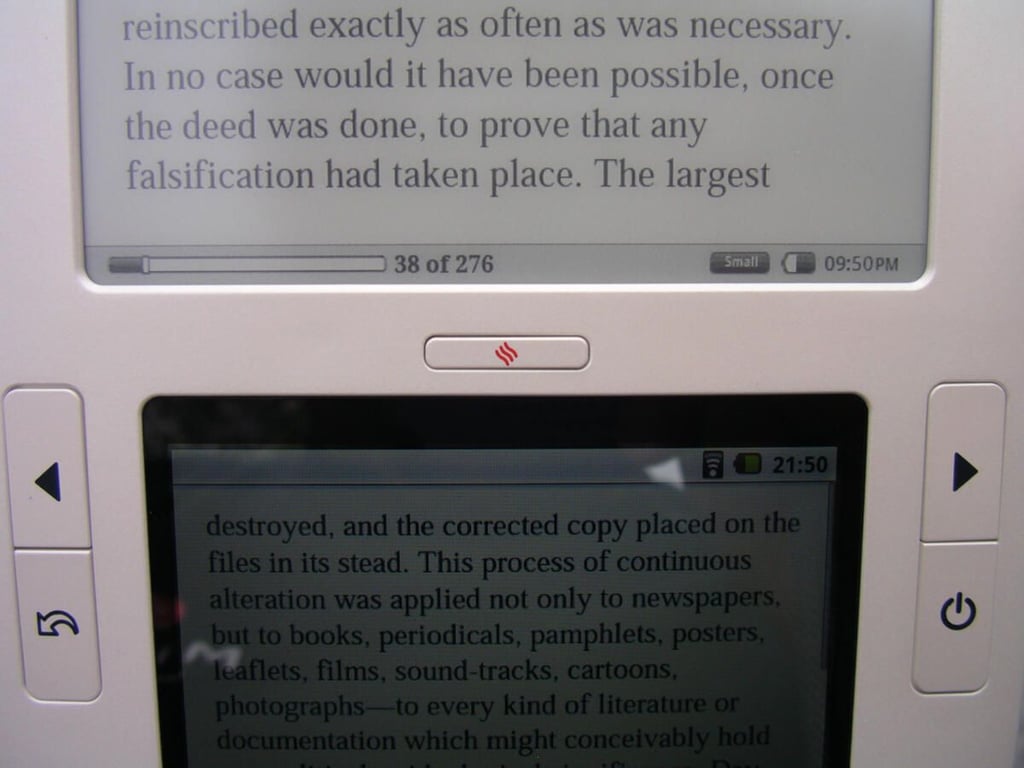
As you can see the displays are in sync so you can read in either display.
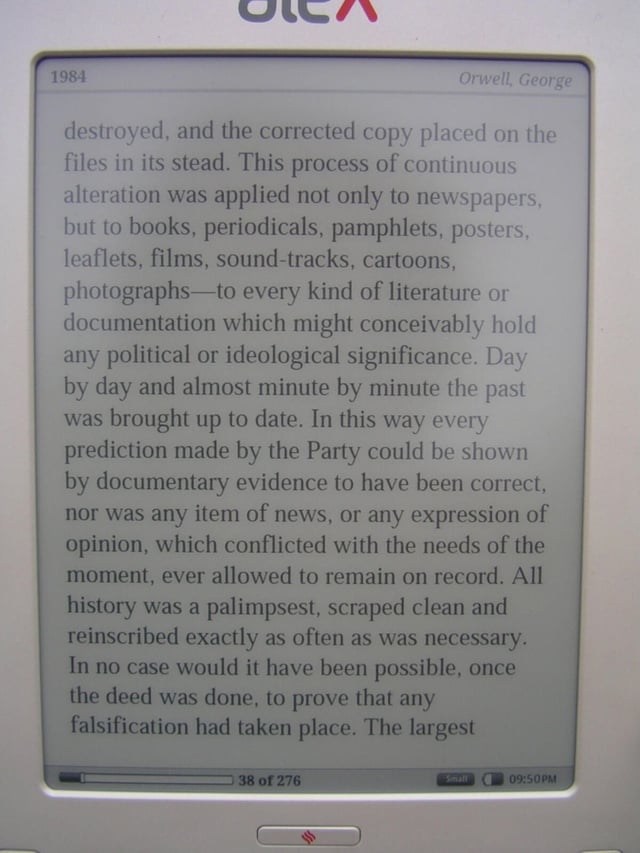
The eInk display looks good with five available fonts for your to choose from.
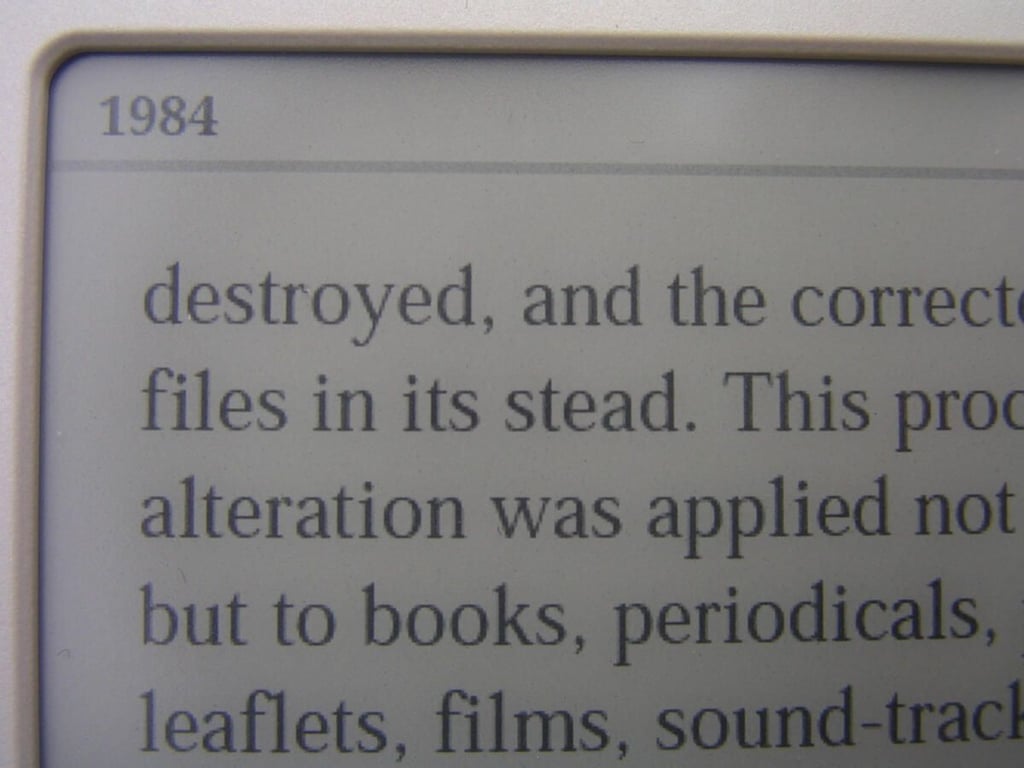
I am a big fan of reading ebooks on an eInk display.
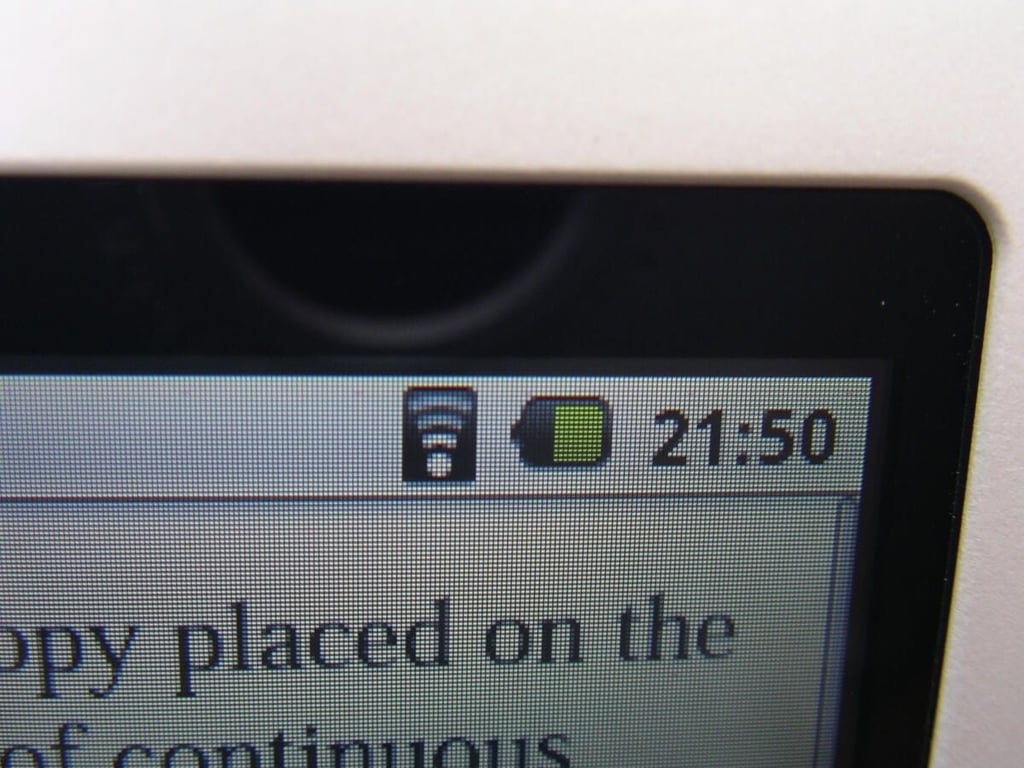
The connection status, battery status, and time are found in the upper right of the color display.
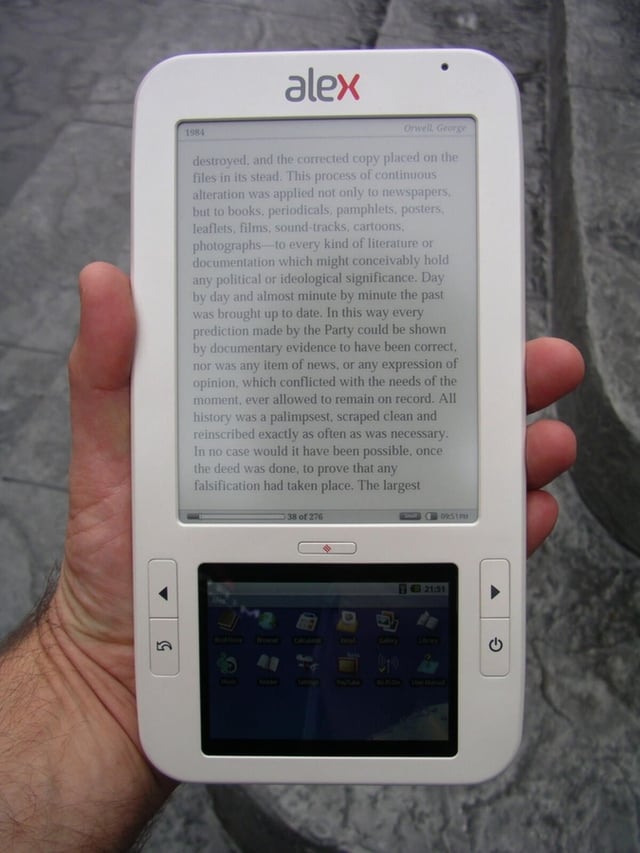
The Alex eReader fits well in your hand, even though it is long.
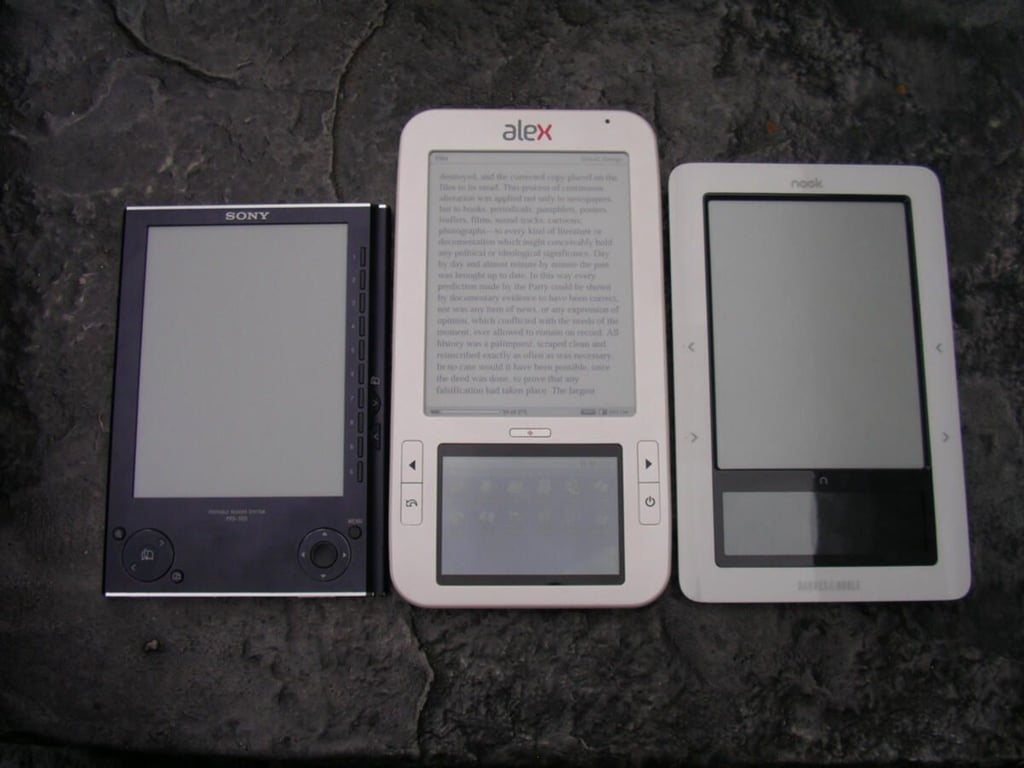
Three ebook readers side-by-side.
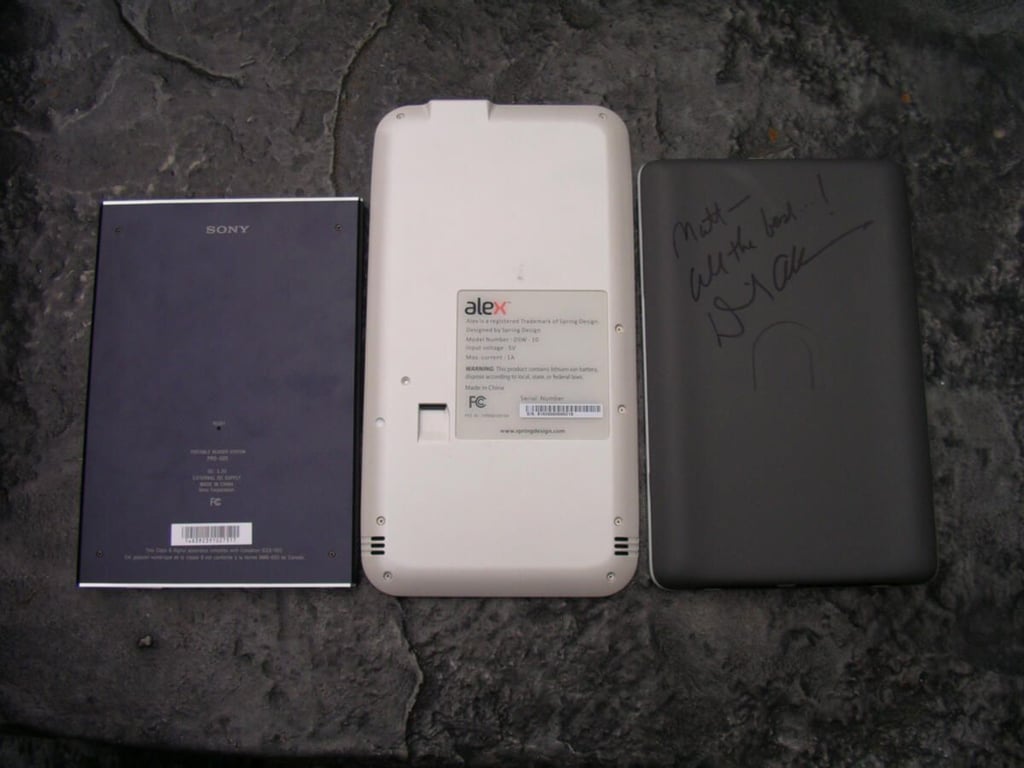
The back view shows the sizes of the ebook readers from a different view.

The Nook on the Alex on the Sony Reader.
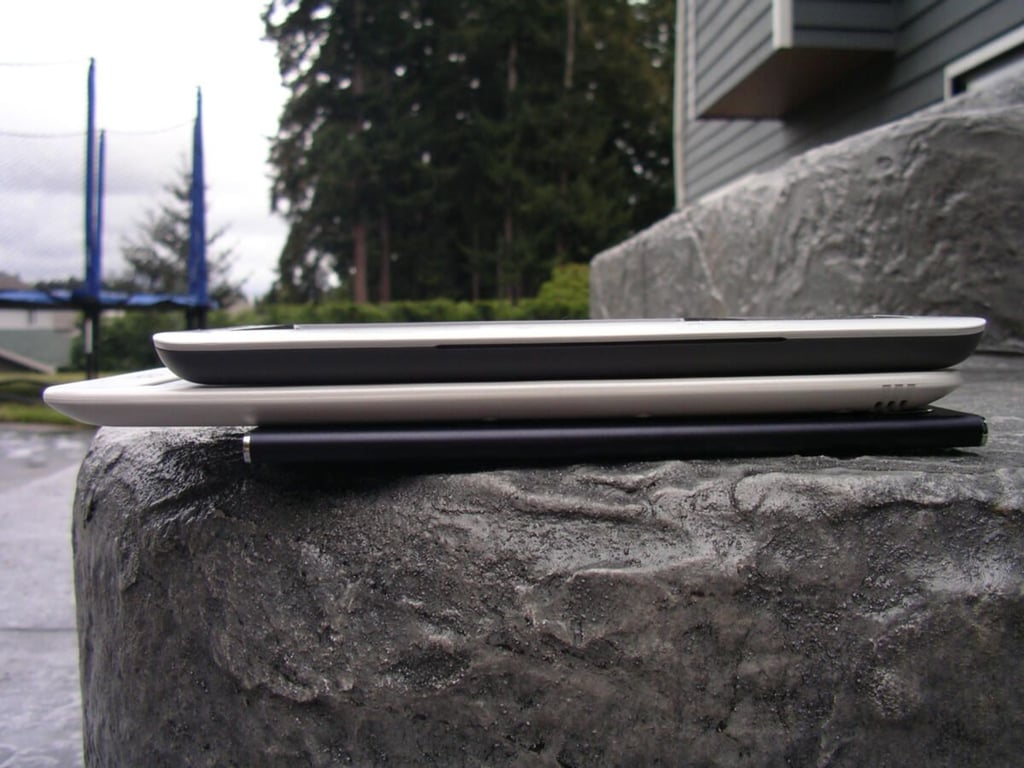
As you can see the Alex is quite a bit longer than the other two ebook readers.
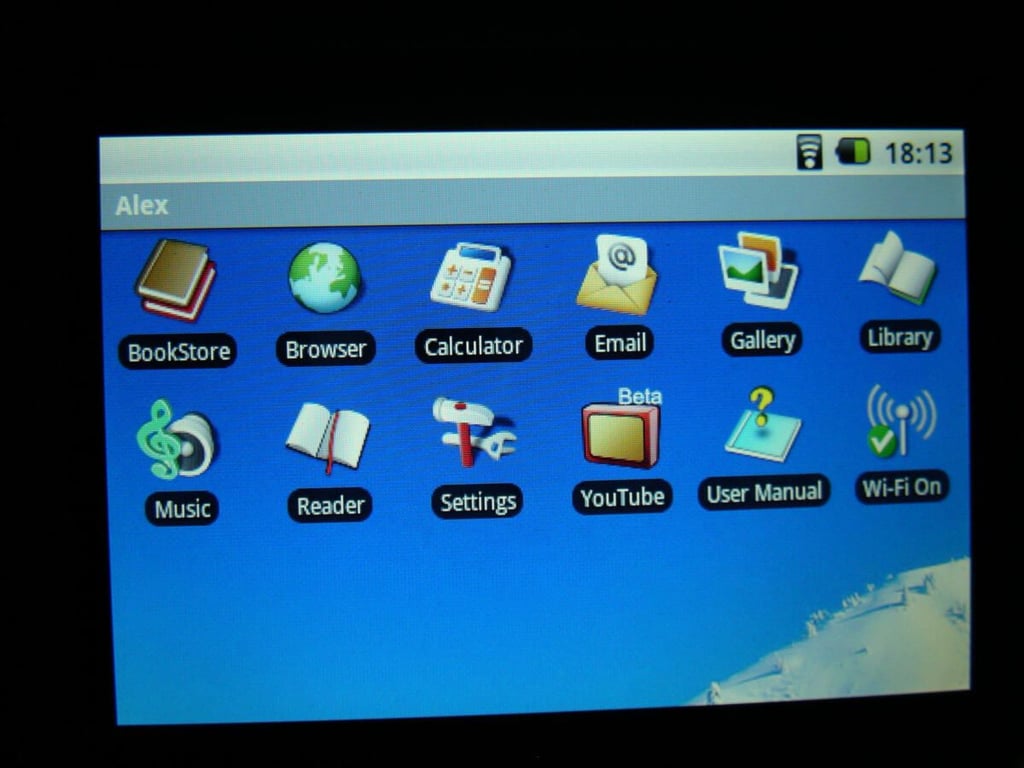
The 3.5 inch Home screen shows the Google Android experience on the Alex.
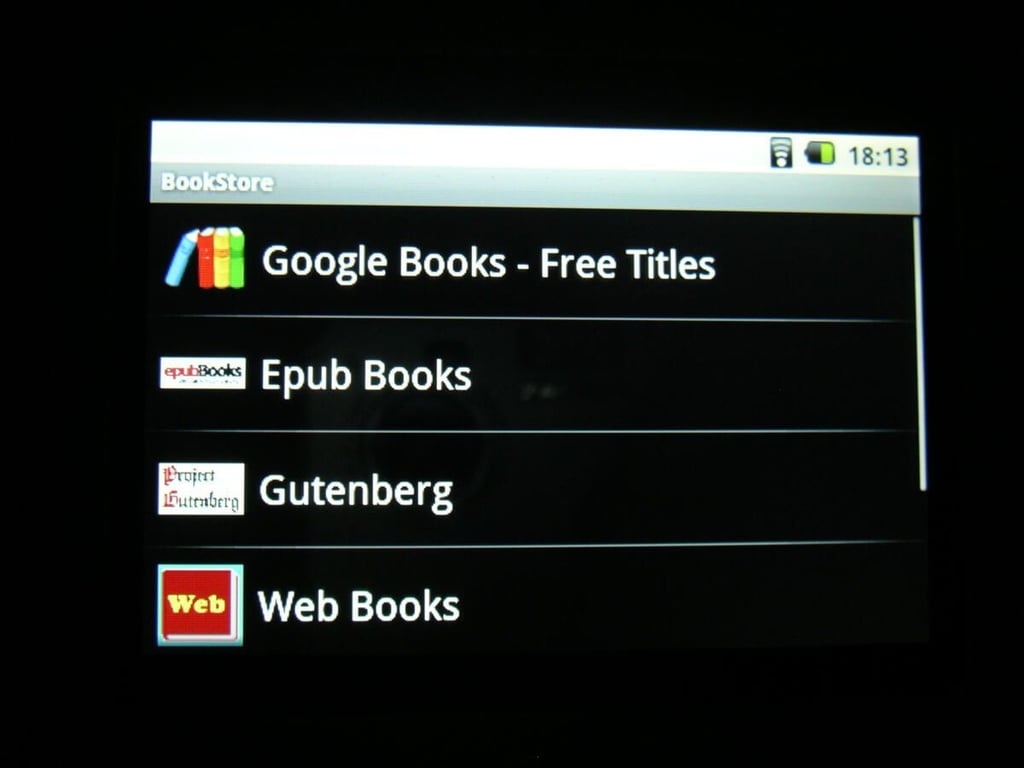
The BookStore utility is a page of shortcuts for the different web pages where you can download ebooks.
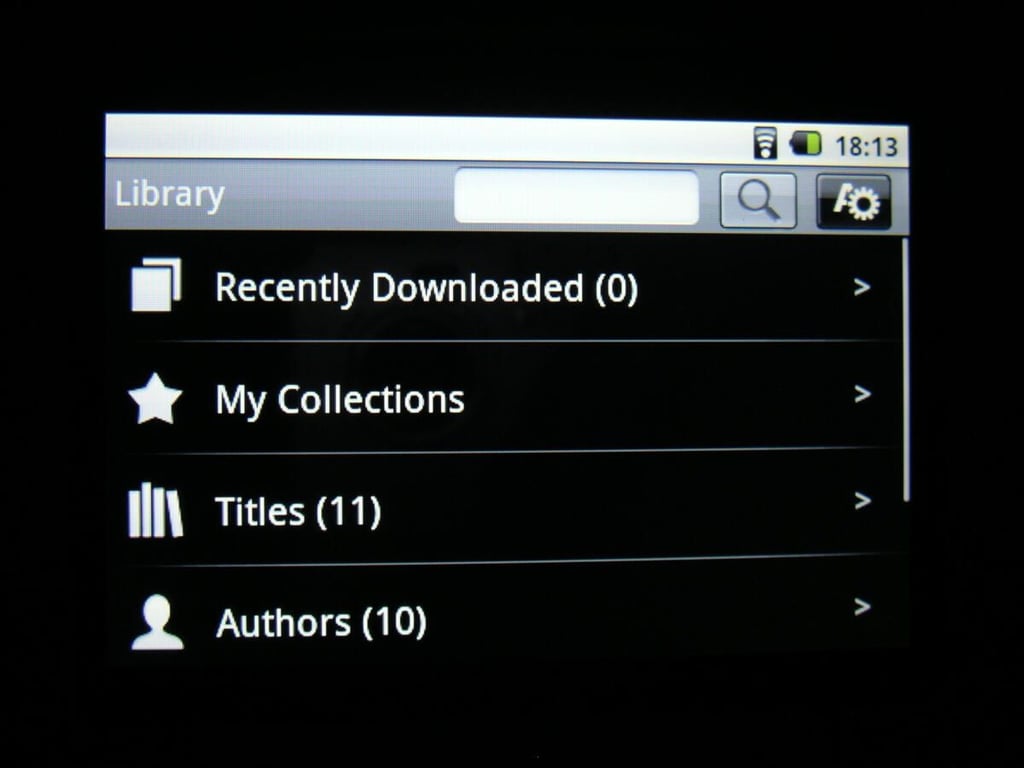
This is a typical view of the library on the Alex.
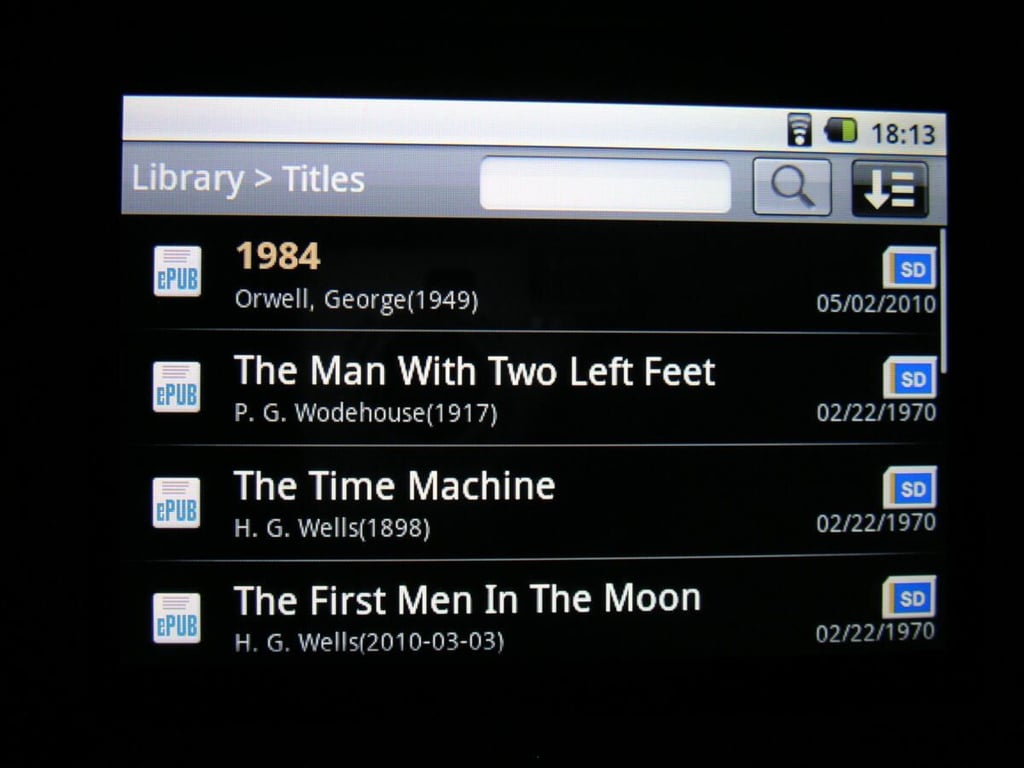
Here you can see the different titles in the library of the Alex.
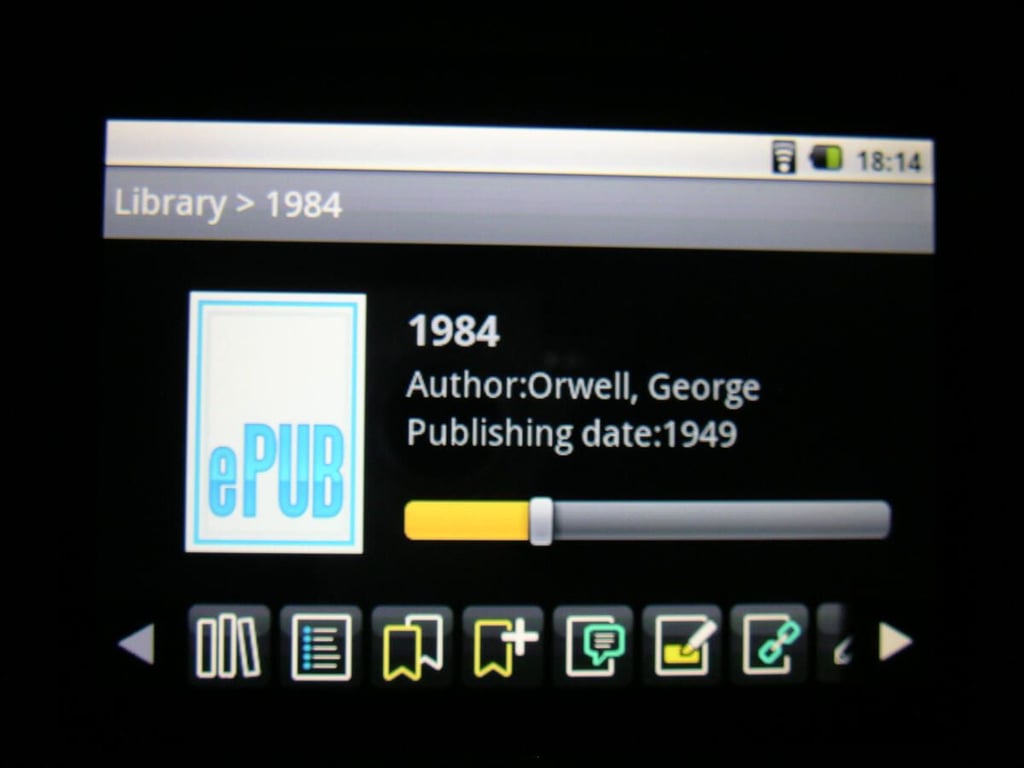
This is the screen on the lower color display for the Reader utility. There are several functions and options available while reading ebooks.
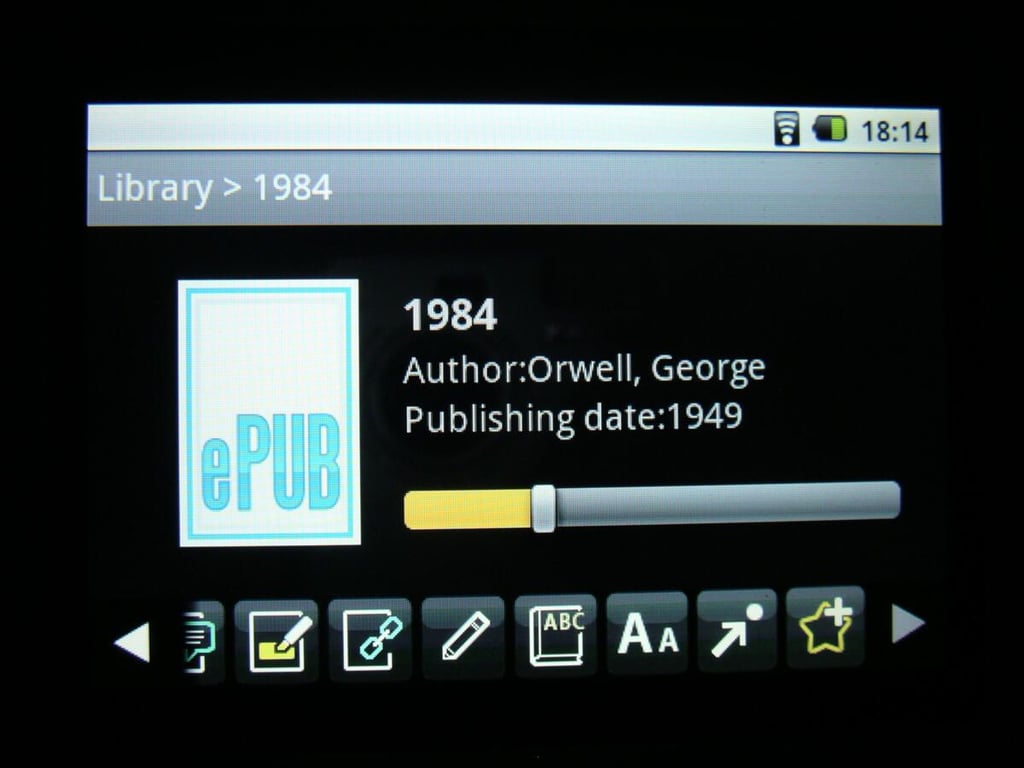
Annotations are a big part of the Alex.
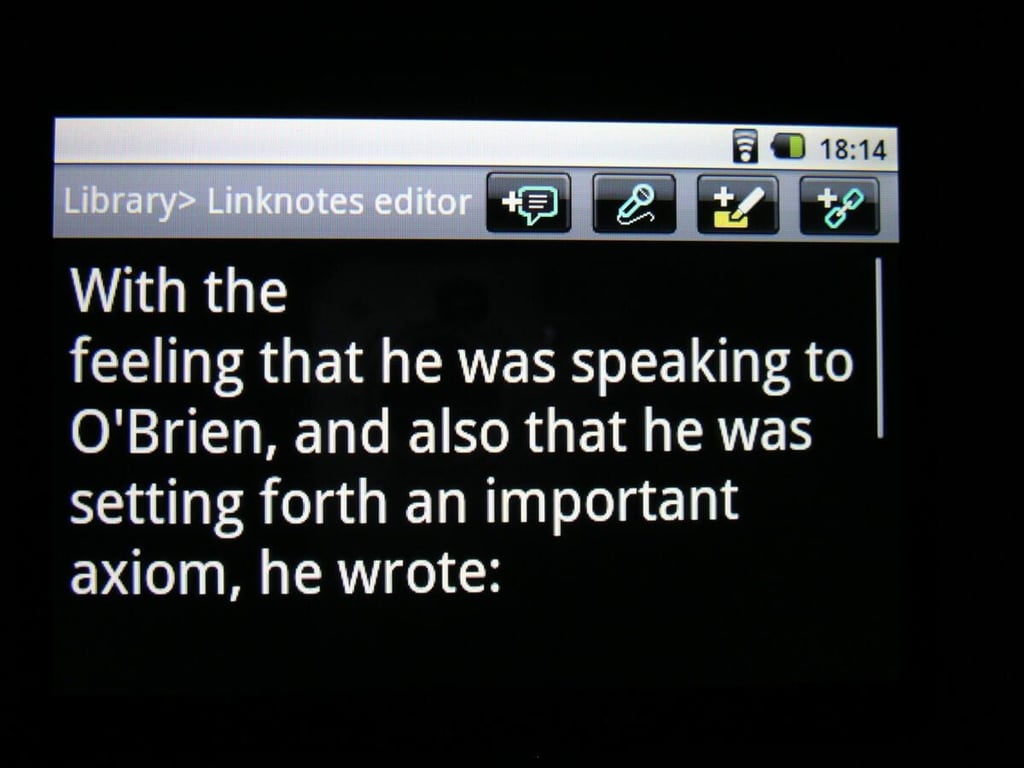
There are different ways you can create content to add to your ebook.
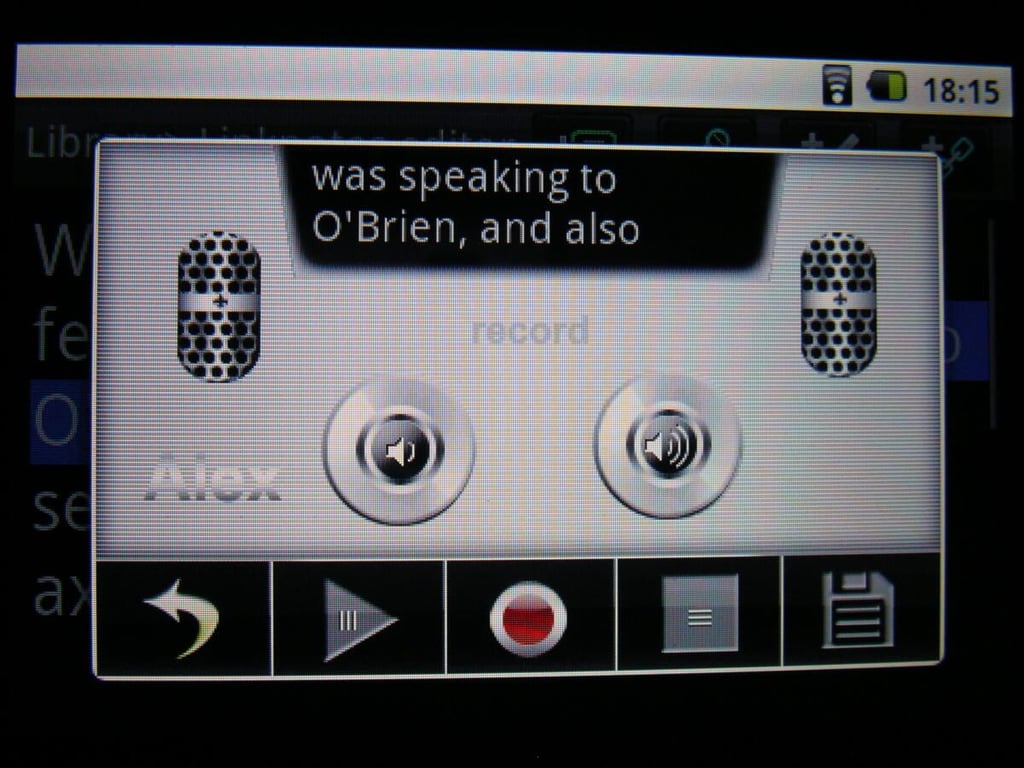
Voice memos are supported with the integrated upper microphone.
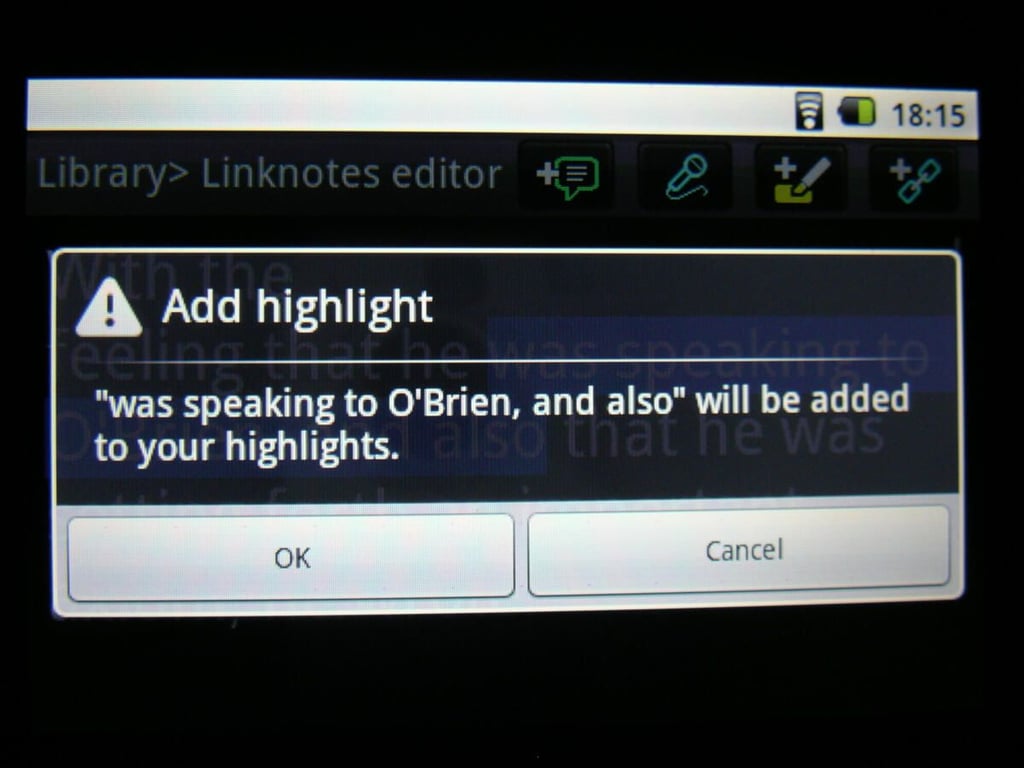
Highlights can be added to your ebook for later viewing.
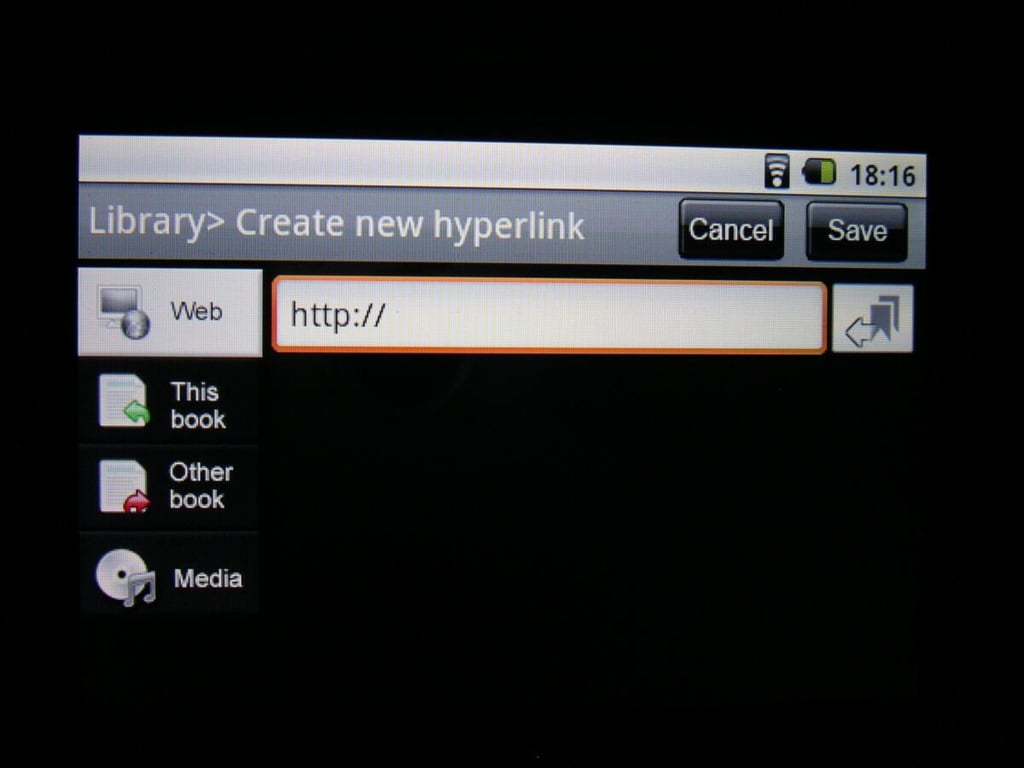
Hyperlinks are also a type of annotation that can be added to your ebooks.
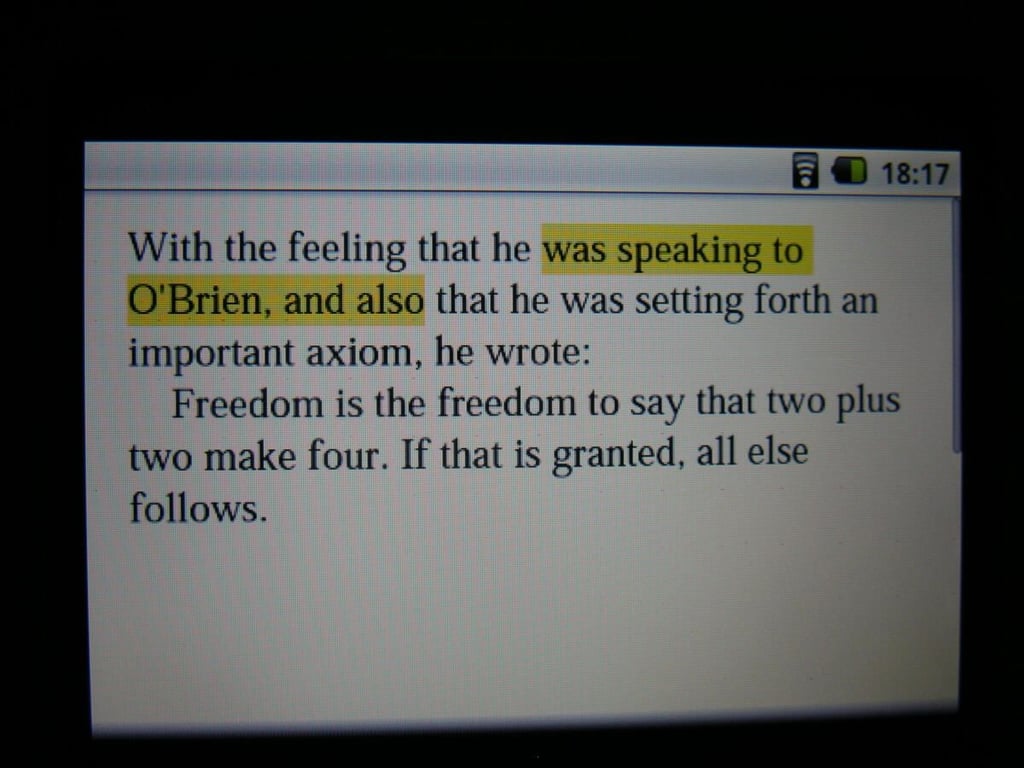
Highlights appear in yellow on the lower display.
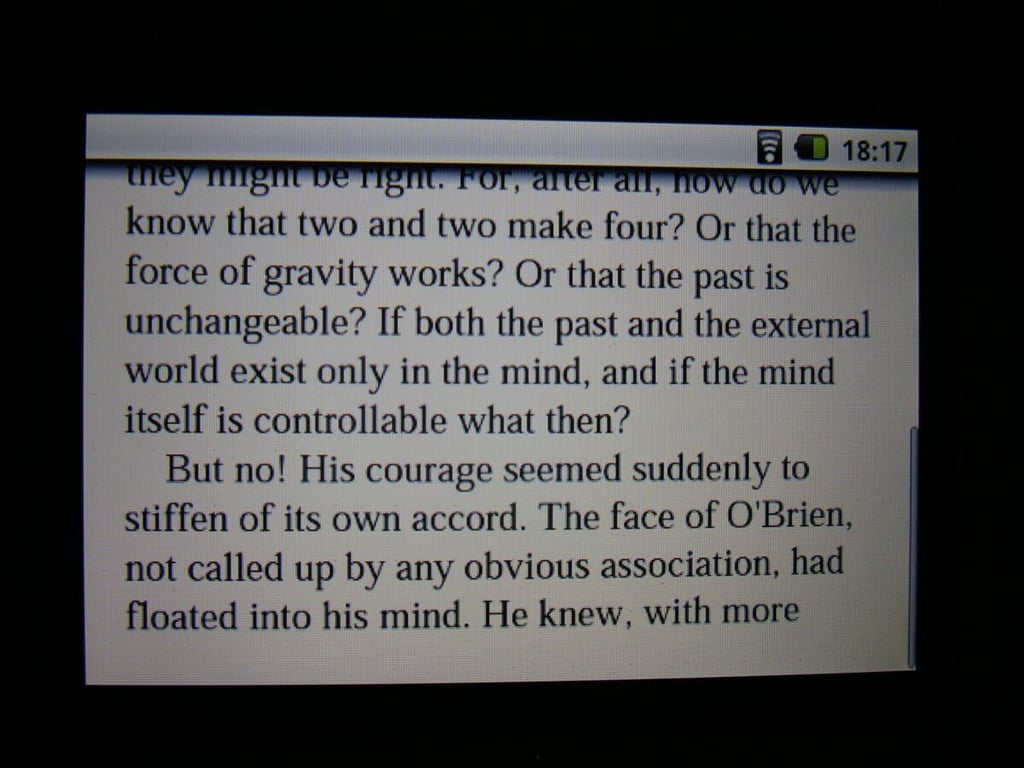
You can read on the lower display as well as on the eInk display.
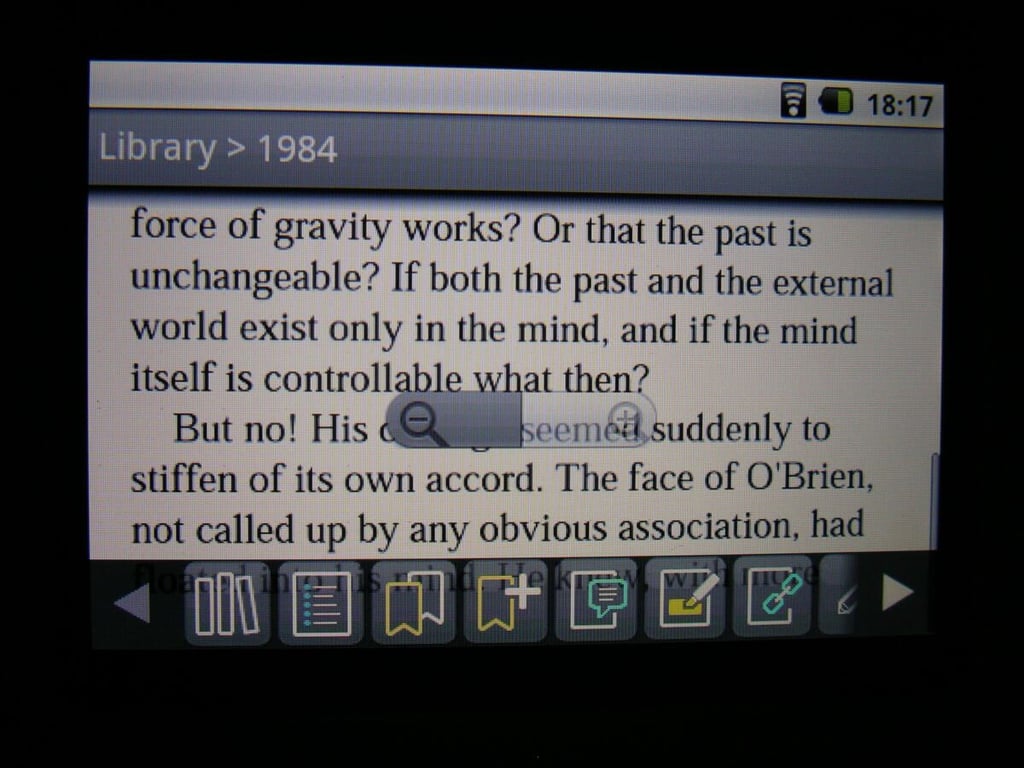
You can tap and hold the right button to access the menu.

Thumbnail 1

Thumbnail 2


