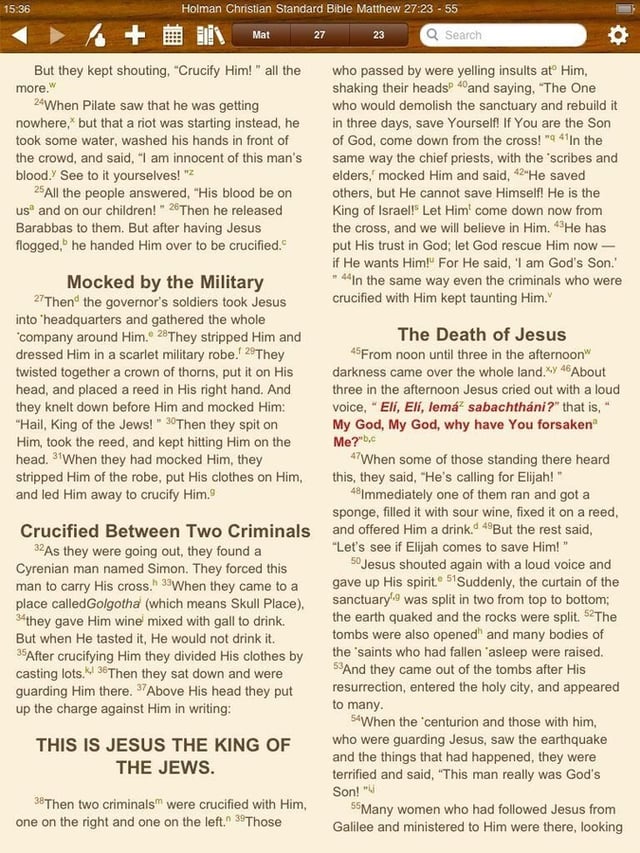
There are few Bible applications now available on the Apple iPad, but there is limited ability to access Bible translations without a wireless data connection. One of my favorite iPhone apps has been submitted to Apple for release, but is not yet available and still in beta testing. As you can see in the image gallery, the application is quite functional and full featured.
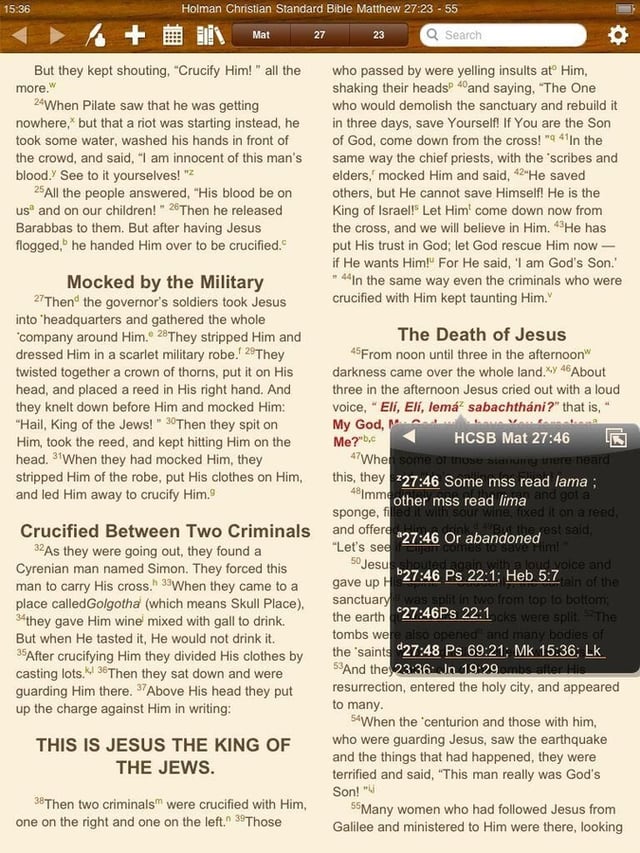
Tapping on the letter hyperlinks pops up the window you see for cross references.
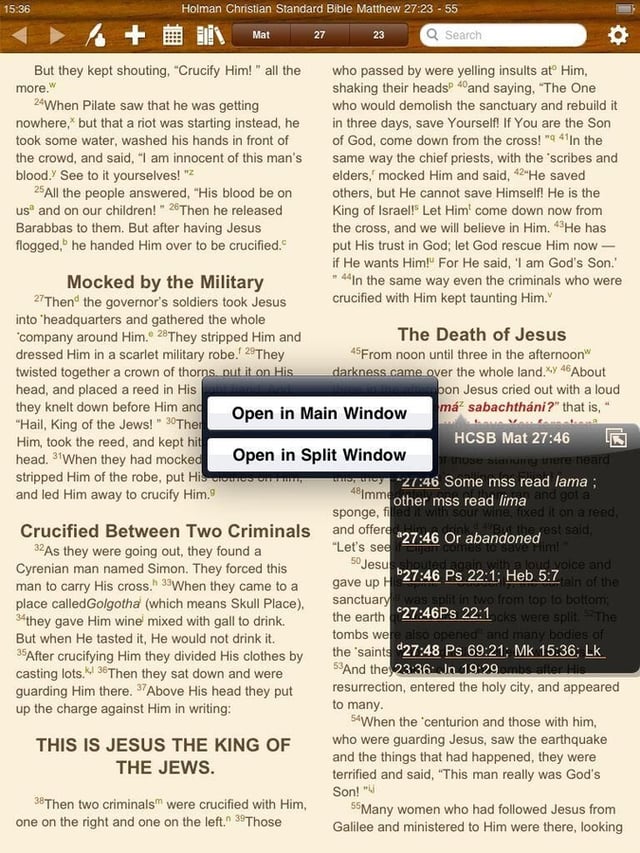
Tapping the upper left menu gives options for how you want to view the external reference.
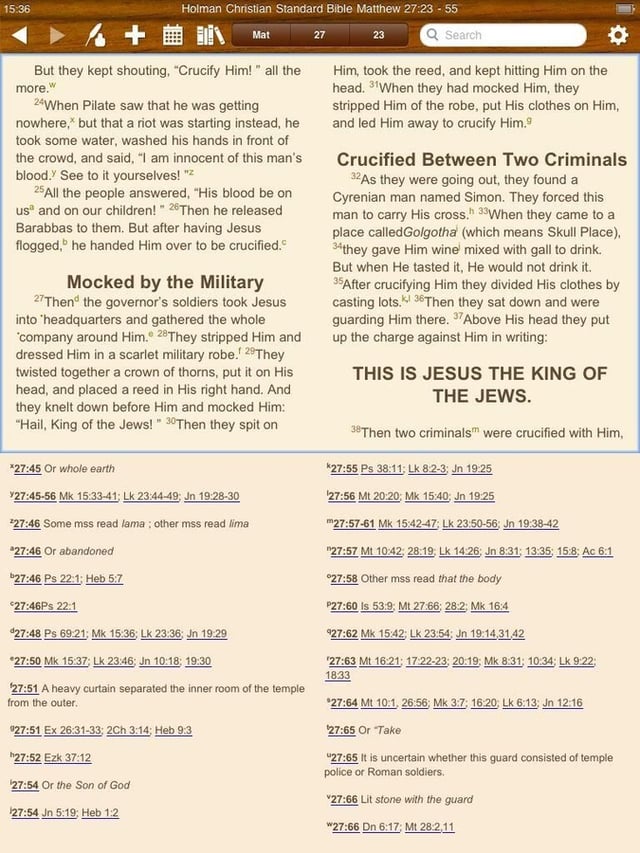
References can be viewed below the text of the Bible.
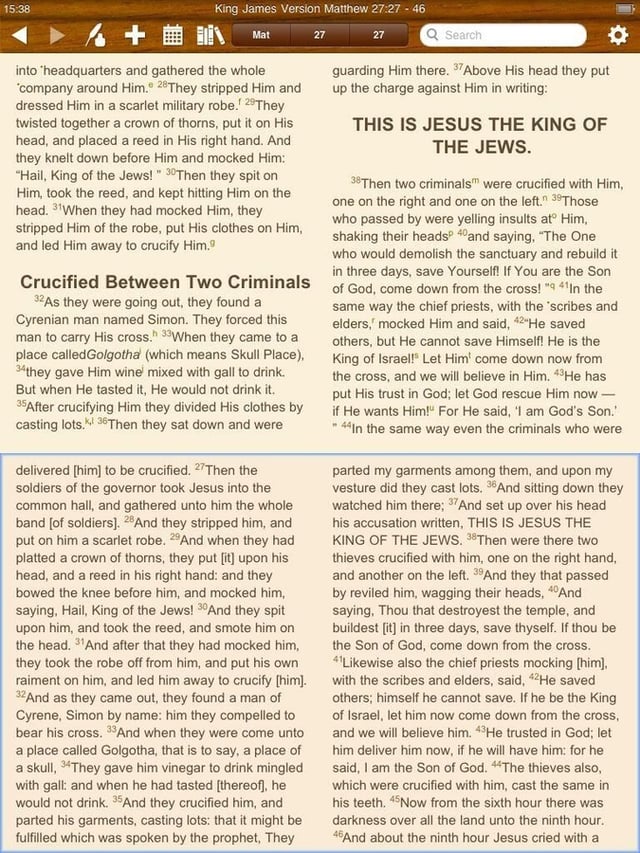
You can view two different Bible translations on one screen with Olive Tree.
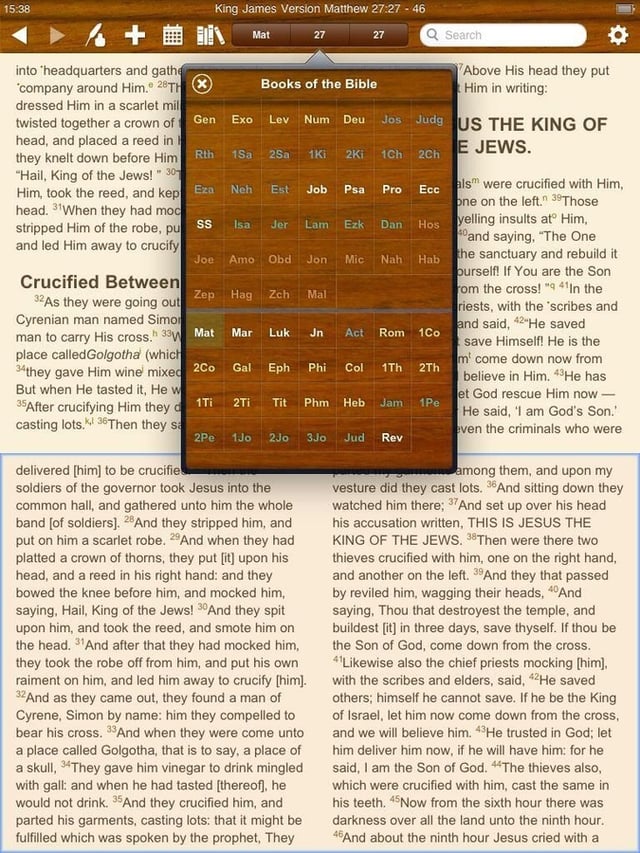
There are options at the center top of the display for selecting a book, chapter, and verse.
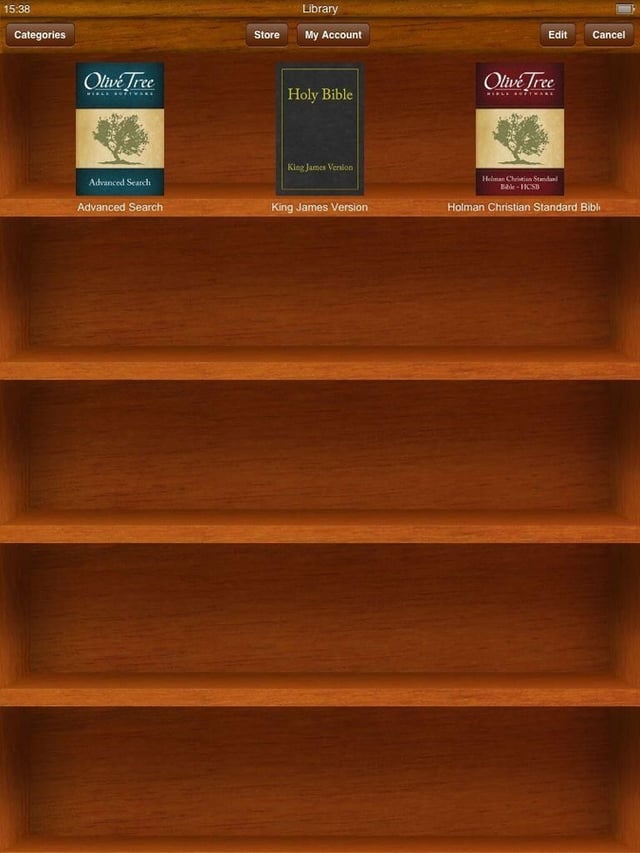
Your Olive Tree library appears as books on a bookshelf.
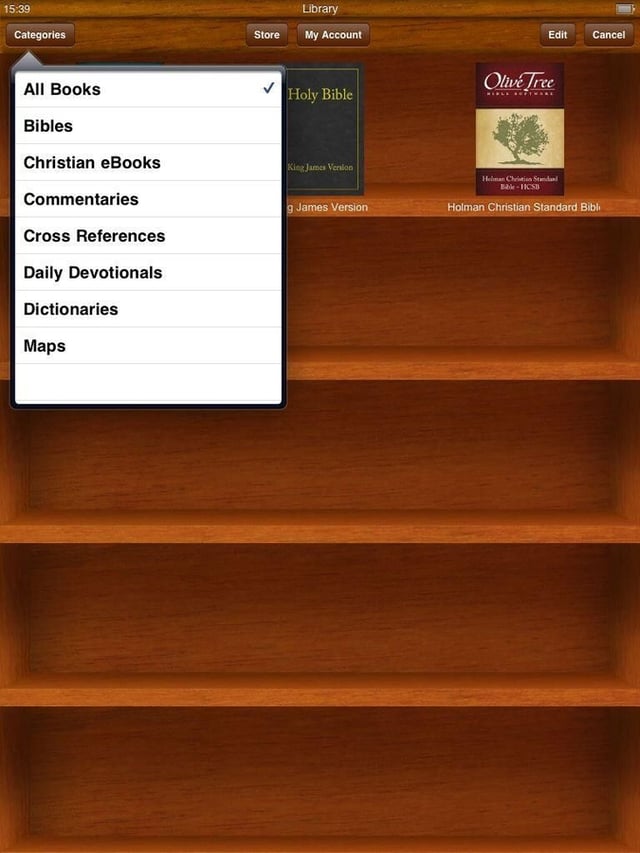
You can filter your library in different categories.
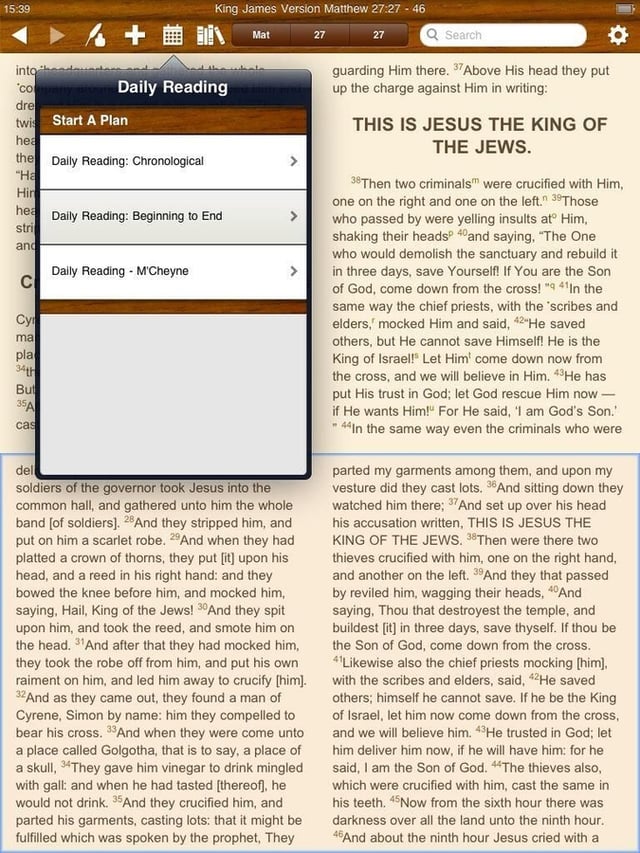
There is an upper icon for quickly selecting a daily reading plan.
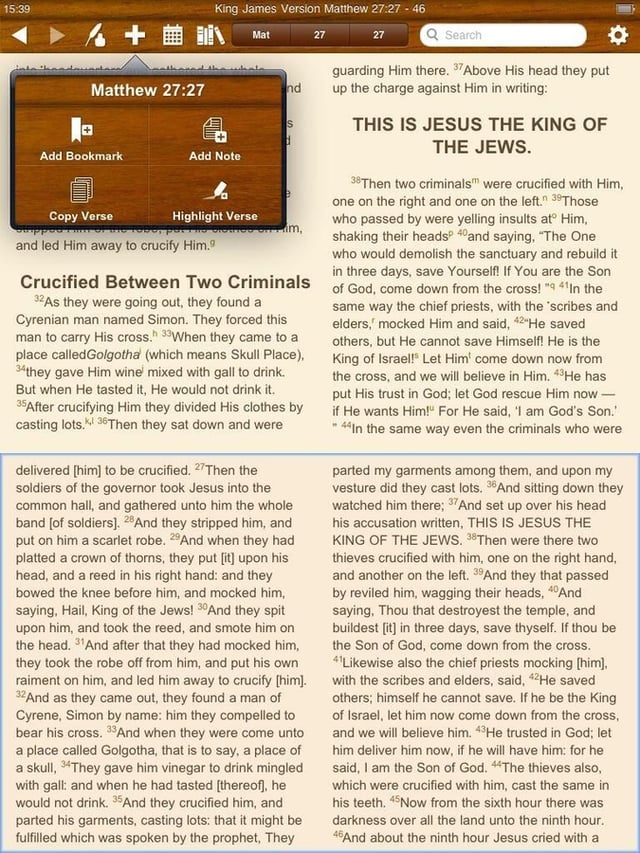
Four options for data creation by you in the Bible are provided. You can add bookmarks, notes, copy verse, and highlight verses.
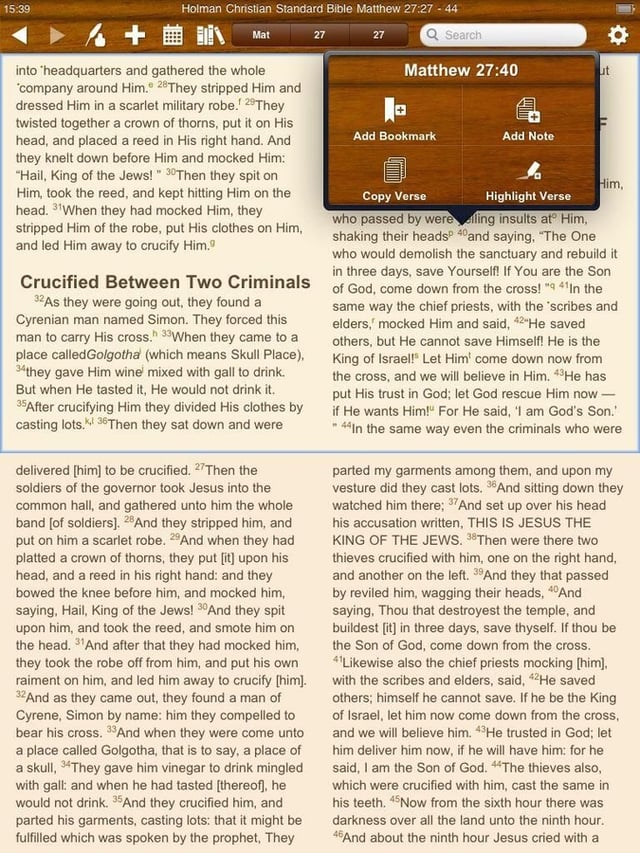
You can access these four data creation options by tapping the verse number hyperlink.
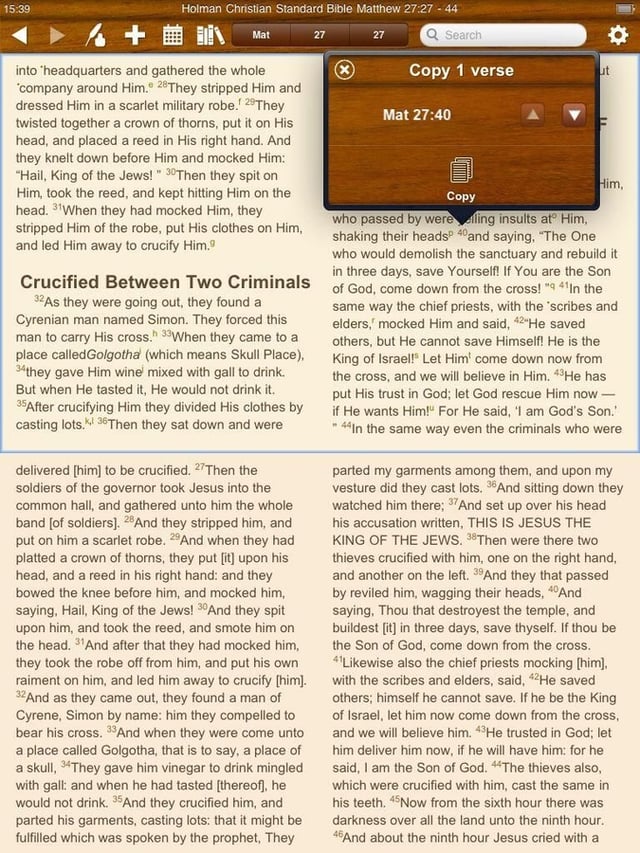
When you select to copy a verse then this small pop-up window appears.
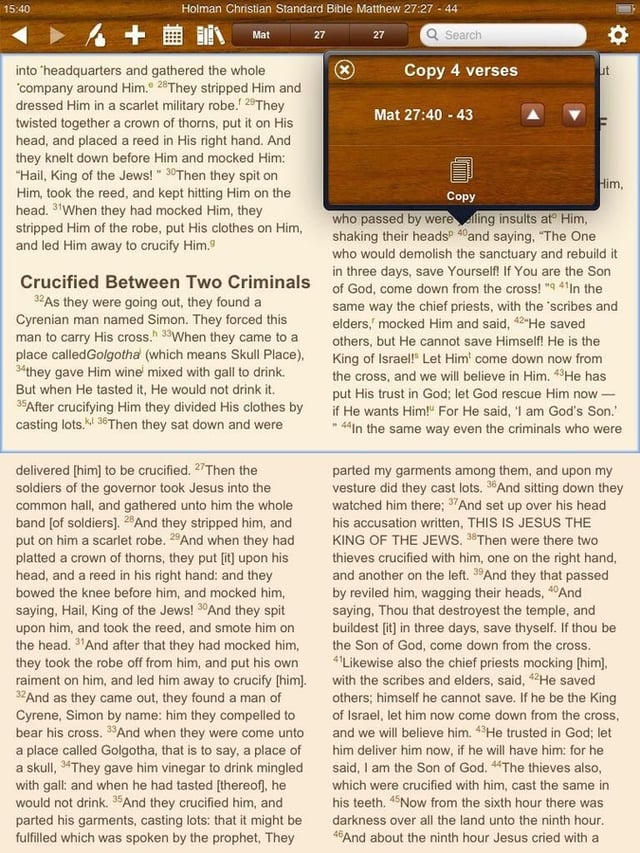
You can also quickly copy multiple verses to share with others by tapping the arrow.
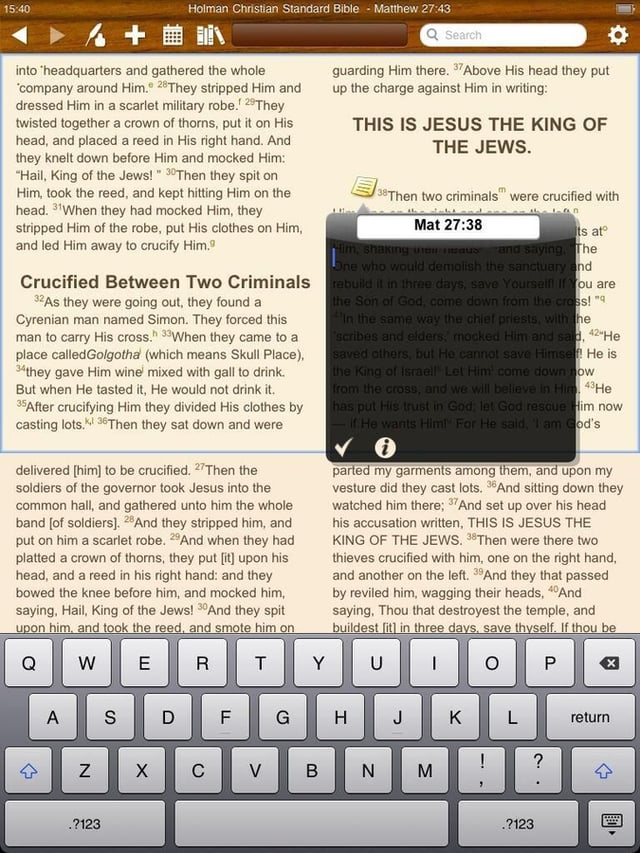
Notes can be added in Olive Tree. A note icon appears after you create one.
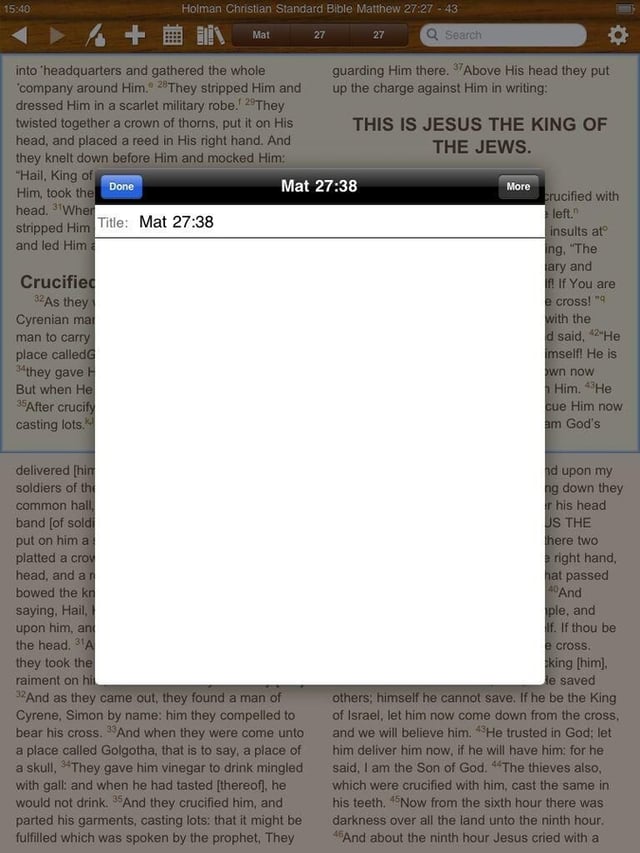
You can tap the note to view the larger note.
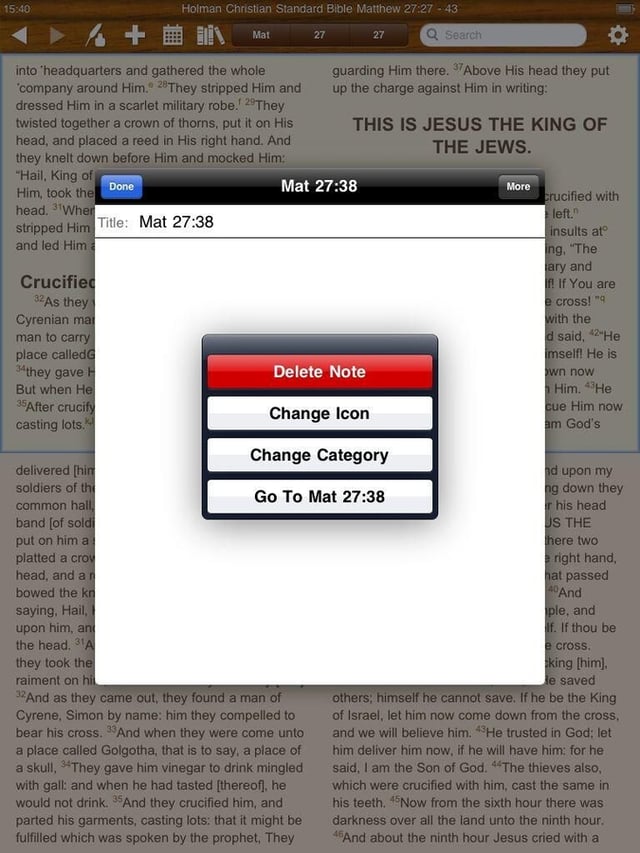
There are a few options available to you after a note has been created.
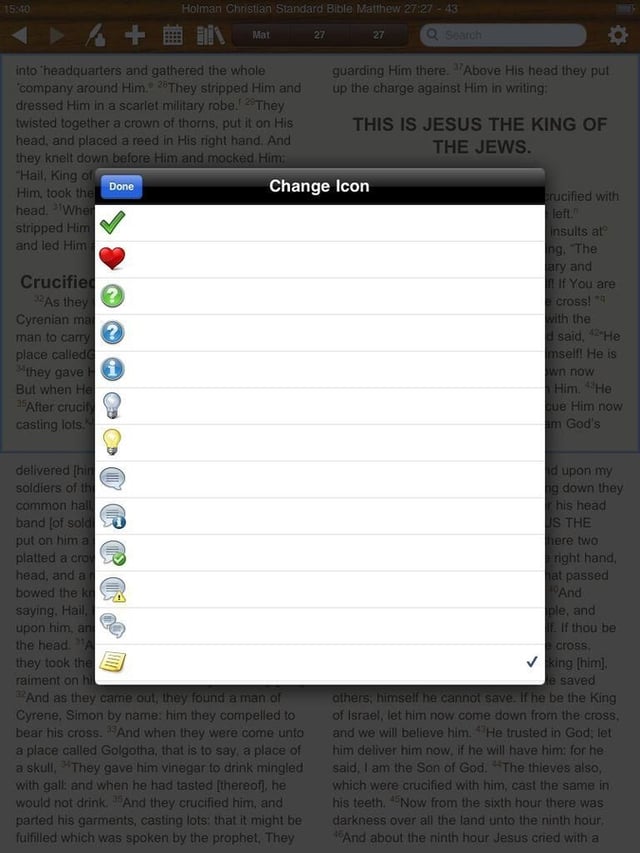
There are options for changing note icons.
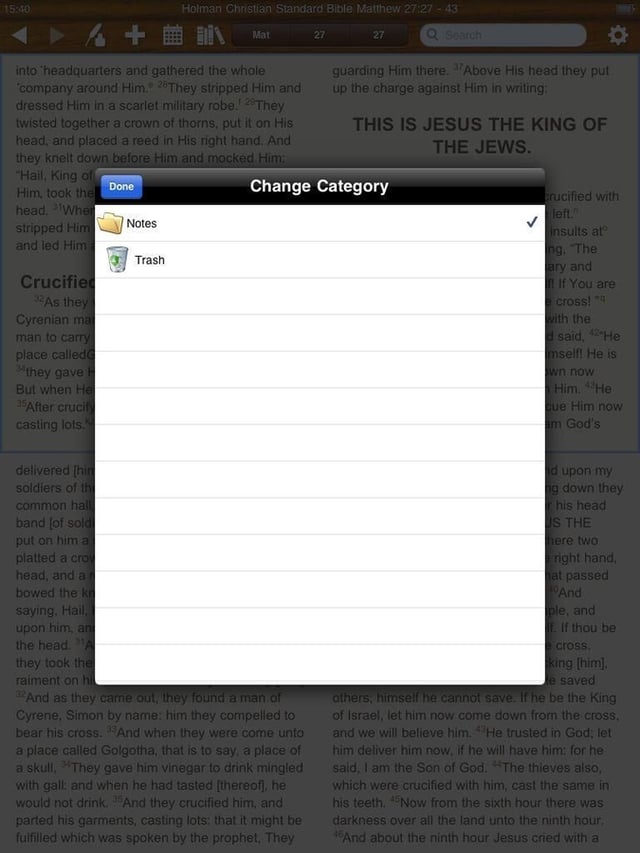
You can designate categories for your notes.
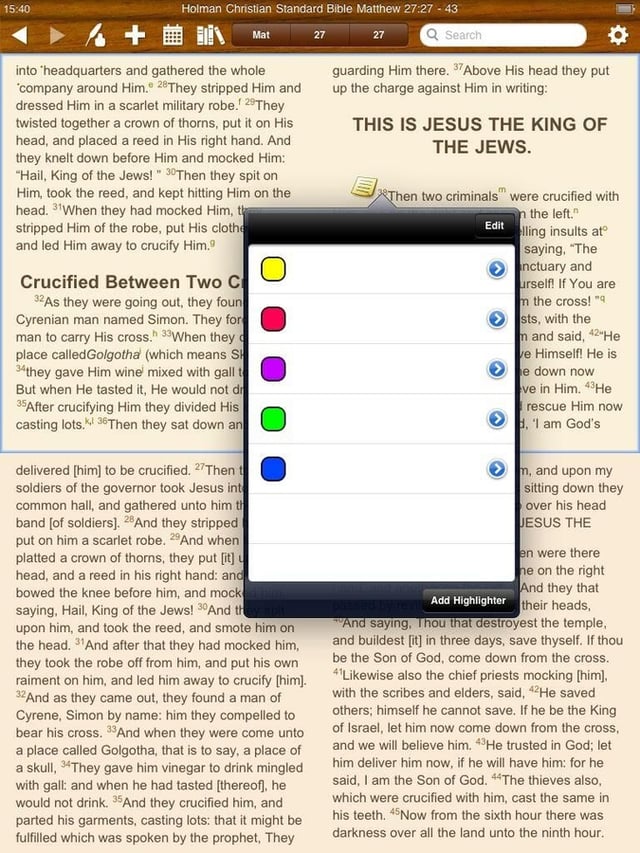
Highlighting is a major option in Bible Reader.
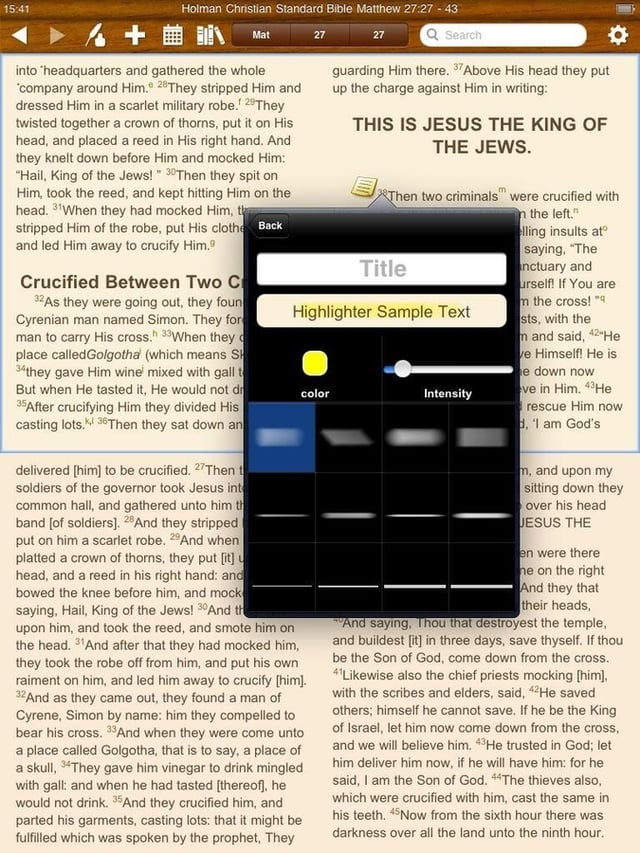
You can spend some time customized your highlighted text.
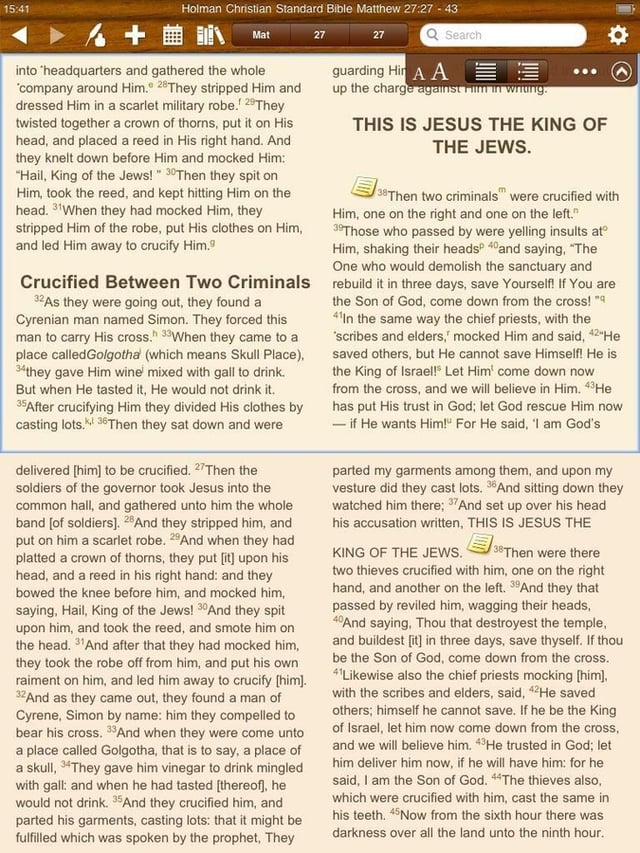
Tapping the top right gear icon opens up this toolbar.

It is simple to increase or decrease font sizes by tapping the letter buttons. Text can also be quickly toggled betweeen views to your liking.
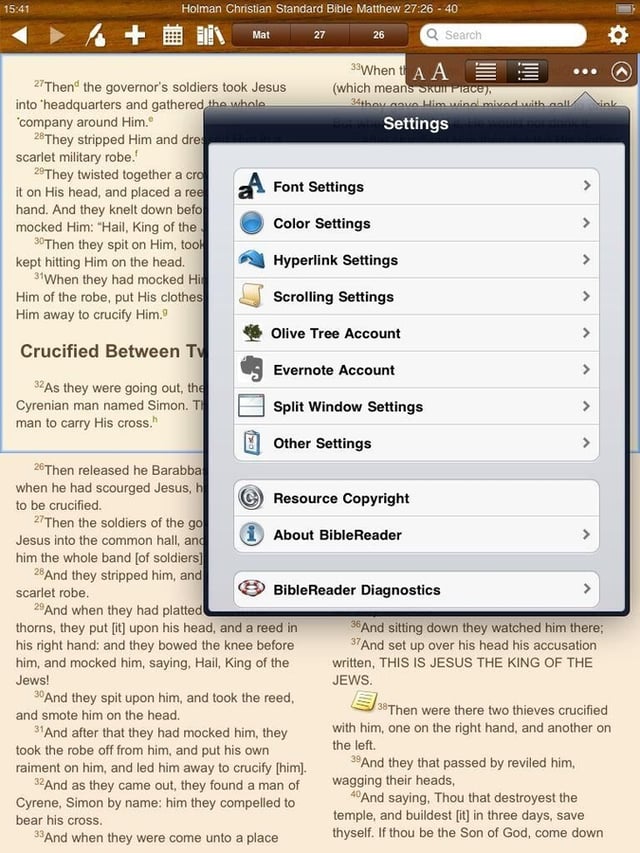
Tapping the settings icon opens up the extensive menu you may have seen in the iPhone version, but in a much larger format.
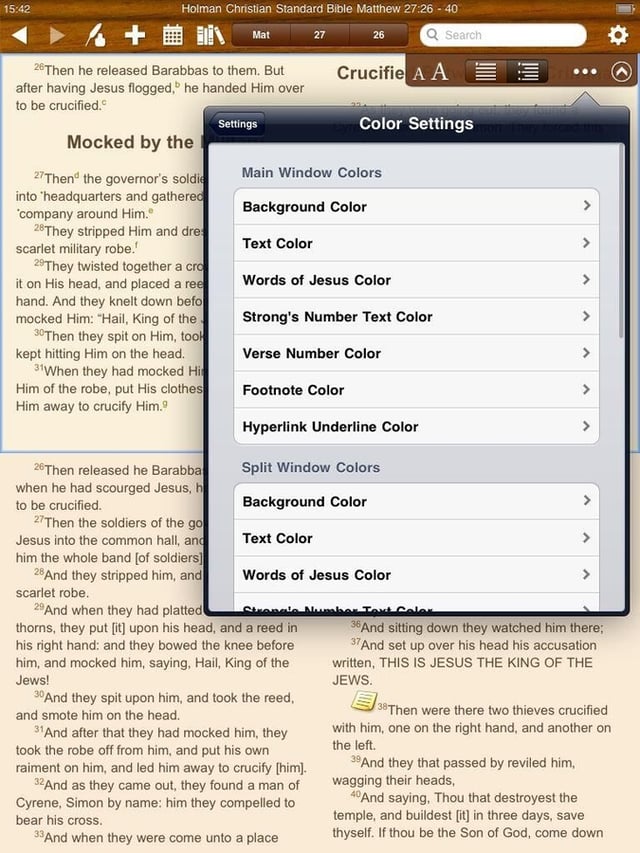
You can have different colors for fonts and background for your open windows.
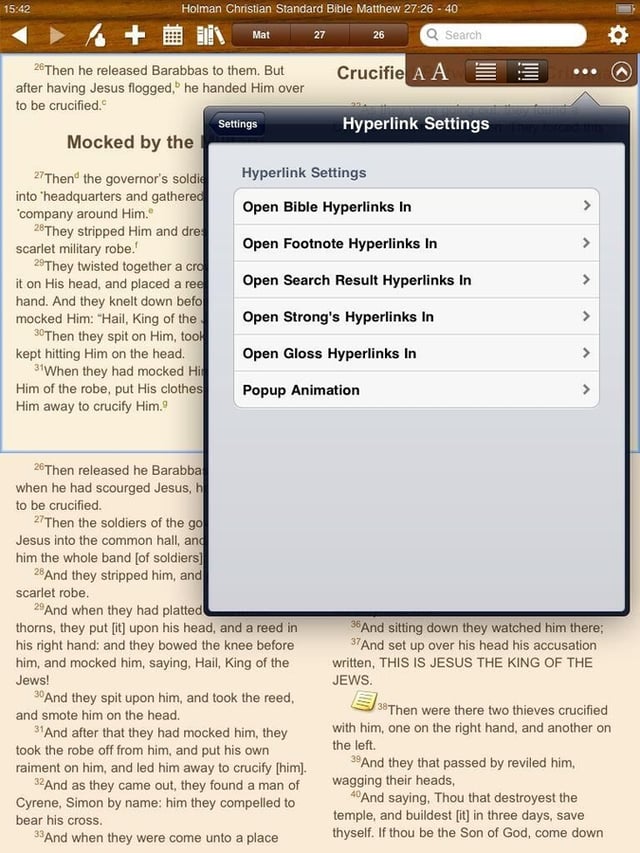
Can you see how much control you have over your Bible reading and study experience?
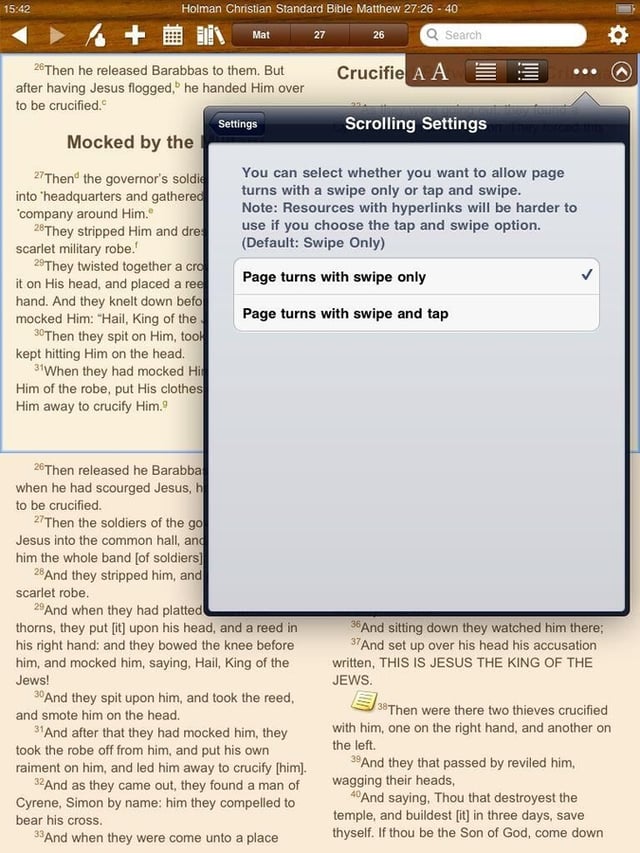
Toggle to the navigation method that works best for you.
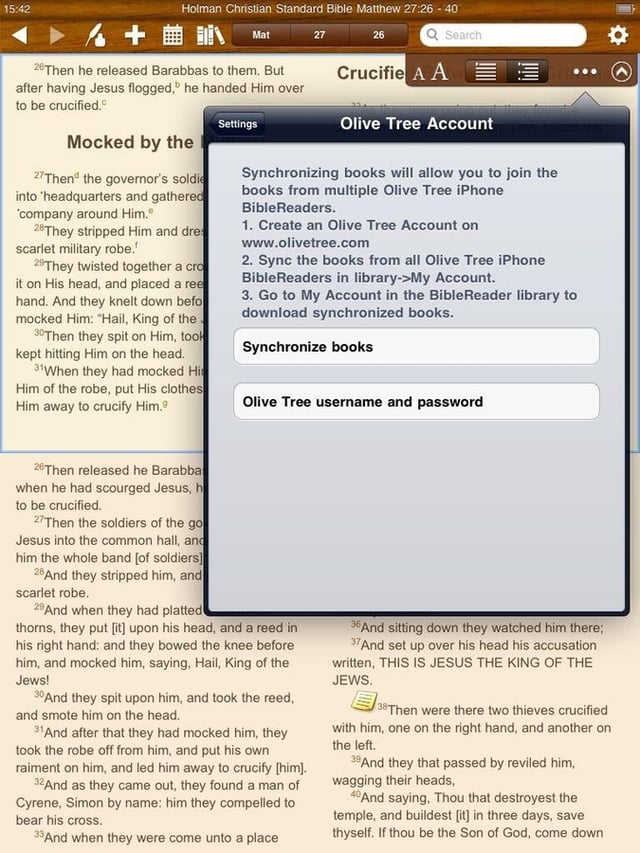
You can sync books from your library to your device and manage your account.
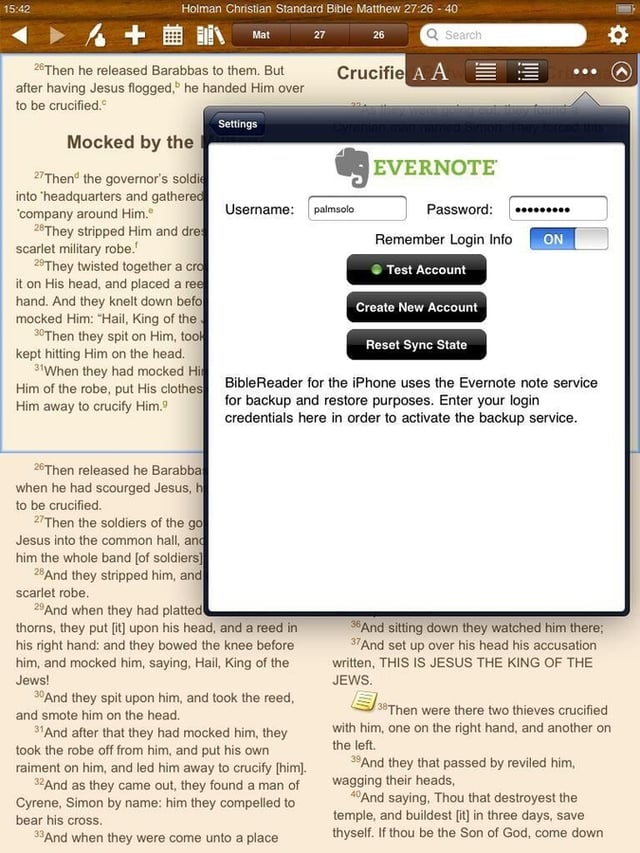
I was blown away when Olive Tree announced Evernote integration for notes and this alone sold me on the application.
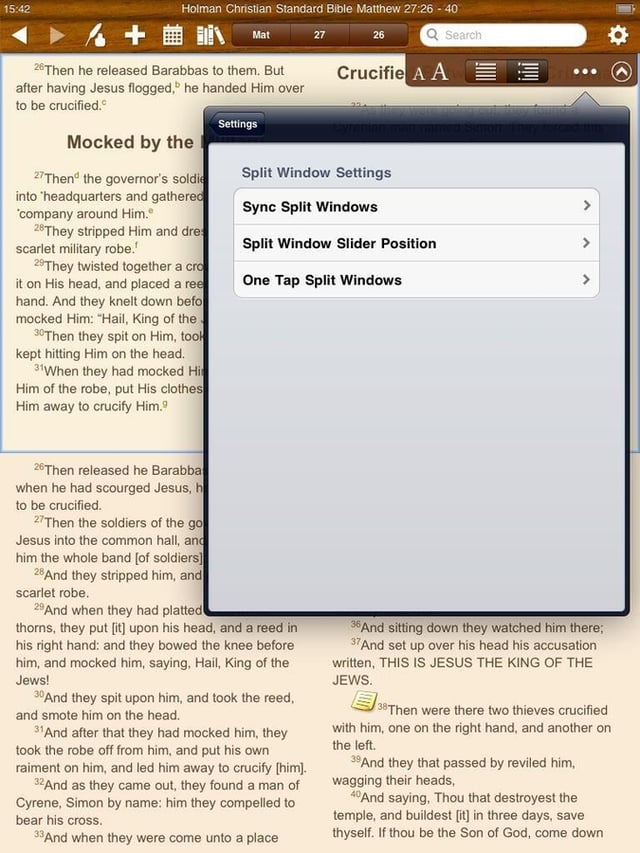
This is supported on the iPhone, but with the available screen real estate on the iPad the experience is MUCH better.
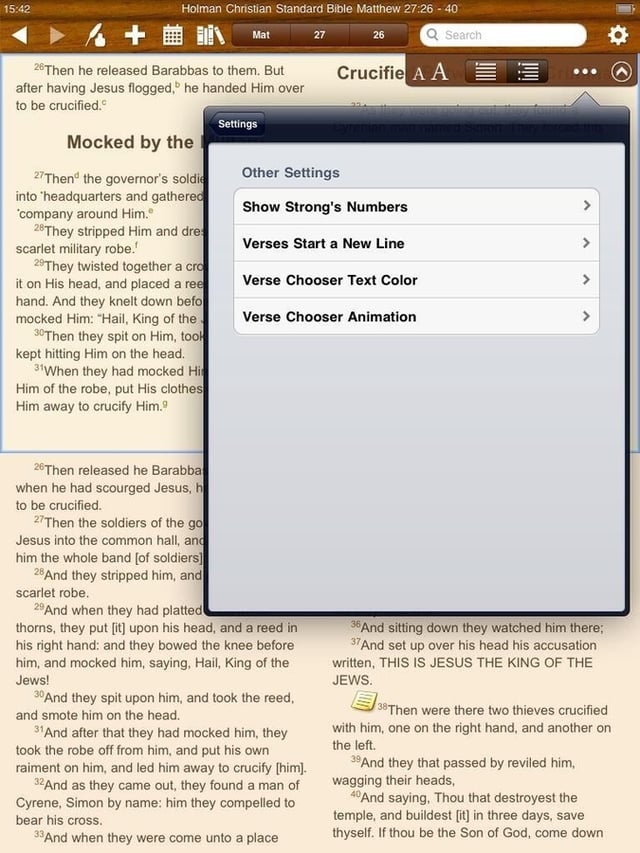
There are a few other settings included in the list as well.
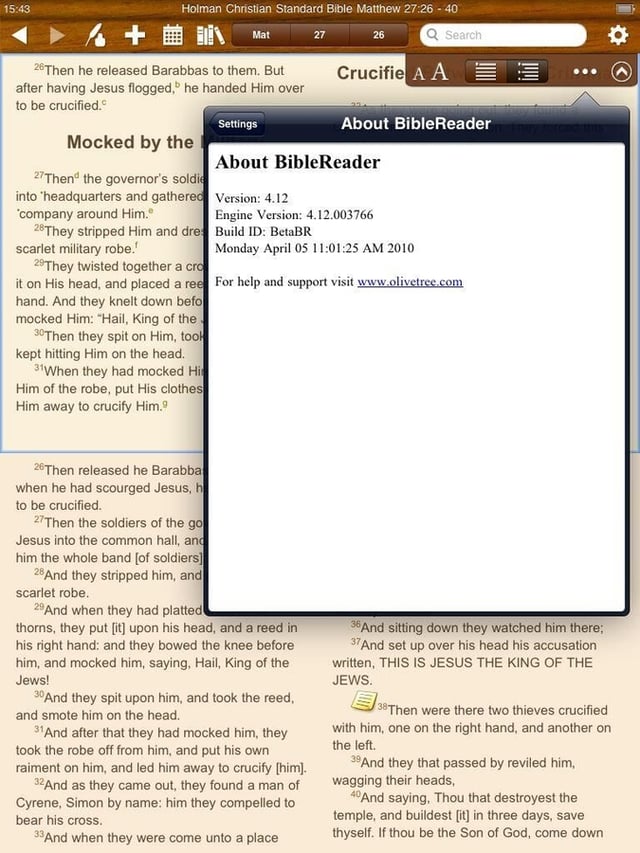
This shot just shows you the particular version I am using for this beta feedback.
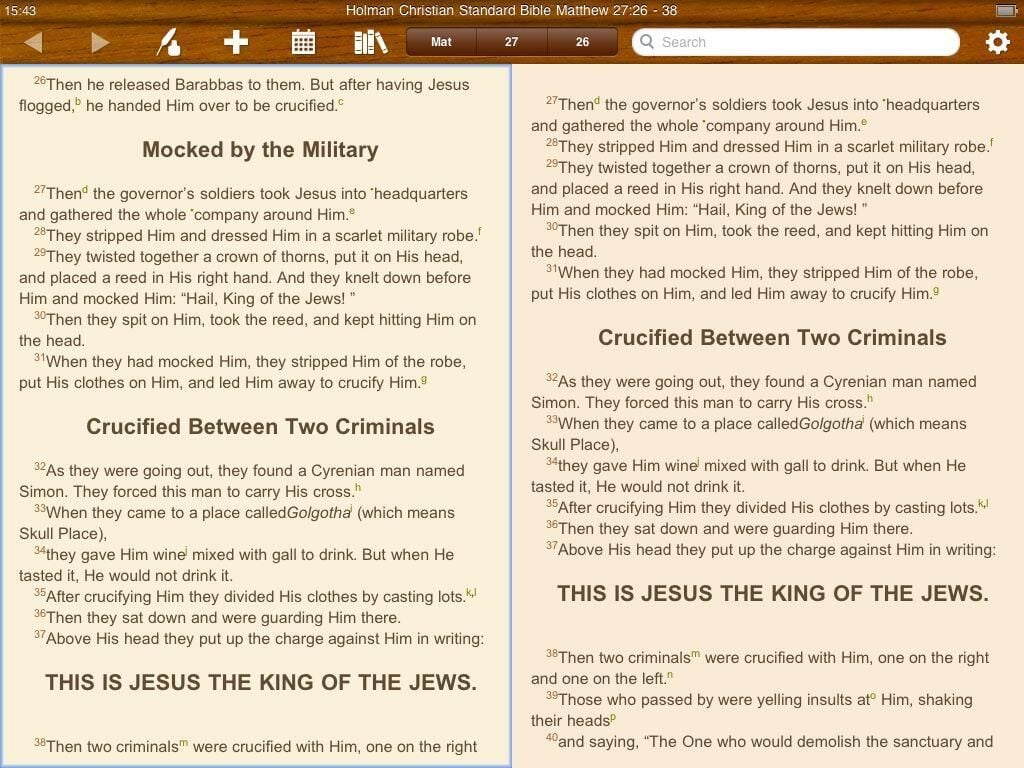
This is really the preferred orientation for reading on the iPad and Bible Reader looks fantastic this way.
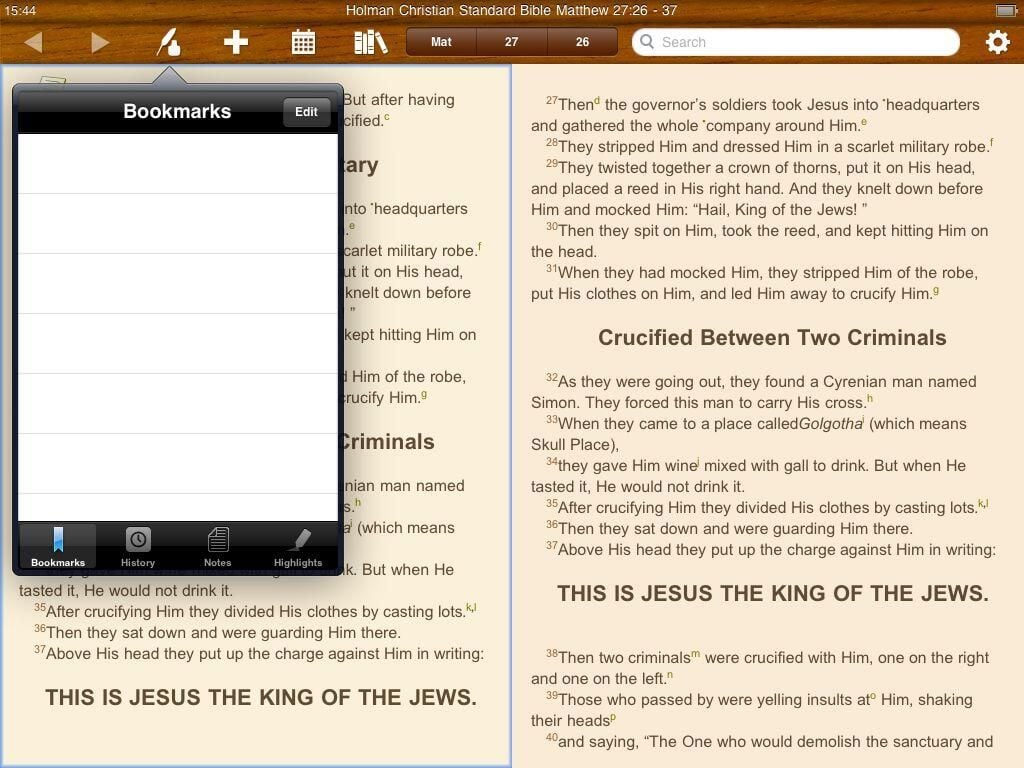
This is the menu that appears when you tap the quill pen icon.
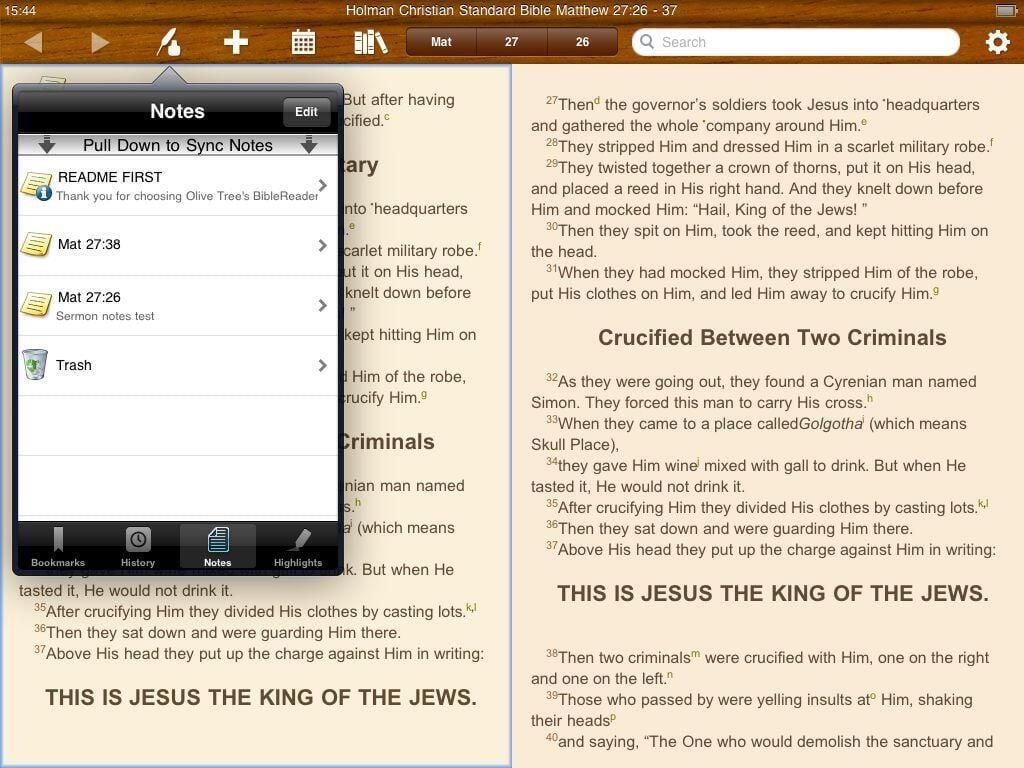
See that slick iPhone-like way to sync your notes up to Evernote? I love it.

Thumbnail 1
Thumbnail 2


