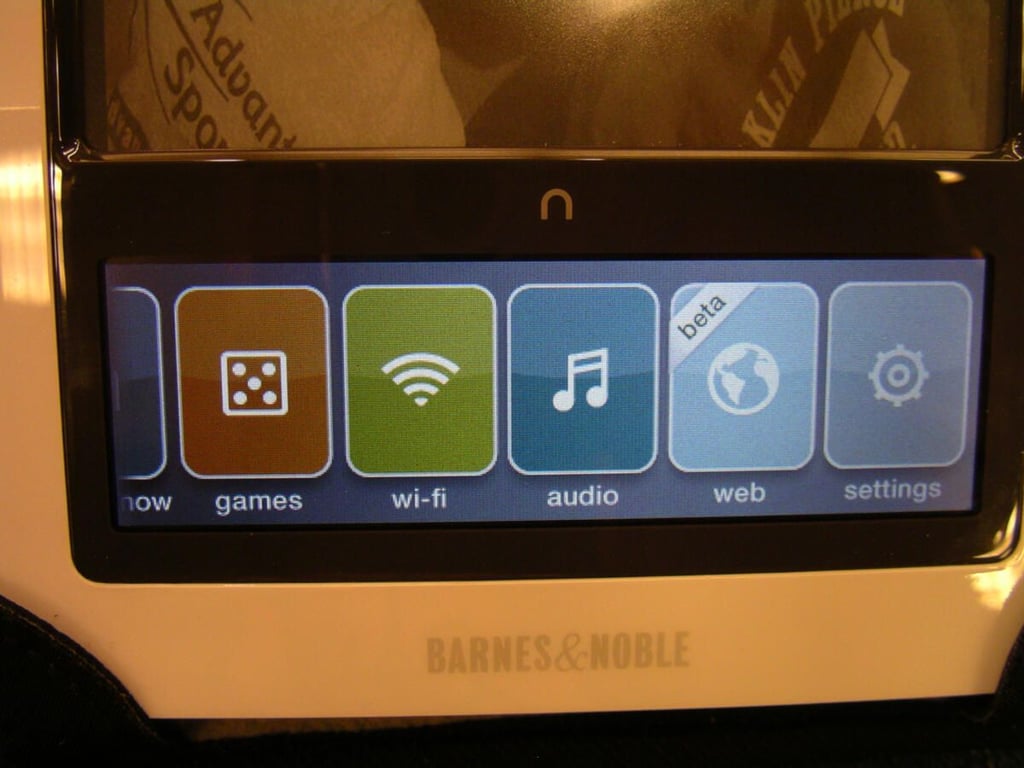
Barnes & Noble was quick to roll out an update when the Nook was first released last Fall. This current update continues to improve a great ebook reader device with games, a web browser, in-store reading support, and overall bug fixes and improvements. You can now browse when connected to a WiFi network and you don’t have another device around.
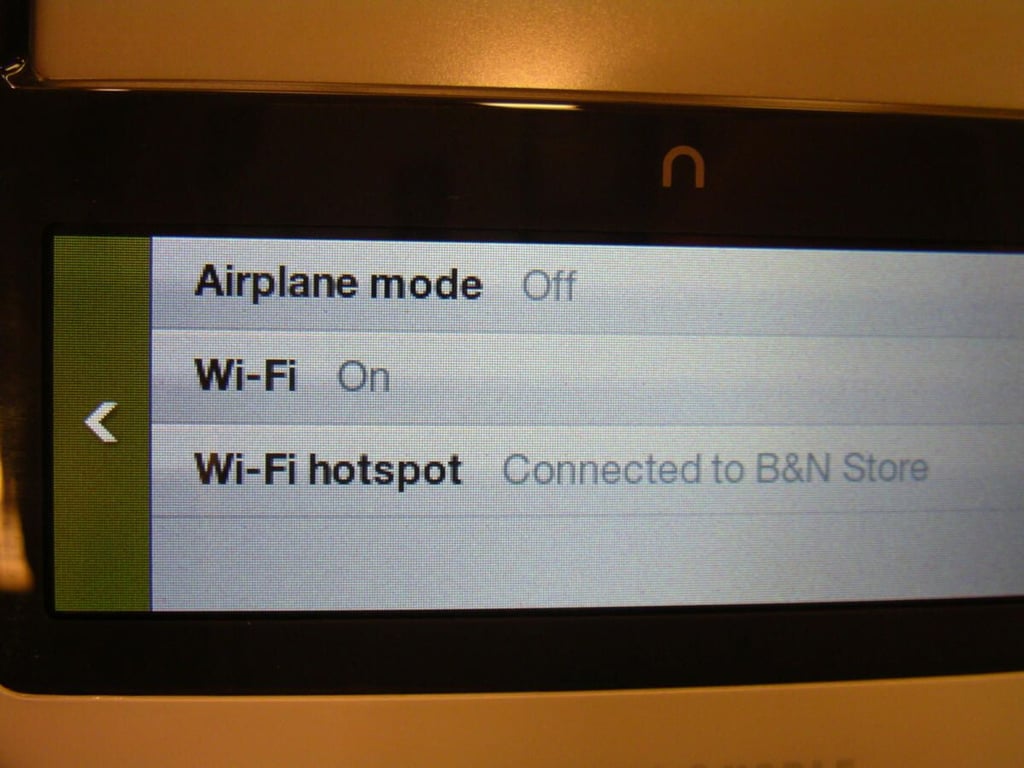
There is now a dedicated WiFi icon on the main color display that lets you access your WiFi settings.
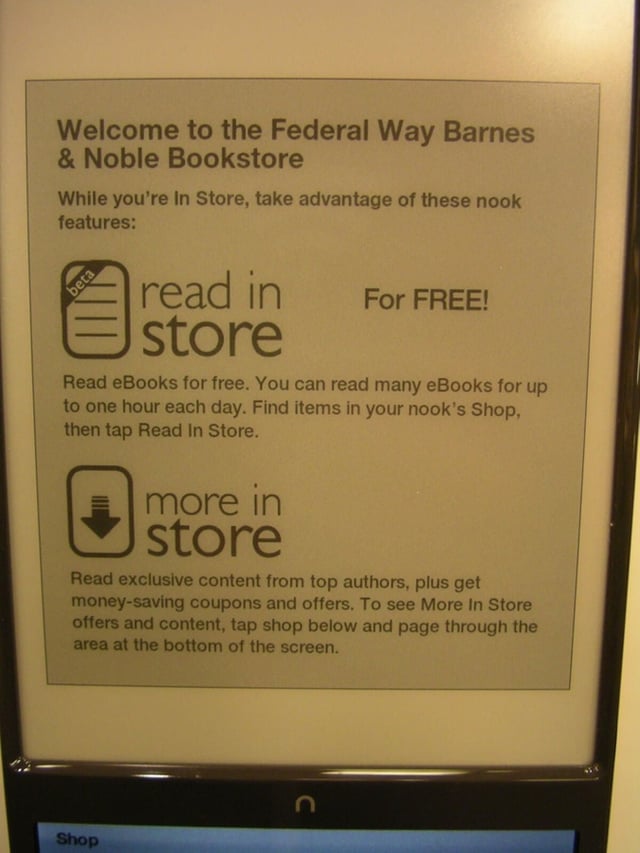
When you first turn on your Nook’s WiFi radio in a physical store this display lets you know what you can do in the store.
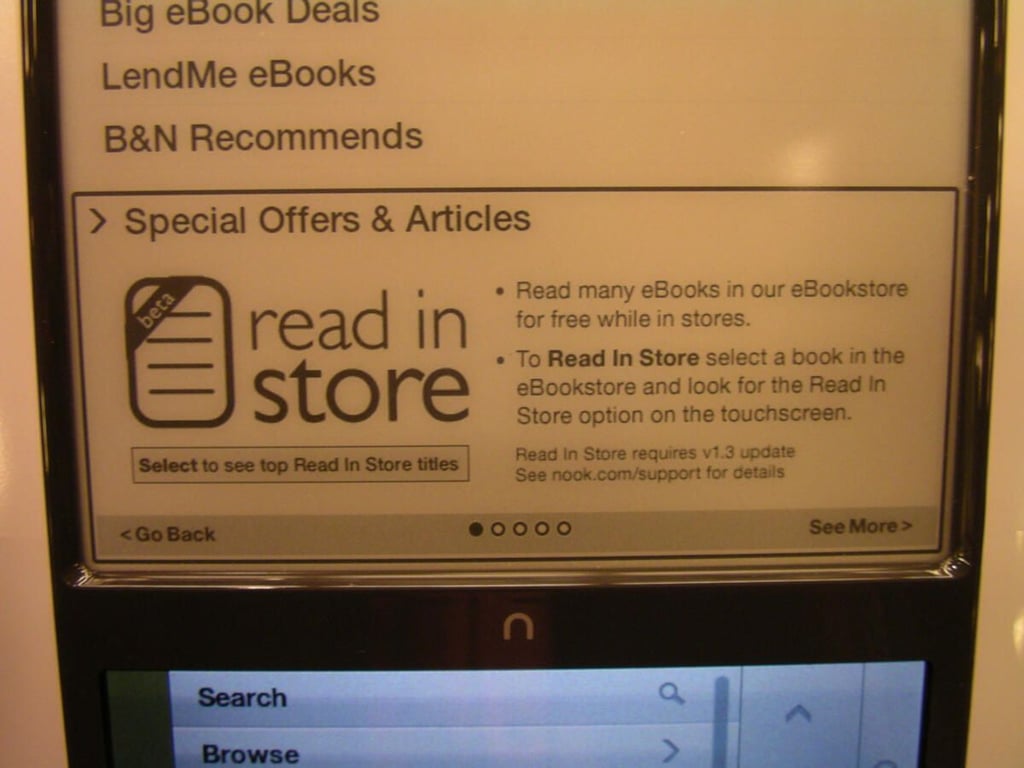
You will see new promotions on the bottom of the eInk display when you are in a physical store.
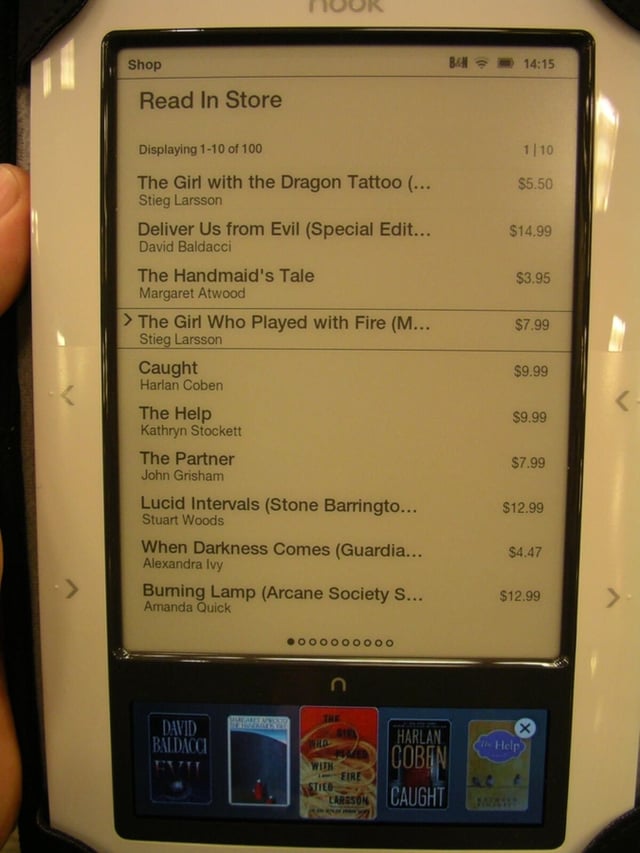
After logging in at a store you have the option to read any of these 100 books for up to an hour.
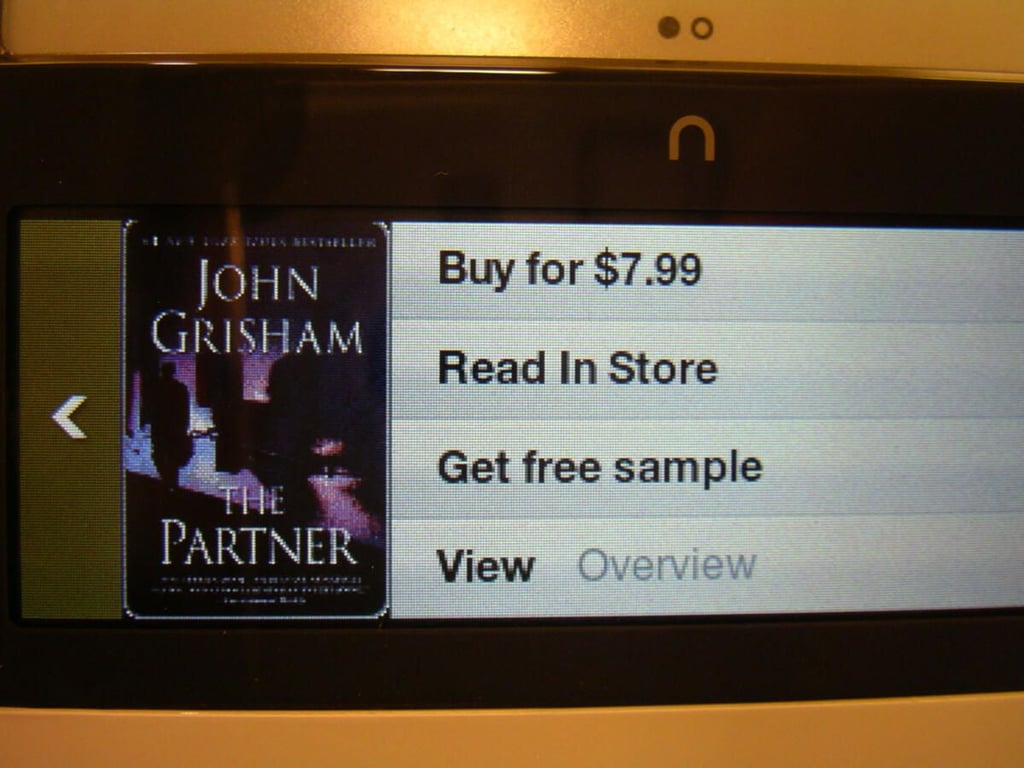
You can read a book in the store for free and if you like it you can then choose to purchase it and take it with you too.
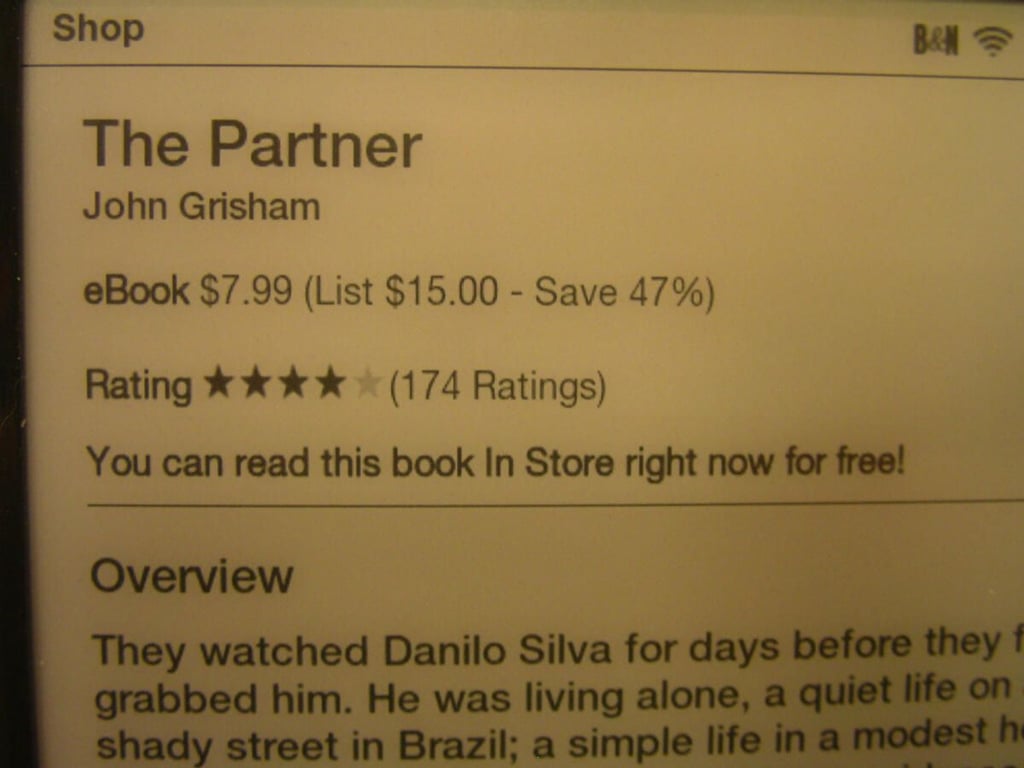
As you can see, in the upper title of the book you selected it lets you know that you can read this book in the store for free.
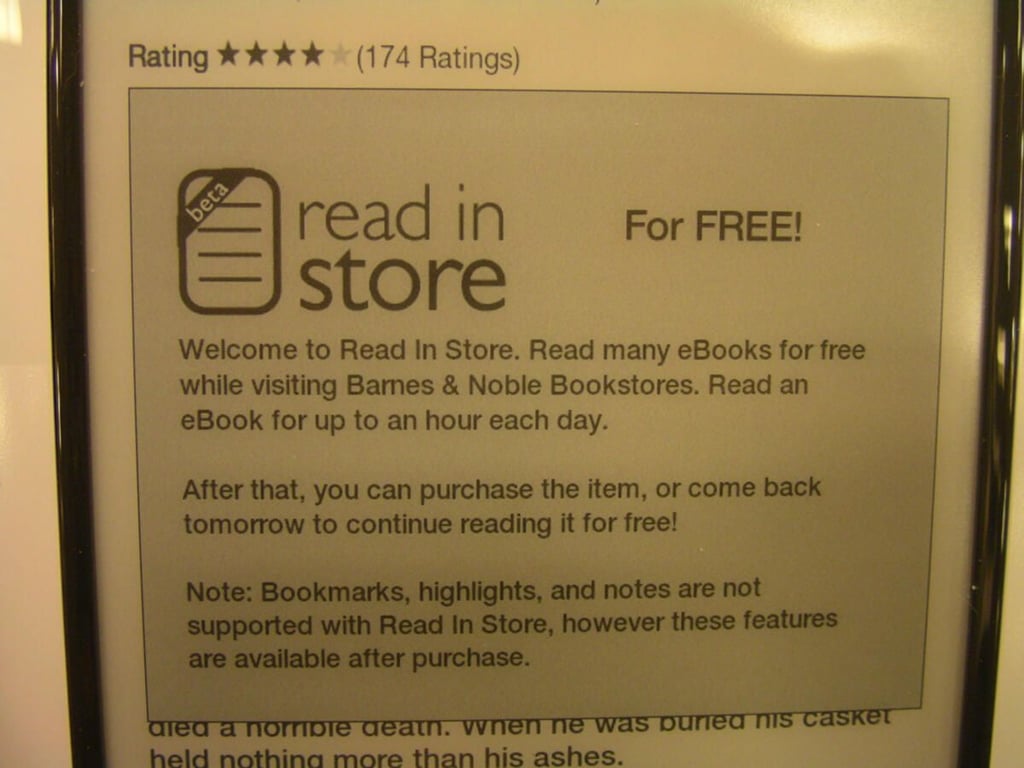
As you can read, you can read an ebook for up to an hour. Features such as bookmarks, highlights, and notes are not supported at this time.
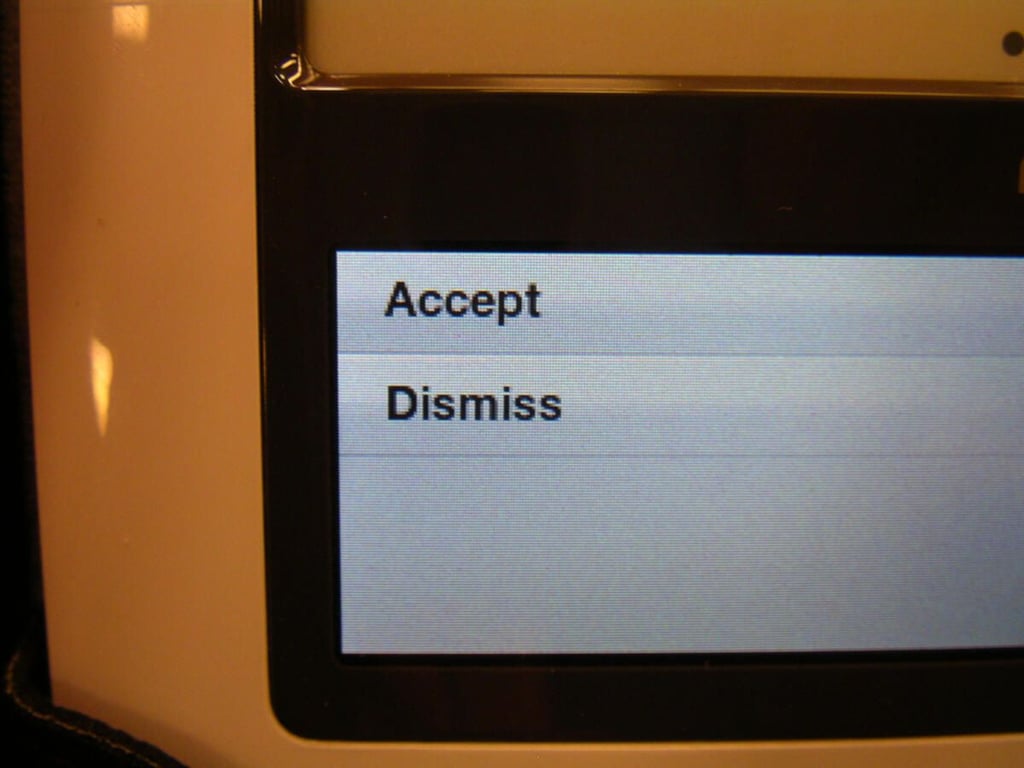
You need to tap on Accept or Dismiss after you choose a book to read in the store.
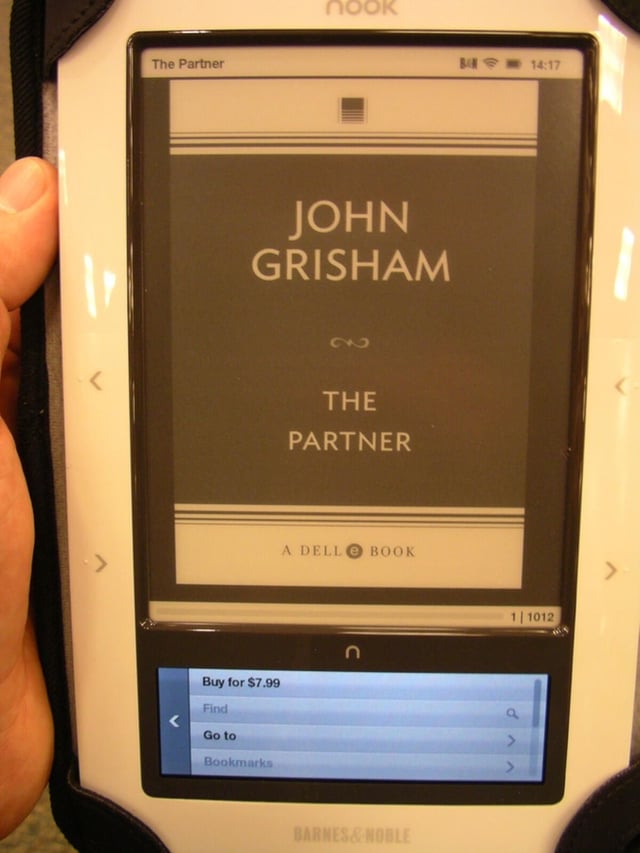
Reading the book in the store.
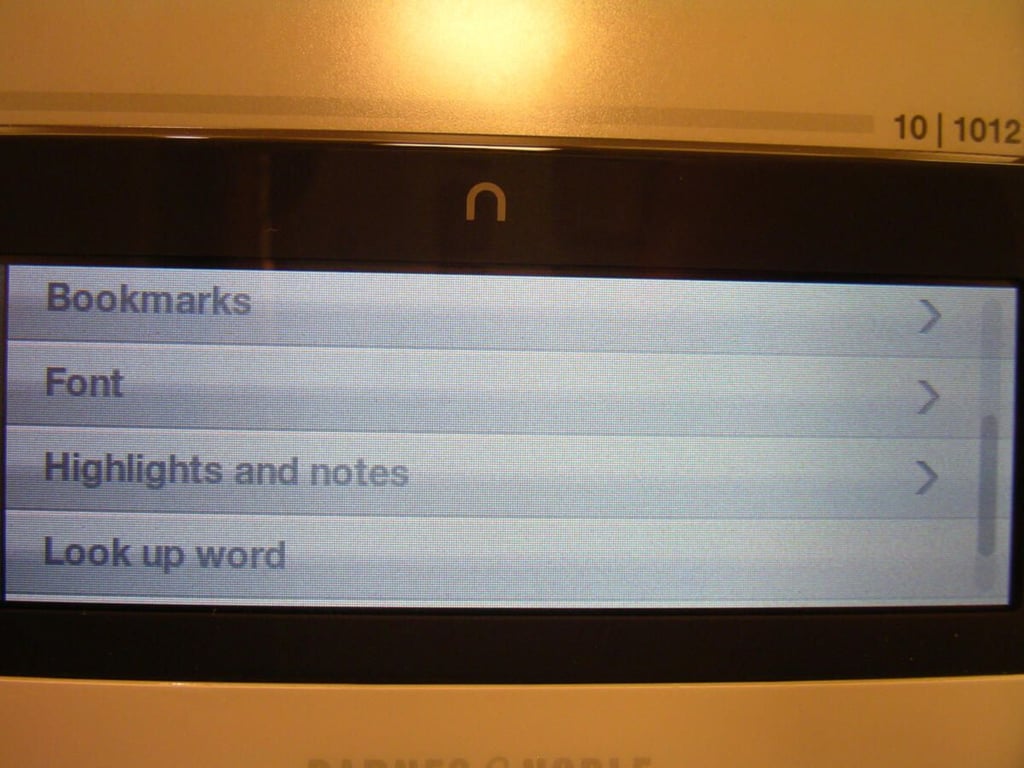
You are not allowed to change the font size or type in books you read in the store.
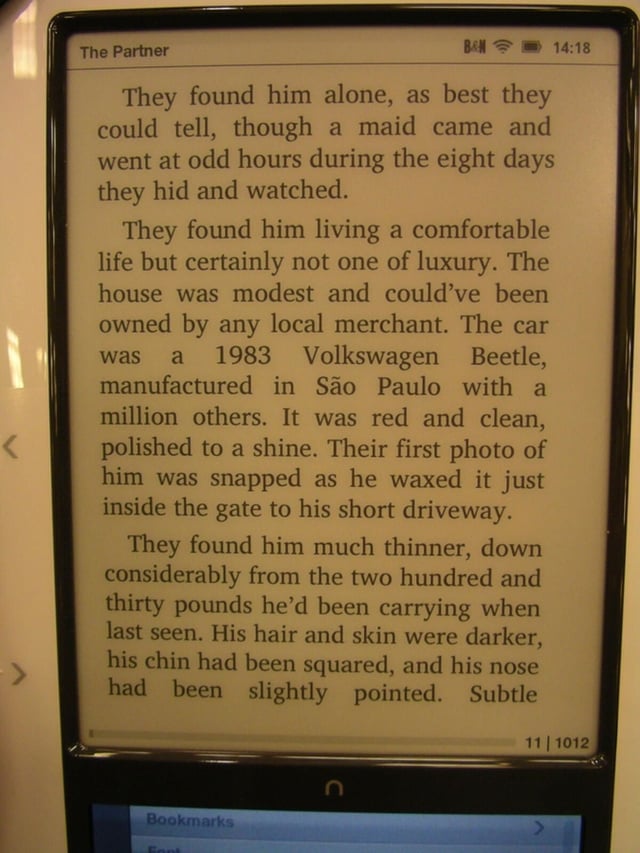
The font size for in store reading is a bit larger than I would like, but you can’t really complain when you get to read the book for free.
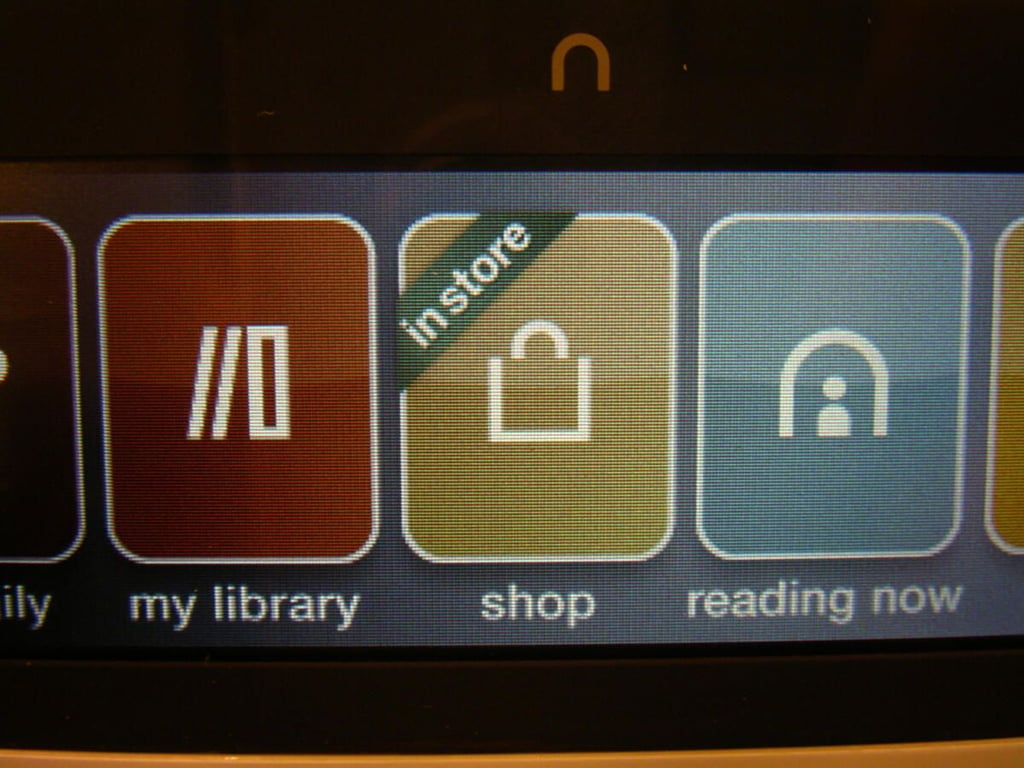
When you are in the store and connected to the B&N network a banner appears across the shop icon to let you now you are in the store.
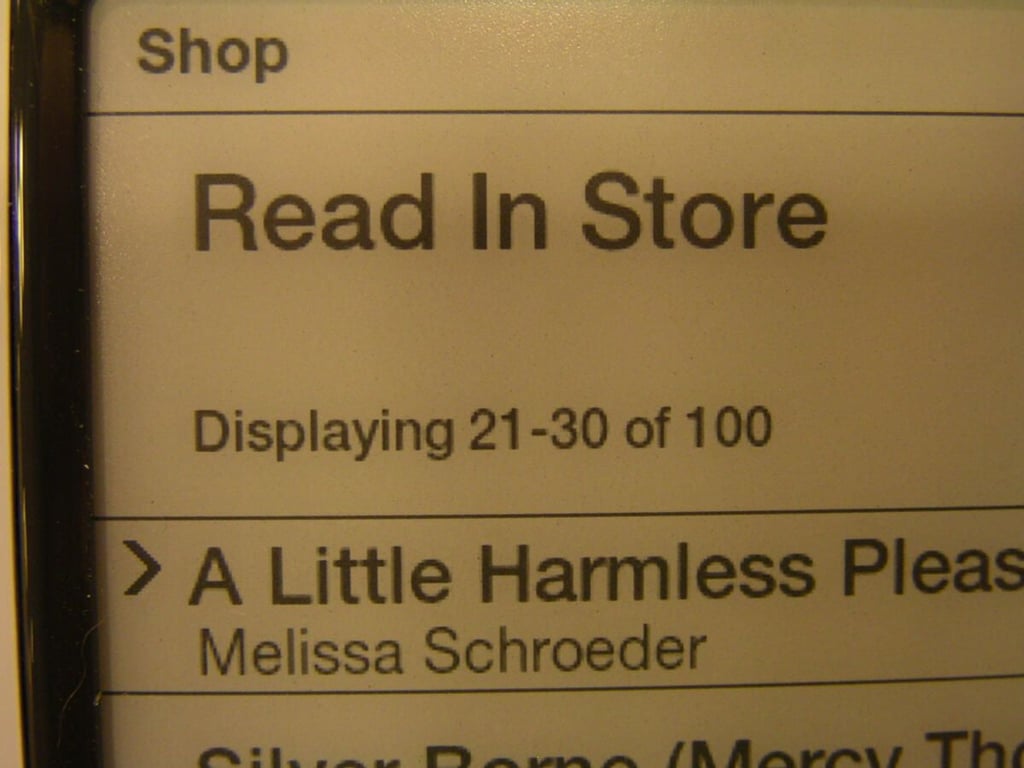
At the top of the in store book selector you can see more about the books available to you.
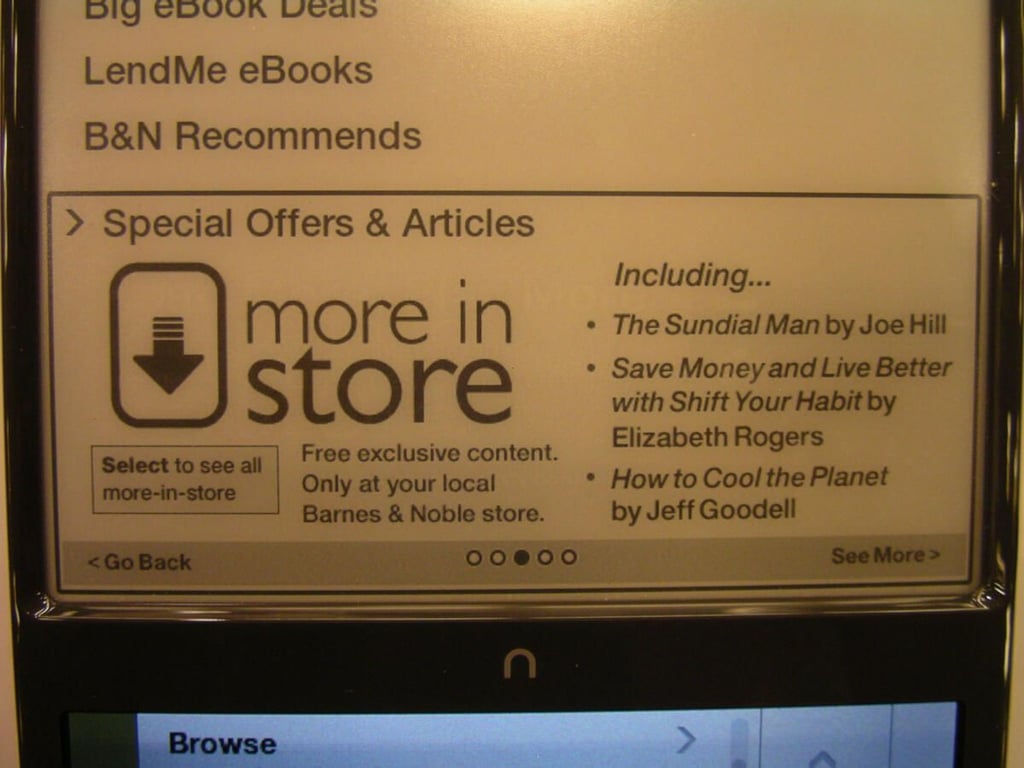
There is more in the store than just the ability to read ebooks for free. You can read exclusive content too.
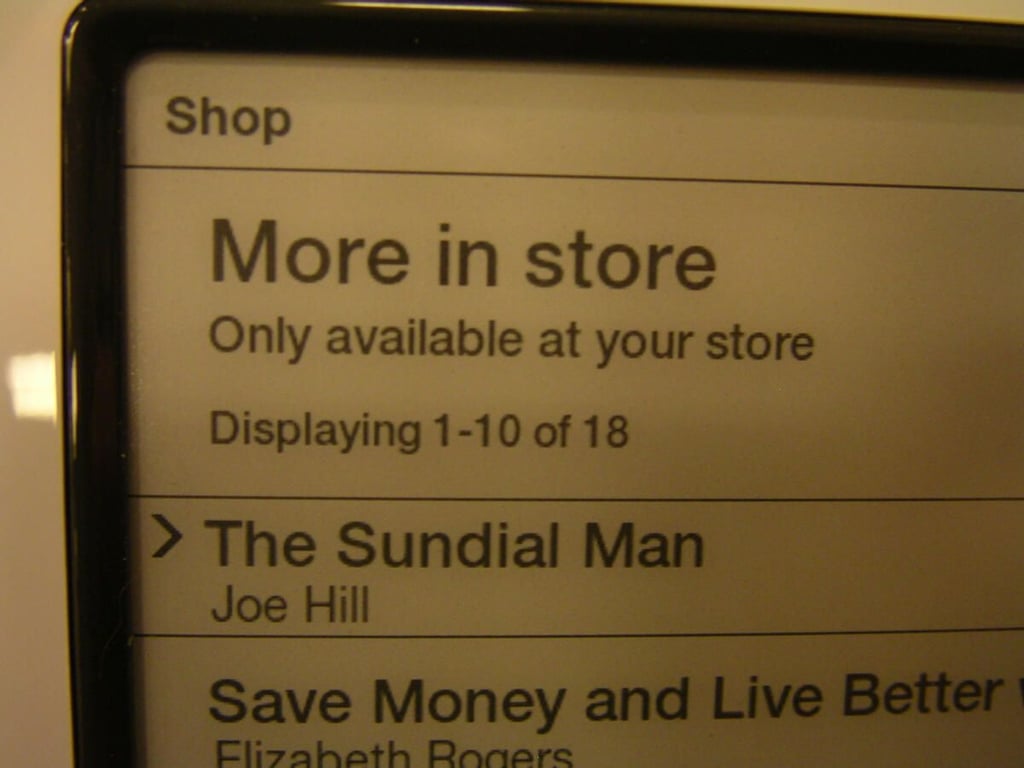
This is a typical page showing what content is available in the store.
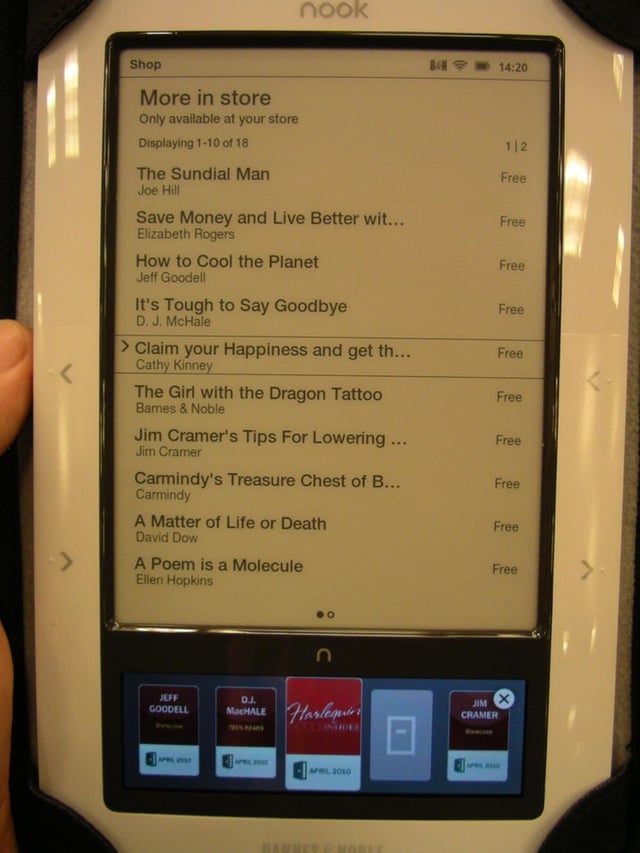
All content in the store is available for free and some is available for you to take with you.
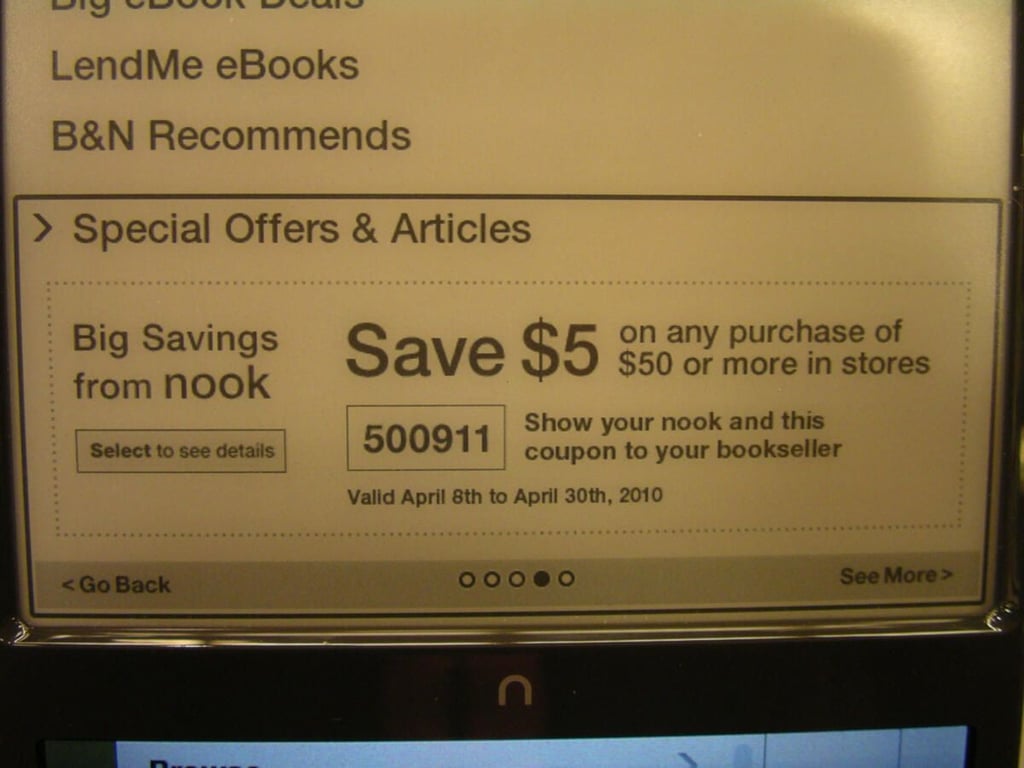
I had a free cookie coupon a couple months ago and the current offer is $5 off of $50 that you spend.
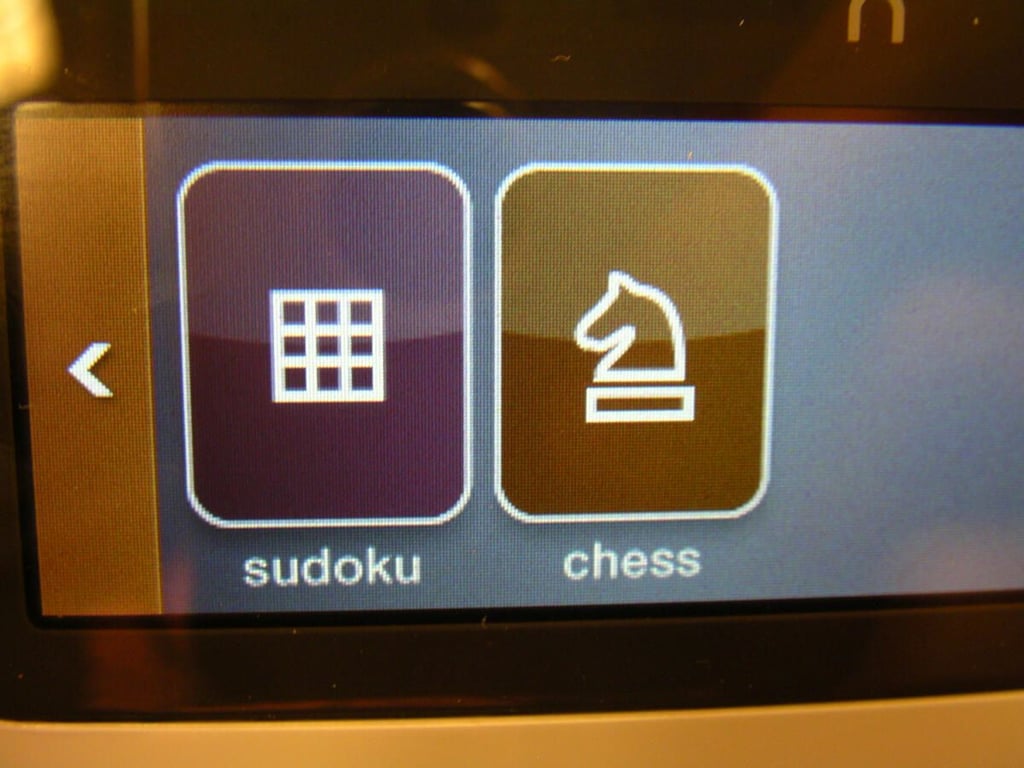
Barnes & Noble provided Sudoku and Chess for Nook owners.
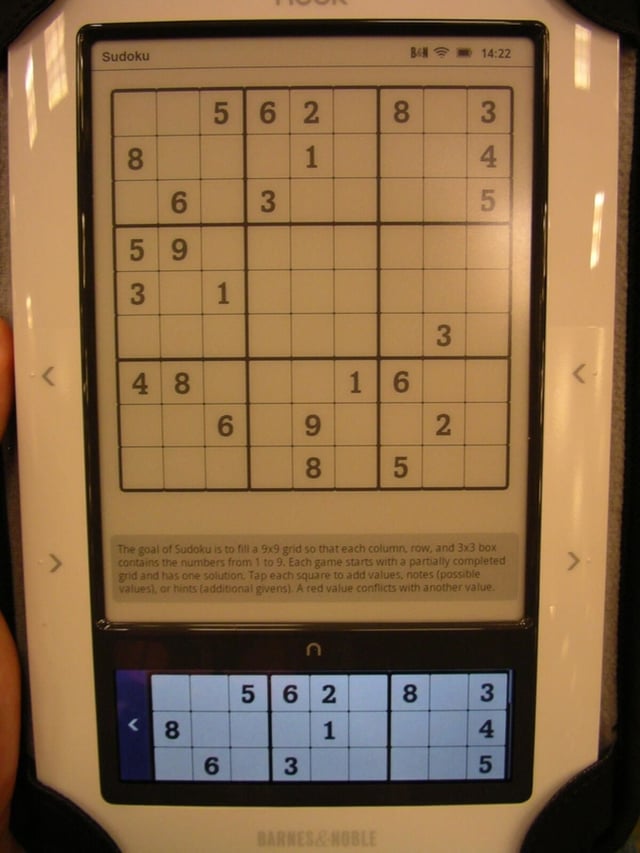
Sudoku is easy to play on the Nook and works very well.
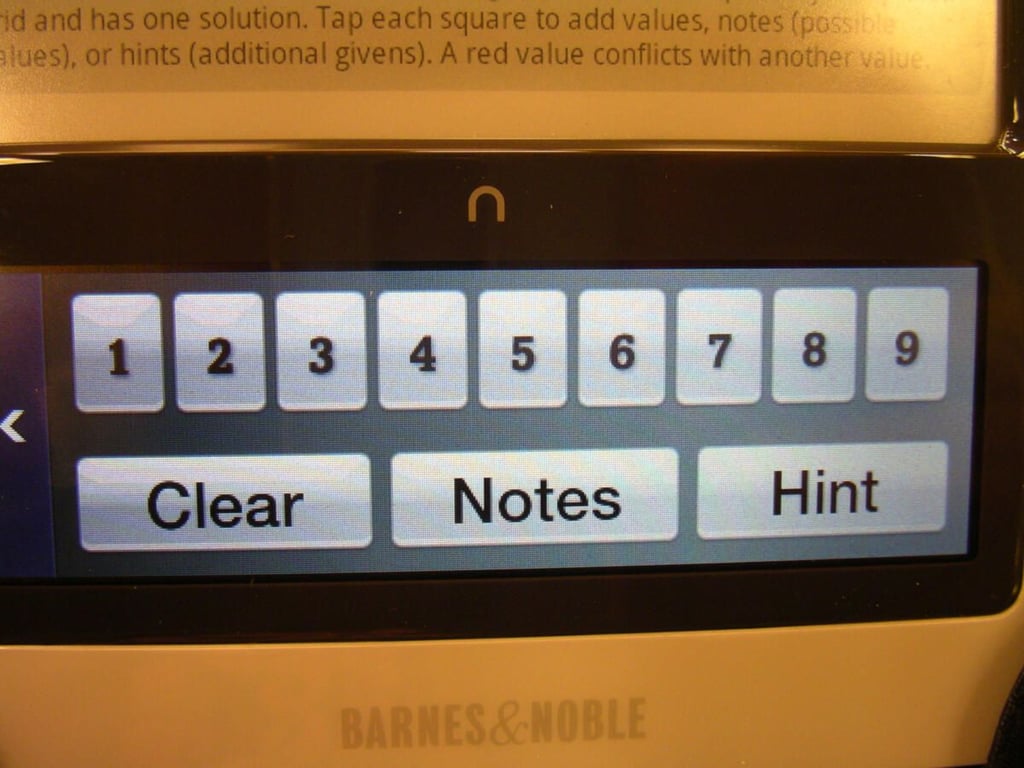
The bottom color display is used for entering numbers in Sudoku.
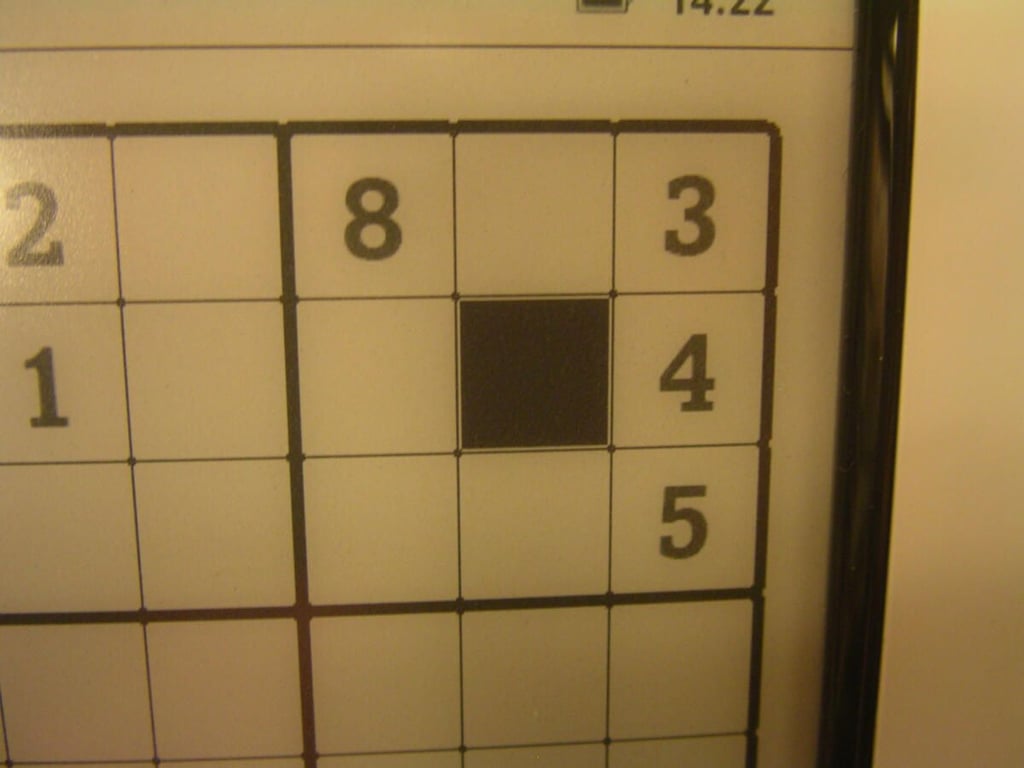
Here you can see the selected square on the eInk display.
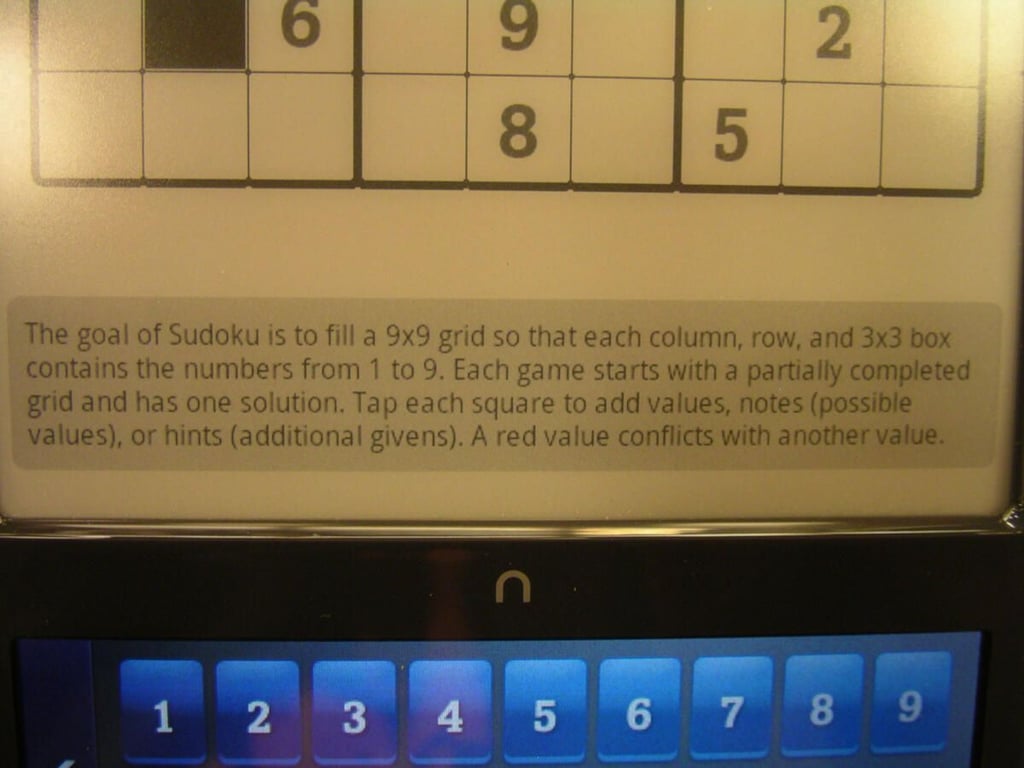
Directions for the game appear at the bottom of the eInk display.
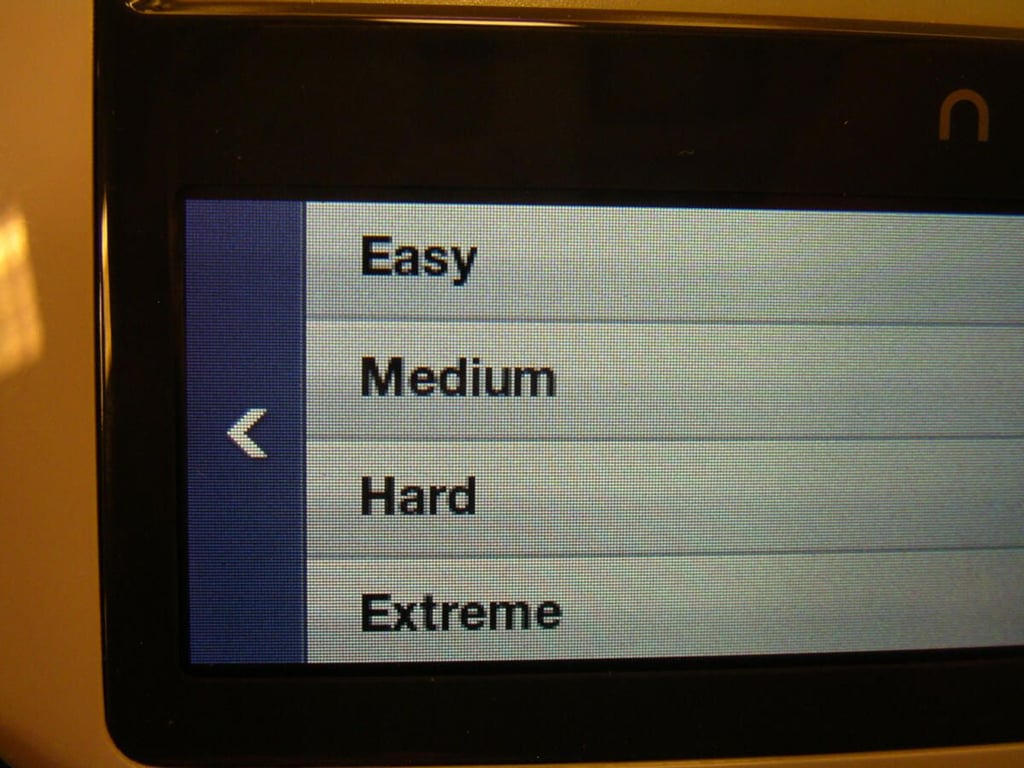
There are difficulty options available in the two games.
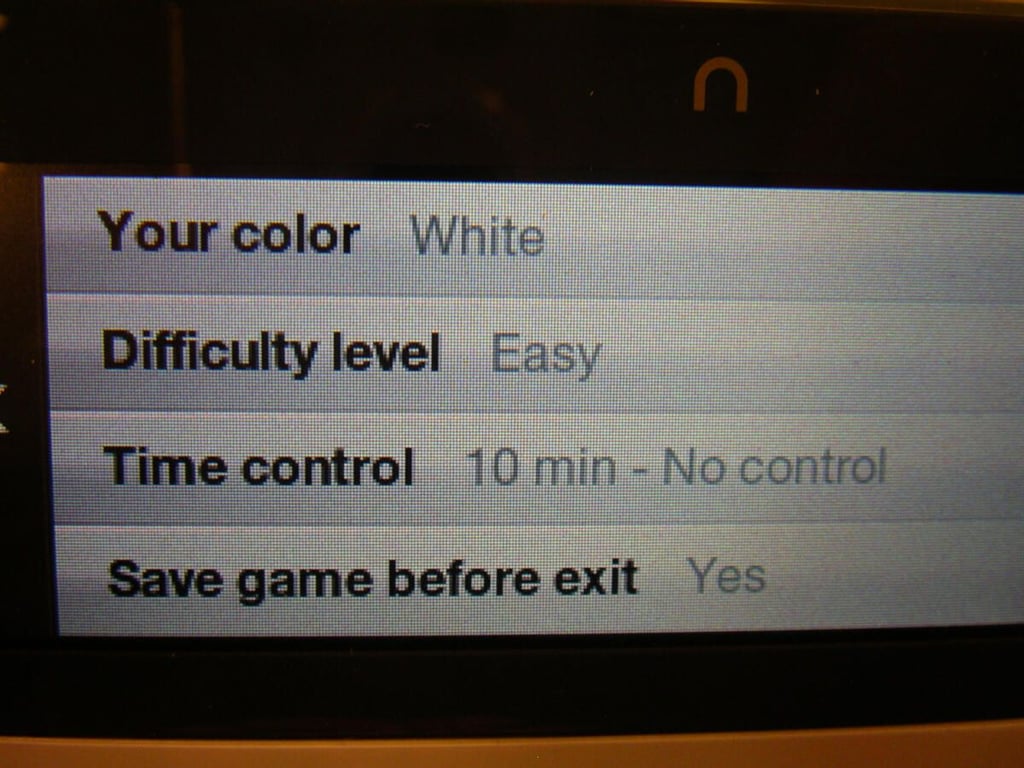
First screen of settings in Sudoku.
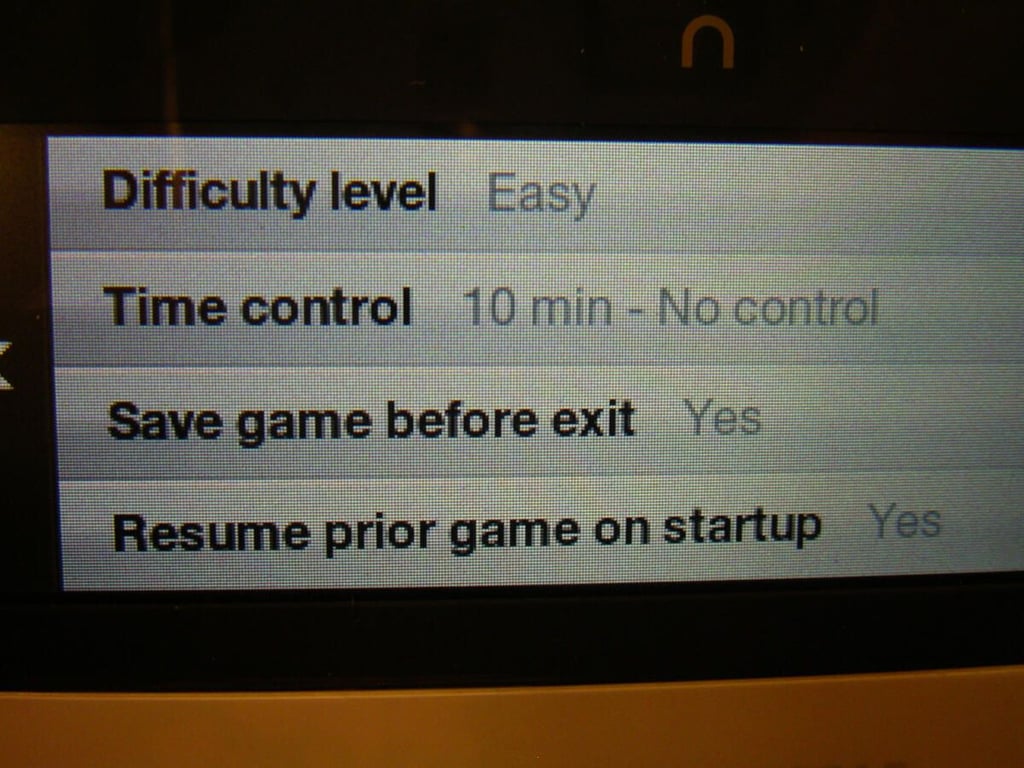
As you can see there are a few more settings in Sudoku.
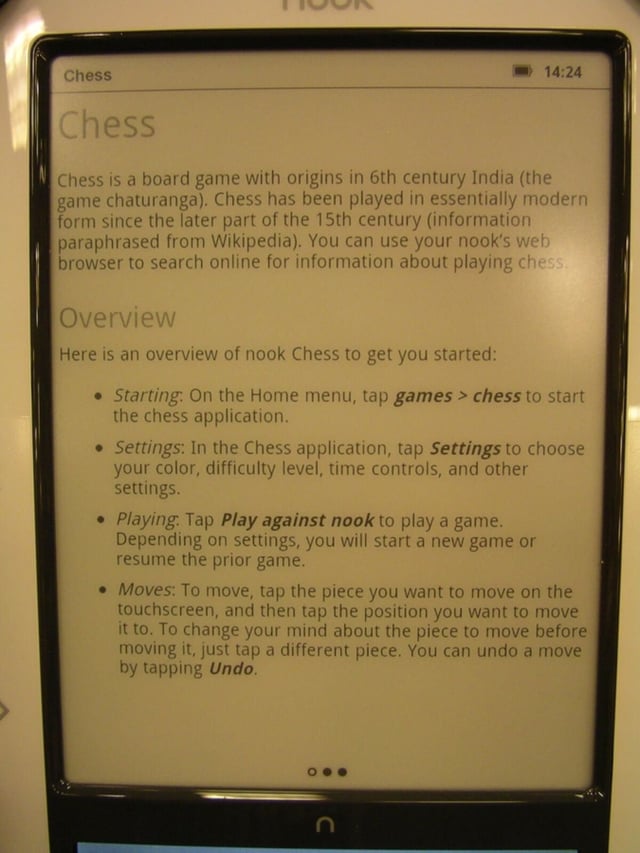
Page of chess instructions on the Nook.
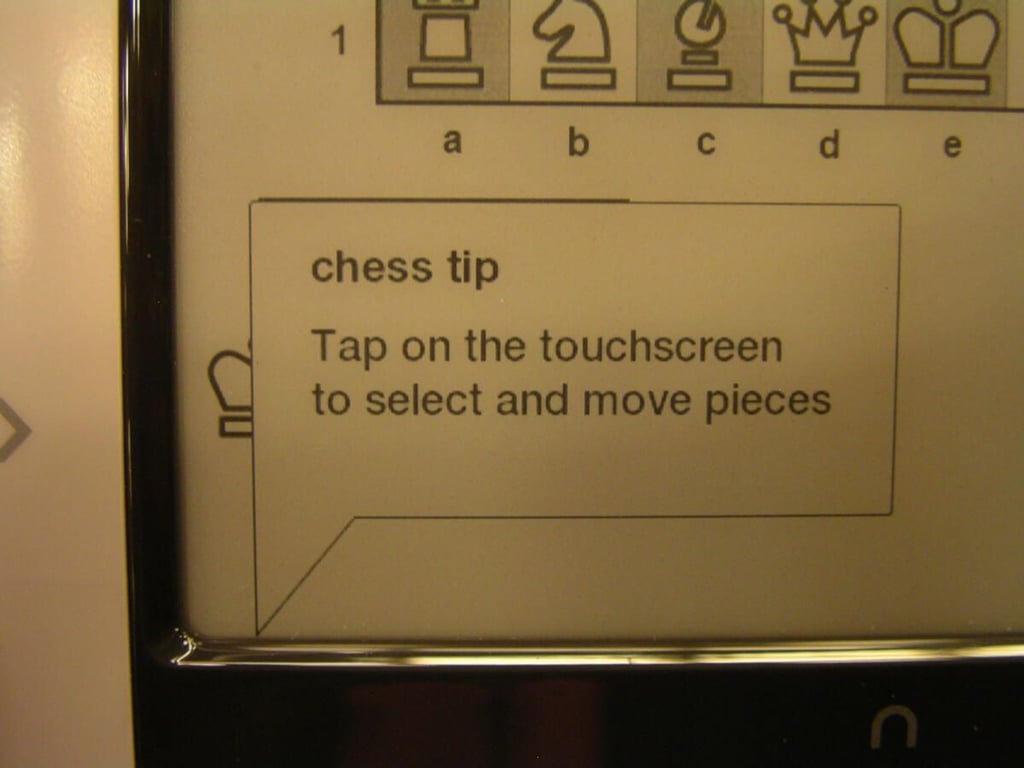
You will find conversation bubbles appearing on the eInk display when you play chess.
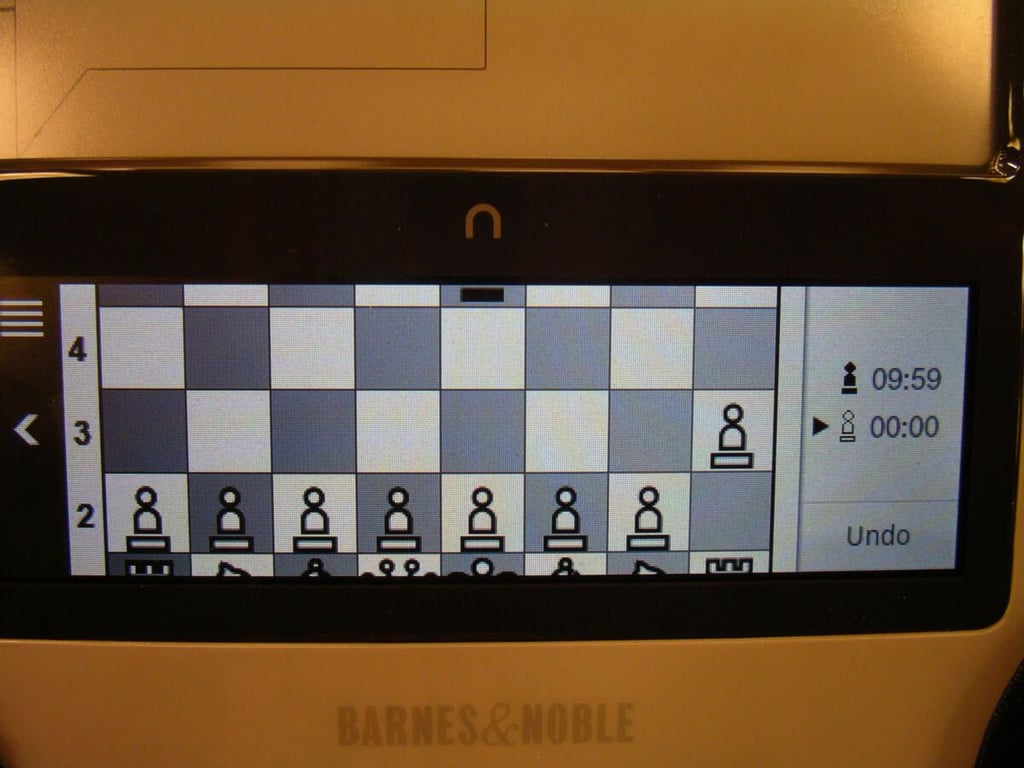
The lower touch color display is used quite a bit for chess.
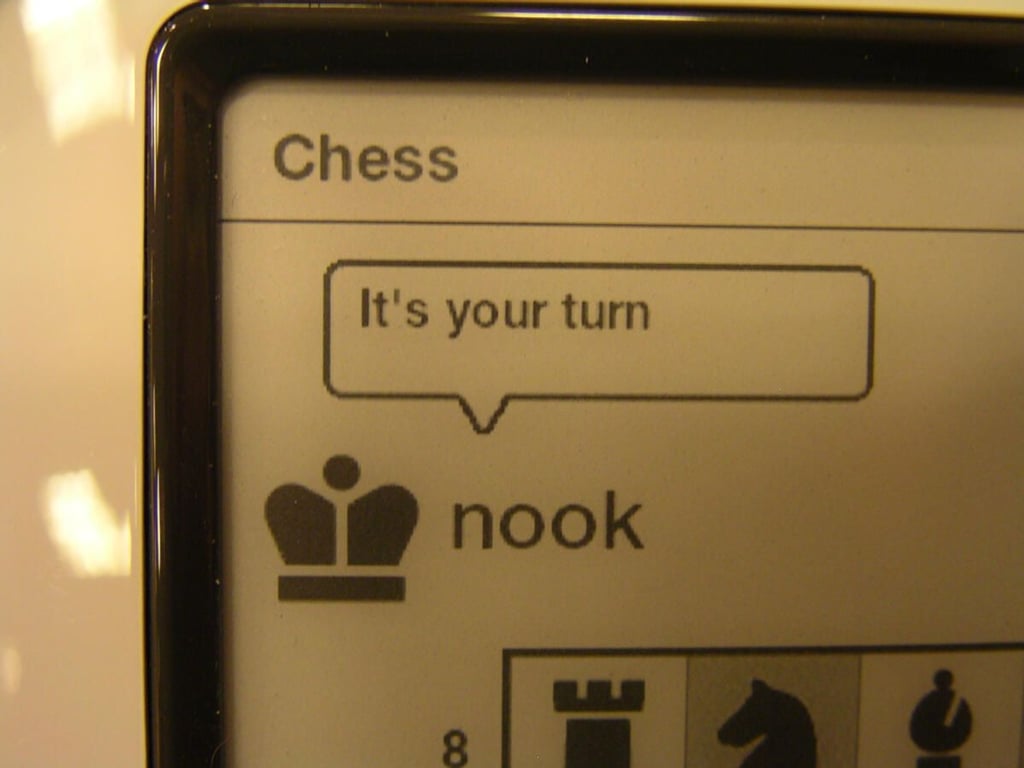
Pop ups appear on the top and bottom of the chess board.
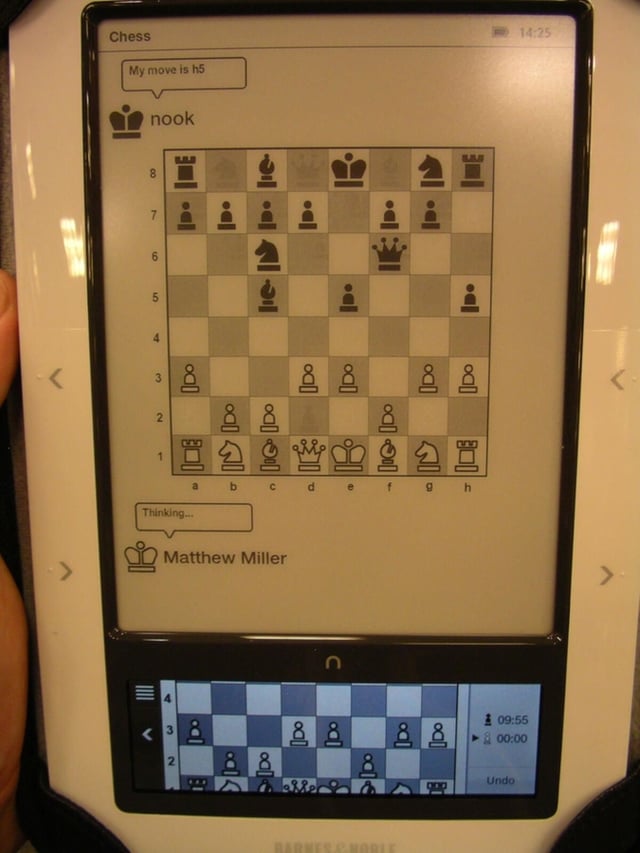
Here you can see the eInk chess board and the lower color display view of chess.
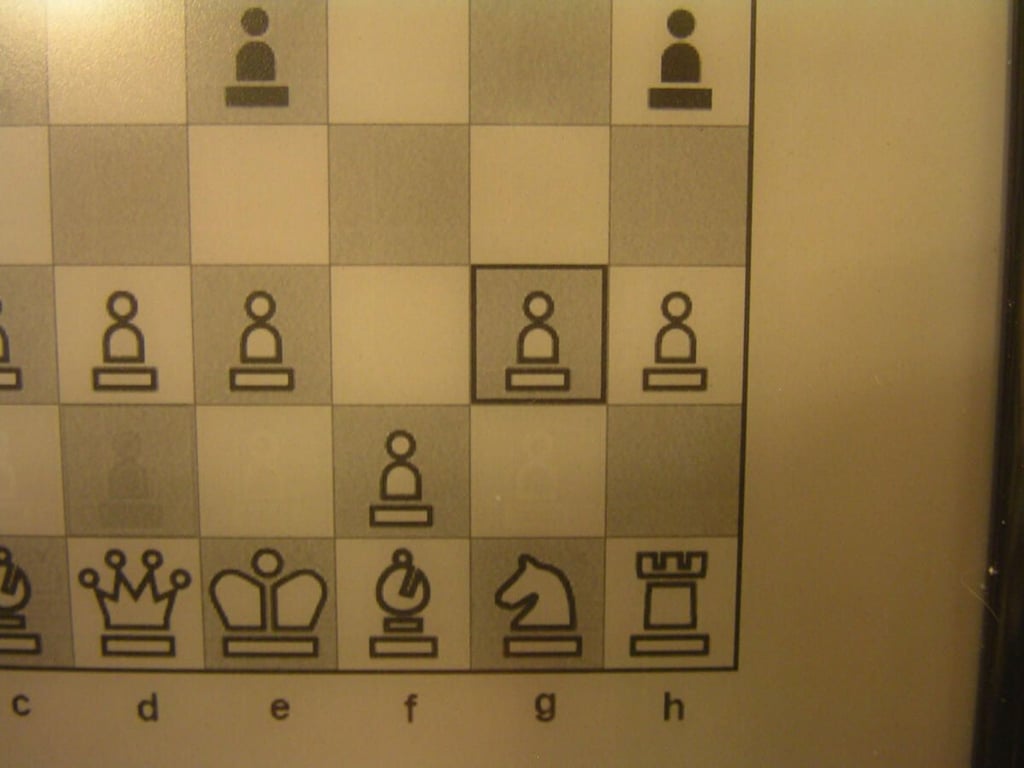
The square you select on the bottom display is highlighted on the top eInk display.
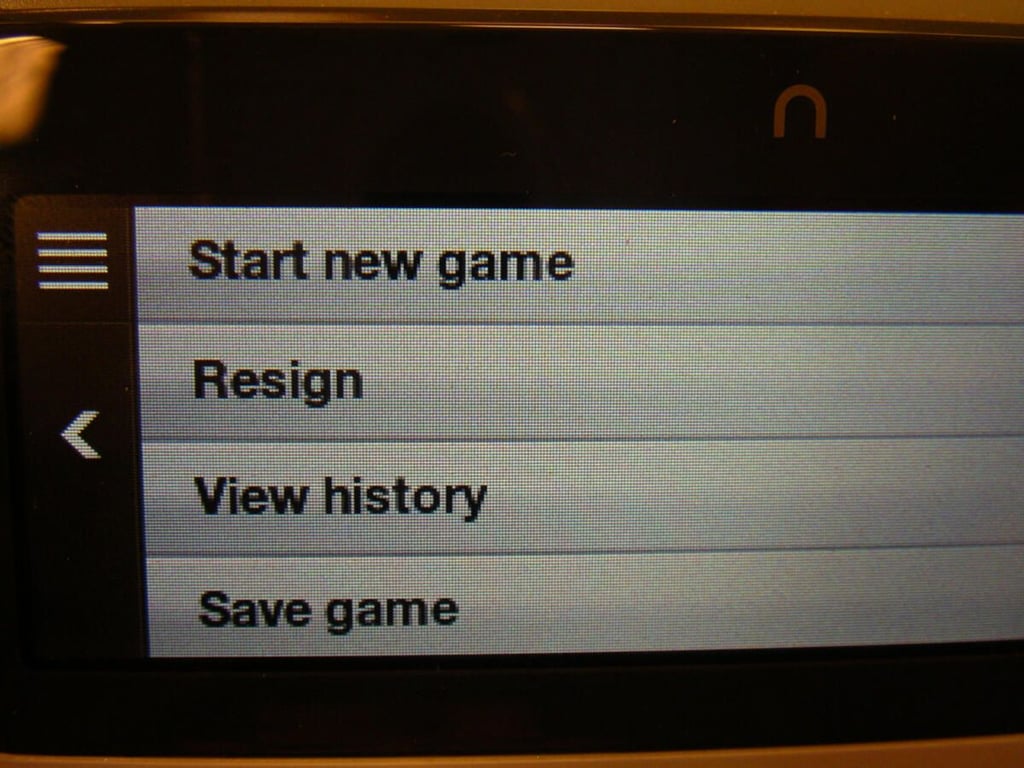
Some options available in chess on the Nook.
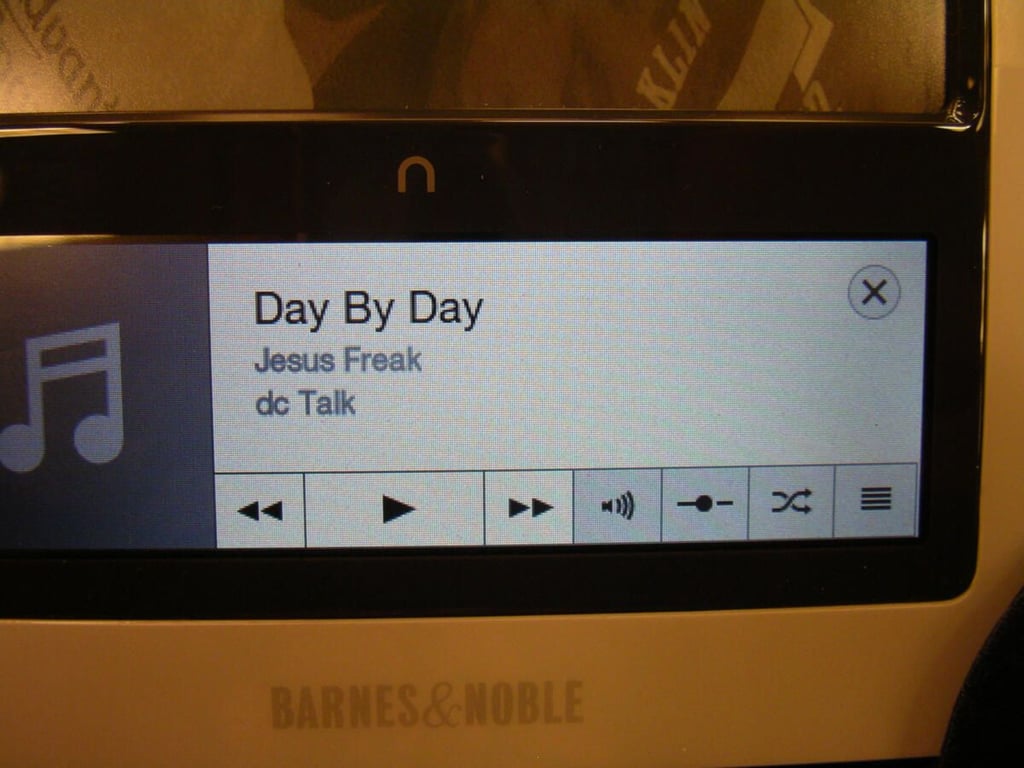
There is a new icon for Audio on the Nook to more quickly access the music player and listen to music in the background.
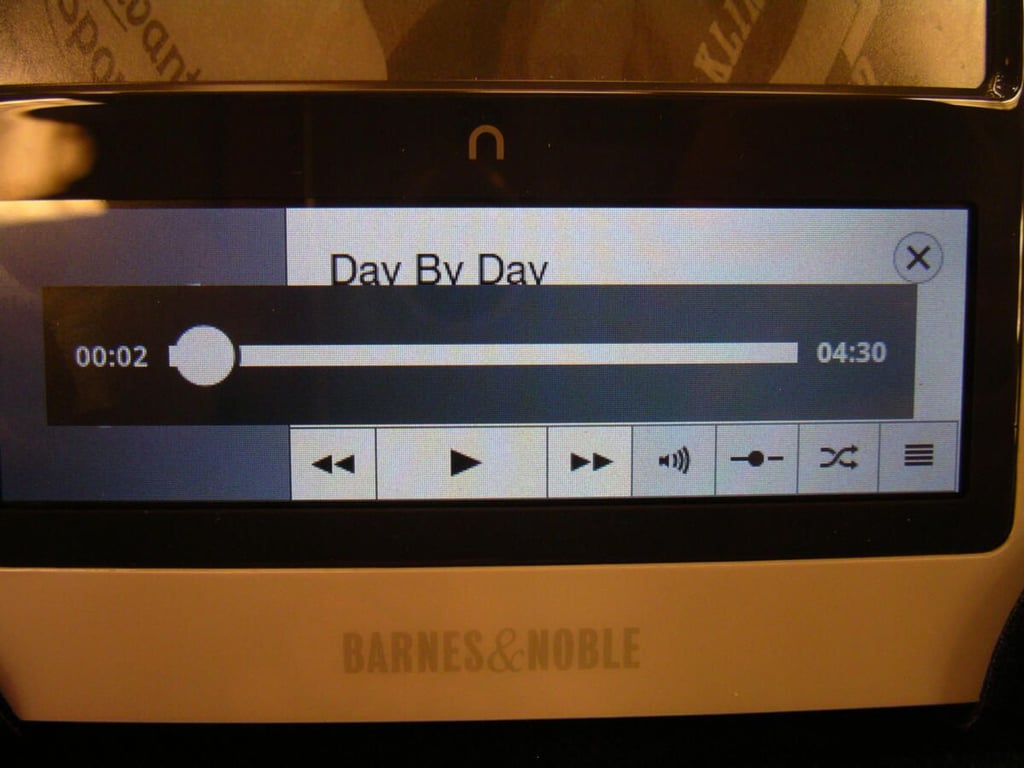
There is a slider bar for navigating your music.
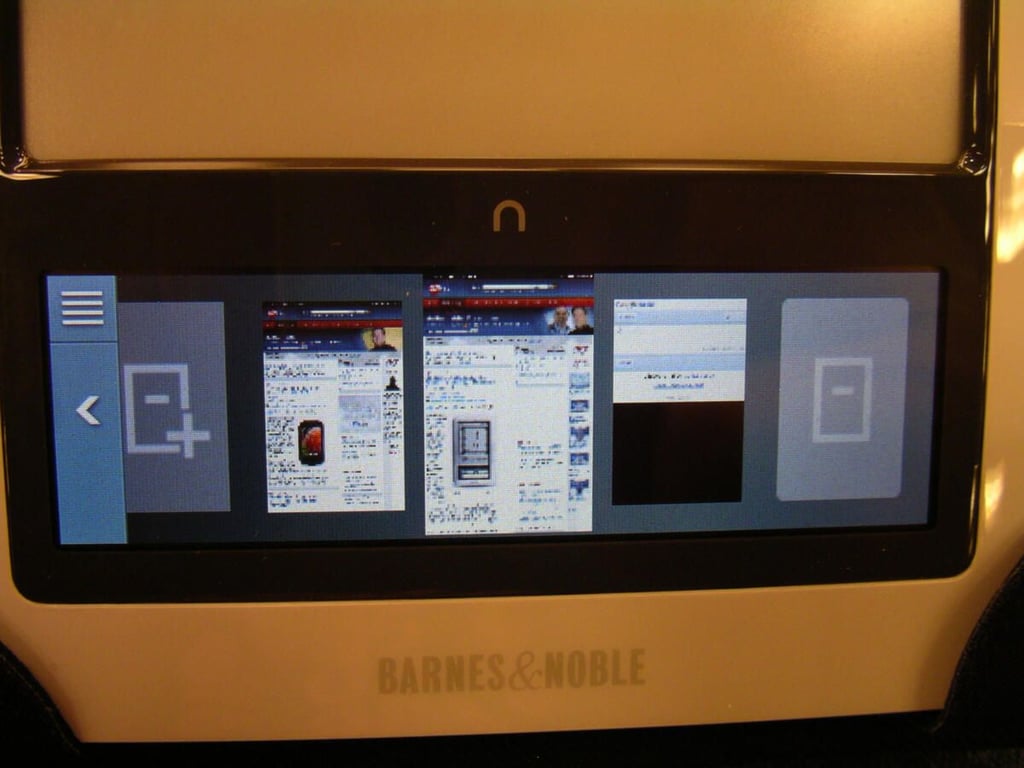
Favorites in the web browser appear as book covers on the lower color display.
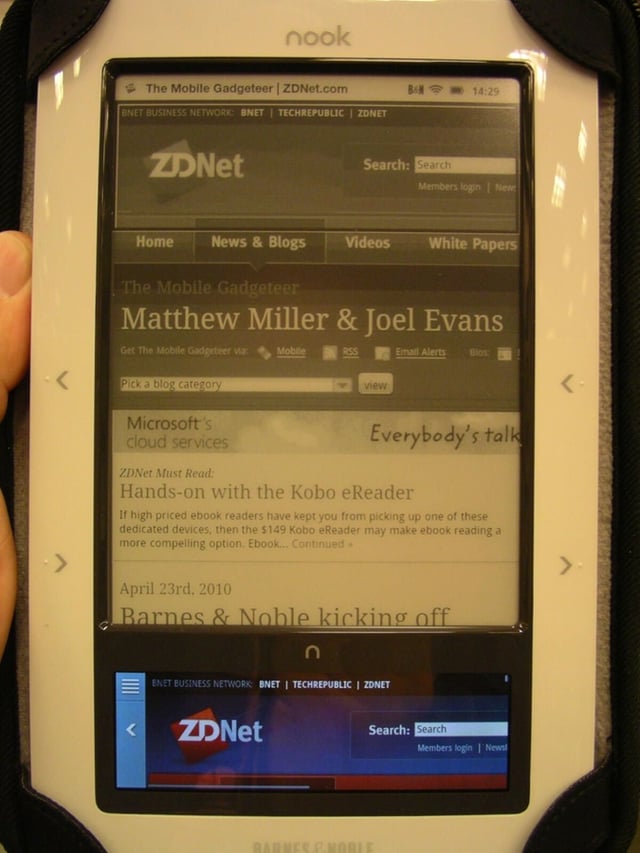
The lower color display works well for navigating in the browser.
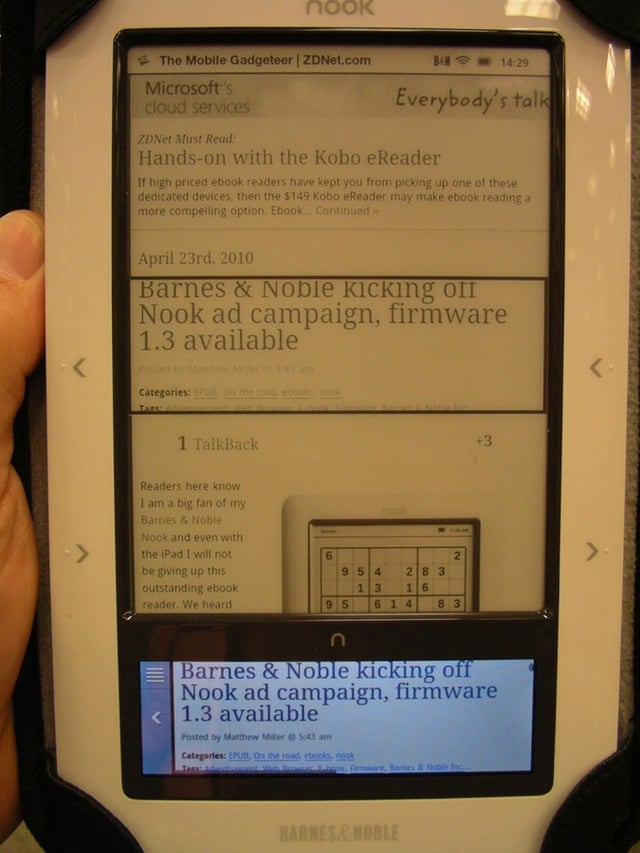
As you move up around the page a block indicating what you see on the lower color display appears on the larger eInk display.
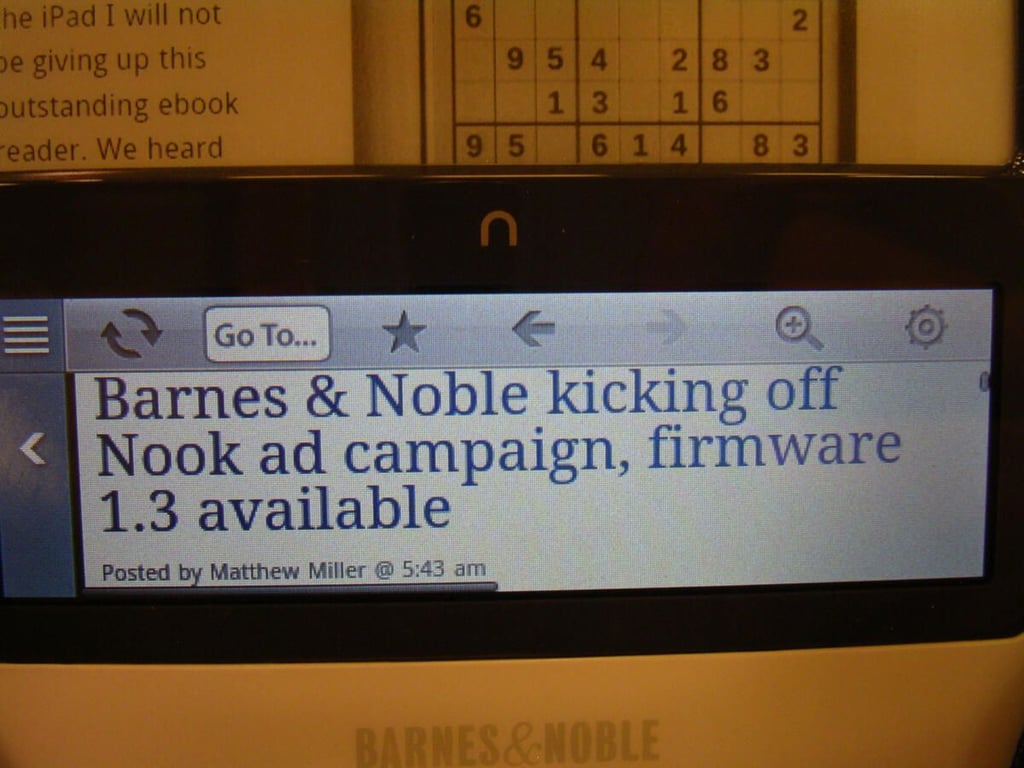
You can tap the upper left of the color display to access the toolbar in the display.
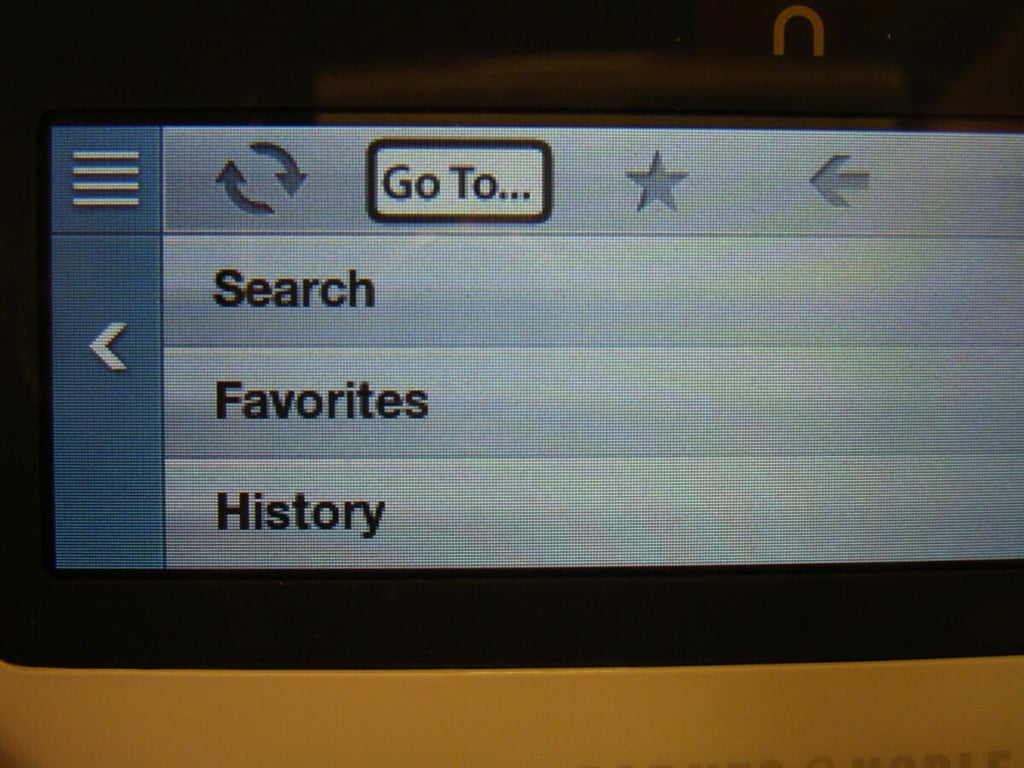
Tapping on Go To… gives you choices to search, view favorites, or view history.
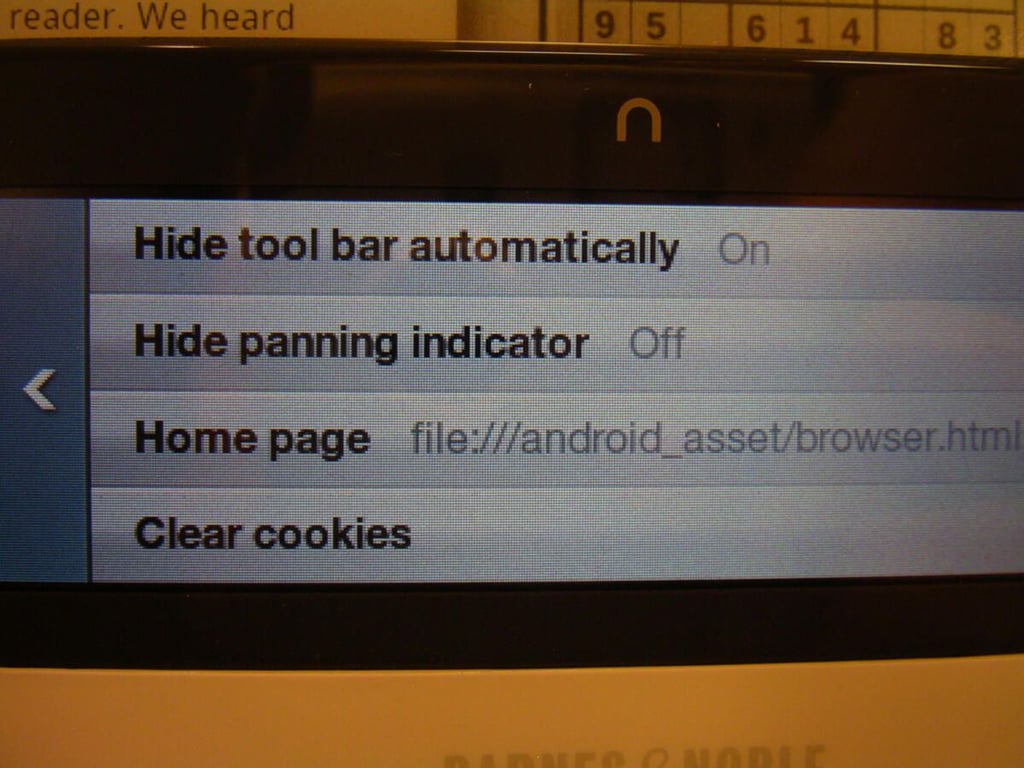
There are a few settings available within the web browser.
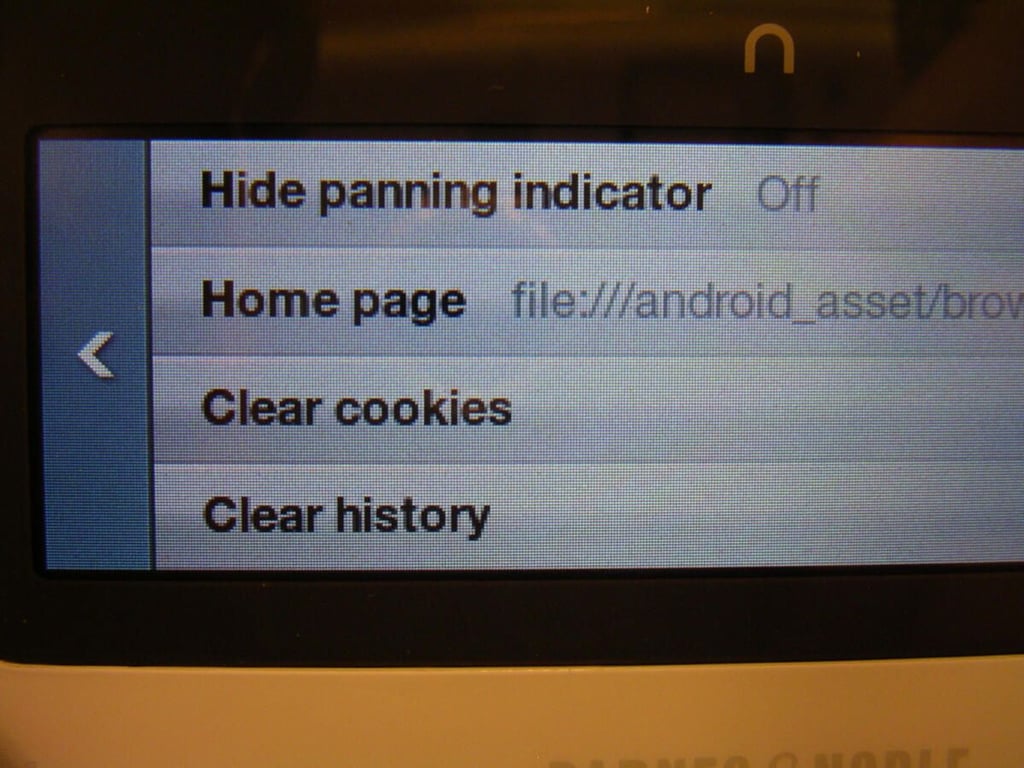
More available web browser settings.
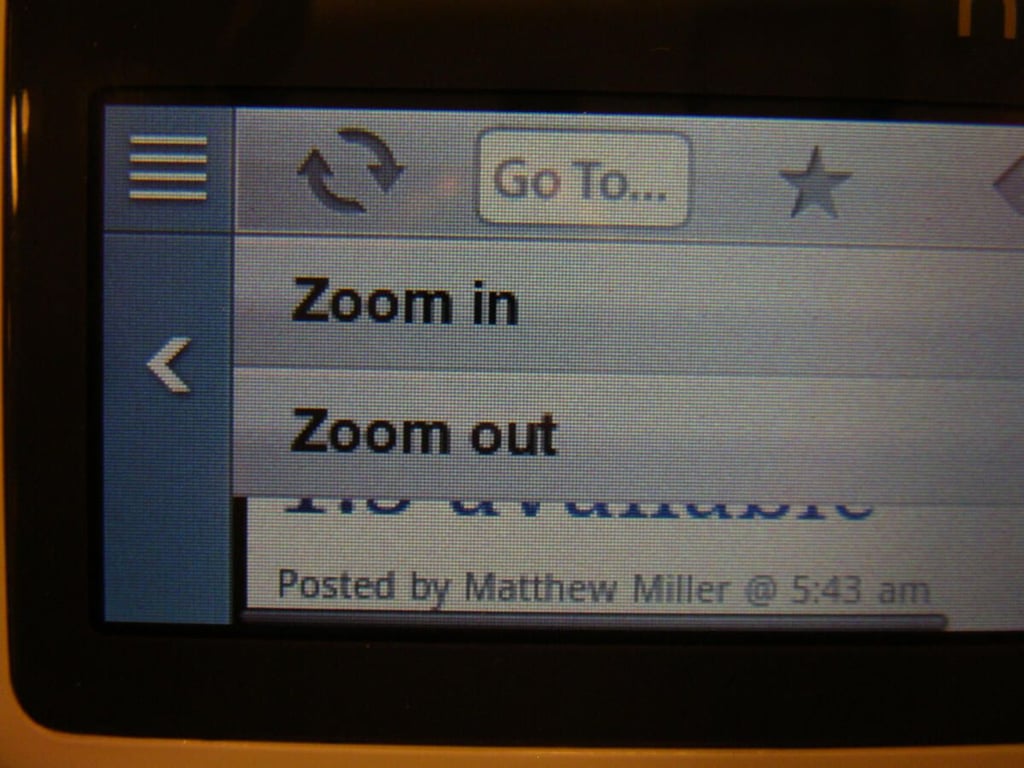
You can zoom in and out within the web browser.
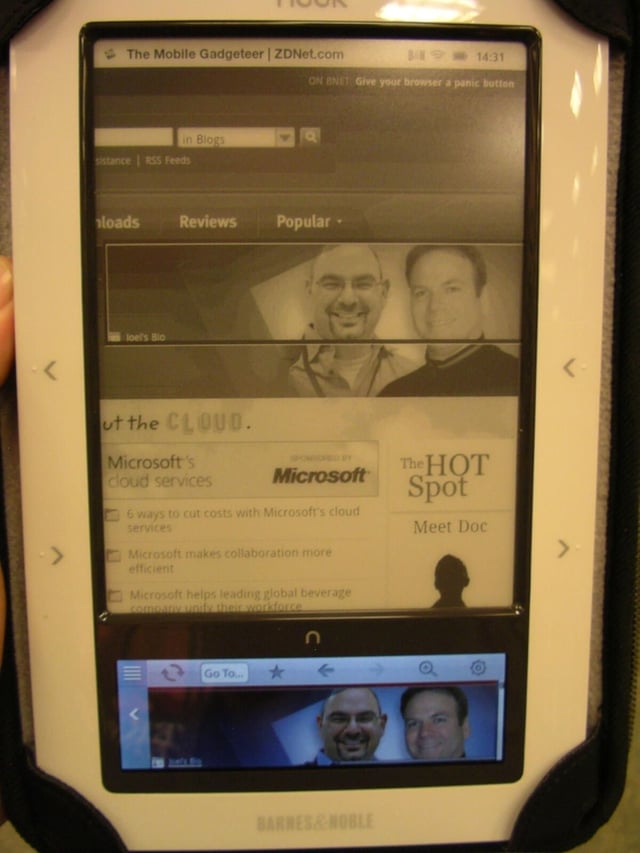
Color and eInk comparison image.
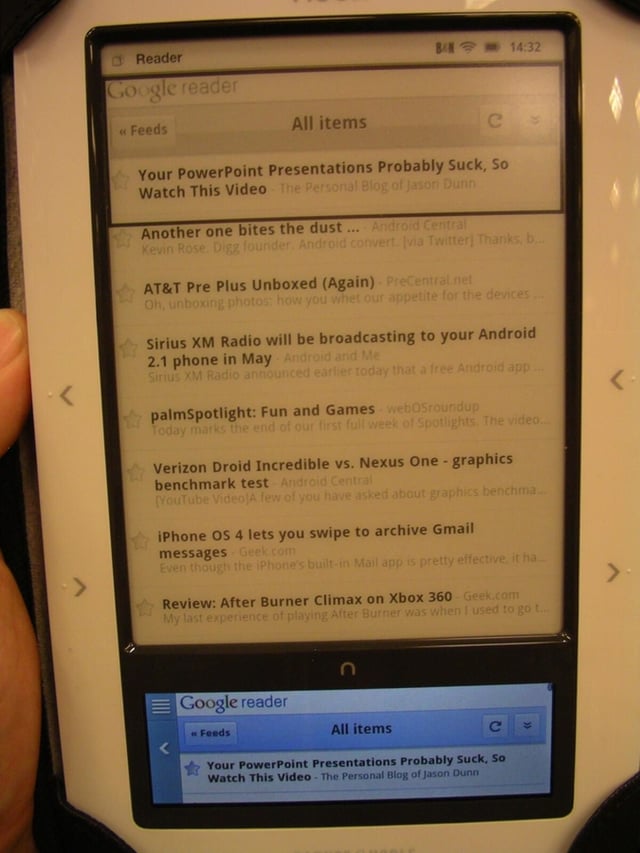
Google Reader performs well in the web browser.
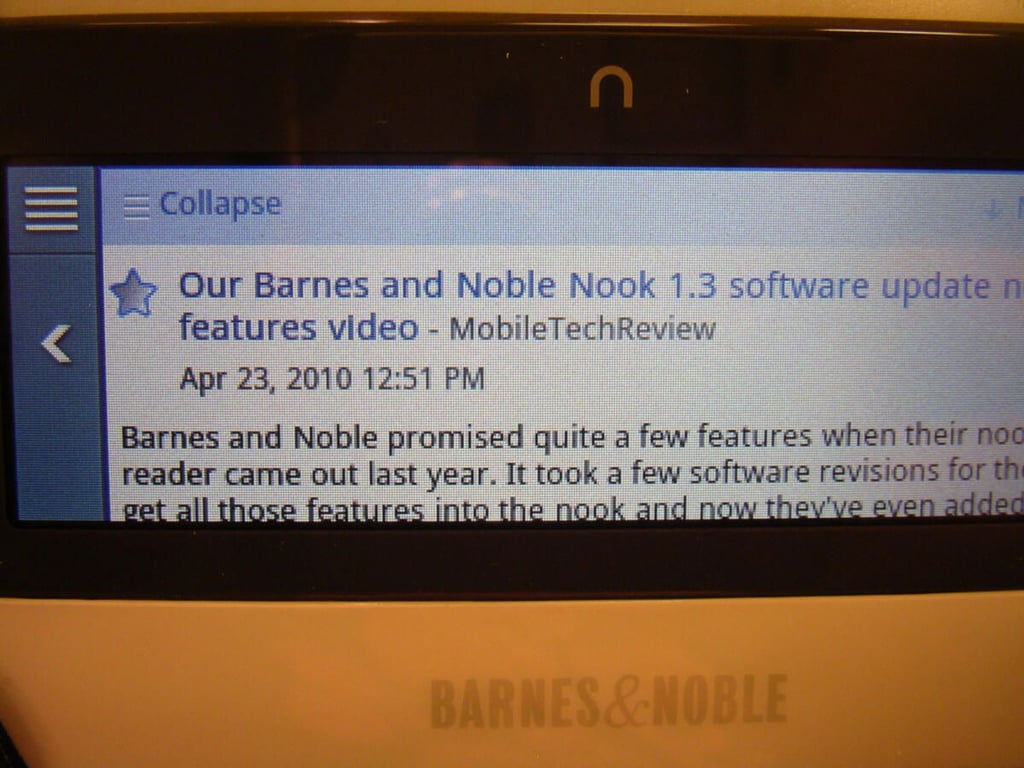
Here is Google Reader in the lower display.
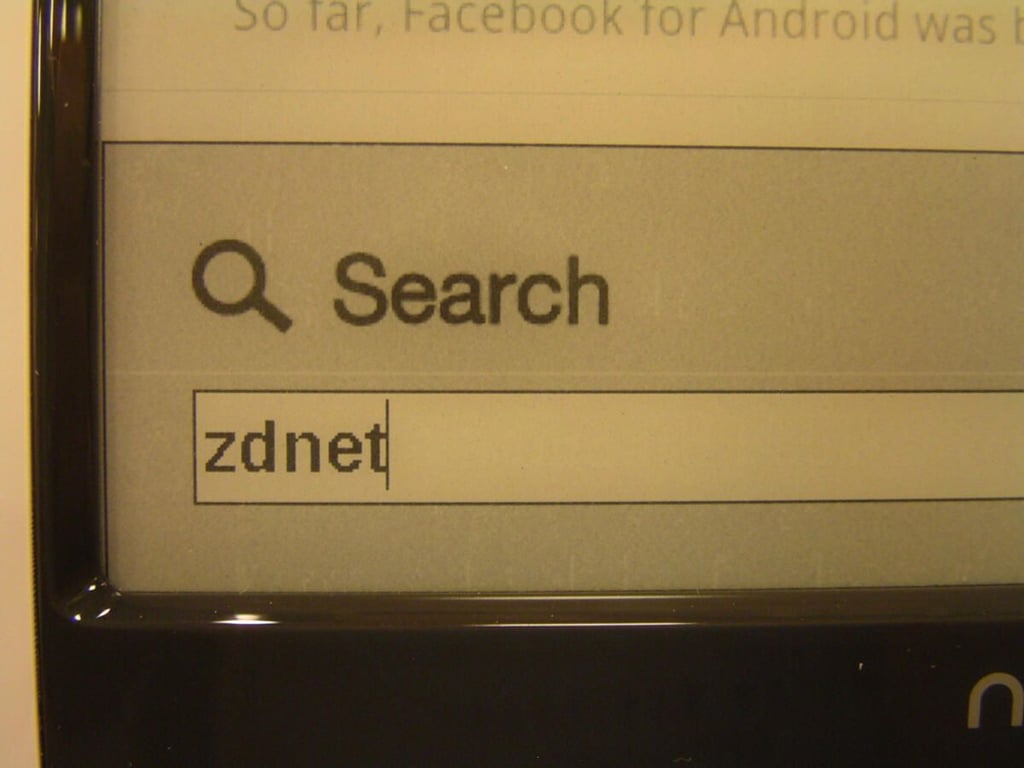
The search box appears quite generic in the browser.
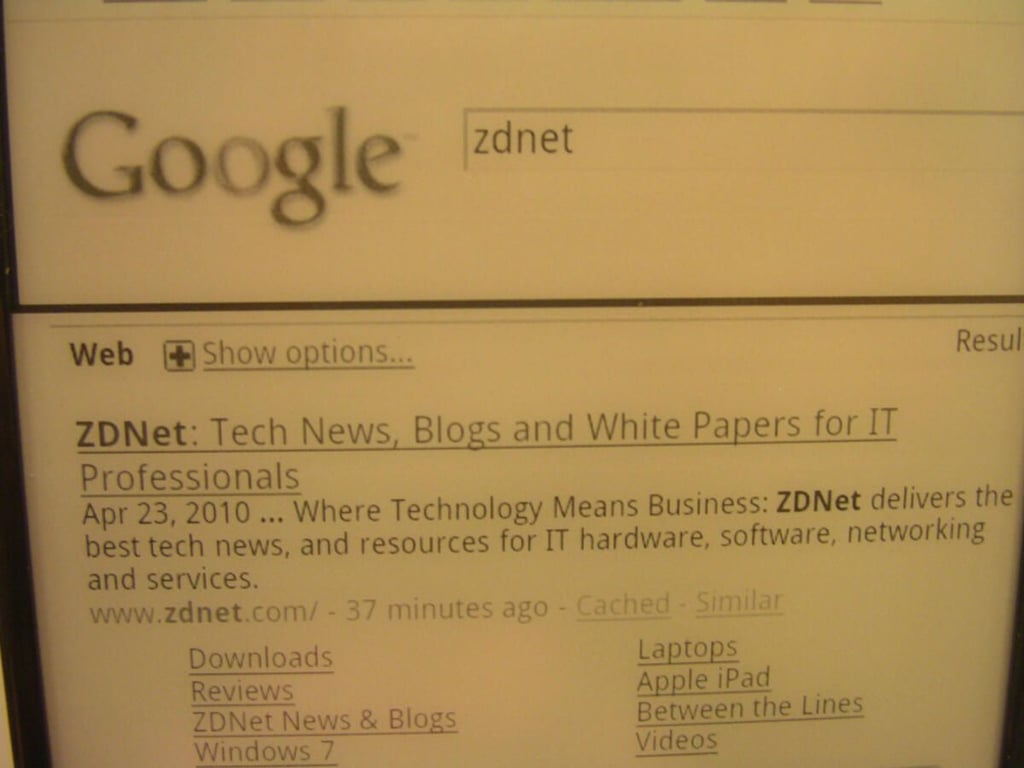
Being that the Nook is based on the Google Android OS, it makes sense that the default search engine is Google on the Nook.
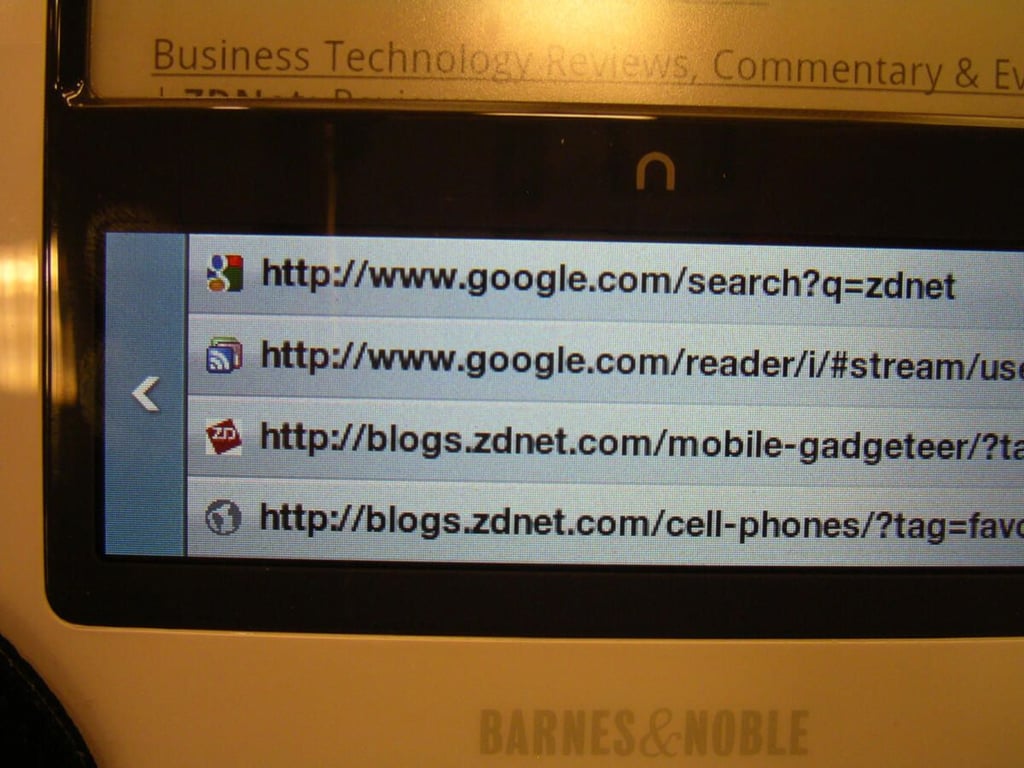
Browser history screenshot.
Thumbnail 1

Thumbnail 2


