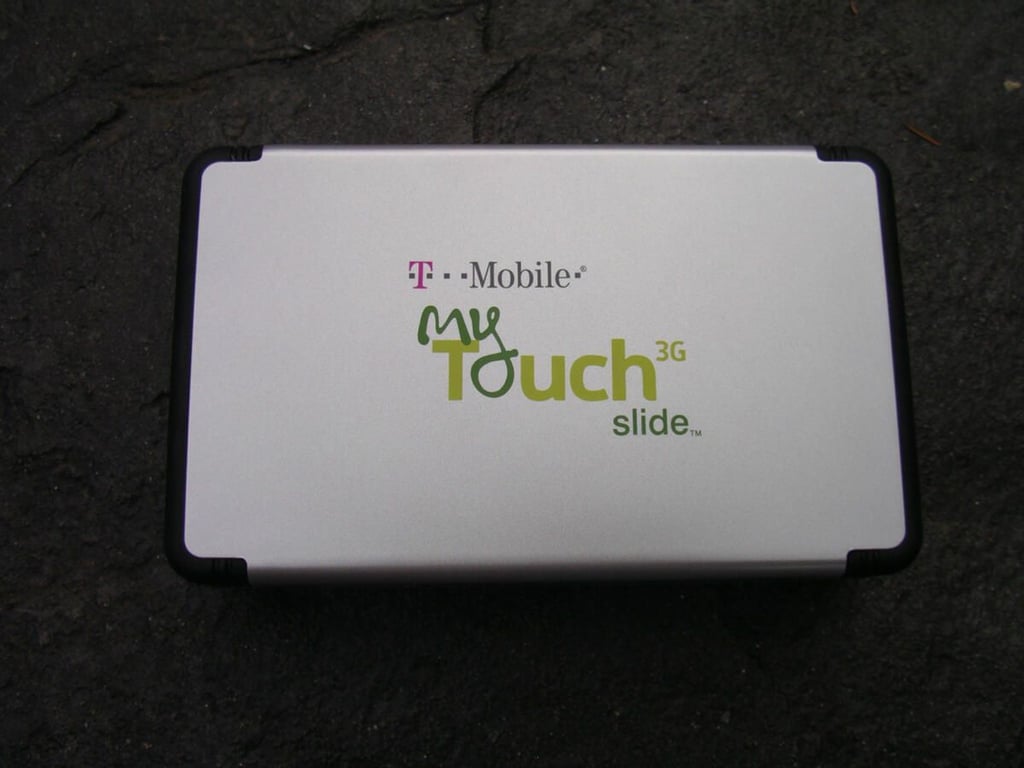
T-Mobile was the first carrier in the US to launch a Google Android device with the T-Mobile G1. HTC and T-Mobile partnered up again to release the myTouch 3G Slide with a similar form factor. The Slide has some high end specifications and functionality, but still is more of a mid-tier device when you look at high end devices like the Google Nexus One. \n\nMake sure to read the full article on the myTouch 3G Slide.
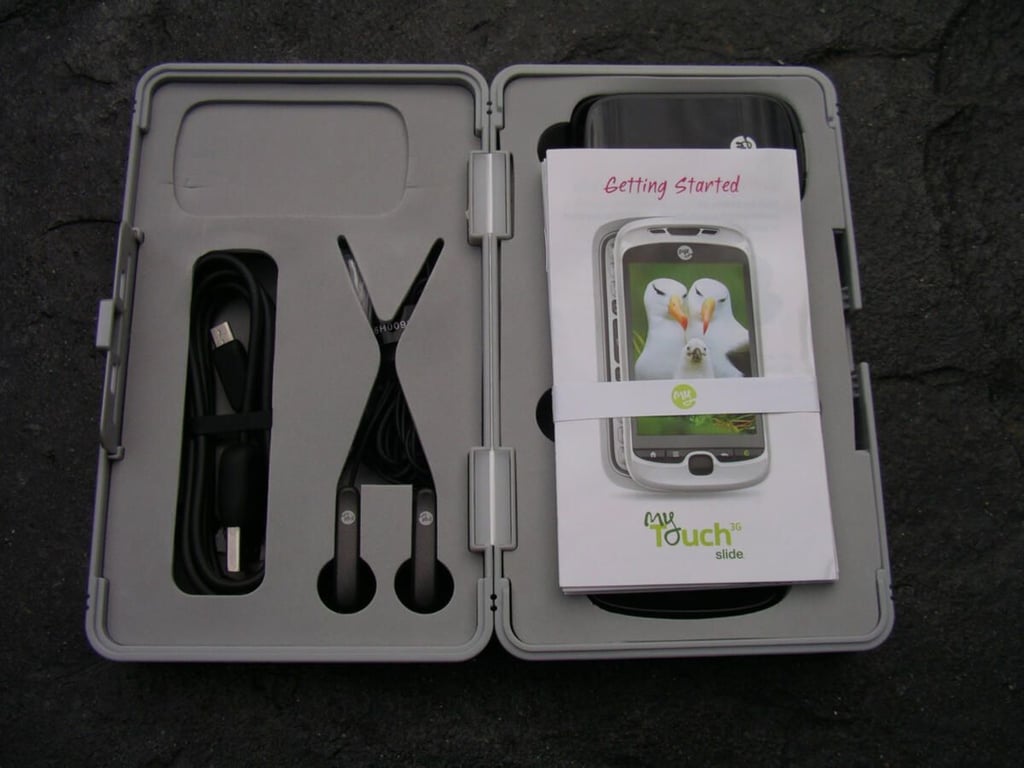
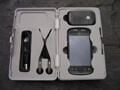
Foam is cut out to fit each piece of the myTouch 3G Slide kit with some pamphlets placed on top.
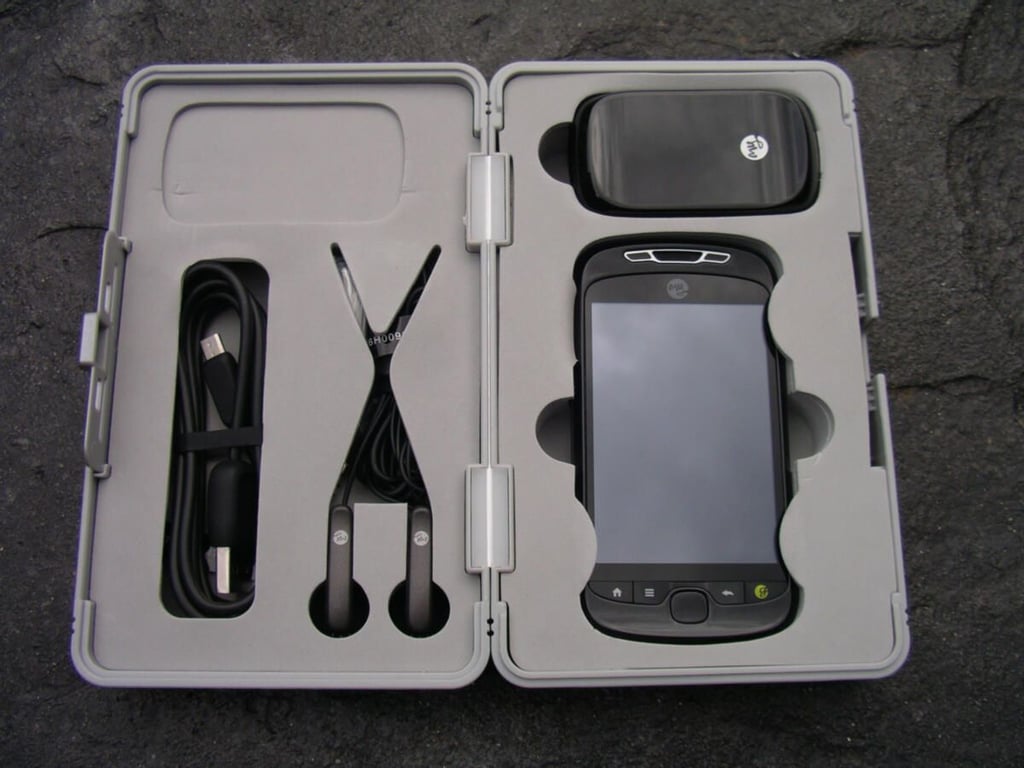
The Slide is located on the right with the USB A/C charger on top and the headphones and USB cable on the left side.
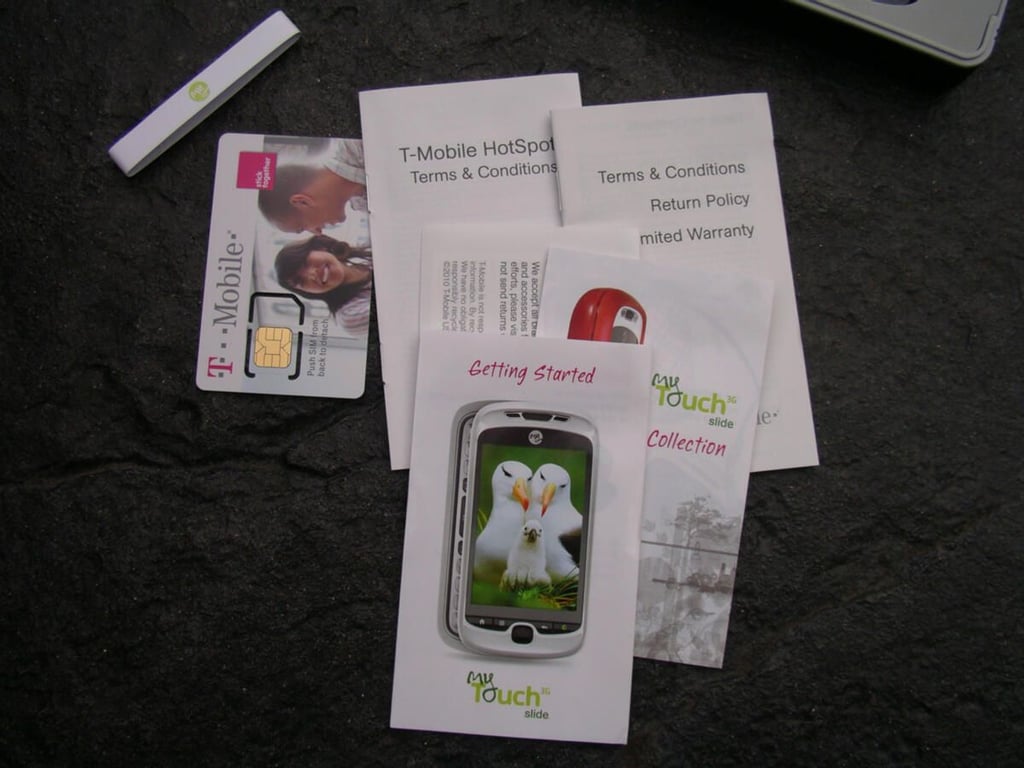
Some helpful pamphlets are included to help you get started with the device and give you a tour around the hardware. The new functions over the myTouch are highlighted too.
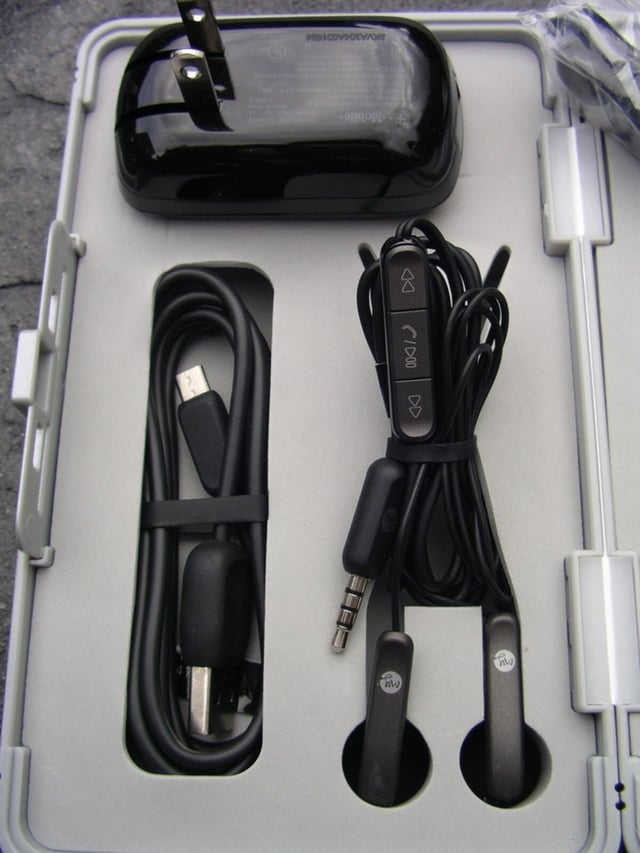
The prongs on the charger retract to make it easier to carry the charger.
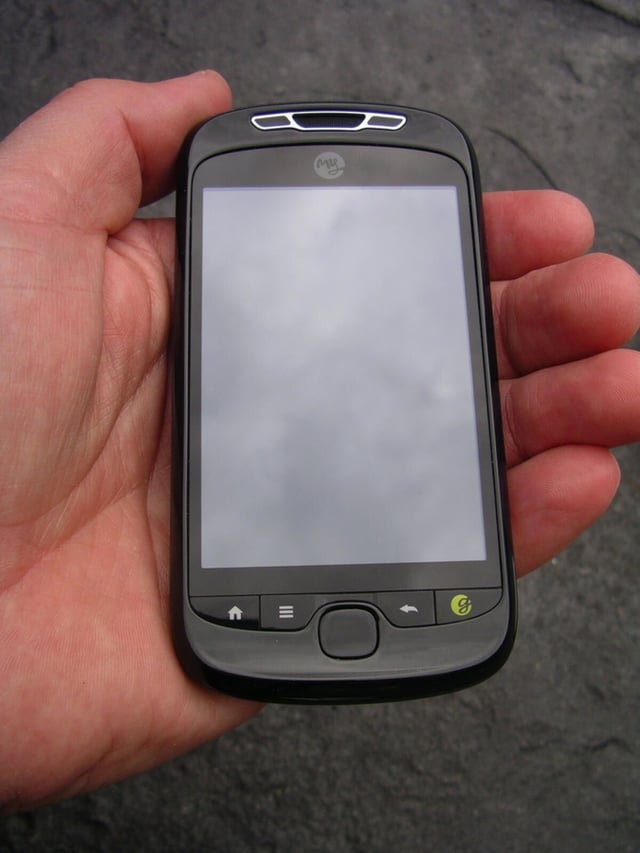
The myTouch 3G Slide is not much bigger than the myTouch and feels good in your hand. The device feels much sturdier than the original T-Mobile G1.
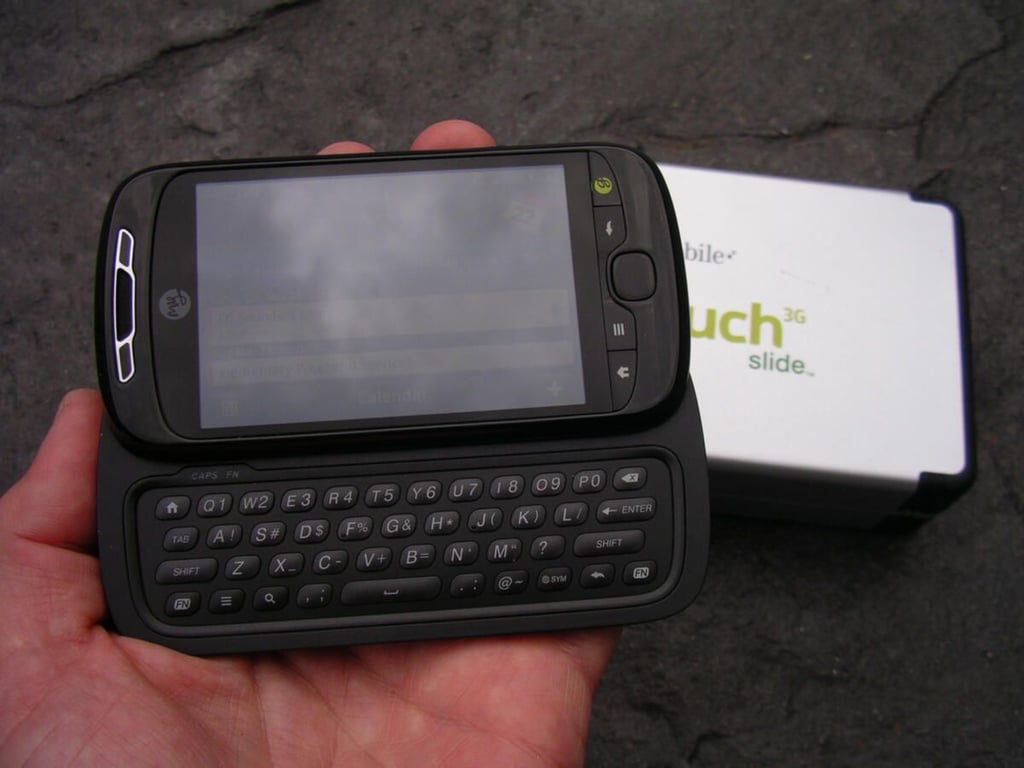
Here you can see the keyboard revealed in hand.
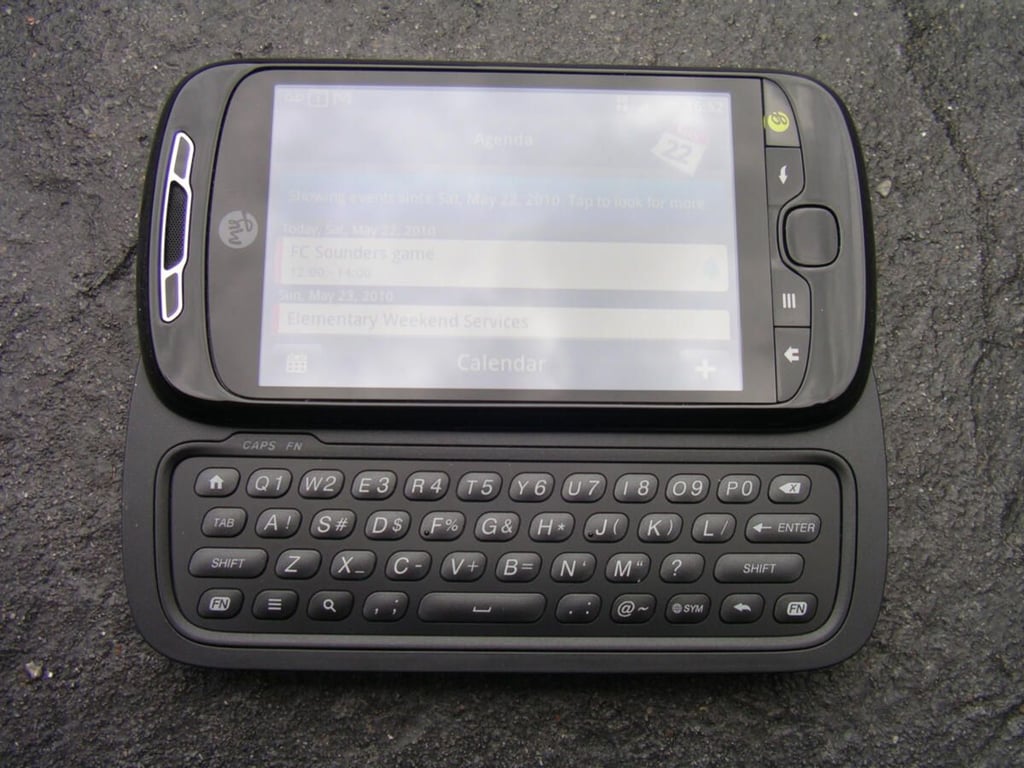
The 4-row keyboard is spacious and has good tactile feedback.
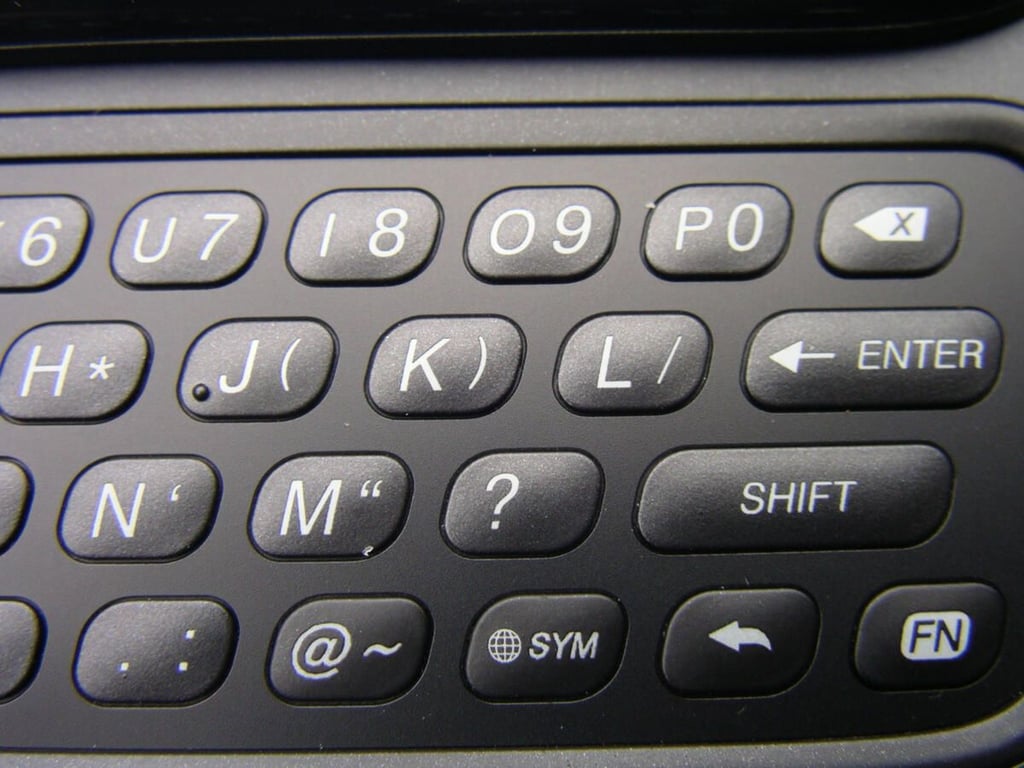
The key labeling leaves something to be desired, IMHO.
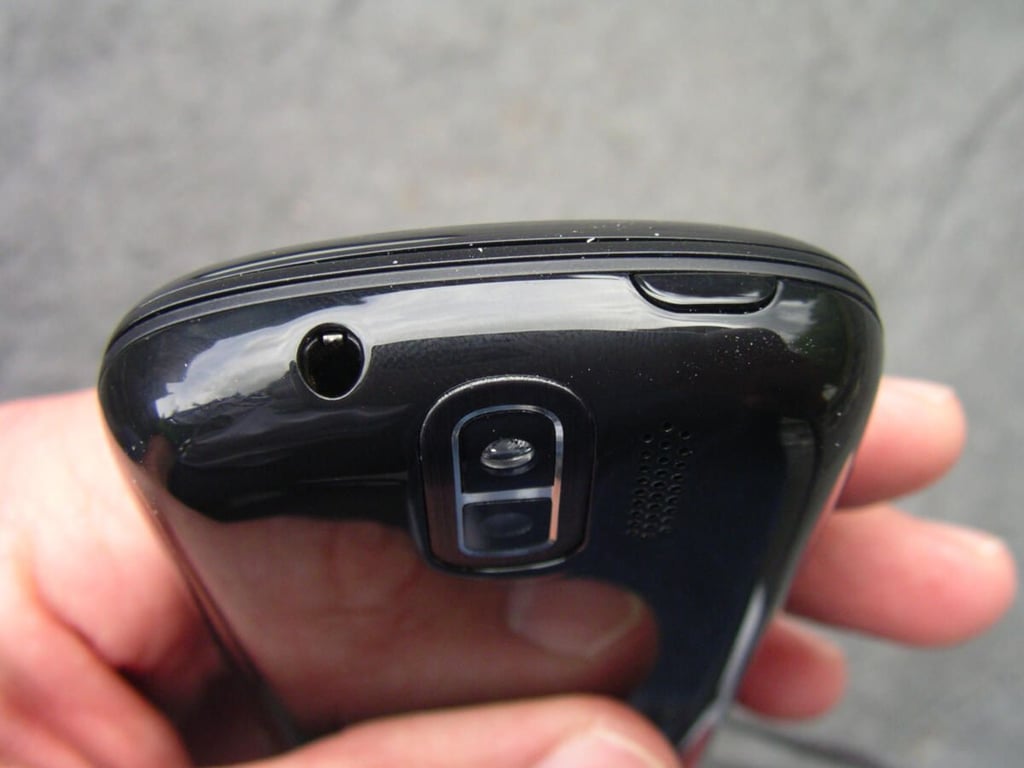
The 3.5mm headset jack and power button are located on the top of the myTouch 3G Slide.
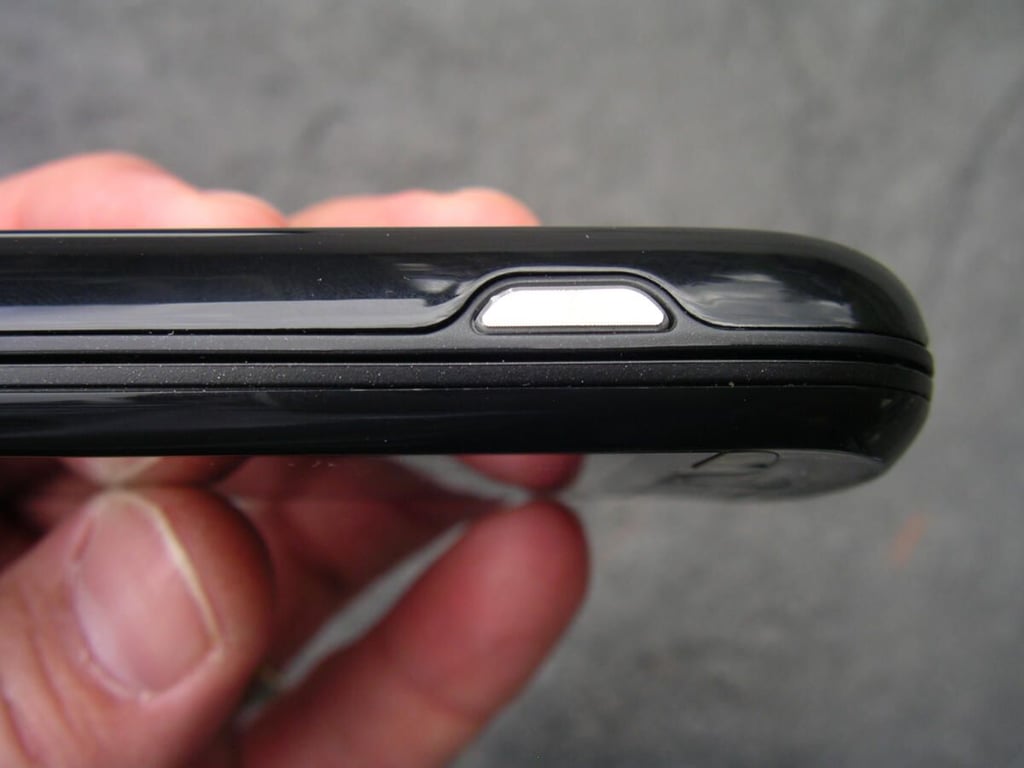
I personally do like having a dedicated camera button on these smartphones with good cameras. I feel they are better than having to tap on the display to take a photo.
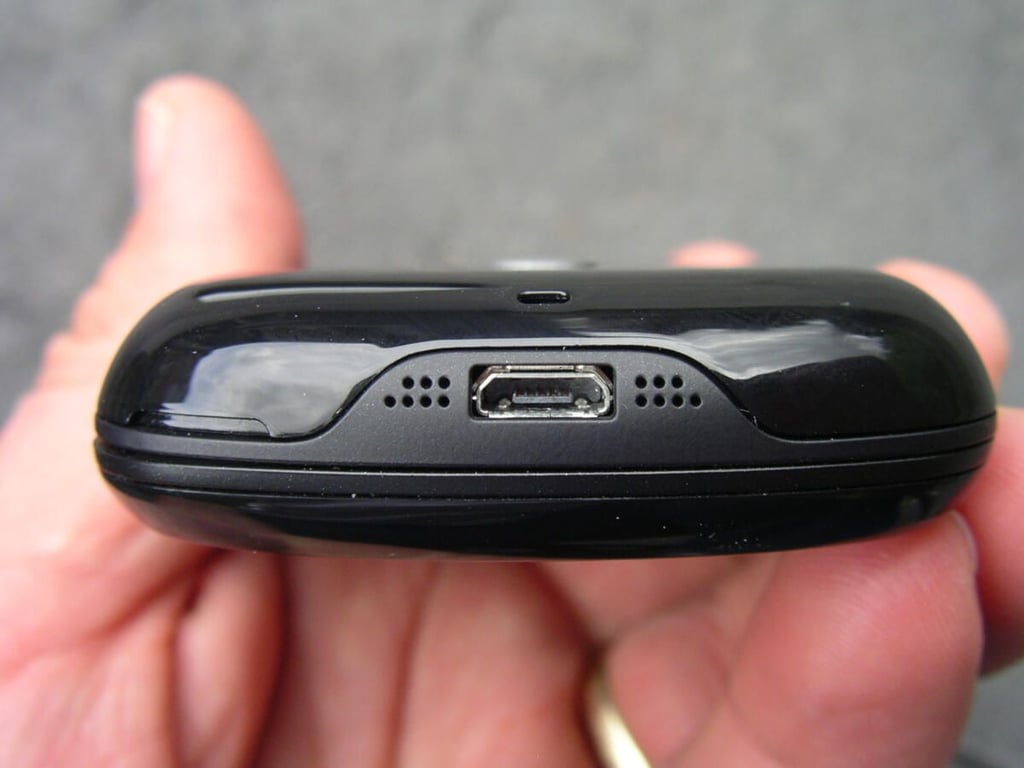
The mic and microUSB port are placed on the bottom, which is fairly typical for these smartphones.

Like most Android devices, there are four buttons below the display. The Search button has been changed to the Genius button. An optical trackpad is also placed at the center of this button area.
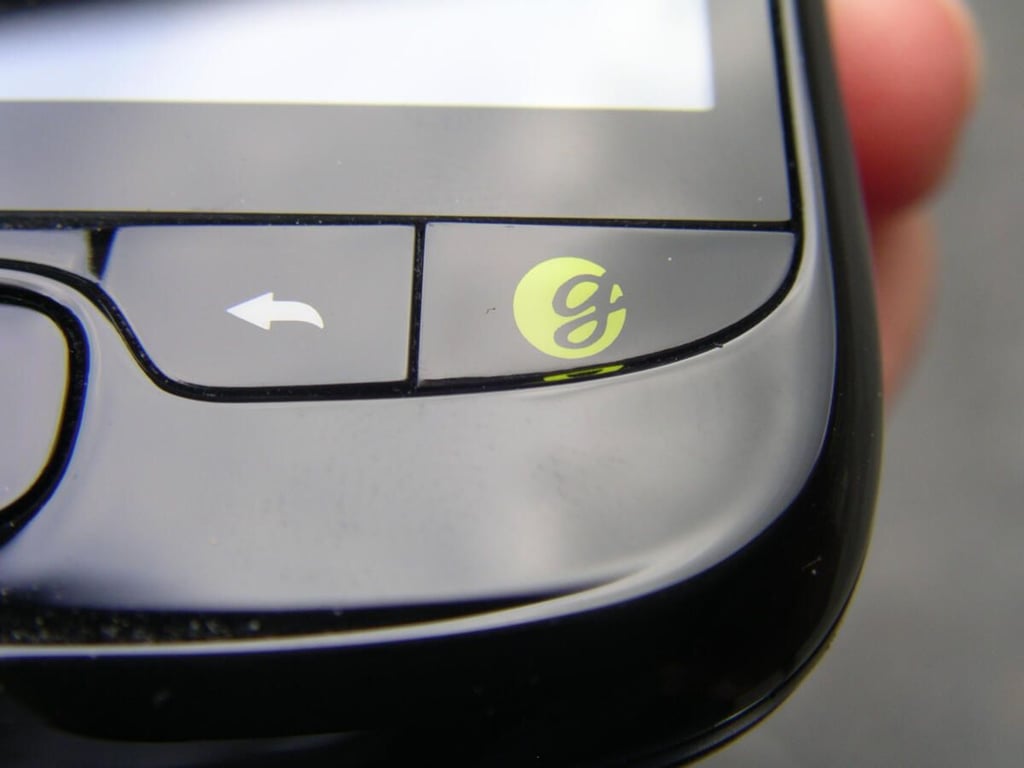
While the idea behind the Genius button seems sound, I did not find it to be as smart as it should have been.
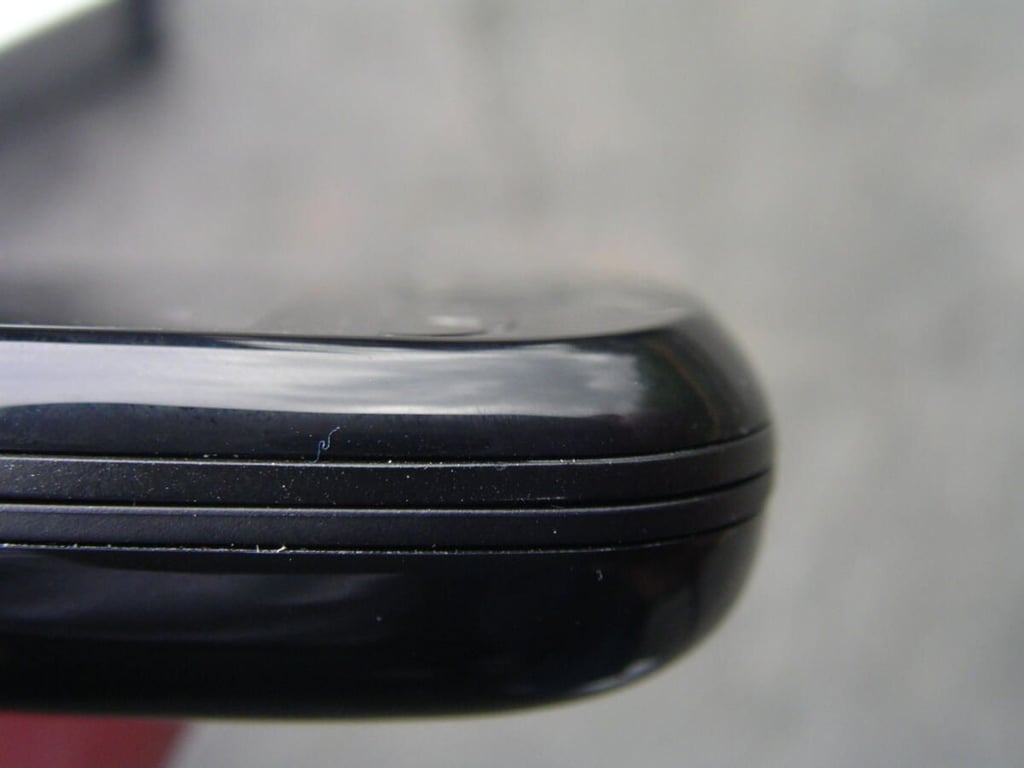
The T-Mobile G1 had a large chin and there is a very slight one present on the Slide.
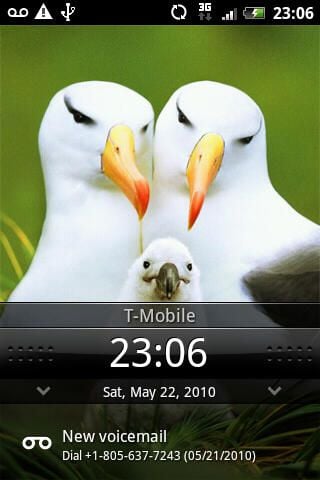
The typical home screen view with notification and lock slider.
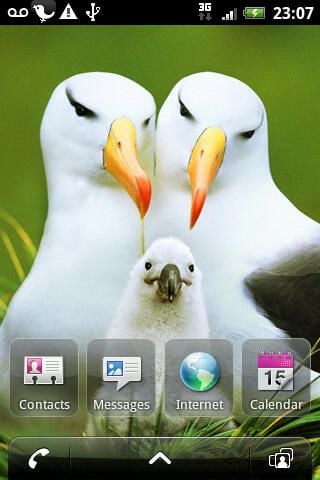
Unlocking the Home screen takes you hear where you see a few icons for preloaded shortcuts. You can customize quite a bit of the display now too.
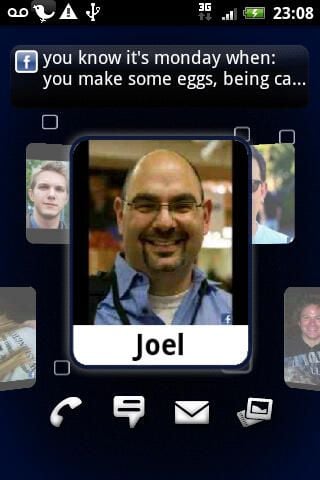
T-Mobile rolled out 3 new features and one is the Faves Gallery. You can select up to 20 friends who you want to place here and communicate with easily. It is a form of speed dial where you can view your friends’ status updates.
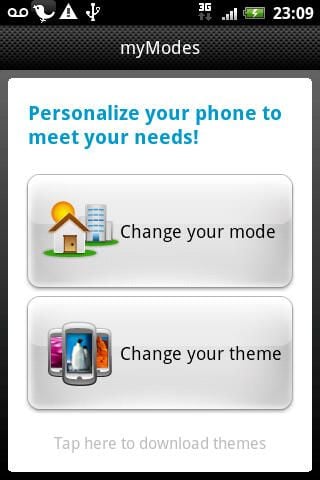
Another new feature is myModes and this is the first screen of the setup for this functionality.
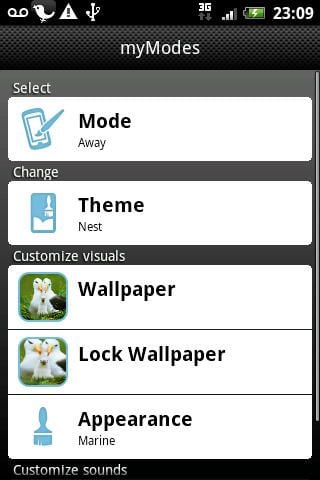
Within the myModes utility you can customize the wallpaper, standby image, notification sounds, and more.
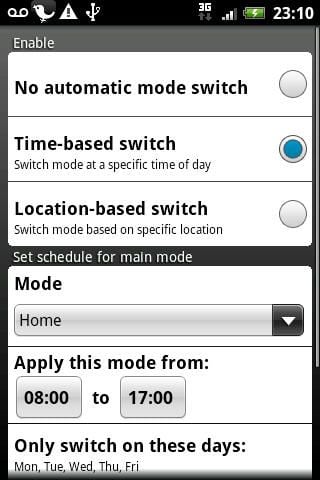
One of the coolest things about the myModes feature is the ability to have the modes change based on time or on location. This is much better than having to manually switch modes like you have to on the Scenes with HTC Sense.
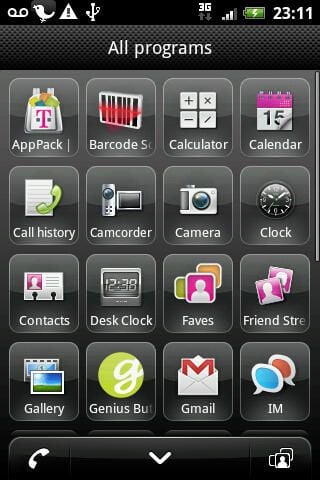
T-Mobile has changed the look of the application launcher on the Slide.
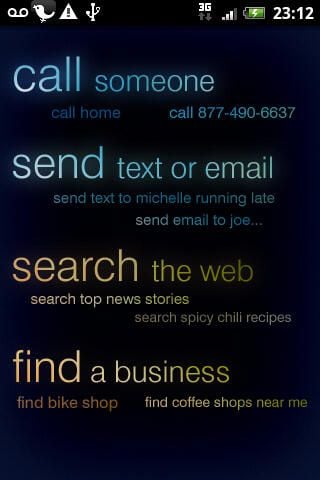
Here is the display that appears after pressing and holding the Genius button. The promised functions seem attractive, but I was unable to get it to work very well.
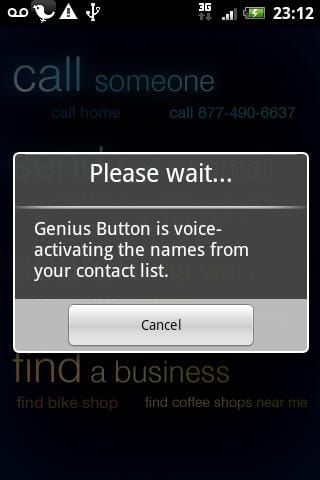
Every single time I launched the Genius button feature the program had to scan through my contacts.
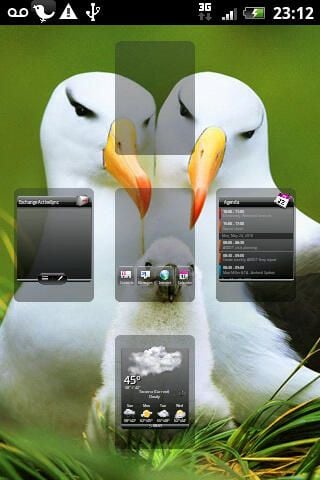
HTC Sense give you the capability to quickly view the five Home screen panels in the Leap view that is accessed by pressing the Home button a second time or pinching in on a Home screen panel.
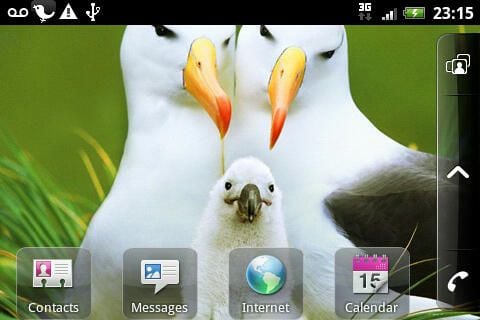
When you open the keyboard the device switches into landscape and the Home screen changes to match.
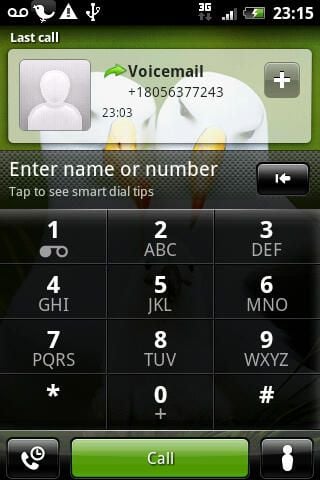
You may like to know you can still dial phone numbers on the device and this is what that looks like.
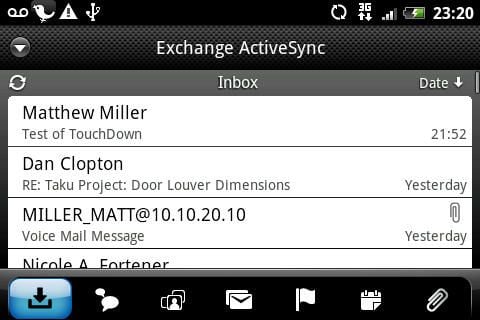
I really did not expect to see Exchange so well supported on a mid-tier level device, but as you can see it has the same look and feel as the HTC Droid Incredible.
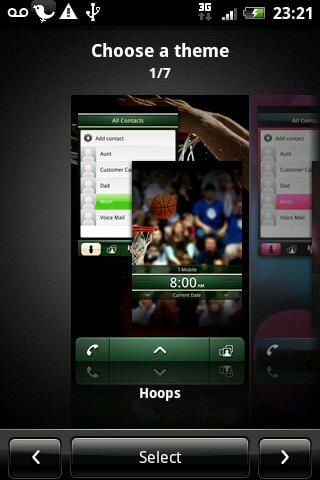
Seven themese are provided on the myTouch 3G Slide for you to choose from.
Thumbnail 1

Thumbnail 2


