The HAVA Platinum HD lets you connect your HD source to the device and then watch your HD content on your PC, Windows Mobile device, S60 device, or Nokia Internet Tablet. You can even control your TV source just as if you were there in front of your TV/HD source. HAVA also gives you the ability to record the video content on your Windows PC for viewing offline.
A view of the back of the retail box.
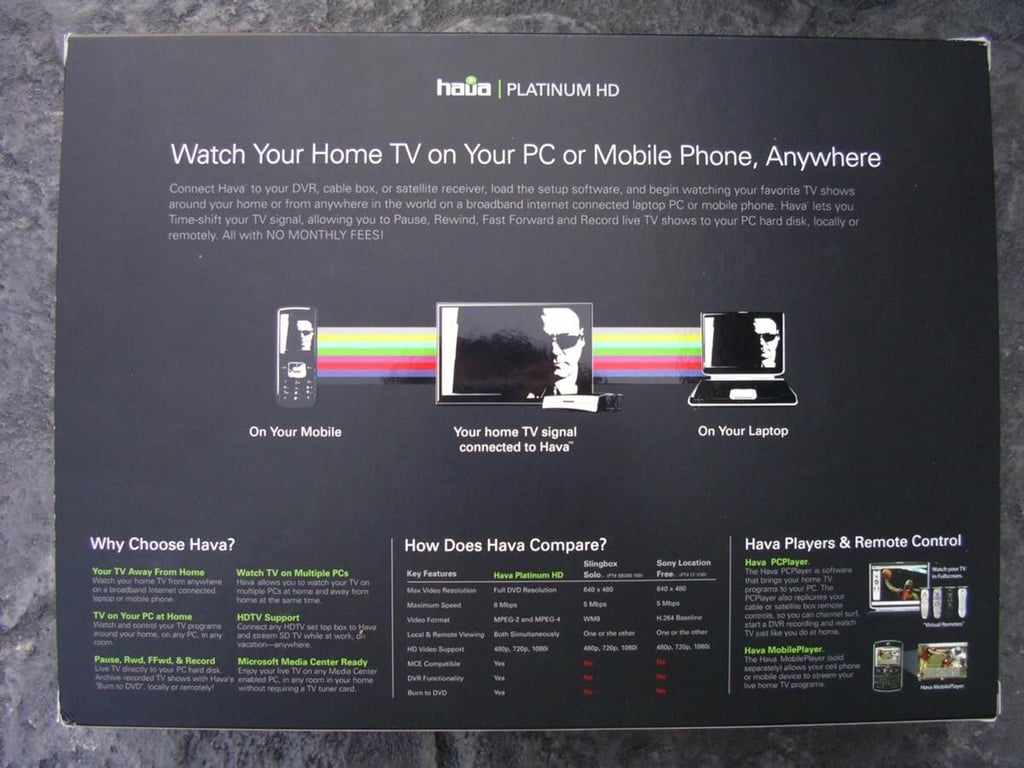
The back shows you a bit of what you can do with the HAVA Platinum HD.
A plain silver box holds the gear.
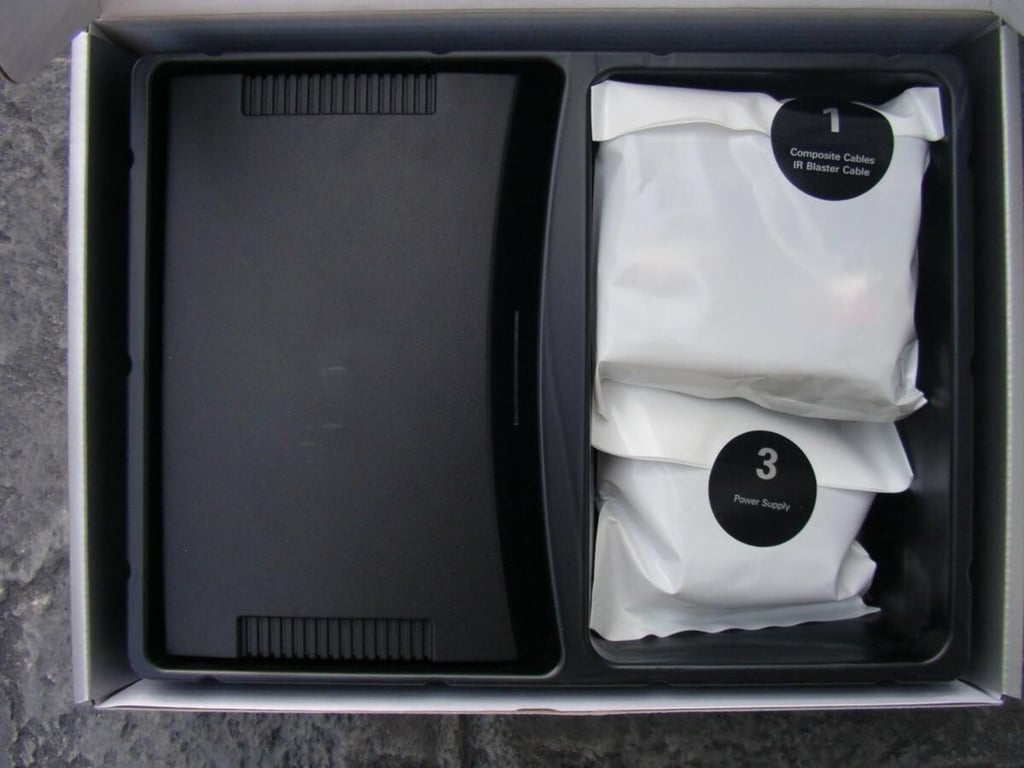
The HAVA is packaged quite well with the device on one side and three clearly labeled bags that contain the necessary cables and adapter.
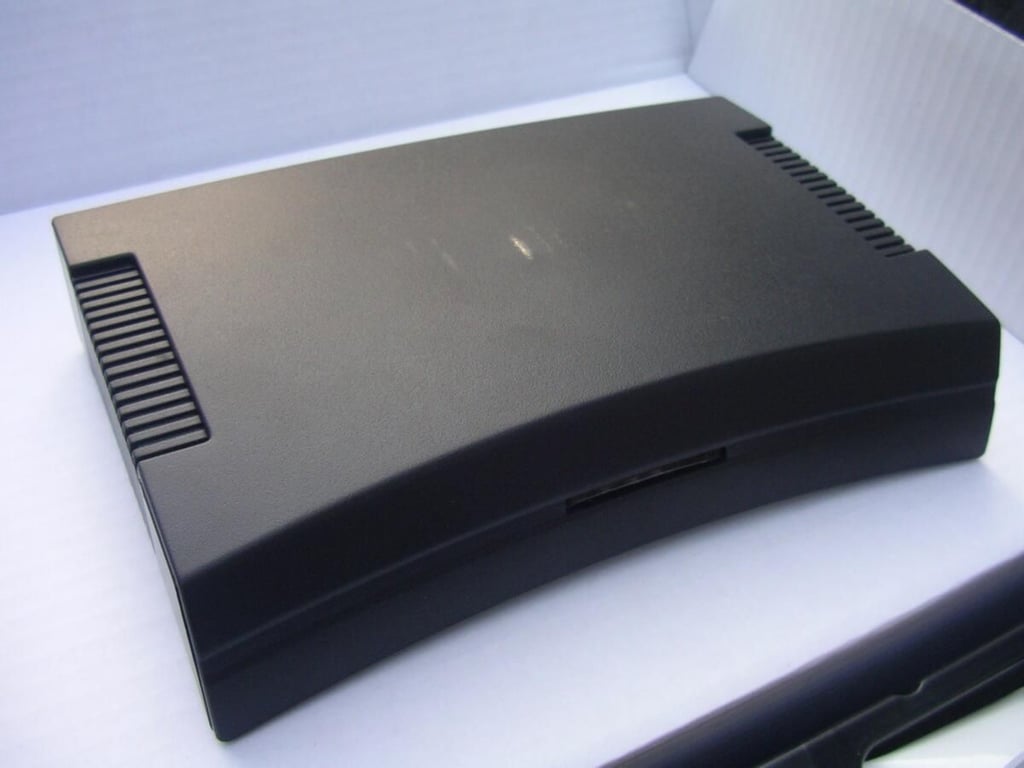
The HAVA Platinum HD is black in color and quite light. There is a blue light on the front that glows when plugged in.
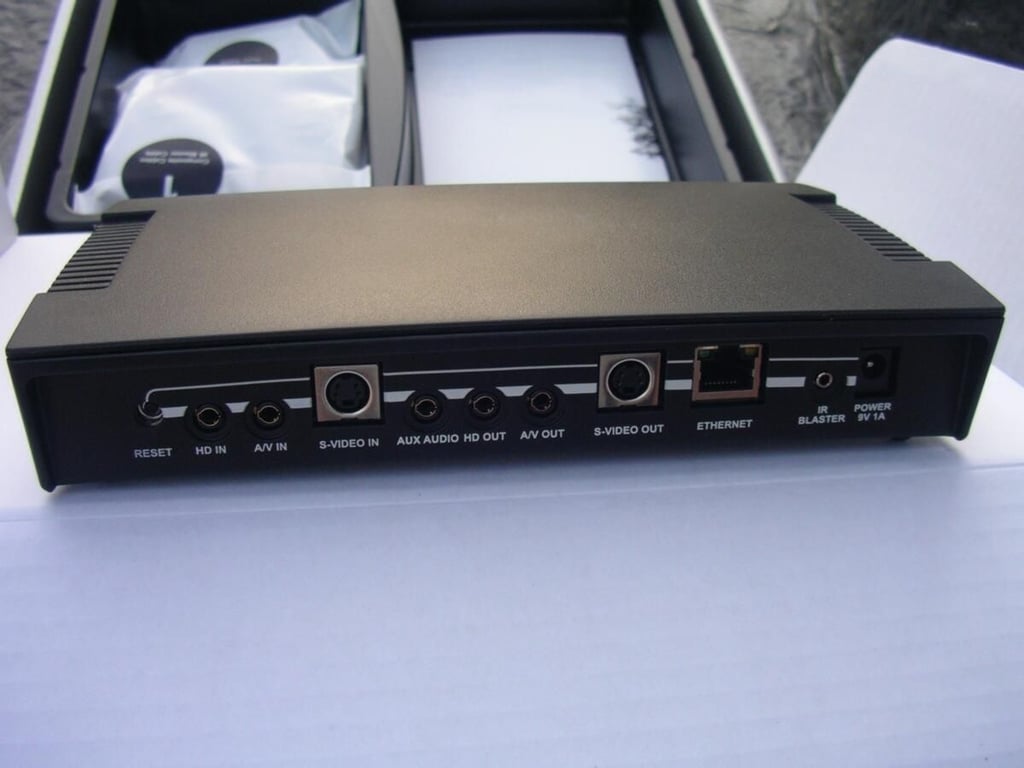
All the connections can be found on the back.
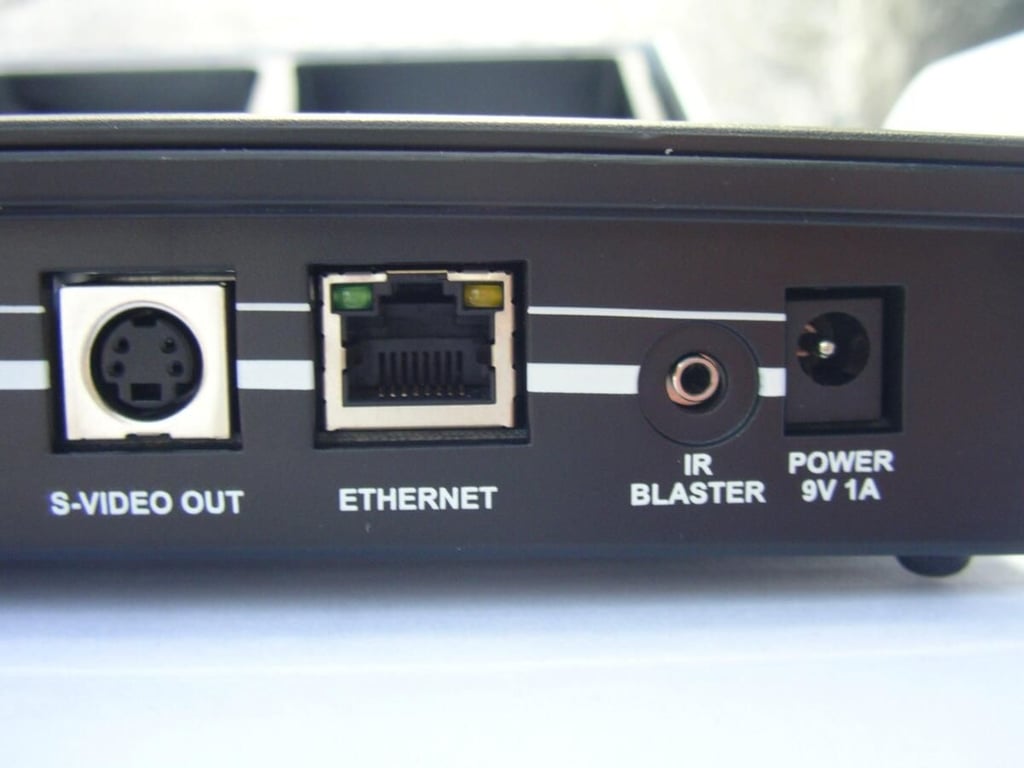
On the right you can see the power port, IR blaster jack, ethernet port and S-video out port.
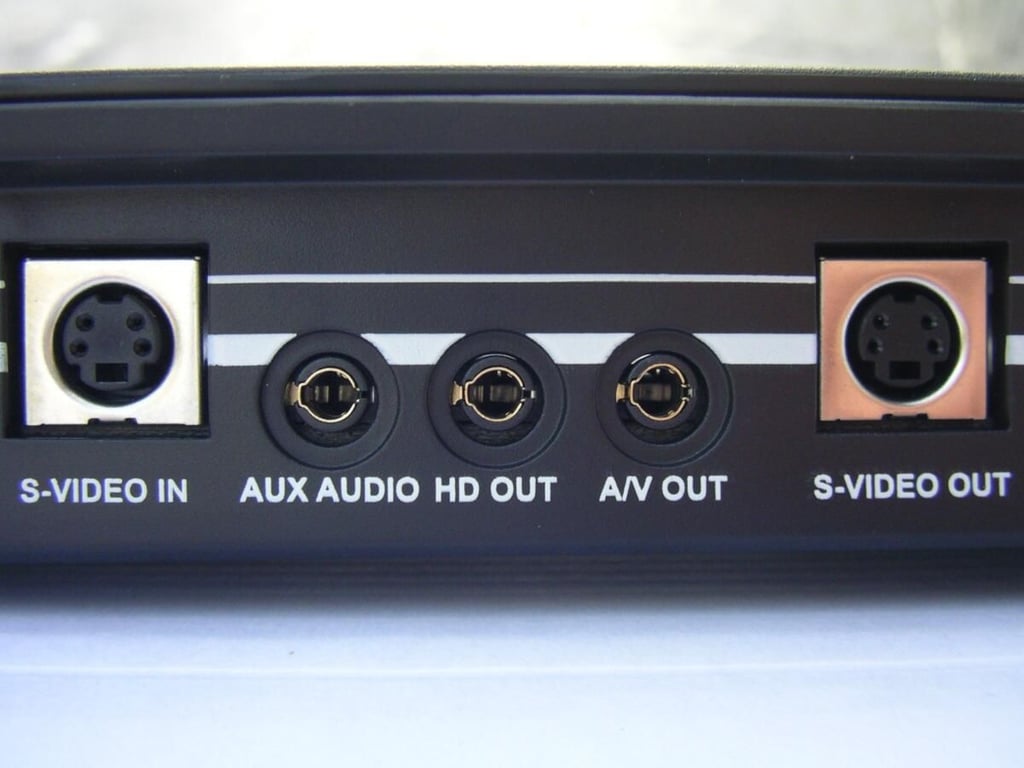
Continuing from the right to left you can see the S-video out, A/V out, HD out, Aux audio, and S-video in.
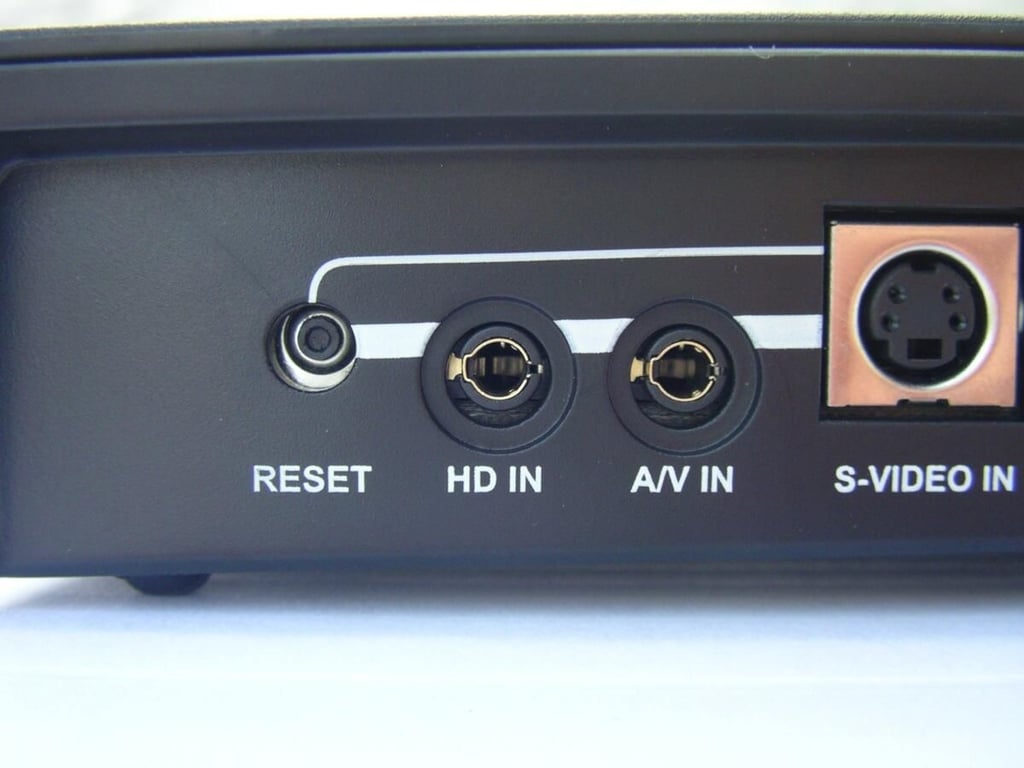
From right to left you will find the S-video in, A/V in, HD in, and reset button.
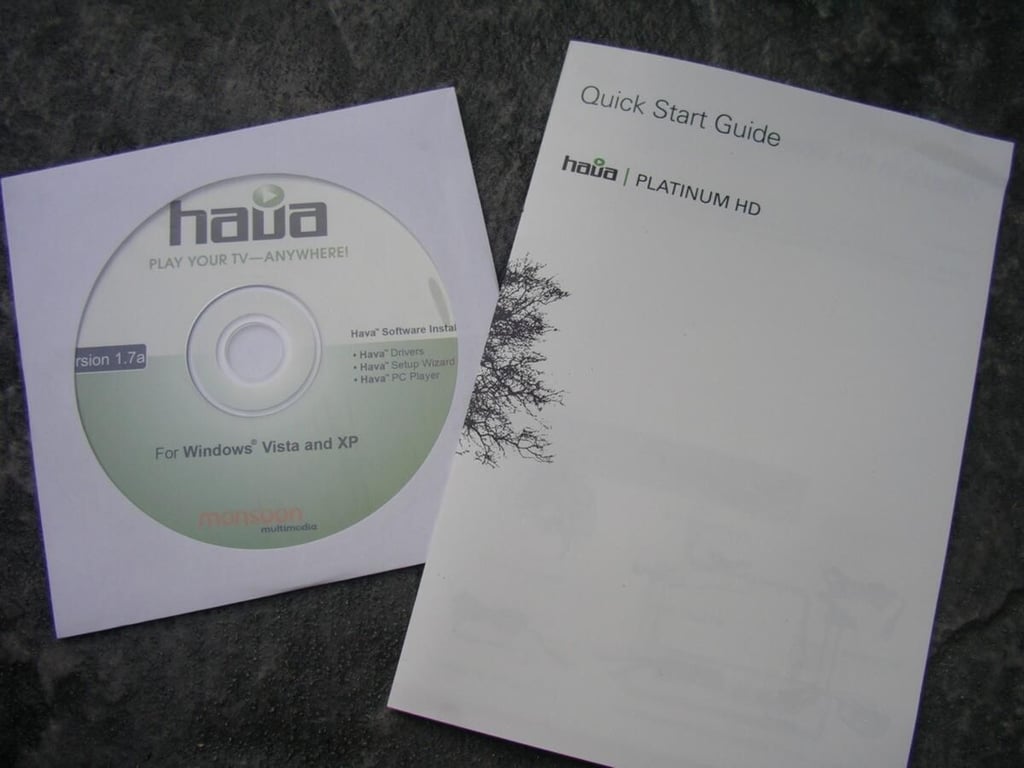
A CD with the PC software is included along with the Quick Start Guide. You should download the latest software from the website.
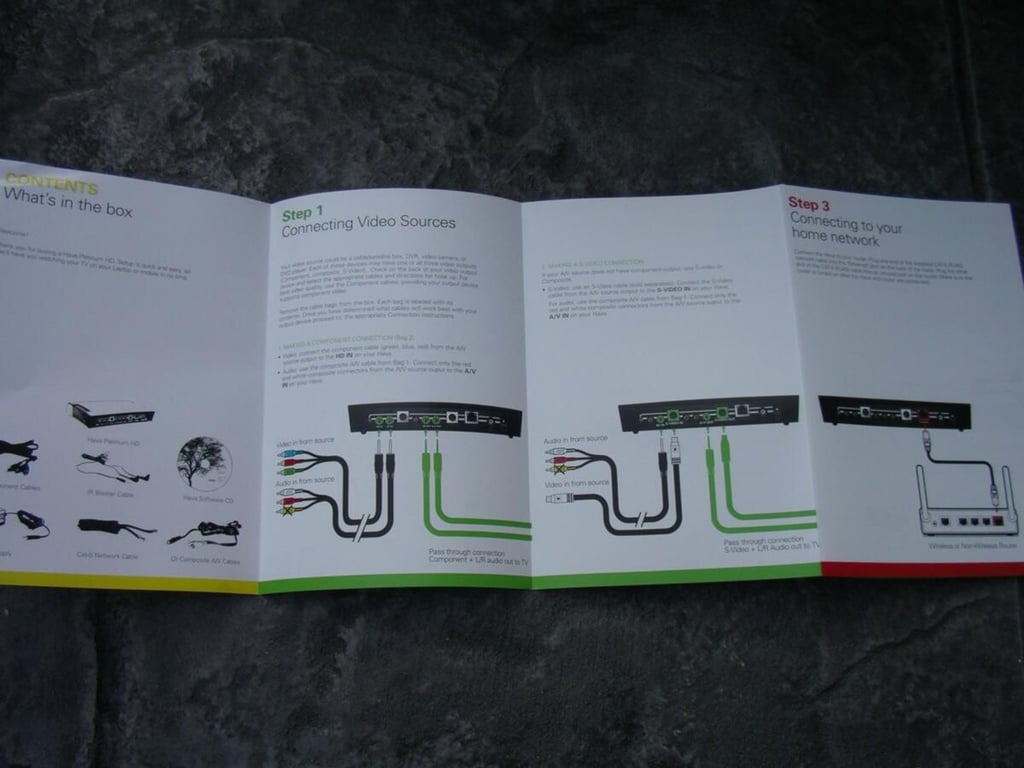
The Quick Start Guide gives you easy and straight forward instructions for setting up the HAVA Platinum HD.
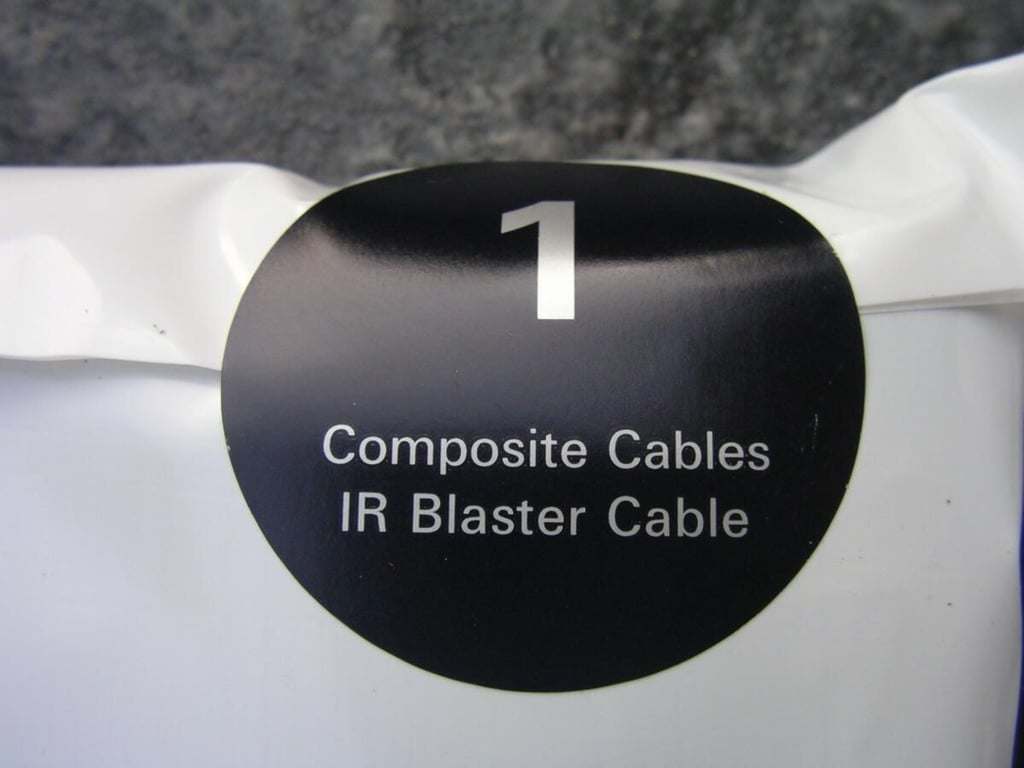
The package contains three clearly labeled bags and as shown here bag 1 contains composite cables and the IR blaster cable.
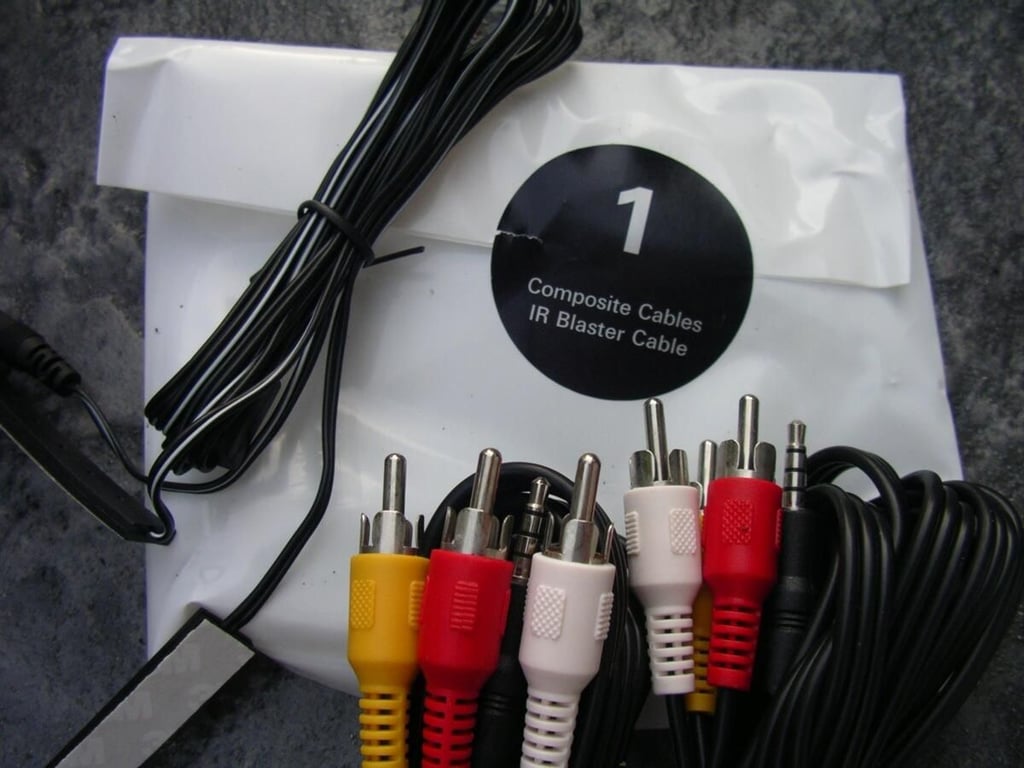
Here you can see the composite cables and IR blaster cable attachment.
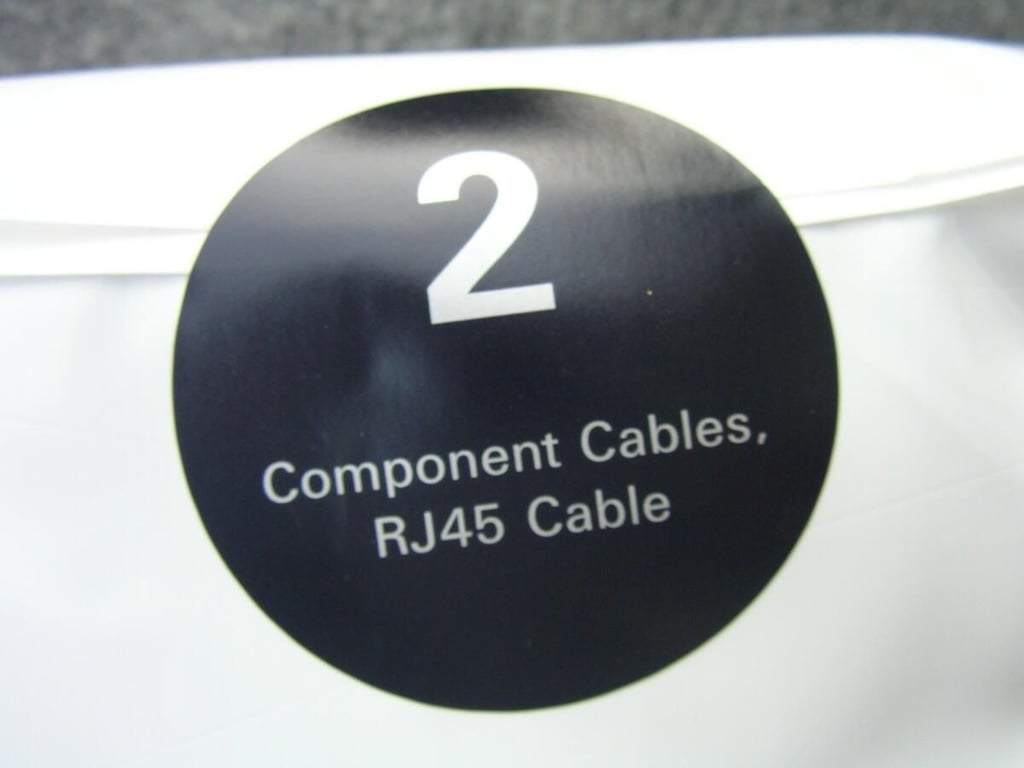
Bagg 2 contains composite cables and the ethernet cable.
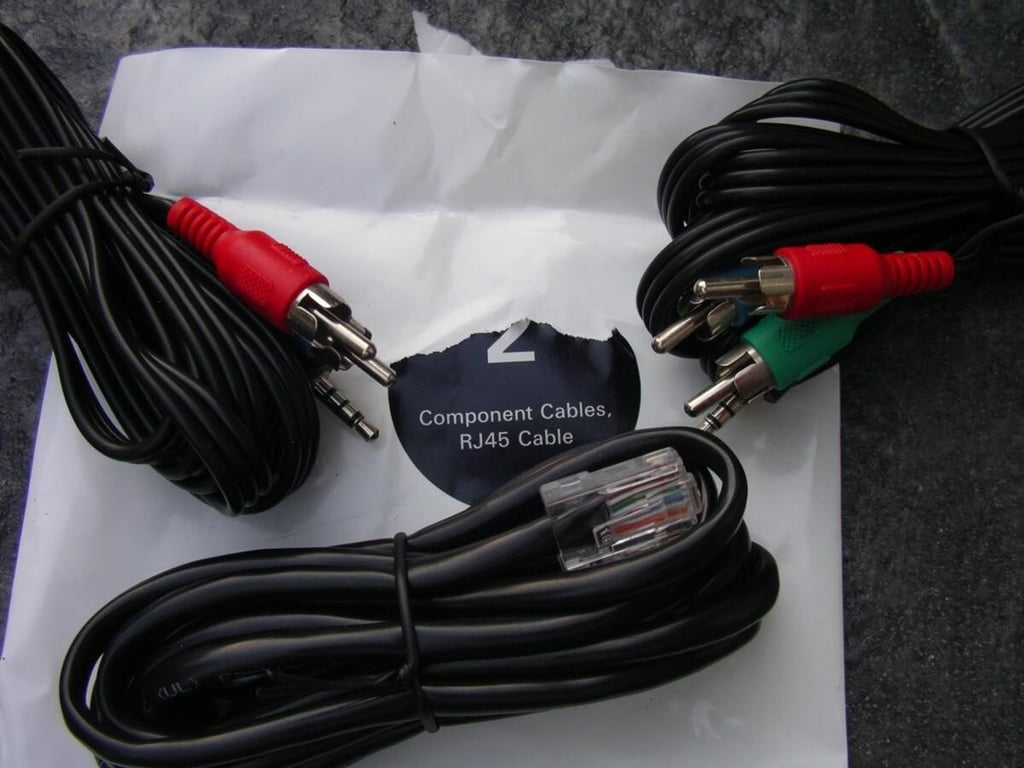
You can see the input and output cables HAVA included so you can connect out of the box.
Bag 3 contains only the power supply.
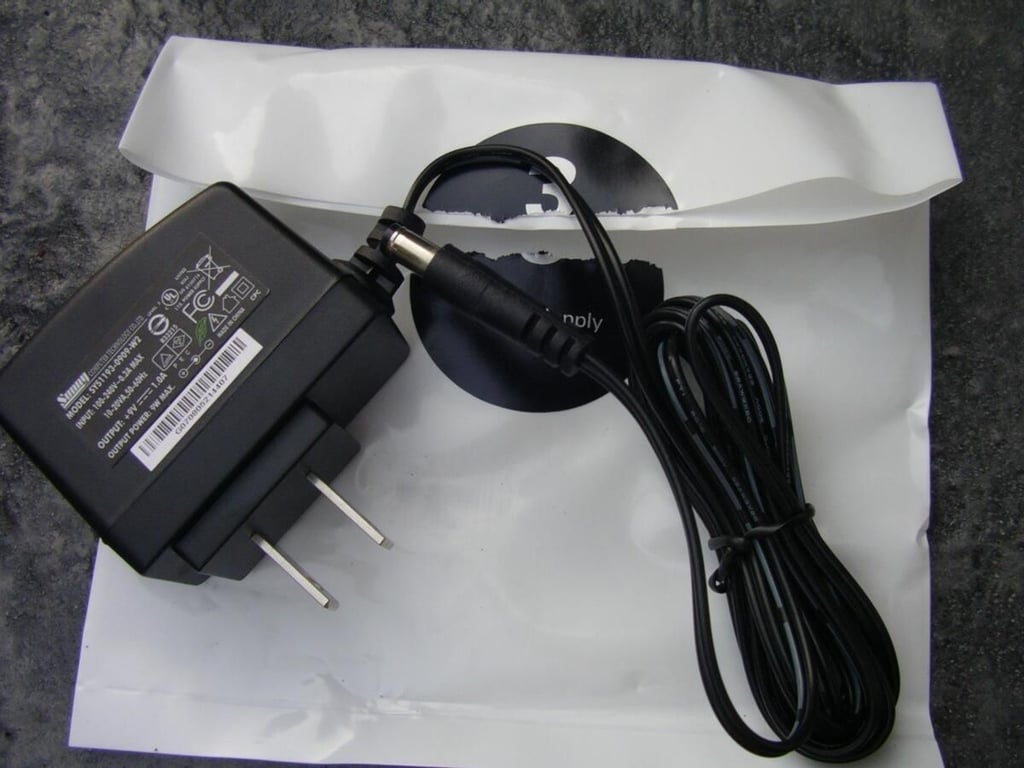
Here you can see the A/C adapter included with the device.
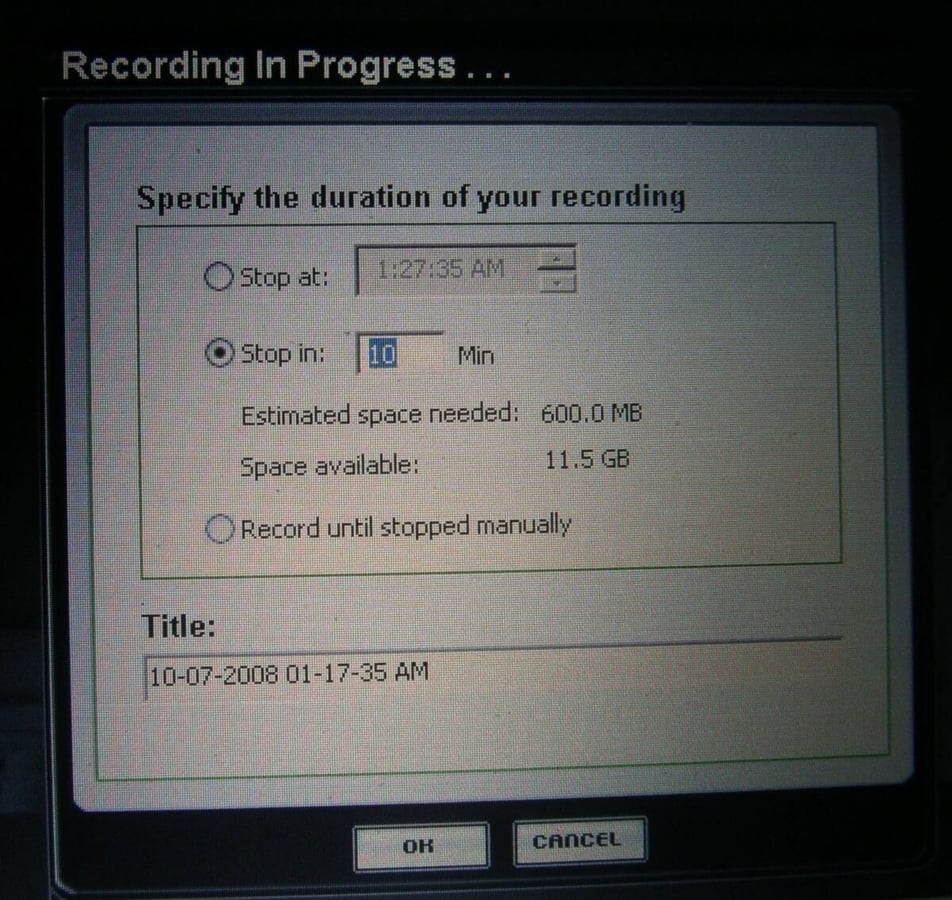
You can actually record video content from the HAVA Platinum HD using your Windows PC.
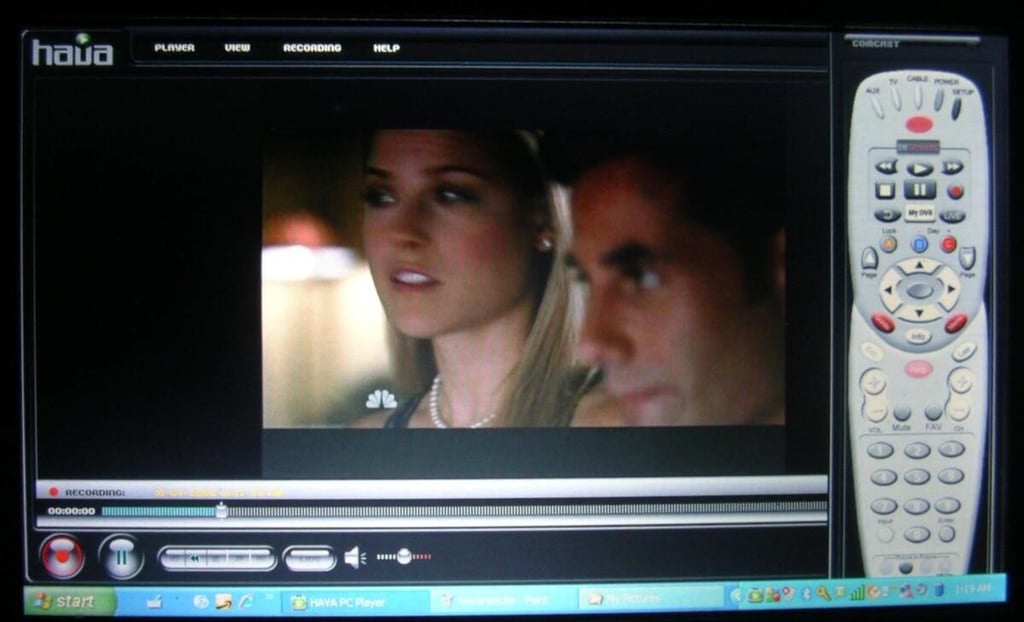
My U810 UMPC plays content well and my Comcast remote can be used right on the display to fully control my DVR/cable box.

Watching content in full screen works well with no menus on the display.
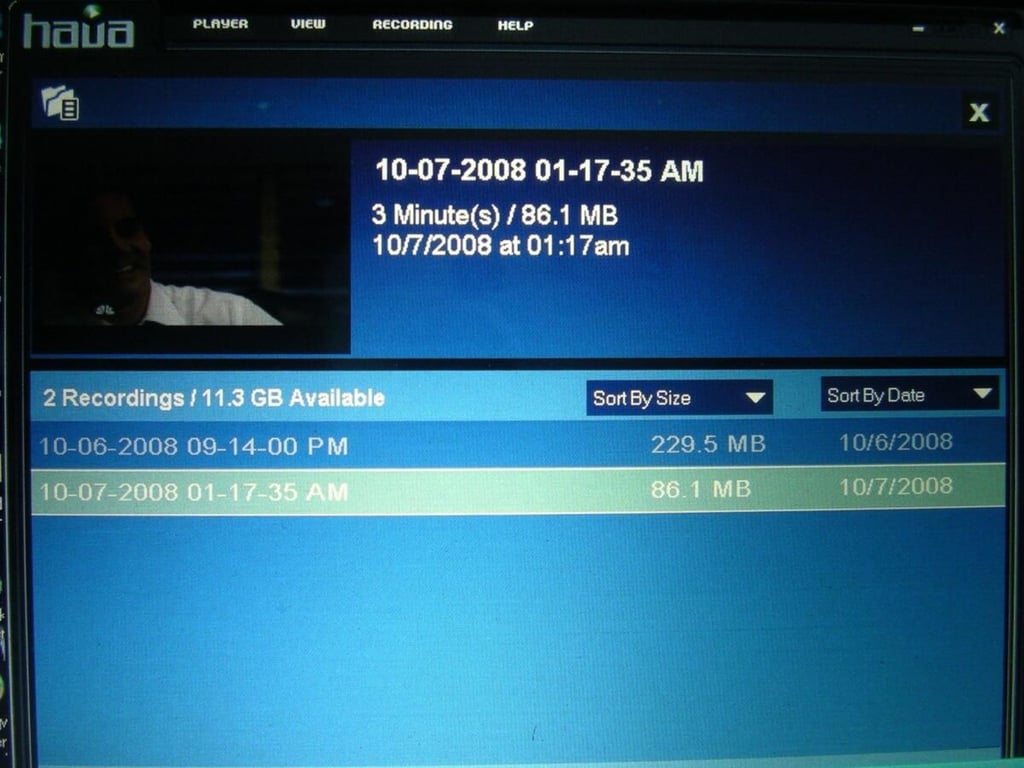
The HAVA software can be used to view content you recorded to your PC. You can also find the recorded content in your My Documents folder and view it using a supported player.
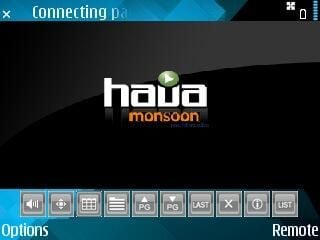
The S60 client is currently in beta, but is working well on my Nokia E71.
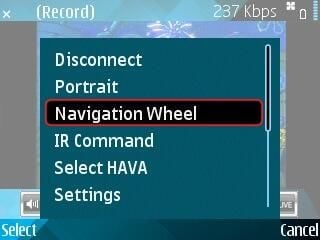
You can toggle the navigation wheel/directional pad with the S60 client. This allows you to use the navigation wheel to move up, down, left, right with your remote control selector.
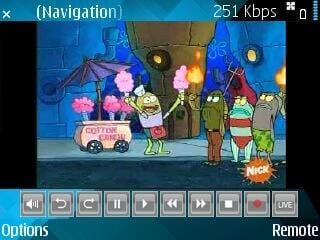
With the S60 client the bottom menu changes to allow you to control your HAVA.
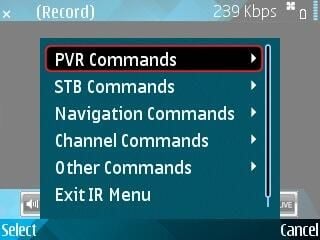
You can access all of your DVR/cable box functions with the S60 client view the bottom menu or the text menu commands.
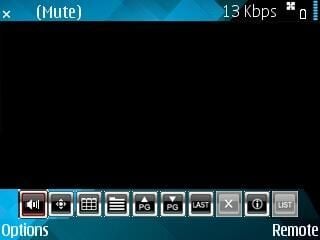
As you can see the controls along the bottom change as you scroll right and left.
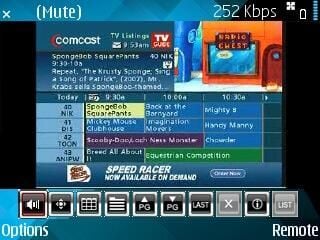
You have complete control of your connected system via the HAVA.
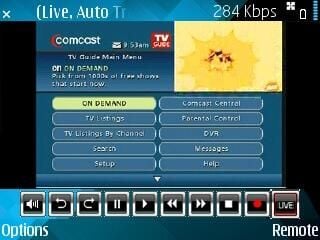
The controls along the bottom in this view show you your recording options.
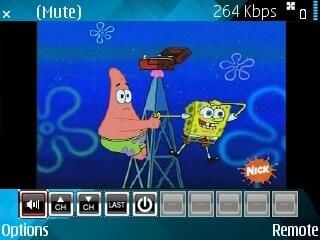
The controls shown here allow you to control basic channel navigation functions.
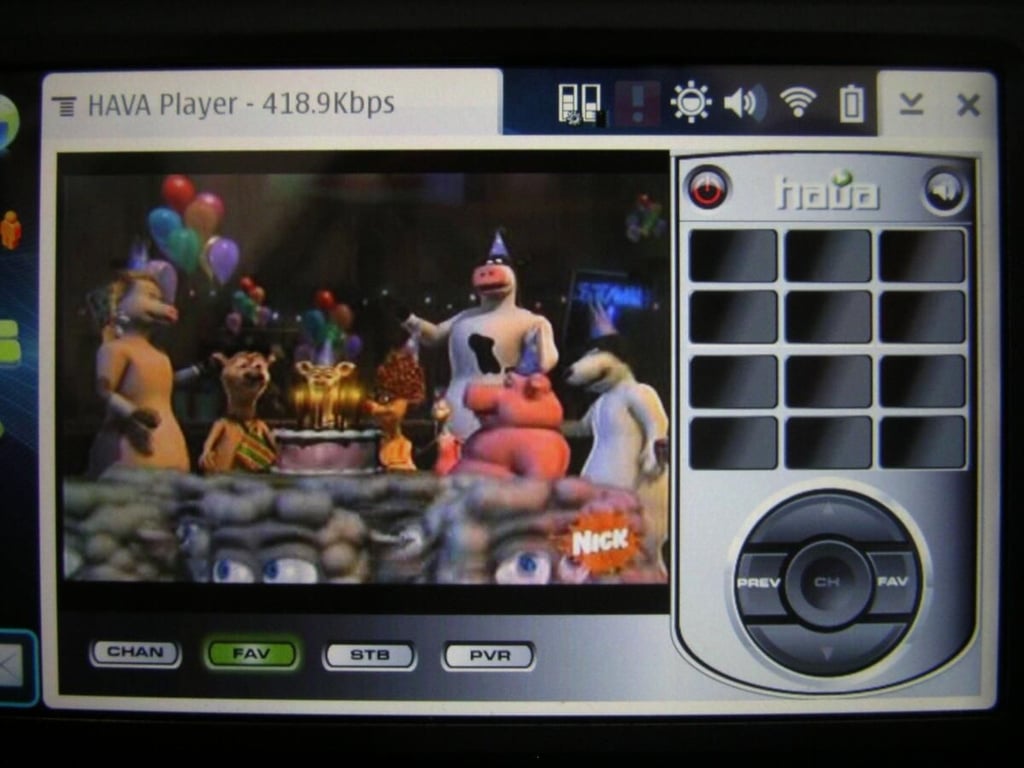
The N800/N810 devices have large displays and the mobile client is a perfect mobile TV viewing client. There are 4 remote control options and this view shows the Favorites.
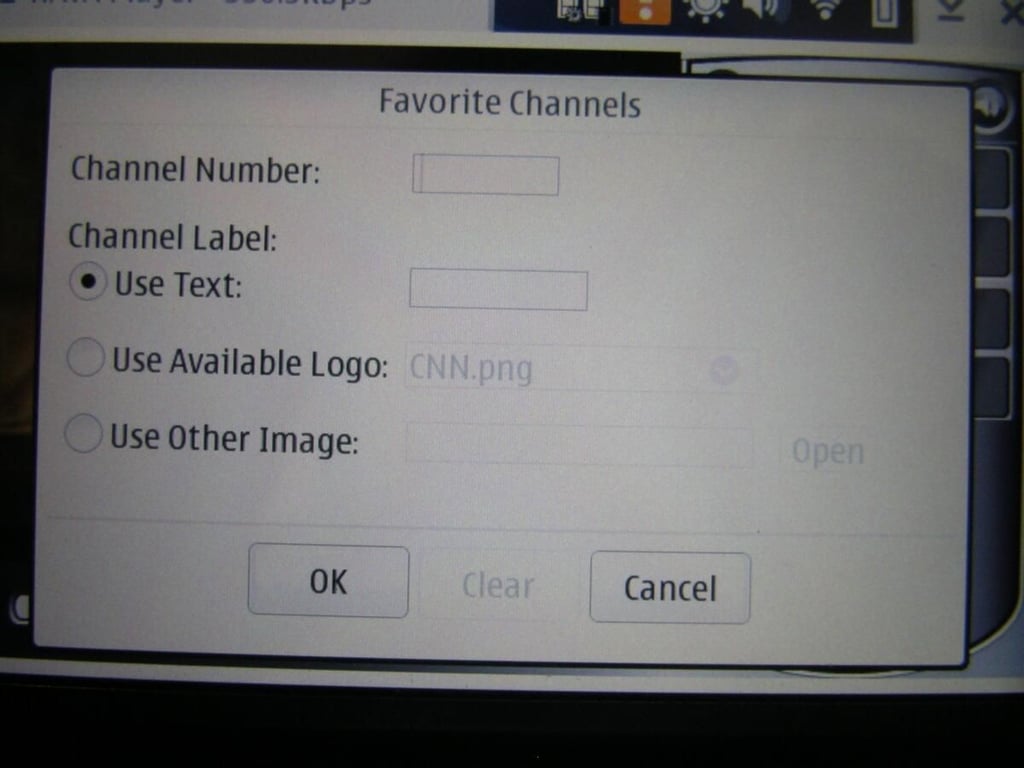
This is the screen you see as you setup your favorites.
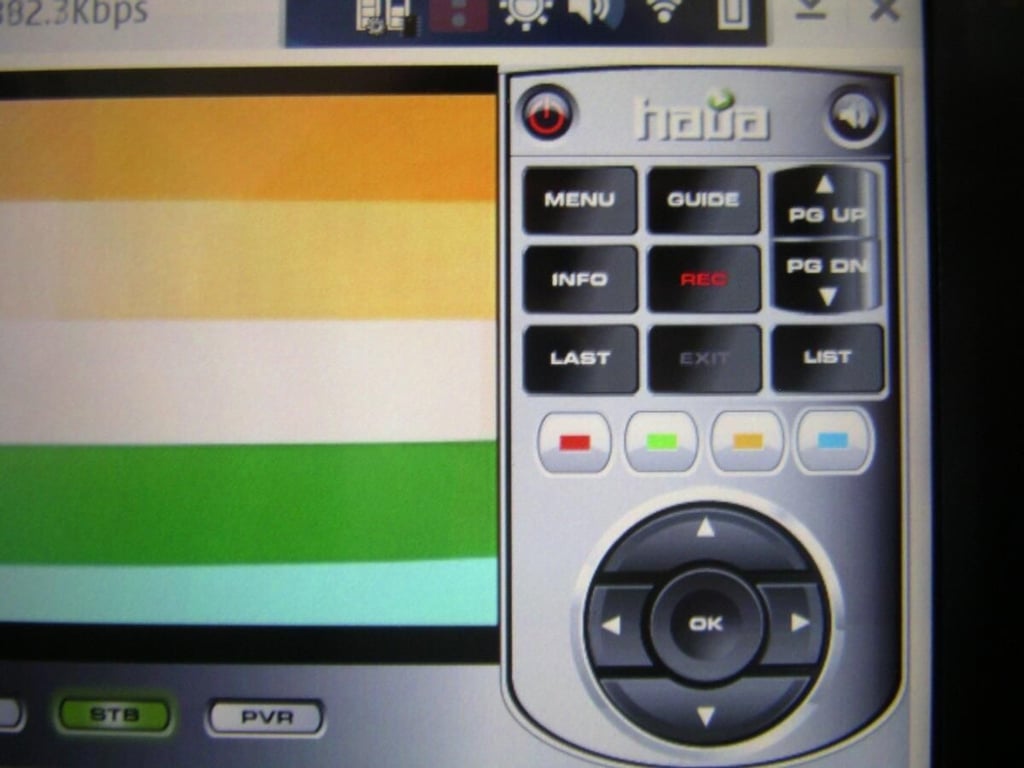
Here is another remote view that lets you control your HAVA.
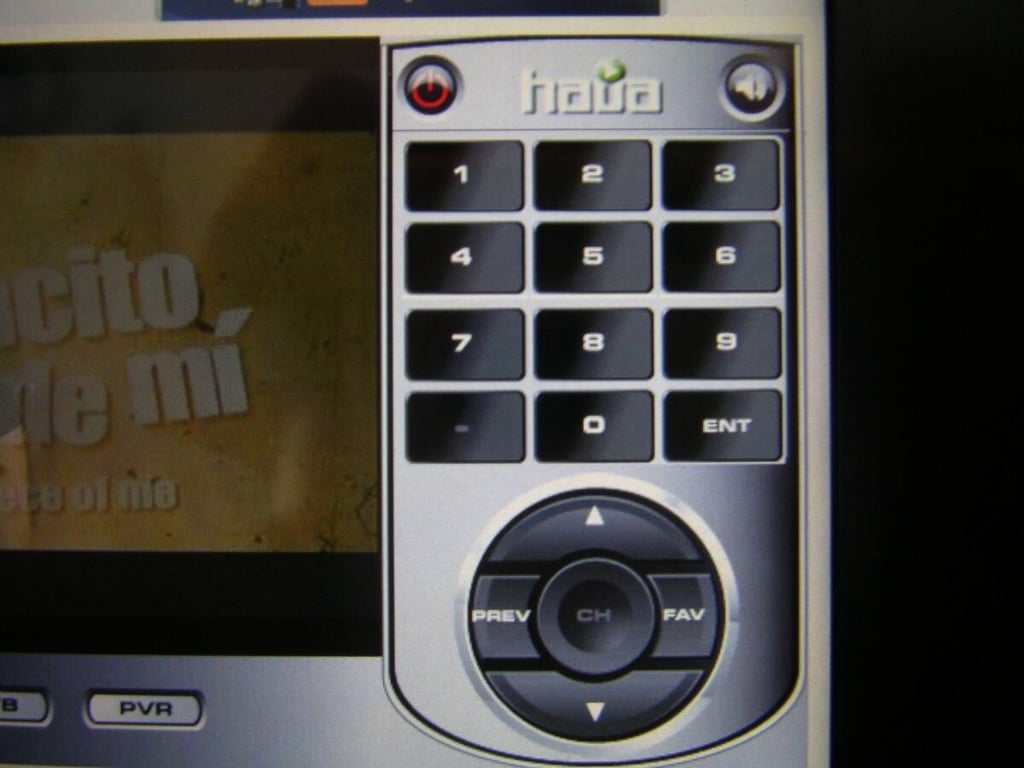
This remote lets you enter channels manually.
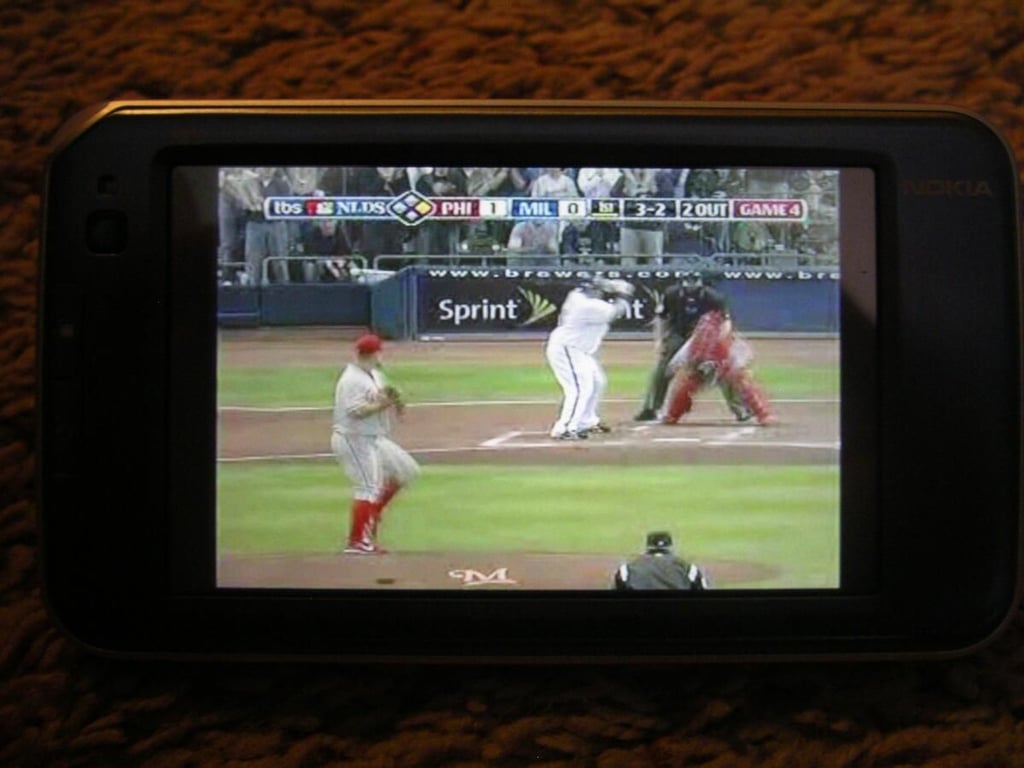
In full screen view you will see video content on the entire display with no menus or other characters.
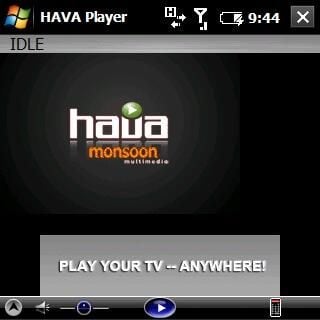
I used the 320×240 player on my 320×320 resolution display Treo Pro. The 640×480 client worked too, but not as well as this version.
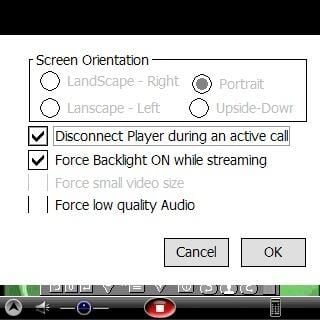
There are a few settings you can control on each mobile client.
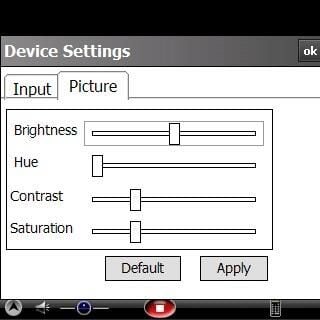
You can control picture settings for your HAVA from the mobile client.
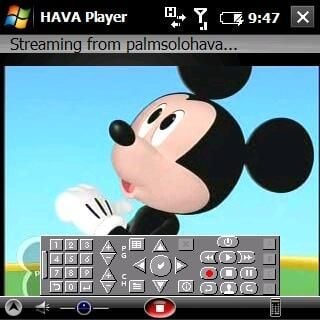
The remote control is quite small on my 320×320 display, but it is usable.
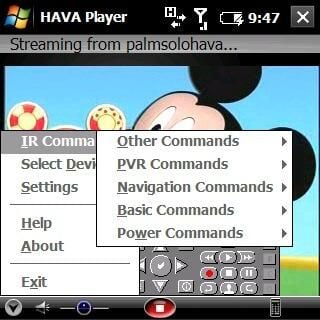
You can use the remote or access commands from different menus.
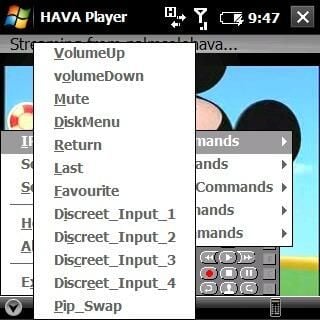
Commands are controlled via the IR blaster.
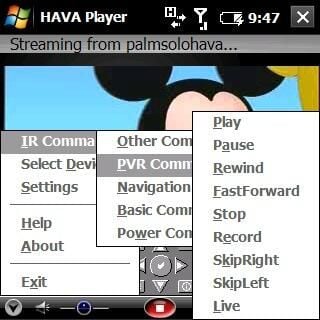
This menu lets you control the PVR functions on your compatible device.
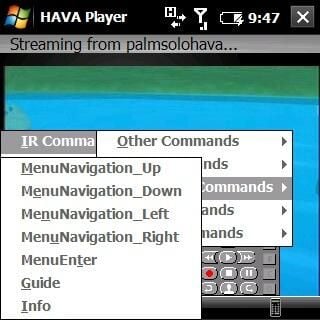
The menu for navigation commands works well too if you don’t want to tap the small remote.
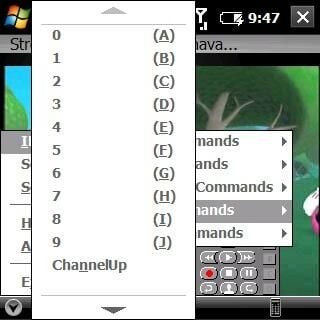
Channels can be accessed manually too.
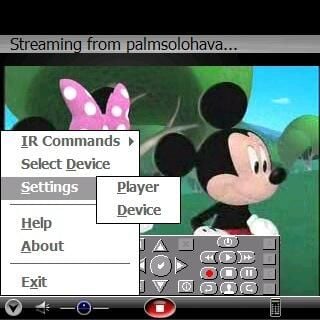
Again, you can manage your HAVA device from the mobile clients.


