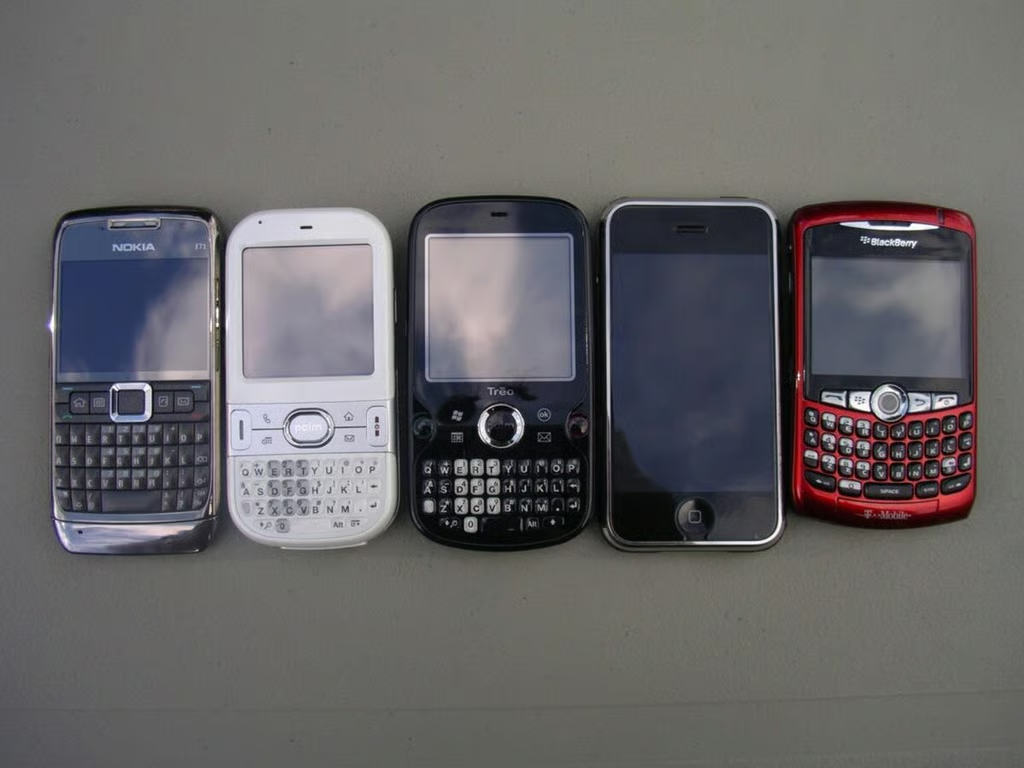
Palm just recently launched the Treo 800w touch-screen Windows Mobile 6.1 device, but quickly follows it up with the Treo Pro that has a definite HTC look and feel. This is the slimmest Treo yet and still includes WiFi, Bluetooth, HSDPA, GPS, and a large capacity battery. Can Palm continue to survive with devices like the Treo Pro? Take a look at these photos and check out my review to help you make a decision.
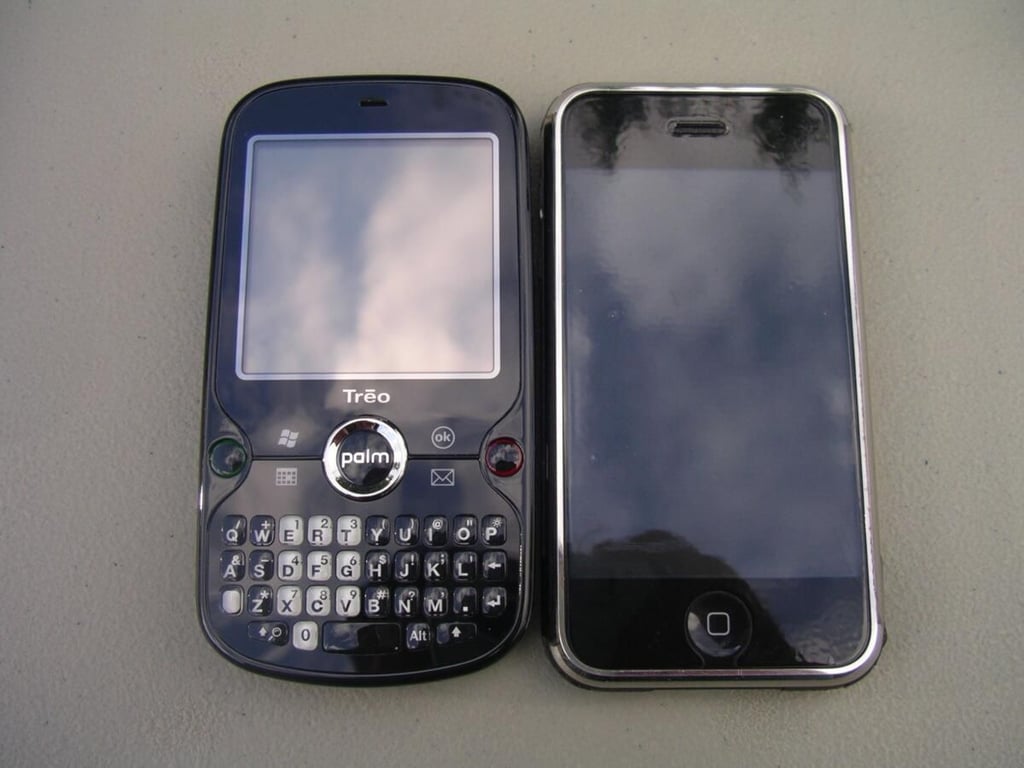
As you can see in this side-by-side the two devices are about the same size with an entirely different focus.
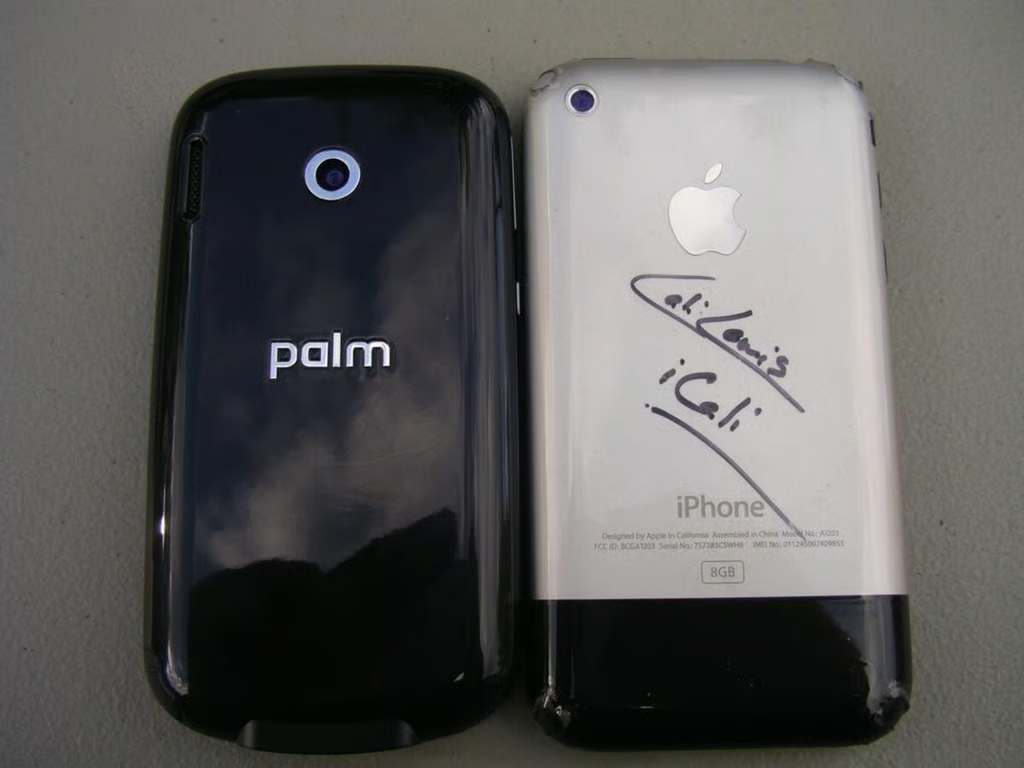
The Treo Pro looks similar to the iPhone back with a simple back piece and a 2 megapixel camera opening. It is quite attractive, but also a fingerprint magnet.
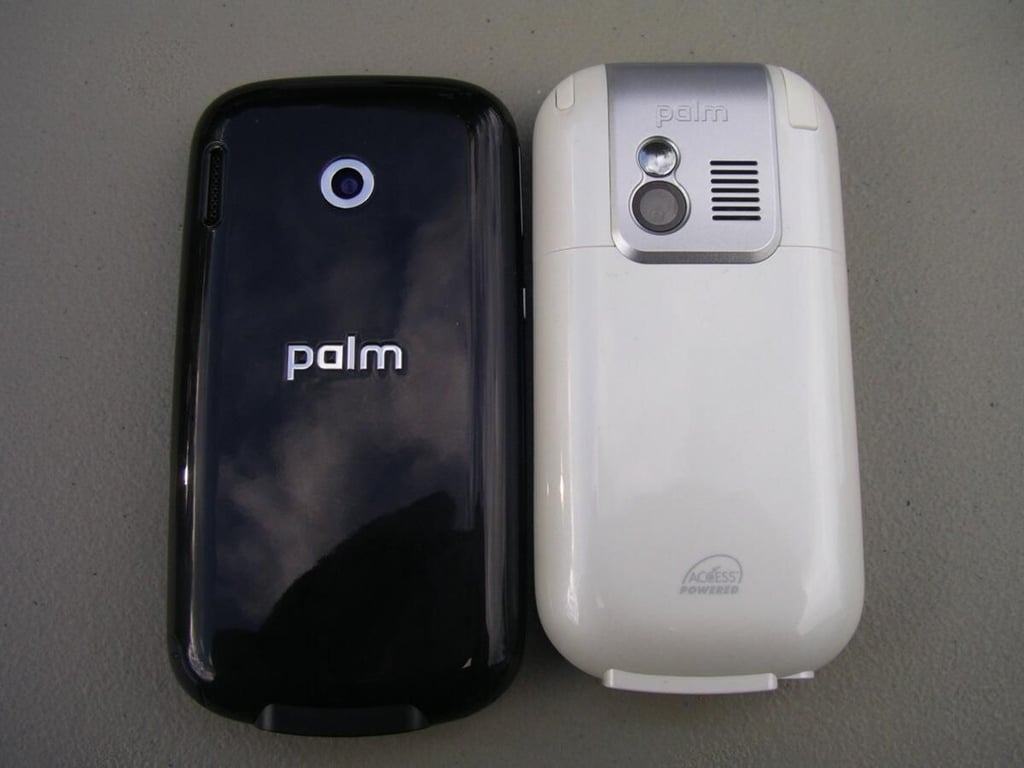
Here is a look at the back of a couple of the latest GSM model Palm devices.
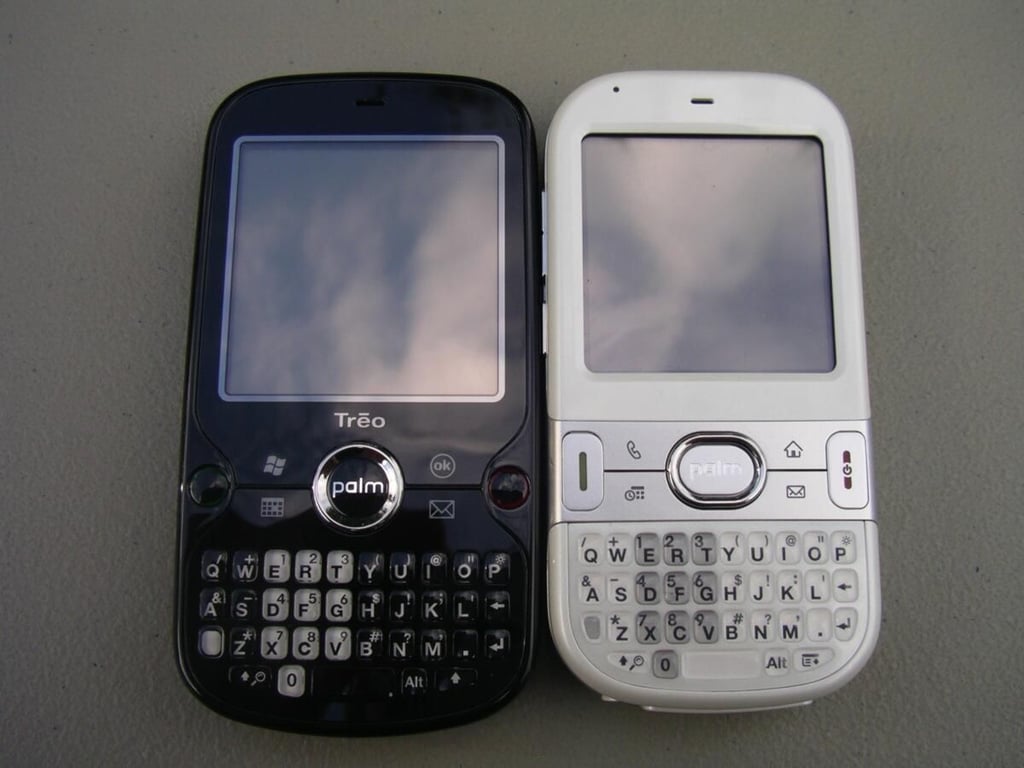
The Treo Pro has a keyboard very similar to the Centro with a bit more width. I prefer the standard Treo keyboard, like what can be found on the Treo 800w.
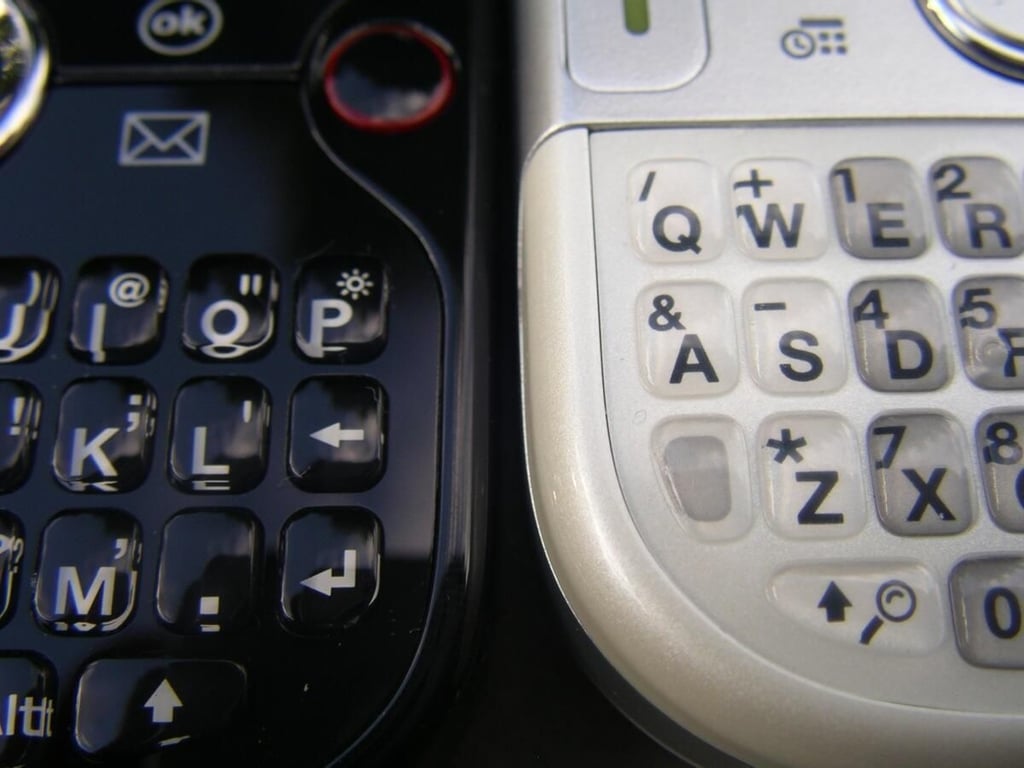
Can you see the similarity between these two? They are surprisingly quite easy to type on if you have small to medium hands.
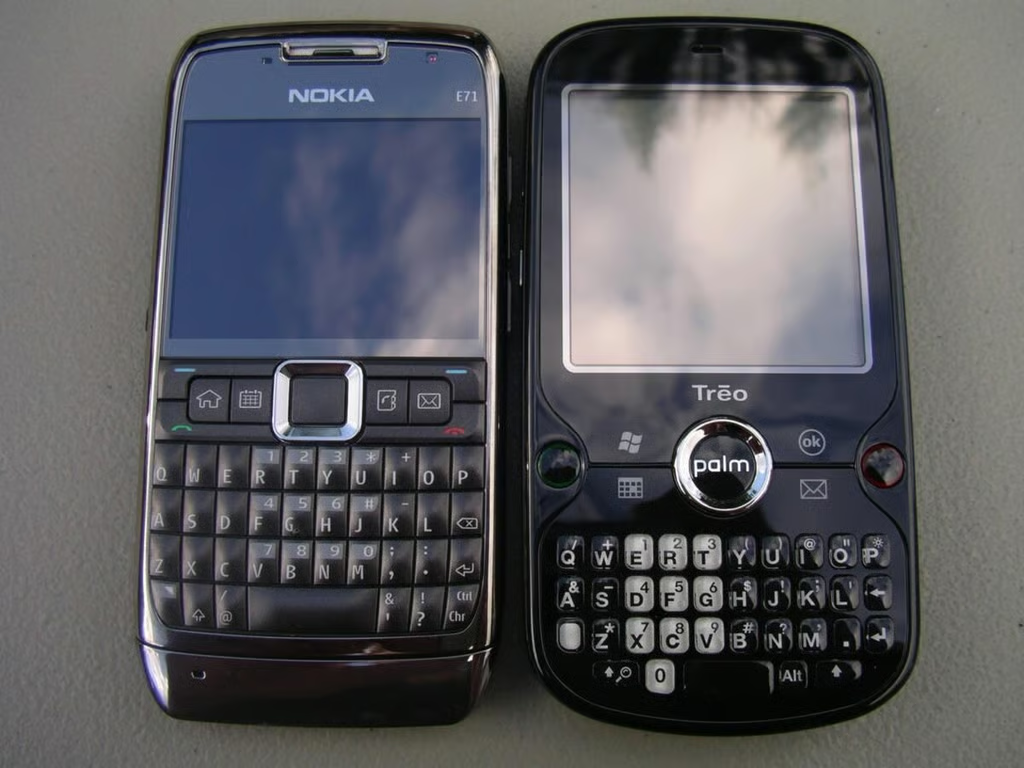
While these two are very close to the same in size and functionality, the Treo Pro has a touch screen and worse camera.
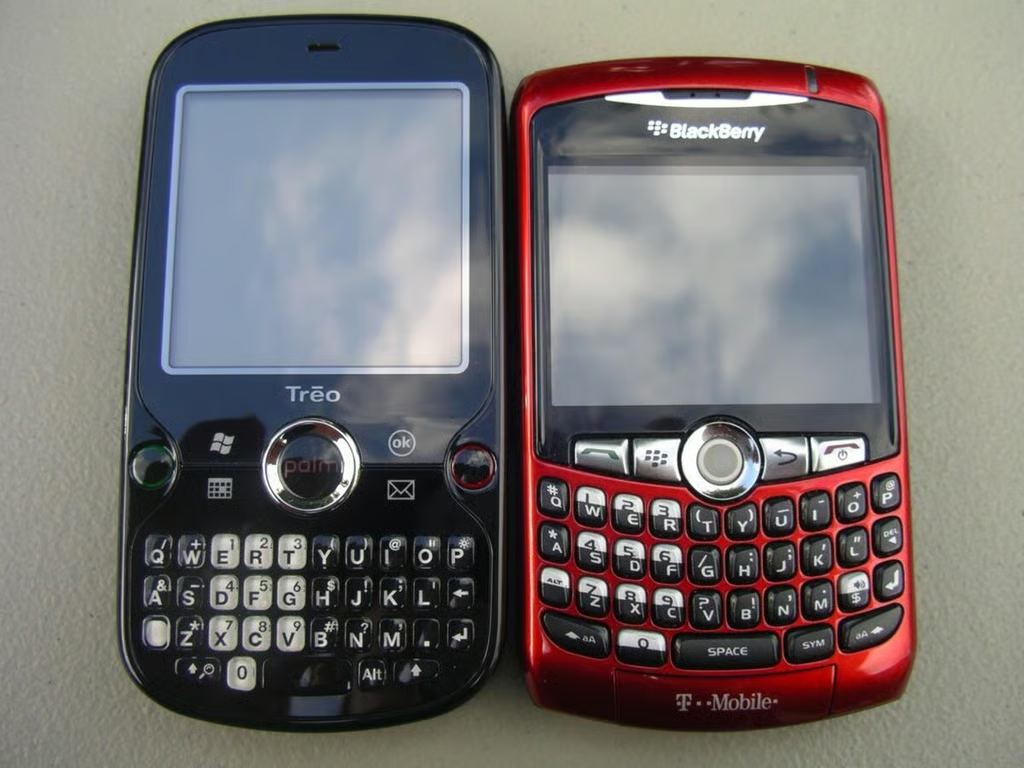
Can the Treo Pro compel enterprise BlackBerry users to give it a try? It is a more powerful device with a decently long battery life too. The keyboard still leaves something to be desired.
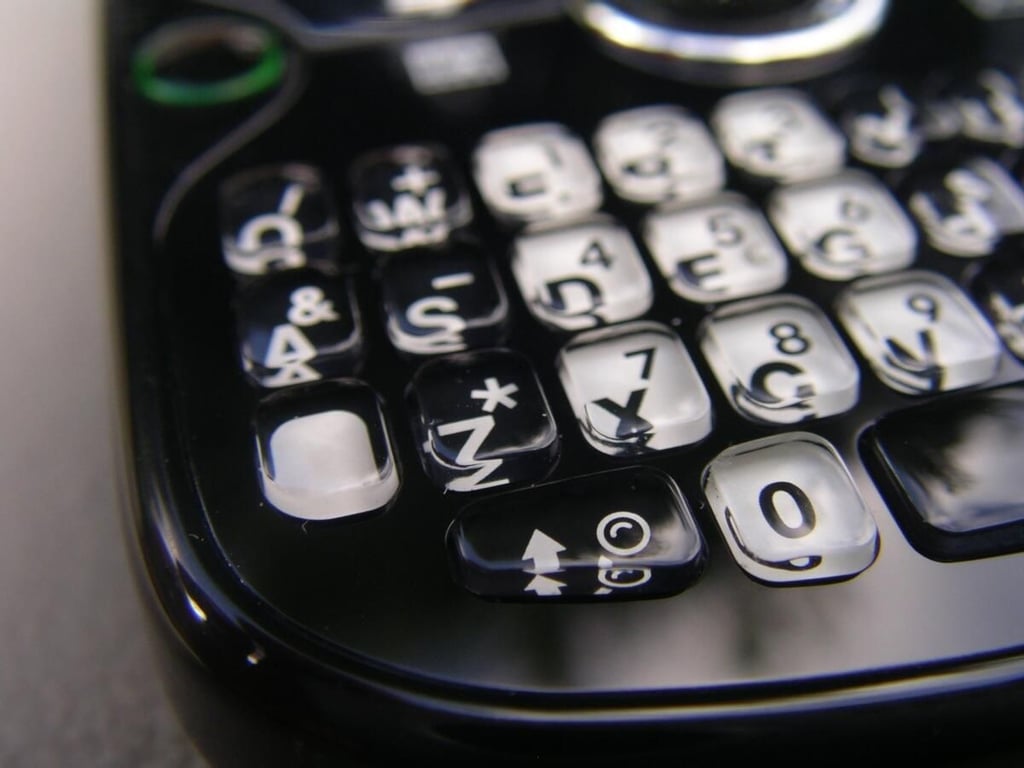
You can see the Fn button in white on the left side of the keyboard.
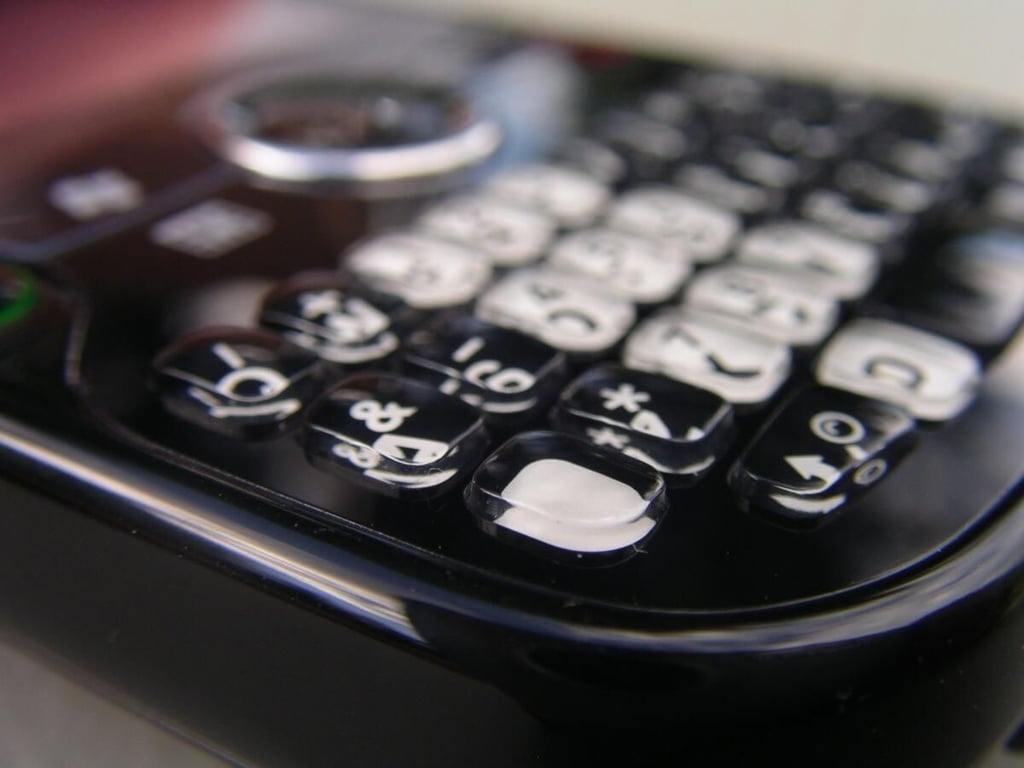
Here I try to show the height and spacing of the Treo Pro keyboard. The small rubberized clear keys have decent feedback.
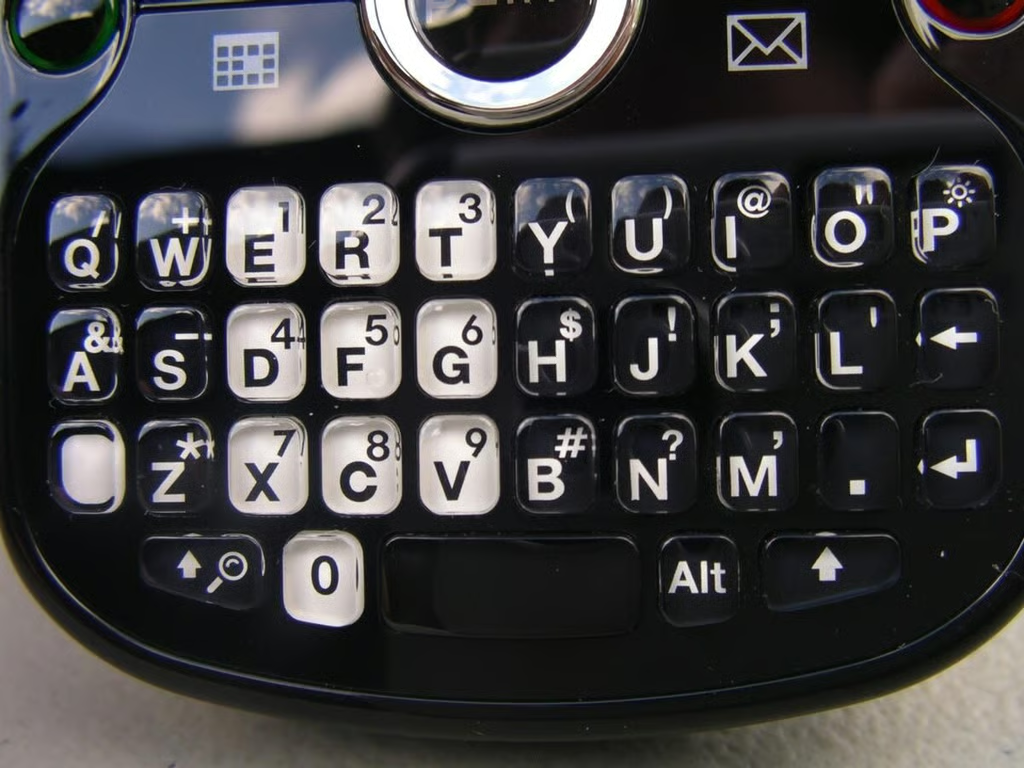
The number keys are highlight in white and are easy to find. There are also left and right shift keys to help enter data faster.
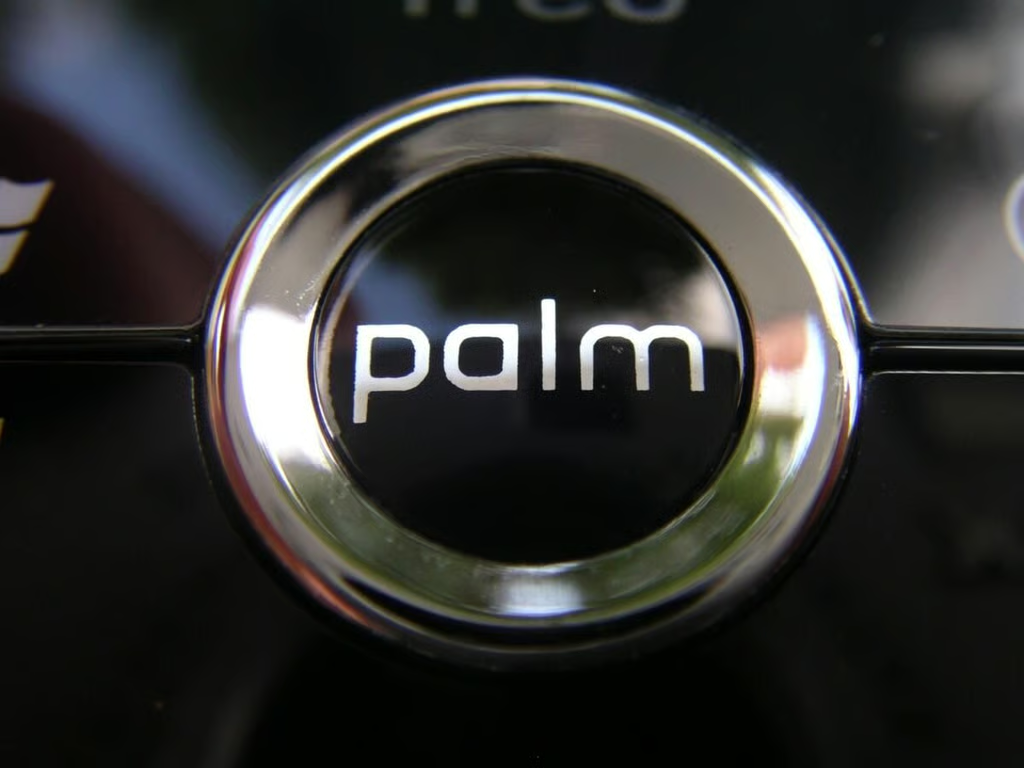
You will now find the Palm logo/label on the center of the directional pad. The pad also lights up when you have a notification, much like the HTC Touch Diamond.
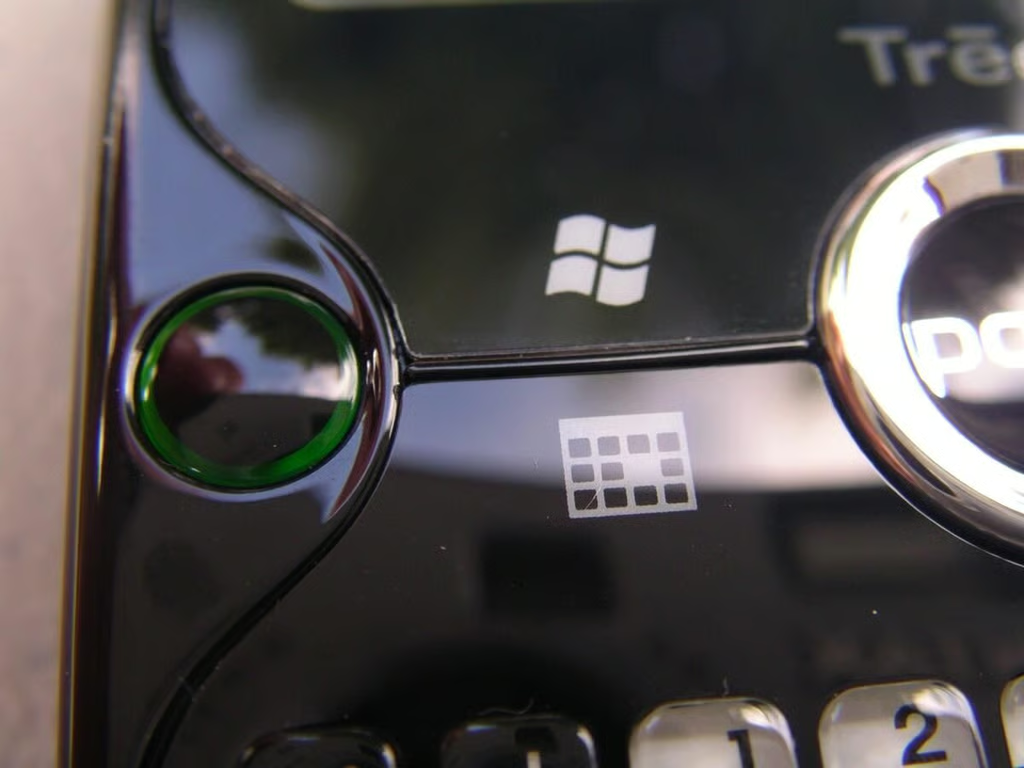
Here you can more closely see the flush hardware buttons and the send key on the left side.
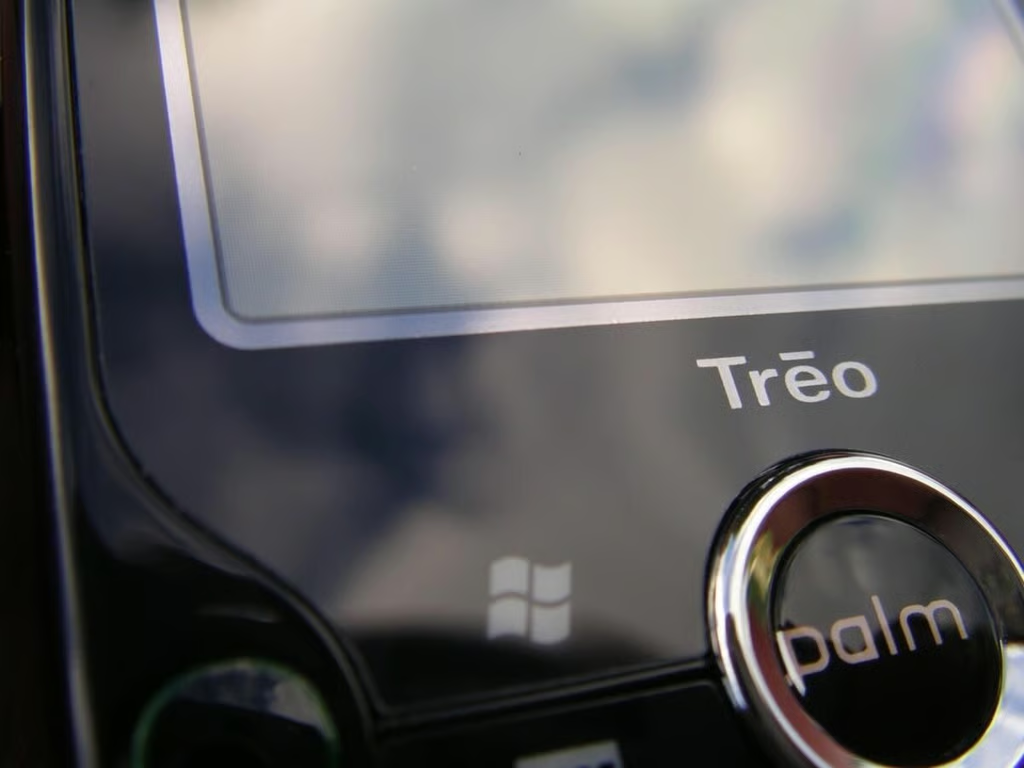
I am a huge fan of these new flush displays that no longer include a bezel. You can now much easier tap the left and right soft keys without the need for dedicated buttons.
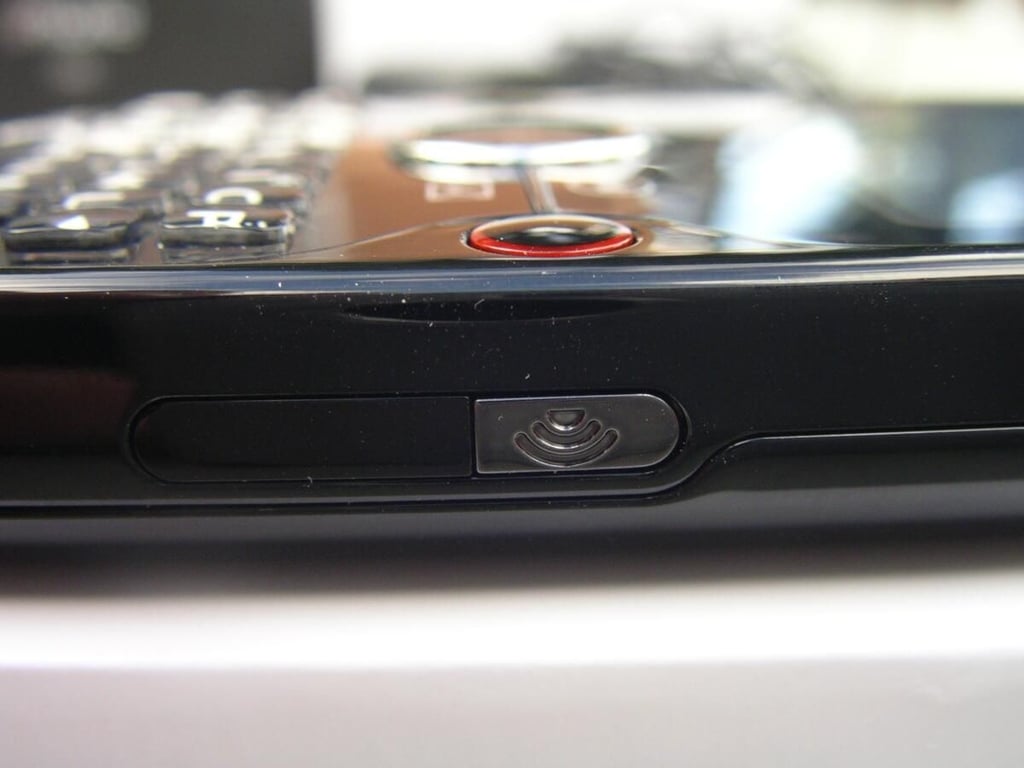
The Treo Pro has an infrared port with a dedicated WiFi button located above it on the right side of the Treo Pro. You simply press and hold the button to toggle the WiFi radio on and off.
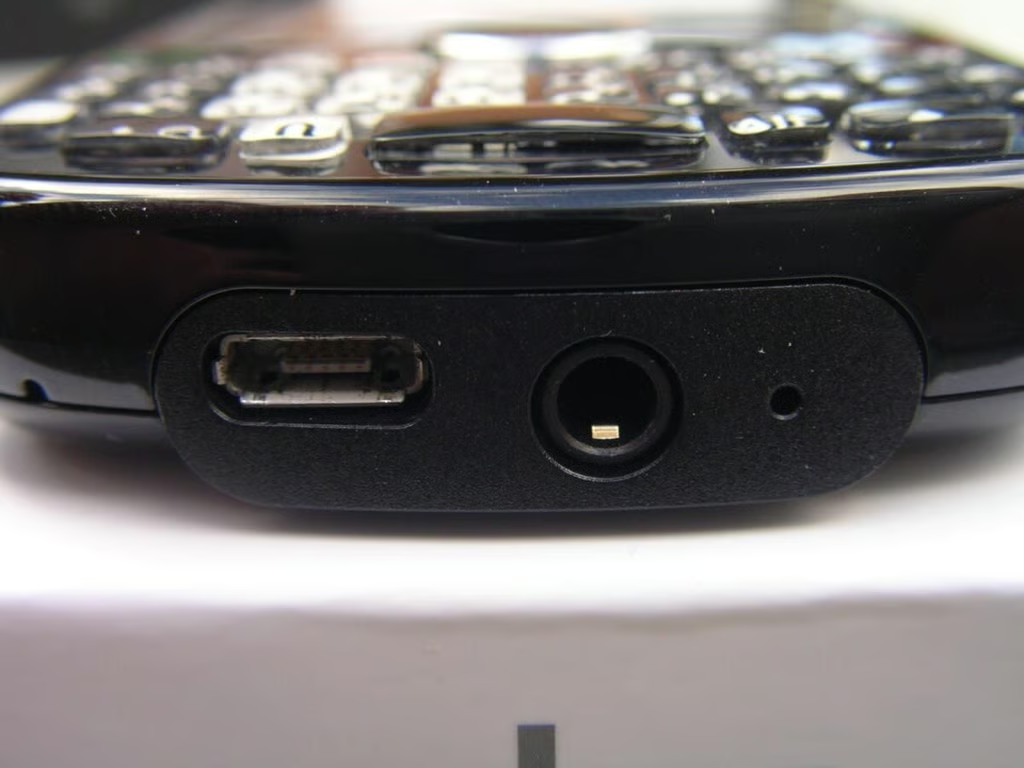
The Treo Pro has the new Palm standard microUSB port for syncing and charging, which is to the left of the 3.5mm headset jack. It is such a relief to see a 3.5mm headset jack on a new phone.
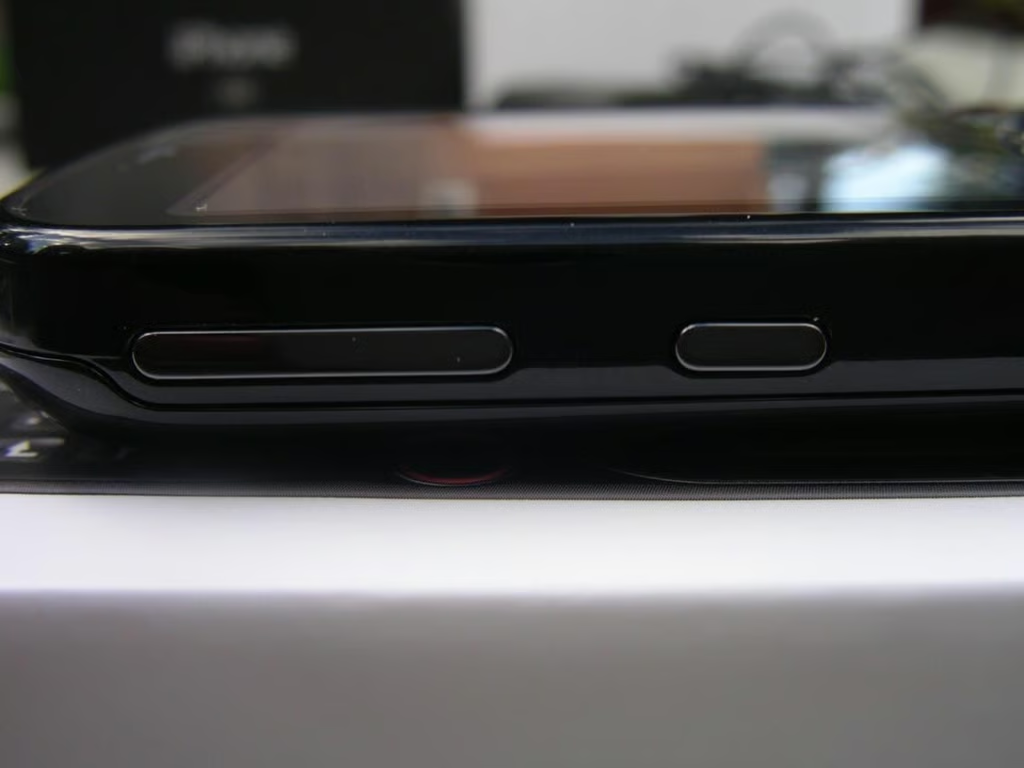
There is a volume rocker on the upper left of the Treo Pro with an extra hardware button located below it.
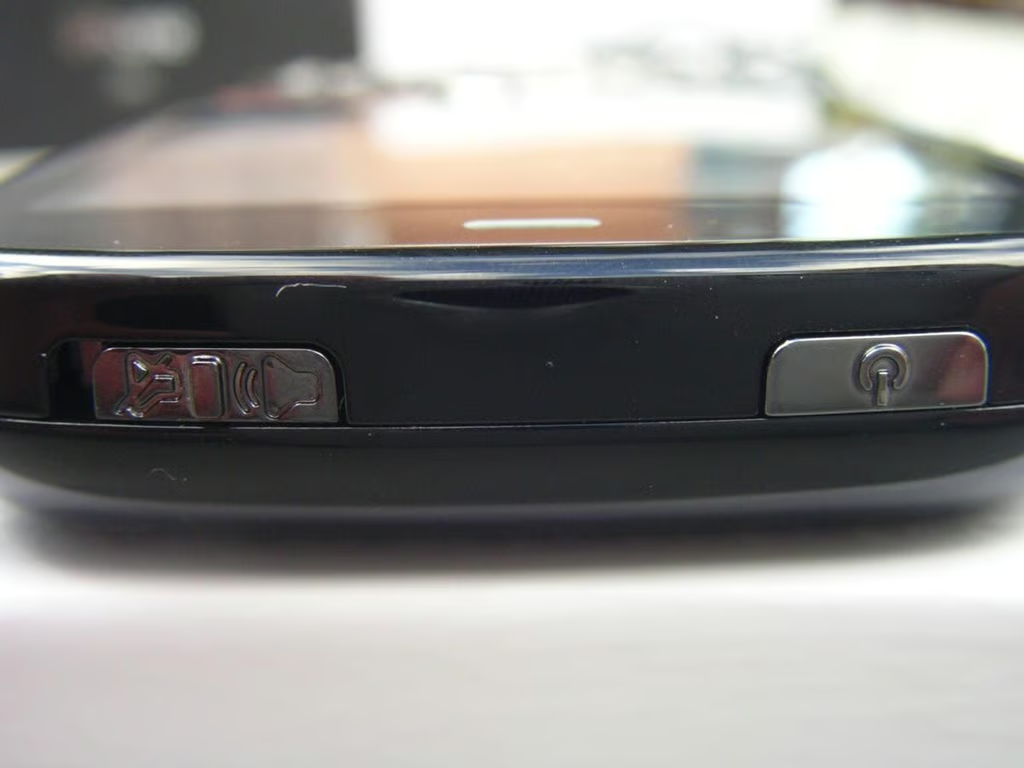
Palm included the now infamous ringer switch along with a dedicated on/off button on the top of the device.
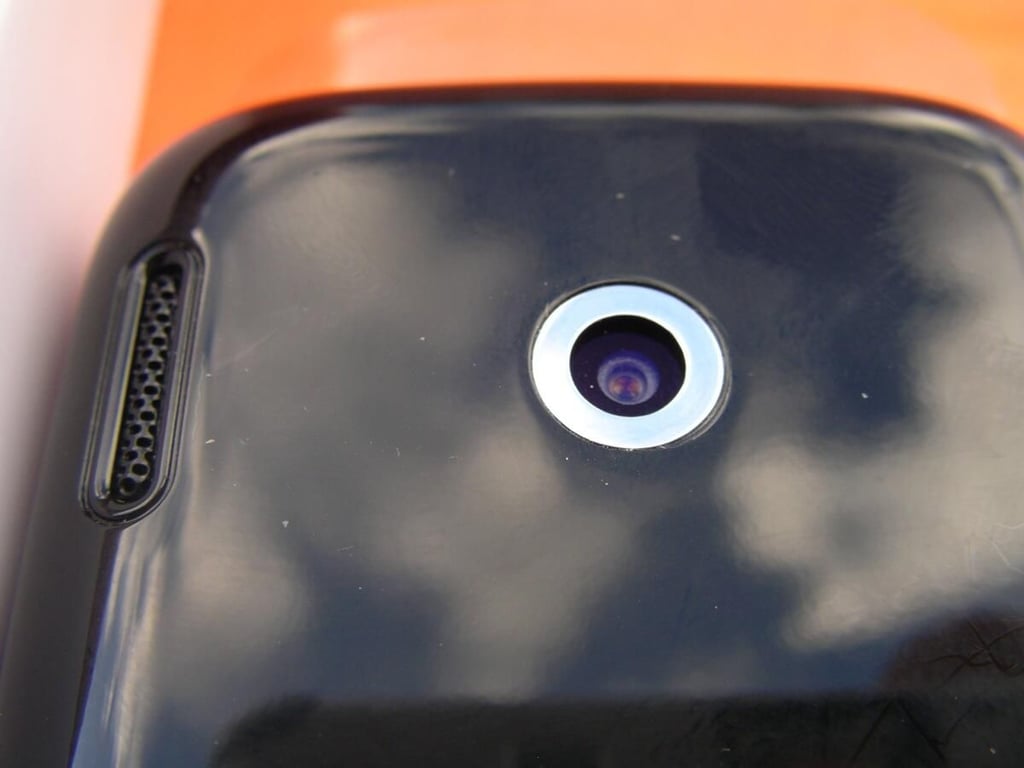
The camera is a bit disappointing on the Treo Pro with no flash and a rather low resolution. Why can’t 3.2 megapixel be the new phone standard?
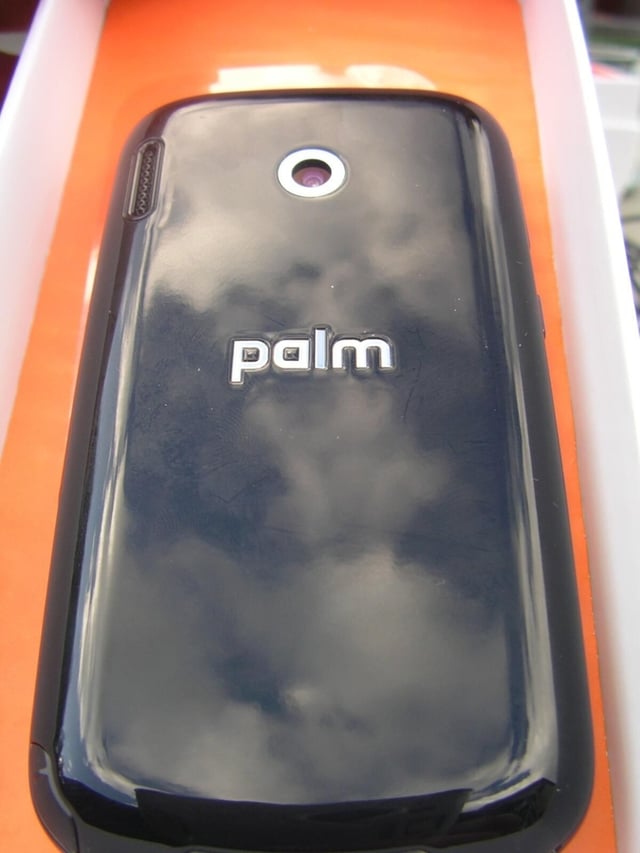
The high glossy black plastic back is a fingerprint magnet that shows a ton of fingerprints.
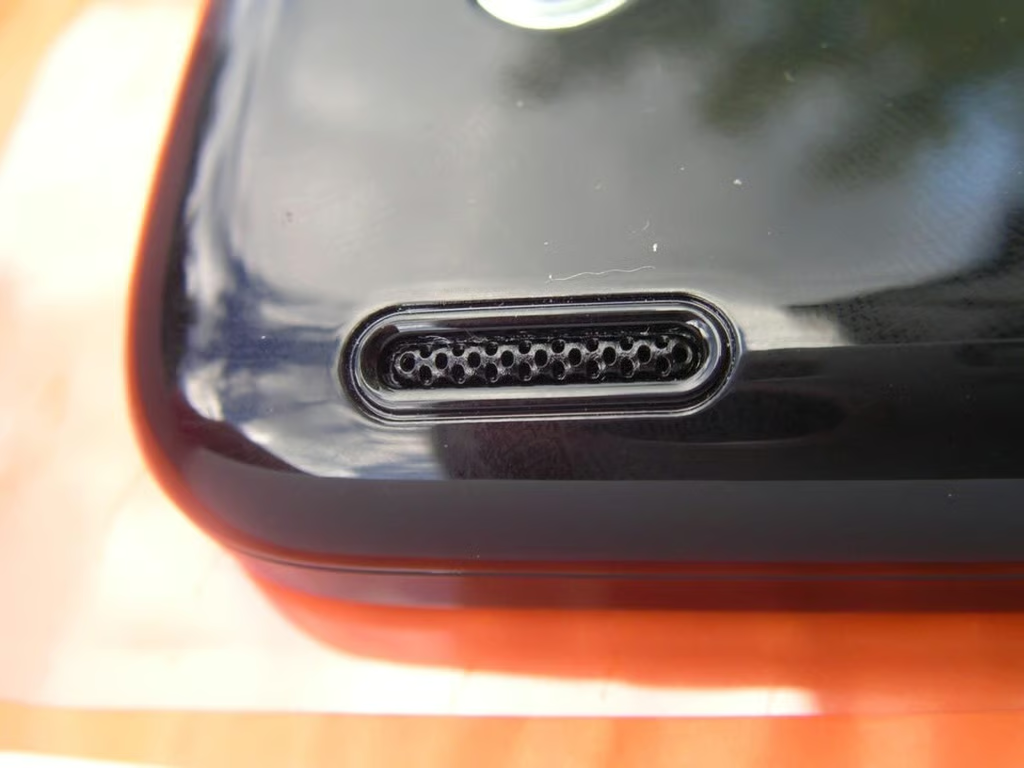
There is a mono speaker on the back of the Treo Pro. Some of the speaker wraps around the curves of the back so that your sound does tend to bounce of a table.
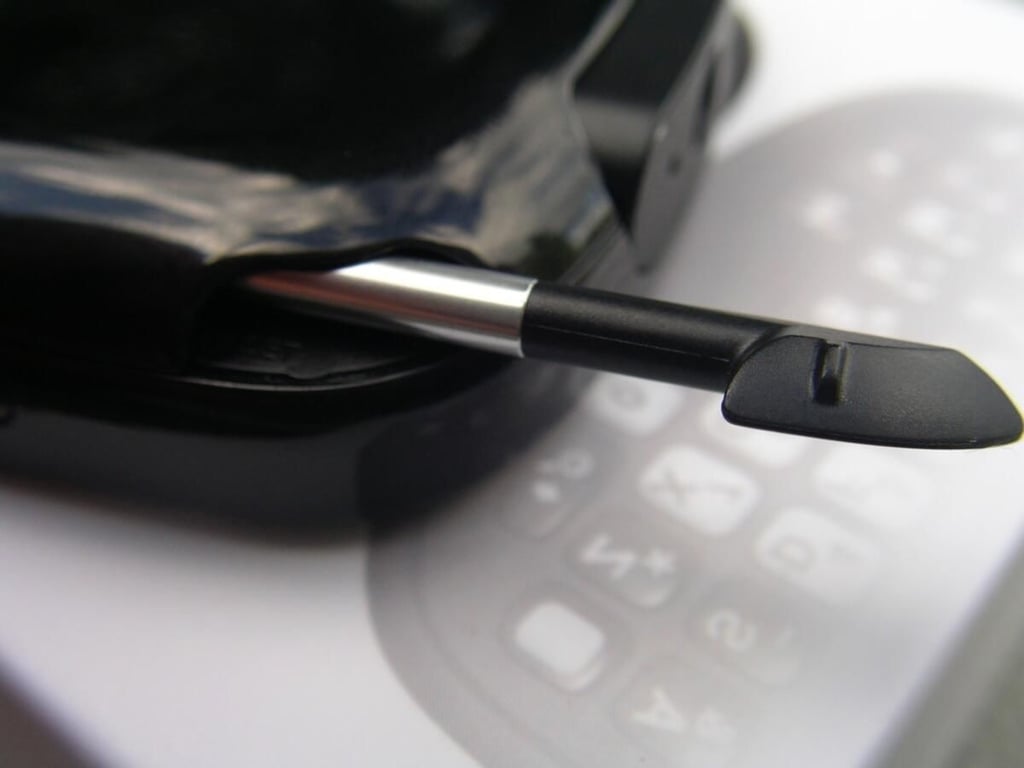
The stylus is found on the back of the bottom right side. It has a decent weight to it, but could be 1/2 inch longer to be more comfortable.
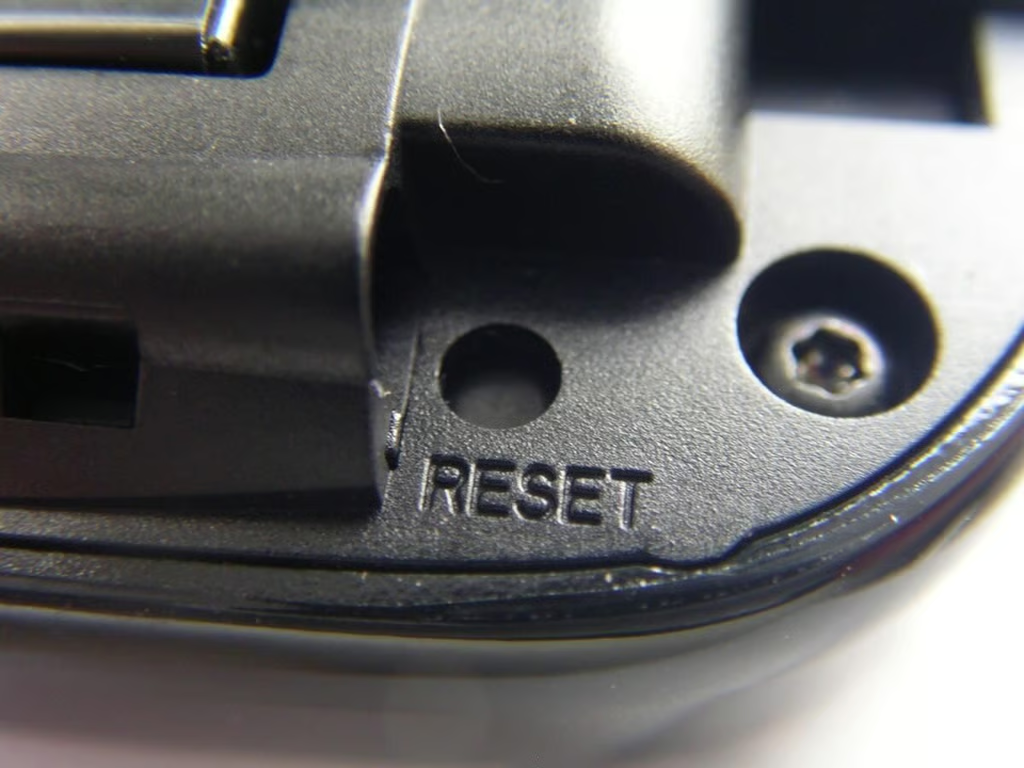
The reset button is hidden behind the stylus, but after a week of use I haven’t even had to use it once so it is fine to be in a hidden location.
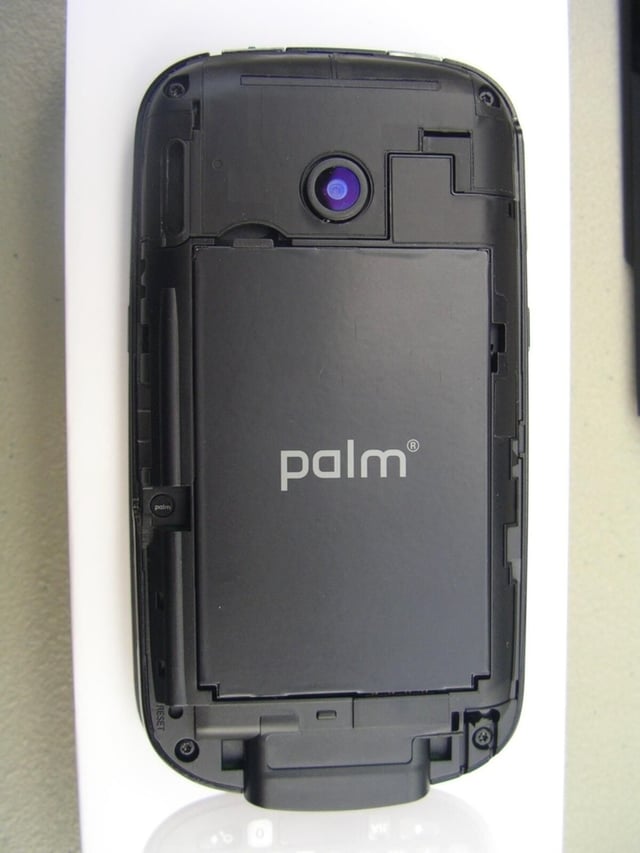
The Palm Treo Pro has a 1500 mAh capacity lithium ion polymer battery that takes up most of the back.
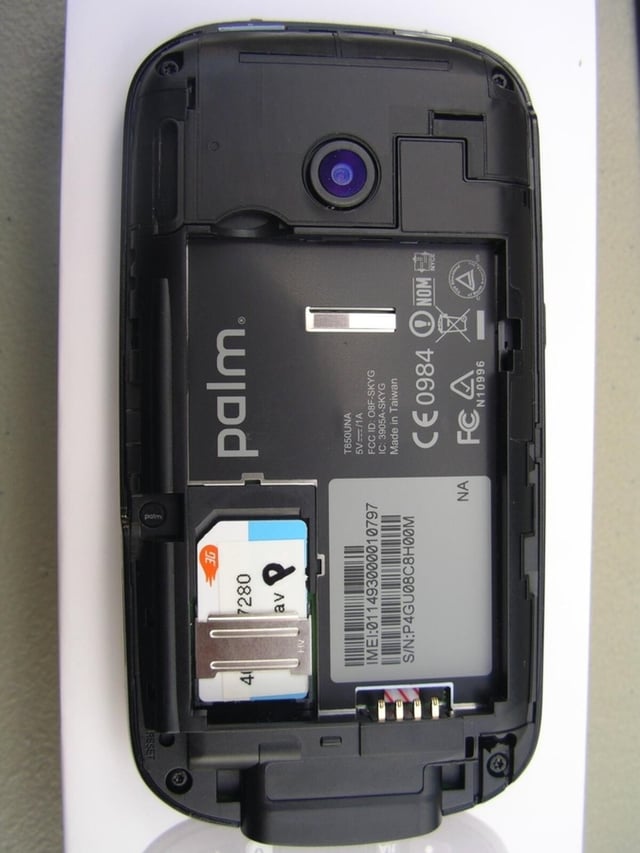
The SIM card is placed under the battery of the Treo Pro.
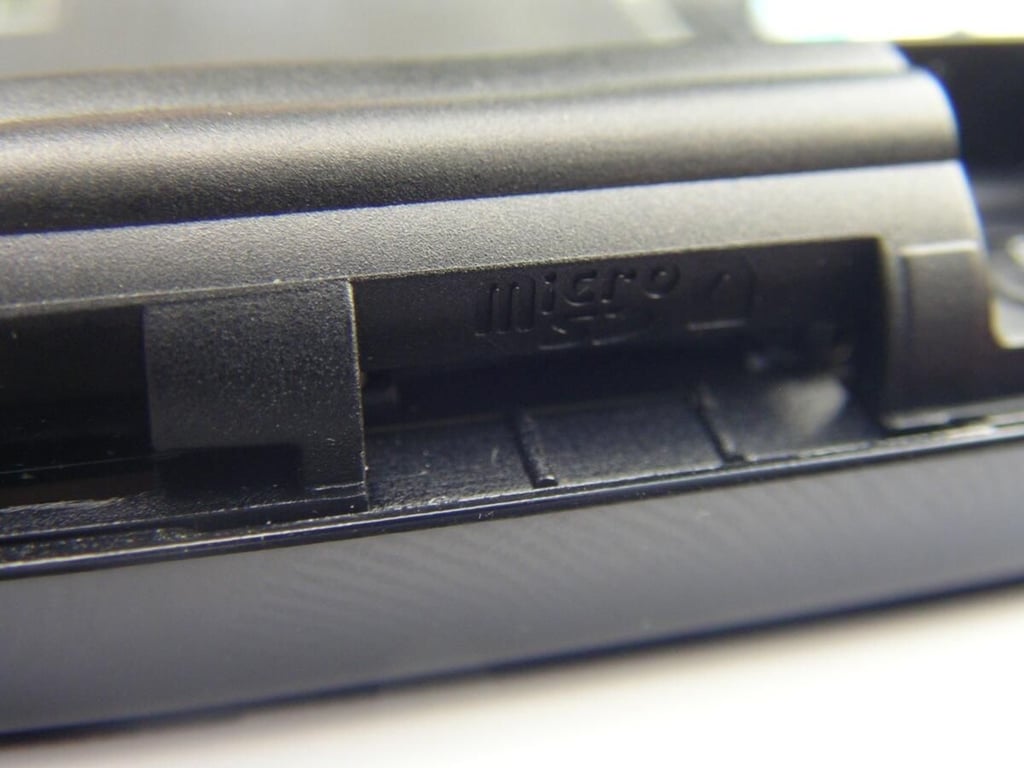
The microSD card slot supports the SDHC standard. You do have to remove the back cover to access the microSD card slot on the right side.
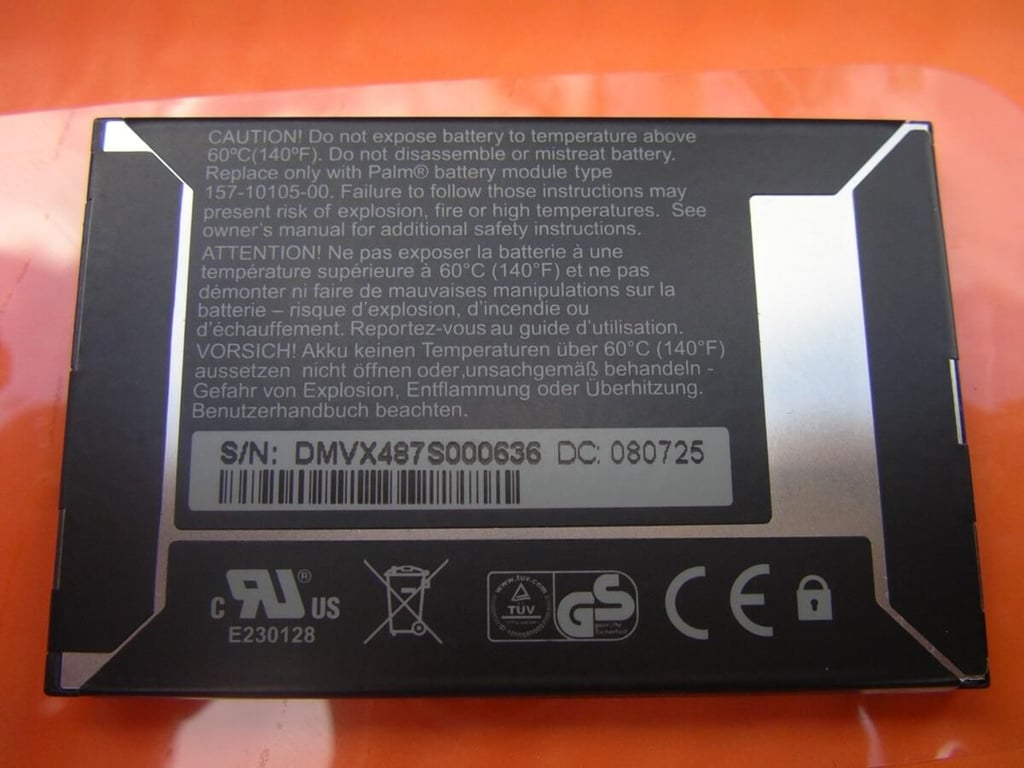
Palm provides an ample capacity battery in the Treo Pro.
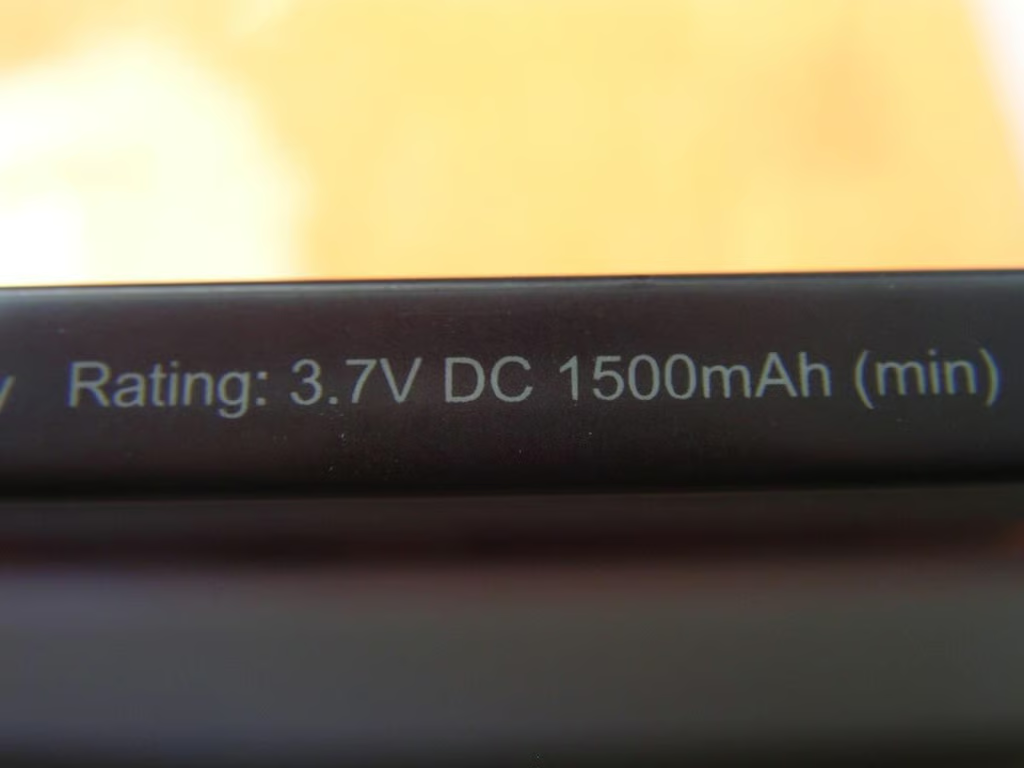
Here you can see the capacity label on the battery side.
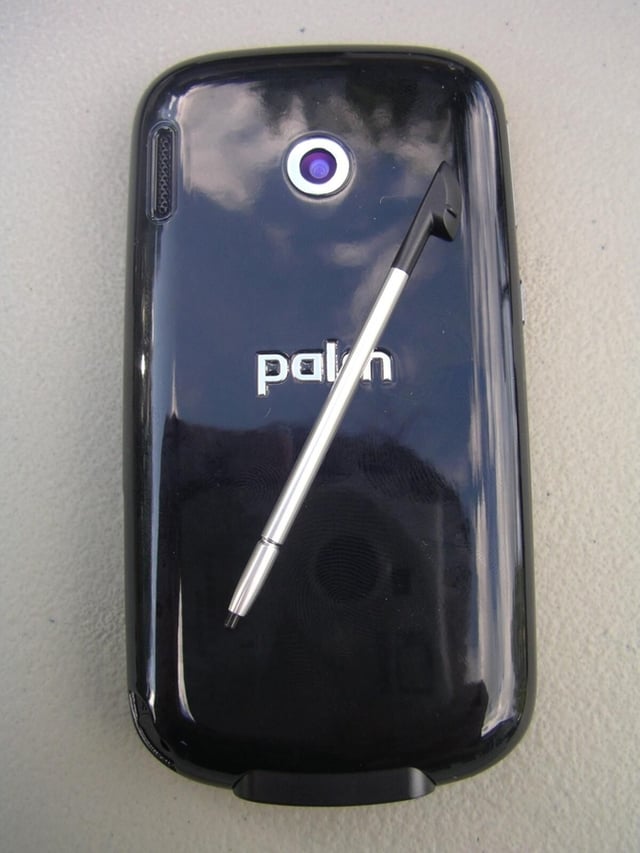
Here is a view that shows the length of the stylus in relation to the Treo Pro.
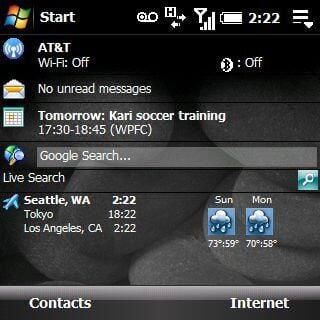
Palm provides a couple Today screen plug-ins, such as Search. However, Palm custom items like photo dialing are not present.
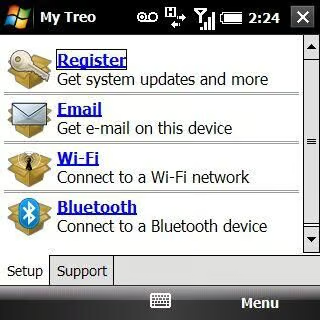
The setup tab lets you quickly setup your device.
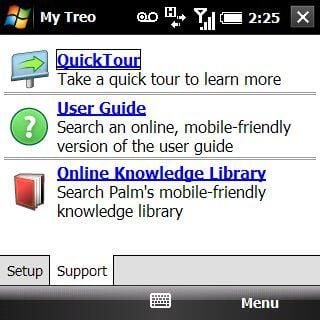
You can also quickly get support for your Palm Treo Pro.
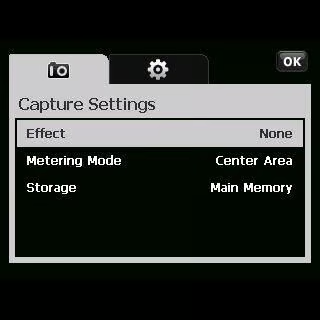
Palm has a few camera settings you can use to try to take better photos.
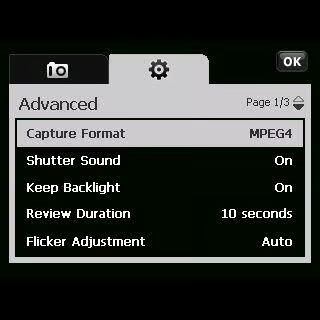
Advanced camera settings on the Palm Treo Pro.
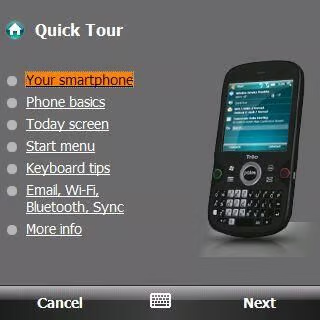
The Quick Tour is actually a helpful tutorial for new users to try out.
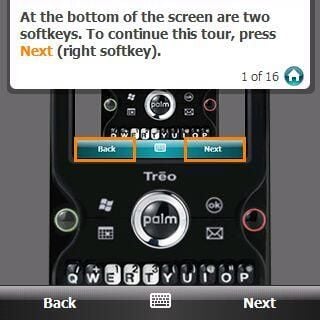
Notice there are no buttons for soft keys on the Treo Pro. The flush display helps make it quite easy to press the display instead.
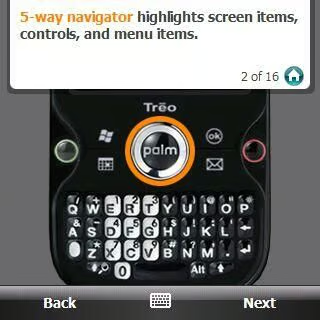
This tour screen talks about the center of the directional button.
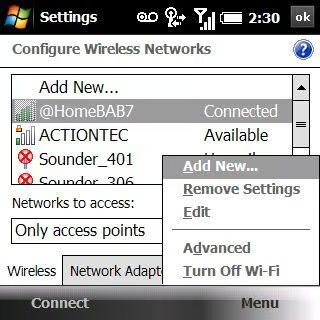
The standard Windows Mobile 6.1 WiFi utility appears when you press and hold the button.
Photo 1

Image 2


