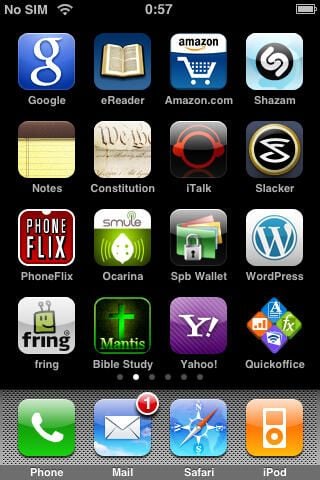
Quickoffice has been around for years and is the default Office suite found on Nokia S60 devices. They too this expertise and created a functional iPhone client. The current version does has a few issues that should be fixed with a future update, but it is worth the $20 if you need to work with Office documents on your iPhone device. They now have clients for Palm, BlackBerry, and Android devices too.
There is a nice icon for the application and things start off well on the iPhone.
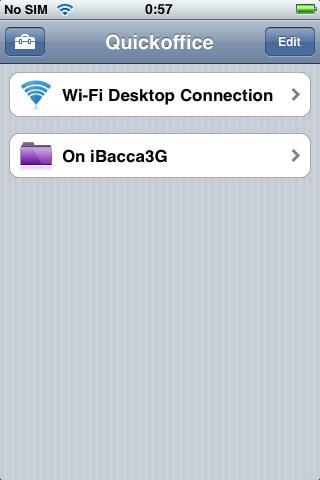
You can get file onto your device via WiFi or MobileMe and access locally stored files.
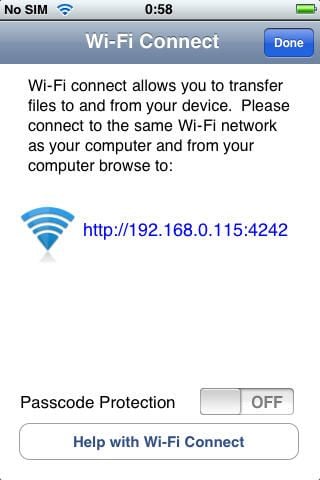
You need to be connected with your computer to the same WiFi network as your iPhone to transfer files.
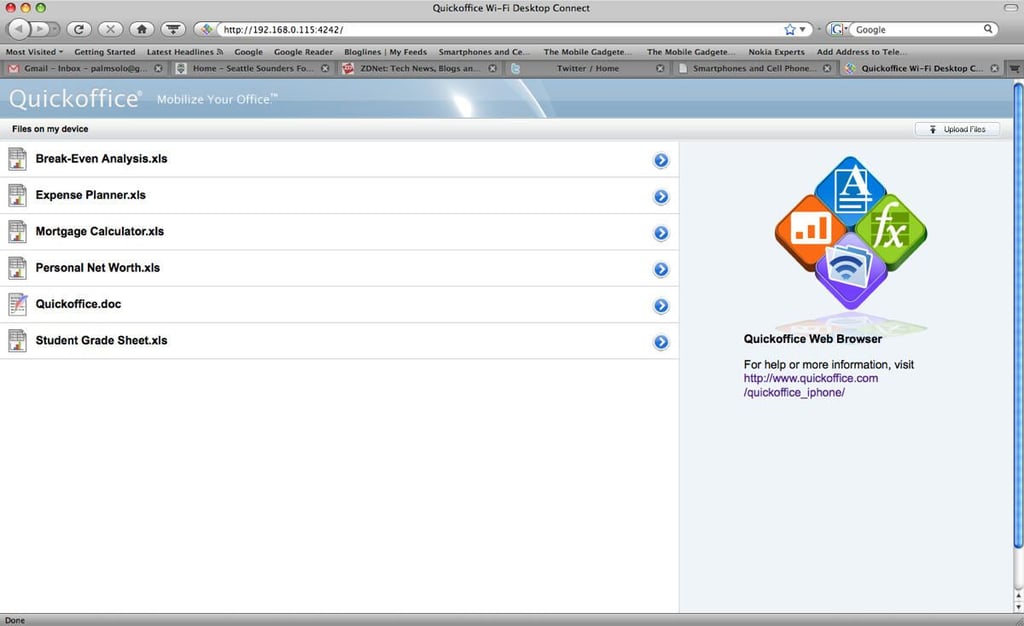
After connecting as directed in Firefox, this is the interface you will see to manage files.
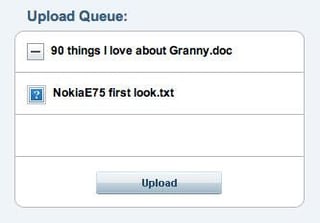
You use this simple interface to get files to your iPhone.
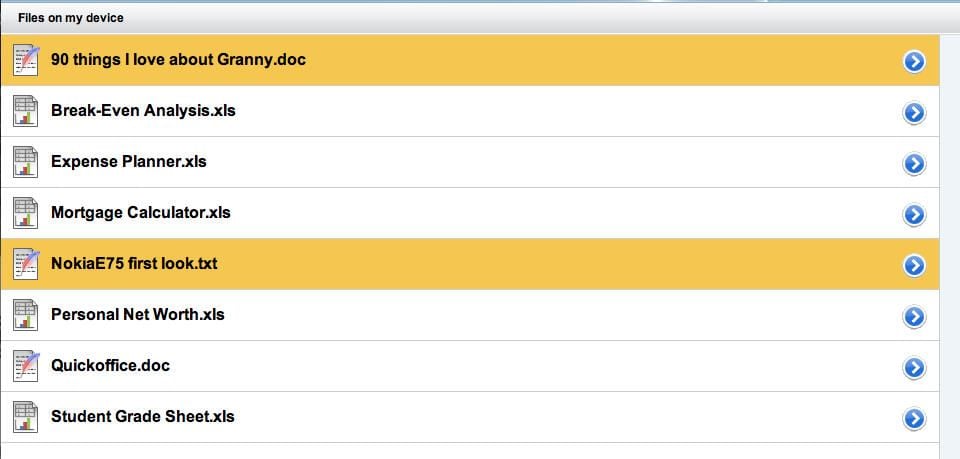
The highlighted items show the files that were most recently updated on your iPhone.
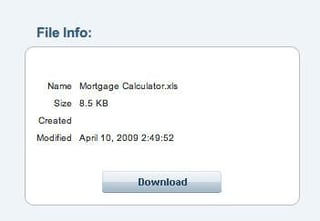
When you click a file in your web browser, this is the type of info you will see appear.
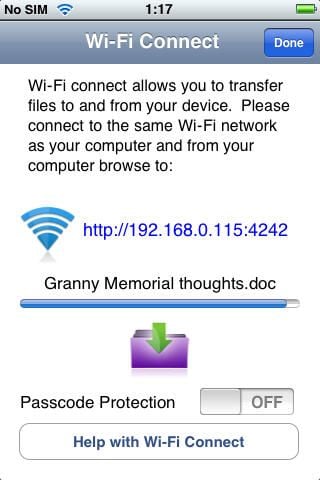
As files are transferred to your iPhone their status will appear on the display.
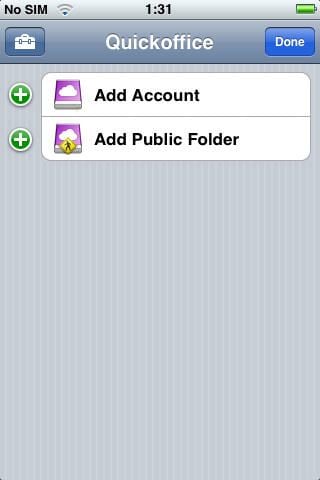
You can access your files wirelessly and also create public folders to put documents up on.
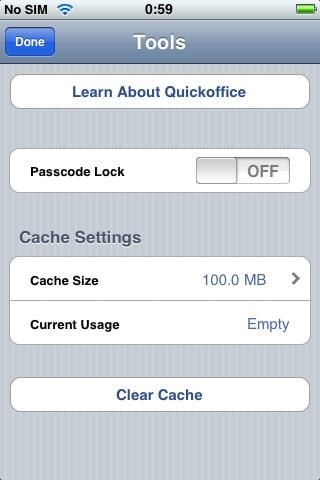
The tools page is accessed from the main display.
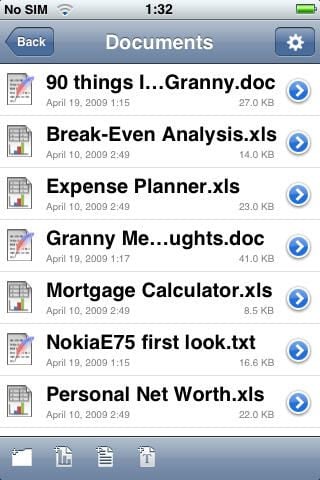
This view shows the documents on your iPhone with icons indicating the type of document each one is.
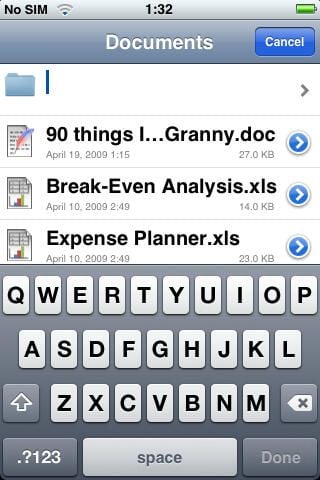
You can create folders and organize your documents just like you want.
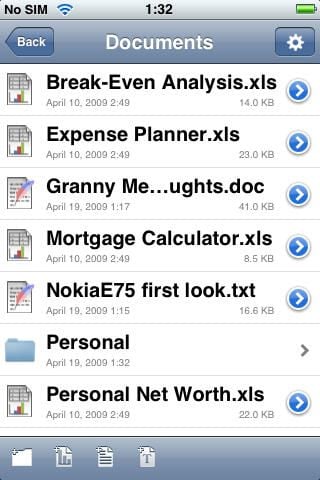
Another view of the organizational capabilities.
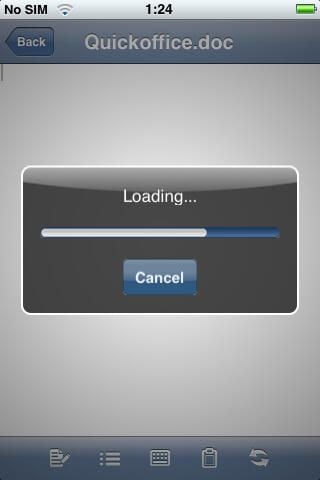
A couple of seconds go by as the document loads on your iPhone.
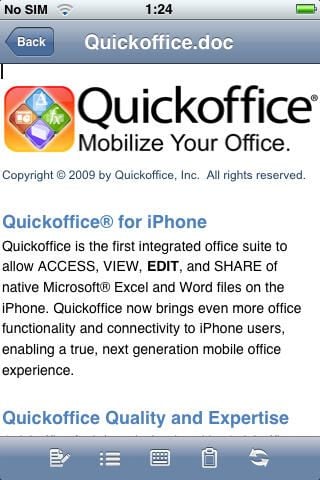
Quickoffice has also done a fantastic job of keeping document formatting intact and that will be a major aspect to check out in a further evaluation.
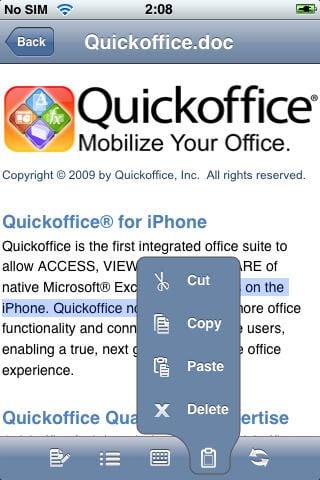
Quickoffice supports all the basic editing capabilities you need to get the job done.
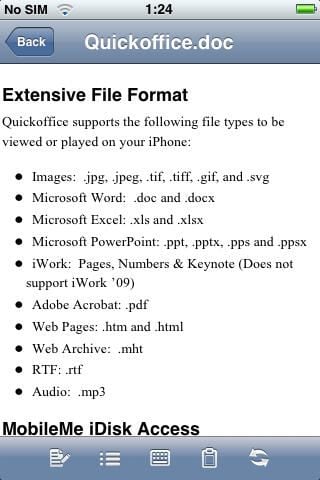
The formatting options appear in a toolbar on the bottom in portrait mode.
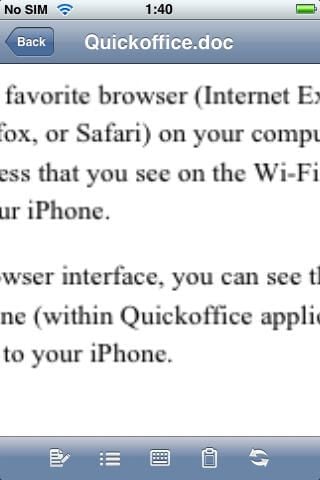
Quickoffice added some of their own functionality and one thing is you now zoom into a larger part of the document rather than just a couple words.
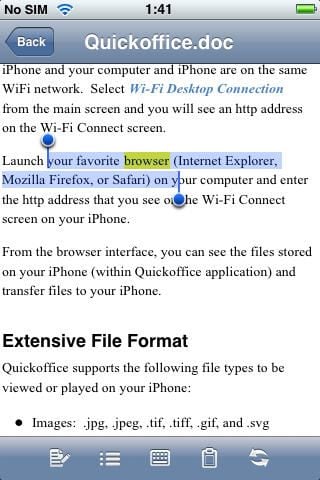
A double tap on a word turns on the bars that you can then drag around. Triple tap selects the entire paragraph.
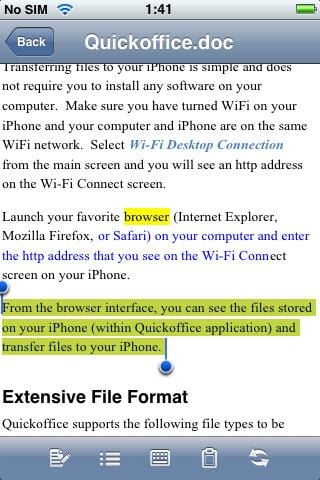
Highlights, font formats, and more are supported.
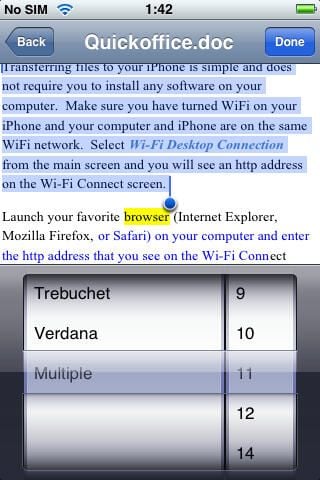
Several font types and sizes are supported in Quickoffice.
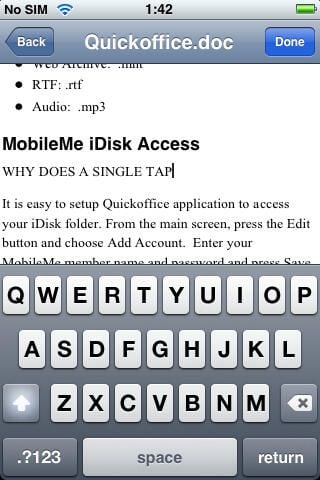
For some reason the predictive text does not work in Quickword and the Shift key turns Caps Lock on every time.
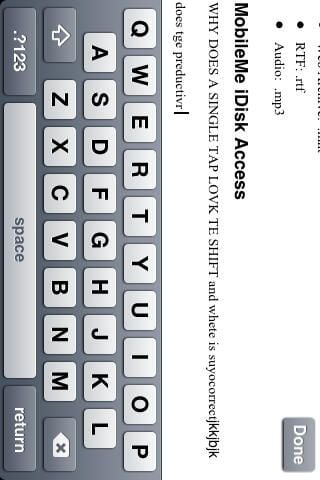
When you switch to landscape mode the menu items disappear and the program switches into full screen mode. The keyboard works in a wider form factor too.
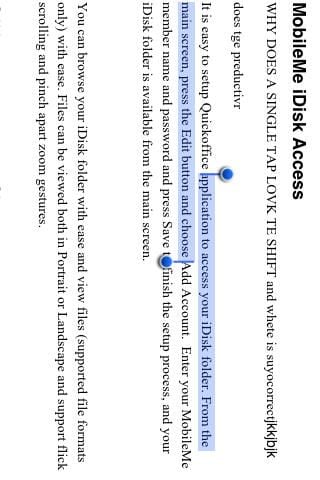
Selections can be made in landscape mode.
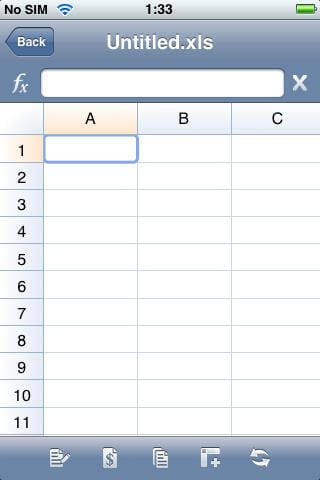
You can create new Excel spreadsheets or edit existing ones.
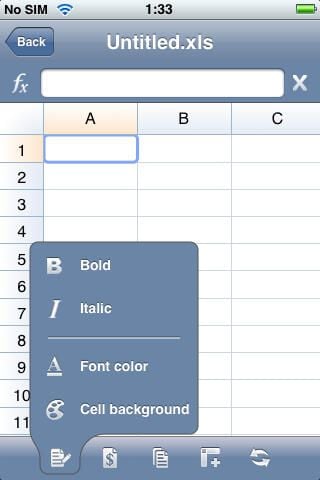
There are a few options to format your cells in Quicksheet.
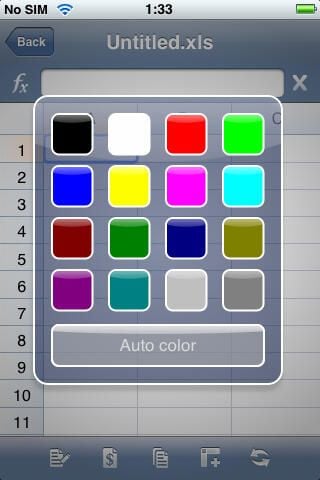
You can change the font color and background color into a scheme that you like.
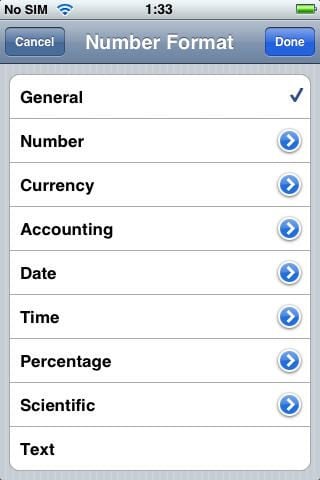
There are plenty of number formatting options in Quickoffice.
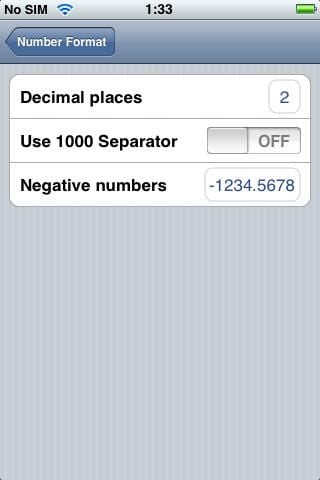
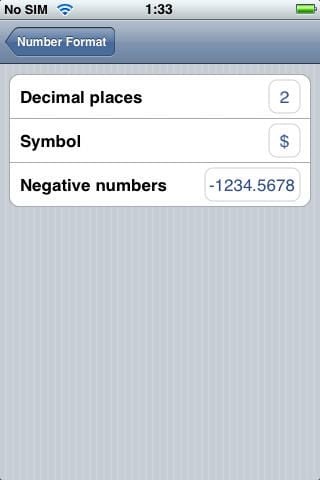
After selecting a type to format you then can refine the format you wish to use.
Quicksheet seems to be much more powerful than Quickword at this time.
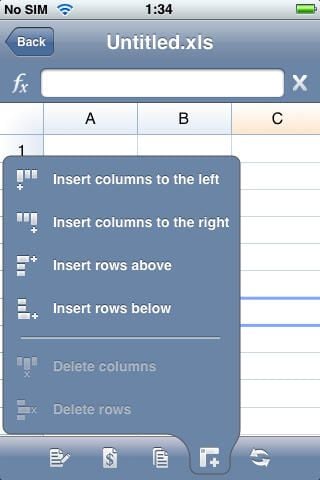
All the basic formatting features you want are supported.
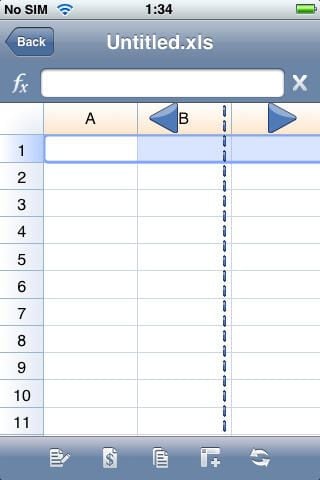
You can tap and hold to resize columns with the large arrows confirming the selection.
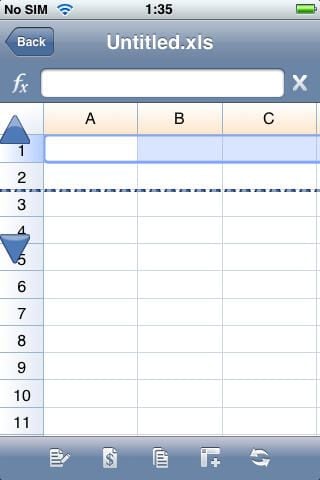
Rows can be resized just like columns.
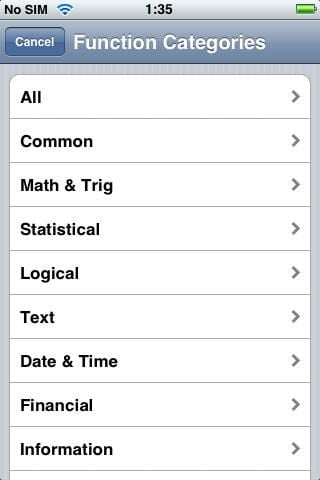
There are plenty of categories for you to calculate what you need.
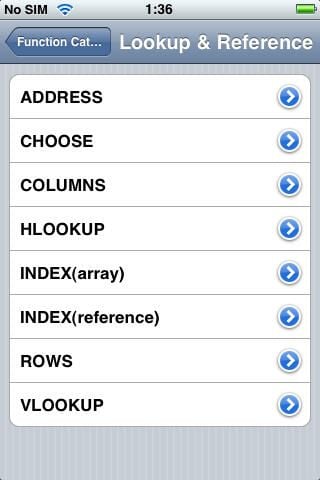
After selecting a category you can get into more settings for the function.

All menus disappear and landscape is more useful for viewing needs.
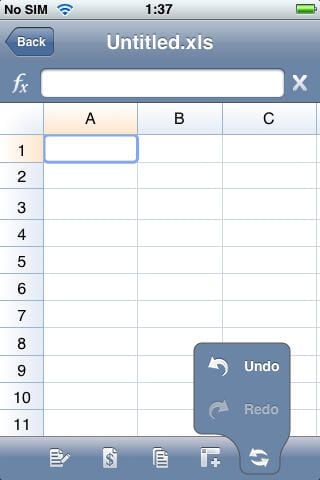
You can undo and redo throughout Quickoffice.
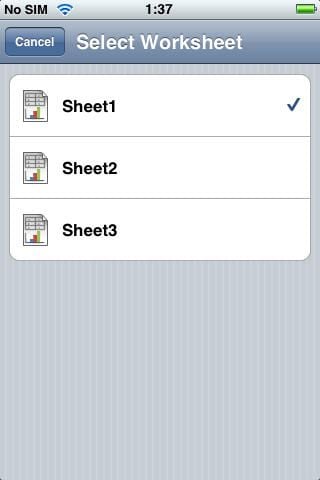
Multiple sheets are supported in Quickoffice.
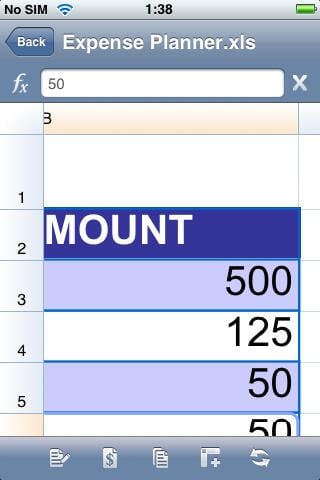
Dynamic pinch zooming is supported in Quickoffice.

You can zoom out to see more of the spreadsheet too.

Colors and fonts can be used to highlight your document.
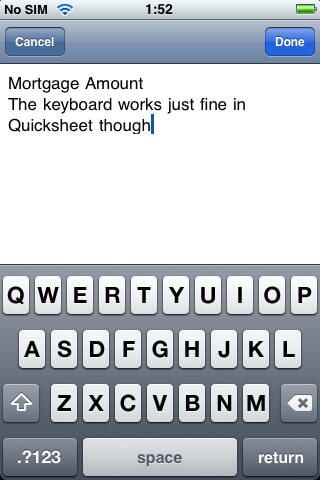
Thankfully the keyboard’s predictive features work in the spreadsheet application.
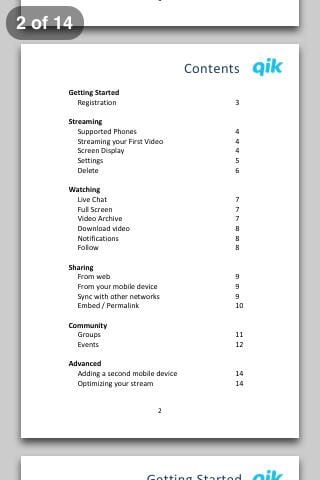
PDF documents are supported too.
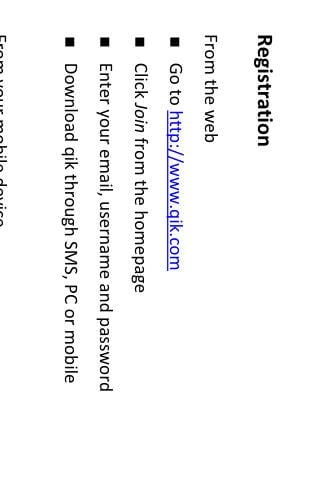
PDF documents can be viewed in landscape or portrait.


