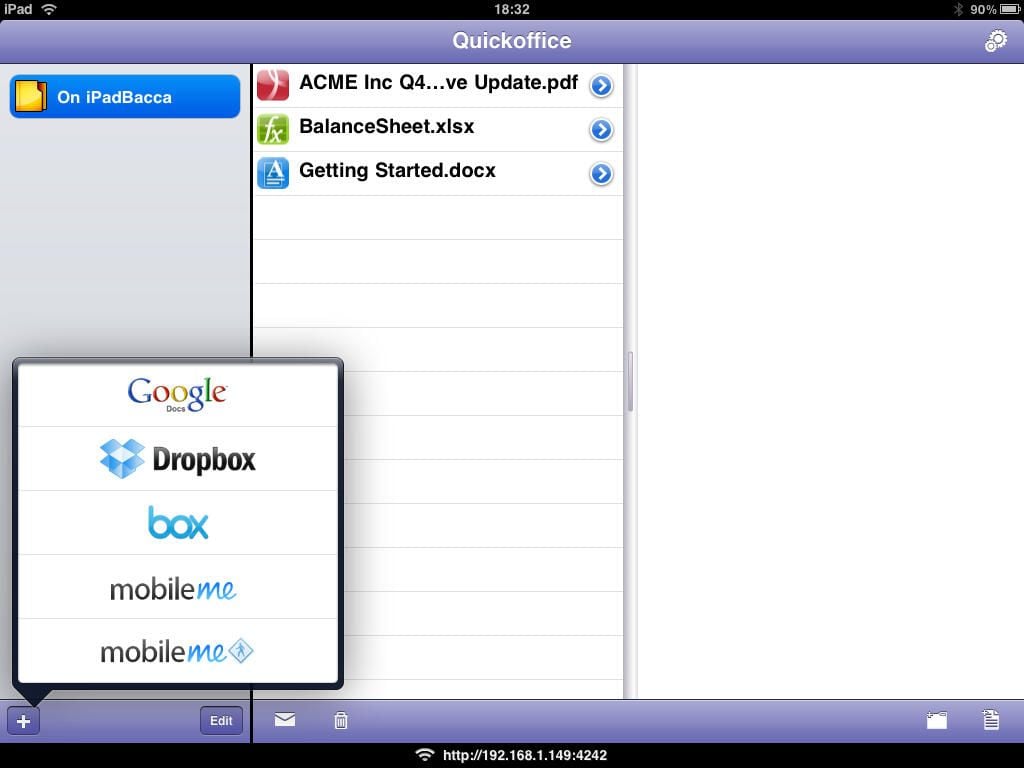
The competition to the iWork suite of software is coming out hard and fast and it looks like Quickoffice was able to add the functionality of Documents To Go with the eye candy and user interface elements of iWork. IMHO, it is a steal at the $10 introductory price and highly recommended.
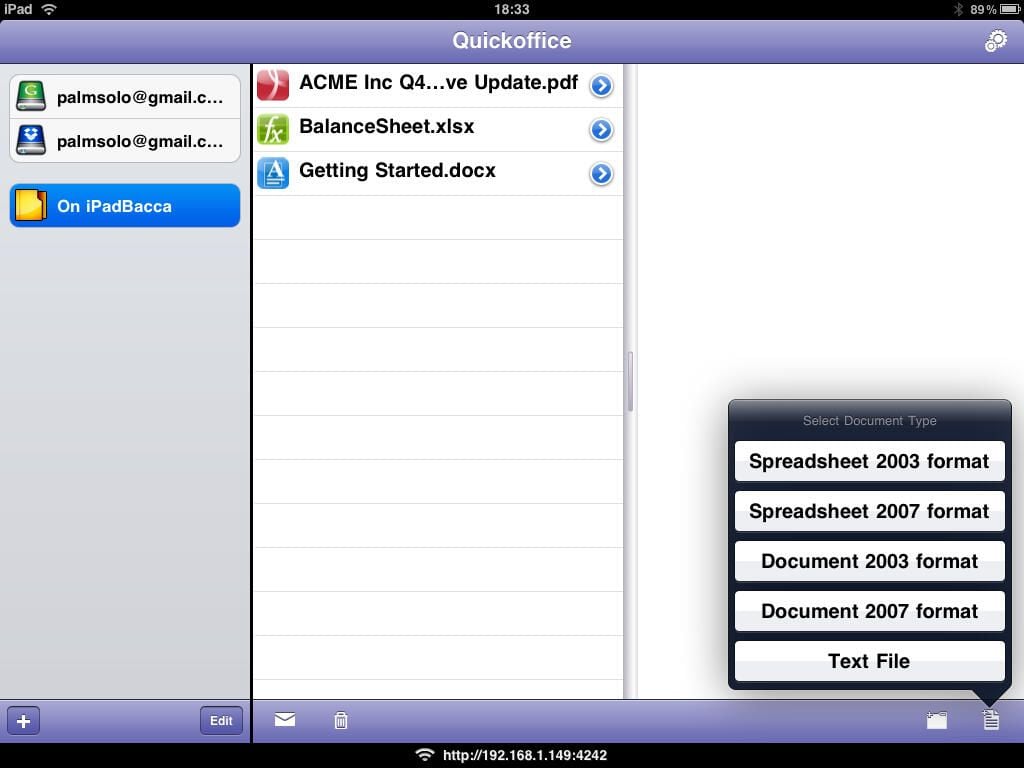
You have five choices for new document creation. Note that there is currently no PowerPoint support.
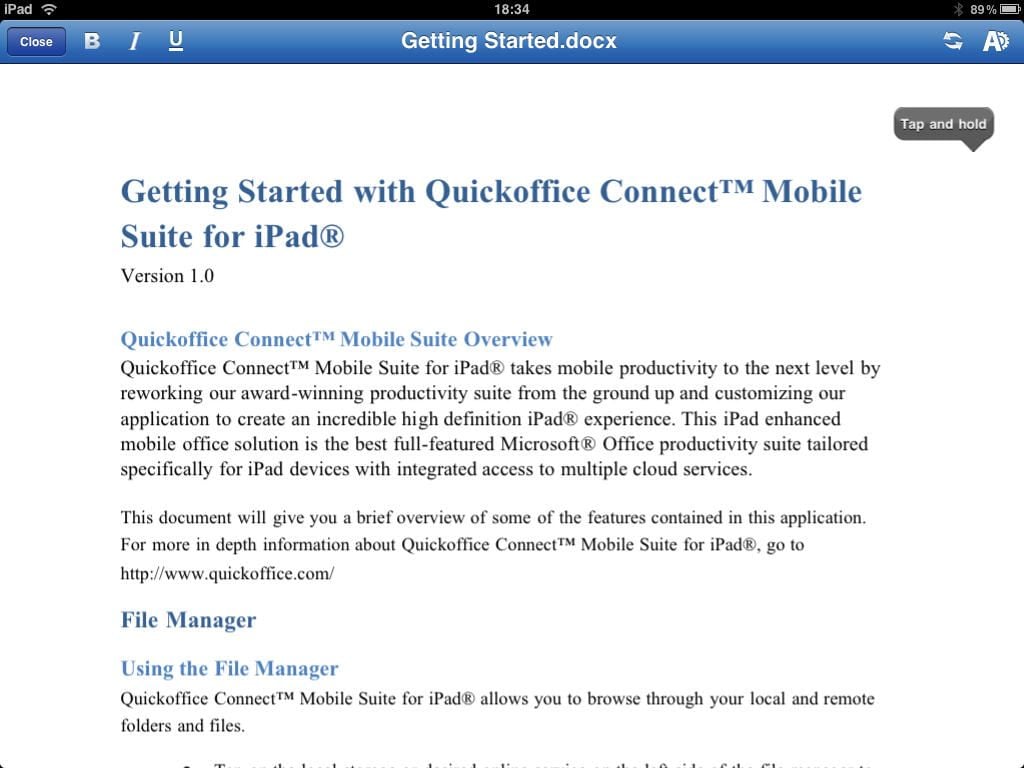
A basic view of the word processor module, Quickword, with Page Layout Mode.
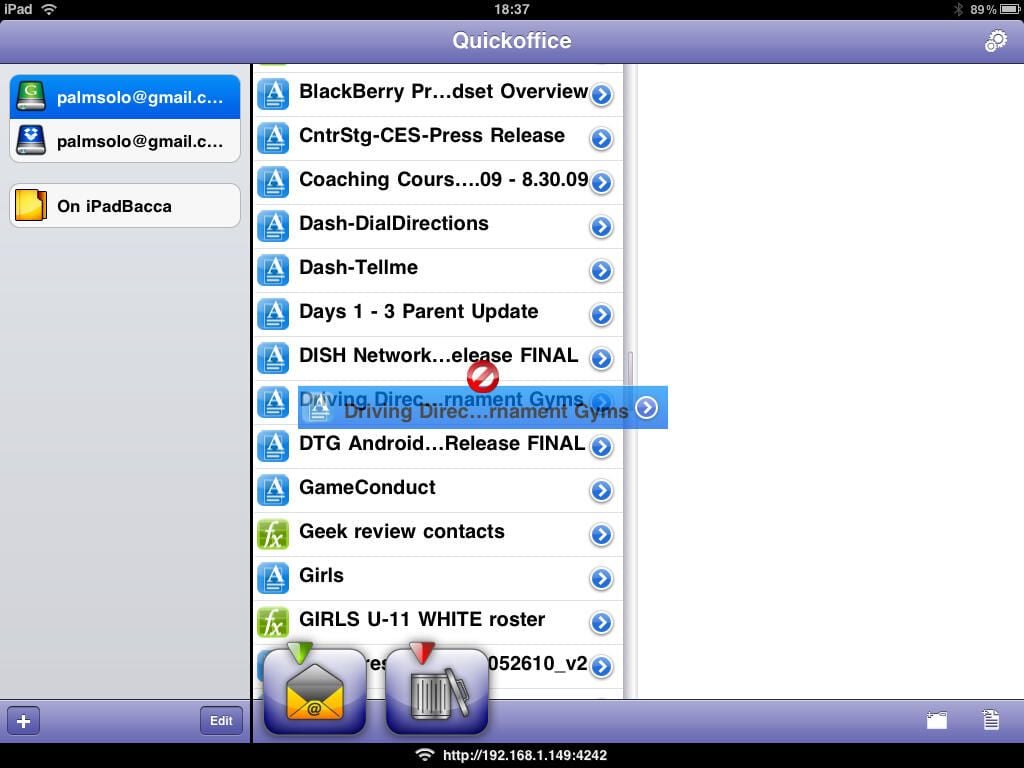
Tapping and dragging a file in the File Manager.
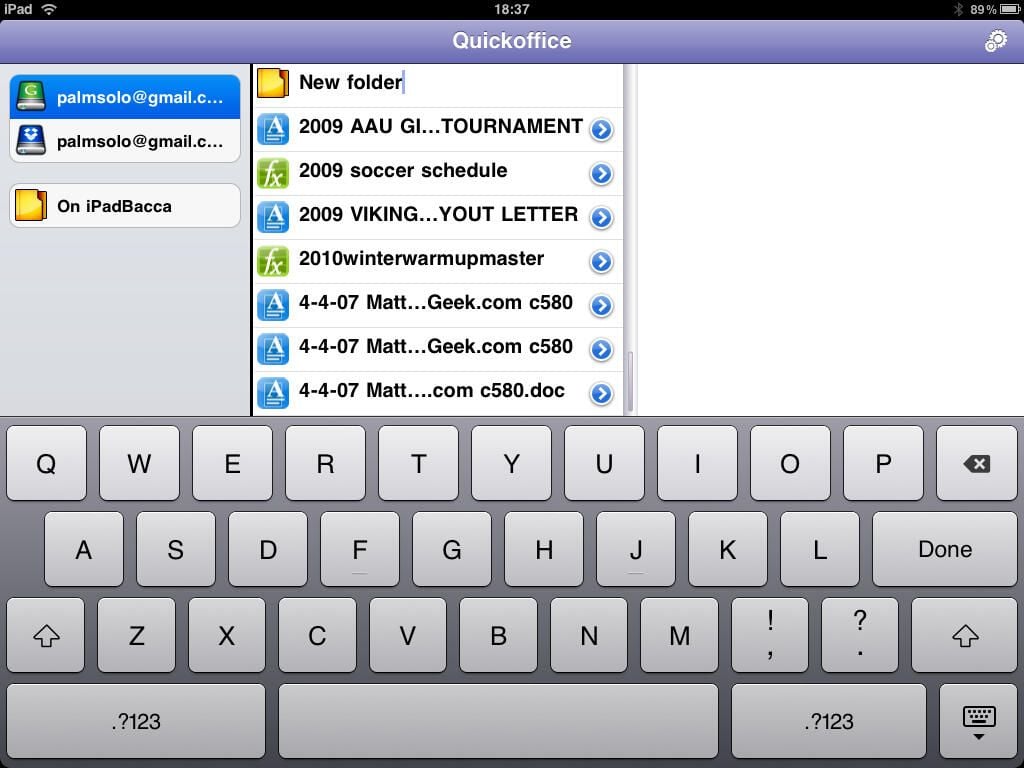
Creating new folders in the File Manager.
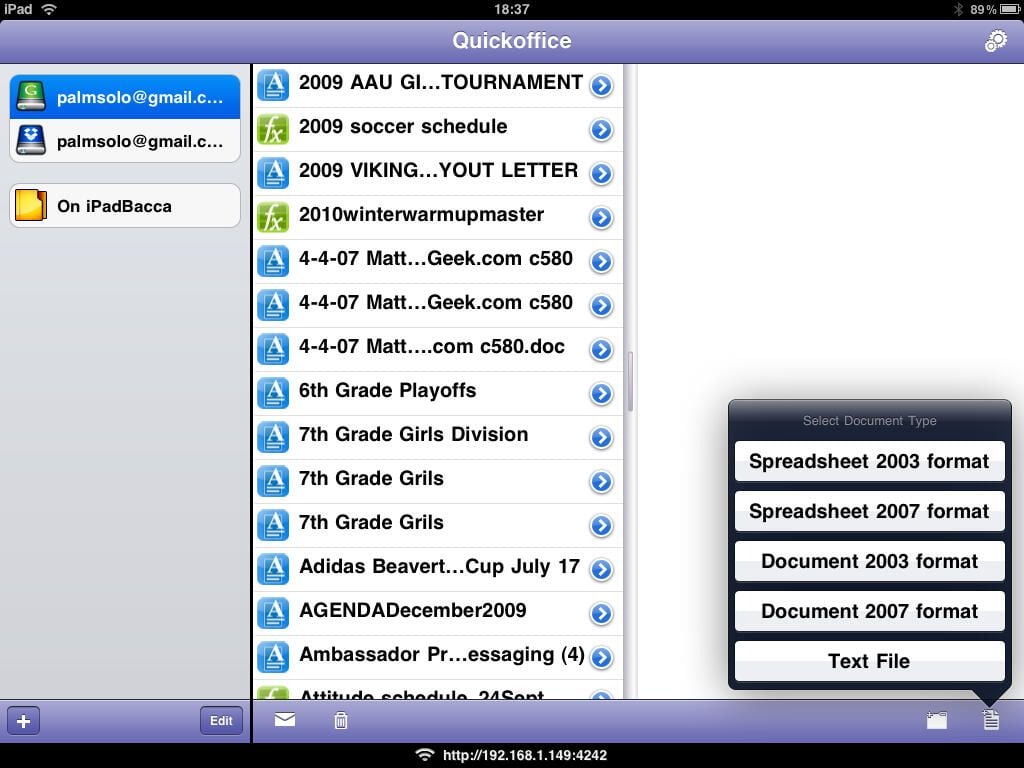
Creating new documents from the File Manager.
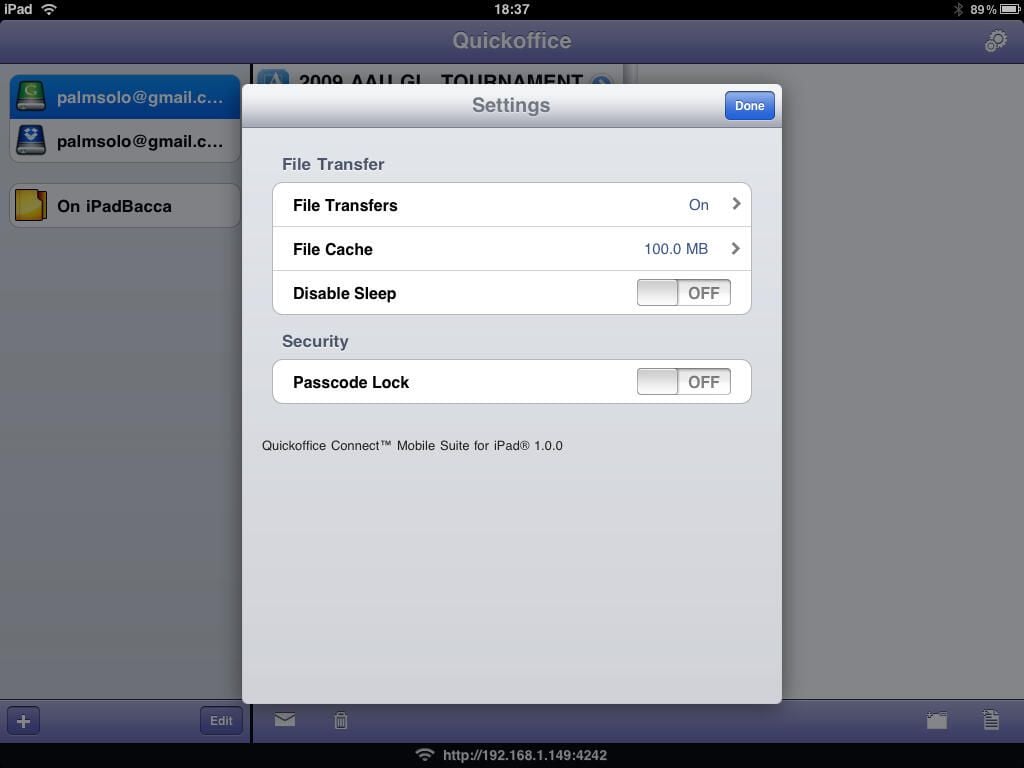
After selecting the Settings you can toggle file transfers, file cache size, and passcode lock.
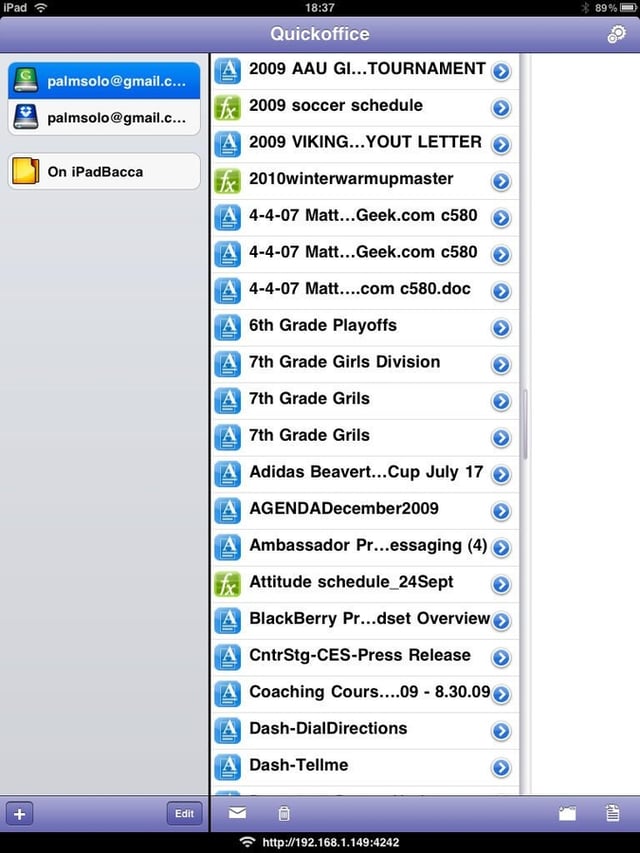
This screen shows all of my Google Docs after syncing up to the cloud.
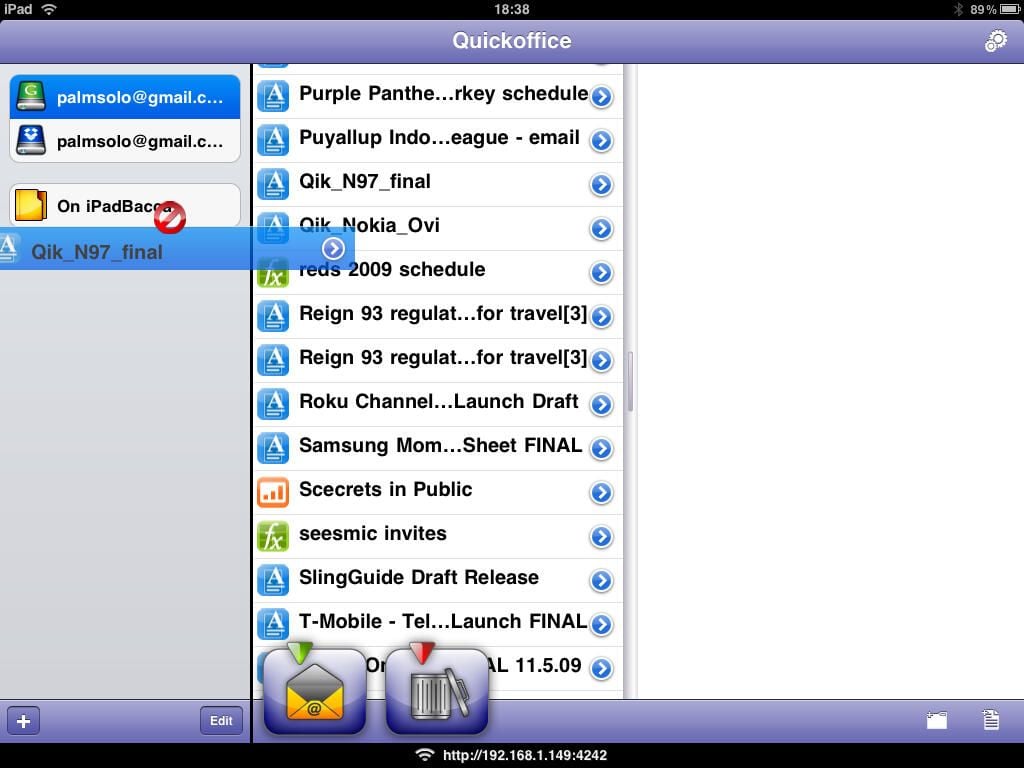
You can simply drag and drop files from the cloud to the local storage location.
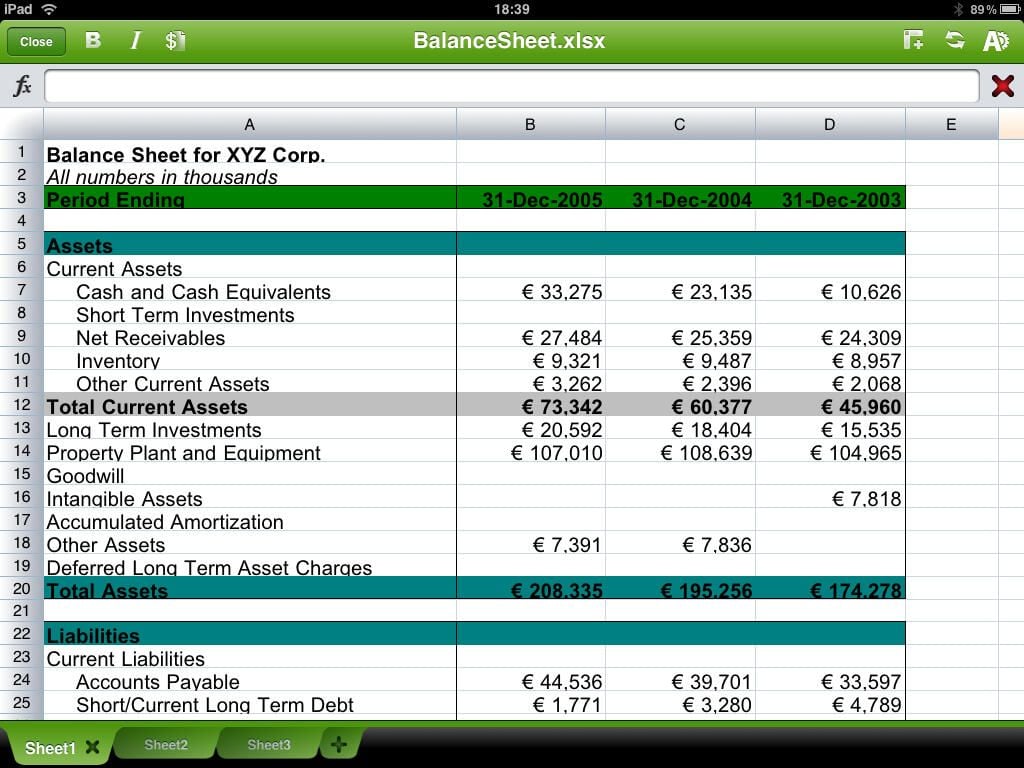
Spreadsheets look fantastic in Quickoffice and are easy to work with.
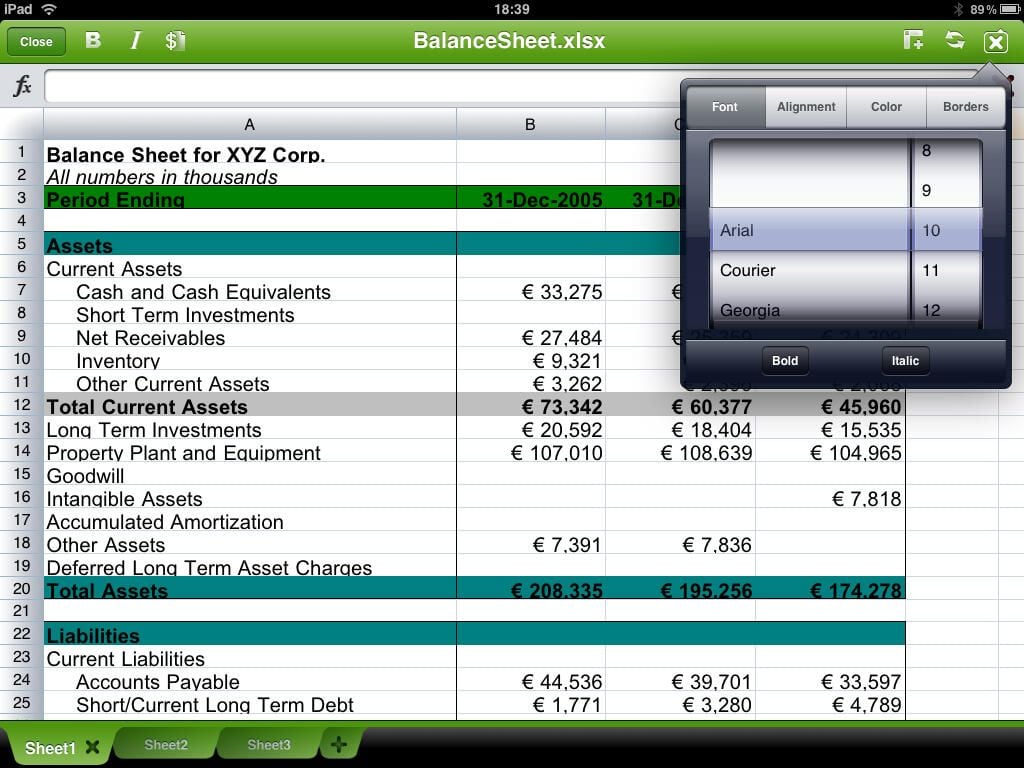
There are several cell formatting options available in the upper right of the screen.
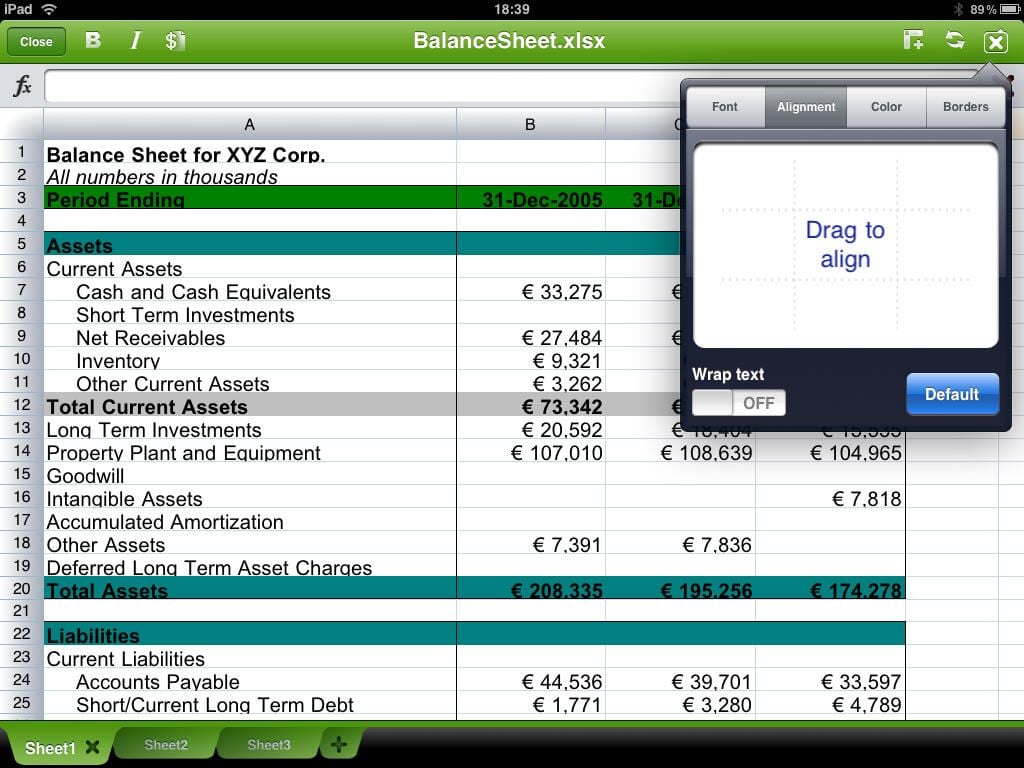
I LOVE the way you can use the visual elements of the iPad to setup alignment by tapping and dragging in the upper right box.
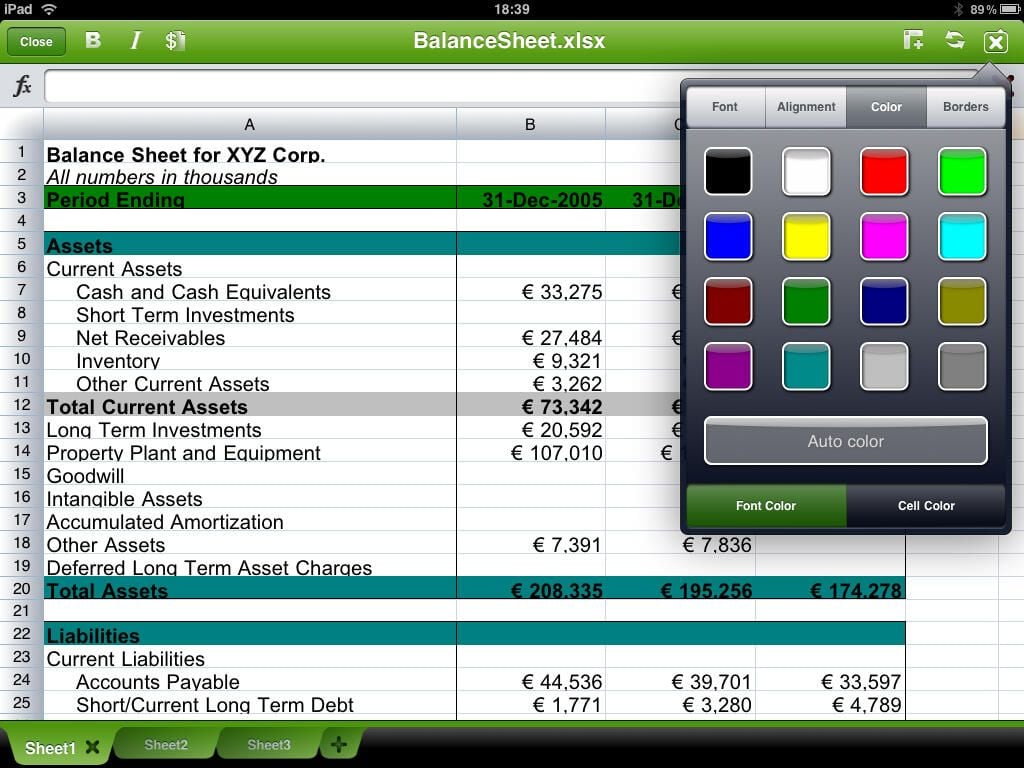
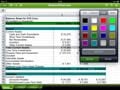
There are 16 color options for fonts and the cells.
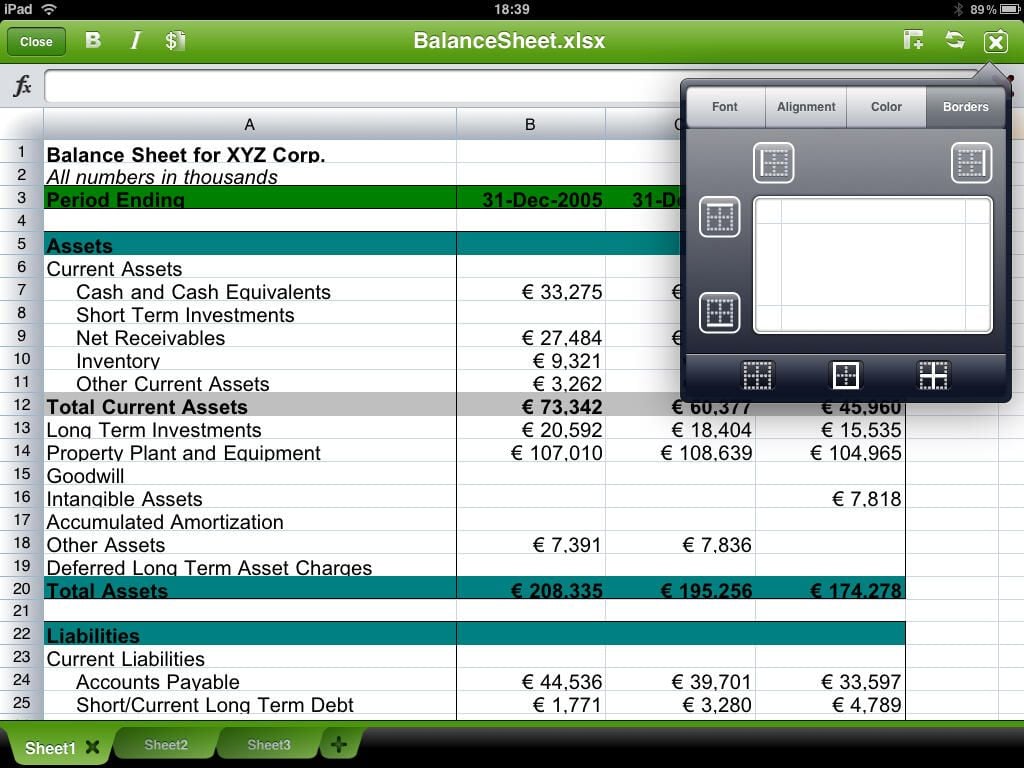
By tapping on the different boxes you can see what border is being applied. Tapping off the border settings sets the border.
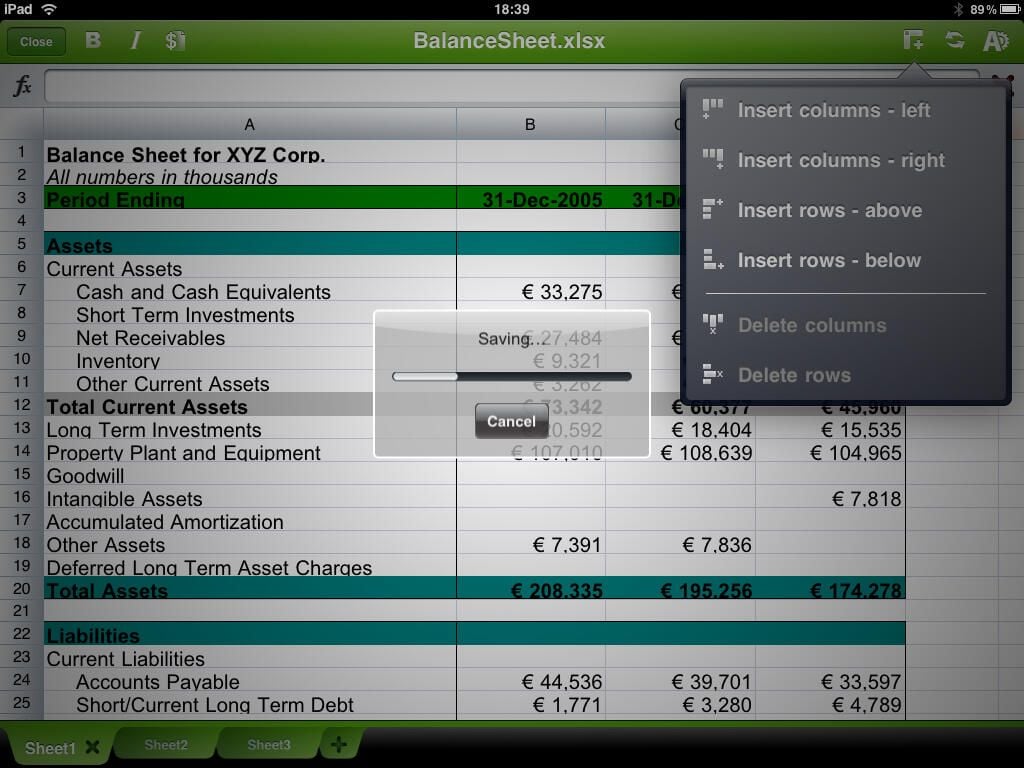
You can easily insert columns and rows, as well as delete them if you want.
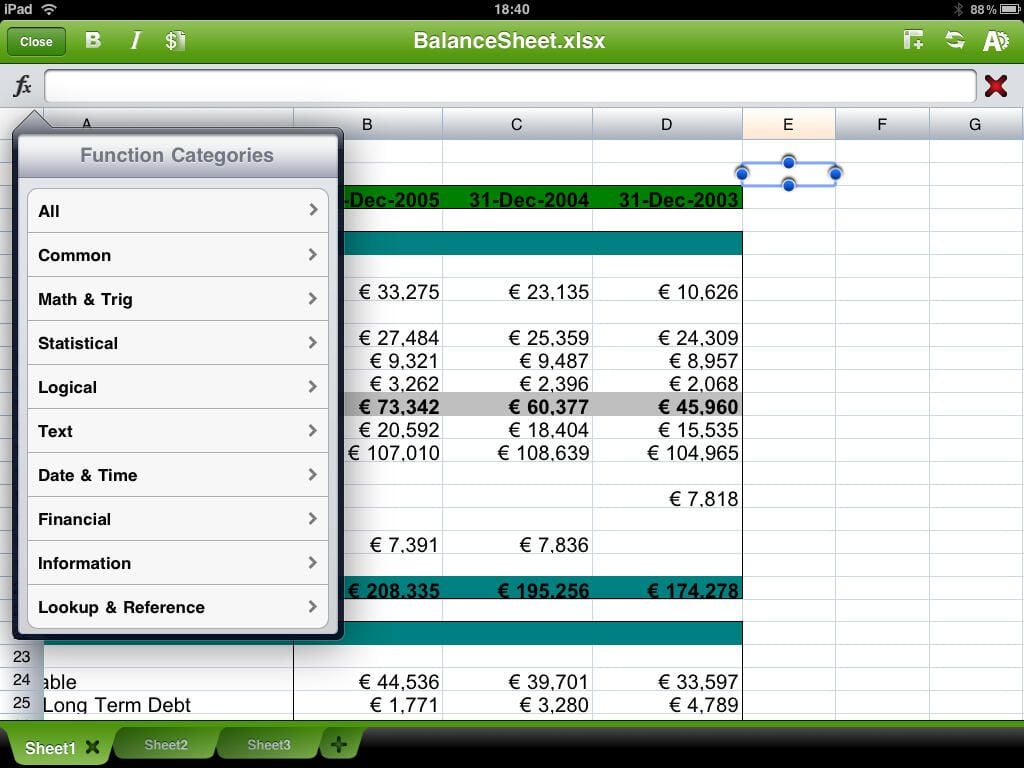
There are a ton of formulas available in Quicksheet and you can tap on them to choose, rather than typing it in yourself.
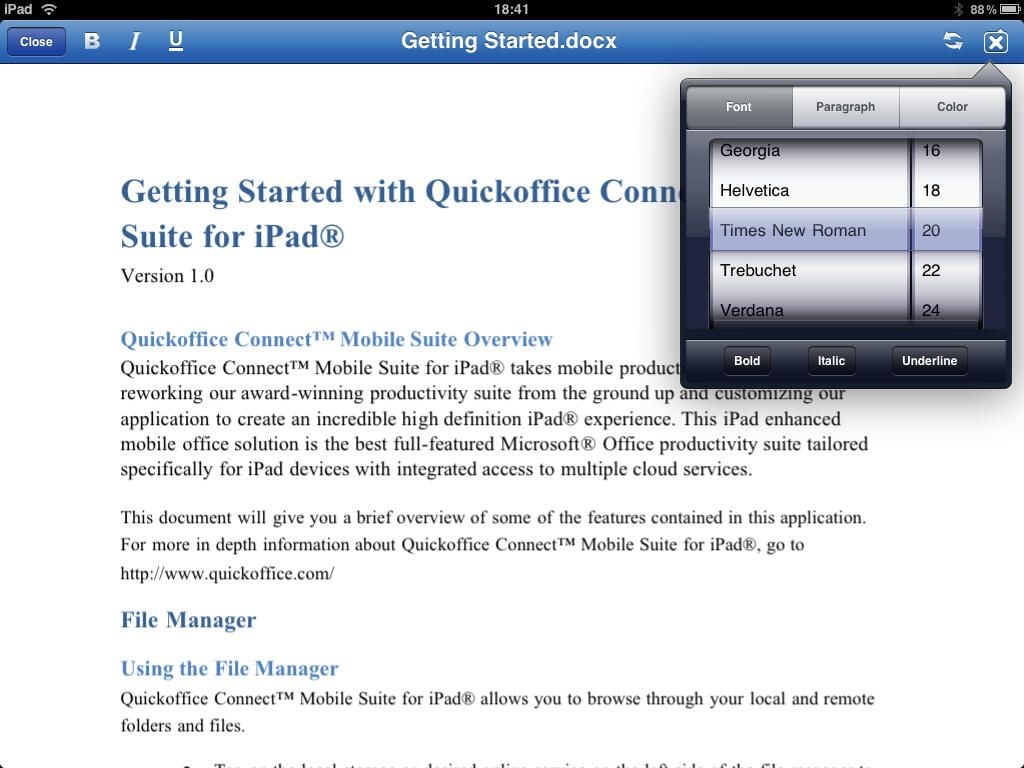
Font types, sizes, and characteristics can be changed quite easily with the upper right menu.
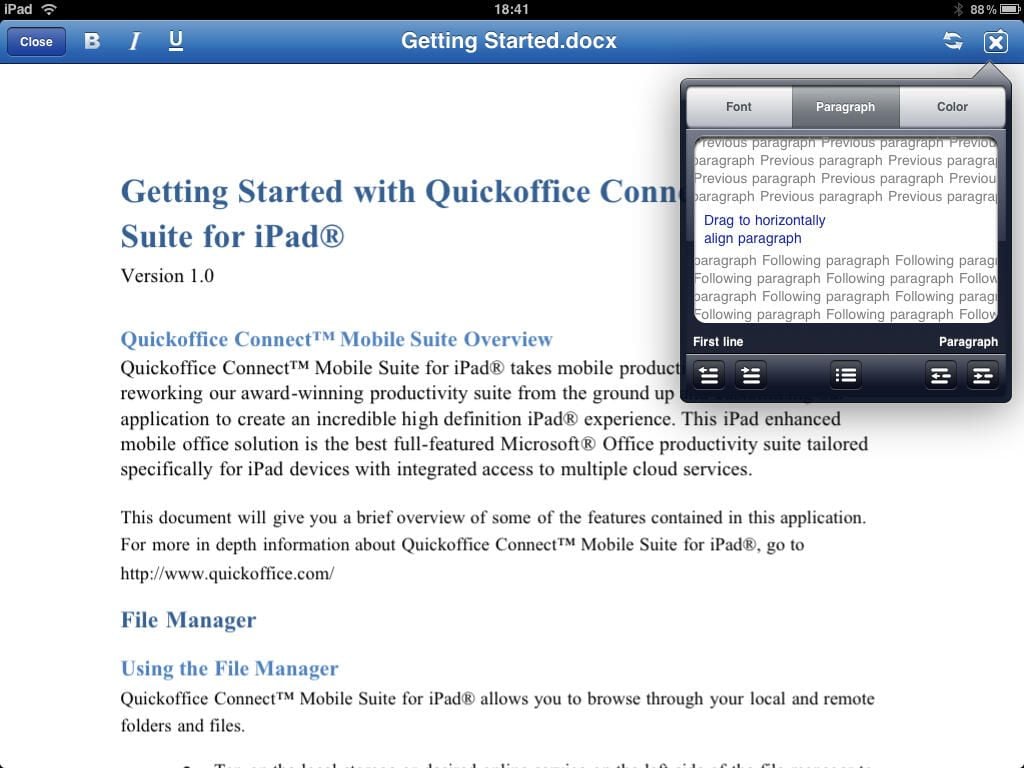
Similar to cell alignment you can easily visualize the paragraphs in Quickword.
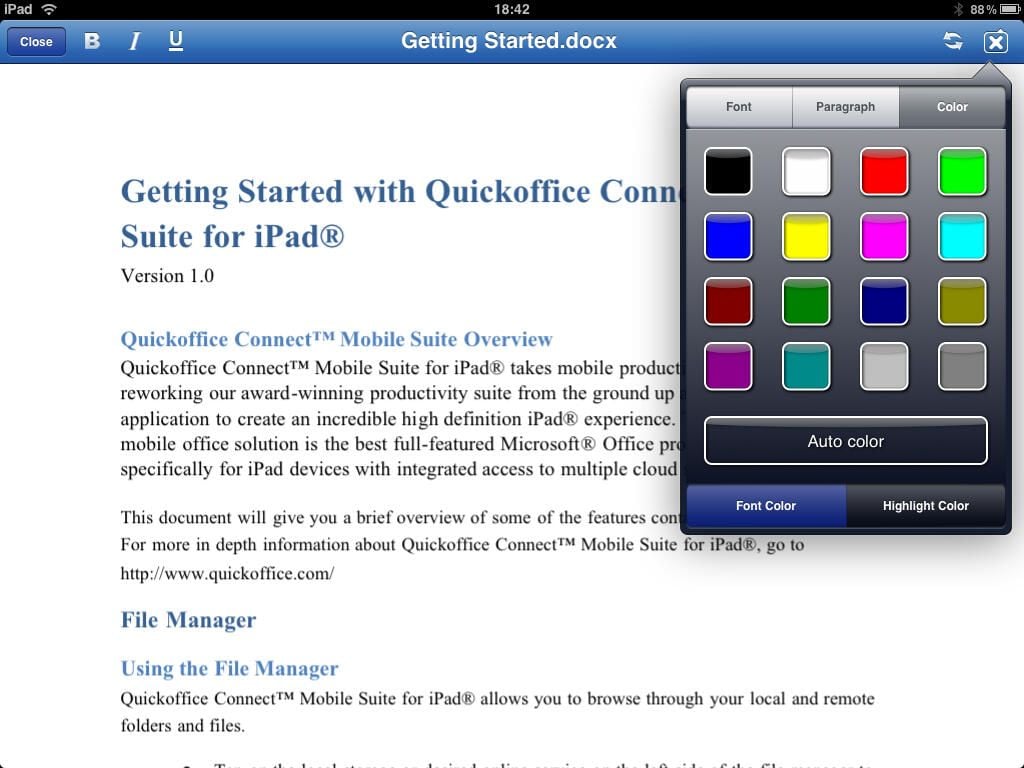
The same 16 available colors are present in this module.
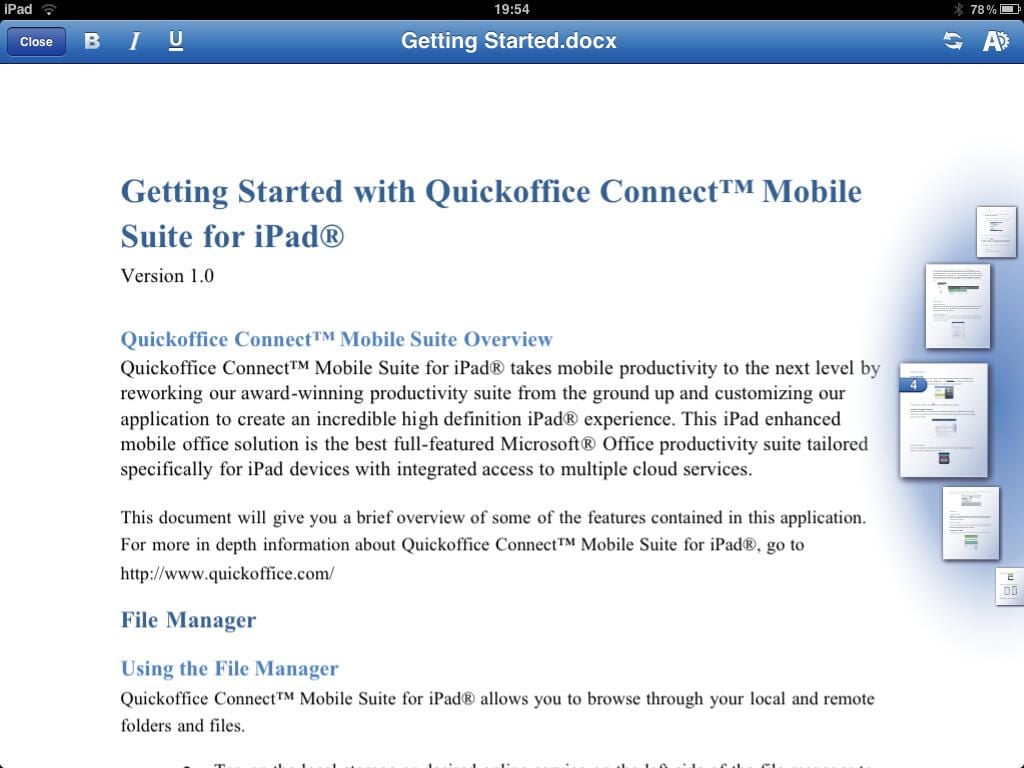
Tapping and holding on the right of documents lets you quickly visualize and flip to pages you want to visit.
Thumbnail 1
Thumbnail 2


