By Matthew Miller
The HTC Advantage and other Pocket PC/Professional/Classic devices are high-powered Windows Mobile products, but they are not always the easiest to use for quick data access. Spb Software House launched Spb Mobile Shell 2.0 that gives you quick access to key information, a page of customizable shortcuts, and a speed dialer that can be accessed with simple gestures from any application.
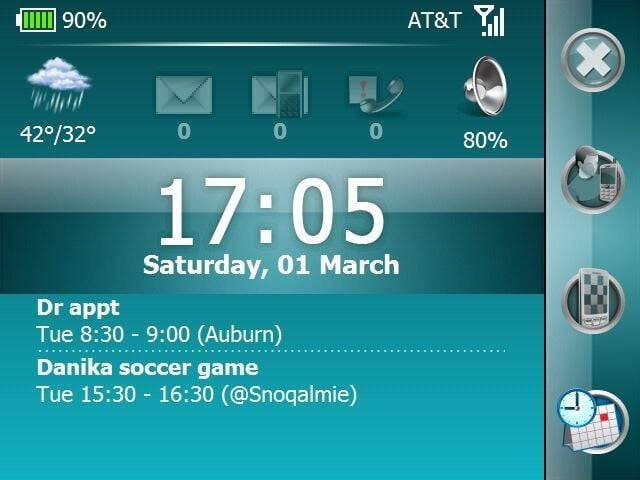
The Now panel shows you your most common data that causes you to turn on your device, including weather, time, notifications, appointments, and profile selections.
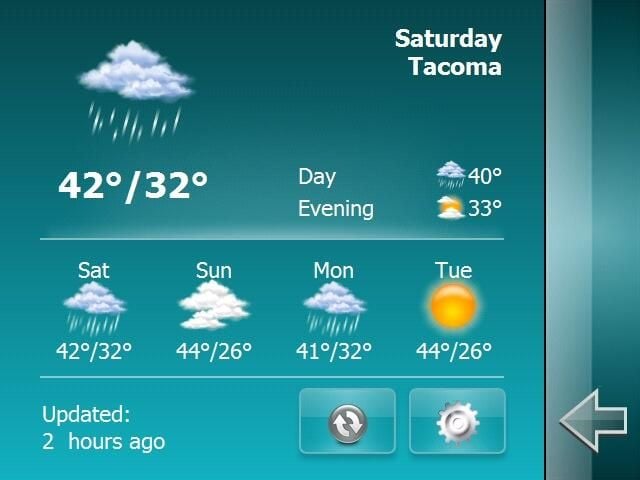
You can view more details of your local weather by tapping on the weather icon. A 4-day forecast is available for you to view on your device.
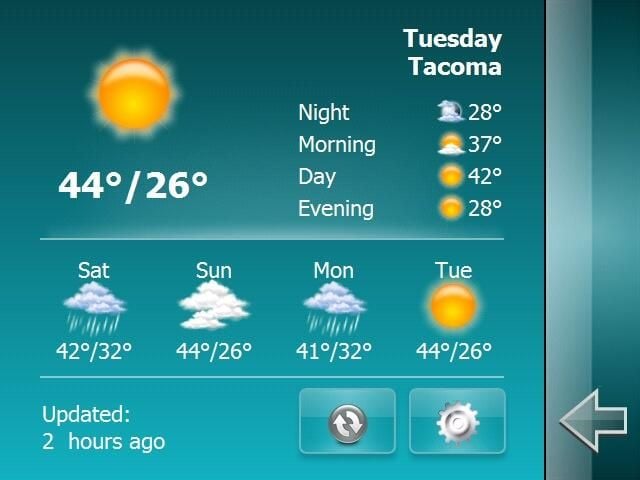
You can view details for any of the next 4 days.
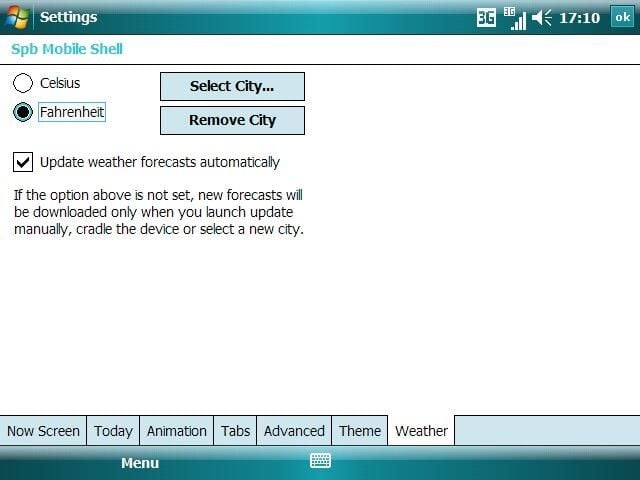
You can select from degrees F or C and also select the city you wish to view weather for. With the Spb Weather utility you can also add multiple cities and more detailed weather information.
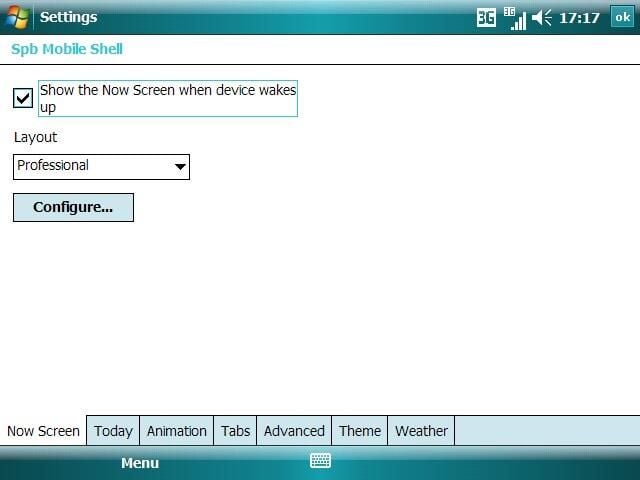
The broad Now screen settings let you choose when the Now screen shows up and what the layout template (Professional or Classic) will be.
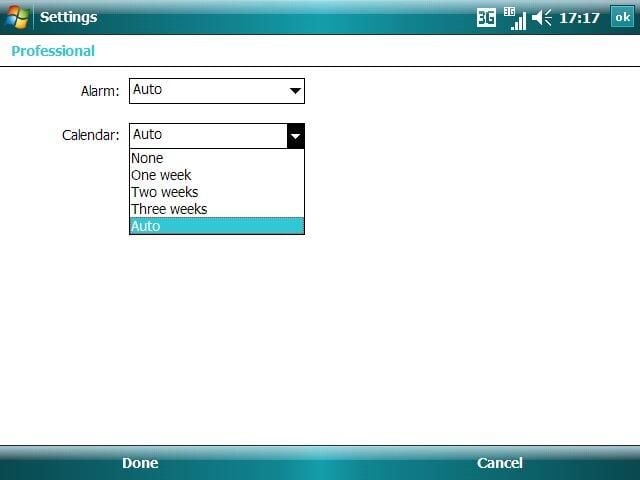
You can select what alarm and calendar information appears on the Now screen.
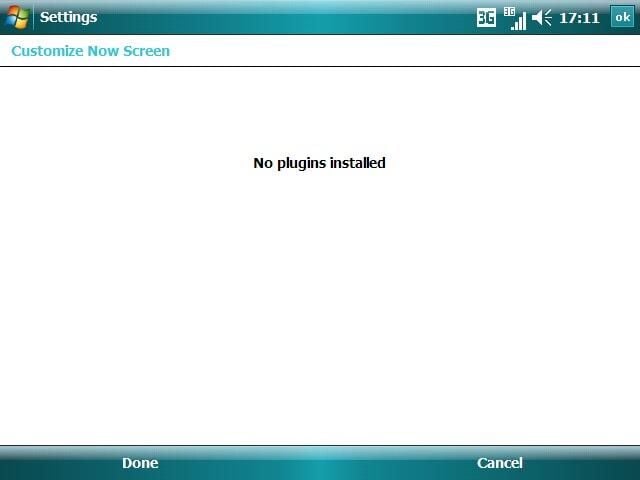
If you have other Spb plug-ins, like Weather or Diary, then you can manage them here to control how they work with the Now panel.
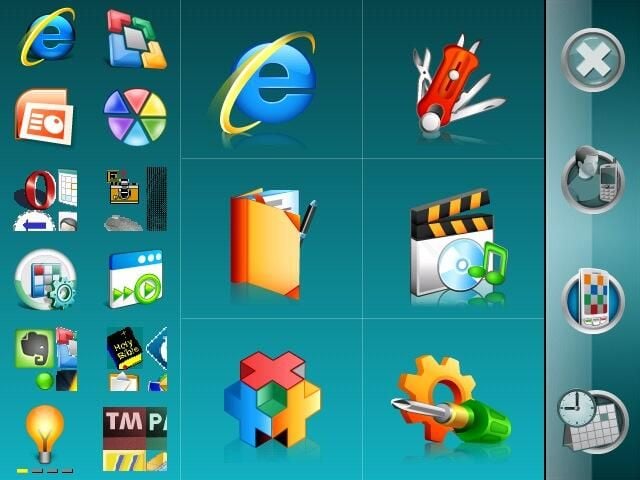
This panel gives you quick access to most recently used applications, utilities, and settings with most of the display customizable to meet your needs. Notice the very large finger-friendly icons.
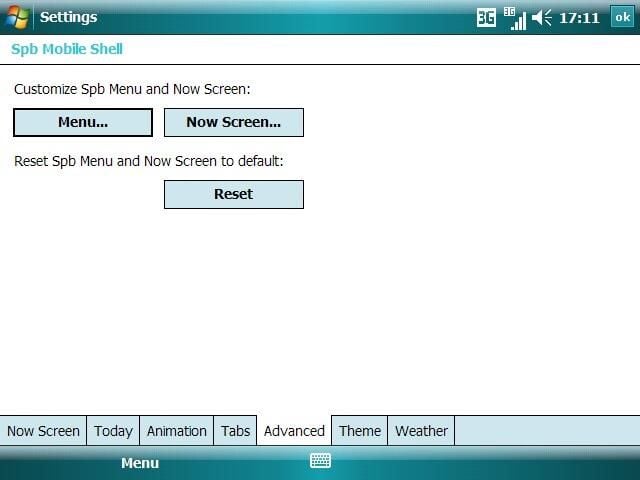
You can customize the Spb Menu and Now panels using these advanced settings. You can also reset to the default settings on this tab.
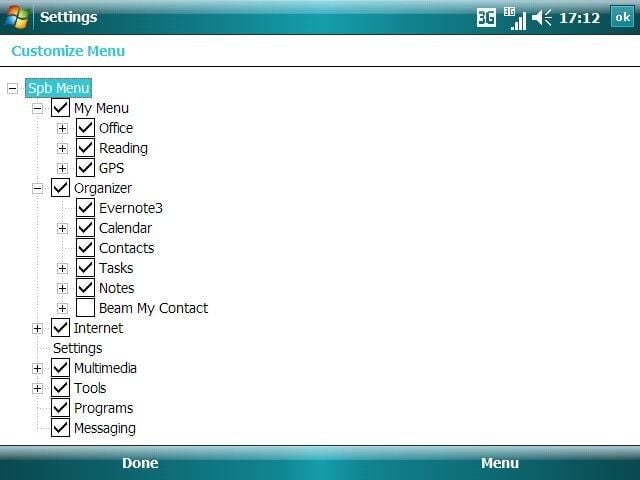
The tree structure lets you tap the check box to show the specific menu and contents.
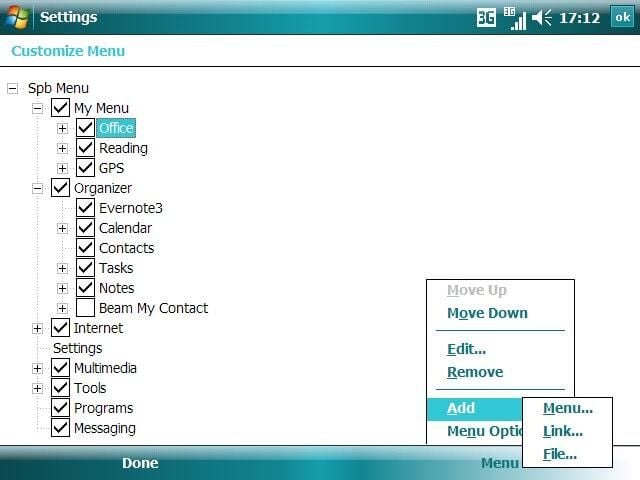
You can add menus, links to applications, or links to folders. You can move menus up or down, edit them, or remove them too.
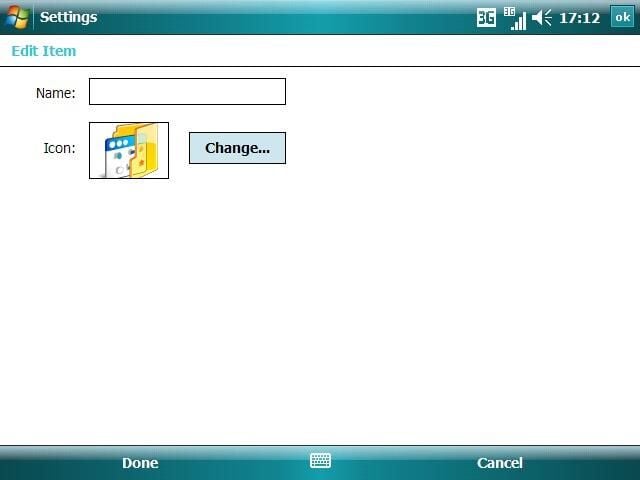
You need to name your new menu and then you can select an icon to be displayed in Spb Mobile Shell.
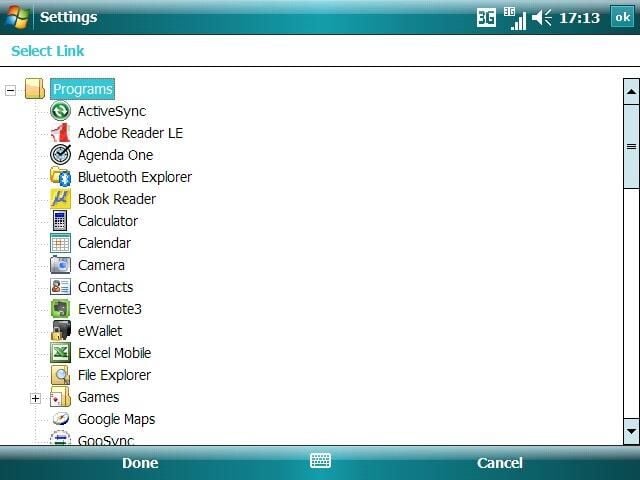
You can choose which application to assign to your custom menus using this easy selector.
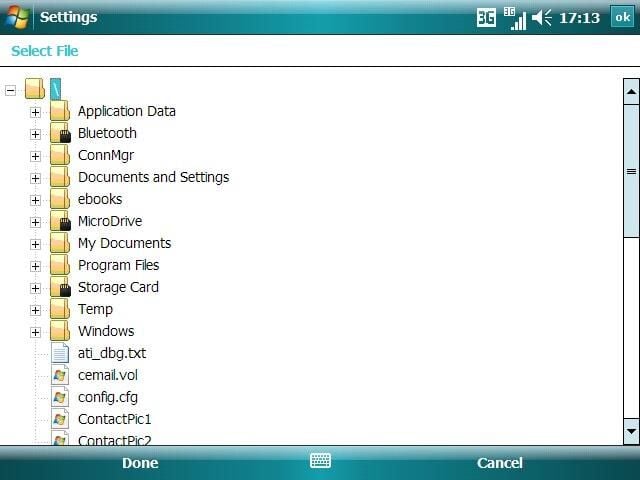
You can also setup quick access to common folder that you use all the time. This can be quite helpful for making your device more efficient.
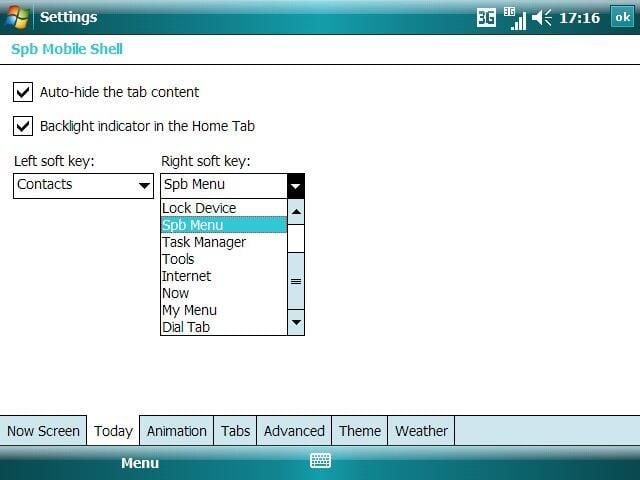
Windows Mobile Professional/Classic devices have a Today screen and with these settings you can set how Spb Mobile Shell will work with the Today screen. You can also customize the left and right soft keys on your Today screen.
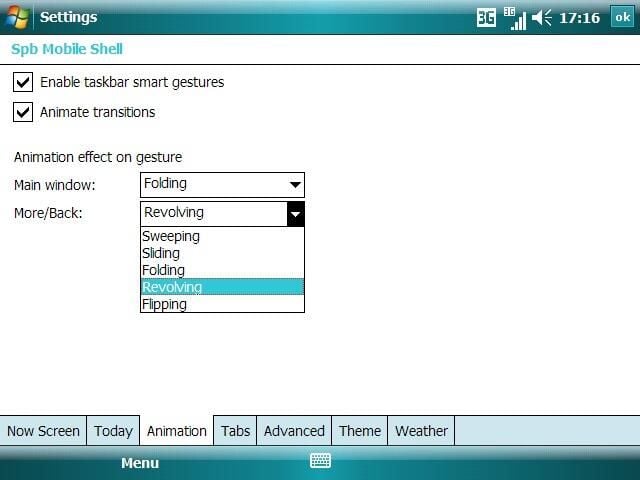
The taskbar smart gestures let you quickly get back to Spb Mobile Shell from any application. Transitions can be animated and there are 5 types of animations to select from in the application.
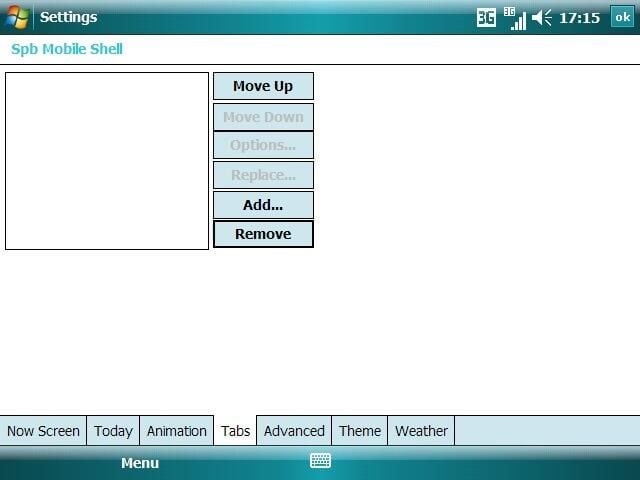
Different tabs can be used to show different plugins you have loaded on your device.
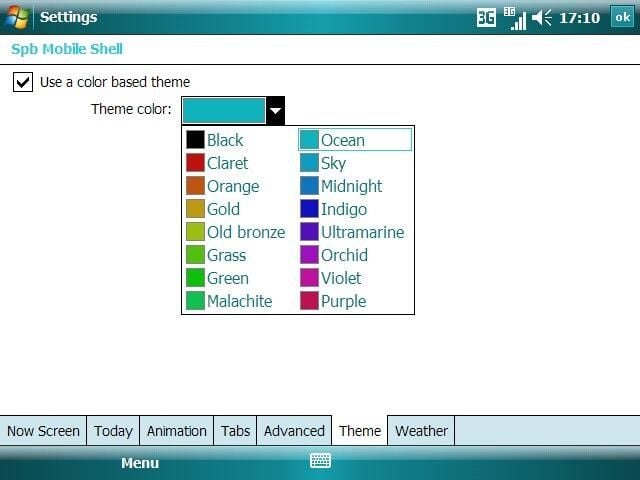
16 different color themes are available for you to choose from. I used the Ocean theme for my review.
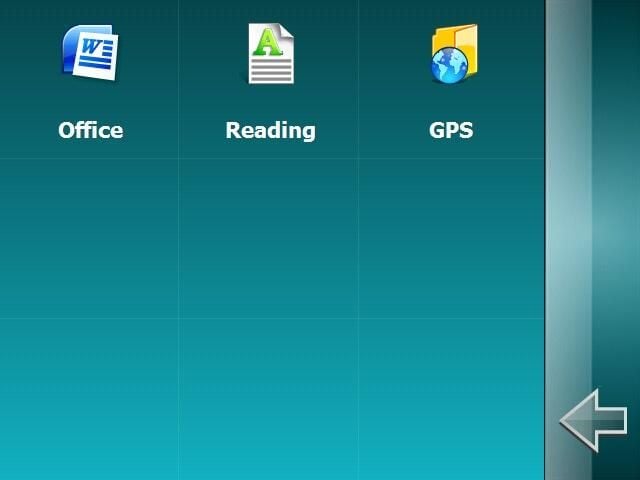
This is what My Menu custom menu looks like on the first level.
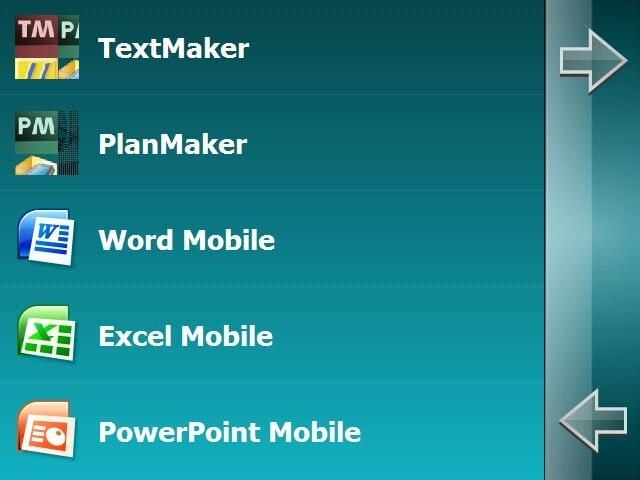
On the second level down you will see the applications that I assigned to the Office category.
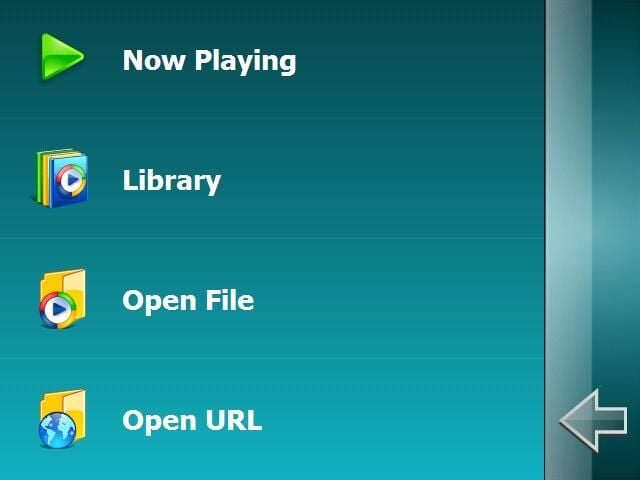
Spb Mobile Shell also changes a few of the default application menus to make it easier to manage and use your device. The Media Player menu give you quick access to your media.
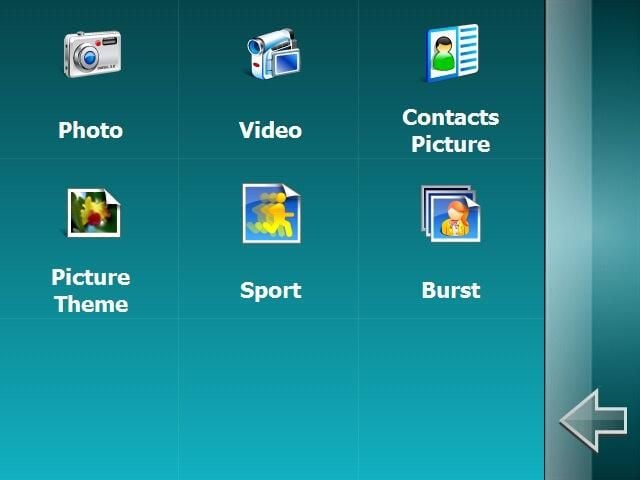
The Camera menu lets you quickly choose from a photo or video option with other settings available as well.
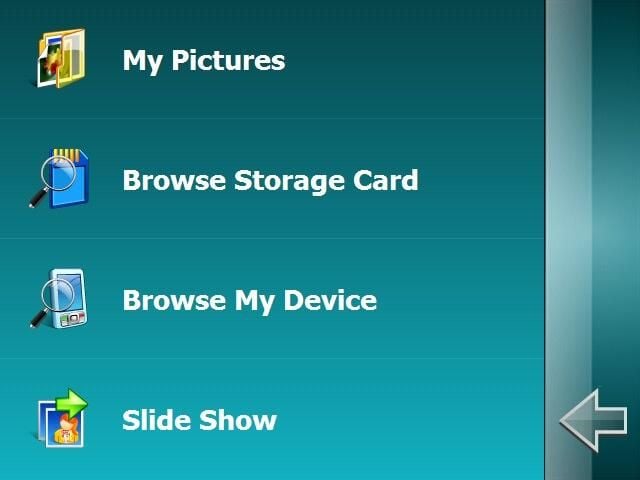
The Pictures menu also has some quick settings and functions integrated by default. You can select which of these to show in your menu customization settings too.
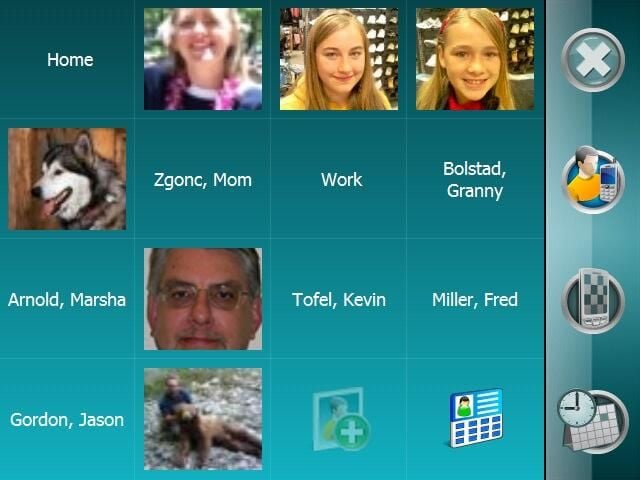
The third and final panel available in Spb Mobile Shell 2.0 is the Speed Dial panel. You have 15 custom speed dial slots available to setup.
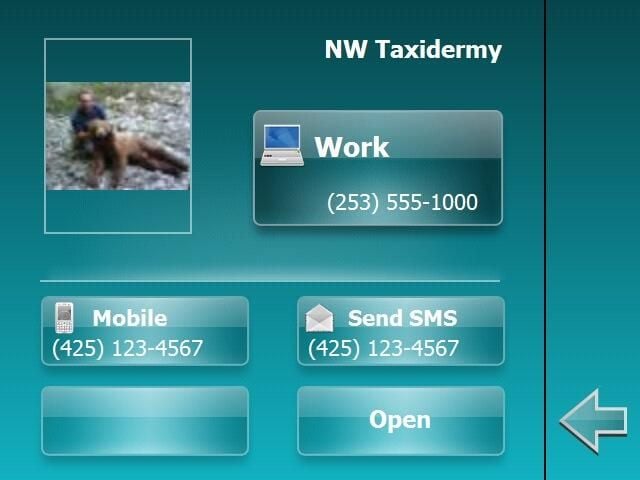
Selecting one of your speed dial icons brings you to another screen that gives you contact options like call or send text messages. You can also select to edit the contact.
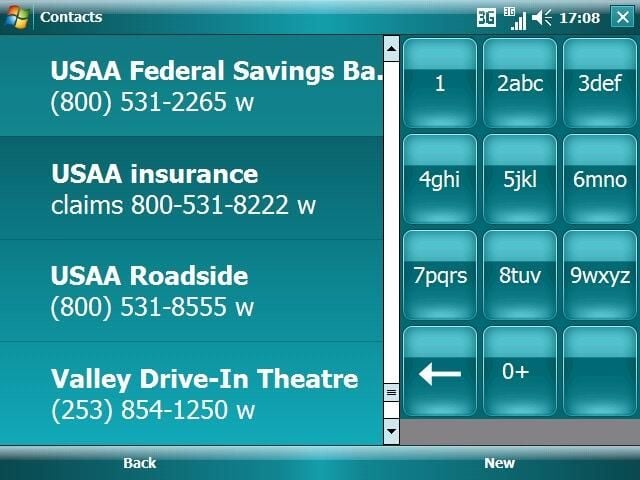
The 16th slot on the Speed Dial panel is for the phone dialer. As you start dialing contacts, the dialer filters your contact list using a smart filtering method to make dialing quick and easy on your device.
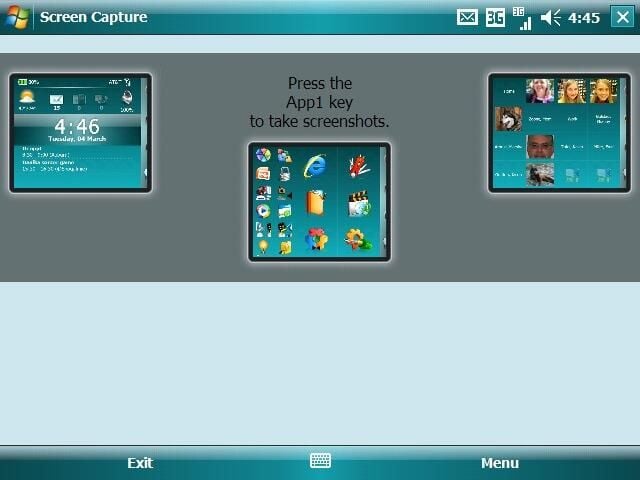
A very cool feature of Spb Mobile Shell 2.0 is the ability to quickly access Spb Mobile Shell from any application with a simple gesture down from the top taskbar. You can then slide your finger or stylus over the panel you desire to launch.
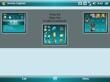
Image gallery thumbnail
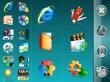
Image gallery thumbnail


