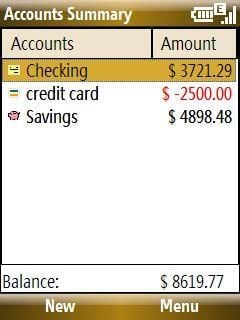
As we move to managing most of our money on the internet, it becomes more important to be able to track that data closely. With SplashMoney for Windows Mobile you can now view your banking information, manage transactions, setup budgets, track your spending, and more all from your mobile phone. You no longer have to wonder where all that money went and can see it disappear in full color on your device.
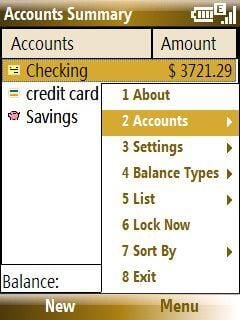
I tested out SplashMoney on a T-Mobile Shadow Windows Mobile non-touch screen device. There are several menu options available to setup the program, customize it to your liking, and use it effectively on the go.
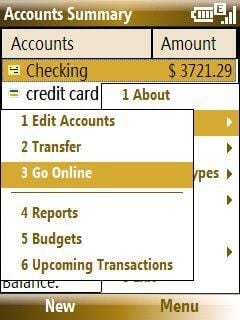
You need to create accounts to use the program and then you can even go online to fetch your banking data. Budgets can be setup and you can view reports to help you manage your money.
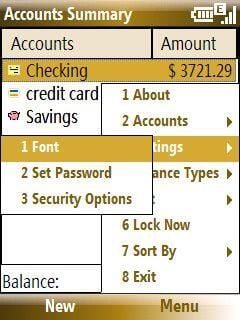
The font type, size, and characteristics can be selected to make your data most viewable to you.
Security settings let you establish an access password and set when you need to enter that password after you leave the program and want to restart it.
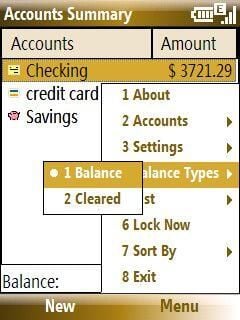
You can view your balance or cleared transactions with this menu option.
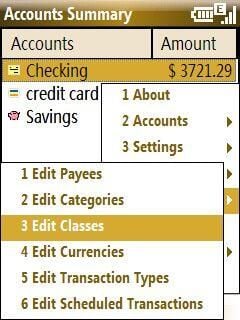
As you can see there are several edit options in SplashMoney on a non-touch screen device.
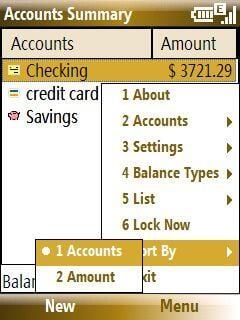
You can sort your main view by accounts or amount. This may become more important as you setup several accounts to use with the application.
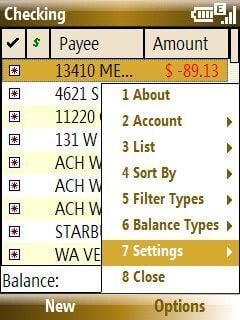
After you open one of your accounts, the menu options change a bit. There are many ways to customize the program to your liking.
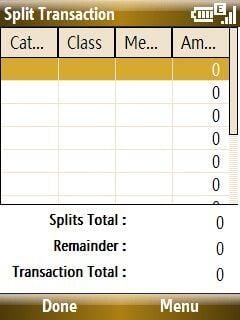
You can even create a split transaction with funds coming from different sources.
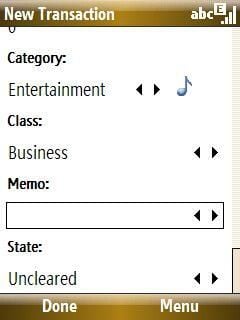
There are several fields you can fill out for a new transaction, including funding source, category, class, add a memo, and more.
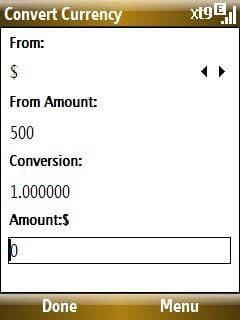
There is a currency converter included with the program in case you are traveling. However, you cannot update the exchange rate via your wireless connection. Hopefully, this feature is added in the future.
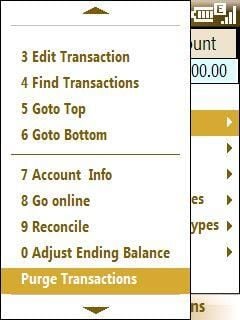
There are plenty of options within each account that let you do just about anything you desire with your banking data.
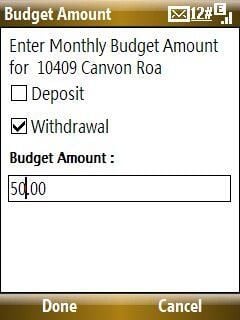
You can set budgets for individual payees so you can better watch your spending. This is something that I plan to use extensively with SplashMoney.
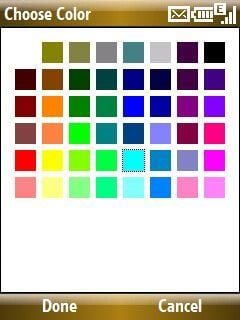
I find that the data is more viewable when you select a color. Every other line will use the background color you select and as you can see on later screenshots the data is easier to read.
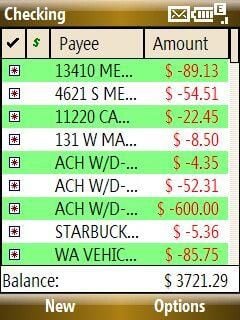
As you can see the green highlight makes it easier to distinguish between transactions. The payee and amount is shown in this view.
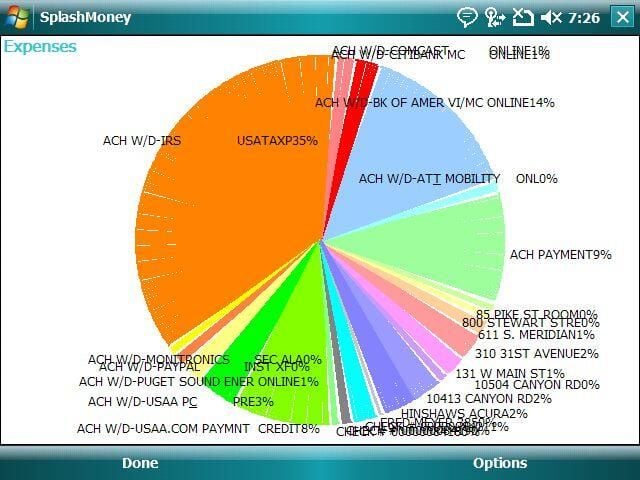
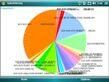
You can select what data and the range of time that you want to view with the chart options. This large chart is shown on an HTC Advantage touch screen device.
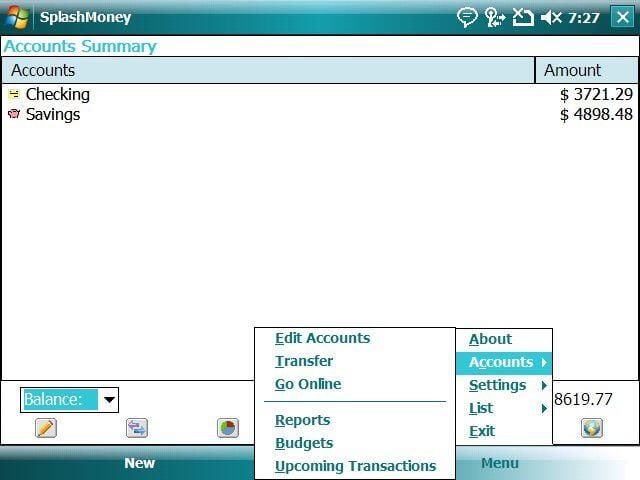
As you can see, when working with a touch screen device there are several icons at the bottom that let you quickly access different parts of the program without using the menu like you must on a non-touch screen device.
This screenshot was taken on an HTC Advantage with RealVGA running.
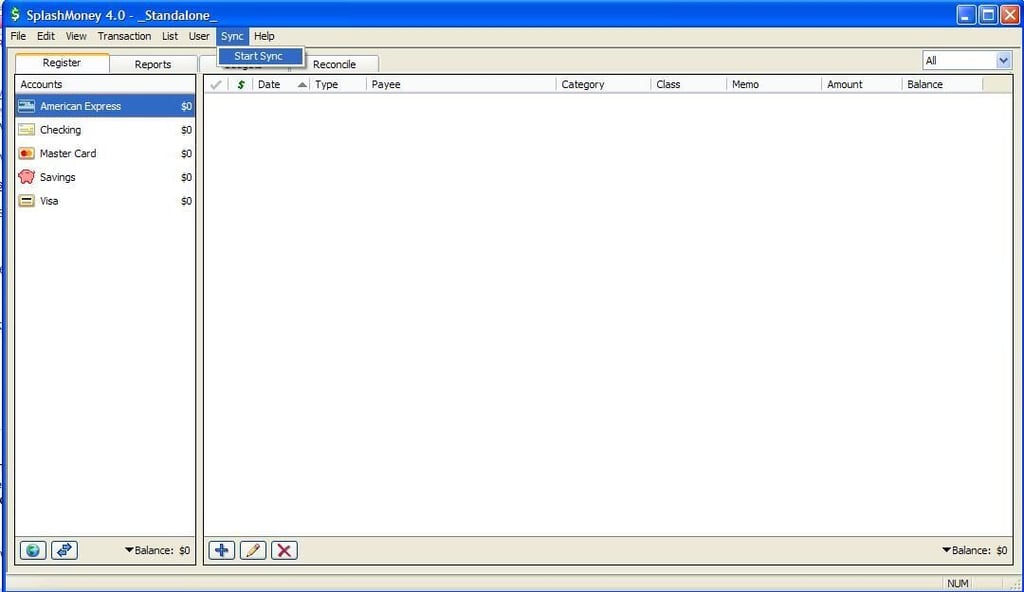
A desktop conduit application is included with the purchase of SplashMoney or you can even purchase it separately as a stand-alone product. The Windows desktop client (they also just announced a Mac version) lets you sync to your Windows Mobile device (notice the sync option in the upper center area).
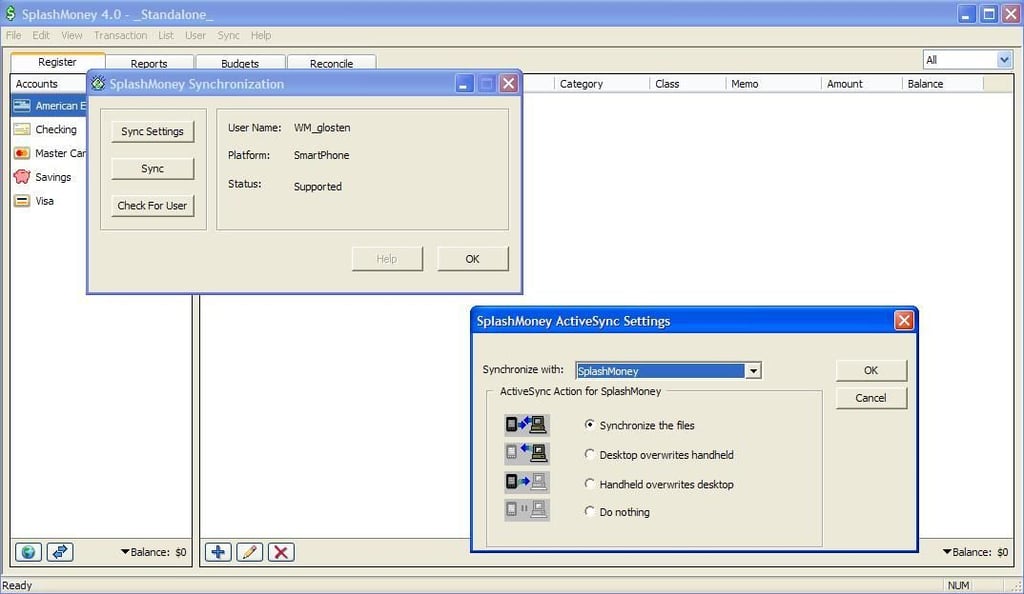
There are a few ways of establishing and conducting sync operations with SplashMoney. It is easier to use the desktop client to setup budgets and other management settings and then have those synced to your device.
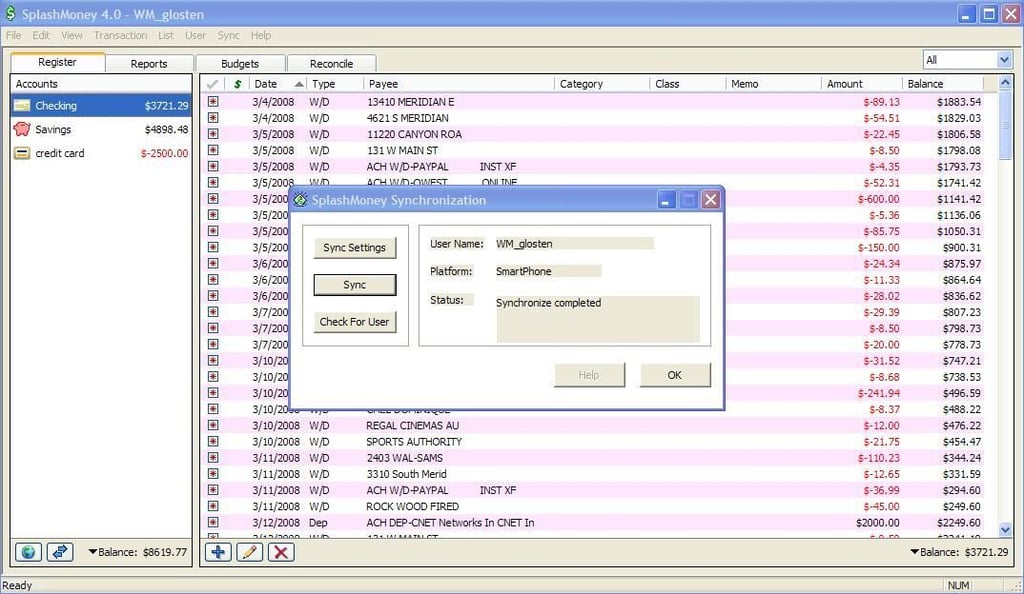
The popup display shows you the status of your sync operation.

Thumbnail 1 for review post
Thumbnail for blog post


