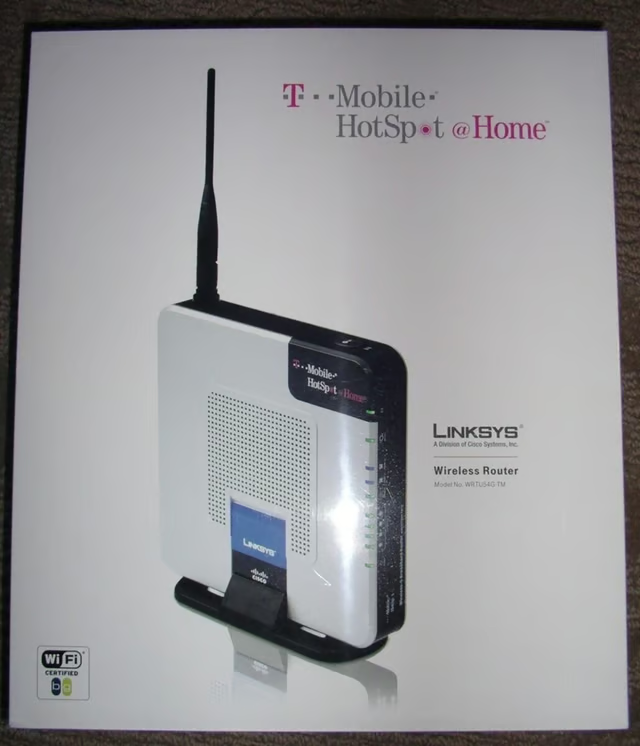
By Matthew Miller
T-Mobile may not have a 3G data network, but they are on the cutting edge with helping people ditch their home phones and use VoIP services. The latest service allows you to use your standard home cordless phone with a new T-Mobile line. The service does require a new special modem, available for US$50 with 2-year commitment.
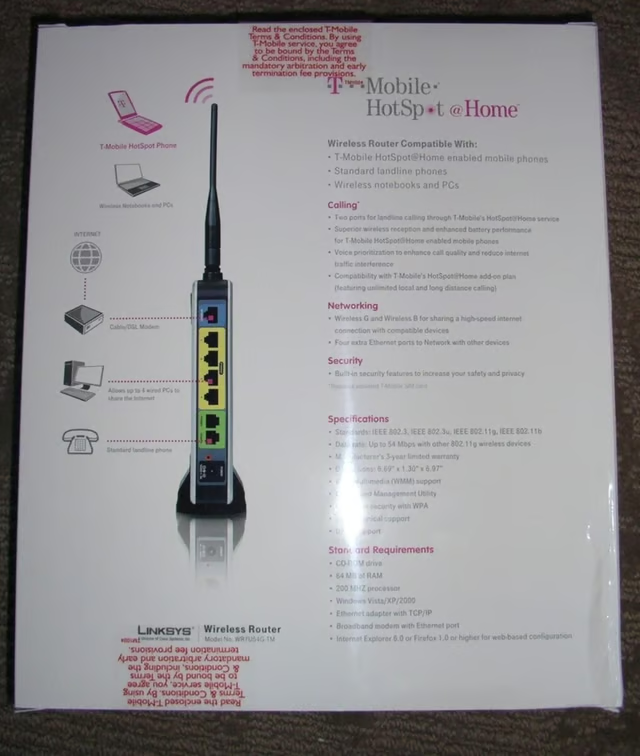
The back of the retail package shows the ports on the router in clear colored detail.
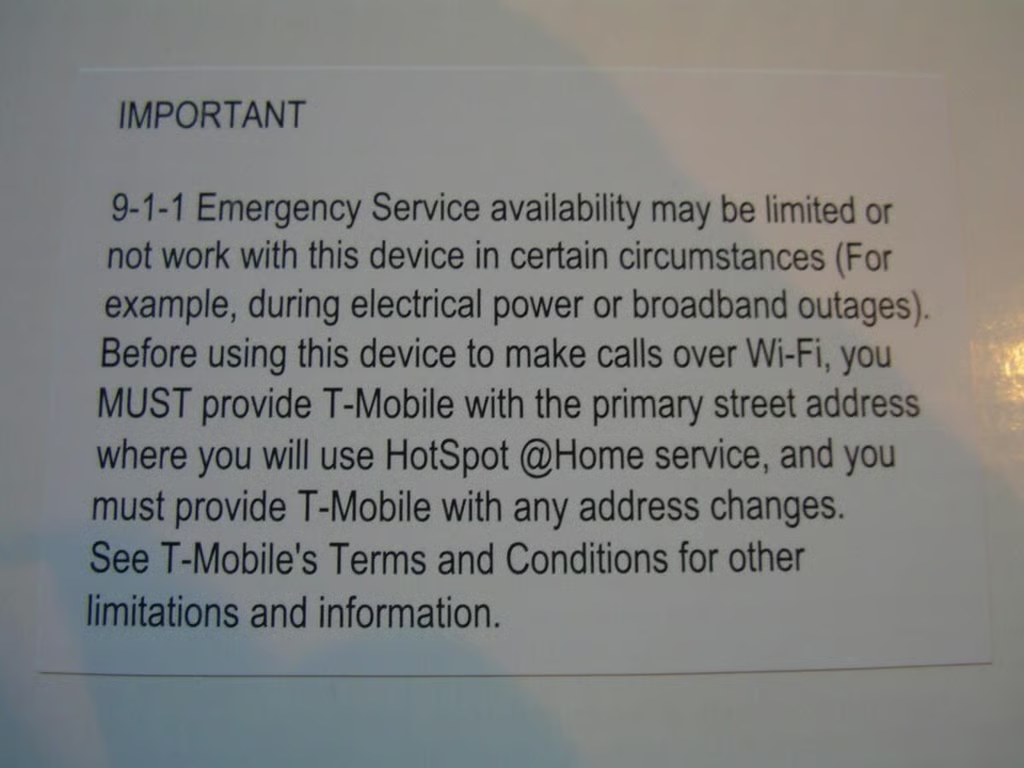
There is a plain and simple 911 notice on the inner package that makes sure you call and register your address for 911 service.
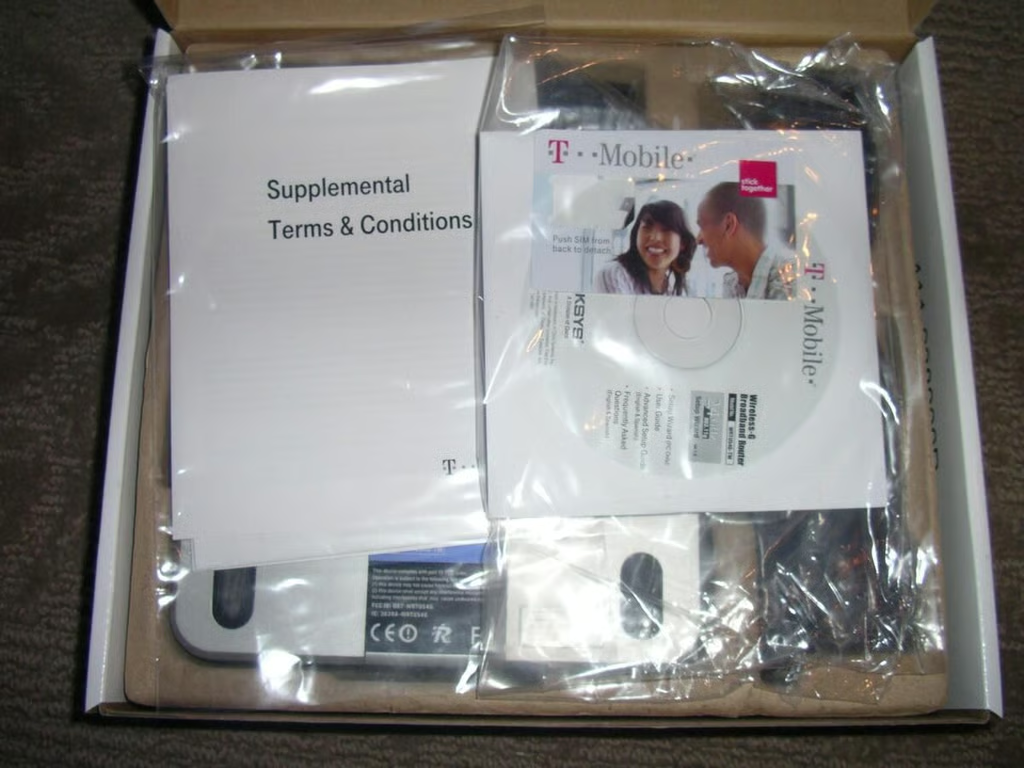
You will find a CD, setup guide, A/C adapter, ethernet cable, SIM card, and the router in the retail package.
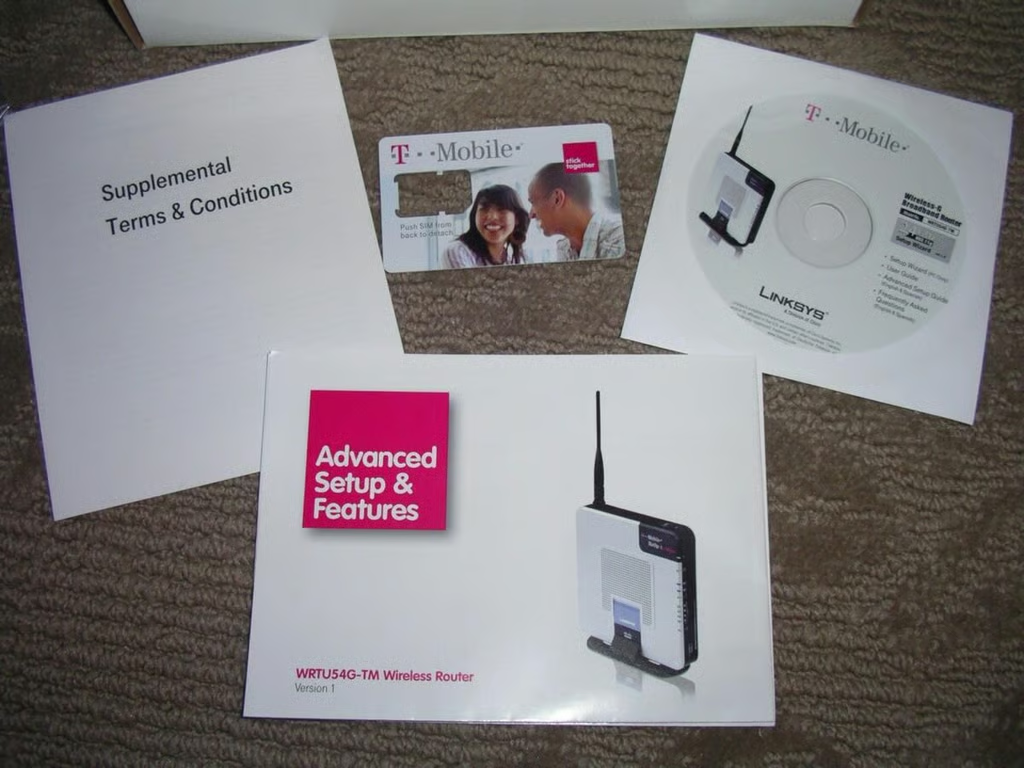
There are a couple of documents included in the package, along with your new SIM card.
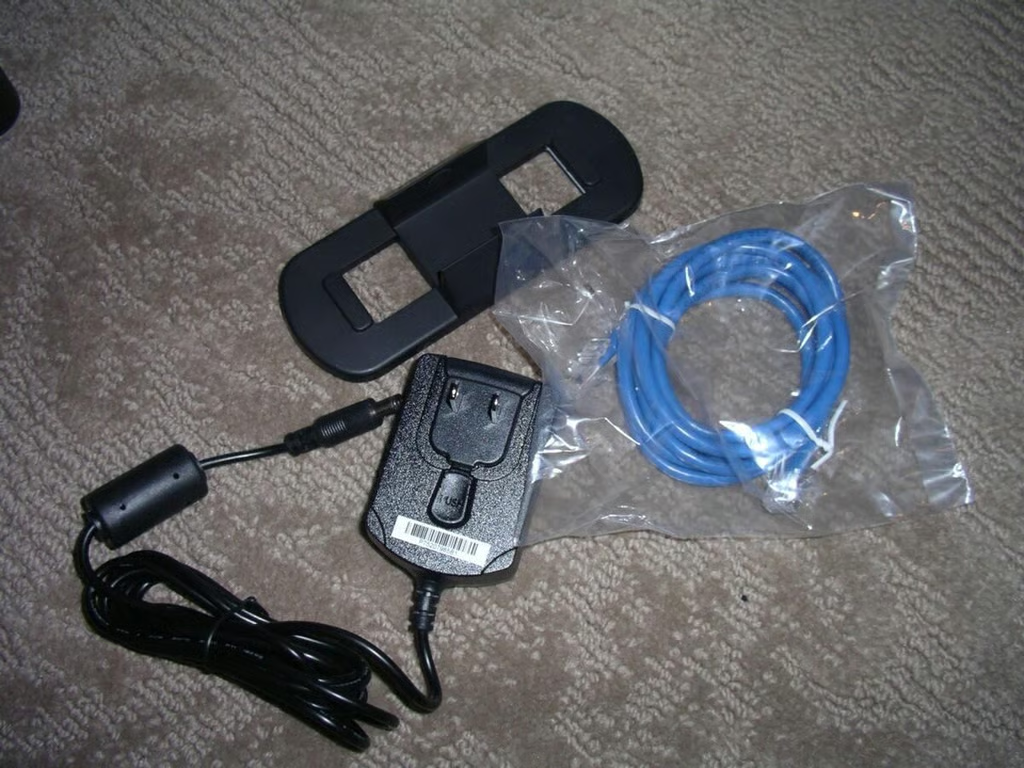
You get an ethernet cable, A/C adapter, and a vertical stand in the box.
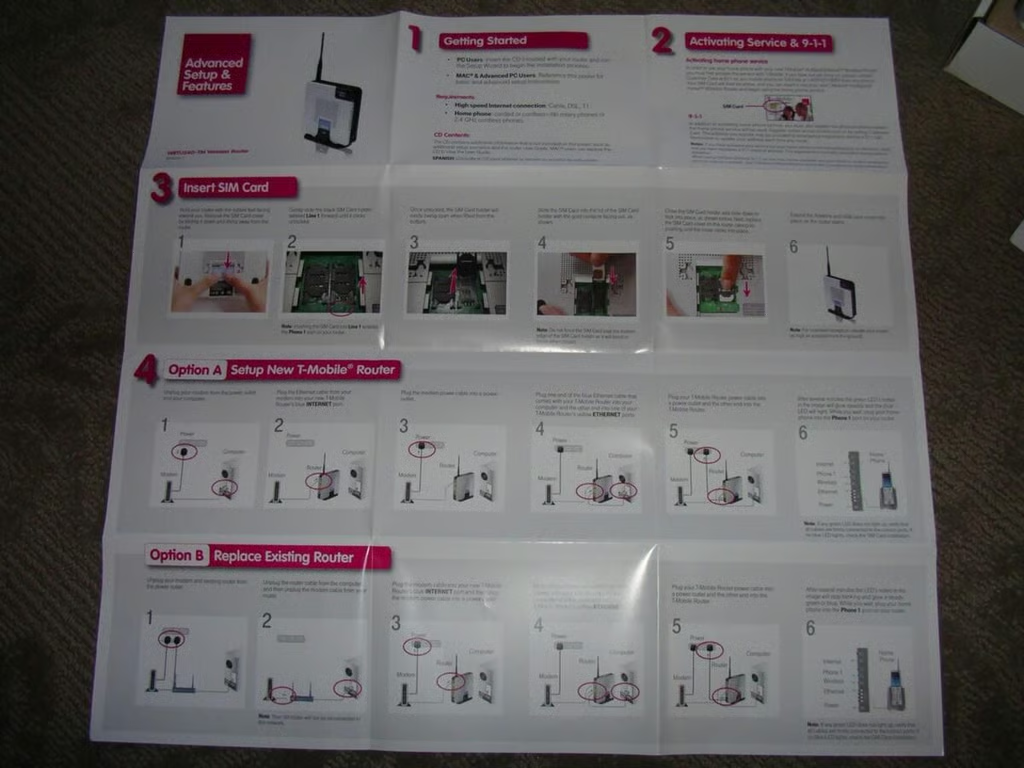
The setup guide walks you through the process of setting up the router in a very simple step-by-step method.
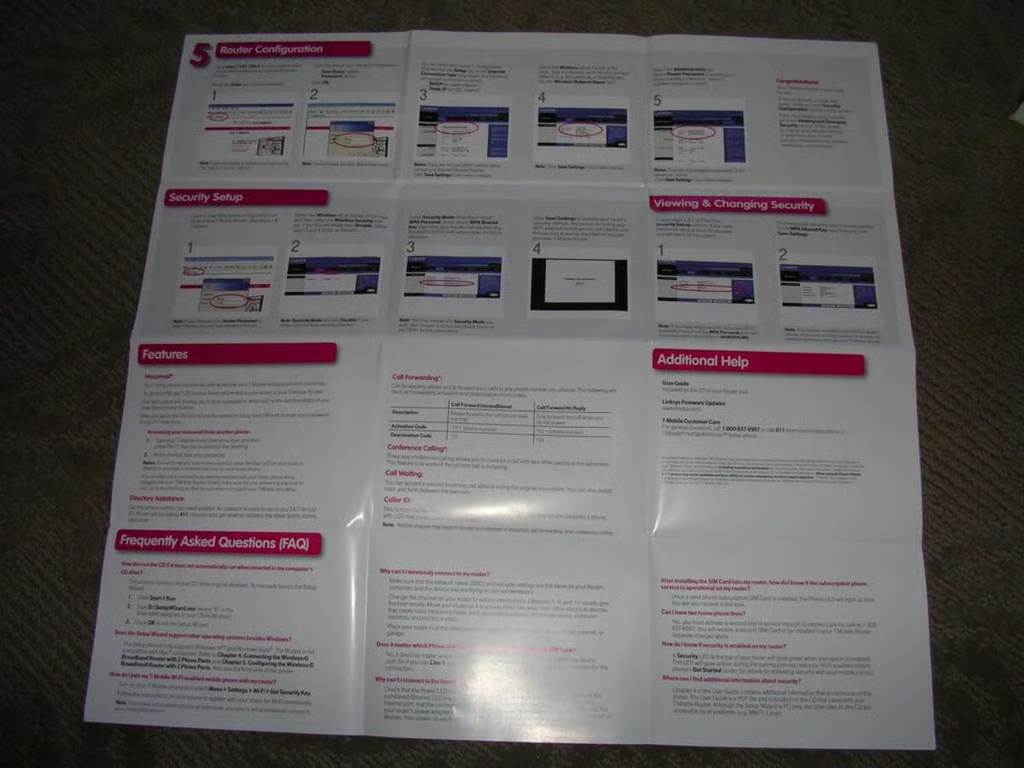
The back has details on finalizing the setup and using your phone with the new service.
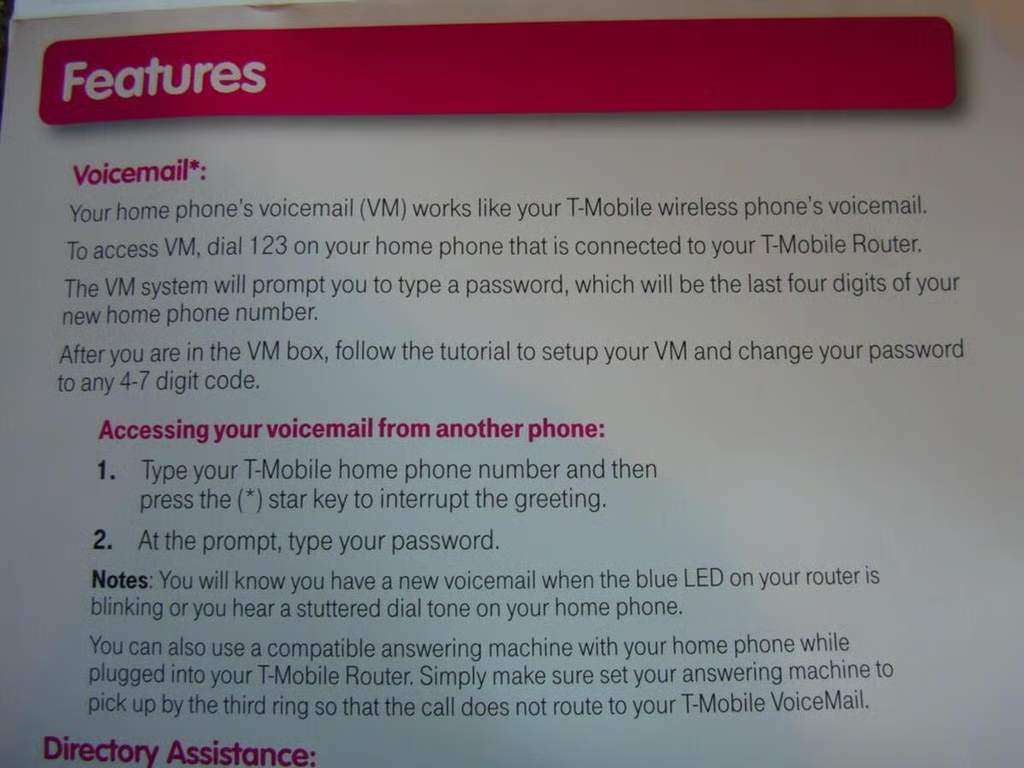
Your home voice mail is the same as a mobile phone system, but I personally wish there were a few more features for your home phone.
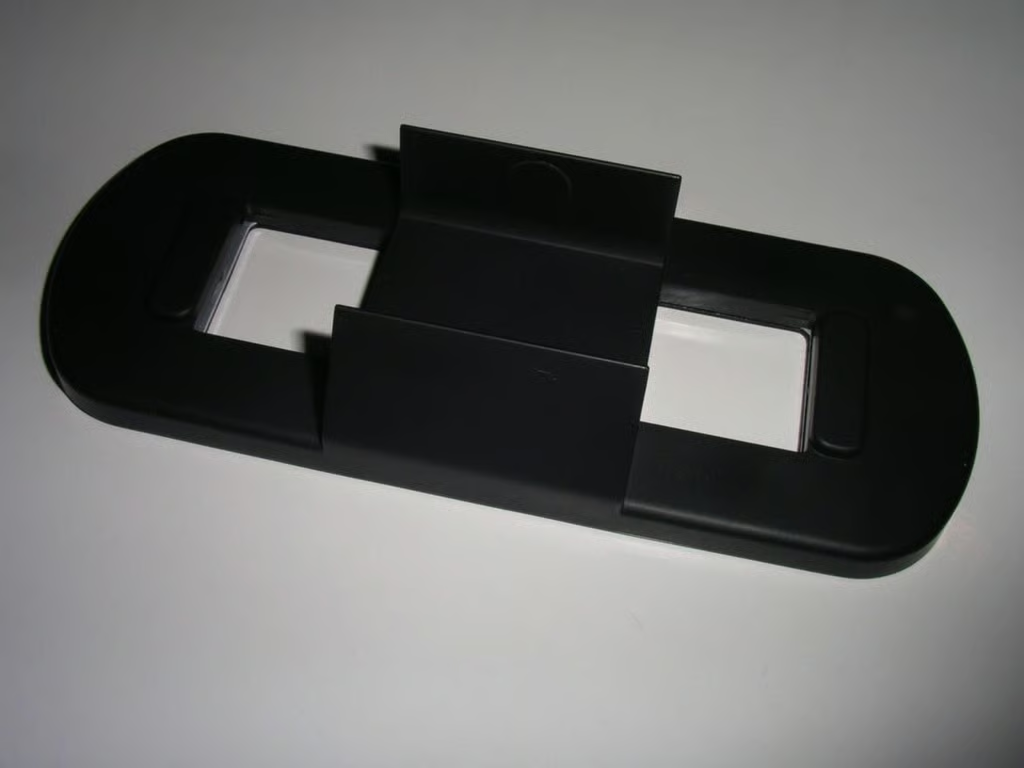
This sturdy stand is used to mount the router vertically.
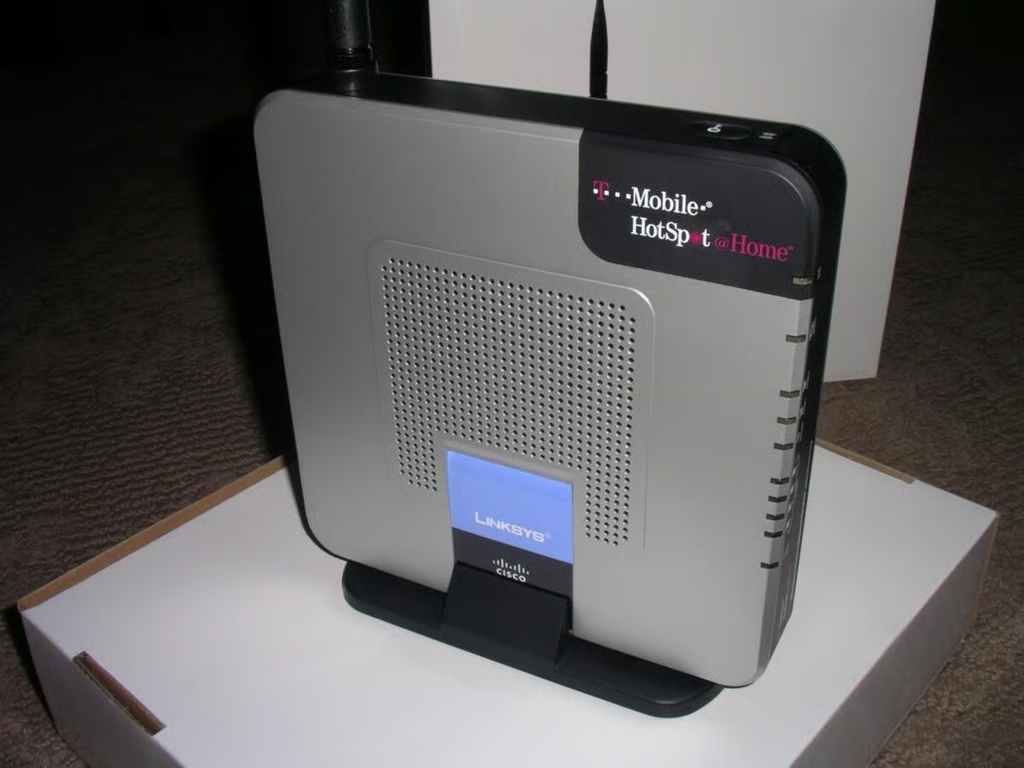
The Linksys/Cisco router is optimized for vertical mounting.
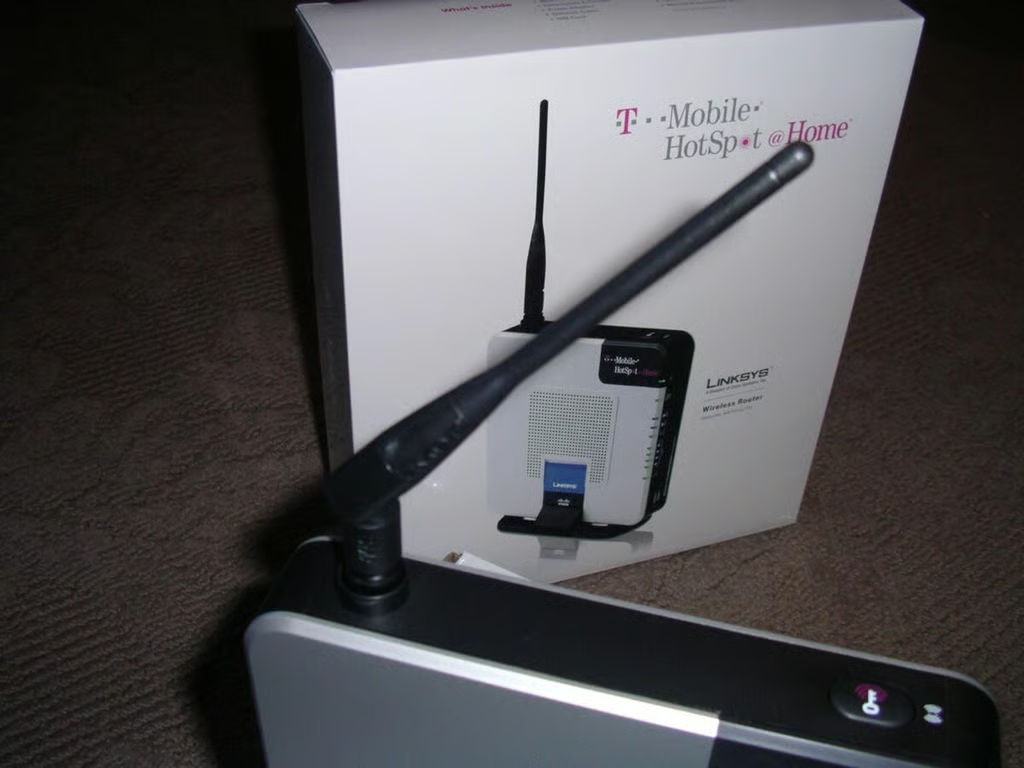
The antenna is shipped in a stored position, but should be flipped up for optimal signal strength.
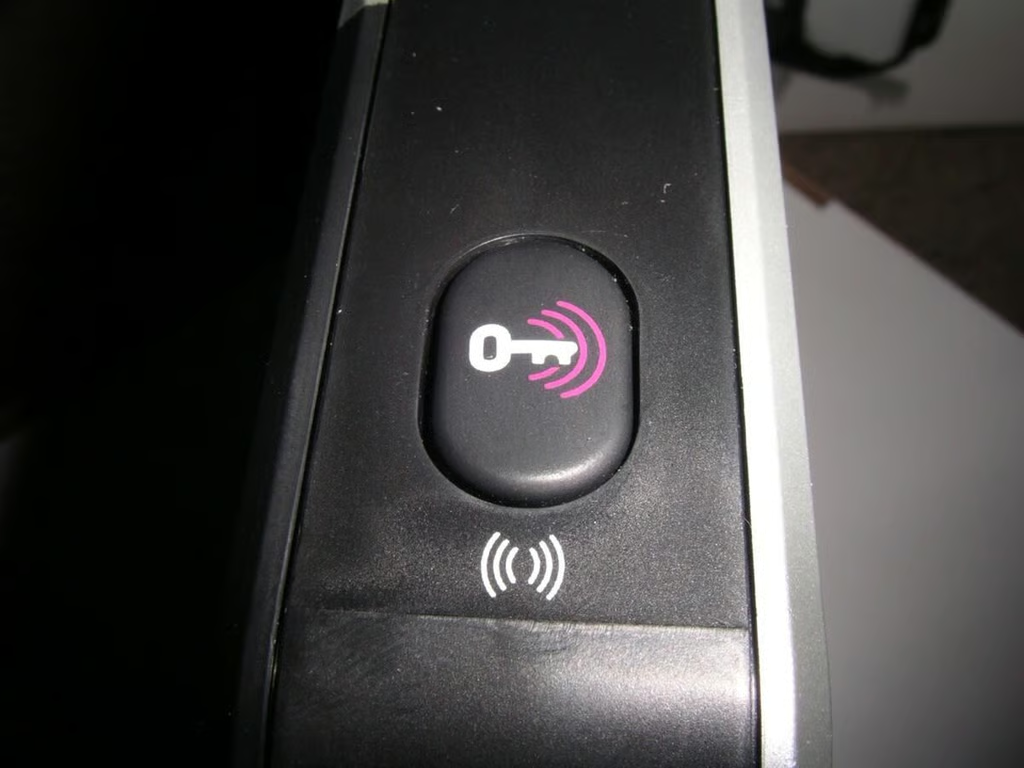
T-Mobile has this same security key button on the Talk Forever and HotSpot @Home Mobile routers.
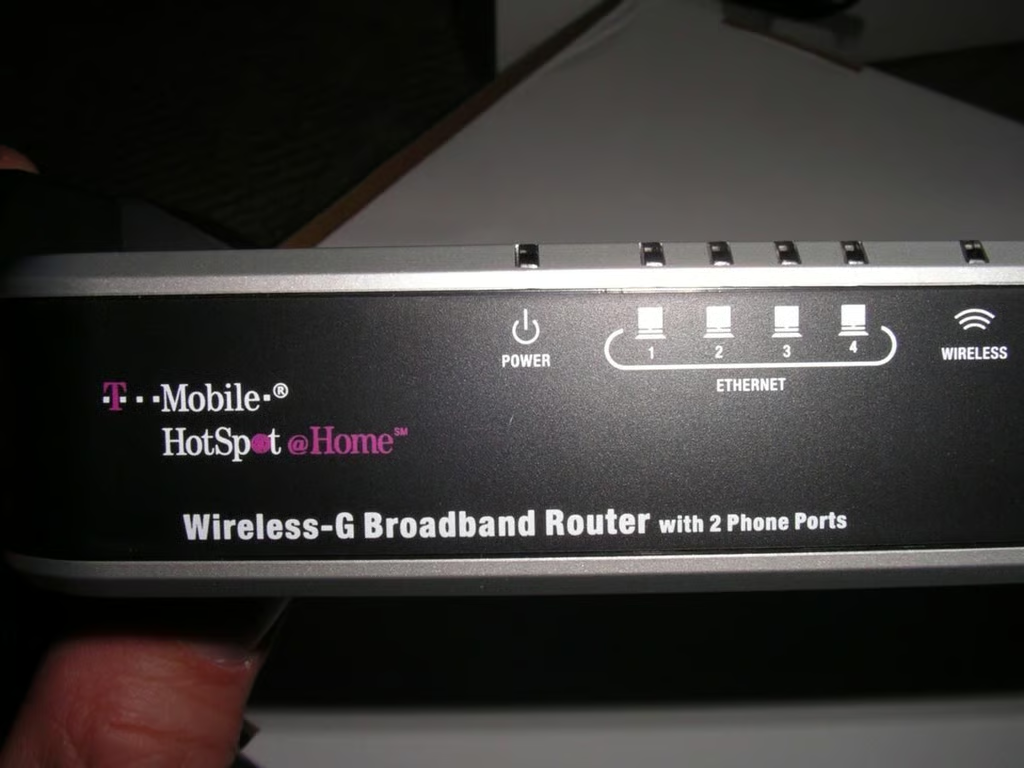
Ethernet connection lights and the power light appear, along with the HotSpot @Home logo and branding.
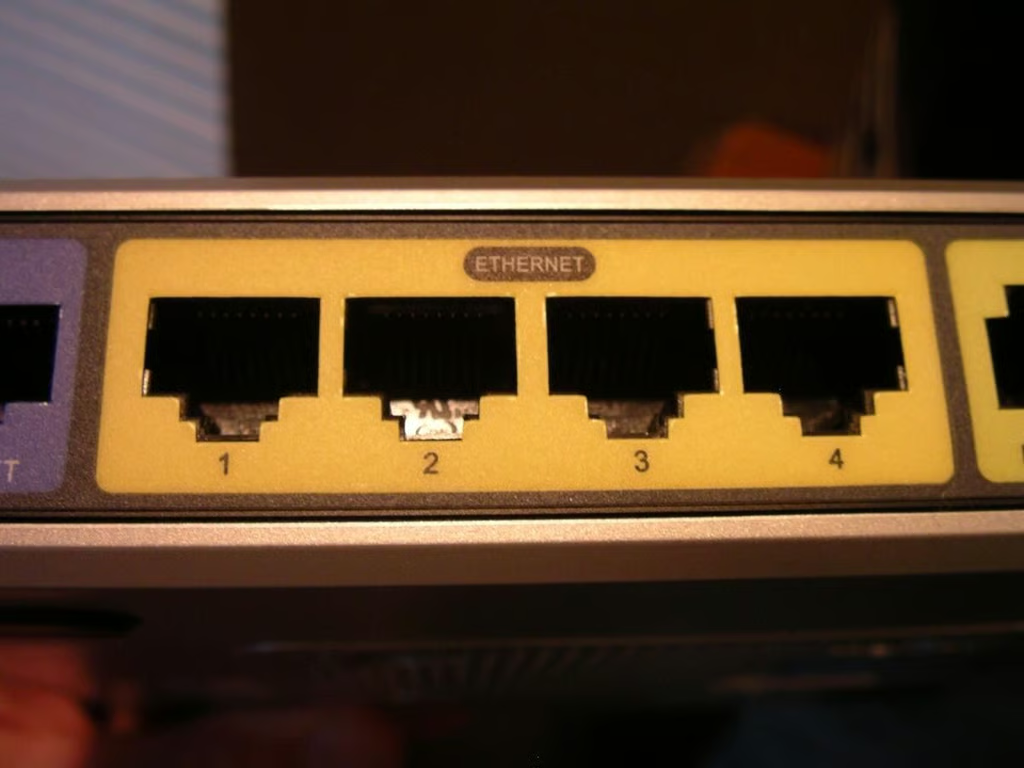
You can connect up to 4 wired devices to your router. I have my Mirra backup drive and Slingbox connected to my router.
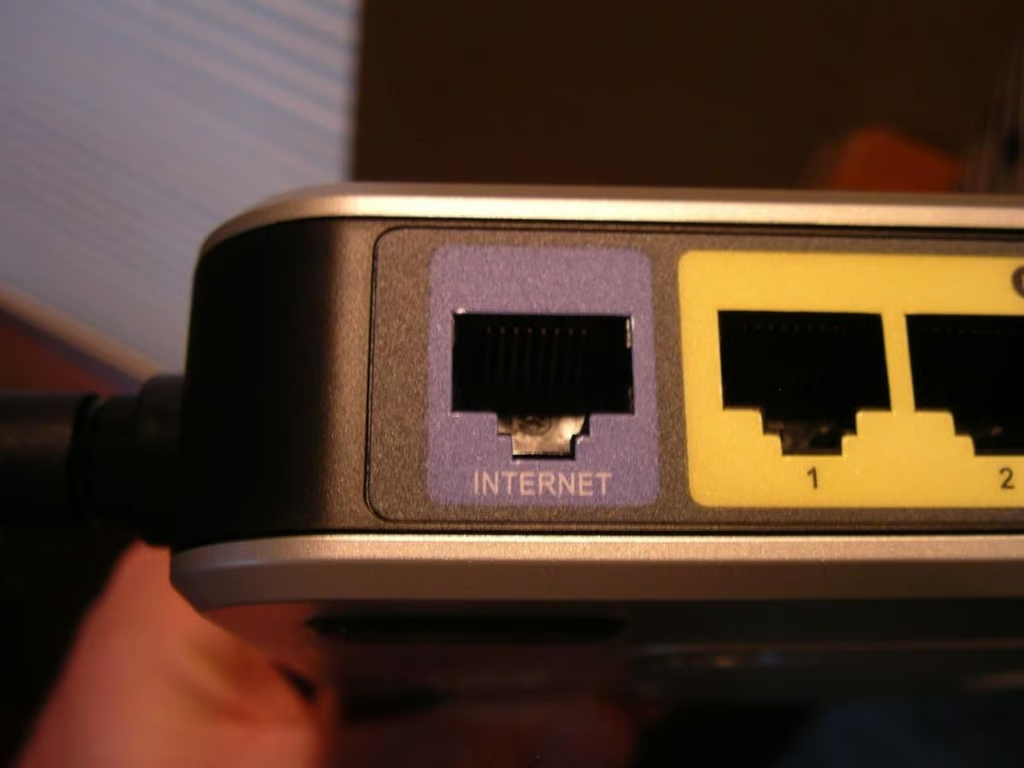
The top port is for connecting your ethernet port to your router.
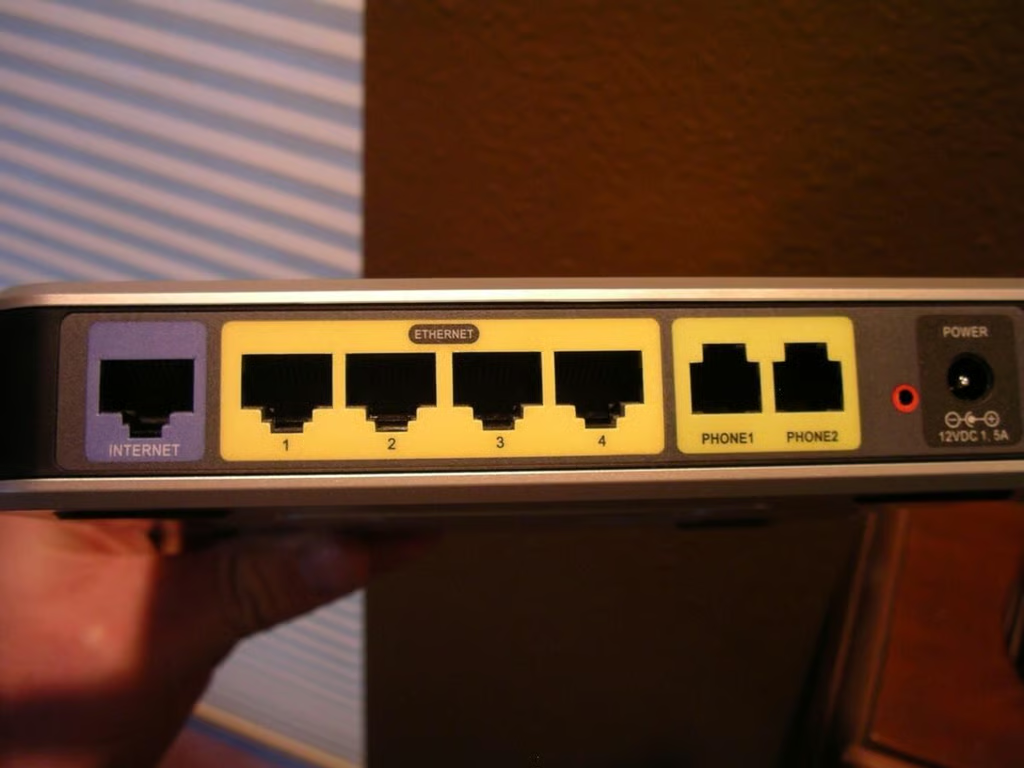
In this shot you can see the entire arrangement of ports on the back of the router.
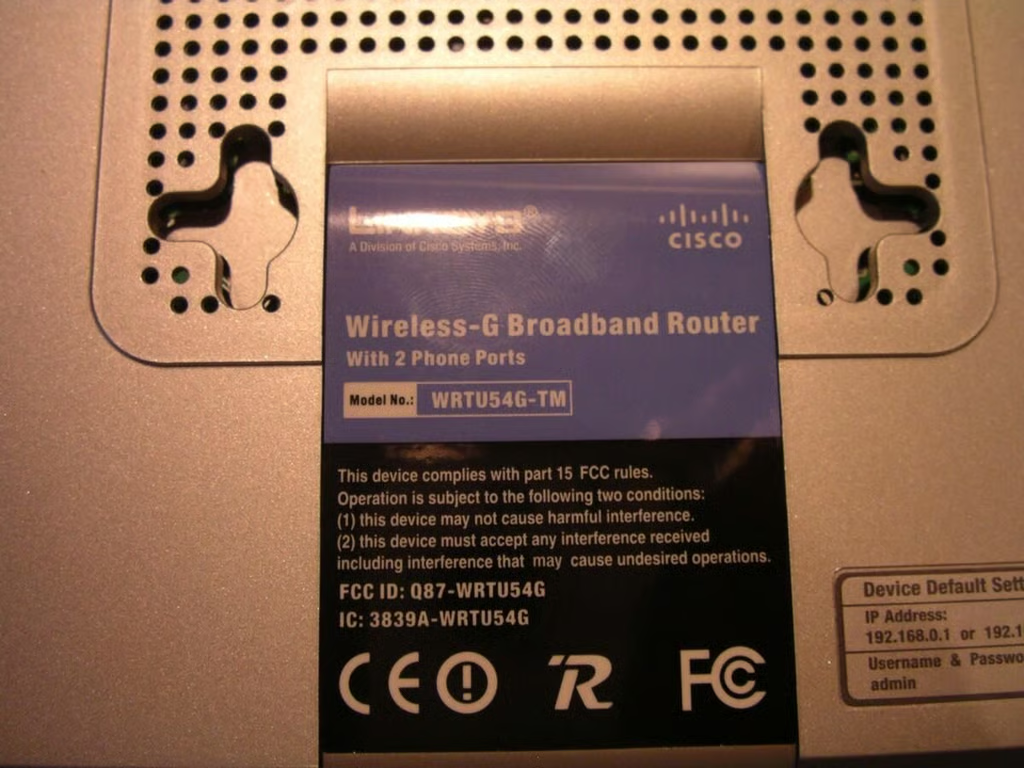
This cover on the back of the router protects the two SIM card slots.
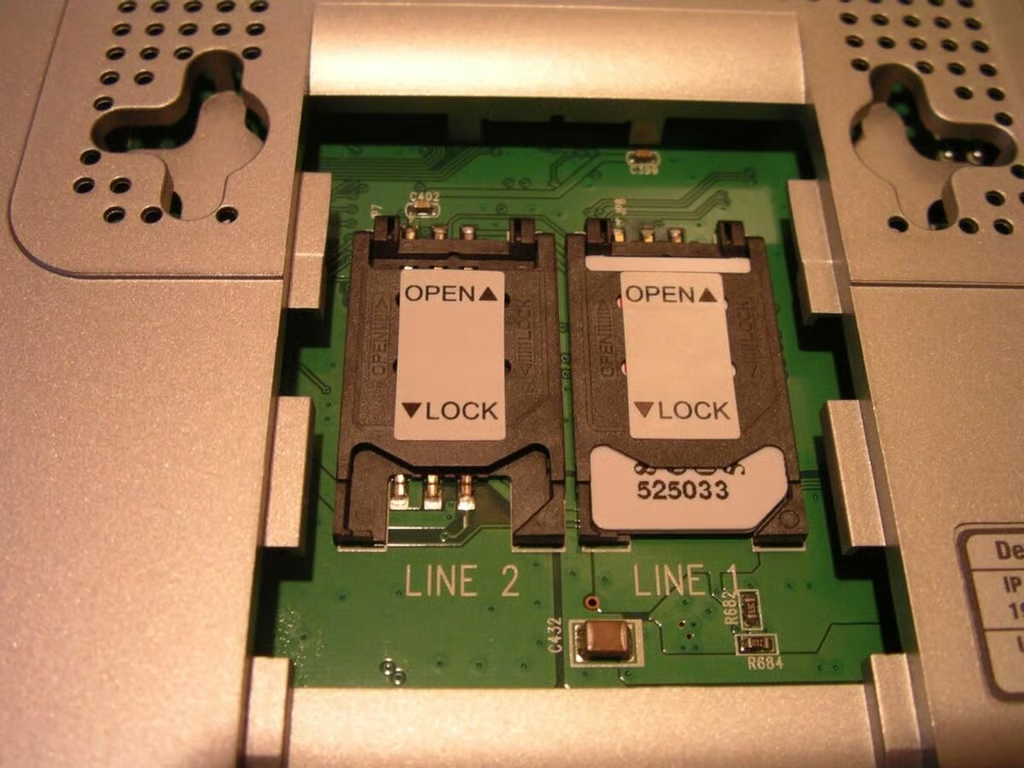
You can activate two lines with this router and service. You need to make sure you plug your phone into the same port as the SIM card, but selecting 1 or 2 does not matter.
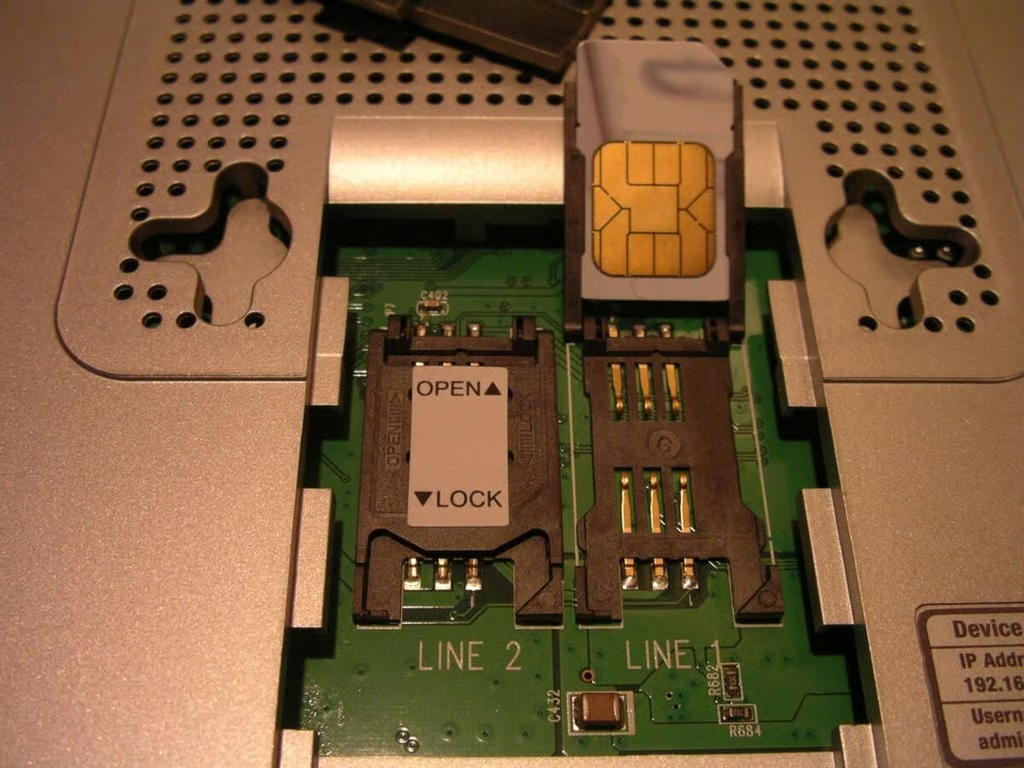
You simply insert your SIM and then lock it into place to get started.
The logo is branded on the device.
There is some Linksys/Cisco branding on the front where the router rests in the vertical stand.
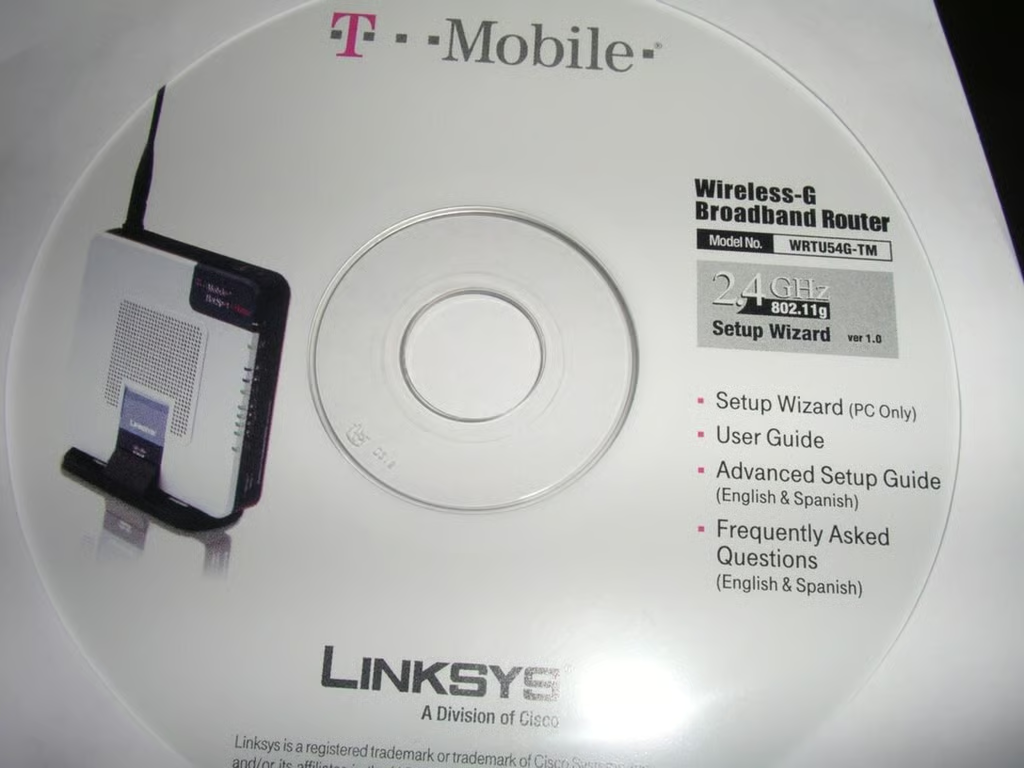
You will find the Quick Setup Guide, manual, and FAQ on the CD. The Windows PC setup wizard is also included.
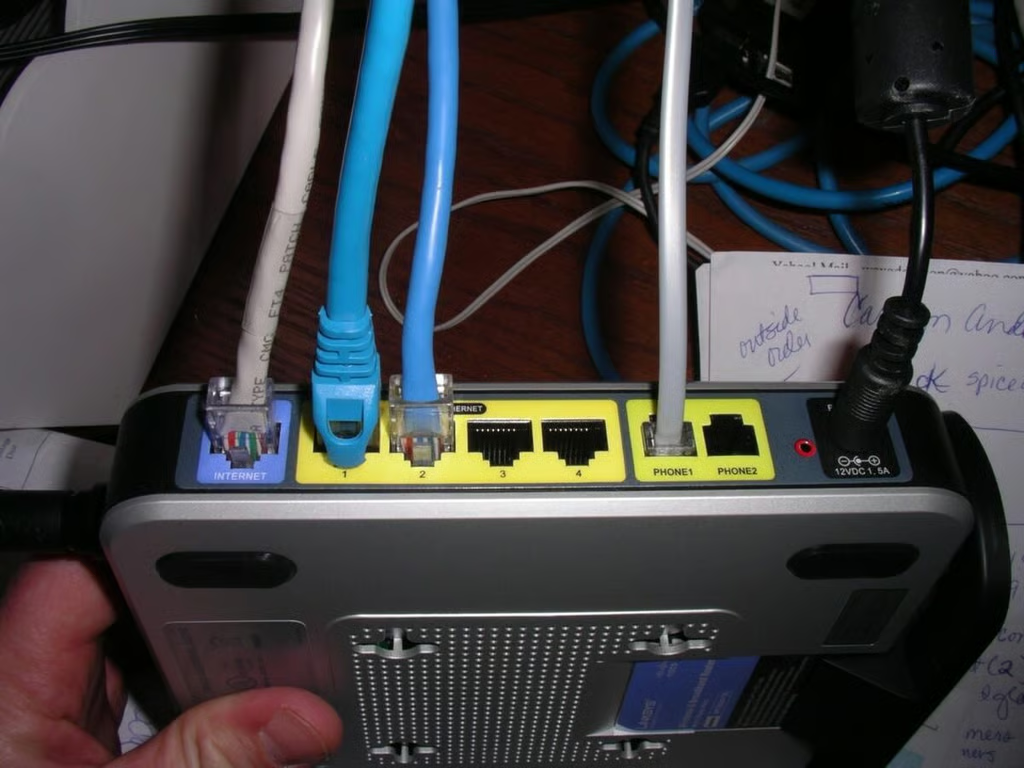
Here are the cables I have connected at this time.
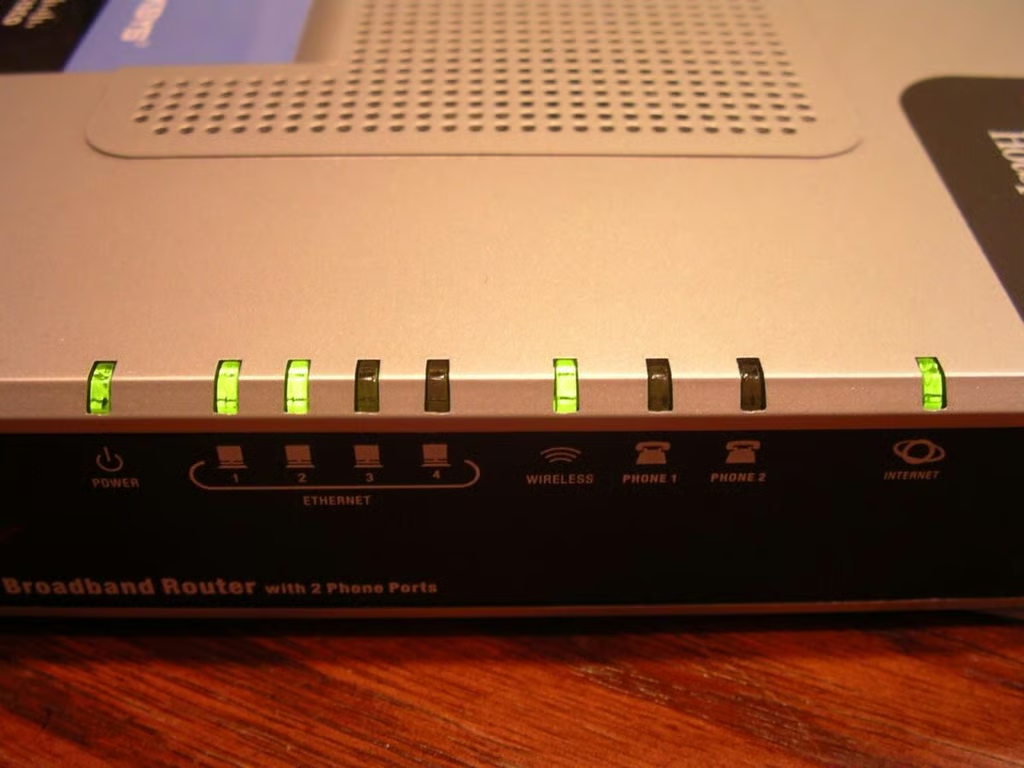
Most of the lights are green glowing or flashing lights on the front of the device.
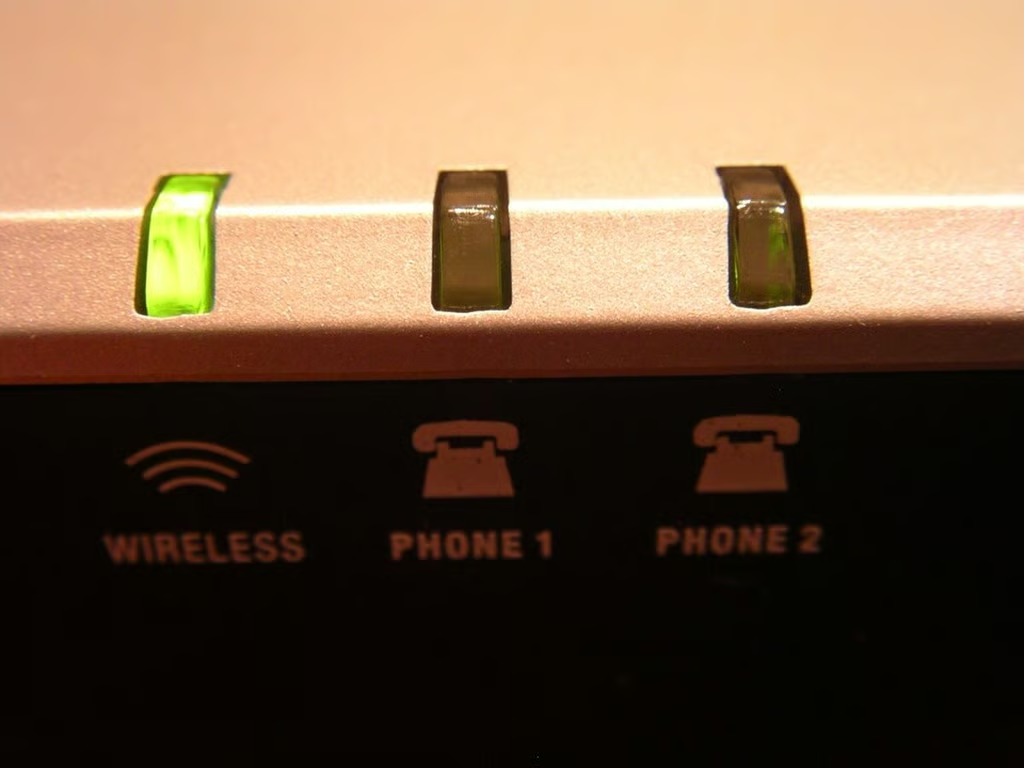
At first my SIM was not activated so there were no lights for either phone.
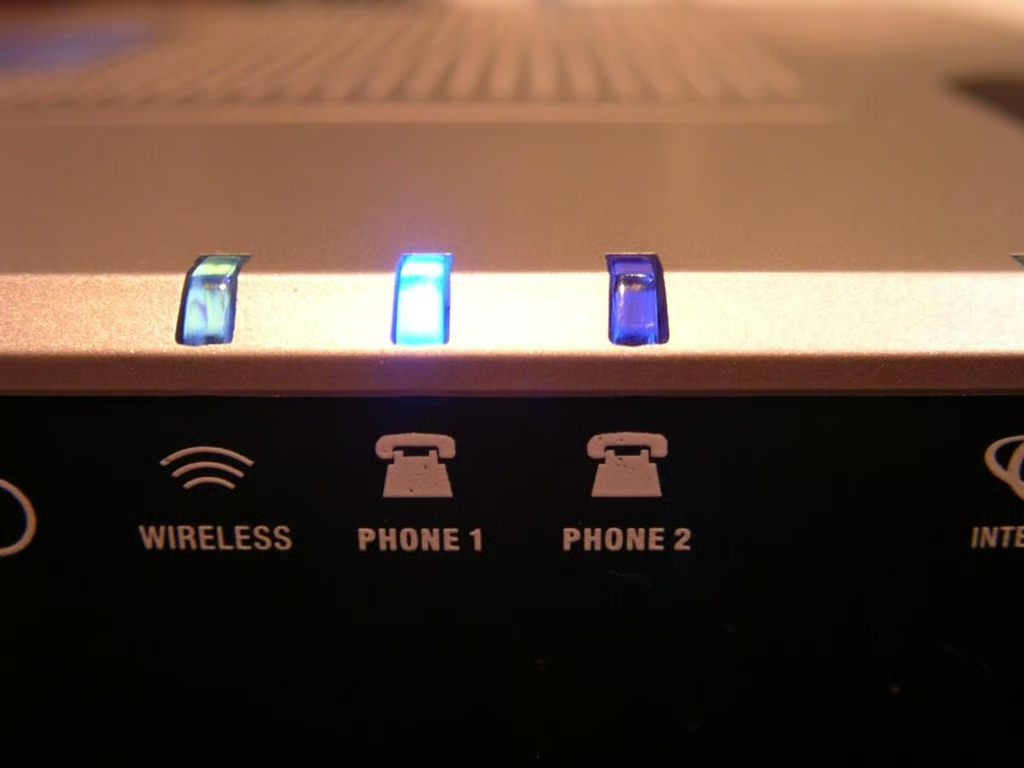
The glowing blue LED over a phone indicator means you have an active SIM. The light will actually blink when there is voicemail in the system.

Image gallery 1
Image gallery 2


