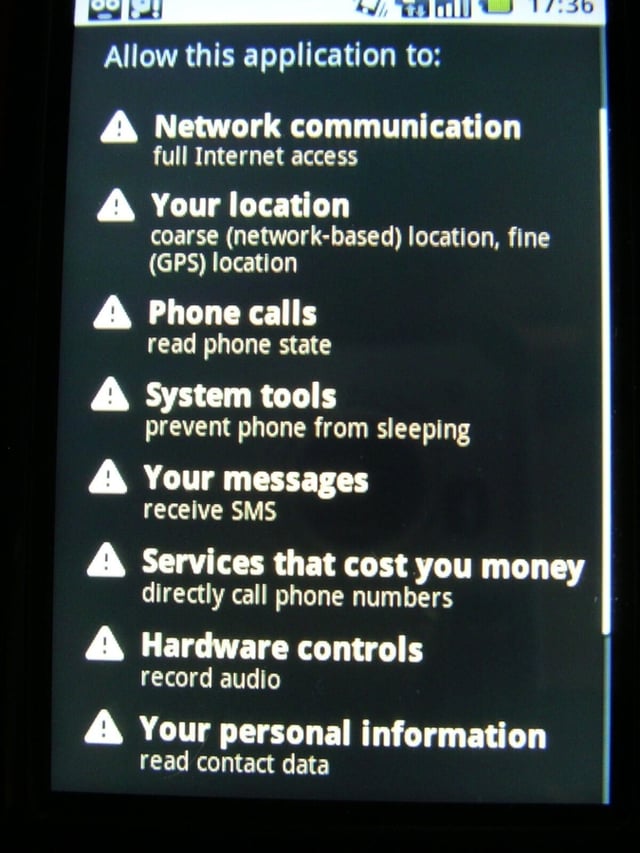
TeleNav has GPS navigation software for Windows Mobile, Palm, BlackBerry, and their own Shotgun device. Their software is feature packed and streams live maps and traffic over the air. They announced that their software has now come to the Google Android OS on the T-Mobile G1. The TeleNav GPS Navigator software runs very well and gives you the ability to send destinations to the device, setup commute alerts and much more.
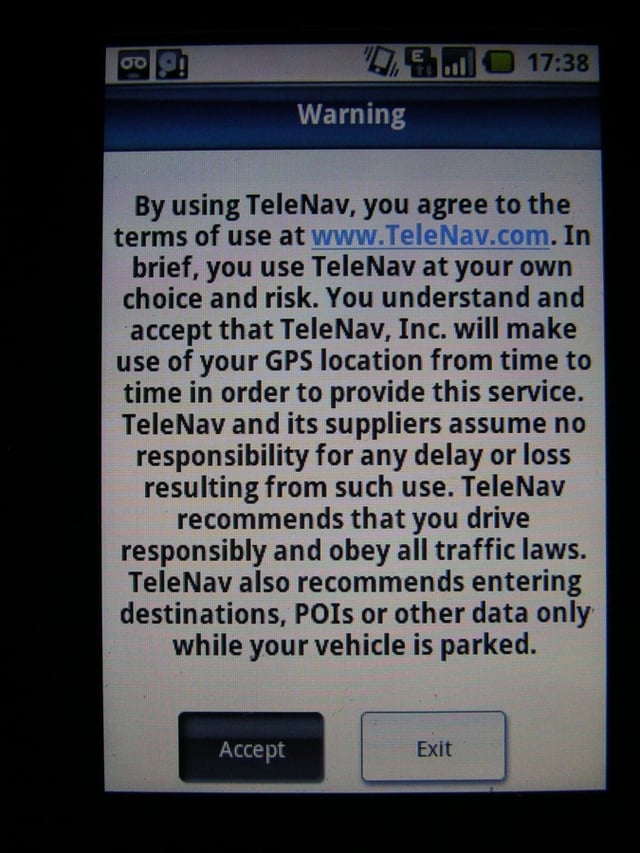
When you first launch TeleNav GPS Navigator a warning pops up to inform you of the risks.
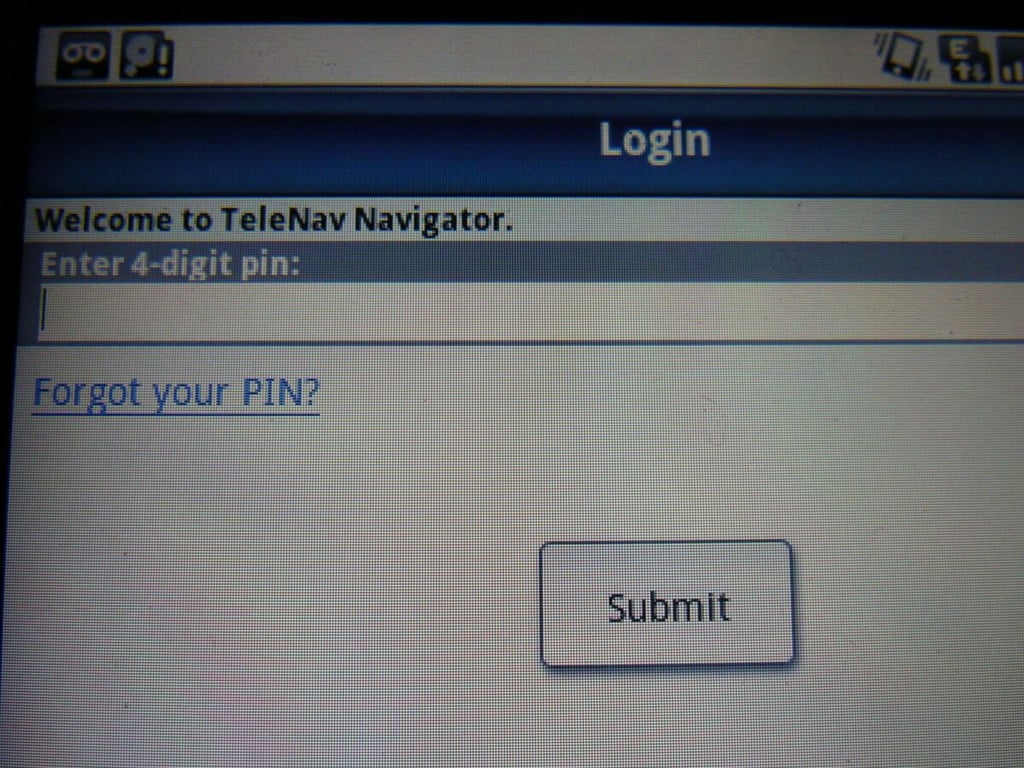
The first time you use TeleNav GPS Navigator you need to enter your account details, including your PIN.
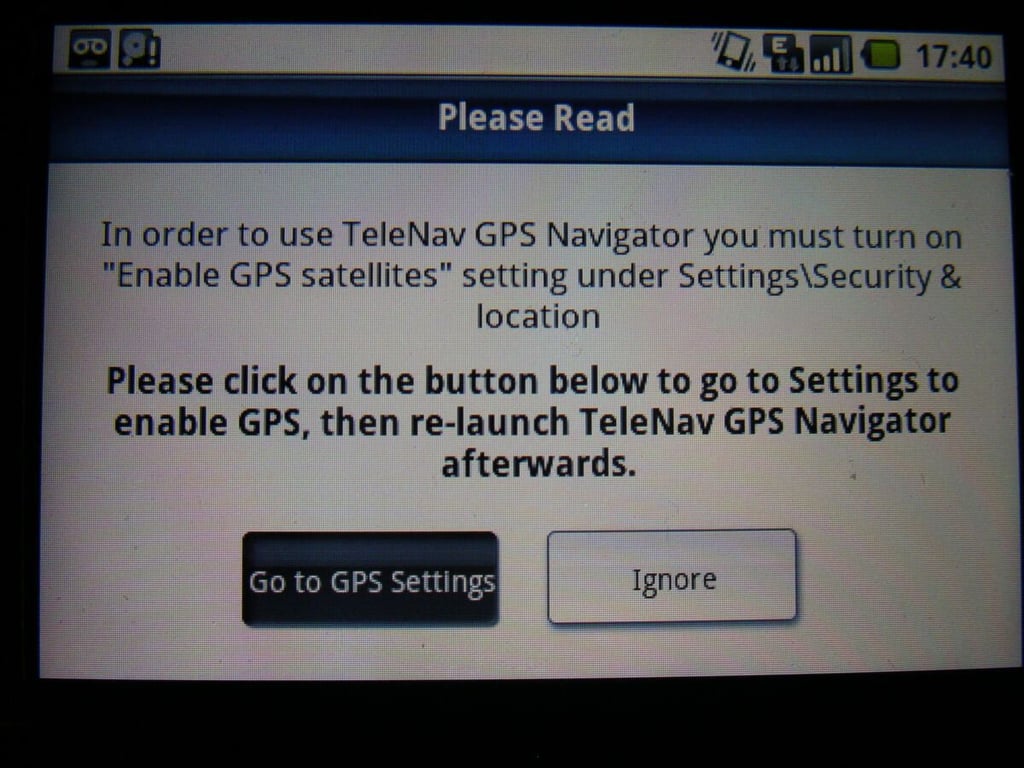
You need to have the GPS receiver turned on to use TeleNav GPS Navigator. This pop-up appears to prompt you to turn it on if you don’t have it on to start.
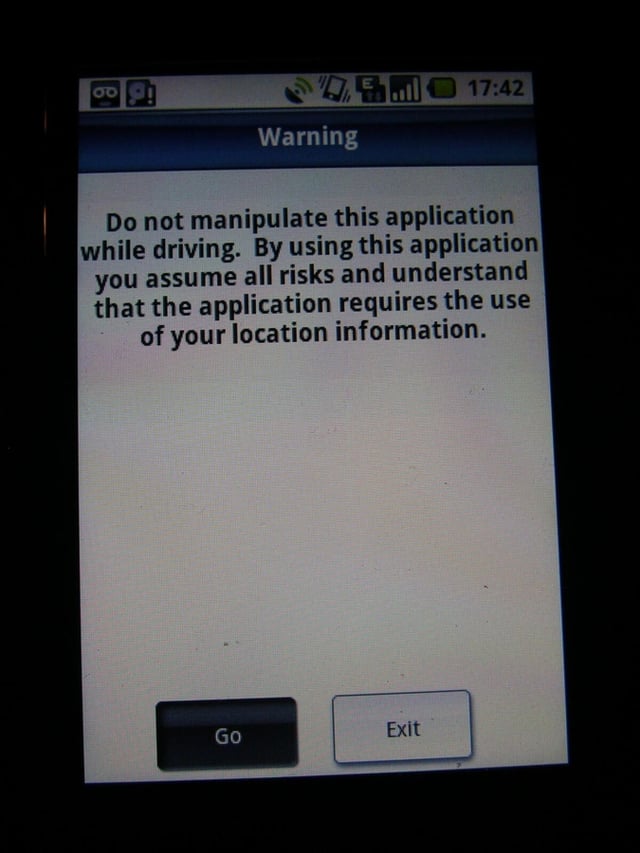
This driving warning appears every time you launch TeleNav while the earlier warnings/setup screens only appear upon initial setup.
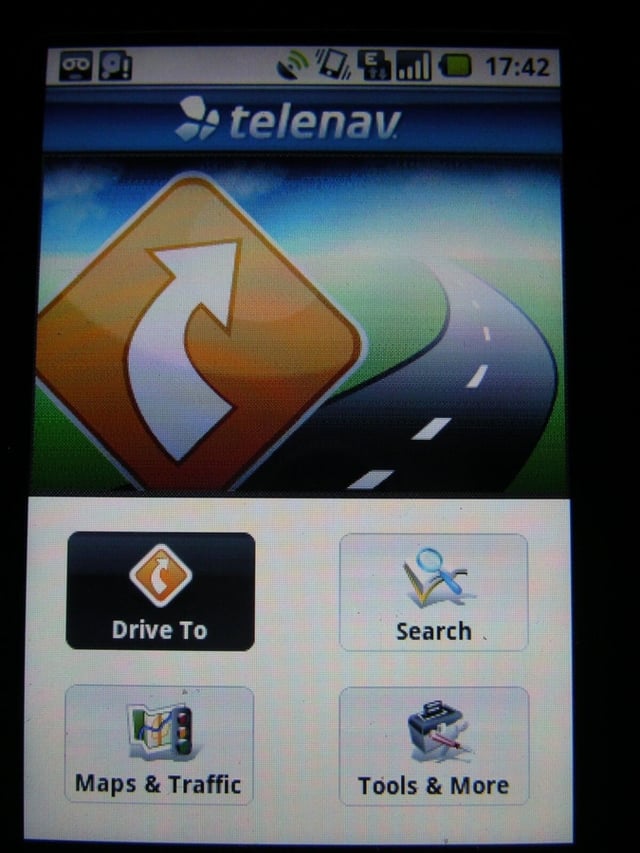
This is the main menu you see after launching TeleNav. This view shows what it looks like in portrait mode.
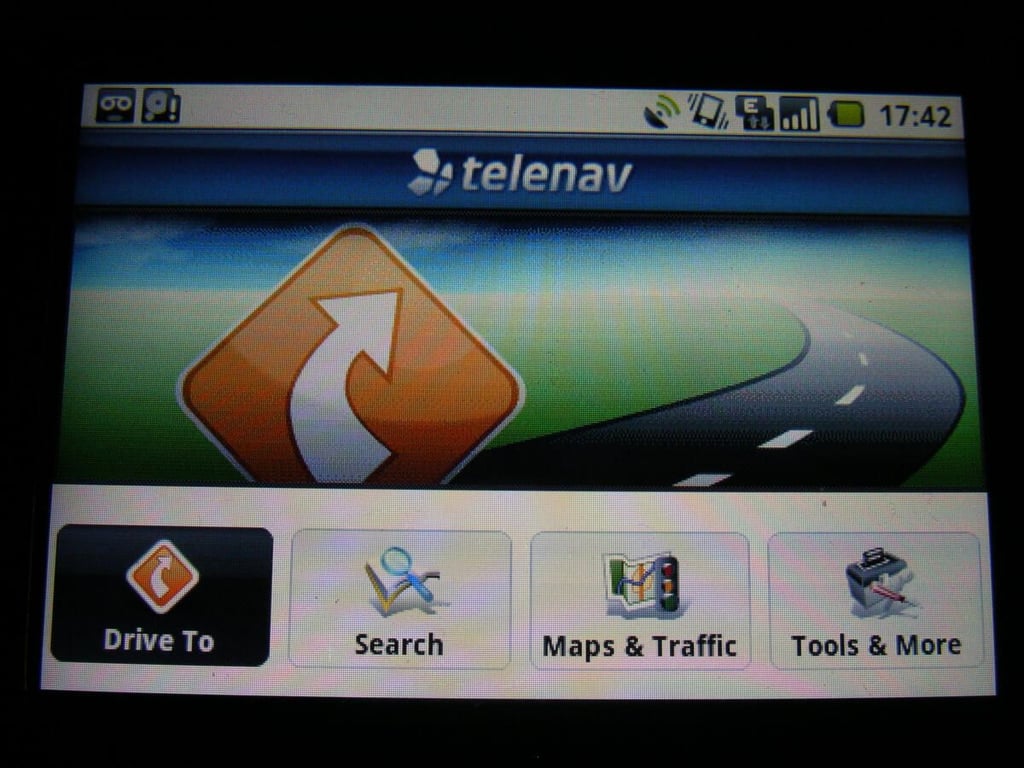
You can simply flip up the display to switch the application into landscape mode. Switching is virtually instantaneous too.
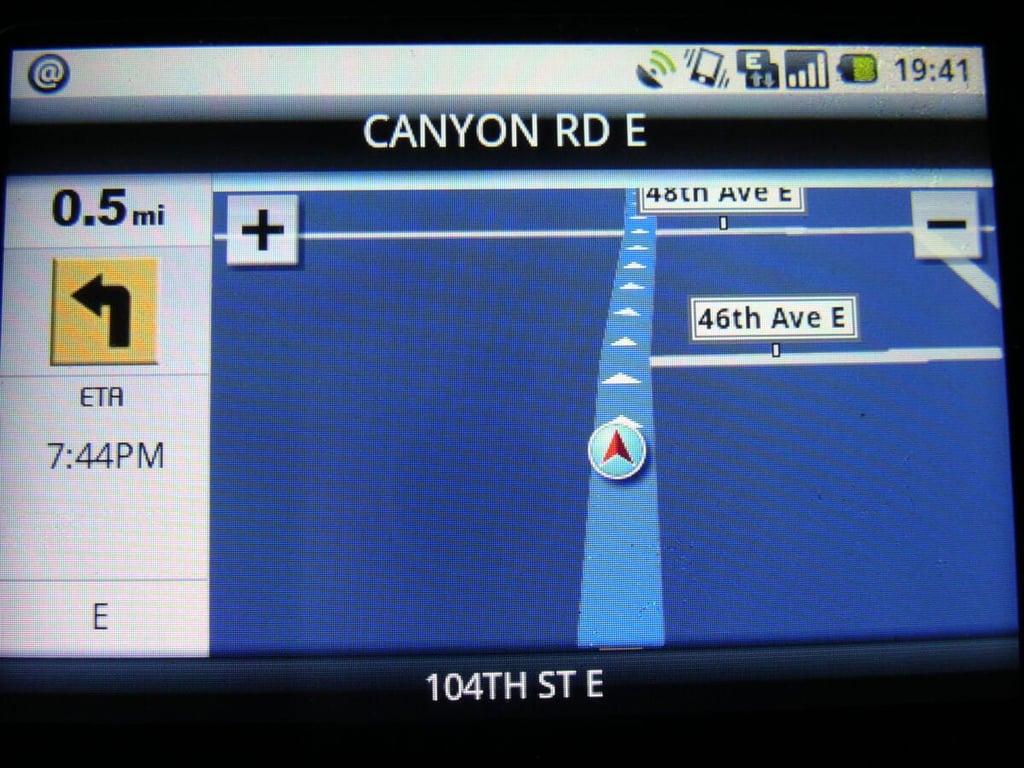
Here you can see a typical display while navigating at night. The next turn appears on the left in landscape mode.
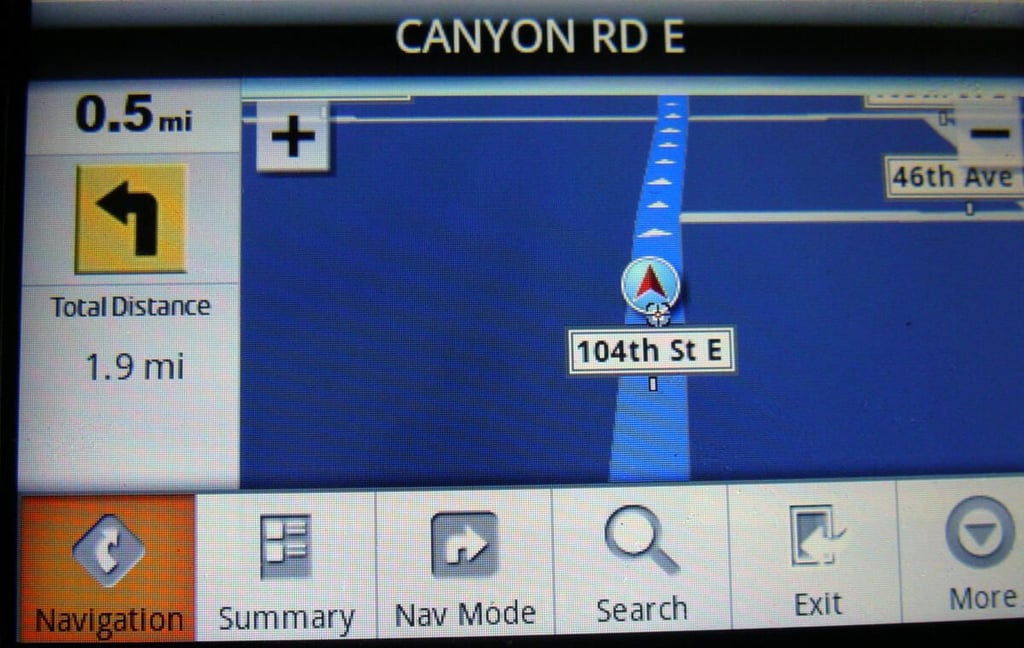
When you press the Menu button on your G1 you can see these menu options appear.
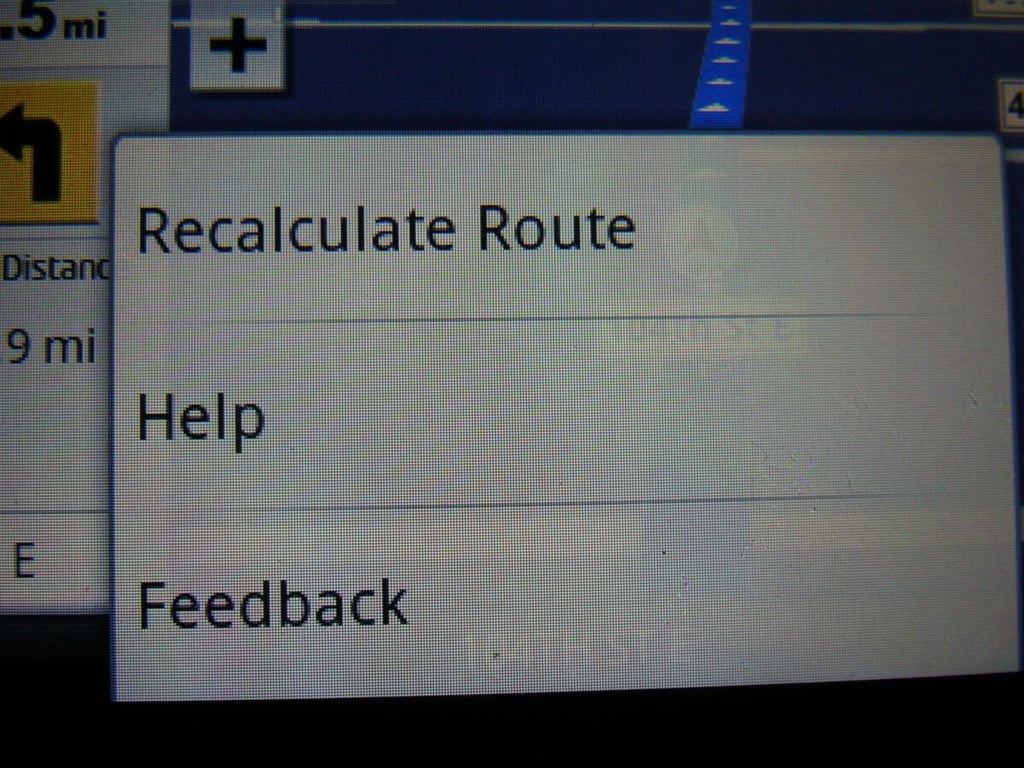
While you are navigating you can see these options when you press the More button. You can force a recalculation of the route or let the software do it for you automatically.
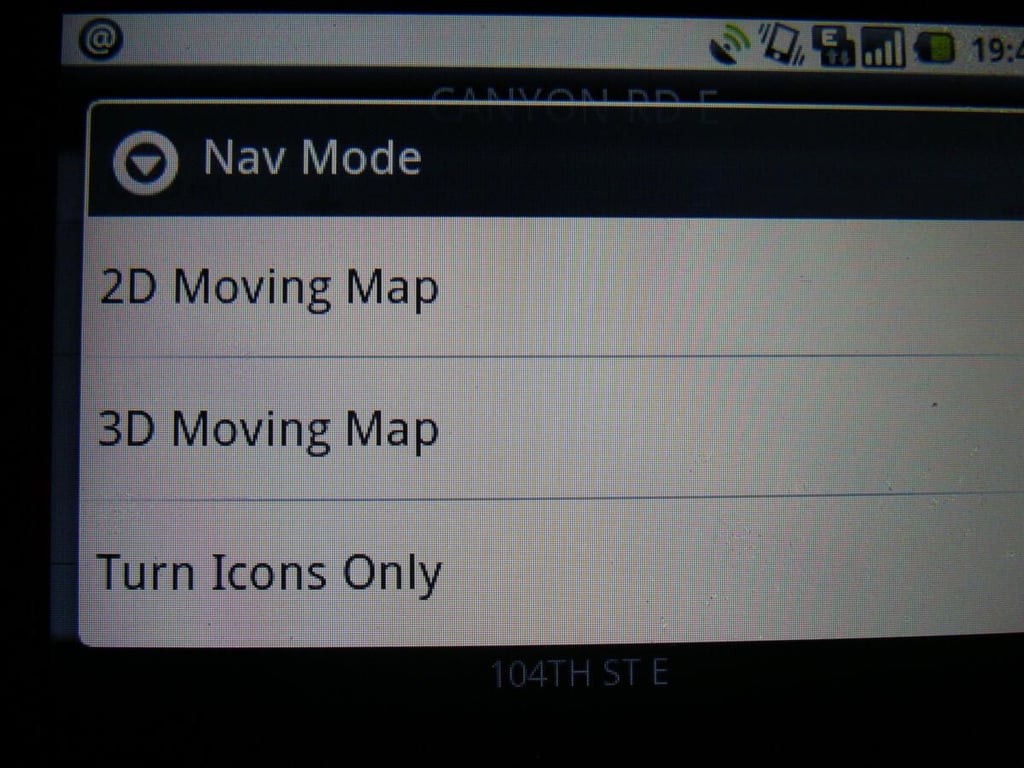
As you can see here you can view maps in 2D, 3D, or icons only modes. I prefer the 3D mode for daily navigation.
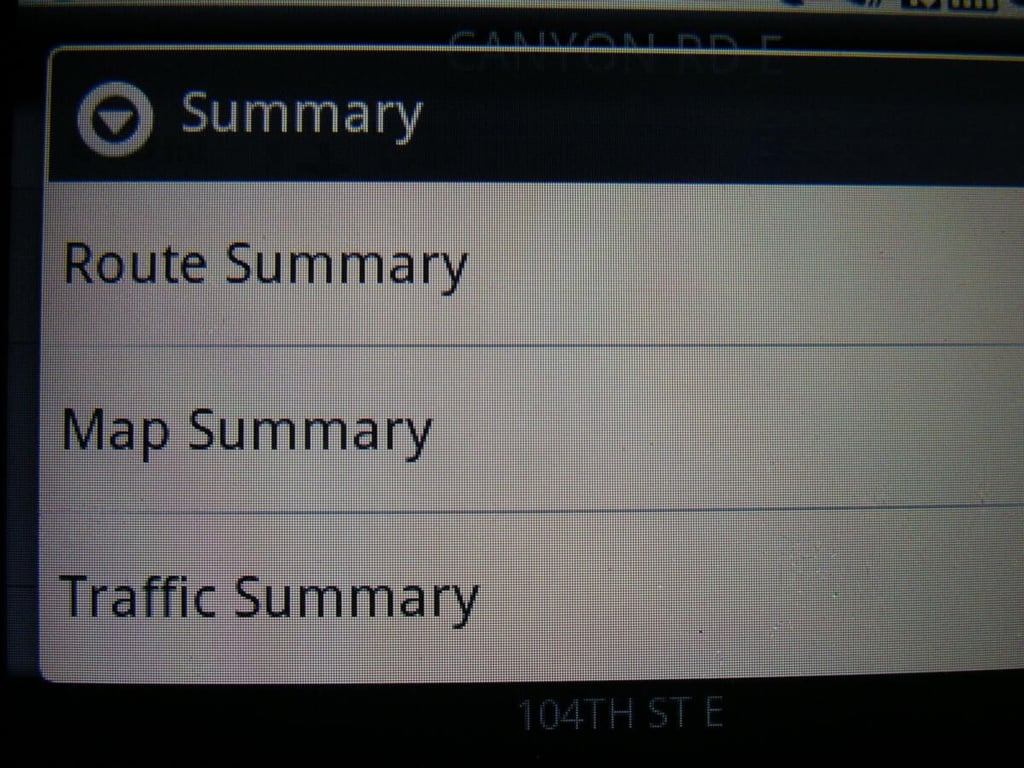
You can view different summaries of your navigation sessions, including route, map, or traffic data.
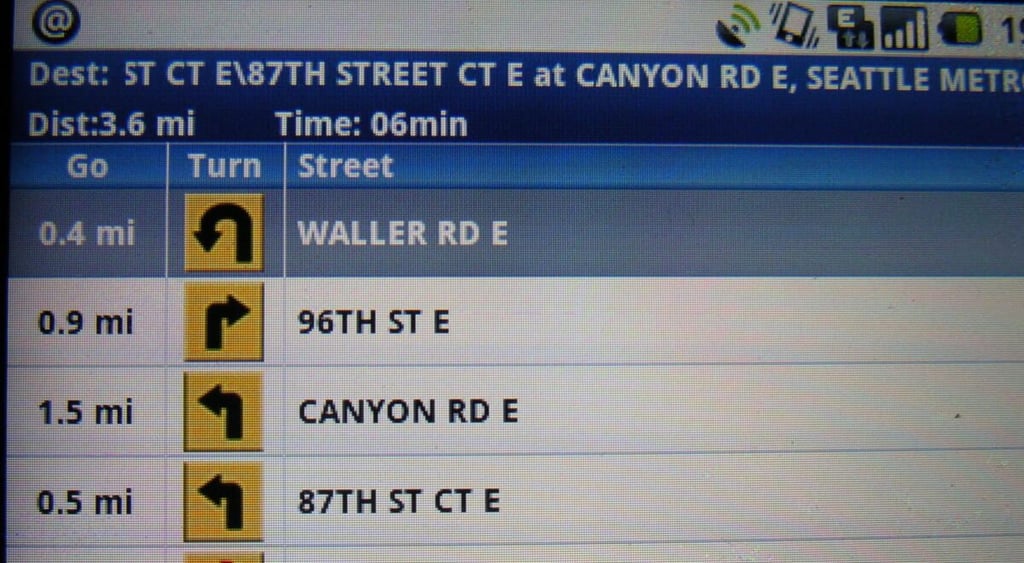
The route summary lists all of the turns that were made and data for each leg of your journey.
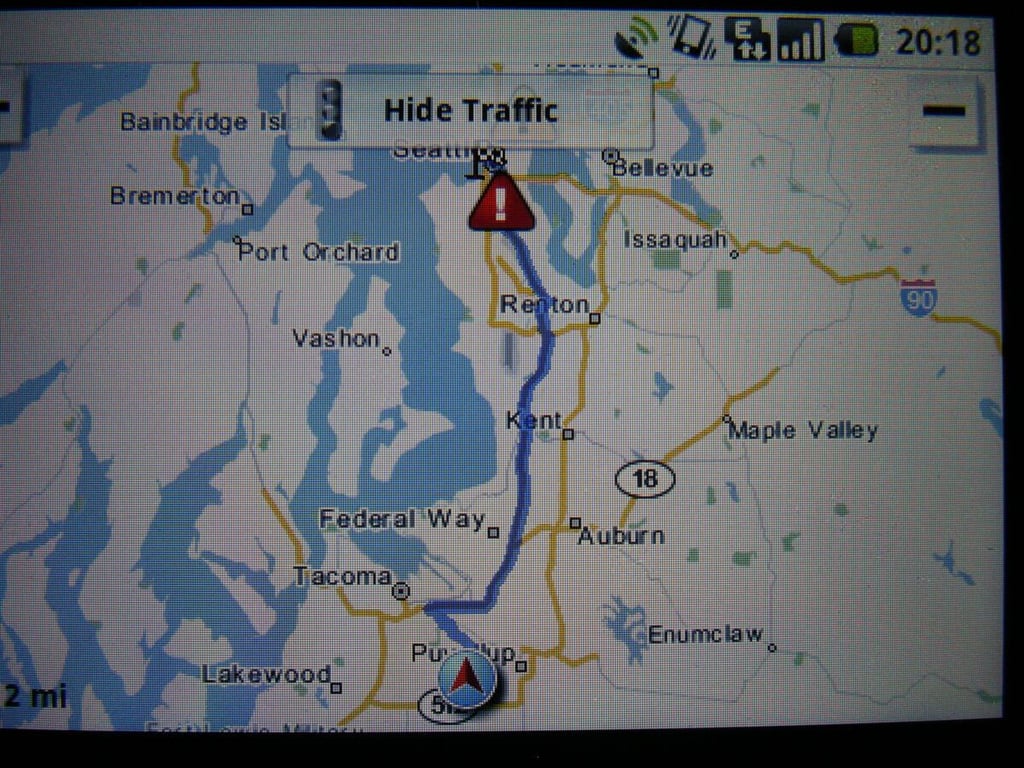
The map summary view gives you a full 2D view of your entire route.
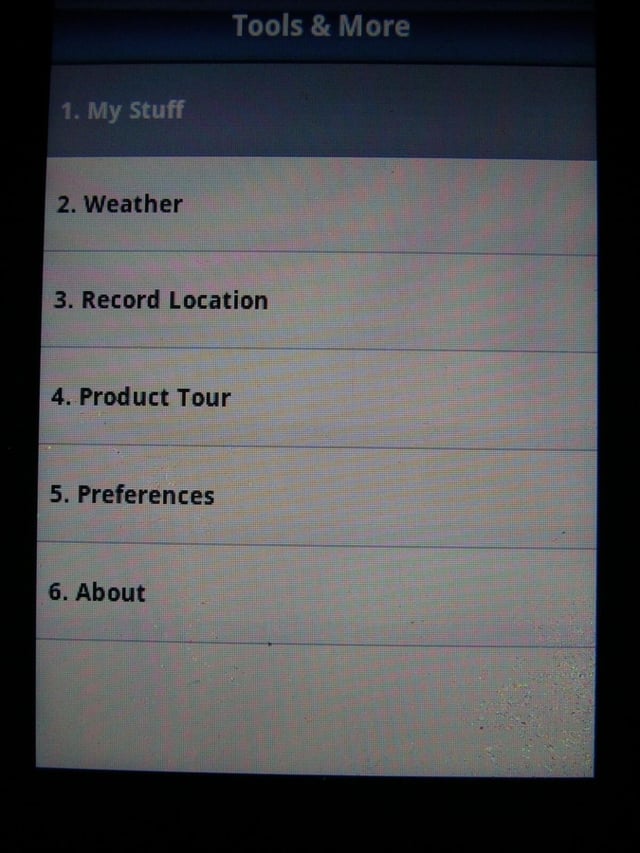
When you select the Tools & More menu these are the options that you can choose from and dive deeper into.
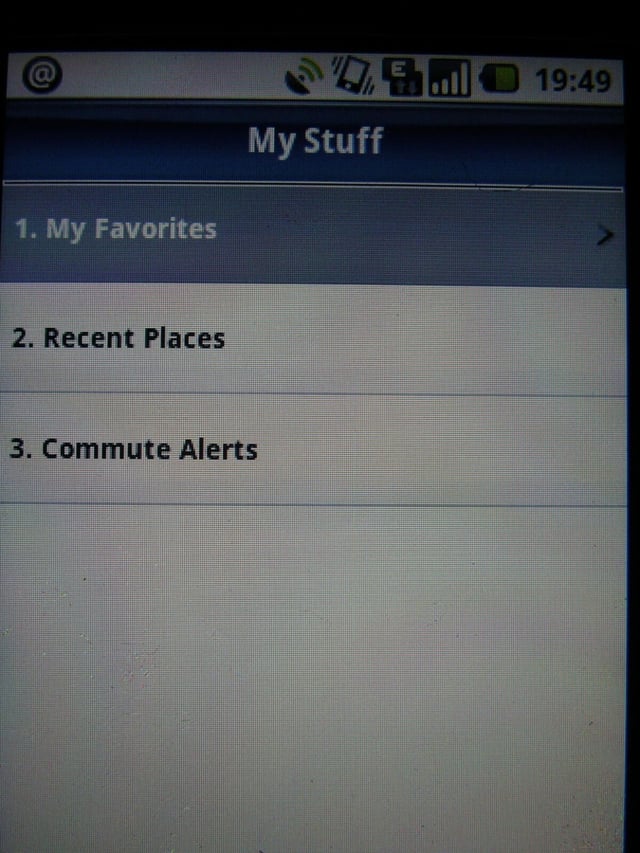
Favorites, recent places and commute alerts can be managed here.
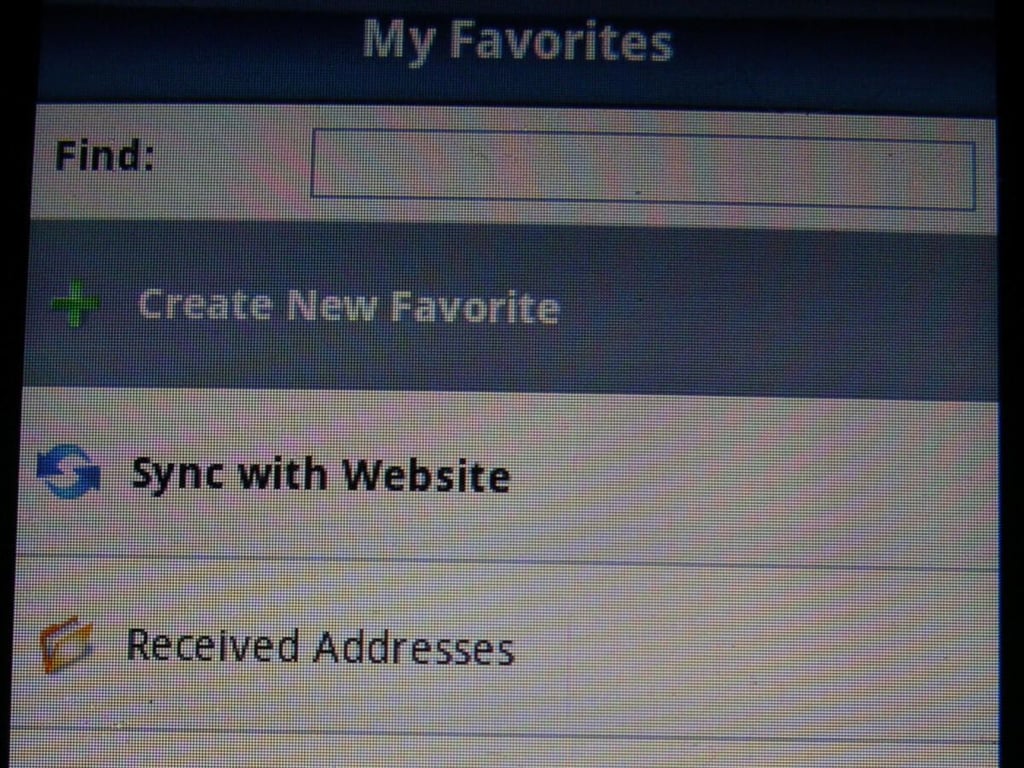
You can send addresses from web browsers to your TeleNav account and thus T-Mobile G1. The addresses you send will appear in your Favorites.
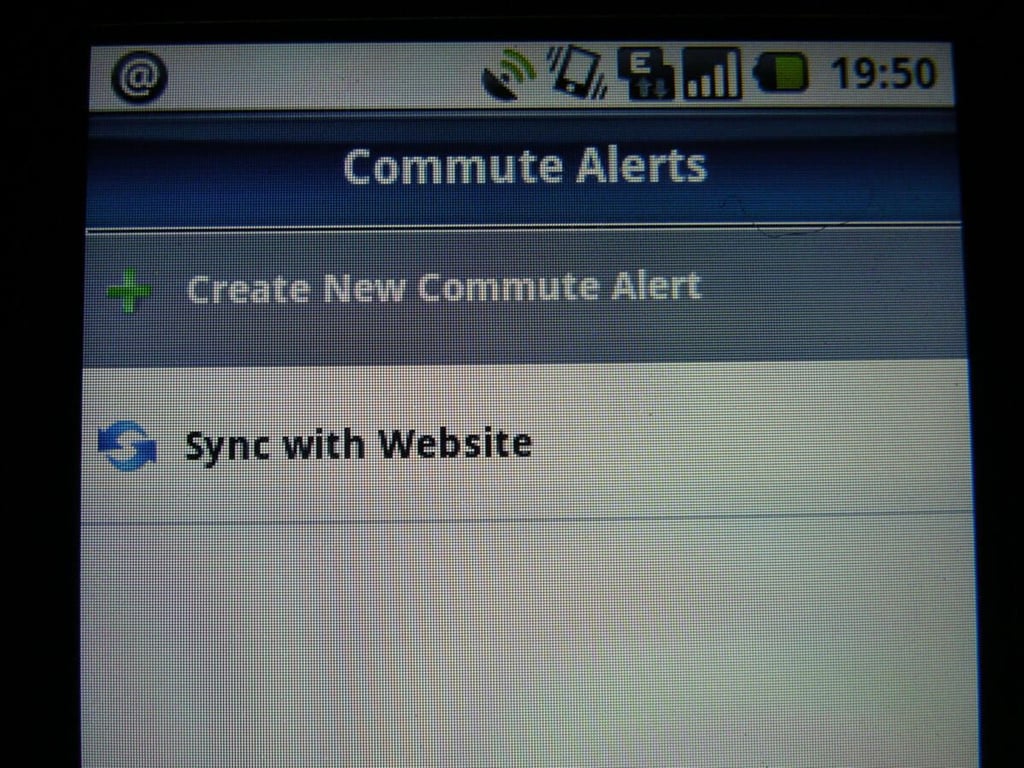
You can setup commute alerts on your G1 and be notified as things change along your daily route.
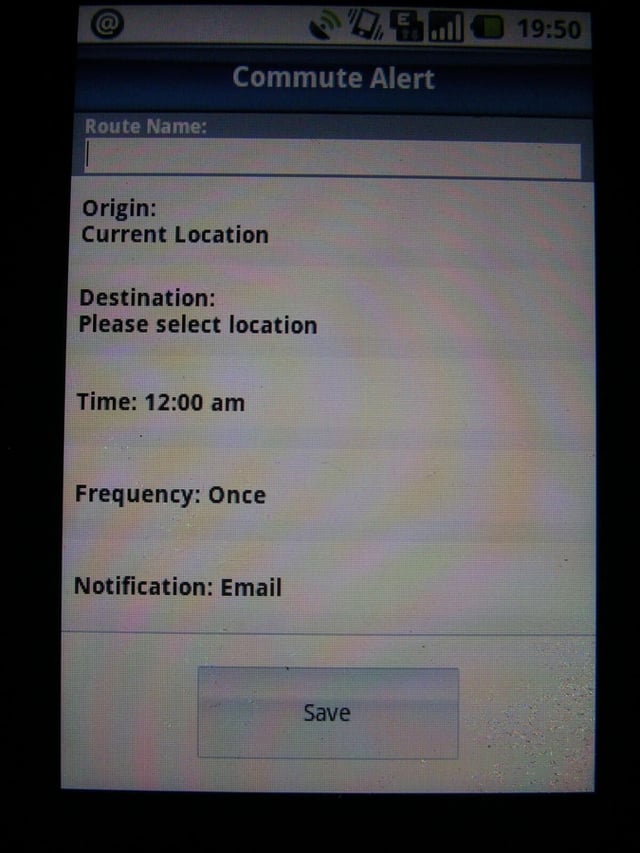
Here you can see the options available when you set up commute alerts on your G1.
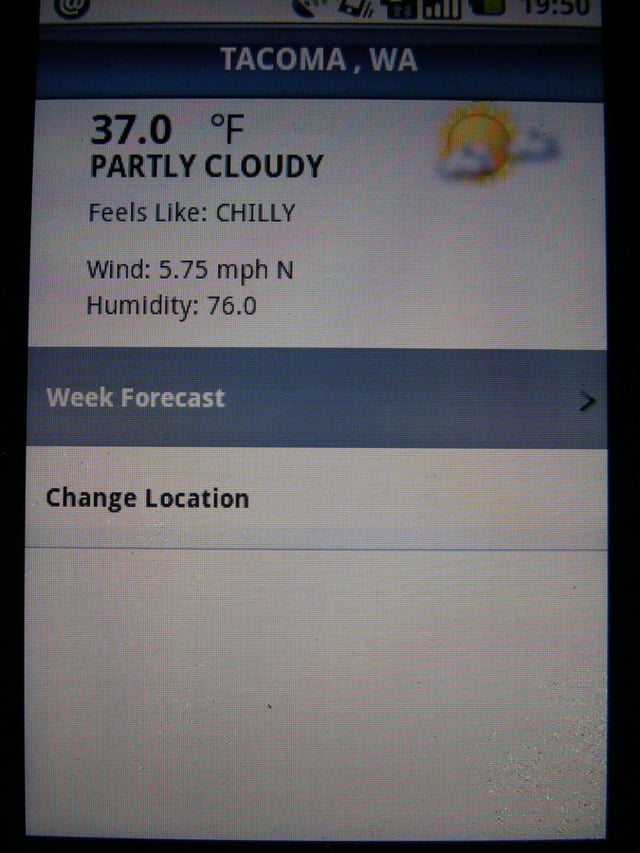
TeleNav GPS Navigator shows you the current weather for your location or other selected location.
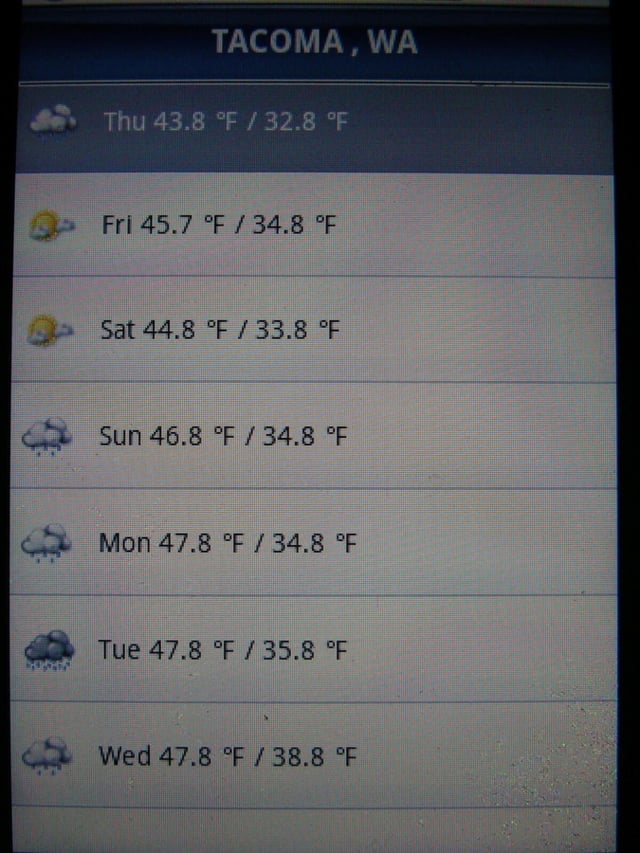
An icon of the weather, along with high and low temperatures appear in the weekly forecast view.
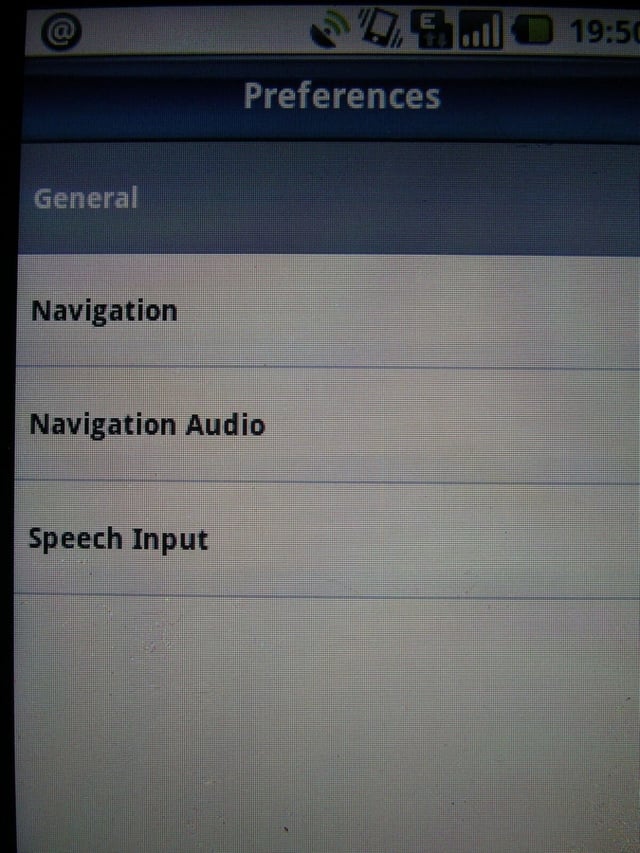
Four different preferences are available for you to customize in the software.
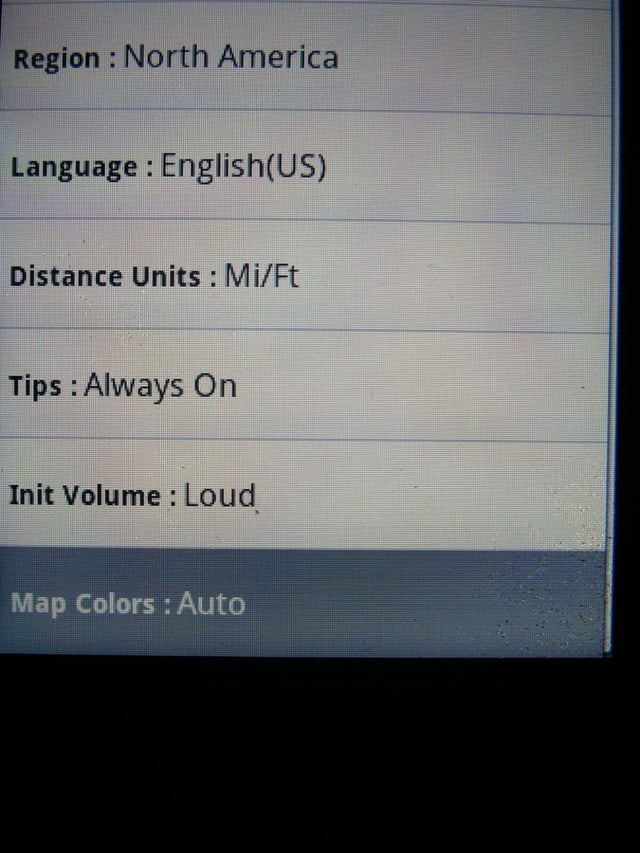
There are a few general preferences available for you to customize on your G1. Some of the preferences include units, language, volume level, and map colors.
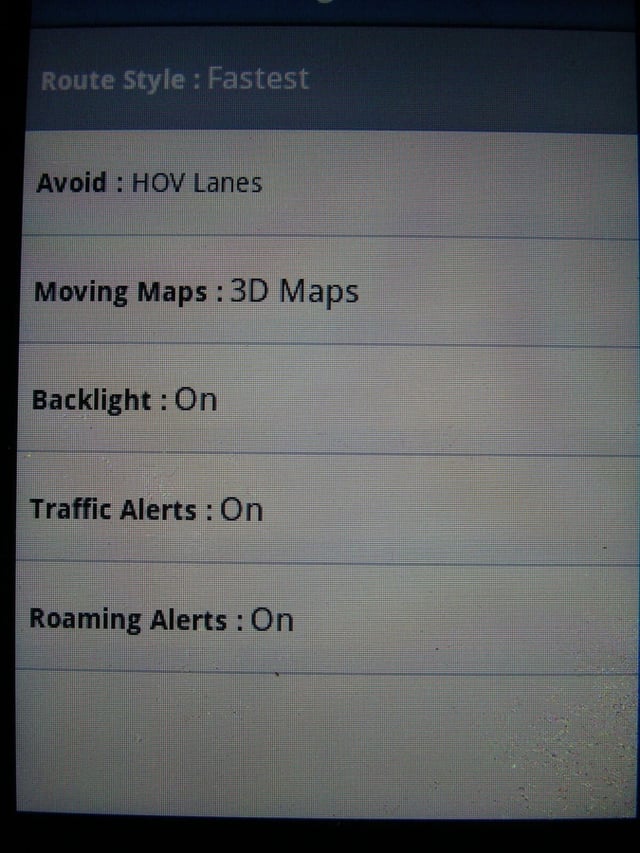
A few preferences are available for you to setup in regards to navigation settings.
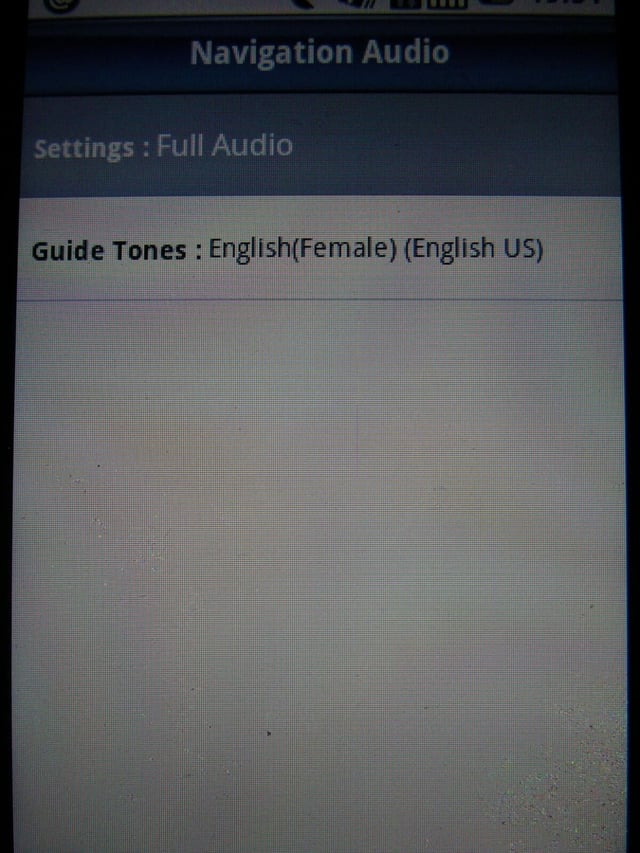
The default voice is English female, but you can also purchase other voices to use with your G1.
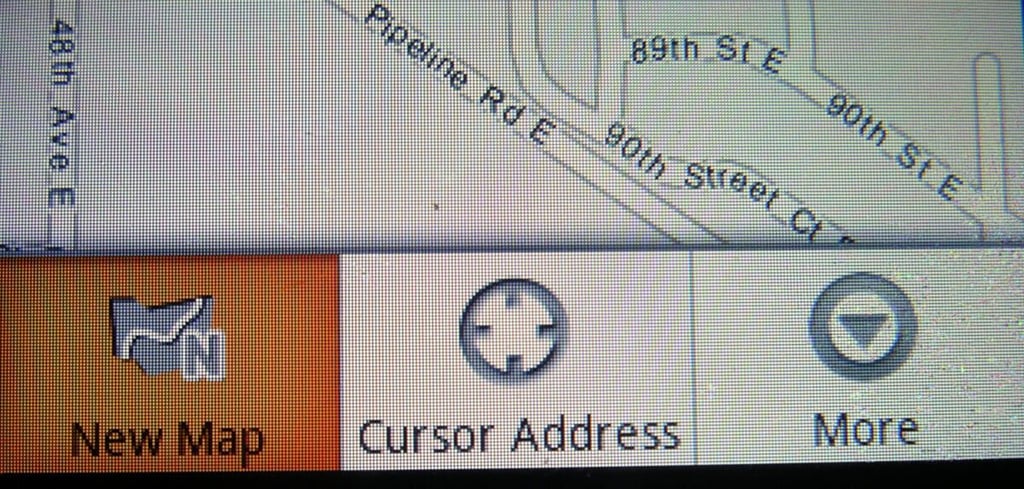
If you are not navigating, but just want to view maps then these are the options that appear when you press the Menu button on your G1.
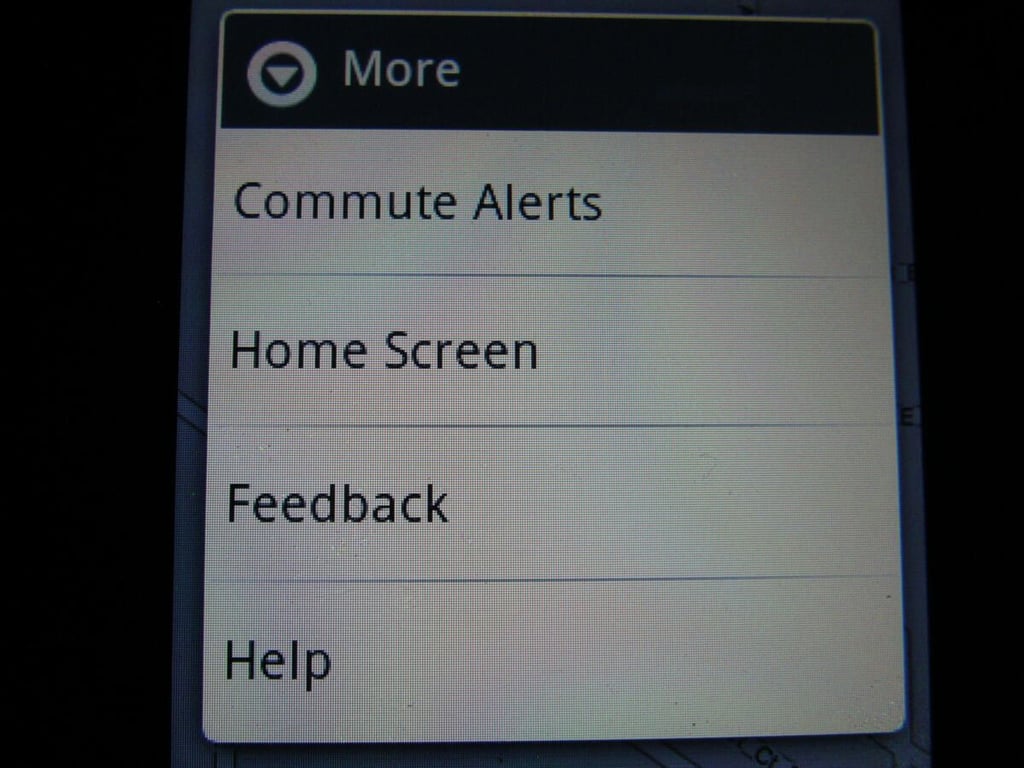
There are a few options available when you press the More button after pressing Menu.
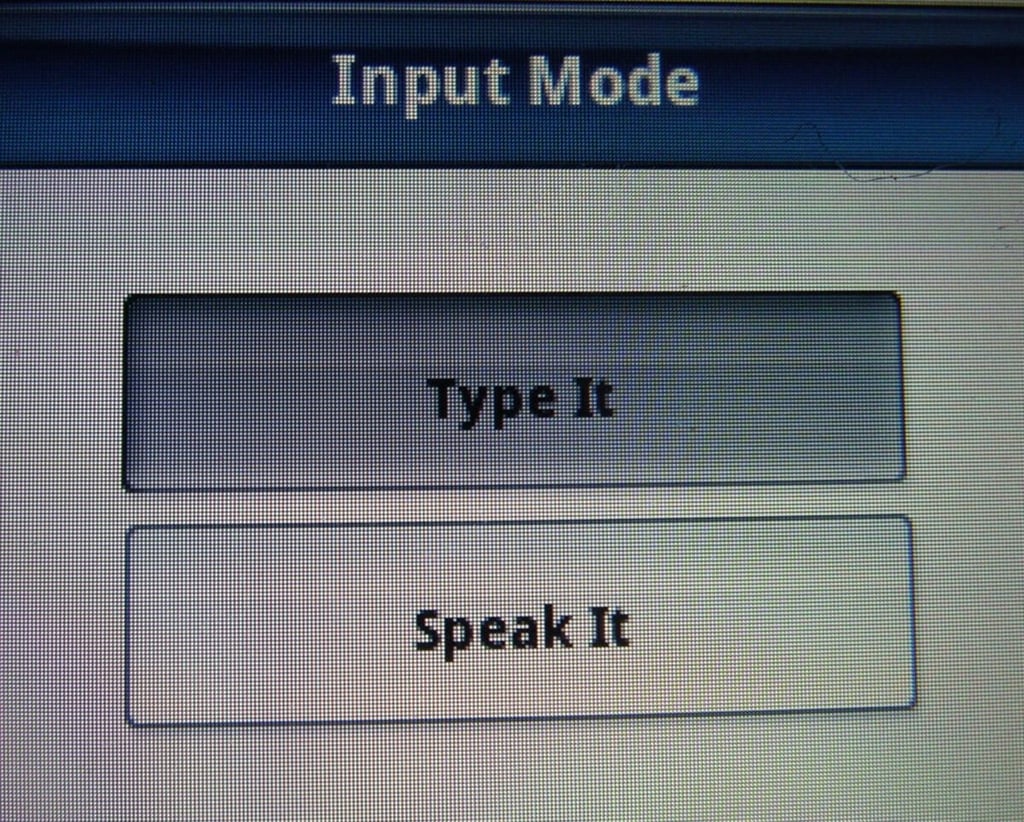
You can choose to search or enter addresses via your voice or by typing on your keyboard.
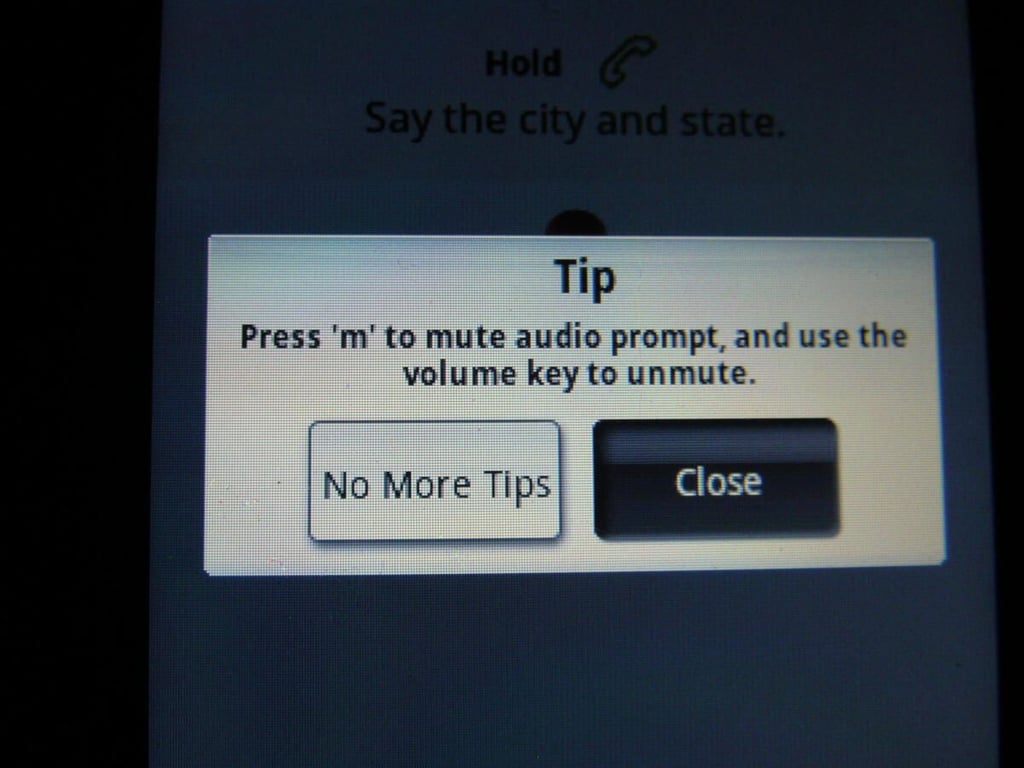
By default, tips appear throughout the program at different times to let you know ways you can optimize your experience. You can turn off the tips from appearing as well.
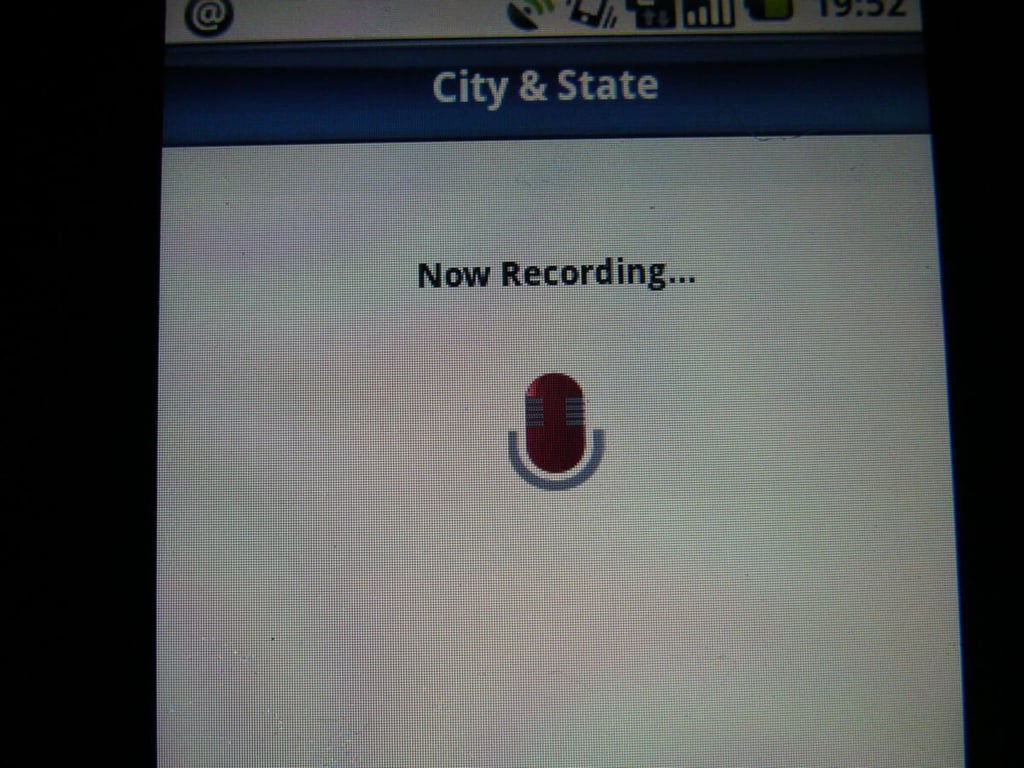
You simply press and hold the green/send button to speak your destination or search term.
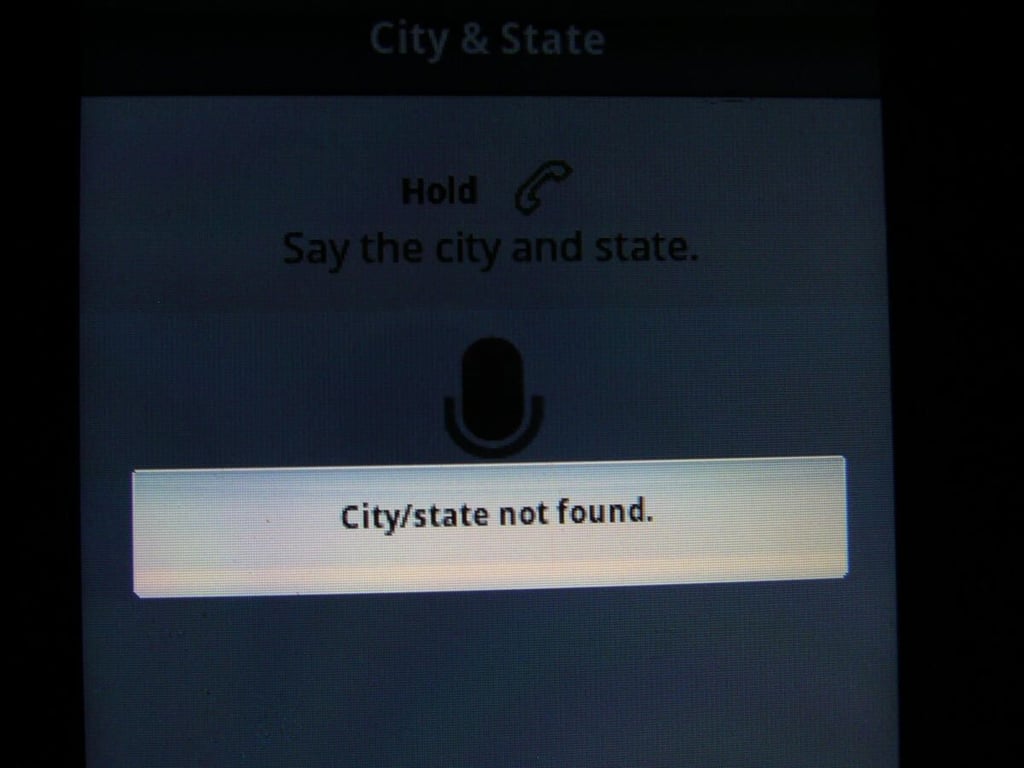
I kept seeing this error while trying to get my destination entered via voice.
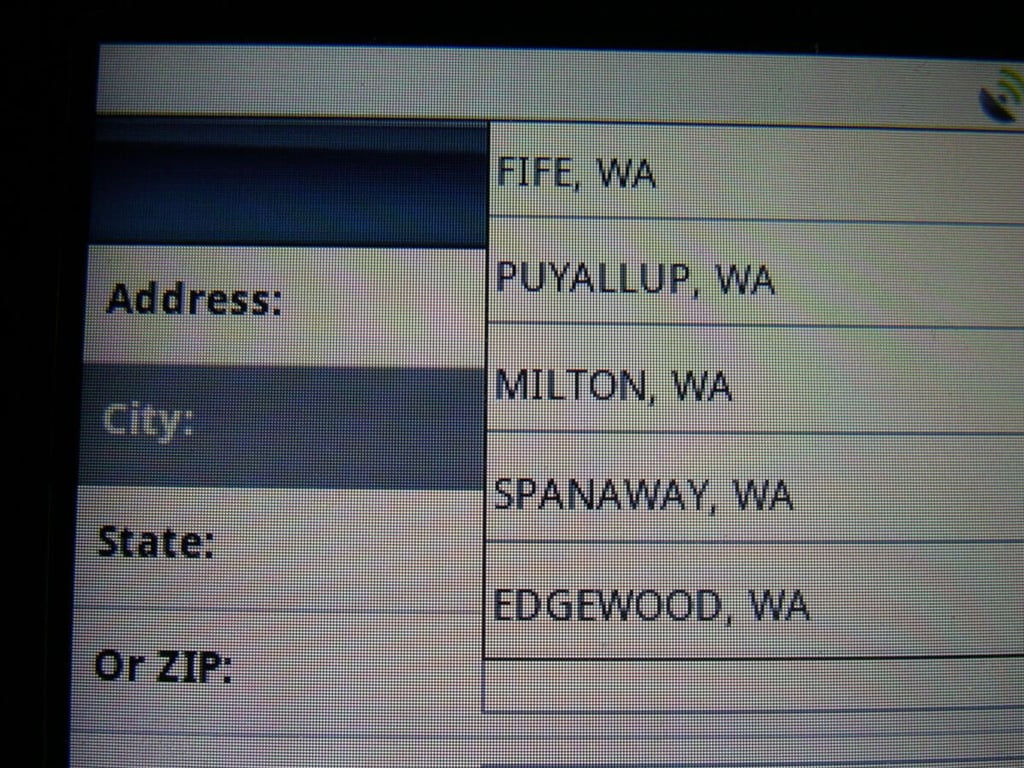
As you go to the entry screen for destinations TeleNav starts by listing cities located near your current location.
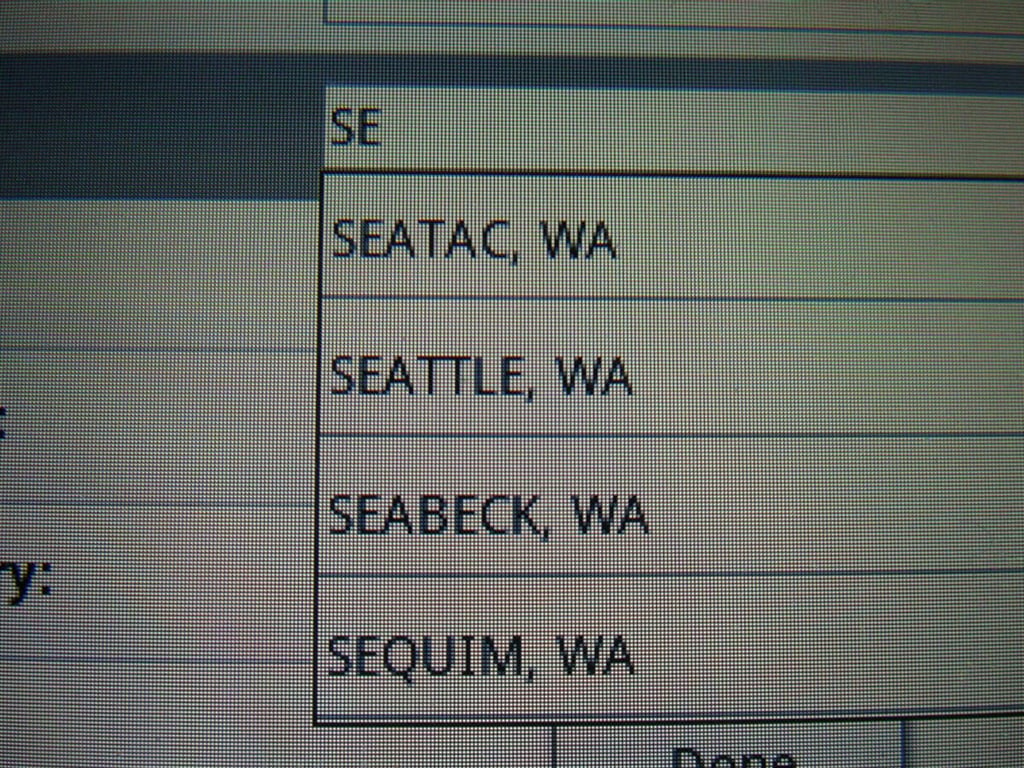
As you enter text in different fields, TeleNav autofills and filters the locations from the database.
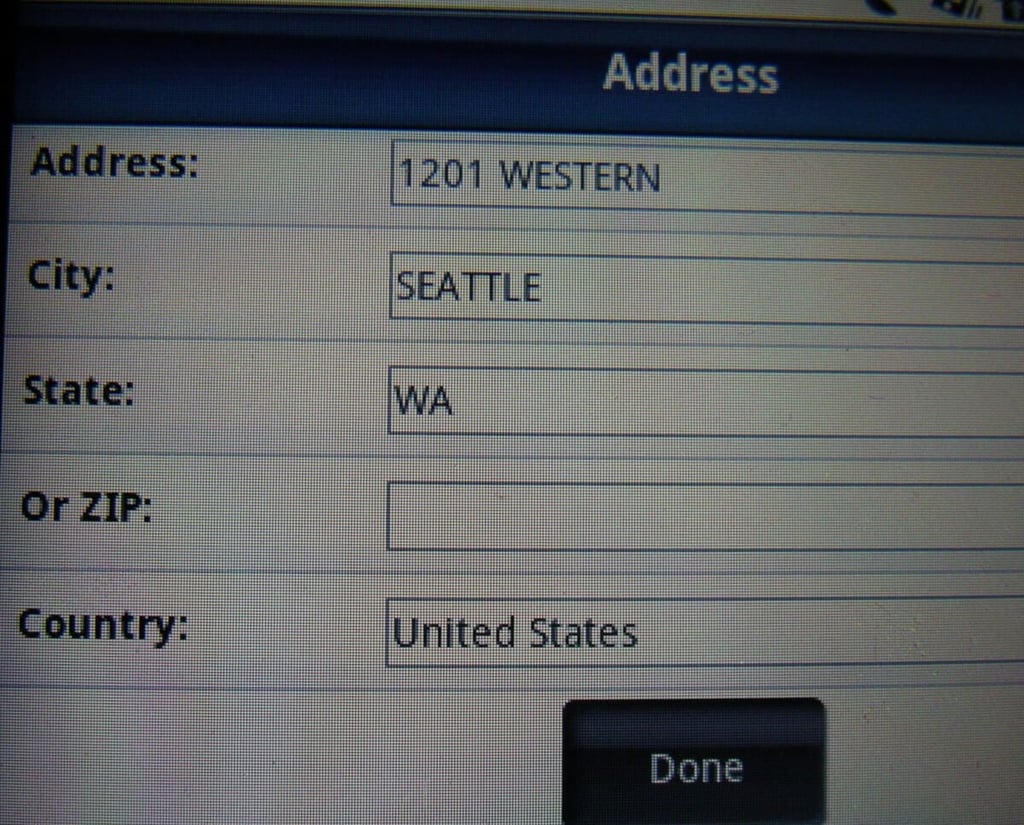
Here you can see all the fields available for destinations.
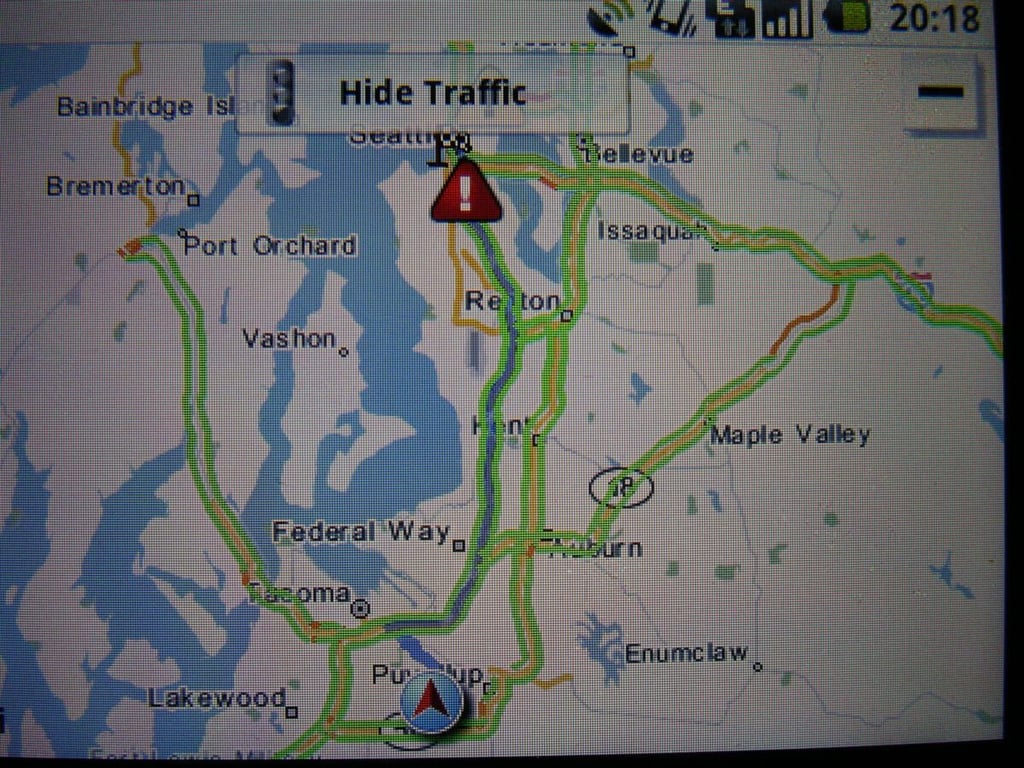
This view shows the map summary with traffic status highlighted in green.

Gallery 1
Gallery 2


