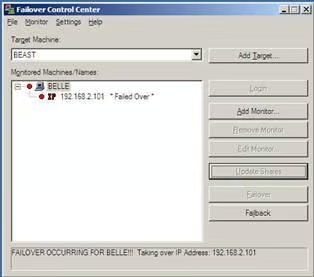
Double-Take Failover Control Center
In this The Hot Button blog, TechRepublic columnist Steven Warren outlined how you can provide high availability with Microsoft SQL Server and NSI Software’s DoubleTake. This gallery’s 3 screenshots show you how to restore your SQL Server data once a failover has occurred.
To start the recovery process, select the failed source from the Failover Control Center and click Failback.
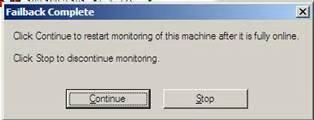
Next, you will be prompted if you want to continue monitoring as shown here. Leave this dialog box open and we will choose the appropriate option later in the process.
Next, open the Double-Take Management console from the Start Menu (Start | Programs | Double-Take, Management Console) and highlight the source machine to make sure the replication set is disconnected. Simply right-click on the replication set and choose disconnect.
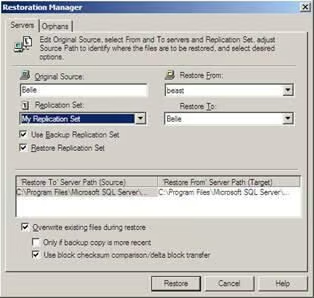
Now choose Tools | Restoration Manager from the Double-Take Management Console. On this window, the process is as follows: Place the original source server name prior to the failover in the Original Source text box. Next, click the dropdown and select the name of the server you want to Restore From. This will be the target machine that took over for the failed source. Now, choose your Replication Set name and then choose the name of the machine where the data will be restored. Once you have entered the appropriate information, click Restore.
Bill Detwiler is the Editor for Technical Content and Ecosystem at Celonis. He is the former Editor in Chief of TechRepublic and previous host of TechRepublic's Dynamic Developer podcast and Cracking Open, CNET and TechRepublic's popular online show. Previously, Bill was an IT manager in the social research and energy industries. He has bachelor's and master's degrees from the University of Louisville, where he has also lectured on computer crime and crime prevention.


