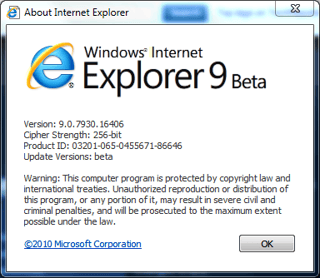
The beta version of Internet Explorer 9 is now available for download. In this Photo Gallery, TechRepublic takes a first look at Microsoft’s latest Web browser.
Image created by Mark Kaelin for TechRepublic.
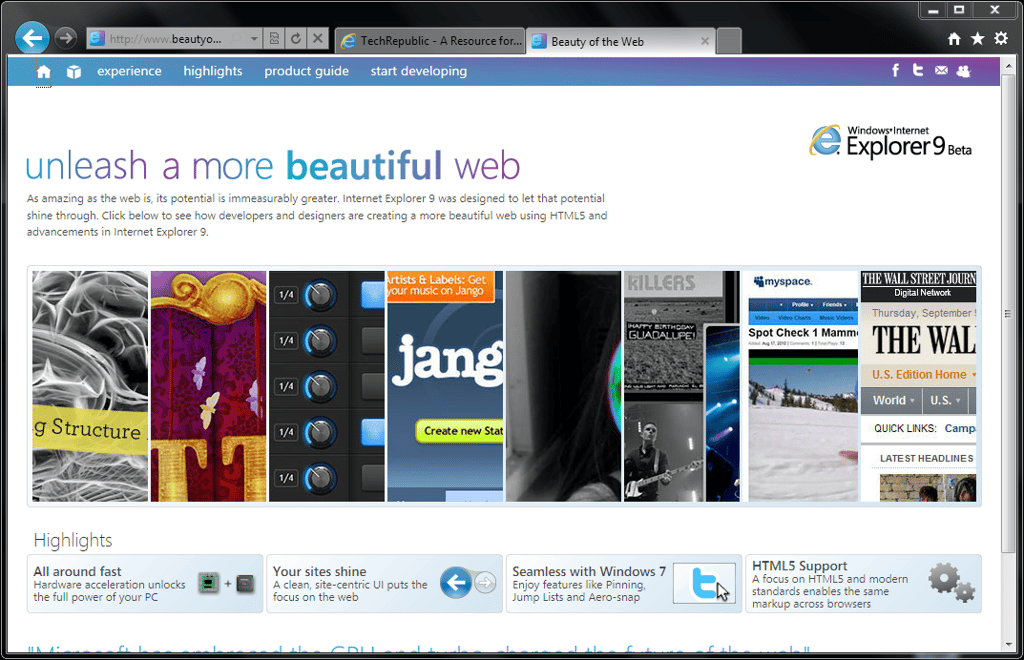
Microsoft is couching this version of IE as a way to a more beautiful Web. My surfing habits tend toward more efficient browsing rather than more graphic intensive browsing, so I am a little ambivalent about these claims.
Image created by Mark Kaelin for TechRepublic.
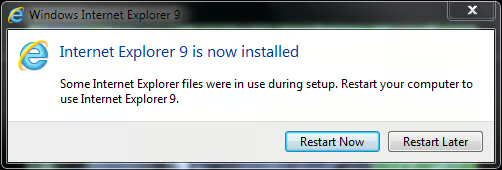
When the installation is complete, restart to complete the process.
Image created by Mark Kaelin for TechRepublic.
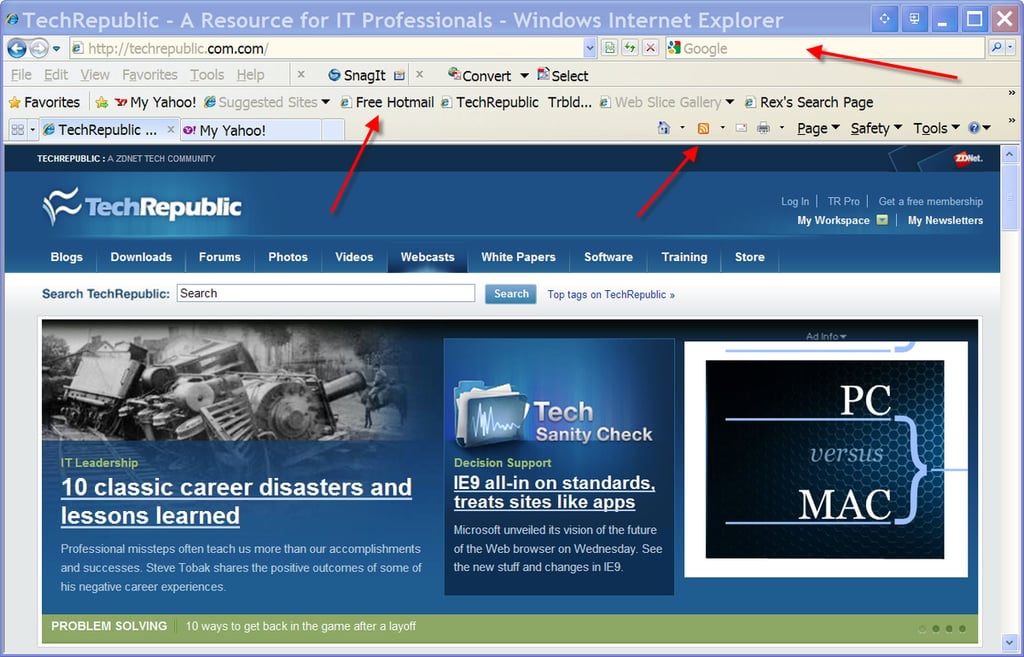
Just for comparison purposes, here is what my workstation install of Internet Explorer 8 looks like. Note the toolbars.
Image created by Mark Kaelin for TechRepublic.
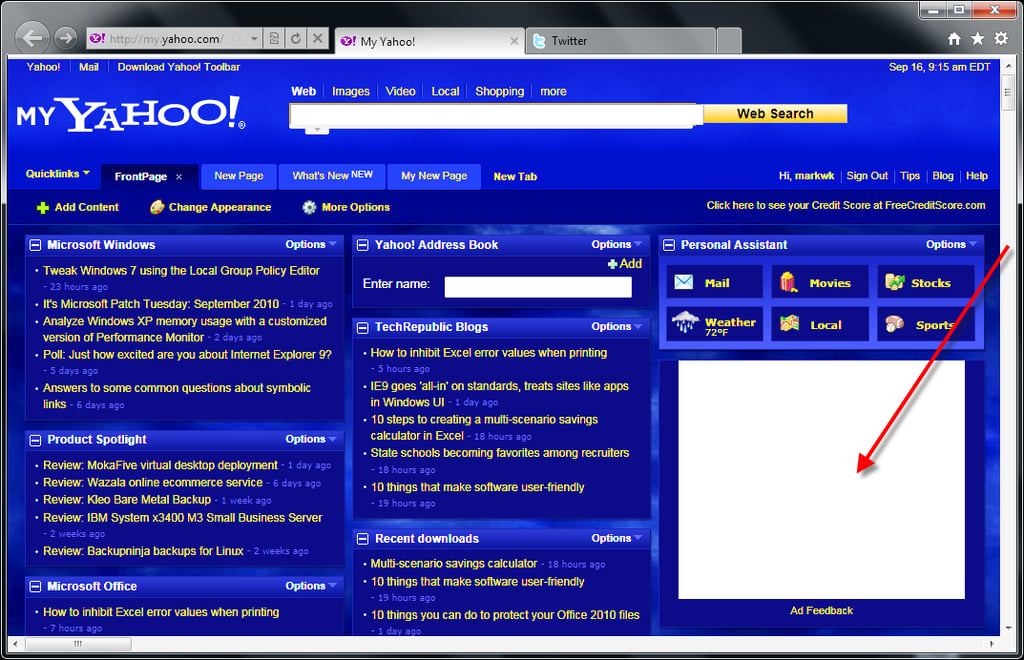
My Yahoo looks to be about the same except for the missing ad. I don’t know why this ad is missing, but, as you’ll see later, it does not appear to be Internet Explorer’s fault.
Image created by Mark Kaelin for TechRepublic.
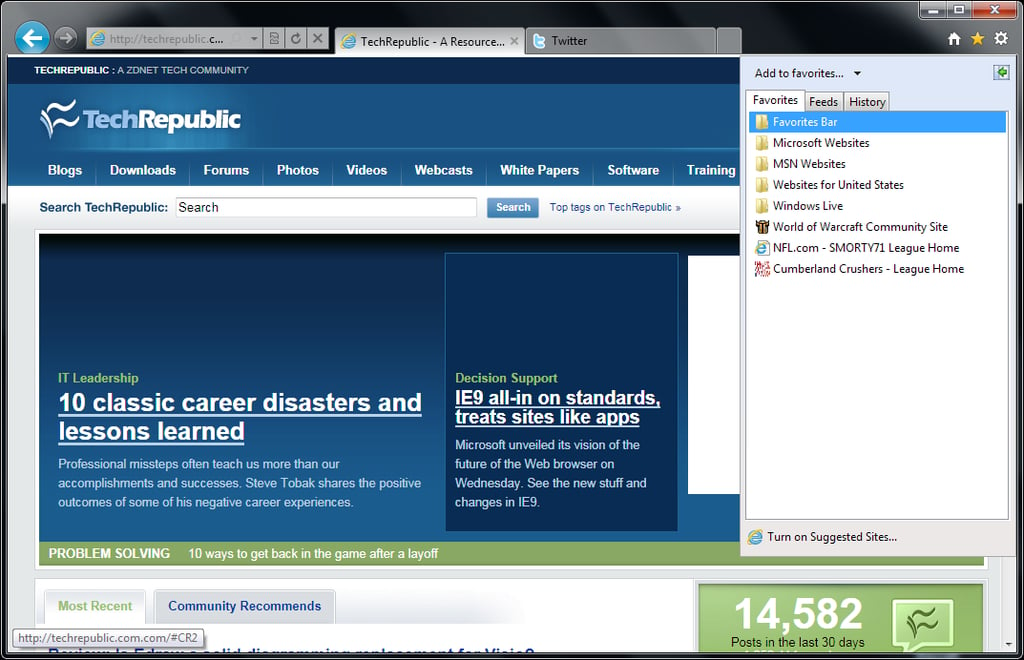
While the button for favorites has moved, what it does is very similar to IE8.
Image created by Mark Kaelin for TechRepublic.
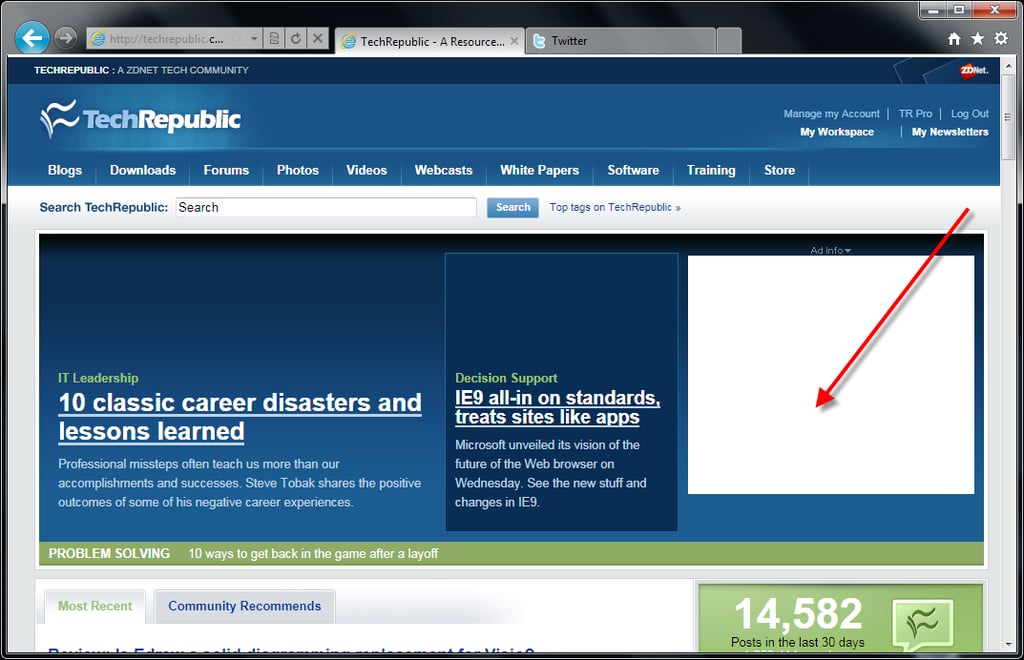
IE 9, at least until I load them, has no toolbar anymore.
Image created by Mark Kaelin for TechRepublic.
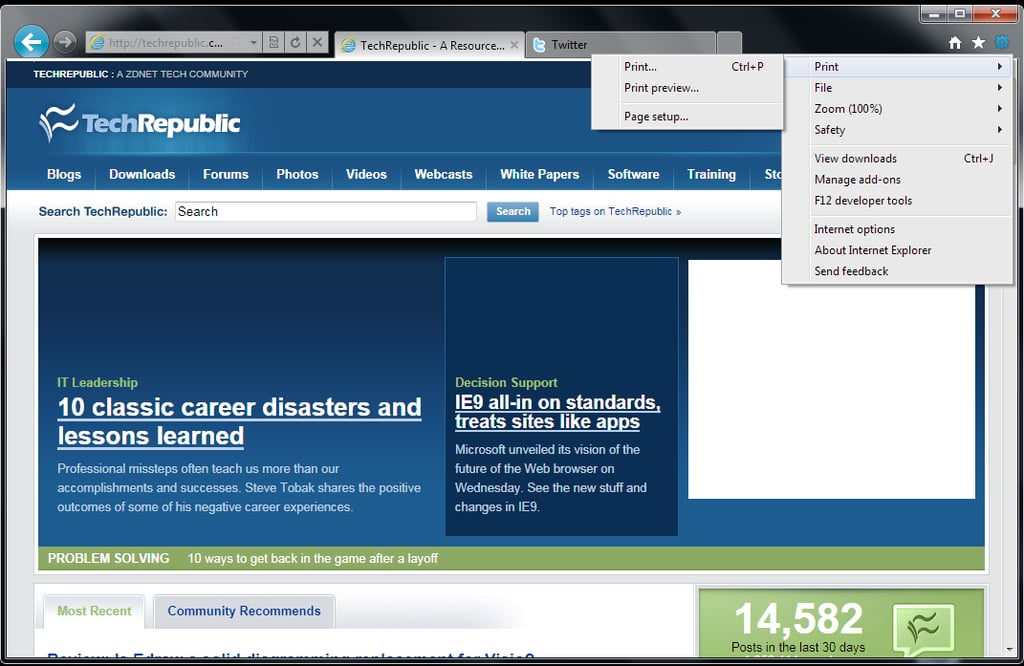
The tools button on the right side contains the usual controls. In this case, you have your basic print options.
Image created by Mark Kaelin for TechRepublic.
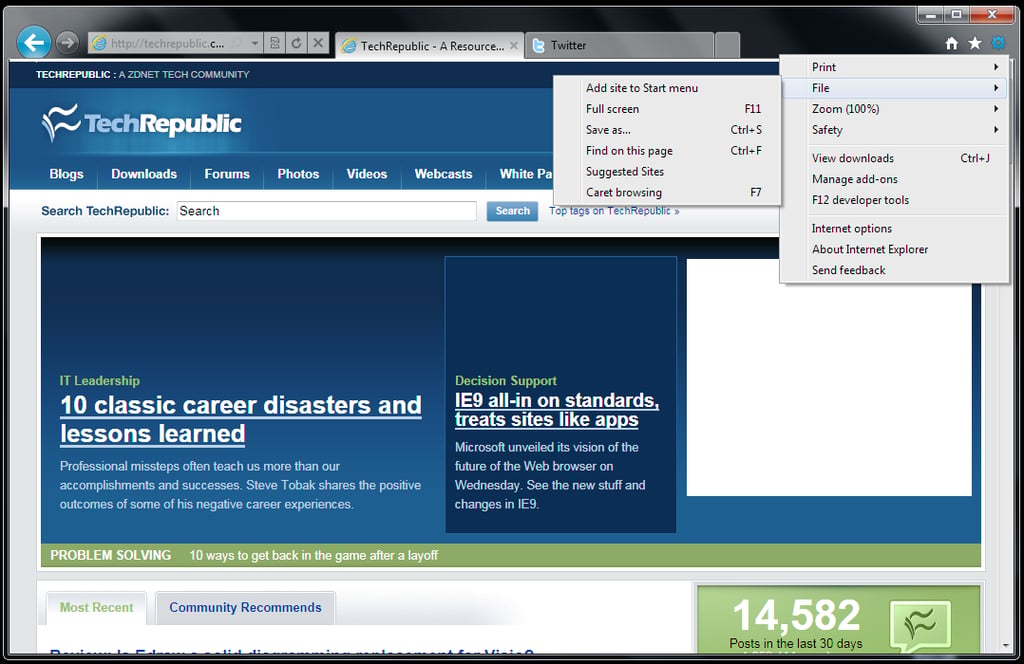
The file section of the tools button has some the primary file controls on it. Notice the Add to Start Menu item. Microsoft has given IE 9 capabilities that treat Web sites like an application from the perspective of the start menu and taskbar.
Image created by Mark Kaelin for TechRepublic.
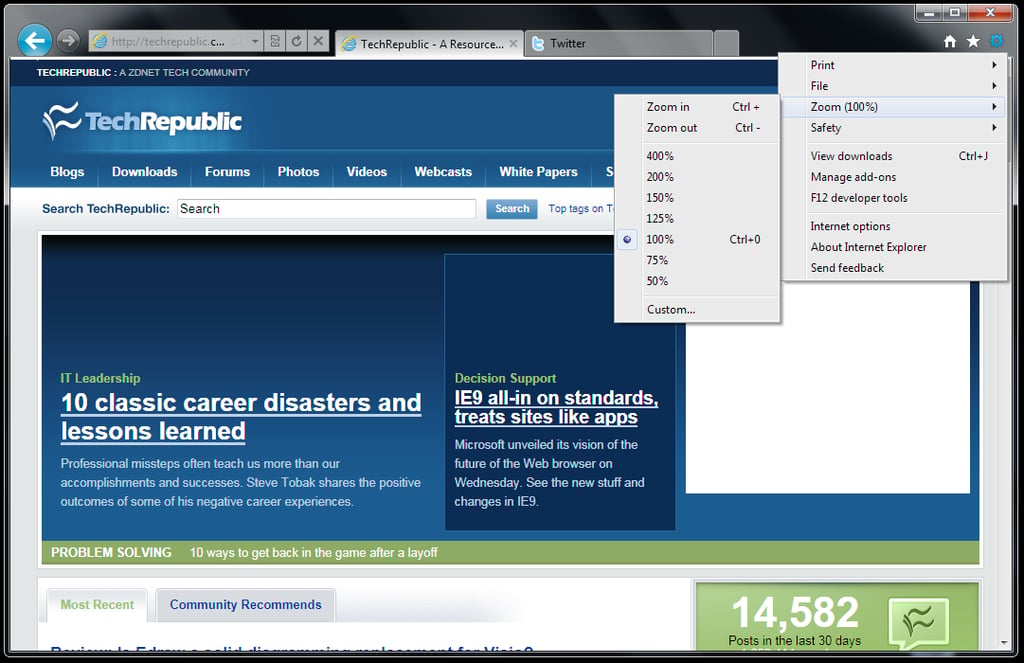
You can zoom in and out as needed.
Image created by Mark Kaelin for TechRepublic.
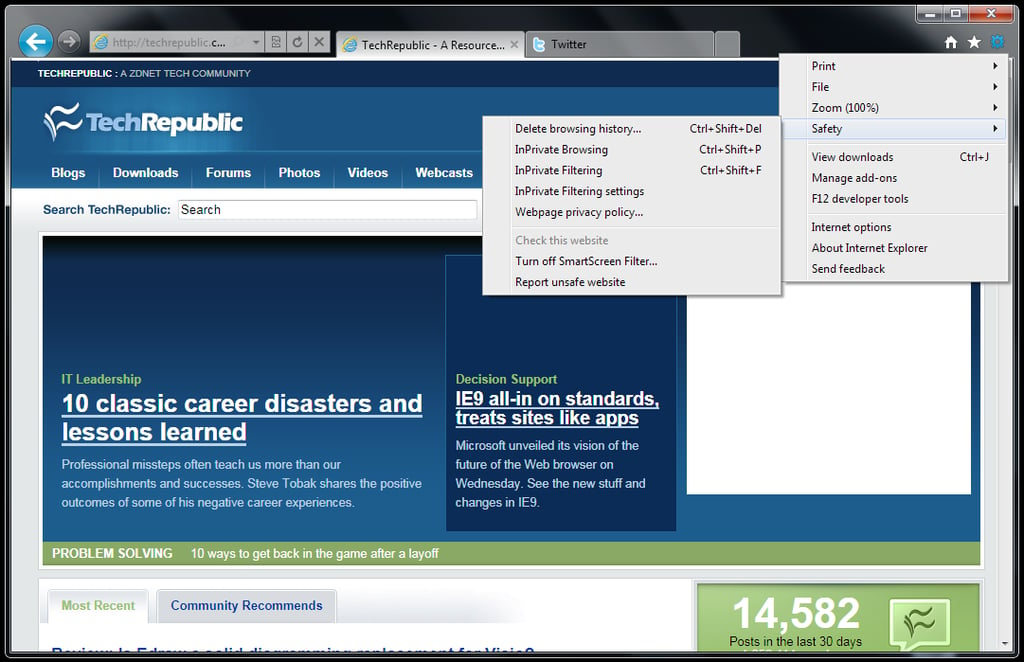
There are more privacy options in IE 9 – an area that we will explore more closely in the future.
Image created by Mark Kaelin for TechRepublic.

Internet Explorer 9 will not track your downloads for you.
Image created by Mark Kaelin for TechRepublic.
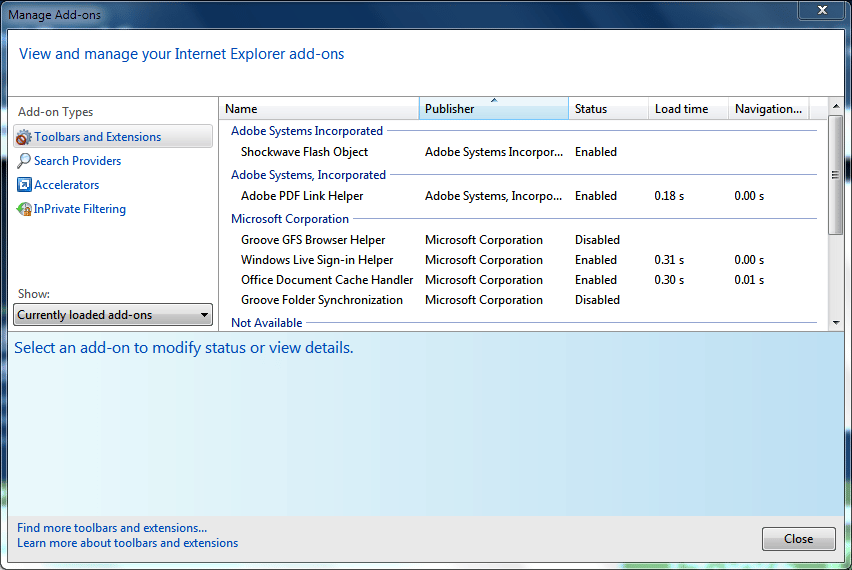
And IE 9 will manage your add-ons too. Looking at the list, I guess I did have a few add-ons after all.
Image created by Mark Kaelin for TechRepublic.
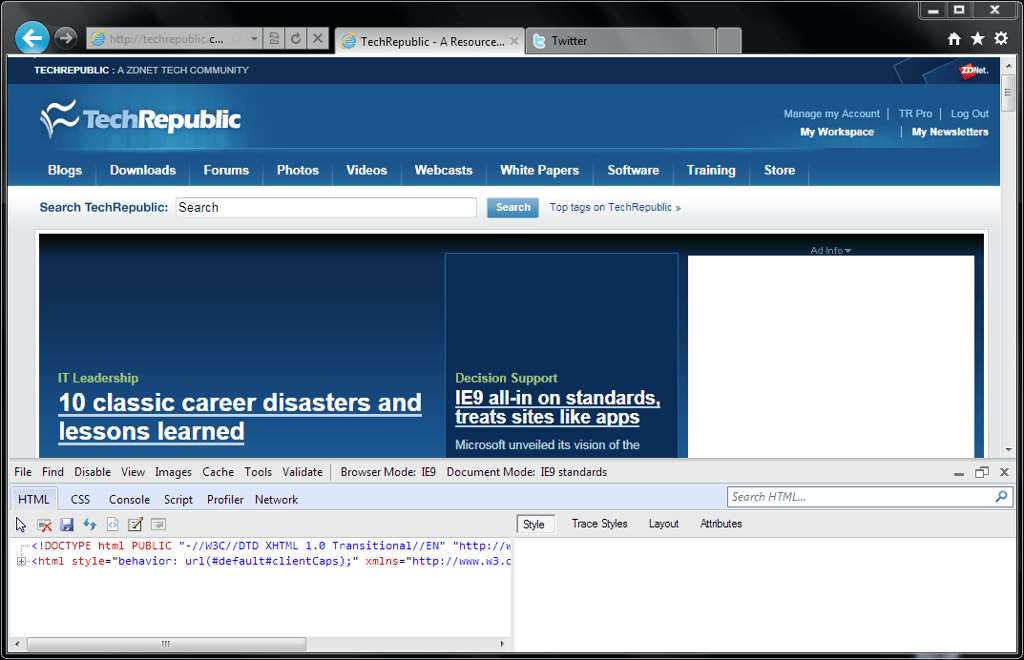
IE 9 has added some developer tools.
Image created by Mark Kaelin for TechRepublic.
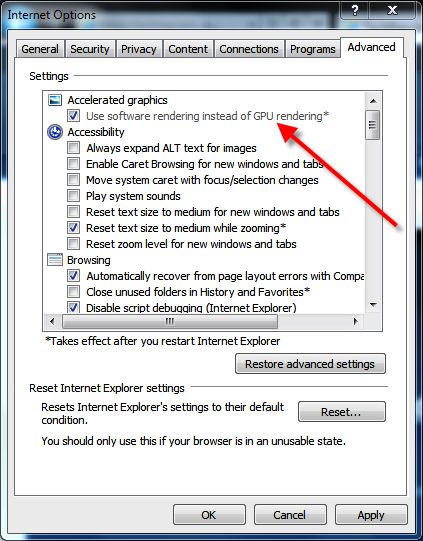
However, there is one difference that Microsoft is emphasizing – GPU acceleration. Unfortunately, my test machine is a netbook with an integrated graphics chip that does not meet the requirements.
Image created by Mark Kaelin for TechRepublic.
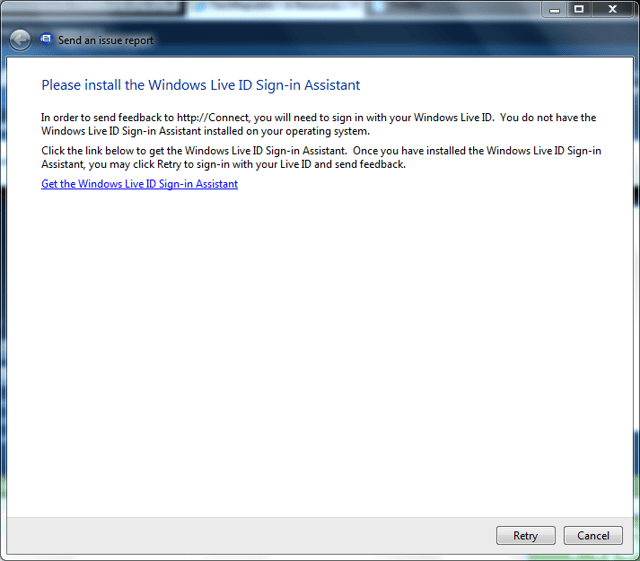
Being a beta version, Microsoft would like you to provide them with feedback. But you’ll need a Windows Live ID.
Image created by Mark Kaelin for TechRepublic.
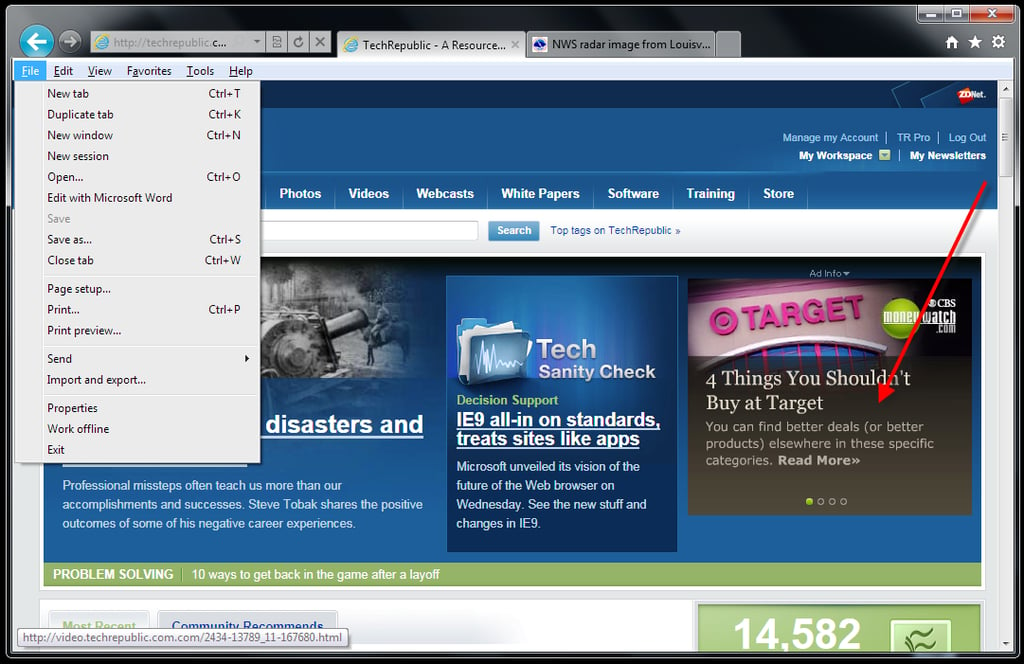
The file section off the menu is more extensive than the file section we saw off of the tools button. I changed my Internet connection so now I get the lovely ad I was missing.
Image created by Mark Kaelin for TechRepublic.
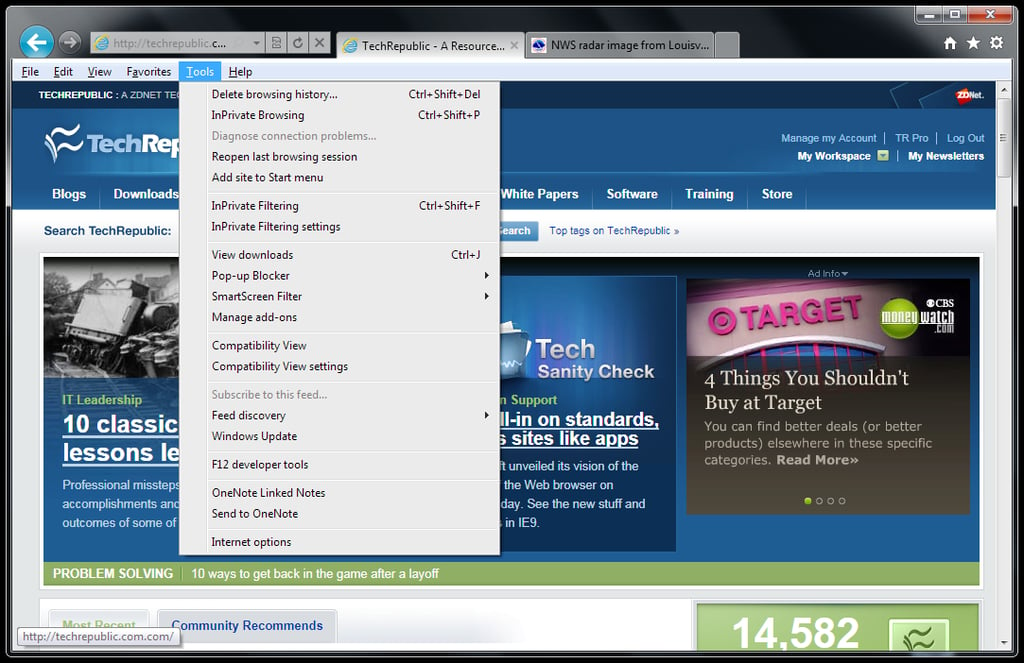
The tools selection off of the menu is also extensive. IE 9 can revert to a compatibility mode if need be.
Image created by Mark Kaelin for TechRepublic.
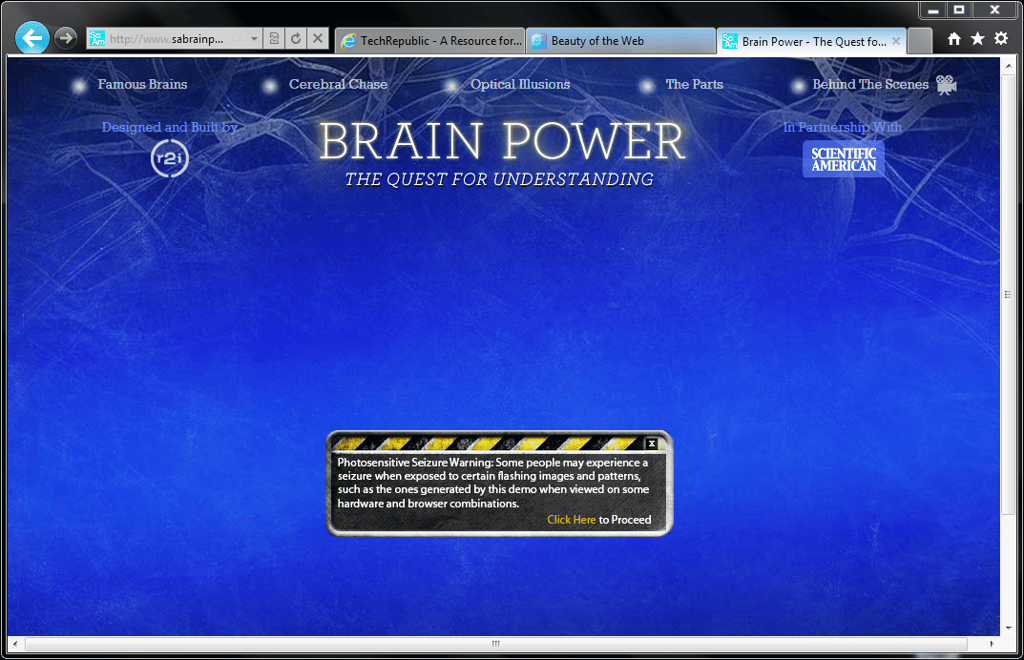
Scientific American has one of the Web sites Microsoft is citing as an example of what you can do with Internet Explorer 9.
Image created by Mark Kaelin for TechRepublic.
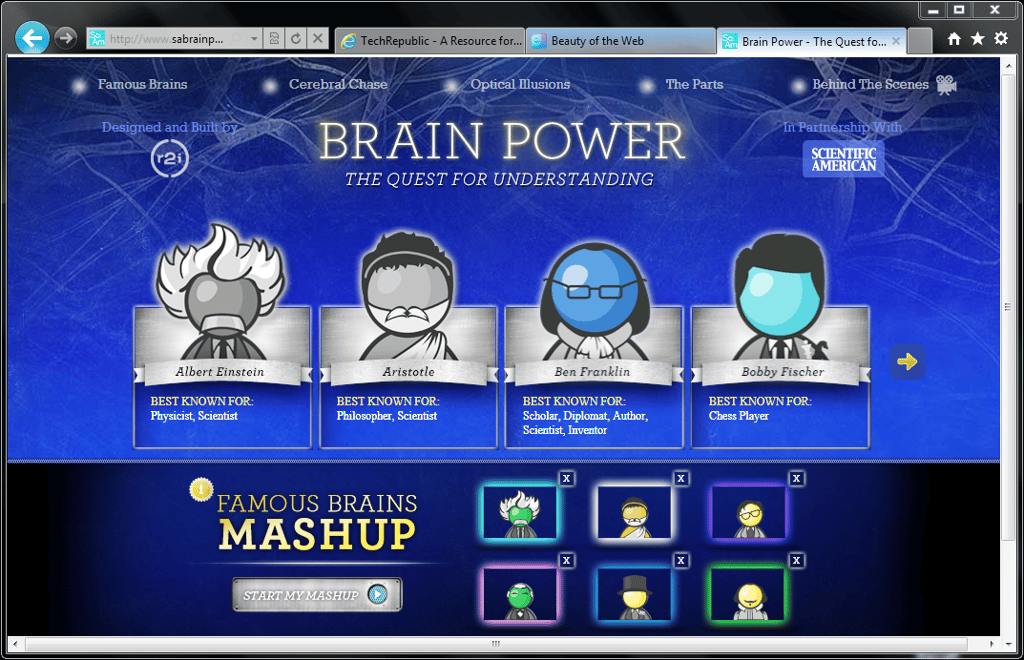
Click the Famous Brains section and you can choose a famous brain and drag and drop it into the section below.
Image created by Mark Kaelin for TechRepublic.
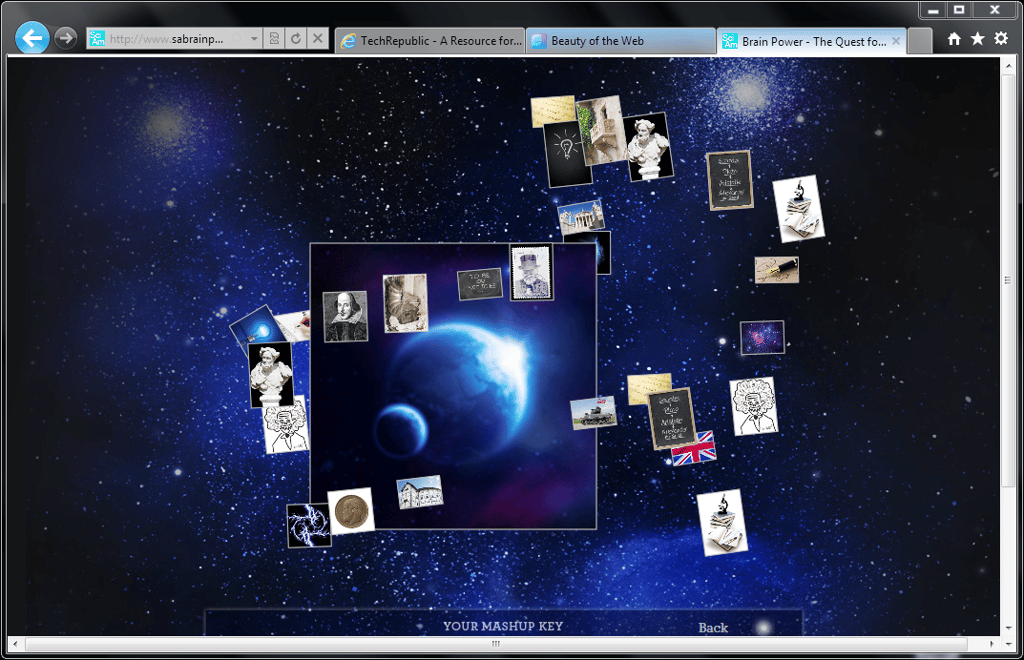
When you run the mashup you get this swirling display. Now, this is where my efficiency sensibilities come into play. While the display is pretty to look at, I am not convinced this is a better experience. For example, if I want to click a specific image, I have to chase it around the screen as it swirls – why?
Image created by Mark Kaelin for TechRepublic.
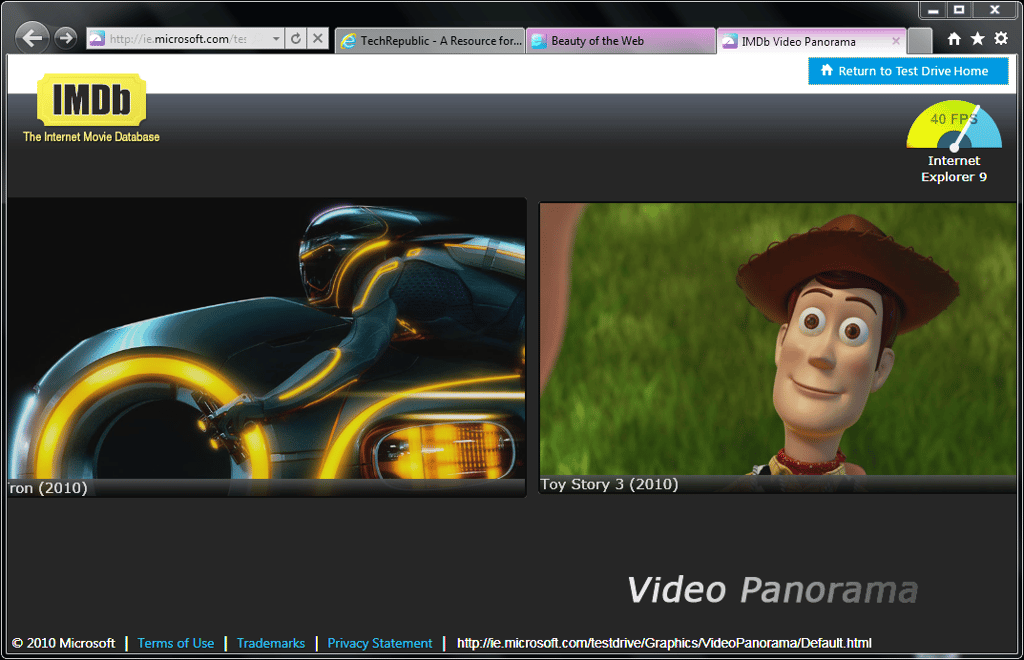
The IMDb example is a little more practical – I like the higher resolution images and the flow of the images across the screen.
Image created by Mark Kaelin for TechRepublic.
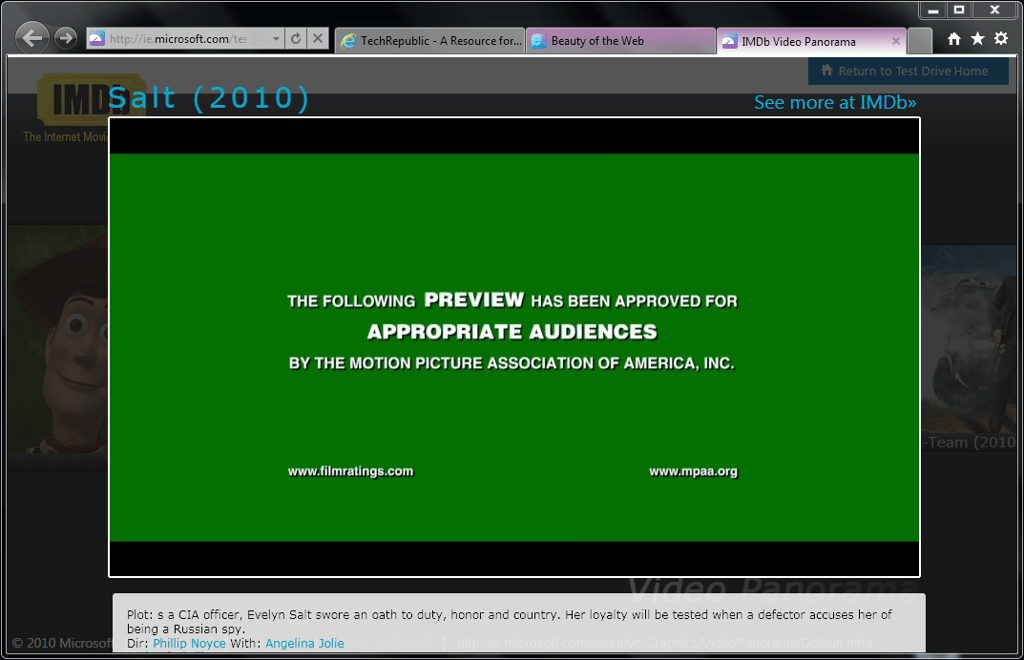
The movie trailer looks good.
Image created by Mark Kaelin for TechRepublic.
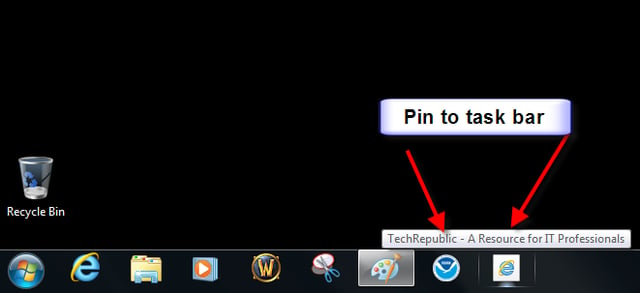
You can drag and drop Web pages from your browser window onto the taskbar to pin them there. I do like that idea – instead of opening a browser then navigating to a particular Web site, you can pin a site to the taskbar and get there in one click.
Image created by Mark Kaelin for TechRepublic.

Mark W. Kaelin has been writing and editing stories about the information technology industry, software, hardware, gaming, finance, accounting, and technology geekdom for more than 30 years.


