By: Anthony Sullivan
You know the feeling. You’re sitting there minding your own business, going about your computing day when… BAM! You’re computer goes wonky and you know something isn’t right. Maybe it reboots, maybe you start getting errors, or maybe files just start to disappear. One thing is for sure: you’ve got a virus.
Or, maybe you don’t know what this is like. Perhaps you only know what it’s like for your computer to casually tell you that it has thwarted yet another attempt to infiltrate your system by some nefarious evil-doing snippet of code.
If either of these scenarios has happened to you, you already know how important virus protection is. But how do you choose the right anti-virus protection from among the tons of options out there? Today, take a peek at Kaspersky Anti-Virus and decide for yourself if this is the solution for you.
You can download your own trial copy of Kaspersky Anti-Virus from the TechRepublic software library.
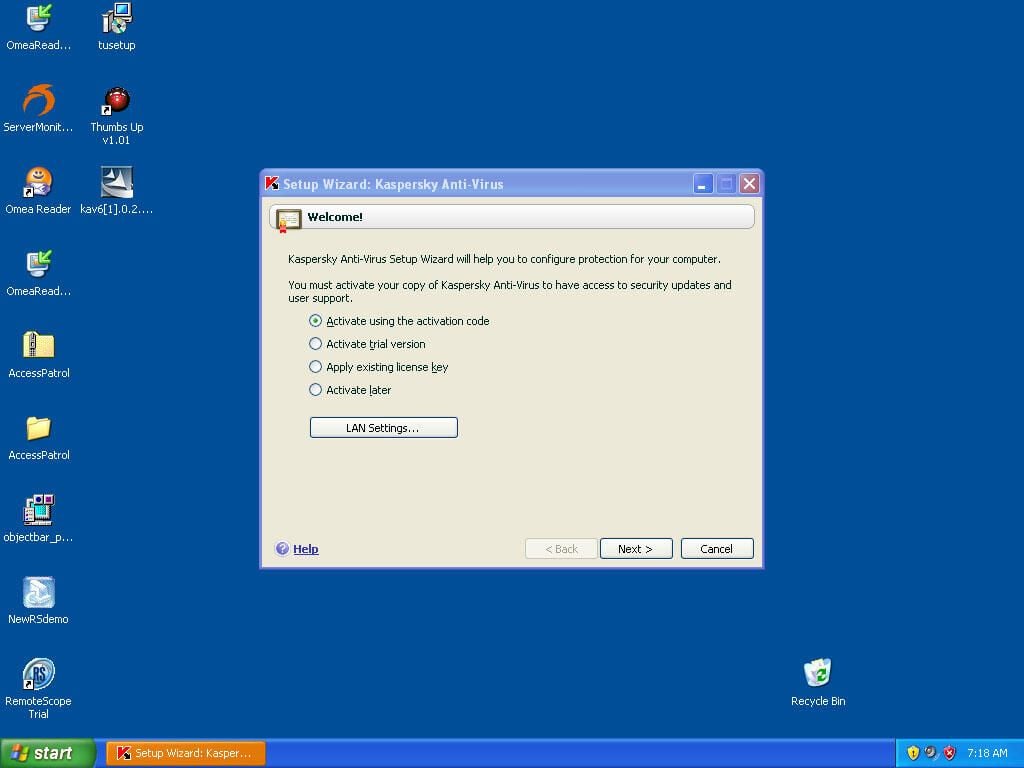
After installing Kaspersky, you are asked it activate the software. Since we are just checking it out and haven’t bought a copy yet, we’ll want to activate a trial.
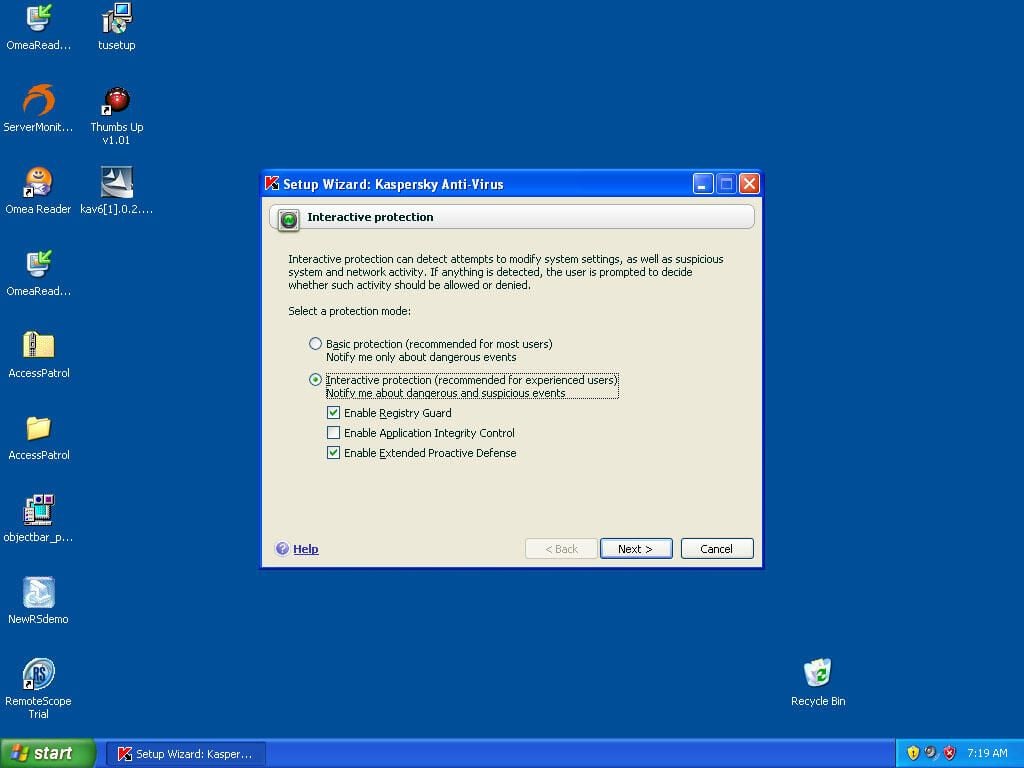
Kaspersky can run in two modes. In Basic mode it does the bare minimum.
In Interactive mode you get additional protection for the registry as well as more frequent alerts.
I chose Interactive to see how annoying it really was. I found tha it wasn’t intrusive at all and the extra protection is worth an extra alert from time to time.
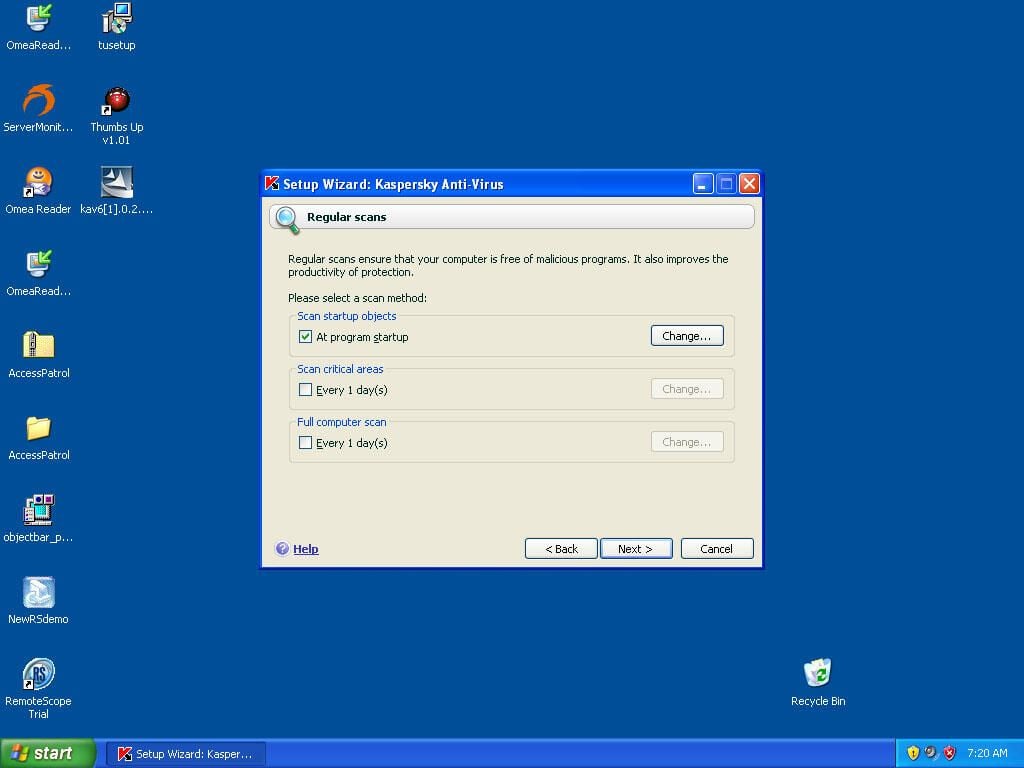
It makes sense to have regular scans. This isn’t set by default, however.
I recommend checking and configuring each of these. A full computer scan should occur no less than once a week and critical areas should be scanned daily.
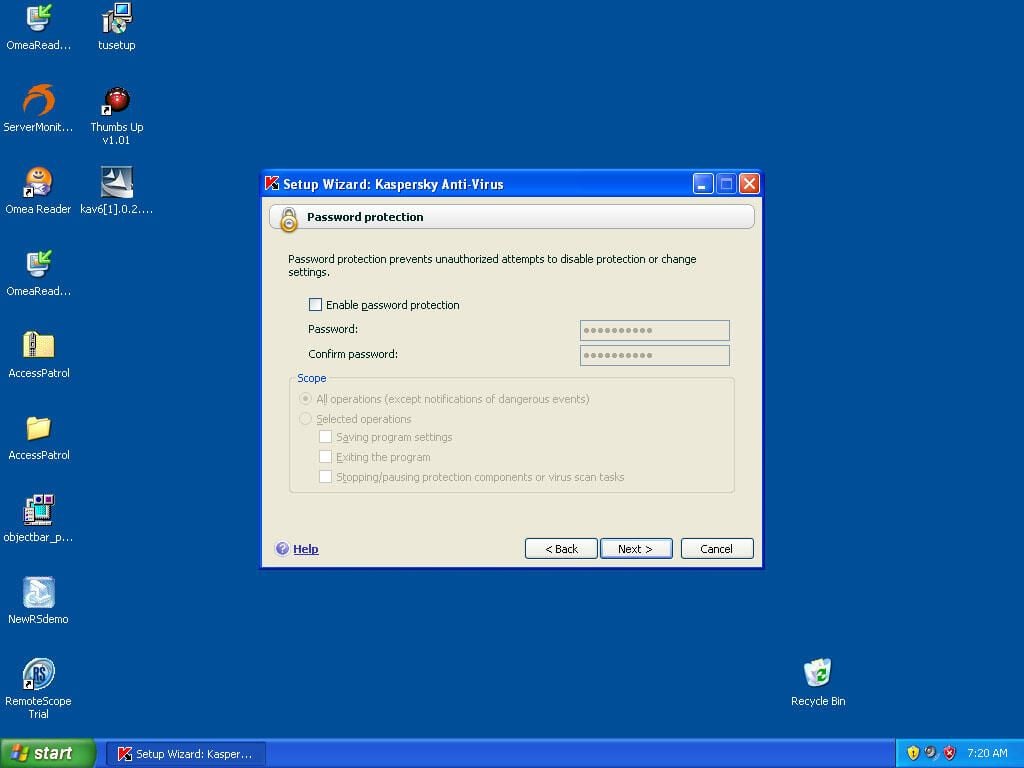
This allows you to password-protect your virus settings and is probably not necessary. However, if you have young people who also use your computer and might disable virus protection for some reason, you might want to set this.
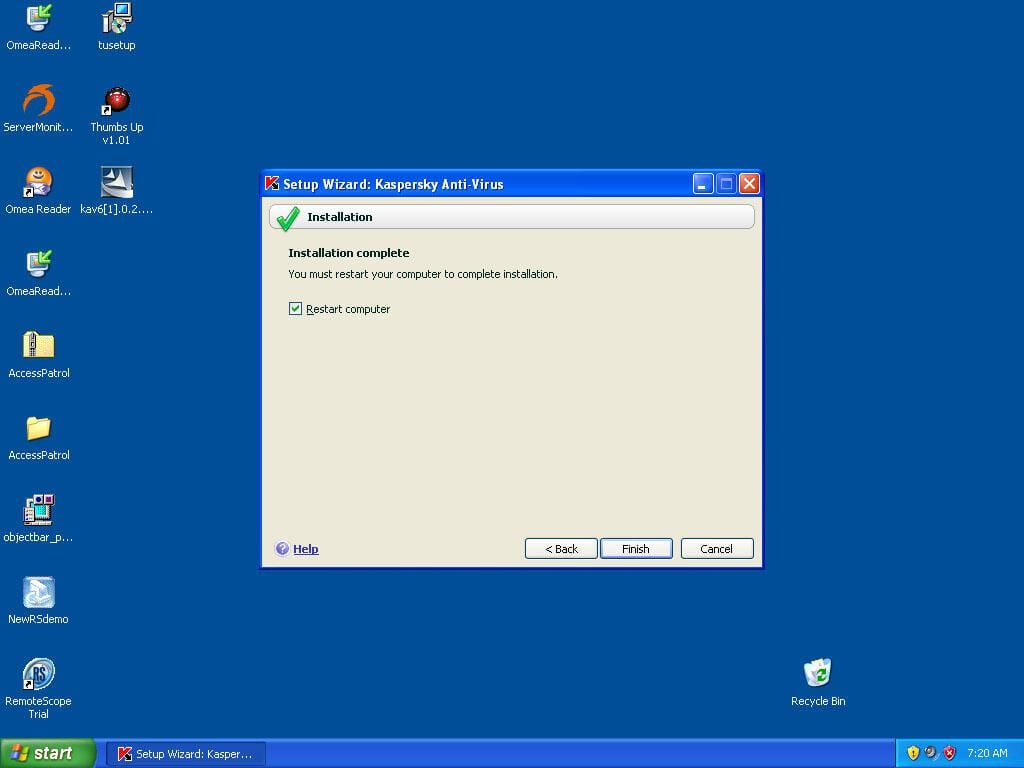
Now we must restart to apply the changes we’ve made.
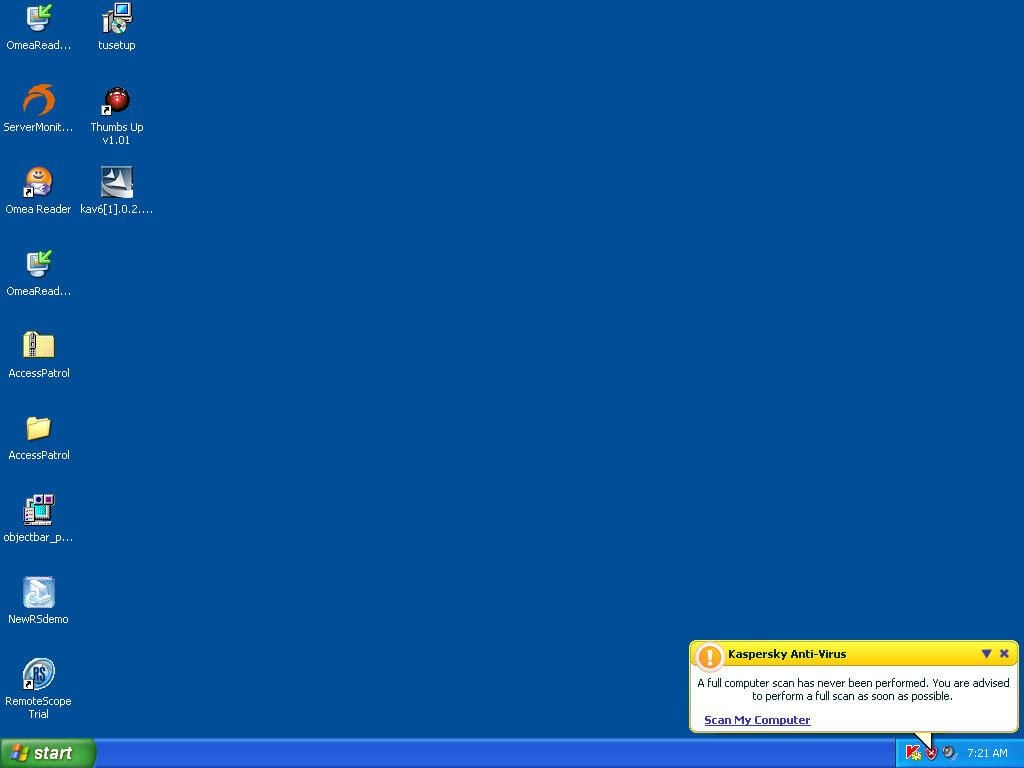
Once you’ve restarted you will see this bubble pop up.
Since you’ve just installed, Kaspersky would like to start with a clean slate and do a full scan. I definitely recommend doing this.
Click the Scan My Computer link in the button to begin scanning.
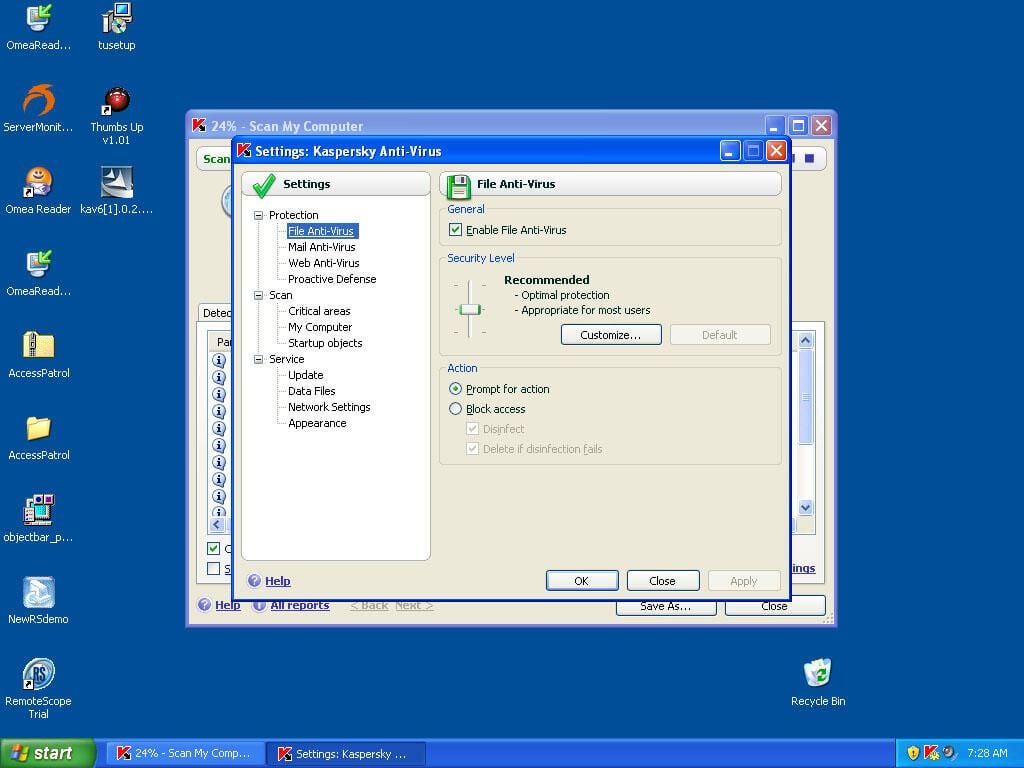
You can disable File Anti-Virus on this tab as well as or change the default action when an infection is found.
The security level setting is ambiguous, though. I would recommend using the customize button and setting these yourself.
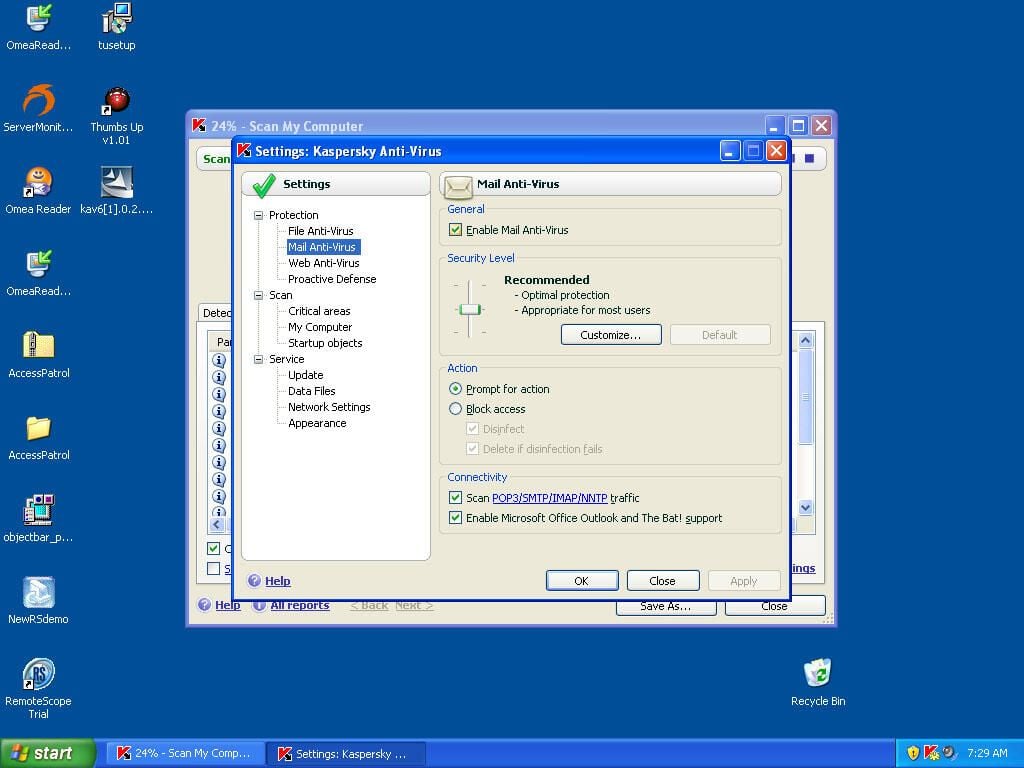
The settings options on the Mail Anti-Virus screen are identical to those on the File Anti-Virus screen, except you can specify what protocol(s) to monitor.
You can also enable or disable Outlook integration.
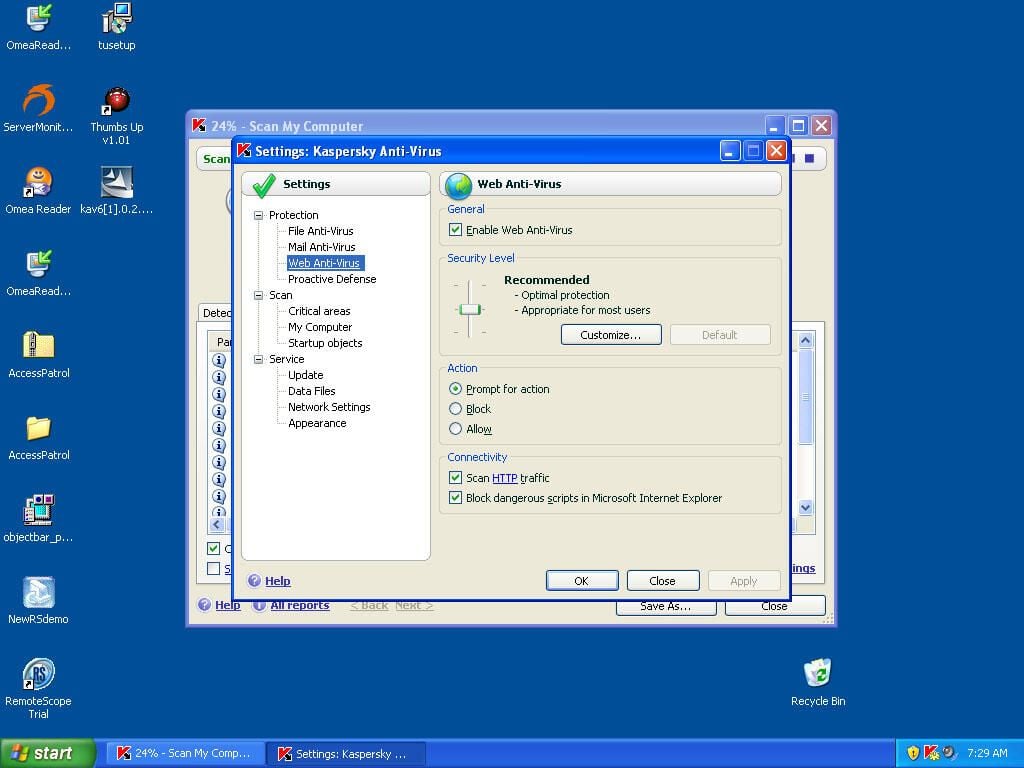
Again, this screen looks much like the others.
I’ve found with other virus protection software that Web protection often causes problems. If you are experiencing problems with IE or Web sites, I would disable this as a troubleshooting option.
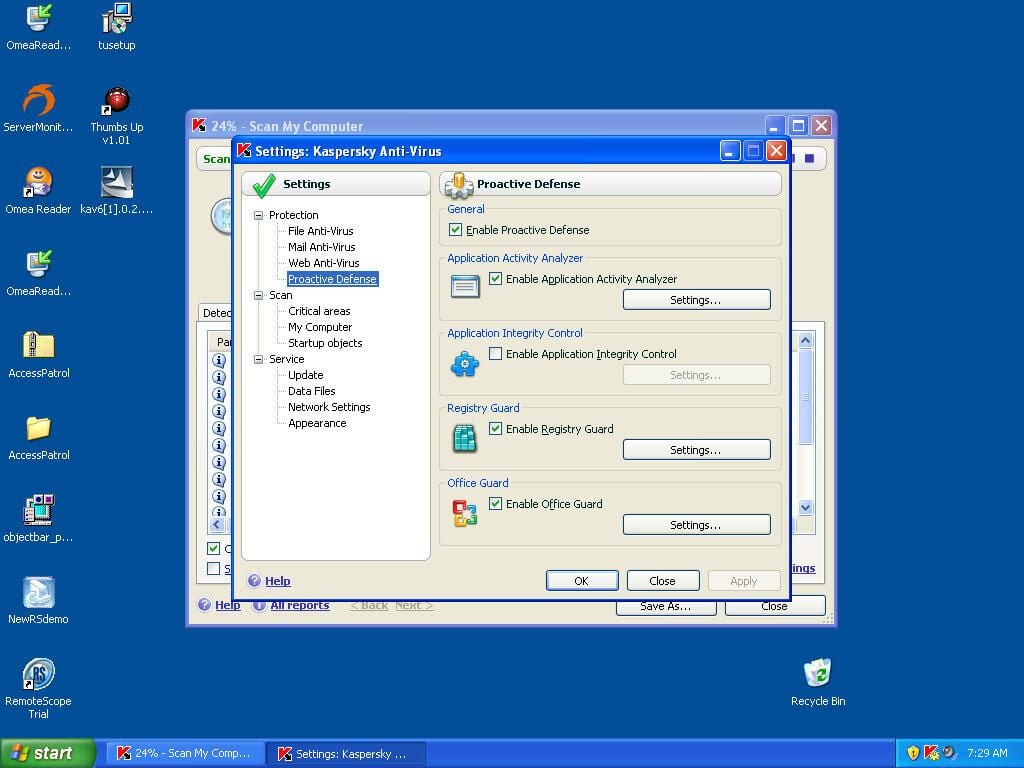
This is a pretty neat feature that analyzes what applications are doing to catch suspicious behavior before it does damage.
I’m sure it doesn’t catch everything, but catching just one is worth having it enabled.
You also control the Registry Guard from this screen.
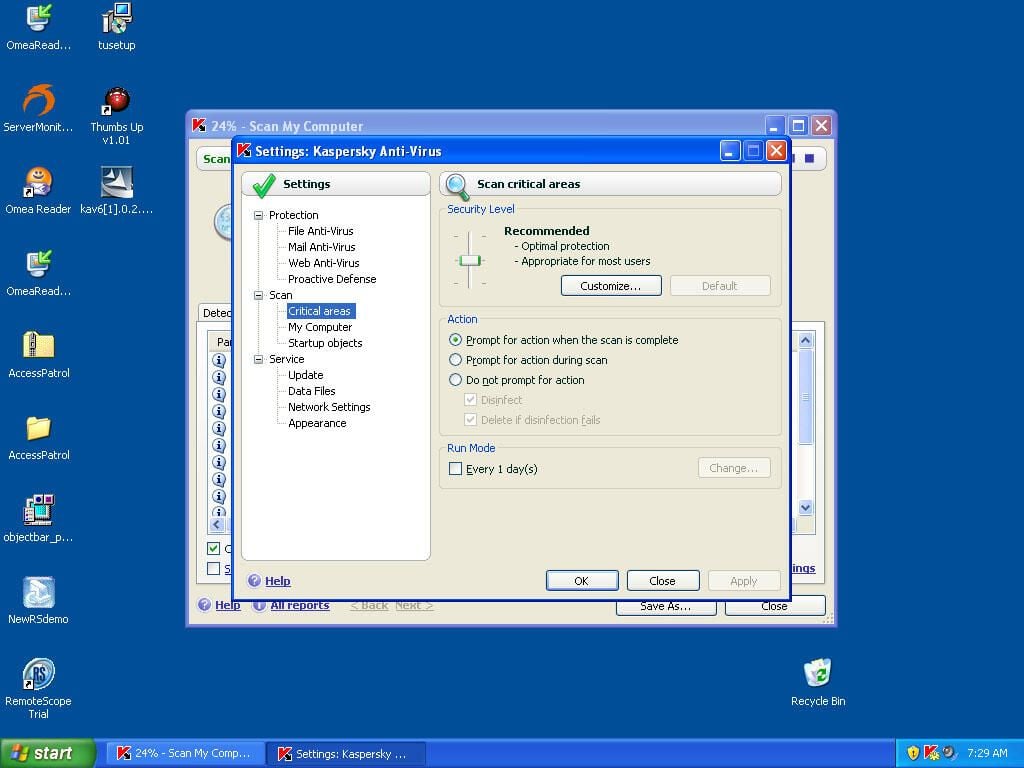
On this tab you can tell Kaspersky what is considered a Critical Area and what isn’t. Use the Customize button to configure this. The slider is too general and may miss something you want covered.
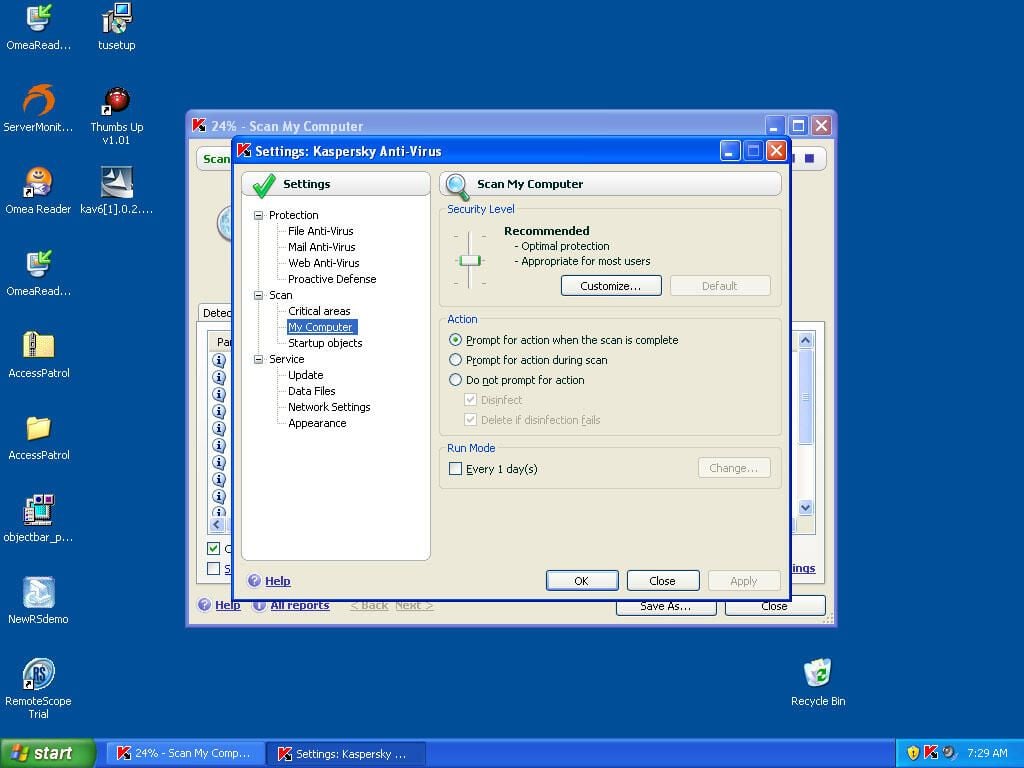
There really shouldn’t be anywhere on your computer that isn’t scanned but sometimes folders with lots of small files in them can cause performance issues for virus scanners.
Here you can change what gets scanned on your computer and what doesn’t. Don’t disable any areas that aren’t causing any problems.
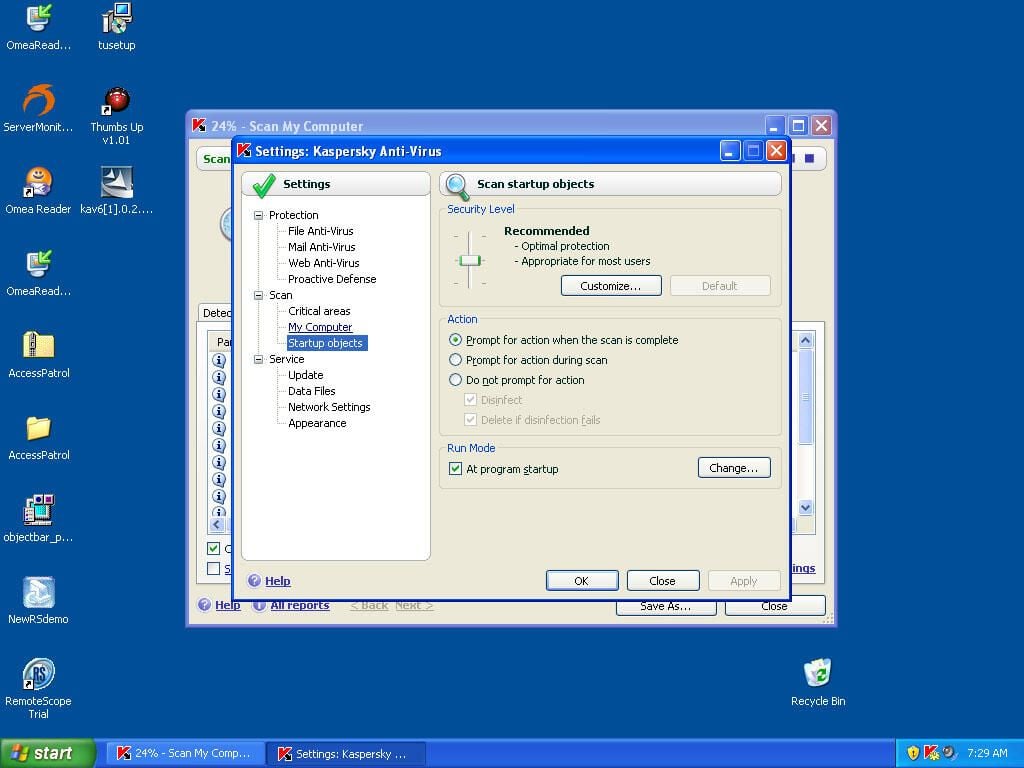
Because Kaspersky can detect questionable applications as well as known threats, it may be necessary to disable the scanning of certain applications and startup objects.
Click the Customize button to modify what startup objects get scanned.
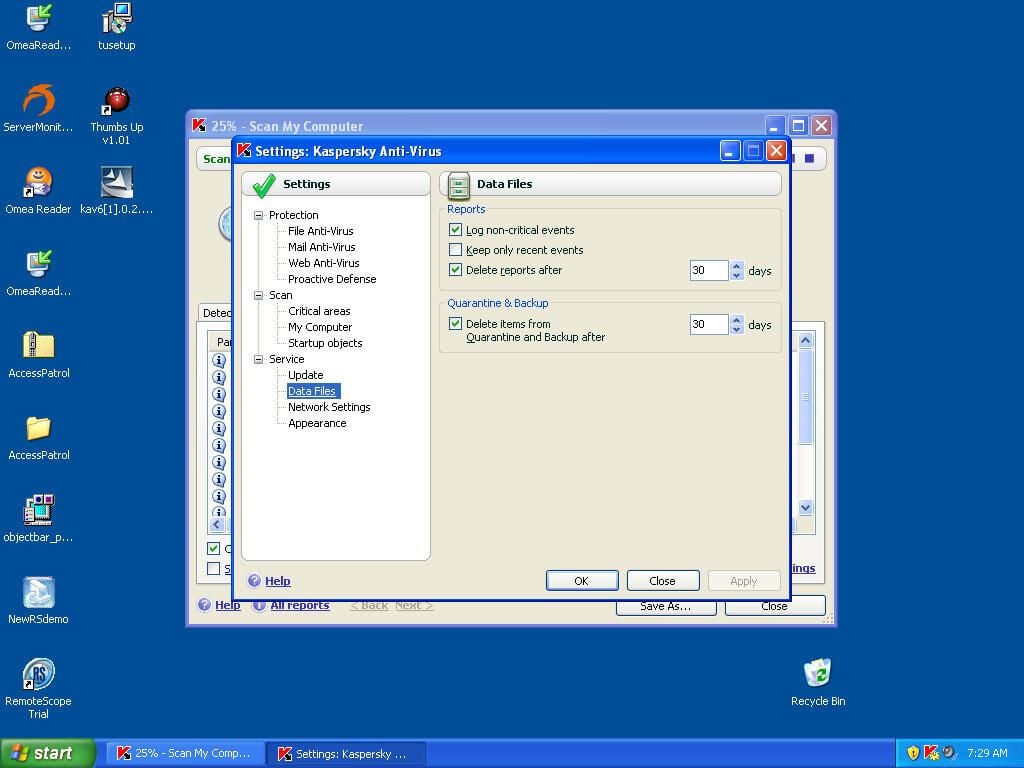
These settings apply to logs and files that have been quarantined.
If you find a file has been quarantined, it’s always a good idea to establish its value sooner rather than later. Most packages will delete the file after a certain amount of time.
On this screen, you can change the window of time that you have to make certain that you can afford to lose the infected file.

ANTHONY SULLIVAN is a software developer working with primarily microsoft technologies. He has been developing web applications and software solutions for nearly 10 years using technologies such as C#, MSSQL, Oracle and ASP.NET. Currently he is a Senior Developer for Kindred Healthcare in Louisville, KY.
\
\
In addition, Anthony is currently working on a couple of projects involving XNA, the XBOX game development platform.
\
\
Anthony is also an accomplished photographer and spends a good deal of his downtime working on on artistic photography.


