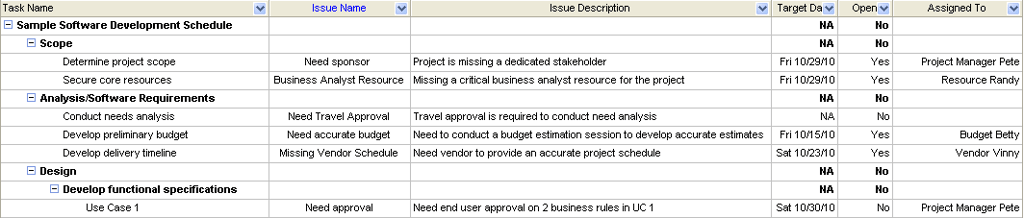
In my previous TechRepublic tutorial, I showed how to create an issue log in Microsoft Project 2007 using a custom table and view. When project issues are integrated with Microsoft Project, it enables you to associate the specific issue with a task on the project schedule. If the project schedule is developed using a deliverable oriented work breakdown structure, specific issues can be linked to the tasks supporting the project deliverable.
In order to share the issue log with other stakeholders, you may have to put the file in a different format for clients who do not have Microsoft Project installed. There are a variety of tools available to view a Microsoft Project file without having the program installed; for instance, a Microsoft Project viewer such as Steelray or Seavus Project Viewer can be used to read these files. Another option is to distribute the Microsoft Project file as a PDF using a PDF writing tool such as pdf995, which will allow you to print and share the issue log.
These solutions work well, but they still require additional software to be installed. The preferred solution is to export the issue log into a Microsoft Excel format so it can be easily shared.
This TechRepublic gallery is also available as an IT Leadership blog post.
Screenshots by Andy Makar for TechRepublic
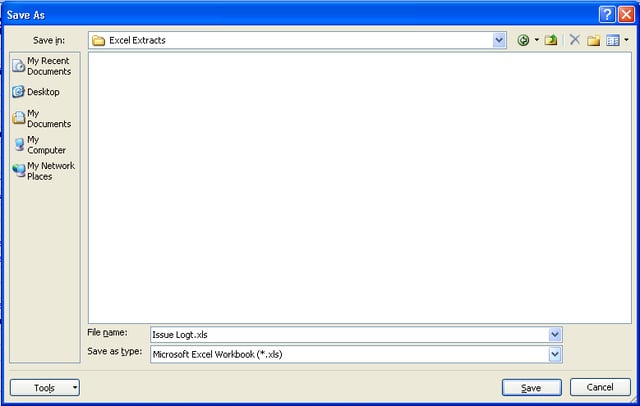
Export the issue log to Microsoft Excel
Follow these steps to export the issue log to Microsoft Excel:
1. Open the project file.
2. Select File | Save As.
3. Select Microsoft Excel Workbook from the Save As Type menu.
Screenshots by Andy Makar for TechRepublic
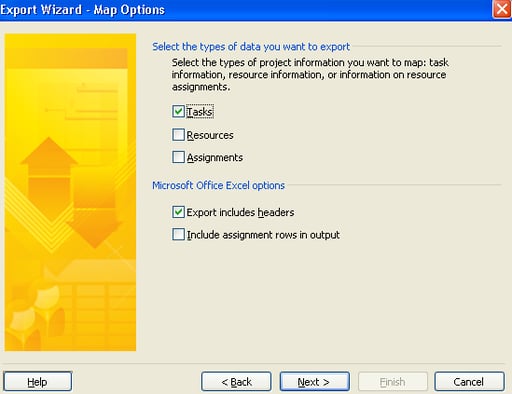
4. When the Export Wizard dialog box appears, click Next twice.
5. Select the New Map radio button and click Next.
Screenshots by Andy Makar for TechRepublic
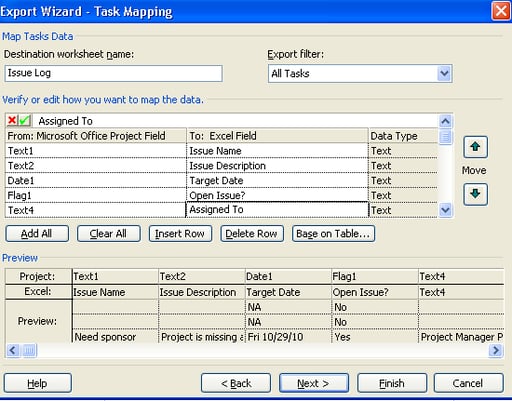
6. Enter Issue Log for the Worksheet Name.
7. Add the following fields per this figure:
a.\tText1
b.\tText2
c.\tDate1
d.\tFlag1
e.\tText4
f.\tWBS
8. Click the first Text1 row in the To: Excel field and enter the name of the target Excel field per this figure.
g.\tText1 : Enter Issue Name
h.\tText2: Enter Issue Description
i.\tDate1: Enter Target Date
j.\tFlag1: Enter Open Issue
k.\tText4: Enter Assigned To
l.\tWBS: Enter Work Breakdown Structure Id
Screenshots by Andy Makar for TechRepublic
9. With the Export Map complete, click Next.
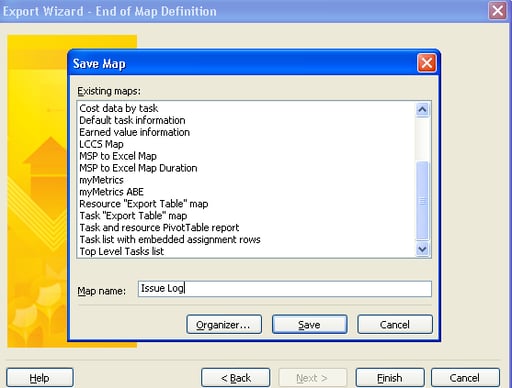
10. Click the Save Map button and enter Issue Log for the map name.
11. Click Finish.
Screenshots by Andy Makar for TechRepublic
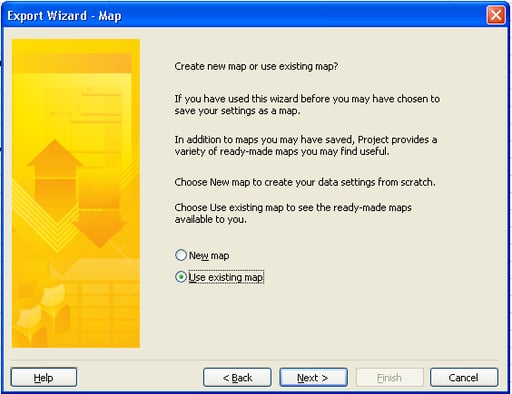
You have now created a new export map and saved the issue log to Microsoft Excel. Each time you export the map, you do not need to create an export map again; instead in step 5, you will select the Use Existing Map radio button.
Screenshots by Andy Makar for TechRepublic
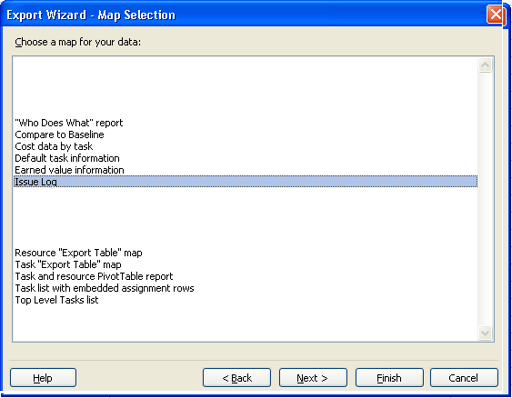
The next step is to select the Issue Log map and click Finish.
Screenshots by Andy Makar for TechRepublic
View the Microsoft Excel issue log
Once the file is exported, open it in Microsoft Excel. You can format the Excel file by expanding the cells and filtering the blank rows.
In Microsoft Excel, follow these steps:
1. Change the width of each column as appropriate.
2. Click the Filter icon.
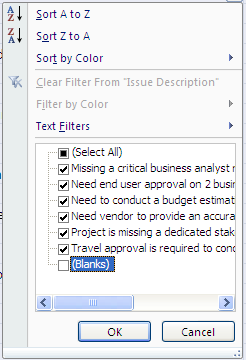
3. Click the Filter icon in the Issue Description field.
4. Uncheck the (Blanks) check box.
5. Click OK.
Screenshots by Andy Makar for TechRepublic

The end result is a filtered issue log that can easily be shared with the project team and with clients using Microsoft Excel. By including the Work Breakdown Structure id in the issue log, you can also cross reference the related issue to the task in your Microsoft Project schedule.
You already know which issue is mapped to a specific task by viewing the Issue Log view in Microsoft Project; the Work Breakdown Structure is used for reference only. Project management artifacts don’t always have to exist as separate documents. Issue management and schedule management can easily be integrated using a custom table, a custom view, and an export map from Microsoft Project. You can create similar views for risk management and change management by following my previous Microsoft Project tutorial’s steps on customization.
Screenshots by Andy Makar for TechRepublic

Dr. Andrew Makar, PhD, is an experienced IT program manager with several years in enterprise project management. He is the author of How To Use Microsoft Project and Project Management Interview Questions Made Easy and has contributed to publications like PMI, CIO Magazine, and TechTarget. A certified PMP and Agile practitioner, he has led multimillion-dollar projects across Fortune 500 companies.


