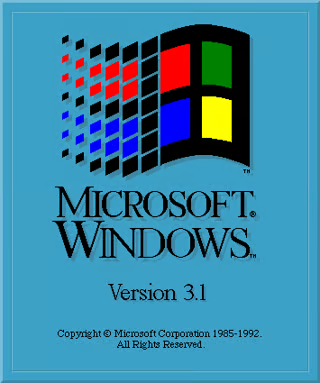
When Microsoft released Windows 3.1 in April of 1992, the new operating system sported many new features such as built-in support for multimedia and scalable TrueType fonts. In addition to these more mainstream features, the developer team embedded an Easter Egg into the operating system in order to display their names—very similar to the credits that you see at the end of a movie. However, instead of their actual names, they used their email address names.
In addition to their names, the developers created caricatures of key people at Microsoft and used these cartoons in the Easter Egg display.
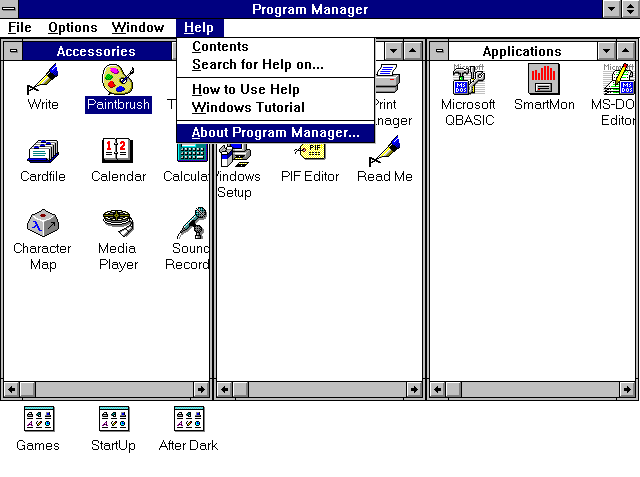
Once Windows 3.1 is up and running, you can access the Easter Egg by holding down the [Ctrl] [Shift] keys, pulling down the Help menu, and selecting About Program Manager.
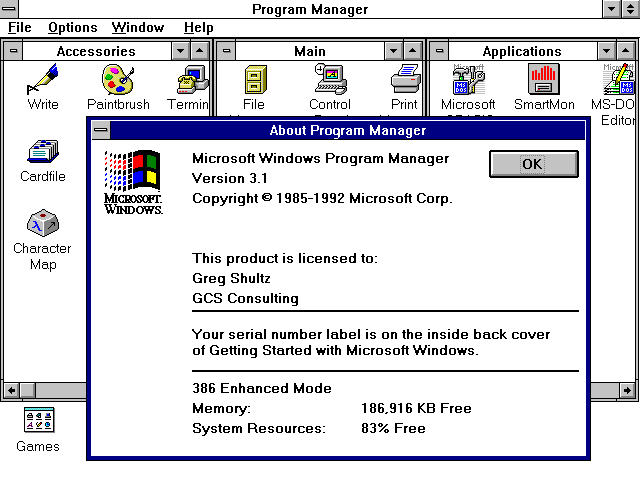
When the About Program Manager dialog box appears, you continue holding the [Ctrl] [Shift] keys while you double click the Microsoft Windows flag image. Then you click OK.
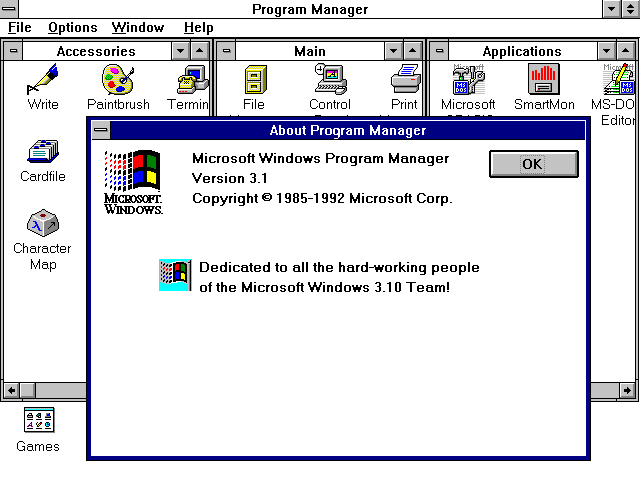
While still holding down the [Ctrl] [Shift] keys, you would repeat the steps of accessing About Program Manager dialog box and double clicking the Microsoft Windows flag image. As soon as you do so, the main area of the dialog box is replaced by an animated flag waving in the wind and a small dedication.
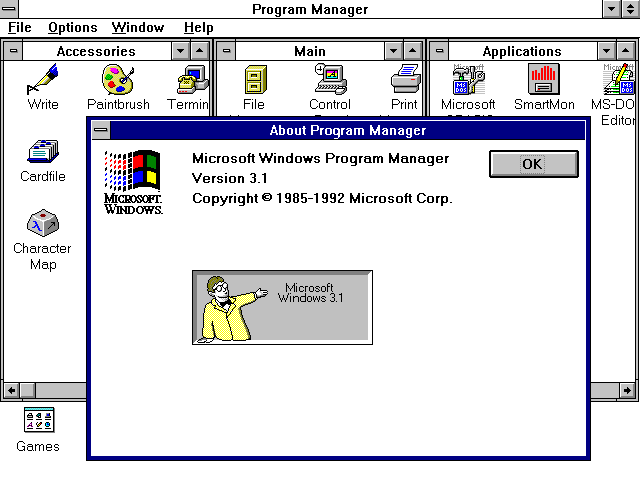
If you click OK and then repeat the same set of steps, you’ll see a caricature of Bill Gates standing in a window and the names of the developers will scroll by in the background.
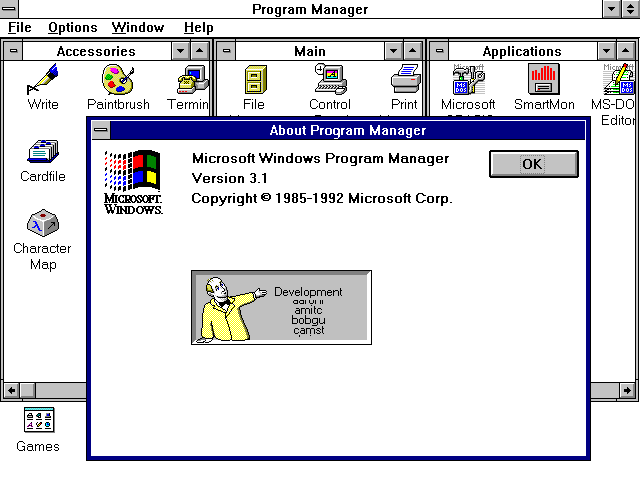
If you click OK and then repeat the same set of steps, you’ll see a caricature of Steve Ballmer standing in the window while the names of the developers will scroll by in the background.
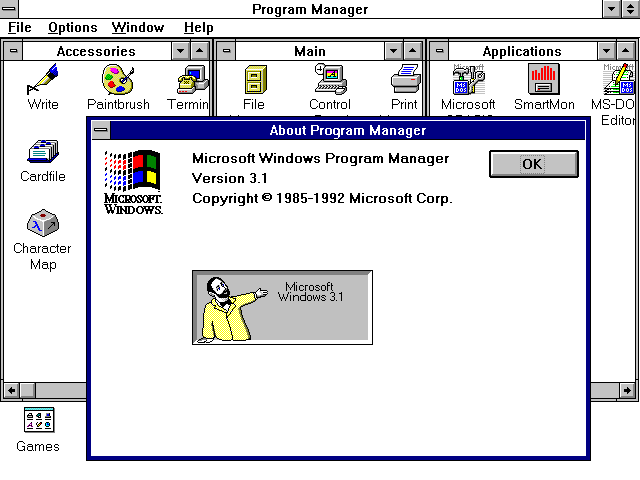
If you click OK and then repeat the same set of steps, you’ll see a caricature of Brad Silverberg standing in the window while the names of the developers will scroll by in the background.
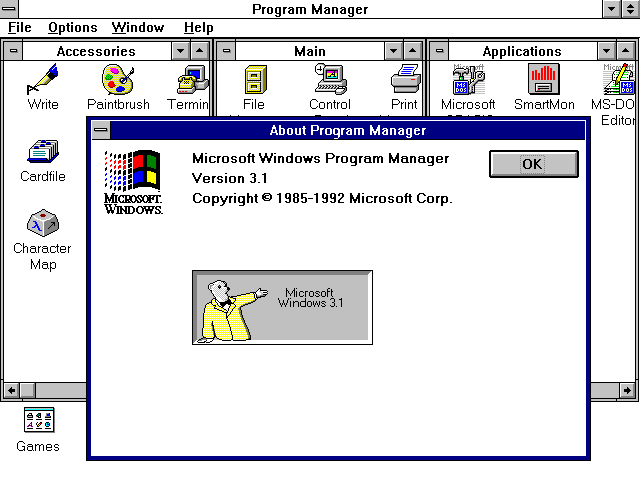
If you click OK and then repeat the same set of steps, you’ll see a caricature of the Microsoft Bear standing in the window while the names of the developers will scroll by in the background.
The Microsoft Bear was the Windows 3.1 mascot. According to the legend, this mascot had its origins in an old stuffed teddy bear that a senior programmer on the Windows 3.1 team used to carry around as a prank.
In August of 1995, Microsoft released Windows 95, a new 32-bit operating system sporting a real preemptive multitasking, long filenames and an entirely new user interface. Windows 95 also provided an enhanced multimedia platform with support for digital video, audio and Musical Instrument Digital Interface (MIDI) built right into the operating system. And of course, the Windows 95 developers took full advantage of the new multimedia features when they created their Easter Egg.
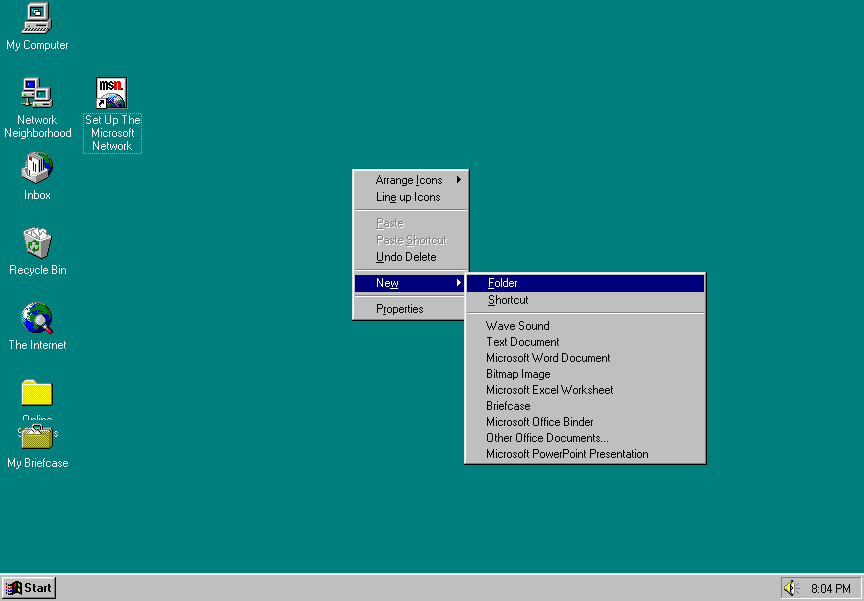
Once Windows 95 is up and running, you can access the Easter Egg by right clicking on the Desktop and selecting the New | Folder command.
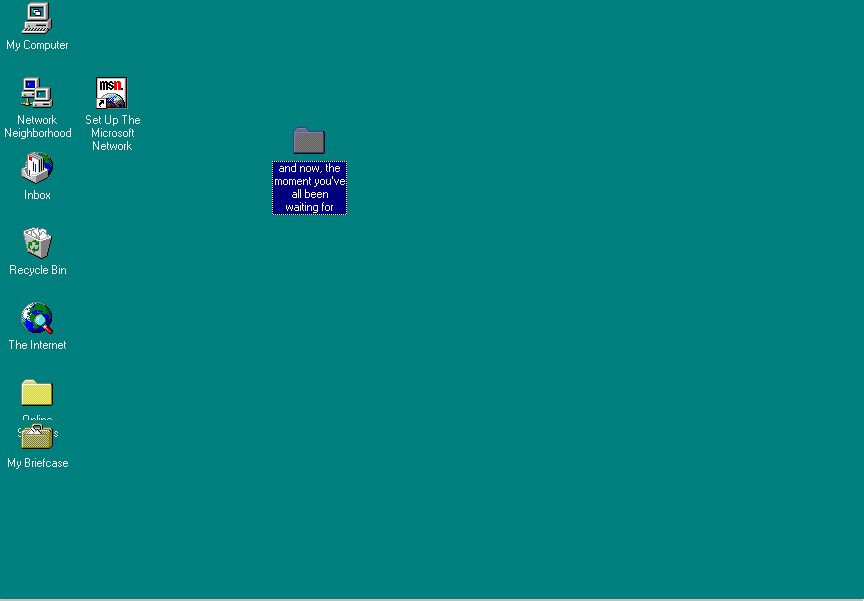
As soon as the new folder appears on the Desktop, you name the folder
\u201cand now, the moment you’ve all been waiting for\u201d
and then press [Enter].
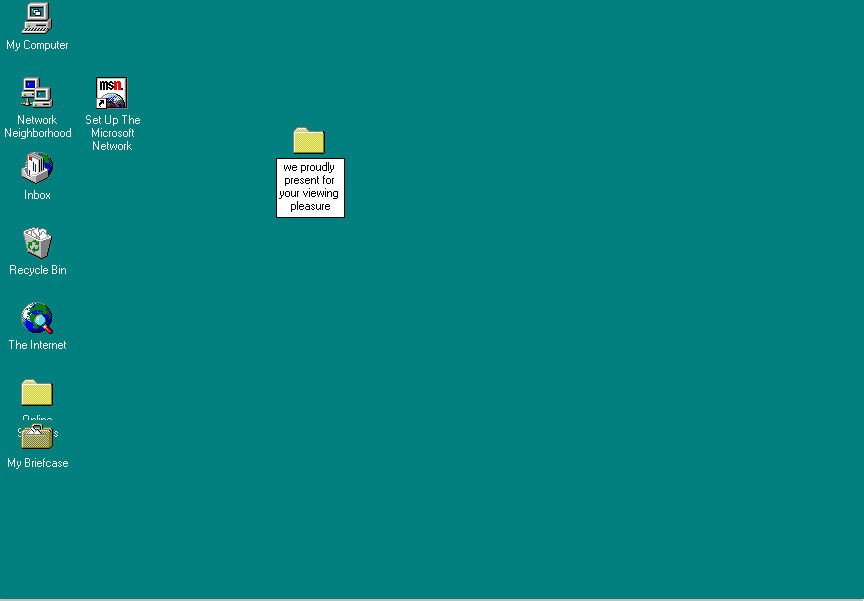
You then immediately right click on the folder, select the Rename command, and then rename the folder
“we proudly present for your viewing pleasure”
and then press [Enter].
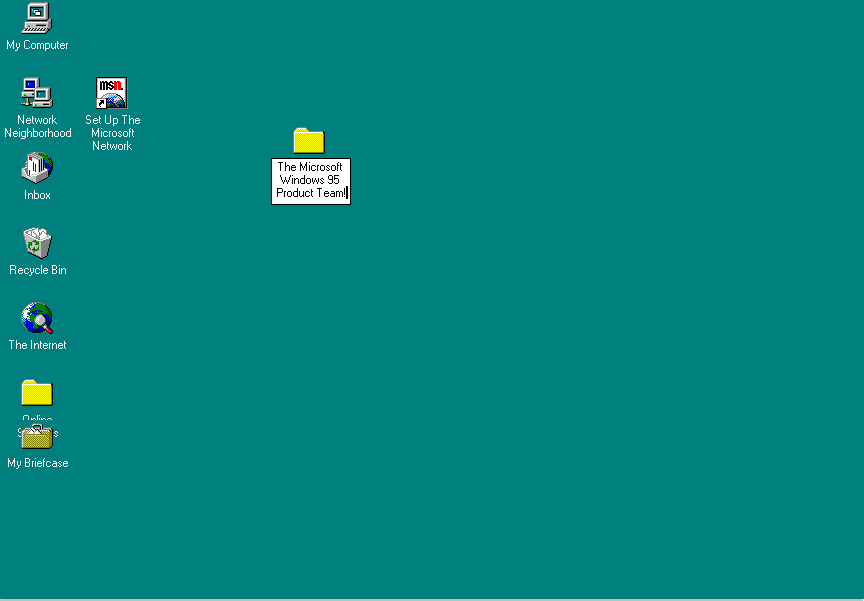
Again, you then immediately right click on the folder, select the Rename command, and then rename the folder
“The Microsoft Windows 95 Product Team!”
and then press [Enter].
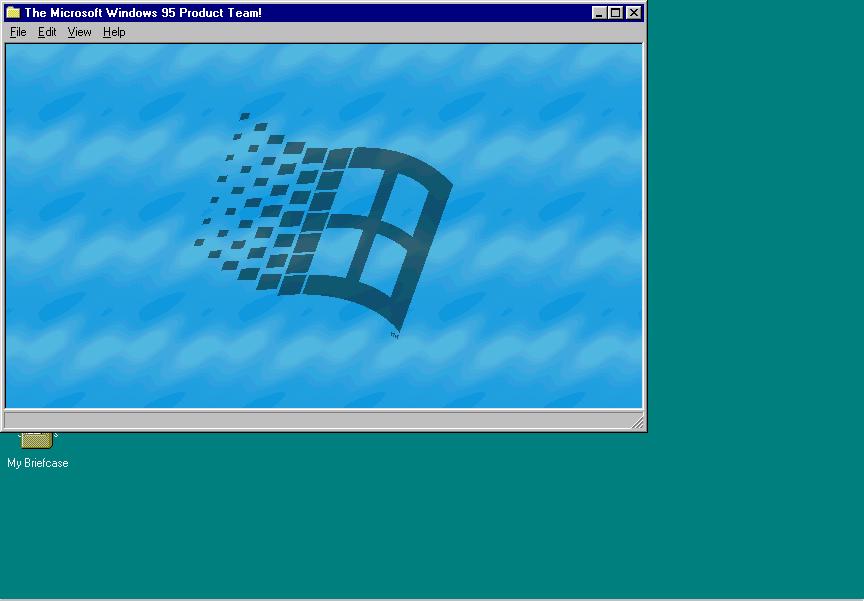
At this point, you simply double-click on the folder. When you do, a file named Clouds.mid is generated in the background and begins to play an MIDI electric piano tune as the folder opens to display blue wavy background. Then, the Windows flag fades into the foreground, lingers for a few moments, and then fades away.
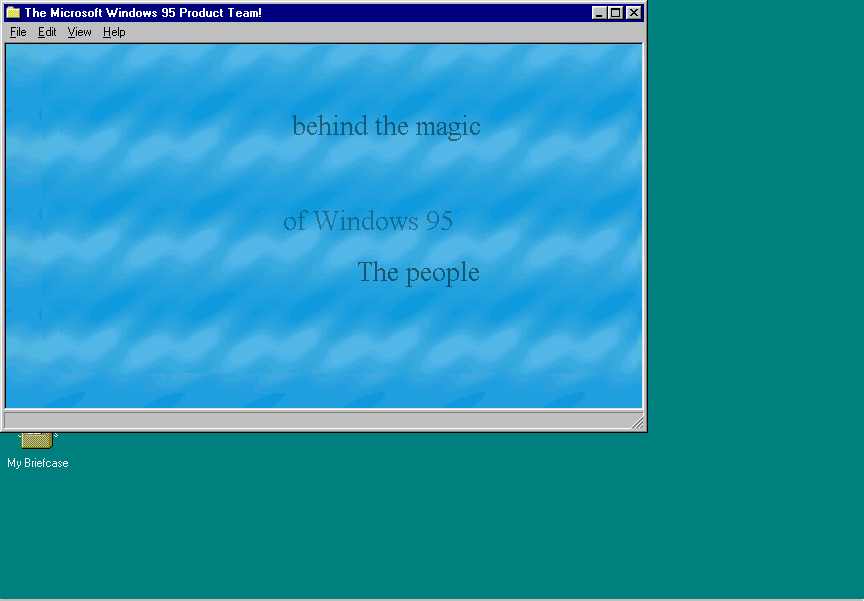
Once the Windows flag fade away, a little introduction scrolls across the screen.
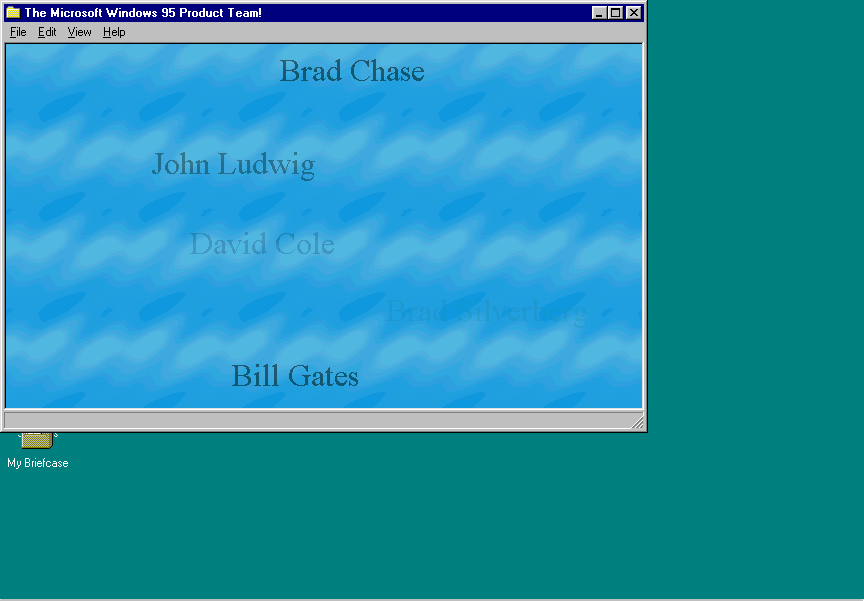
Then the names of all the members of the Windows 95 team by department begin scrolling across the screen. This screen shot shows Bill Gates’ name along with some other Microsoft higher ups.

In addition to all of the other new features introduced in Windows 95, the operating system came with a completely new Help system and its developers created their own Easter Egg.
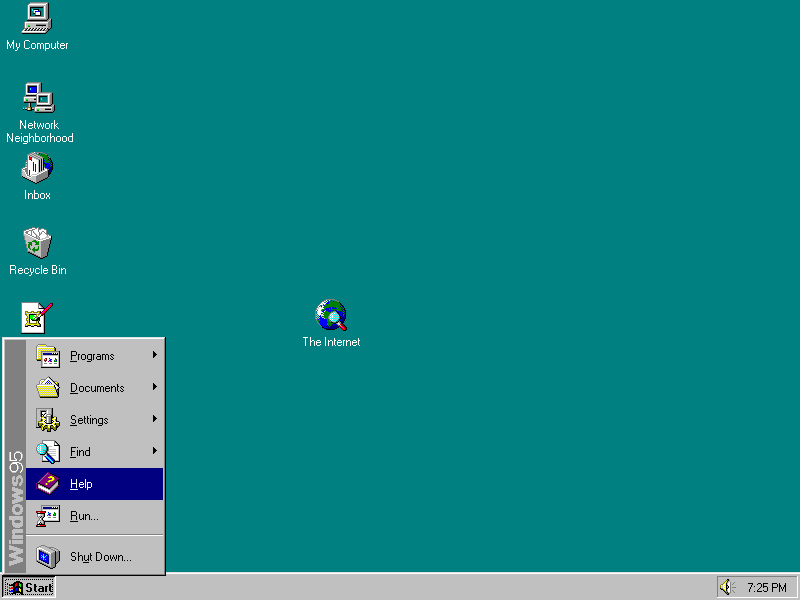
To access it, you first launch Help from the Start menu.
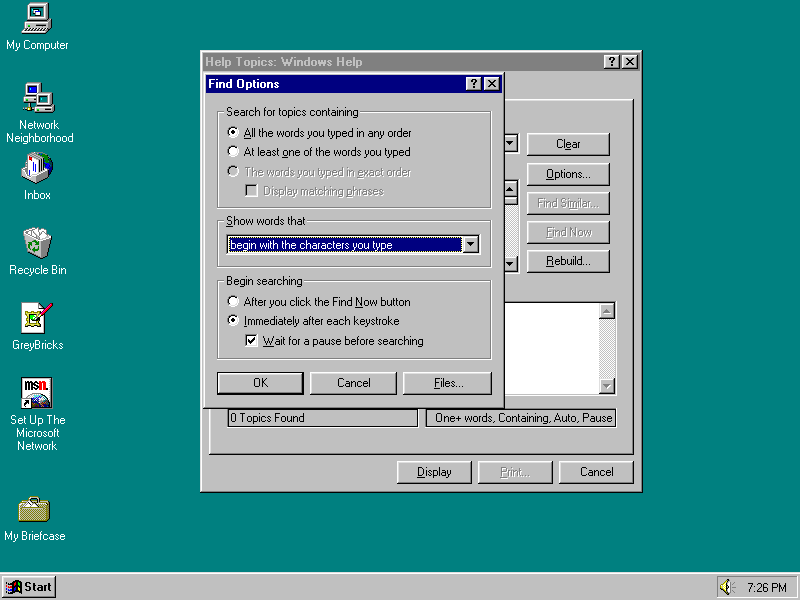
Once the Help Topics dialog box appears, you select the Find tab and then click Options button. When the Find Options dialog box appears, you select the \u201cAll the words you typed in any order\u201d option and then you select the \u201cbegin with the characters you type\u201d from the Show Words That drop down list. You then click OK.
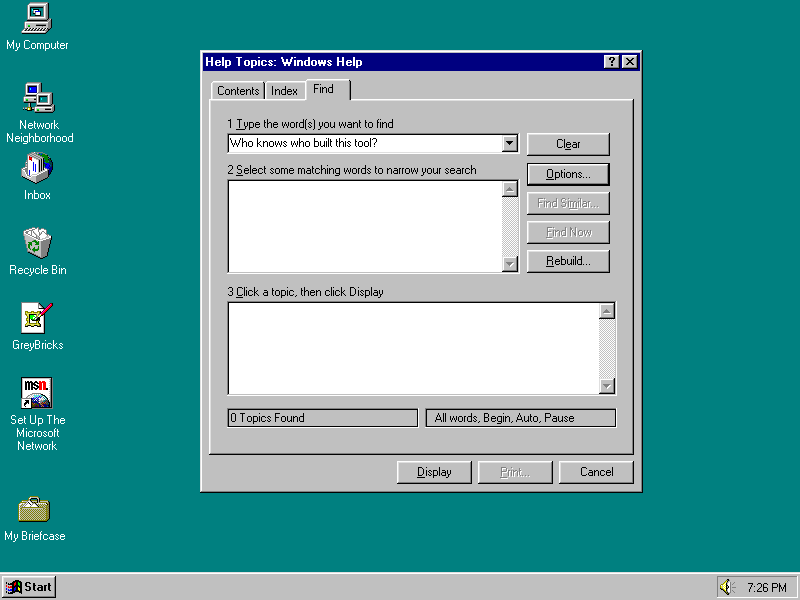
When you return to the Find tab, you type \u201cWho knows who built this tool?\u201d in the Type The Word(s) You Want To Find text box. You then hold down the [Ctrl] [Shift] keys while you click the Clear button.
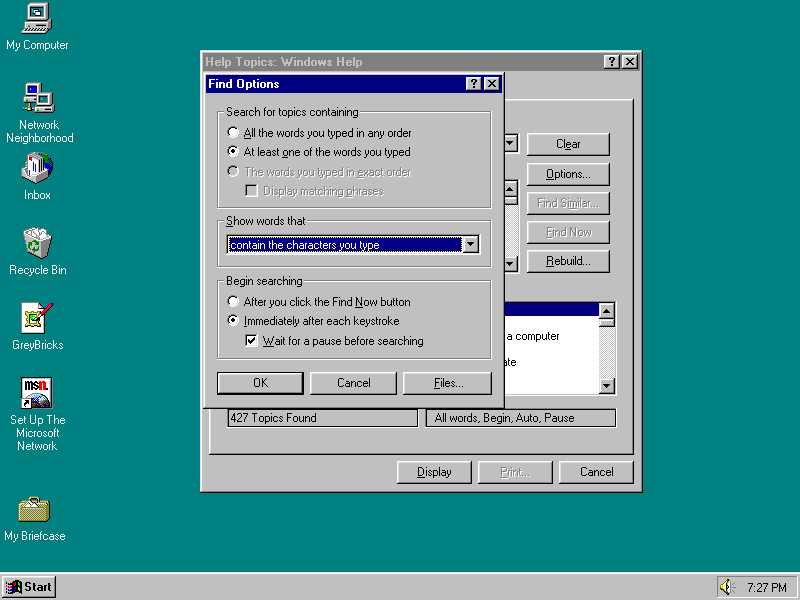
You then click Options button again. When the Find Options dialog box appears, you select the \u201cAt least one of the words you typed\u201d option and then you select the \u201ccontain the characters you type\u201d from the Show Words That drop down list. You then click OK.
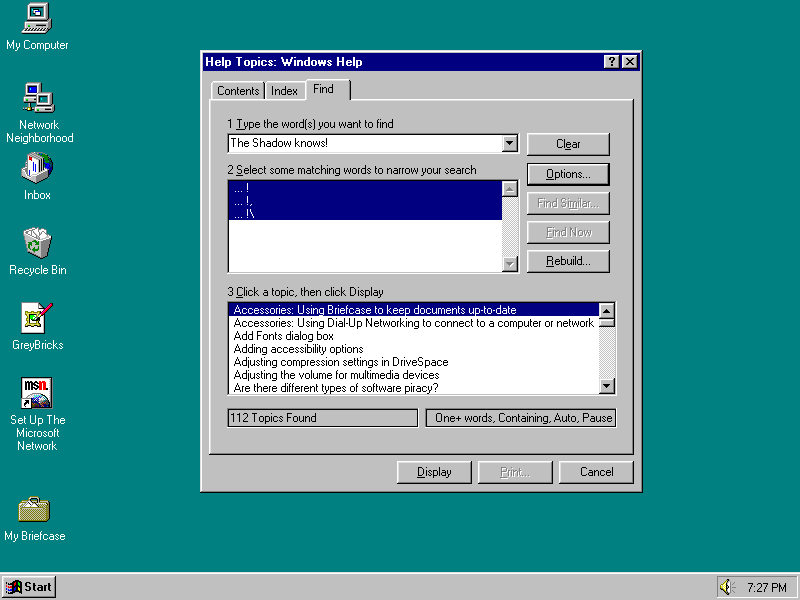
When you return to the Find tab the second time, you type \u201cthe Shadow knows!\u201d in the Type The Word(s) You Want To Find text box. You then hold down the [Ctrl] [Shift] keys while you click the Clear button.
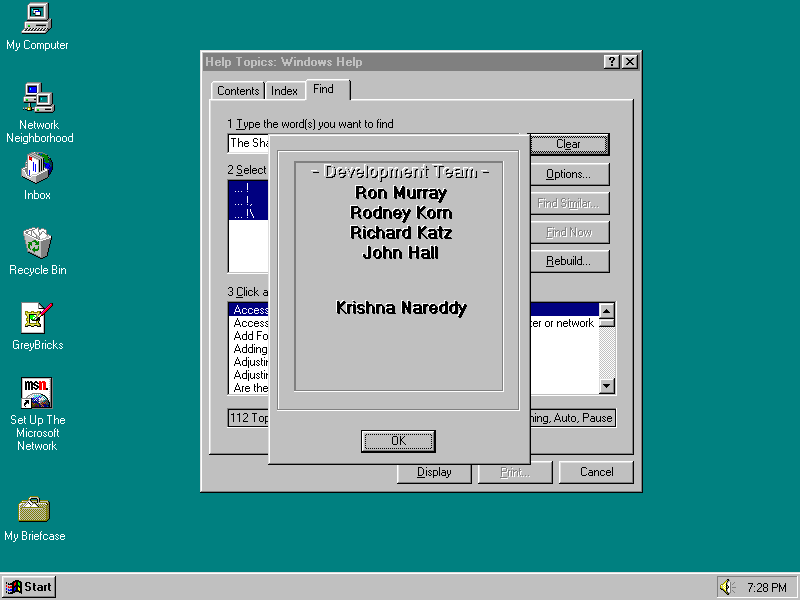
As soon as you do, a dialog box will appear and the names of teams and the members will begin scrolling up from the bottom.
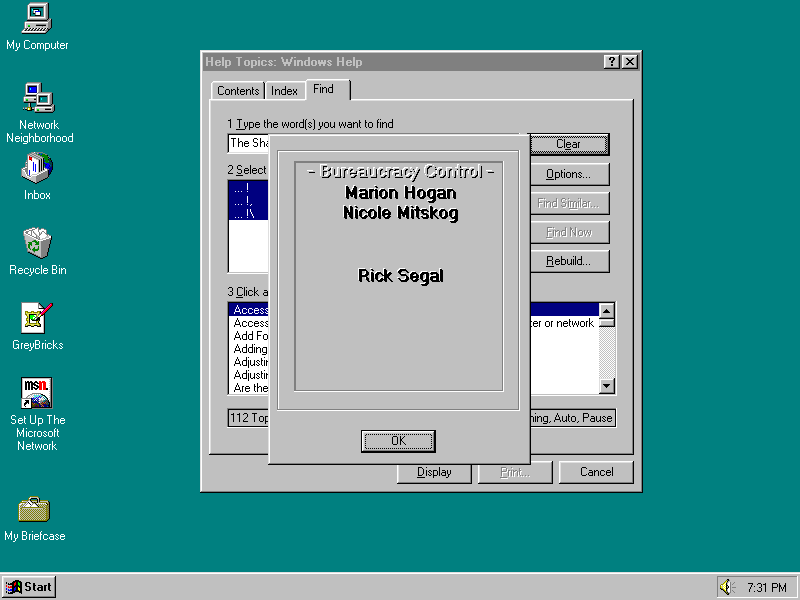
This sounded like a very unique part of the team. I wonder what their job was all about?

My first computer was a Kaypro 16 \"luggable\" running MS-DOS 2.11 which I obtained while studying computer science in 1986. After two years, I discovered that I had a knack for writing documentation and shifted my focus over to technical writing.


