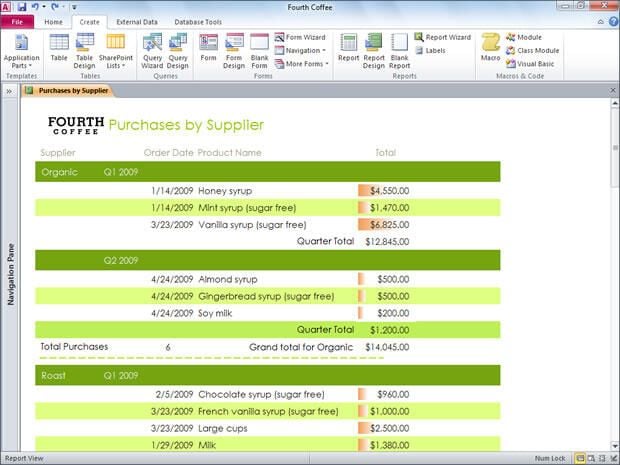
Access 2010 gains basic business analytics features, with a very similar look and feel to Excel, including using conditional formatting to show trends.
Credit: Simon Bisson ZDNet UK for captions and screenshots.
Click on any image to enlarge.
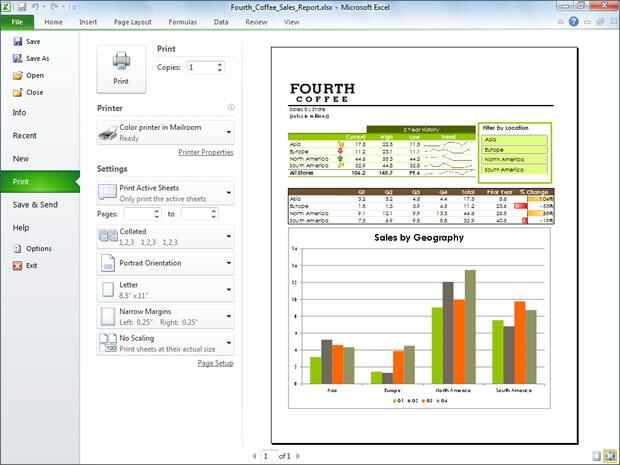
The Office 2010 Backstage view takes what used to be small dialogue boxes up to full windows — making it easier to see just what’s being printed.
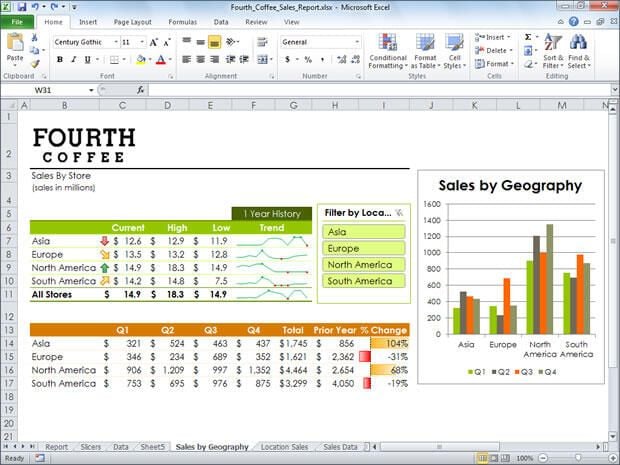
Microsoft has made Excel the heart of its business analytics tools, using it to visualise SQL Server data. Pivot tables and slicers simplify exploring data, while sparklines give at-a-glance overviews.
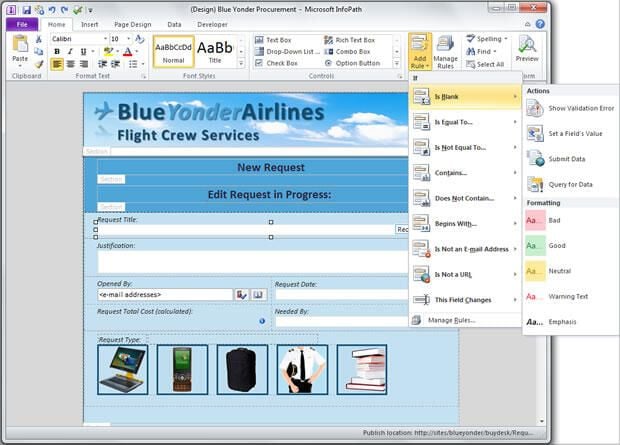
InfoPath 2010 is used to build and design forms that can be filled in using the separate filler application — or on the web. You can quickly build validation rules for each field.
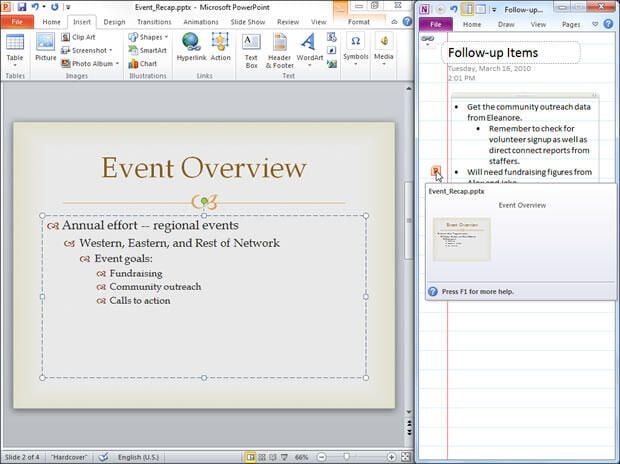
You can dock OneNote 2010 to the side of a screen to quickly gather and collate information from other Office applications. A link to a document takes you straight to the source.
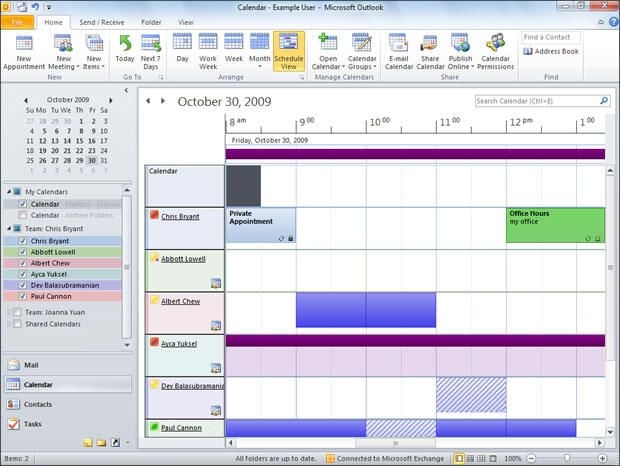
Outlook 2010 lets you build grouped calendar views for all the members of a team. You can click on the group to see everyone’s appointments, helping you schedule meetings appropriately.
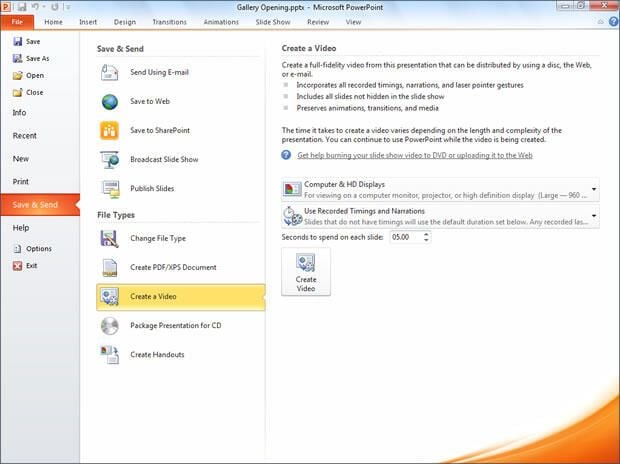
The release version of Office 2010 renames the Backstage Share tab to the more logical Save & Send. You’ll get plenty of options in PowerPoint 2010, including quickly turning a presentation into a narrated slideshow video.
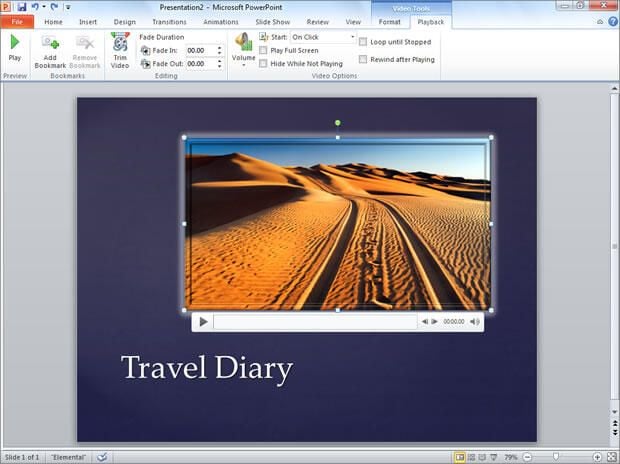
PowerPoint 2010 solves the old problem of adding videos to presentations. You can simply drag and drop in a video, and even edit it and add special effects without leaving PowerPoint.
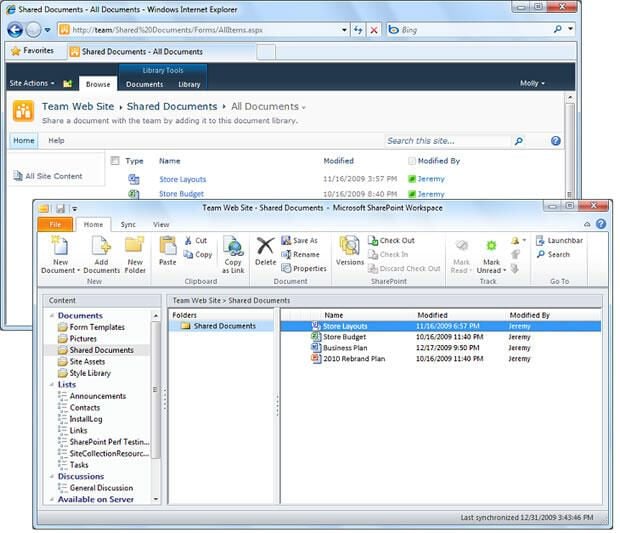
Based on the old favourite, Groove, SharePoint Workspace 2010 takes SharePoint libraries offline, giving you a local copy and tools for synchronising content back and forth.
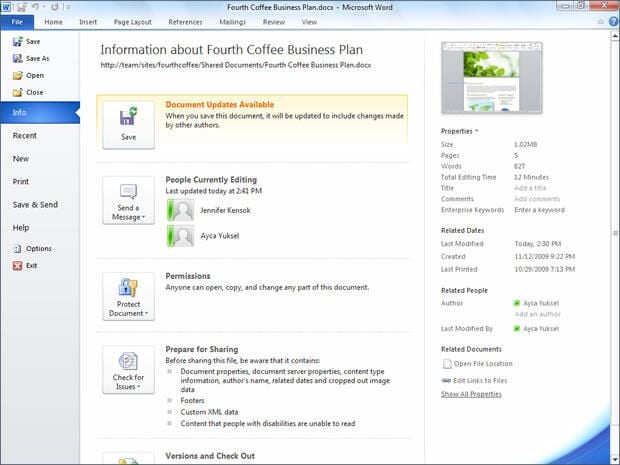
If you’re using the Office Web Apps to host collaborative editing in Word, you’ll get the opportunity to merge changes every time you save your file.
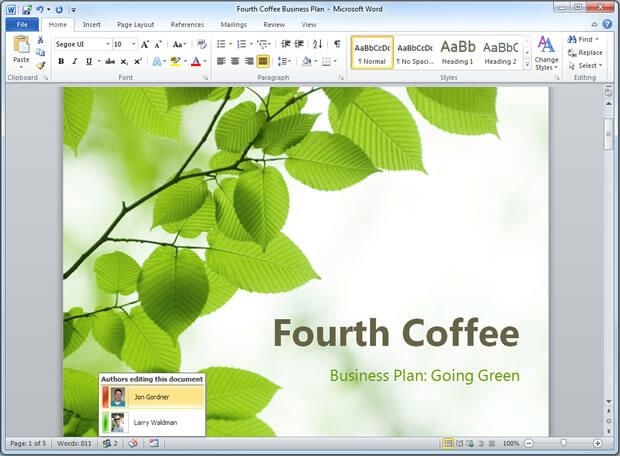
Office 2010 brings Outlook’s contact pop-up into the rest of the suite, using it to show you who’s working on a collaborative document — and giving you a quick route to contact them to discuss the document you’re both working on.


