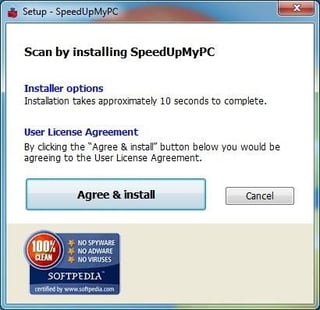
\n\tUniblue advertises a one-click setup for SpeedUpMyPC and, as you can see here, it’s pretty close. If you want to accept the default options and the license agreement without reading, you can just click on “Agree & Install” and you’ll be on your way.
\n
\n\tImage of SpeedUpMyPC installer by Wally Bahny for TechRepublic
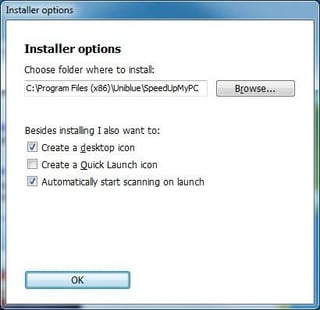
\n\tIf you chose to click on Installer Options, you get this screen which gives you the ability to choose the installation folder, where to create icons, and whether or not to automatically scan when the program is launched.
\n
\n\tImage of SpeedUpMyPC installer by Wally Bahny for TechRepublic
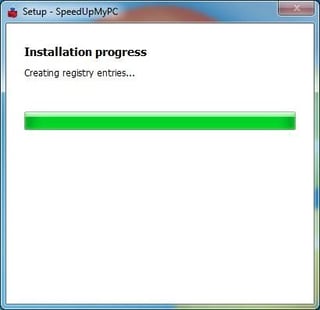
\n\tThe installation is very fast. Before I knew it the bar was this far across the screen and I had to move quickly to get a screenshot.
\n
\n\tImage of SpeedUpMyPC installer by Wally Bahny for TechRepublic
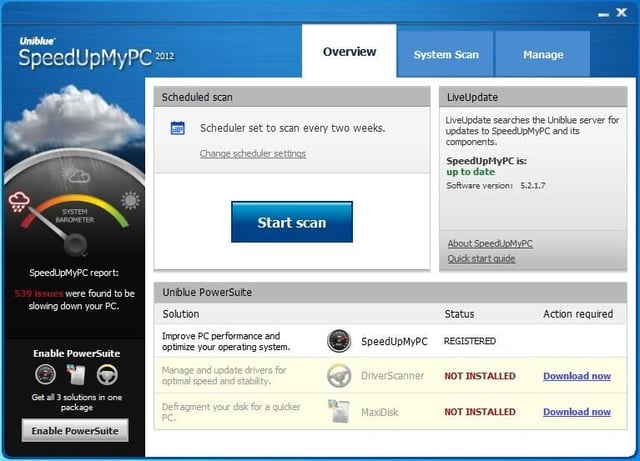
\n\tWhen the installer finishes, the default choice is to launch the application, which comes up and starts its scan automatically. This is the Overview screen which is displaying some results of the initial scan on the left, an area to choose how often to schedule scans in the top center, the current version and its status on the top right, and UniBlue PowerSuite component status all across the bottom.
\n
\n\tImage of SpeedUpMyPC by Wally Bahny for TechRepublic
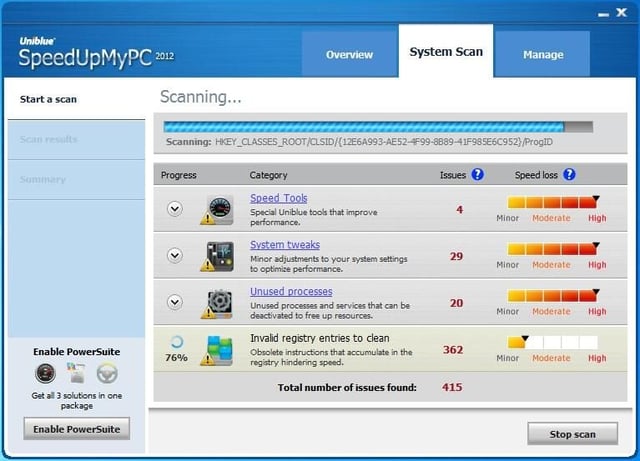
\n\tThe scan runs quickly through the Speed Tools, System Tweaks, and Unused Processes sections but stays a while (2-3 minutes on my system) in the Invalid Registry Entries to Clean section. This is obviously related to how large the registry is and how fast the system is.
\n
\n\tImage of SpeedUpMyPC by Wally Bahny for TechRepublic
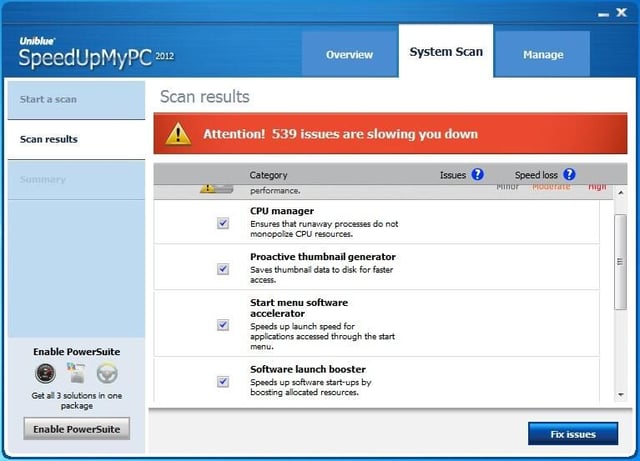
\n\tHere are the four Speed Tools that SpeedUpMyPC wants to install. The concepts for all of them seem good, but on a fast system I don’t really notice much of an improvement as a result of these tools.
\n
\n\tImage of SpeedUpMyPC by Wally Bahny for TechRepublic
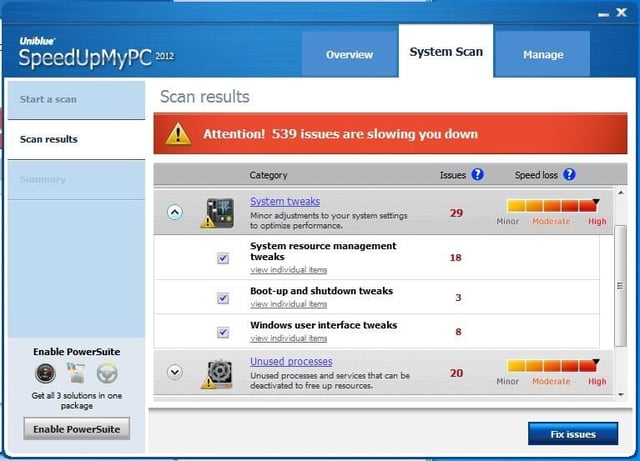
\n\tThe next section, System Tweaks, makes changes to Internet Explorer, networking, and the core operating system. They also make changes to the Aero interface, including smooth scrolling, dragging of windows contents, and the translucent selection rectangle which I was unhappy with and restored back to the Windows default.
\n
\n\tImage of SpeedUpMyPC by Wally Bahny for TechRepublic
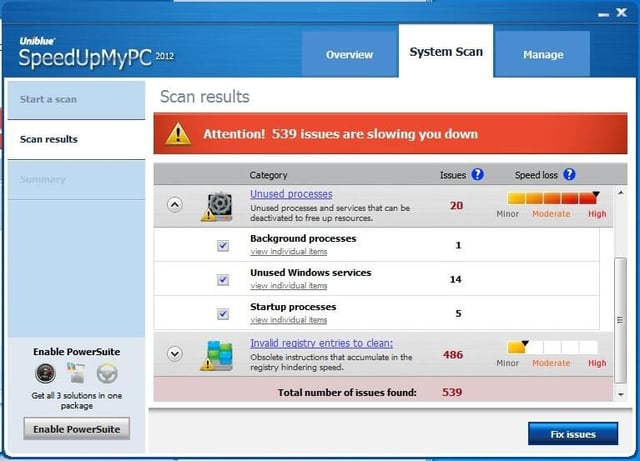
\n\tThe Unused Processes section scans through your Windows services to find items that are not needed in the normal use of Windows, such as the web server, and disables them. It also disables the update services for Java, Google, QuickTime, and other add-on applications.
\n
\n\tImage of SpeedUpMyPC by Wally Bahny for TechRepublic
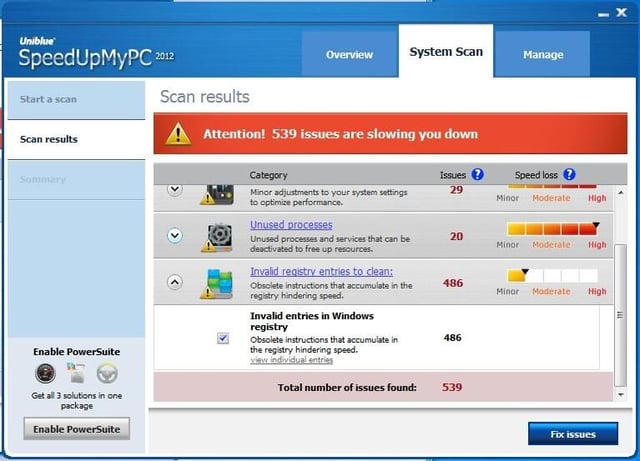
\n\tOf all four sections, the Invalid Registry Entries section was by far the largest. The scan found 486 problems, or potential problems, in my registry on my production system that has been in use since Windows 7 came out. While there are obviously too many issues to list here, I did scroll through them and capture the type of issues:
\n
\n\t
\n
\n\t
\n\t
\n\t
\n\t
\n\t
\n\t
\n\t
\n\t
\n
\n
\n\tImage of SpeedUpMyPC by Wally Bahny for TechRepublic
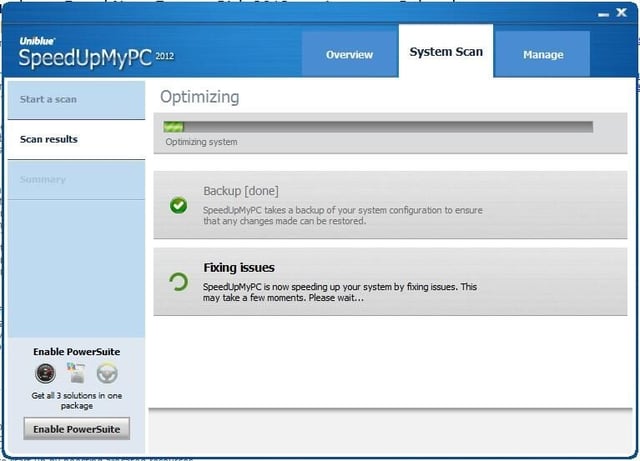
\n\tClicking the Fix Issues button starts making the changes that you have allowed SpeedUpMyPC to make for you. First, it does a Backup. This is to ensure that you can undo anything it does. Second, it actually makes the changes.
\n
\n\tImage of SpeedUpMyPC by Wally Bahny for TechRepublic
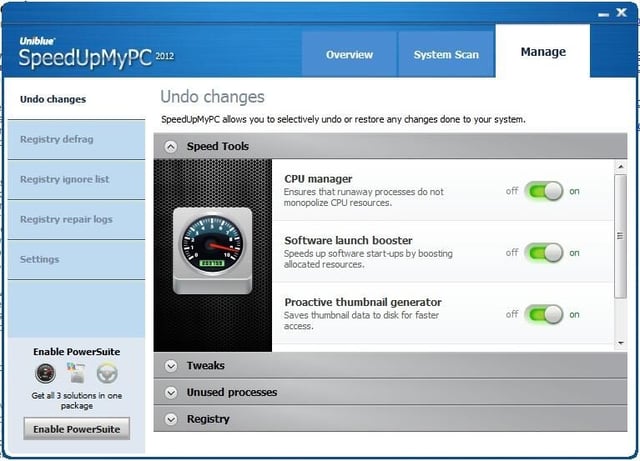
\n\tOnce the changes are made, you can click on the Manage tab to scroll through the changes to review or undo them. All changes are grouped in the same way as on the System Scan tab so that they can be found easily.
\n
\n\tImage of SpeedUpMyPC by Wally Bahny for TechRepublic
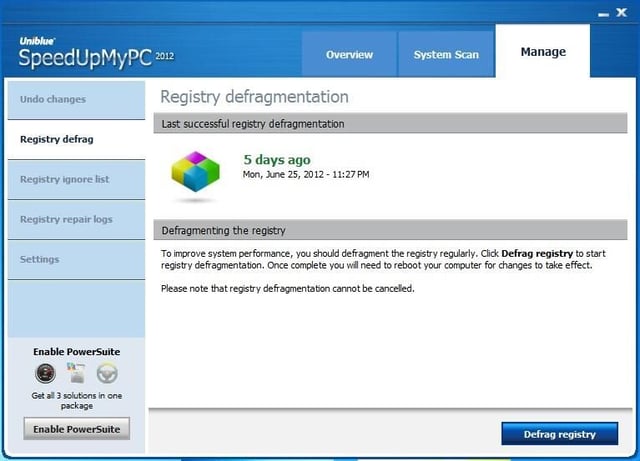
\n\tBuried here in the Manage tab is a Registry Defrag option which I was suprised was not part of SpeedUpMyPC’s core scan and fix process, especially because they state on the tab “To improve system performance, you should defragment the registry regularly.” I would think the biweekly scan would be a good time to do it.
\n
\n\tImage of SpeedUpMyPC by Wally Bahny for TechRepublic
\n\tSpeedMyPC


