\n\tIn the following screenshots, most of them were taken on an Asus Transformer Prime tablet, the “phone” screenshots were taken on a Samsung Galaxy S II.
\n
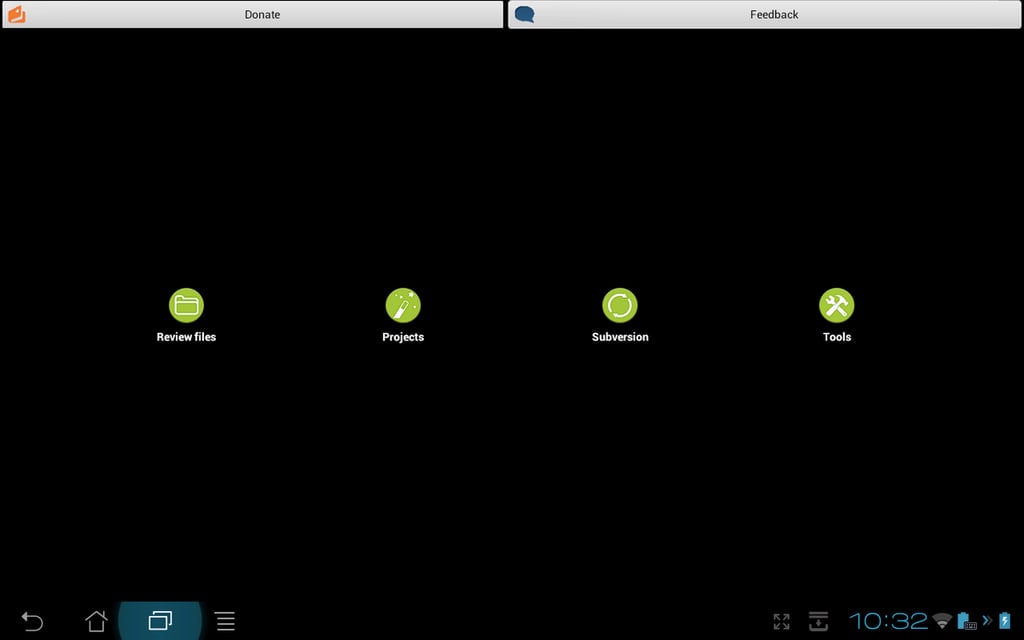
\n\tThe start screen of Anjedi. As one would expect from a touch-based application, Anjedi makes extensive use of menus and lists.
\n\t(Credit: Chris Duckett/TechRepublic)
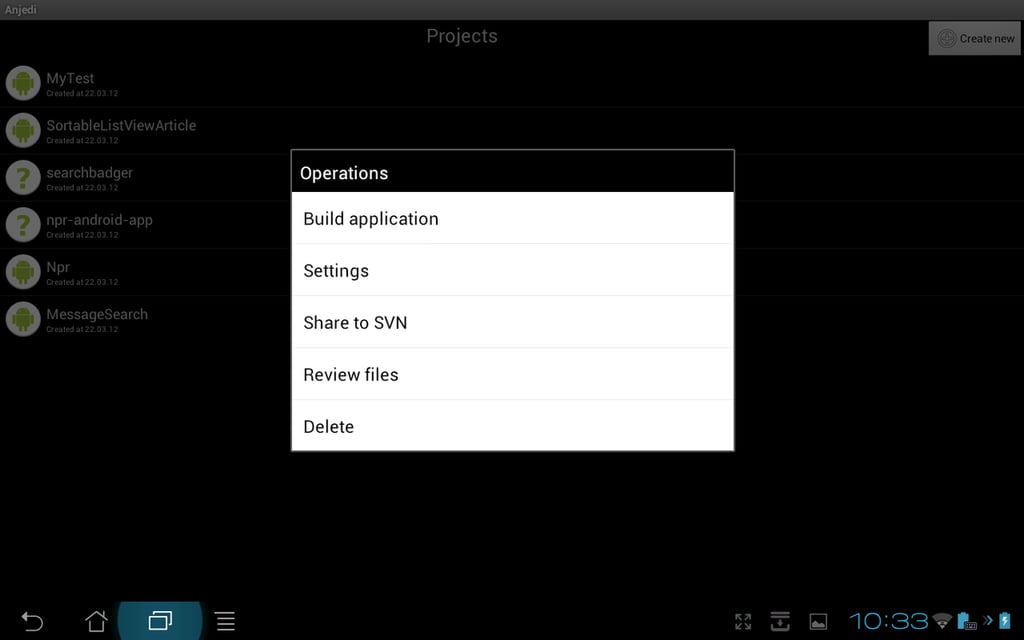
\n\tThe list of options available for each project. From here the files can be edited via the “Review Files” option, and the project build.
\n\t(Credit: Chris Duckett/TechRepublic)
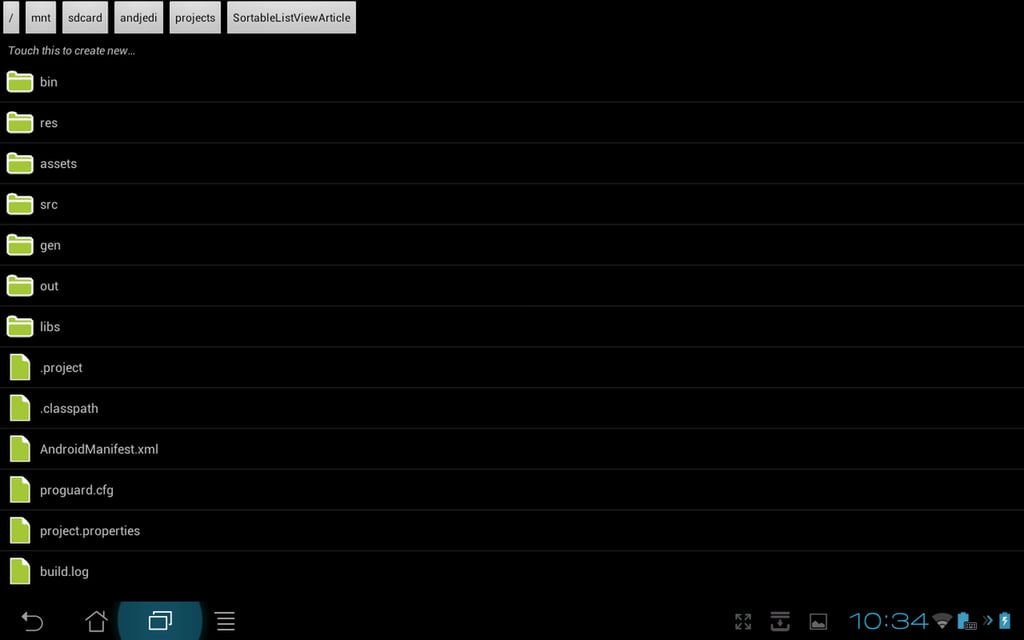
\n\tAnjedi’s modal file selector.
\n\t(Credit: Chris Duckett/TechRepublic)
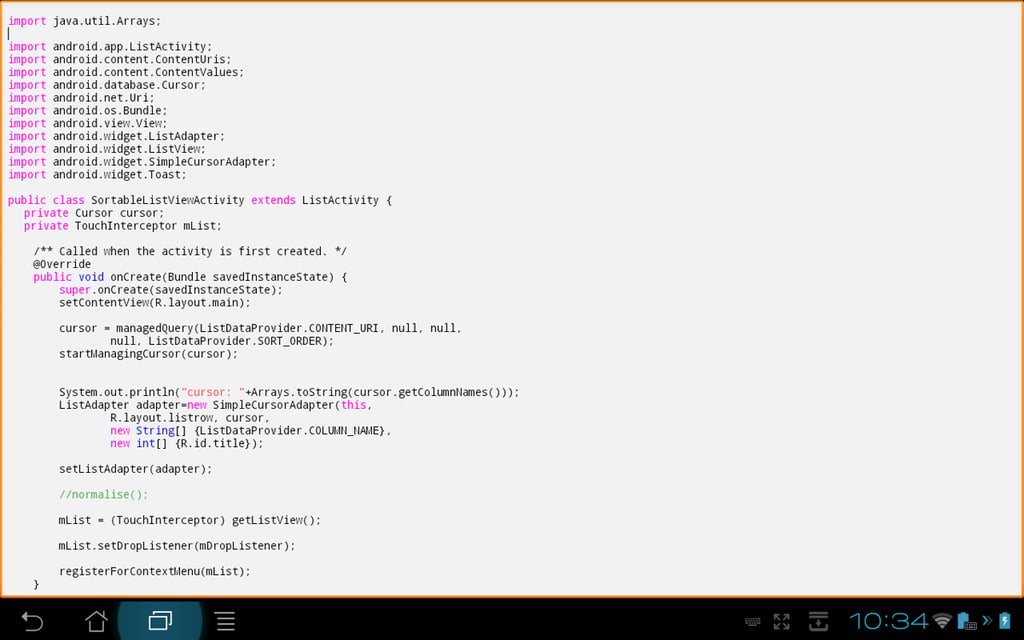
\n\tThe editor in Anjedi is quite basic, but does offer autocomplete and a bit of syntax highlighting.
\n\t(Credit: Chris Duckett/TechRepublic)
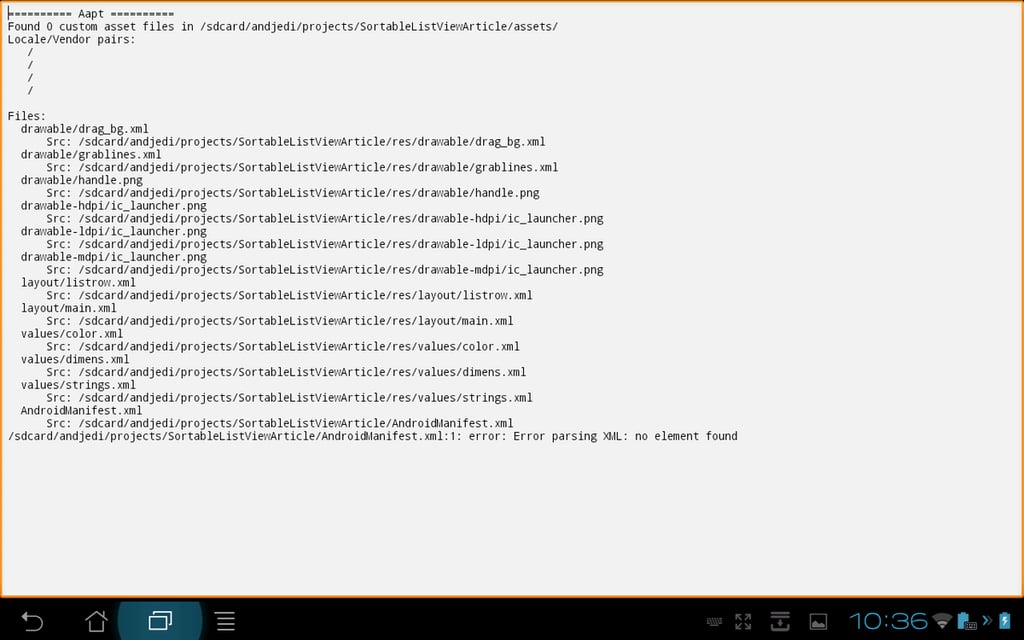
\n\tAn error log from a project build.
\n\t(Credit: Chris Duckett/TechRepublic)
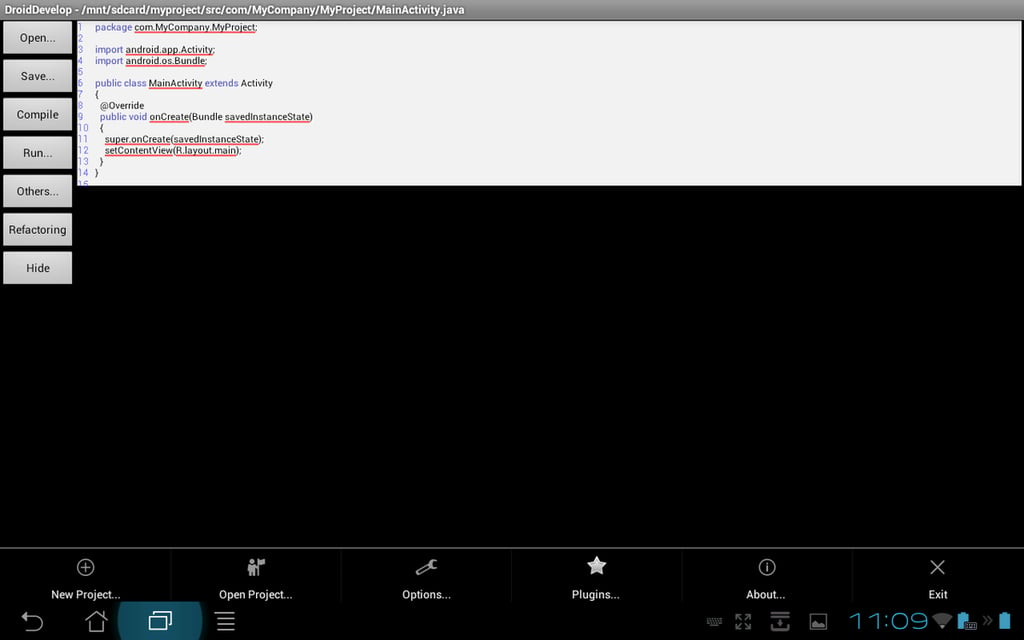
\n\tThe DroidDevelop editor with available options shown.
\n\t(Credit: Chris Duckett/TechRepublic)
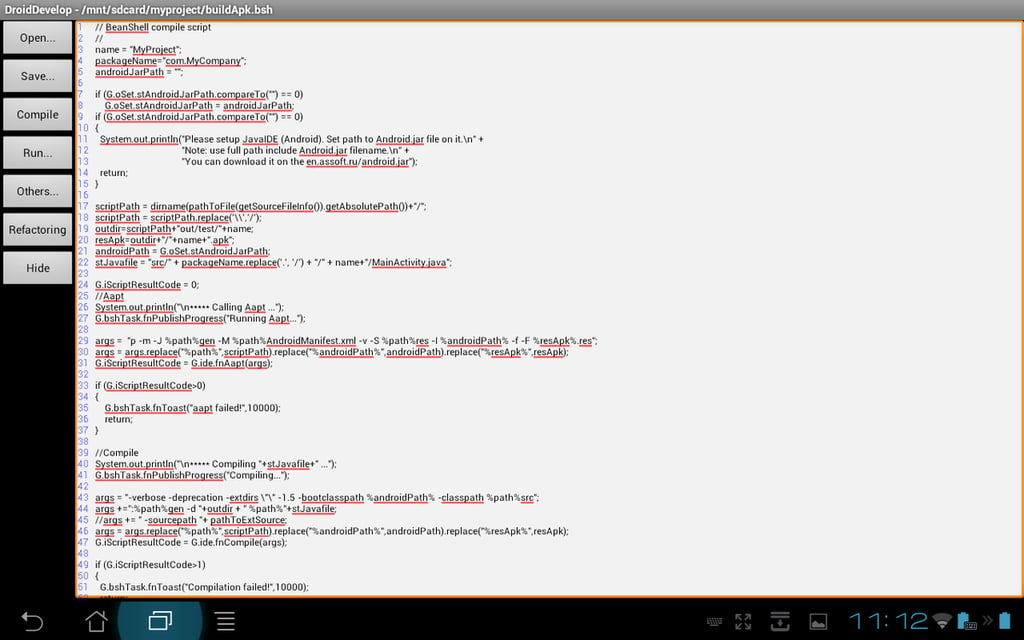
\n\tAn example of the BeanShell build script that DroidDevelop requires as it uses JavaIDEDroid for compilation.
\n\t(Credit: Chris Duckett/TechRepublic)
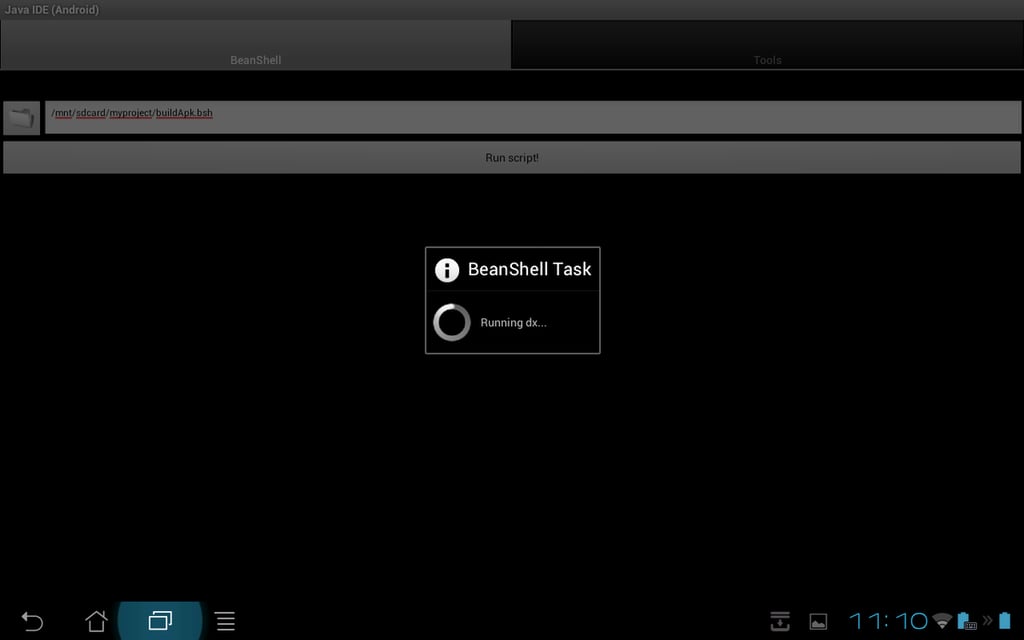
\n\tWhen a build is started from DroidDevelop, the activity is switched over to JavaIDEDroid.
\n\t(Credit: Chris Duckett/TechRepublic)
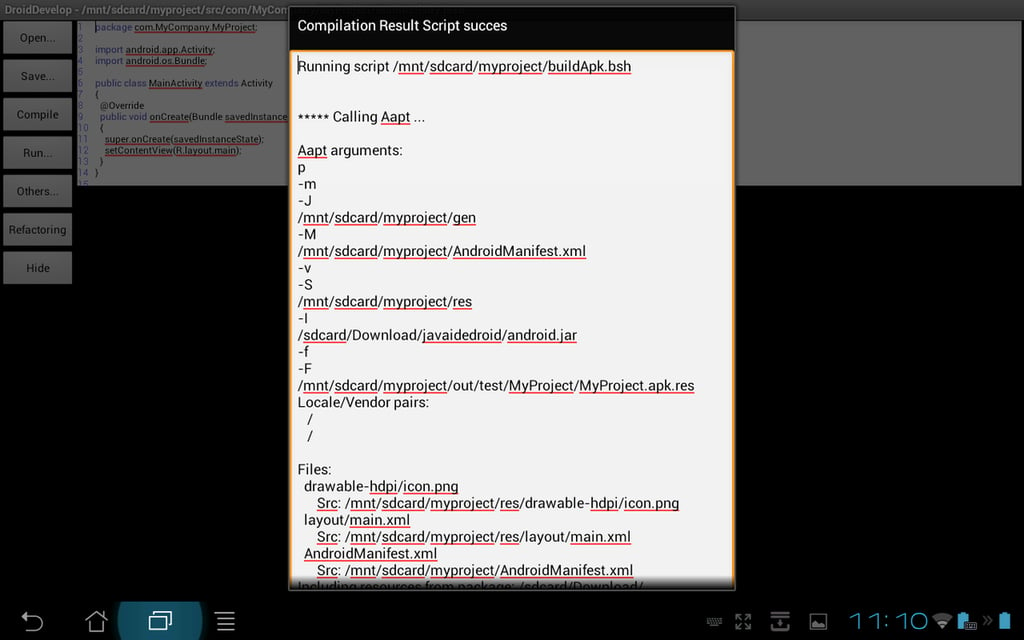
\n\tAs with the rest of DroidDevelop, the compilation results are displayed in a no-frills manner.
\n\t(Credit: Chris Duckett/TechRepublic)
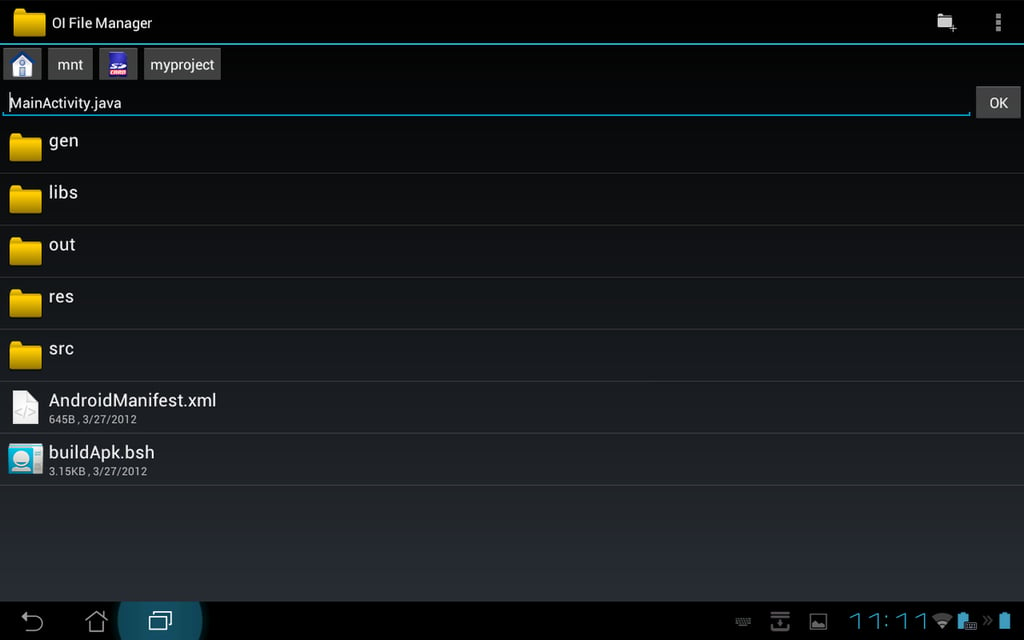
\n\tDroidDevelop piggy-backs on a file selector program called OIFileManager.
\n\t(Credit: Chris Duckett/TechRepublic)
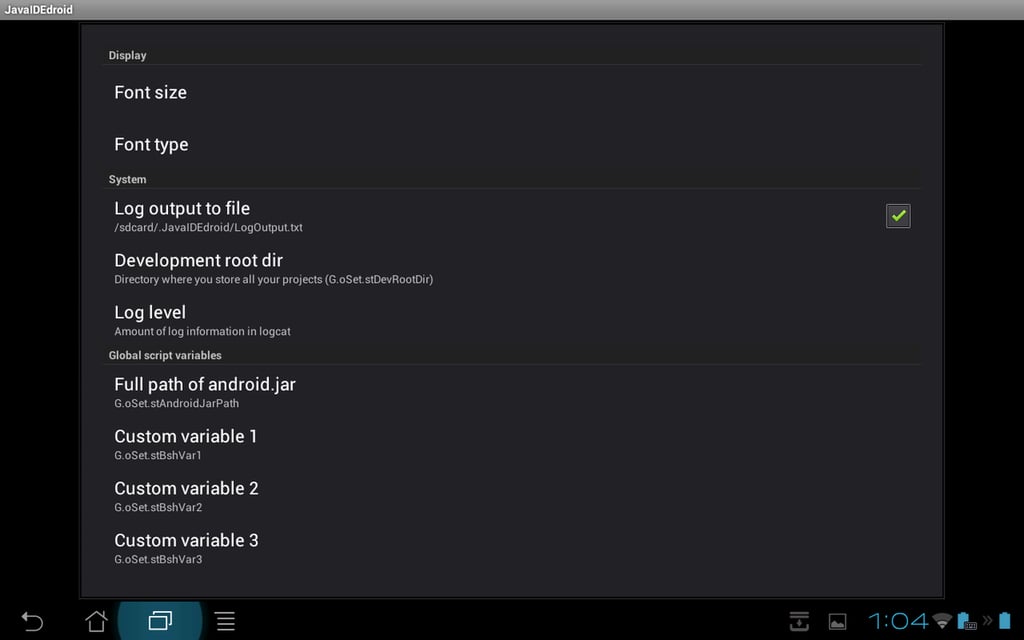
\n\tThe settings panel for DroidDevelop; the custom variables are used in the build scripts.
\n\t(Credit: Chris Duckett/TechRepublic)
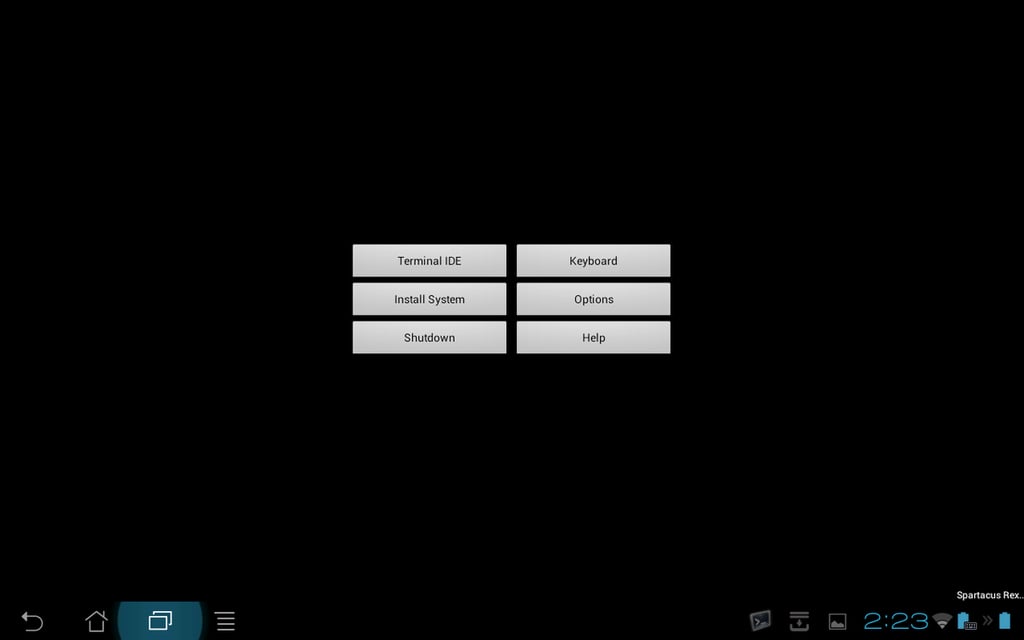
\n\tThe start screen of Terminal IDE. To start a terminal, you must install the system, then hit the “Terminal IDE” button. It’s recommended before going into the terminals that you set the keyboard to Terminal IDE’s keyboard, or use a hardware keyboard.
\n\t(Credit: Chris Duckett/TechRepublic)
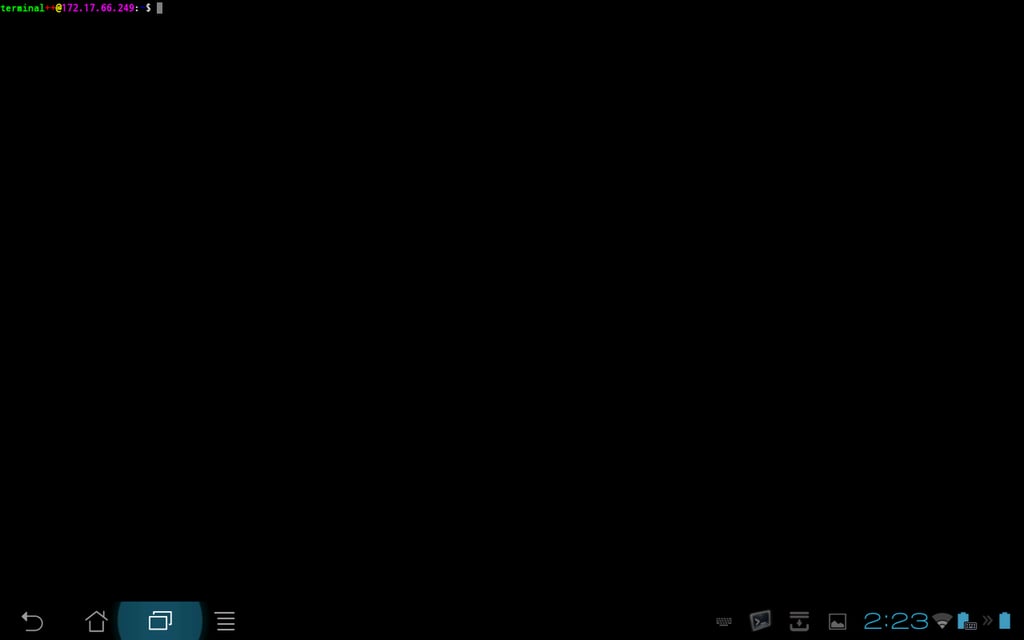
\n\tA terminal within Terminal IDE. Swiping across the screen switches between the four terminals that are running.
\n\t(Credit: Chris Duckett/TechRepublic)
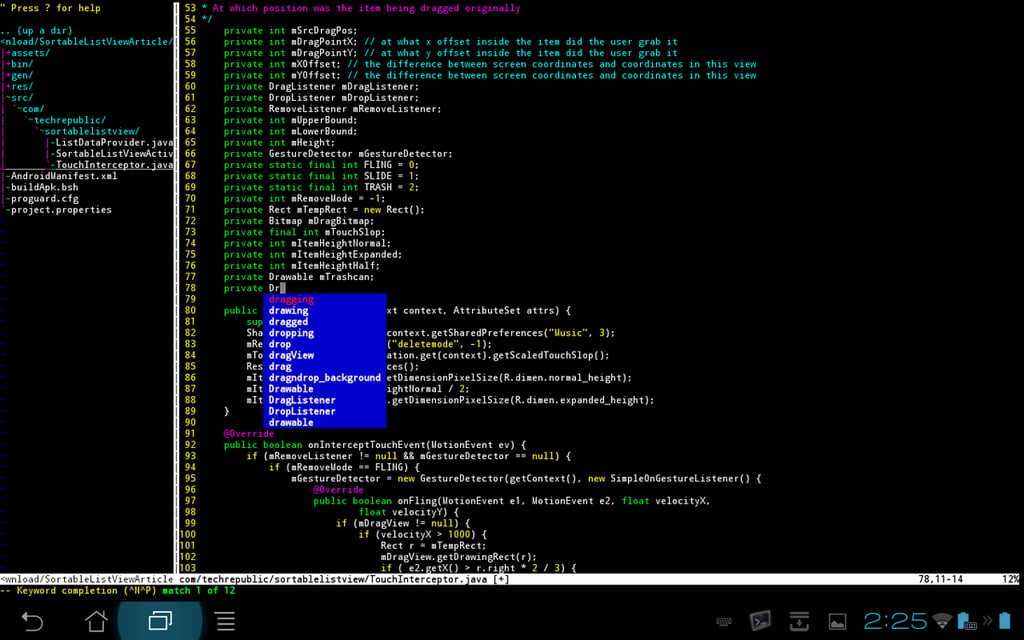
\n\tThe Terminal IDE editor is a customised vim installation with the NERDTree plugin controllling the left pane. Shown here is the editor’s autocomplete feature.
\n\t(Credit: Chris Duckett/TechRepublic)
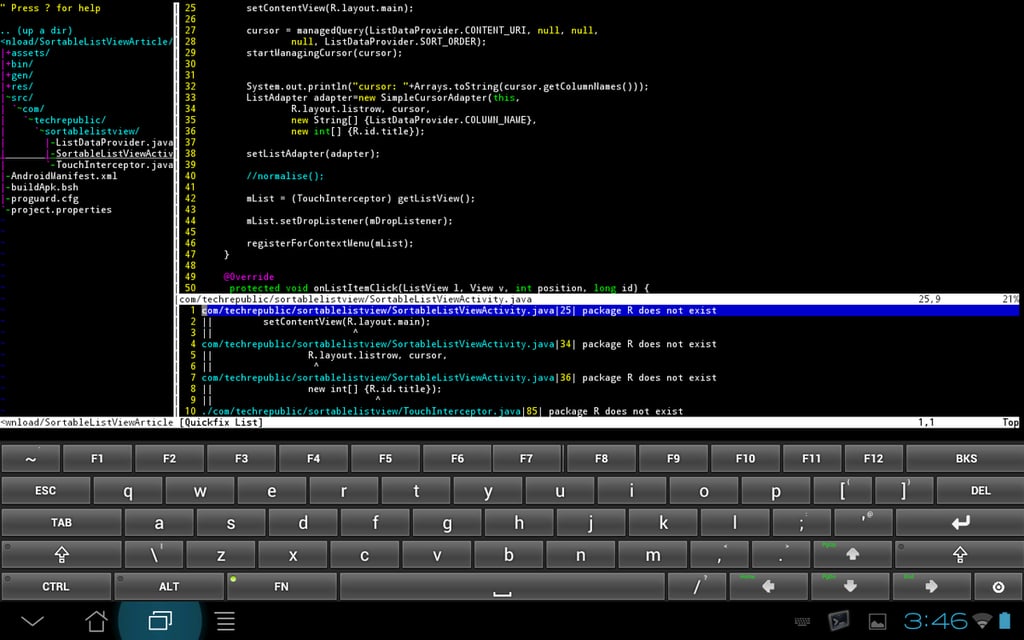
\n\tA Terminal IDE editor session with the Terminal IDE soft keybaord enabled. The lower pane on the right-hand side is the build error log. By pressing F8 and F9, you are able to cycle through the build errors and the cursor will move to the offending line.
\n\t(Credit: Chris Duckett/TechRepublic)
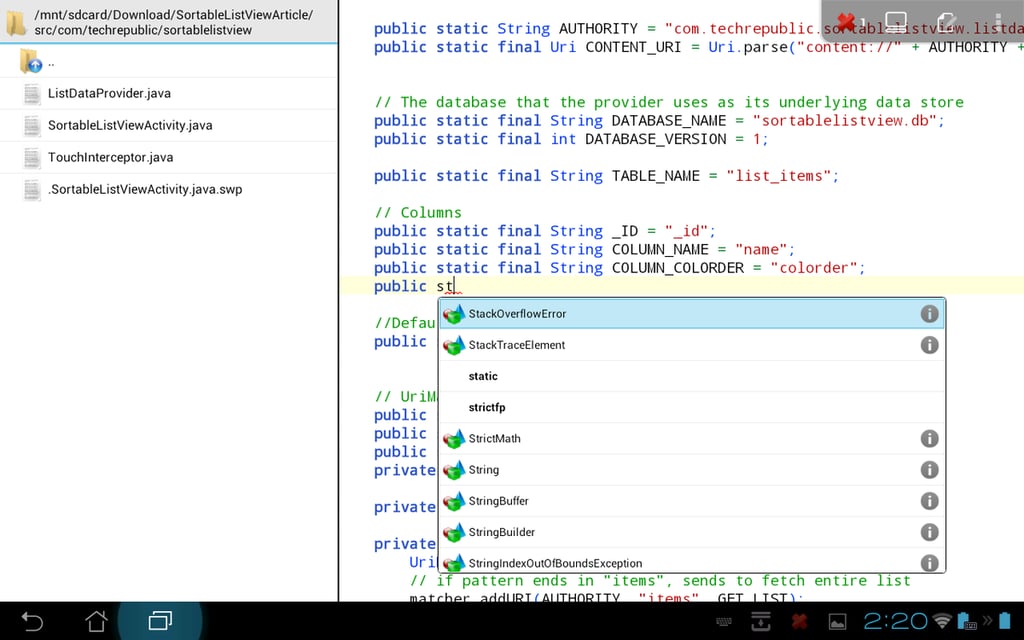
\n\tThe AIDE editor with autocomplete enabled in action. On the upper right is the code analysis output informing us that we have one error.
\n\t(Credit: Chris Duckett/TechRepublic)
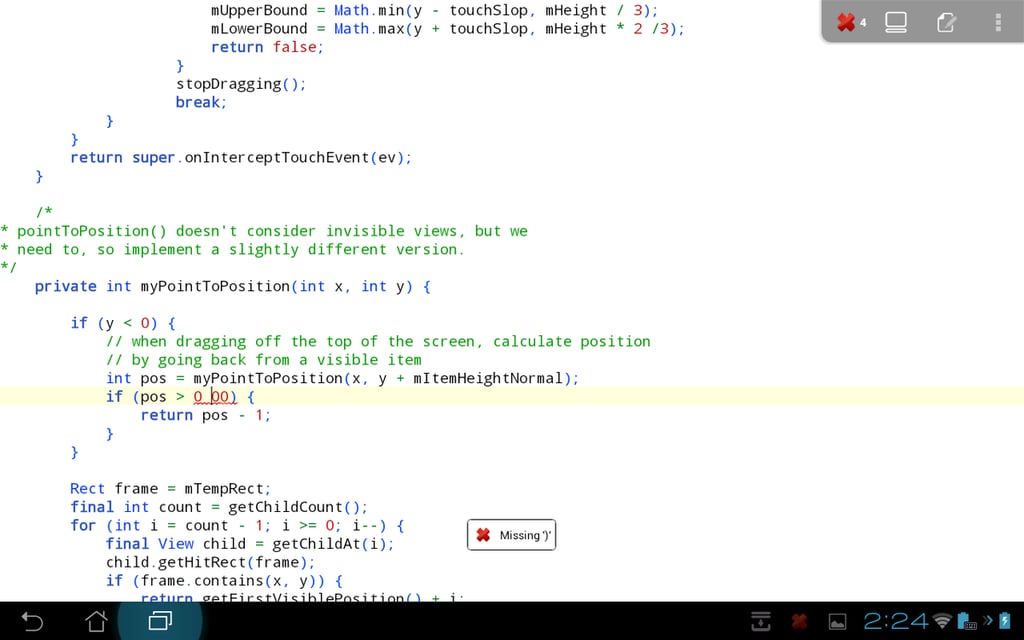
\n\tAIDE behaves like a desktop IDE with the way it presents errors.
\n\t(Credit: Chris Duckett/TechRepublic)
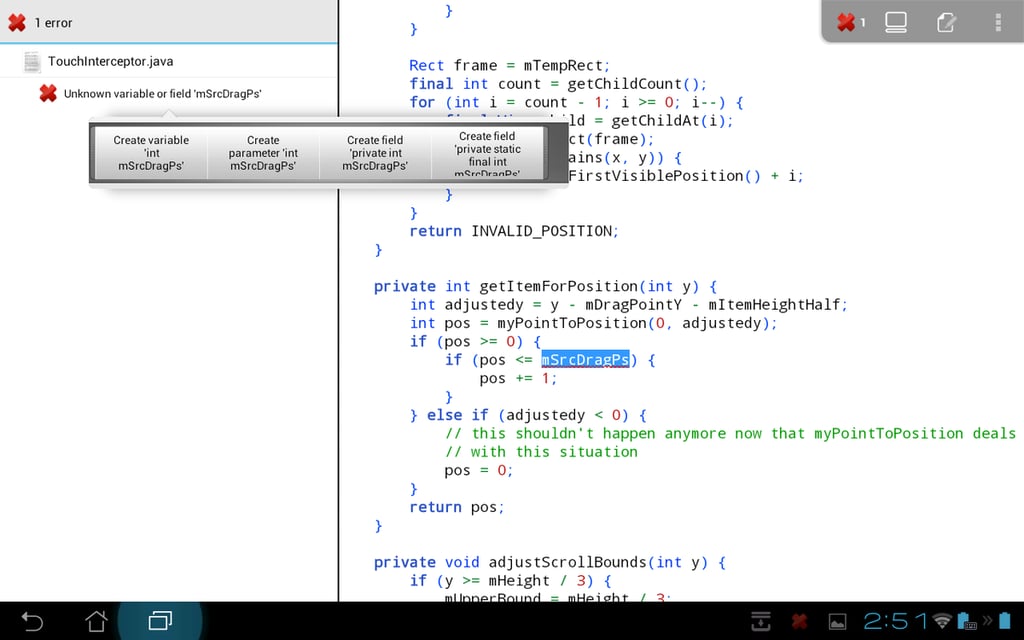
\n\tFix options available from a compilation error.
\n\t(Credit: Chris Duckett/TechRepublic)
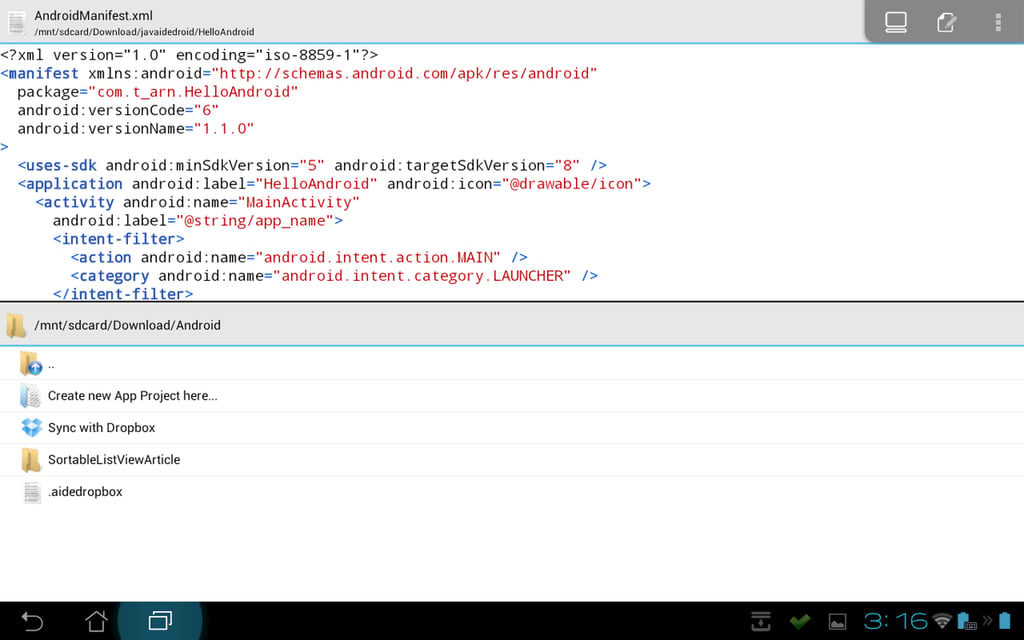
\n\tAIDE’s integration with Dropbox is one of its best features.
\n\t(Credit: Chris Duckett/TechRepublic)
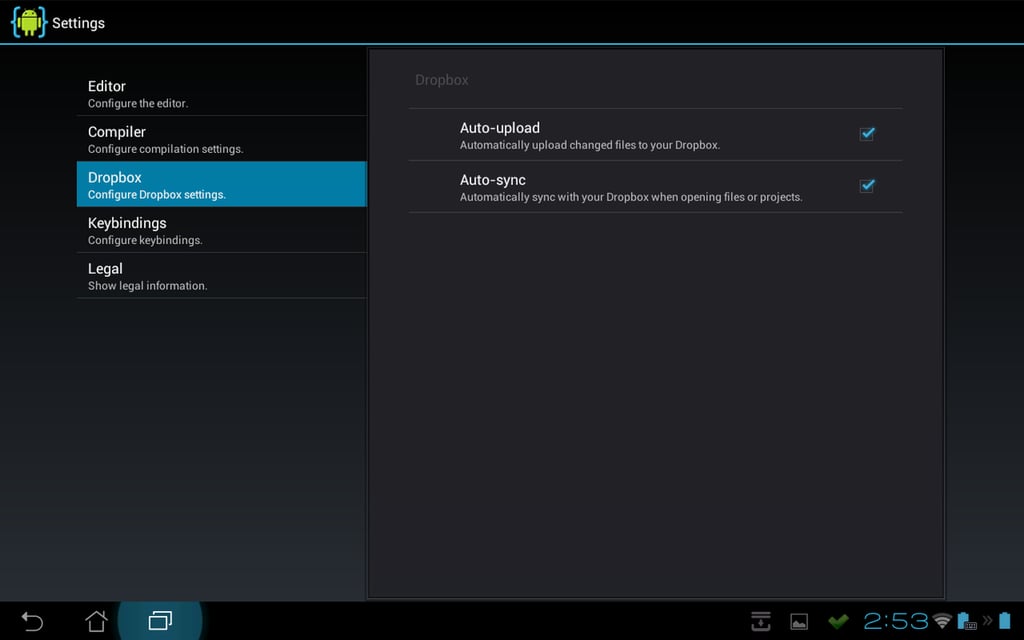
\n\tAuto-sync to Dropbox is a handy feature of AIDE.
\n\t(Credit: Chris Duckett/TechRepublic)
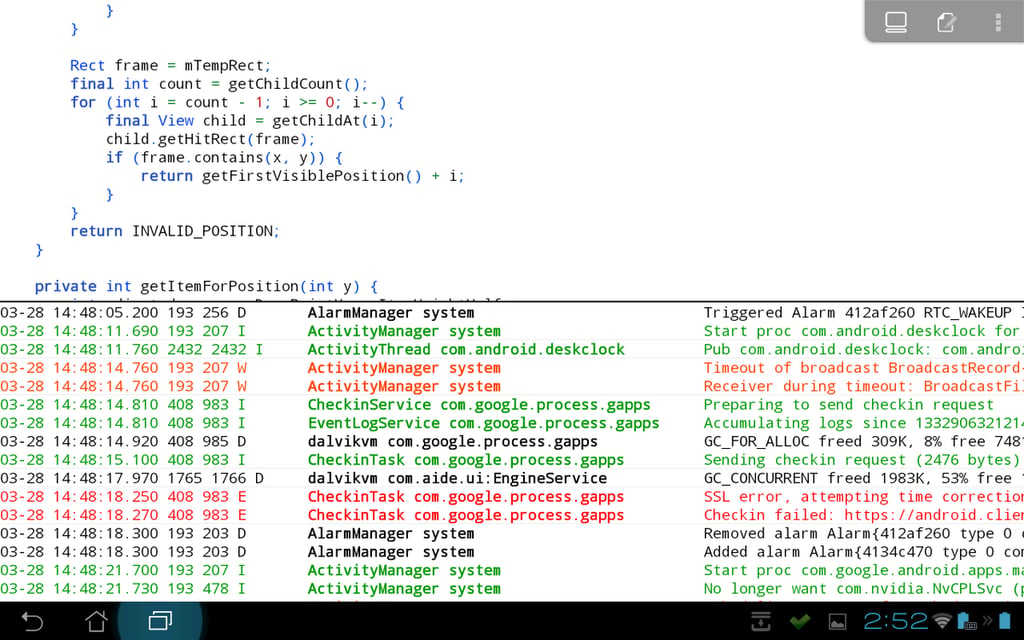
\n\tLogcat output presented inside AIDE.
\n\t(Credit: Chris Duckett/TechRepublic)
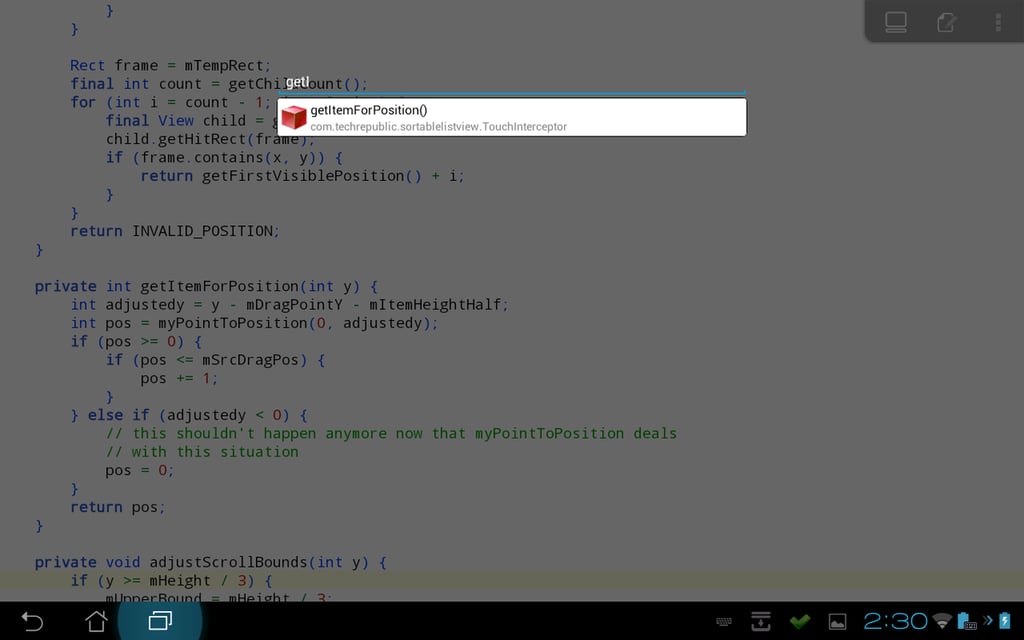
\n\tAIDE’s slickness really shows in the interface it uses for the editor’s find feature.
\n\t(Credit: Chris Duckett/TechRepublic)
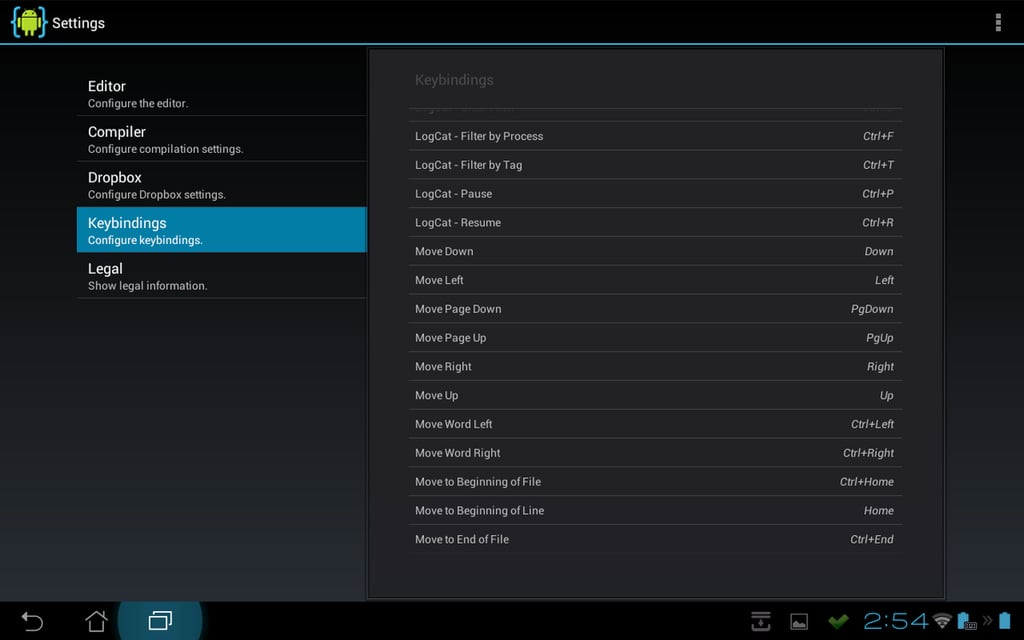
\n\tAIDE behaves like a desktop IDE with the sheer number of shortcuts available. A hardware keyboard is recommended to take full advantage of them.
\n\t(Credit: Chris Duckett/TechRepublic)

Some would say that it is a long way from software engineering to journalism, others would correctly argue that it is a mere 10 metres according to the floor plan. During his first five years with CBS Interactive, Chris started his journalistic adventure in 2006 as the Editor of Builder AU after originally joining the company as a programmer. Leaving CBS Interactive in 2010 to follow his deep desire to study the snowdrifts and culinary delights of Canada, Chris based himself in Vancouver and paid for his new snowboarding and poutine cravings as a programmer for a lifestyle gaming startup. Chris returns to CBS in 2011 as the Editor of TechRepublic Australia determined to meld together his programming and journalistic tendencies once and for all.


