\n\tIf you are still considering the first, basic steps of moving some part of your infrastructure to the cloud, this gallery will give you a quick view of Rackspace’s interface from sign-up to creating your first virtual machine. For comparison, you can check out these other first-look galleries:
\n
\n\t
\n\t
\n
\n
\n\tFor more detailed information, see the blog post, “How to sign up, create a VM, and destroy it on Rackspace.”
\n
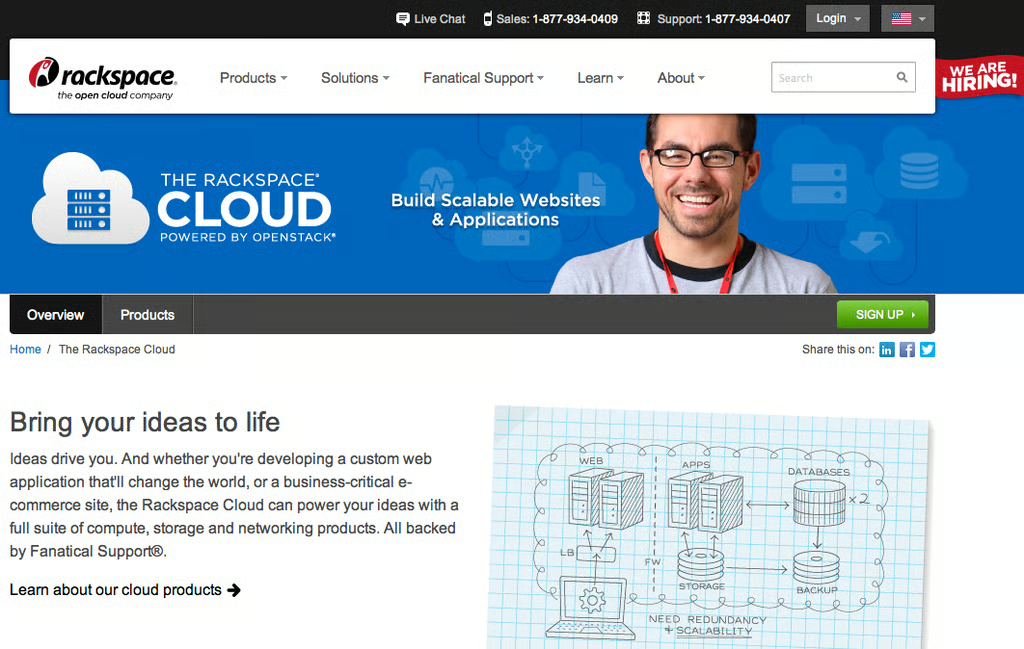
\n\tRackspace’s cloud service landing page is at http://www.rackspace.com/cloud/. Click the SIGN UP button to get started.
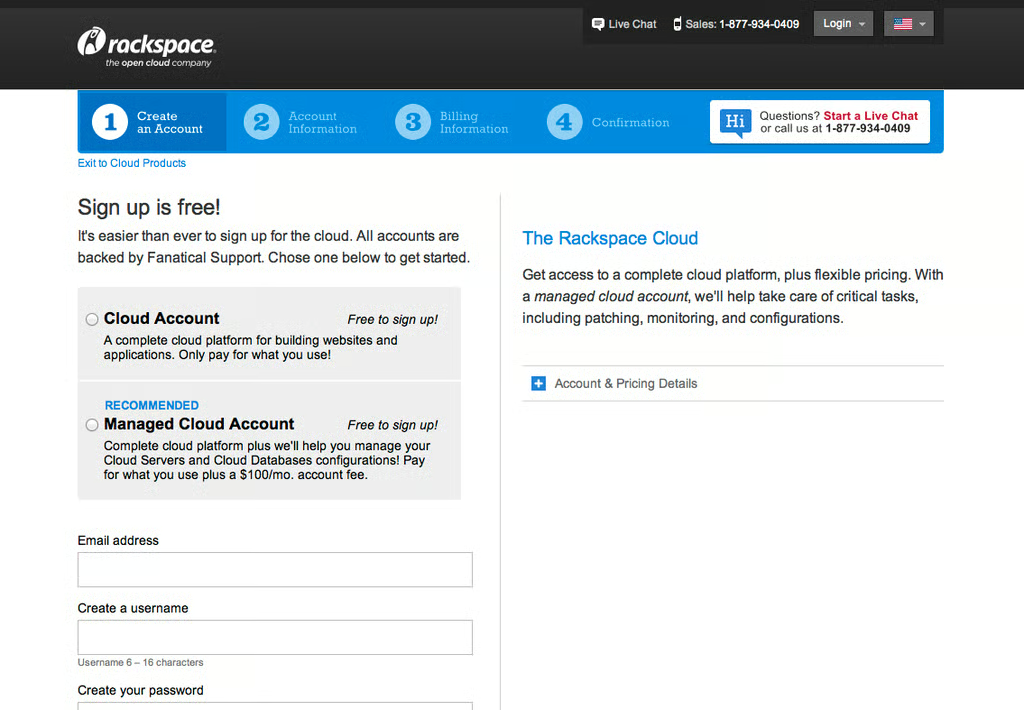
Enter your information in the sign-up form at https://cart.rackspace.com/cloud/.
\n
\n\tYou are not charged for signing up. It’s free.
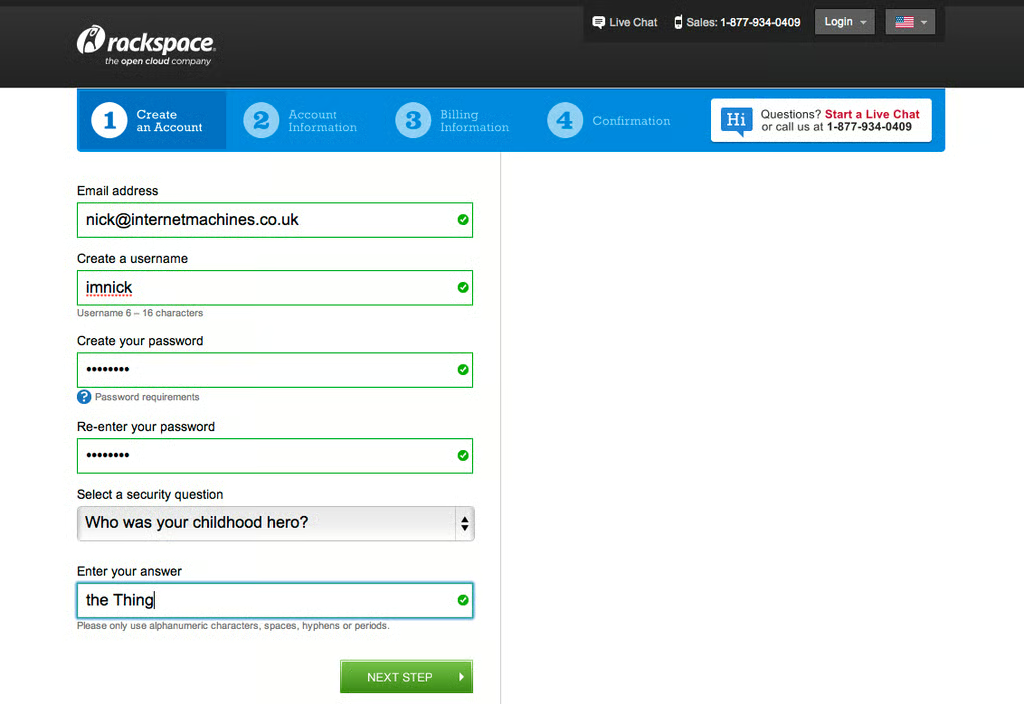
As with many e-commerce sign-up forms, the Rackspace form is split into different pages for account, identity, and payment.
\n
The now-familiar breadcrumb (the table at the top with four numbered boxes) shows what stage of the process you have reached.
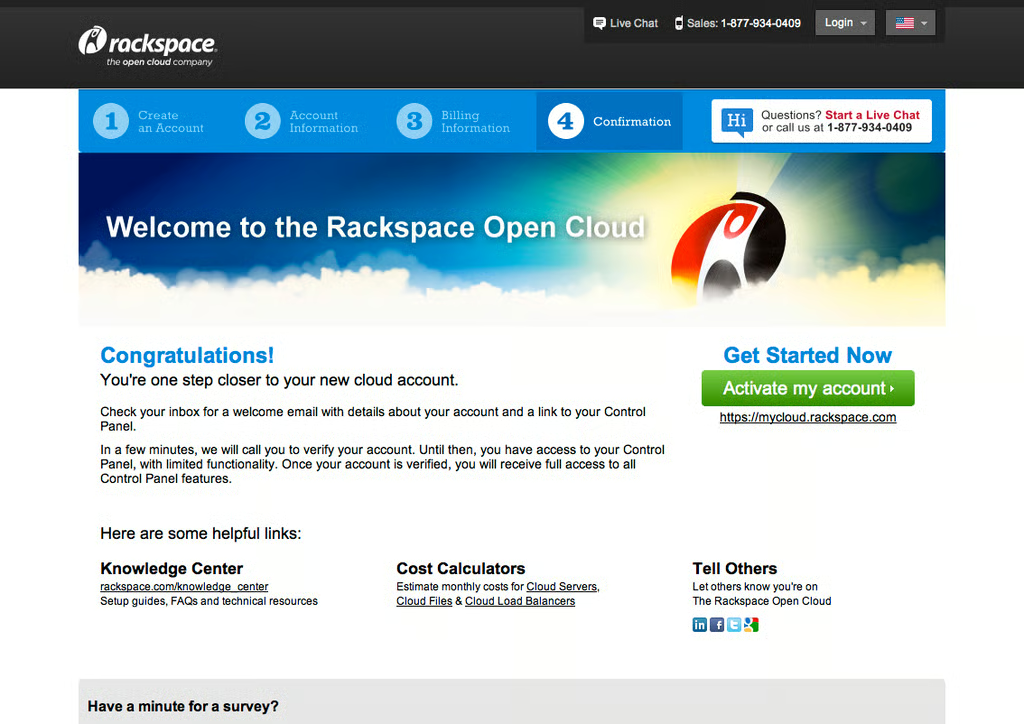
\n\tAfter filling in the sign-up form, a welcome page appears.
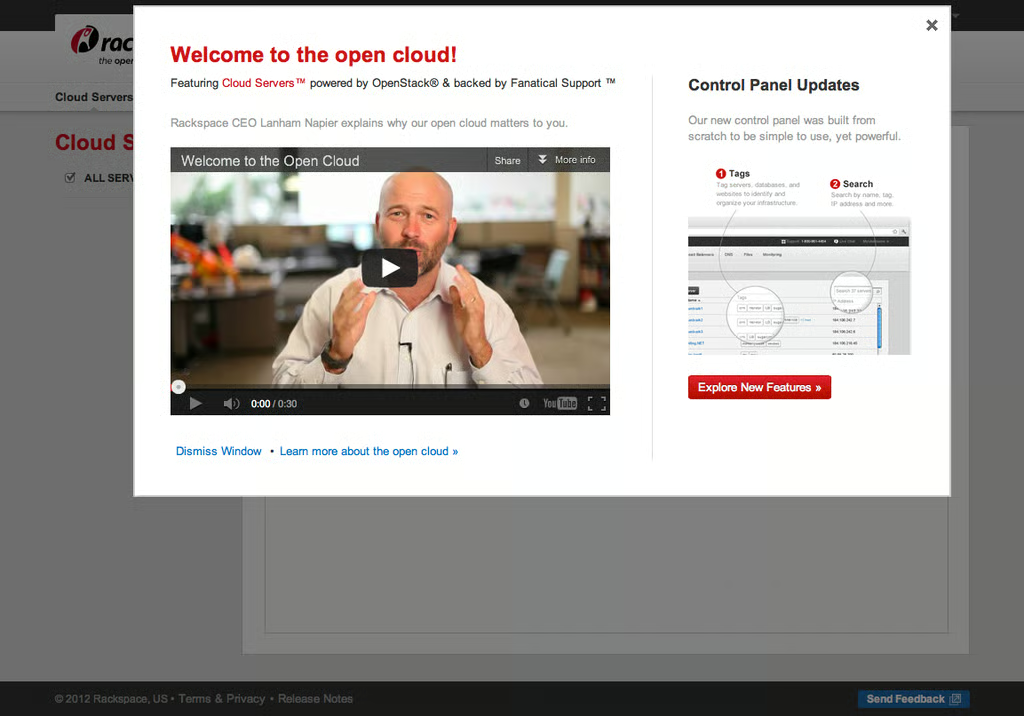
\n\tFirst-time users get a short welcome video. It’s one of a series of Rackspace videos on YouTube.
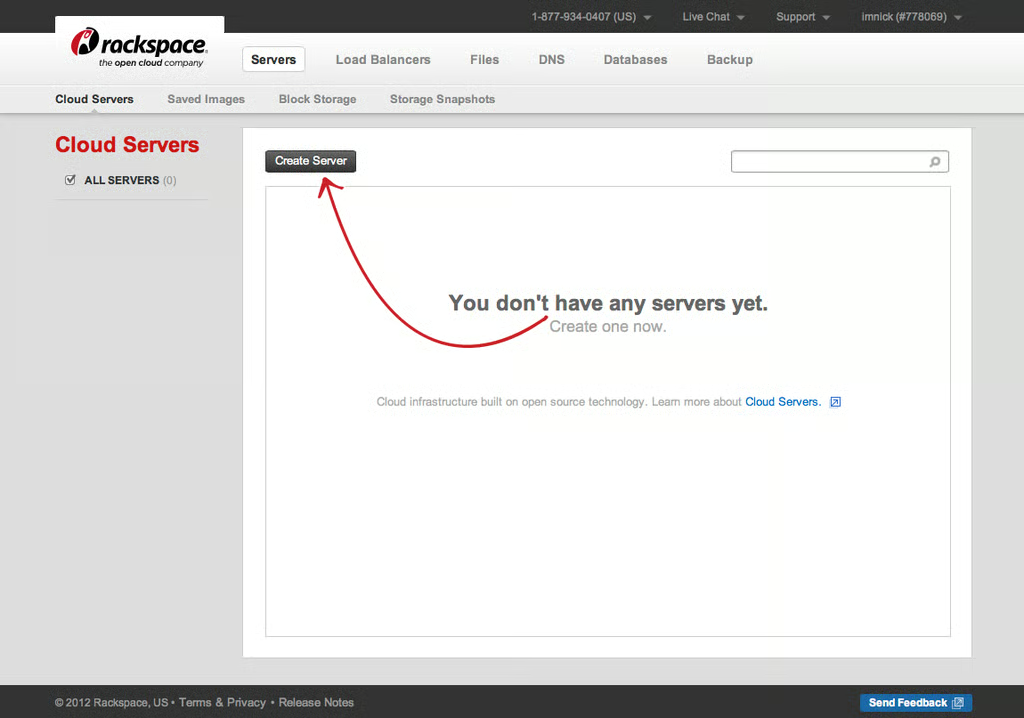
\n\tA great big arrow points to the Create Servers button.
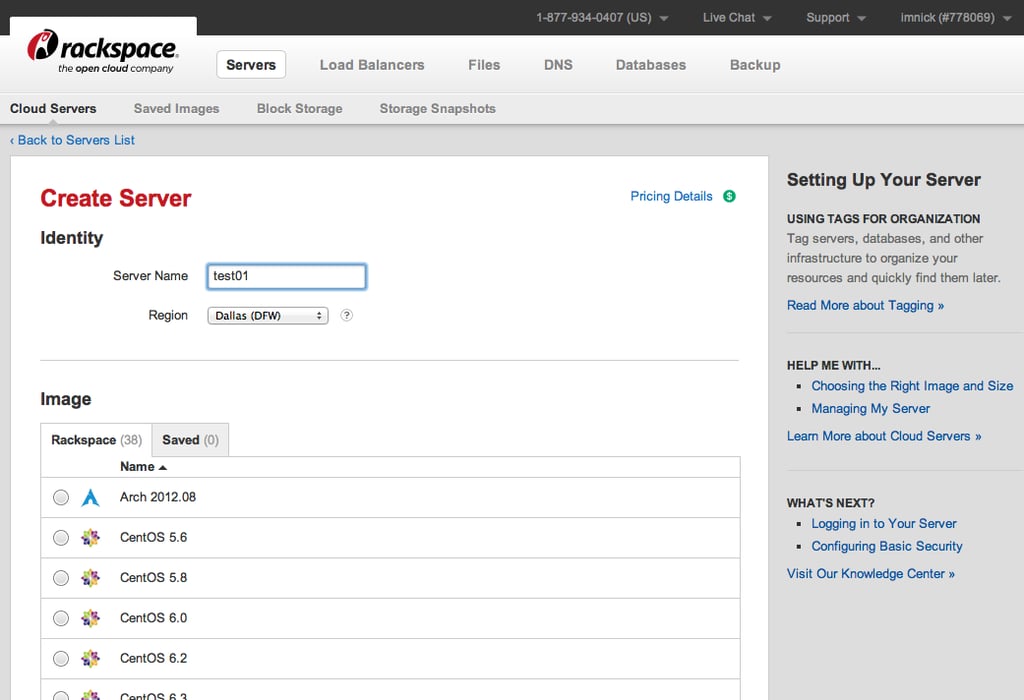
\n\tFill in the Create Server form. There are plenty of Linux and Windows images to choose from.
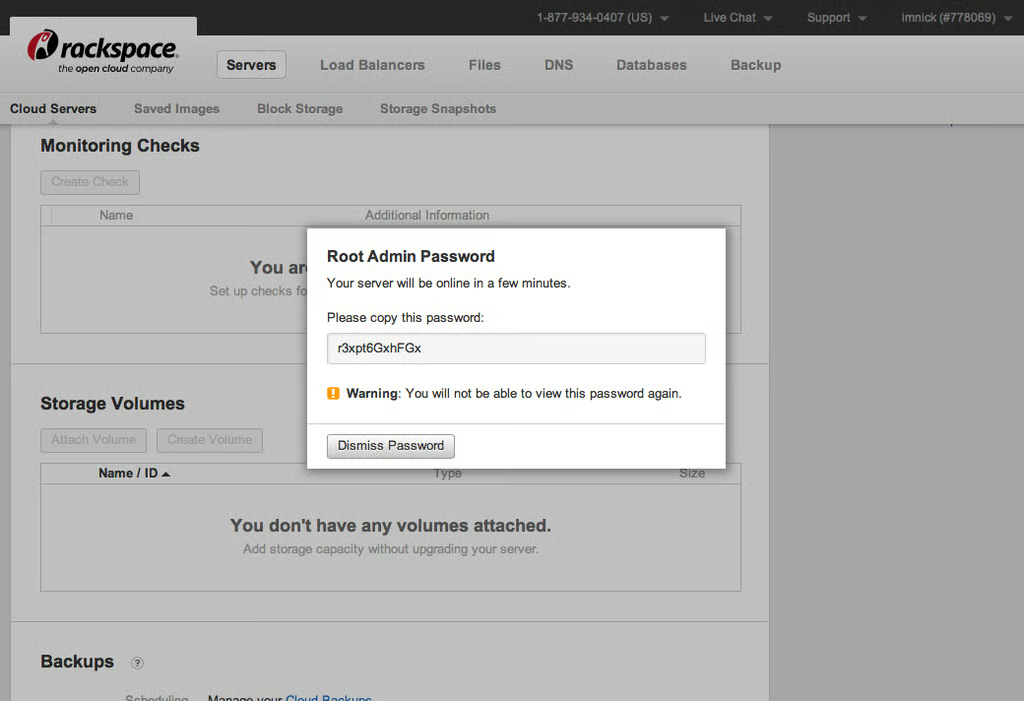
\n\tThe build process creates a root password for you. Copy it to a safe place. You need this password to log in.
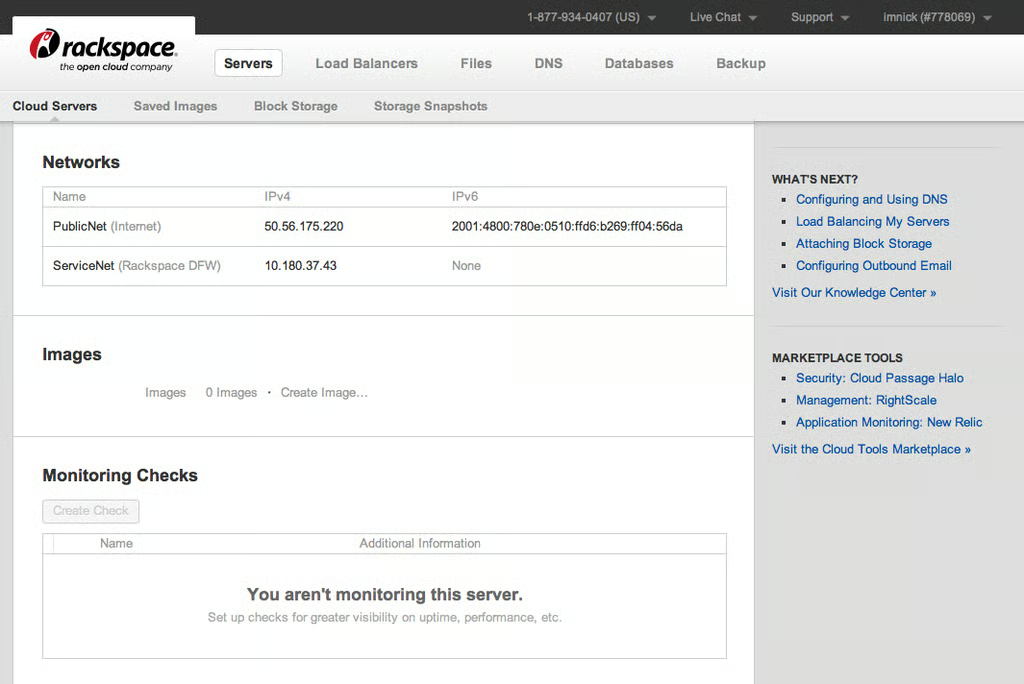
\n\tThis is the business end of Rackspace’s next-generation control panel. It provides easy access to the usual cloud virtual hardware and services \u2013 load balancers, DNS, backup and so on.
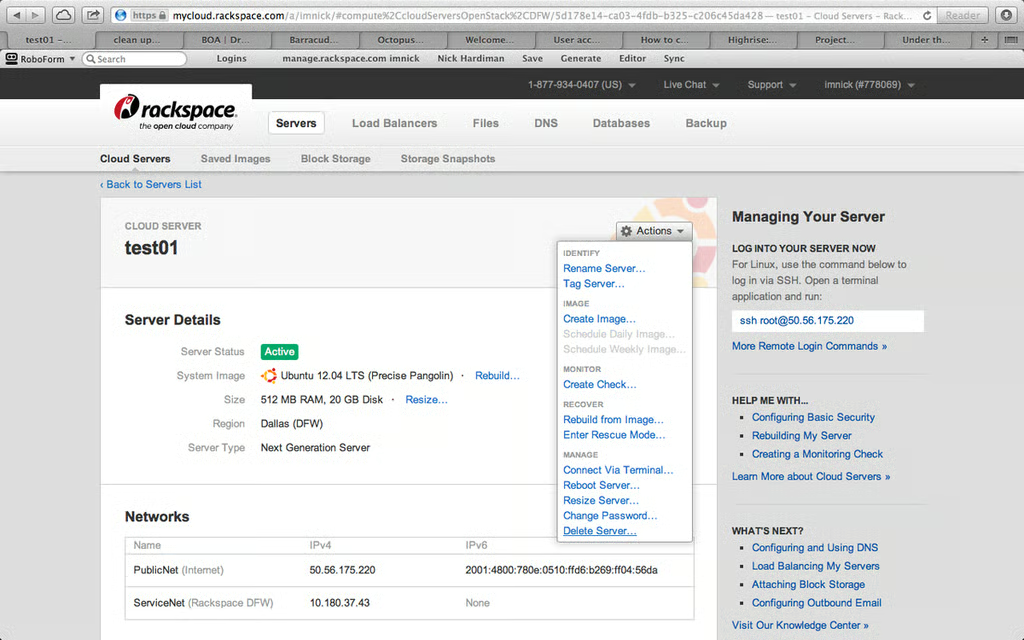
\n\tDestroy the VM. When you are finished with your new virtual machine, choose Actions > Delete Server…
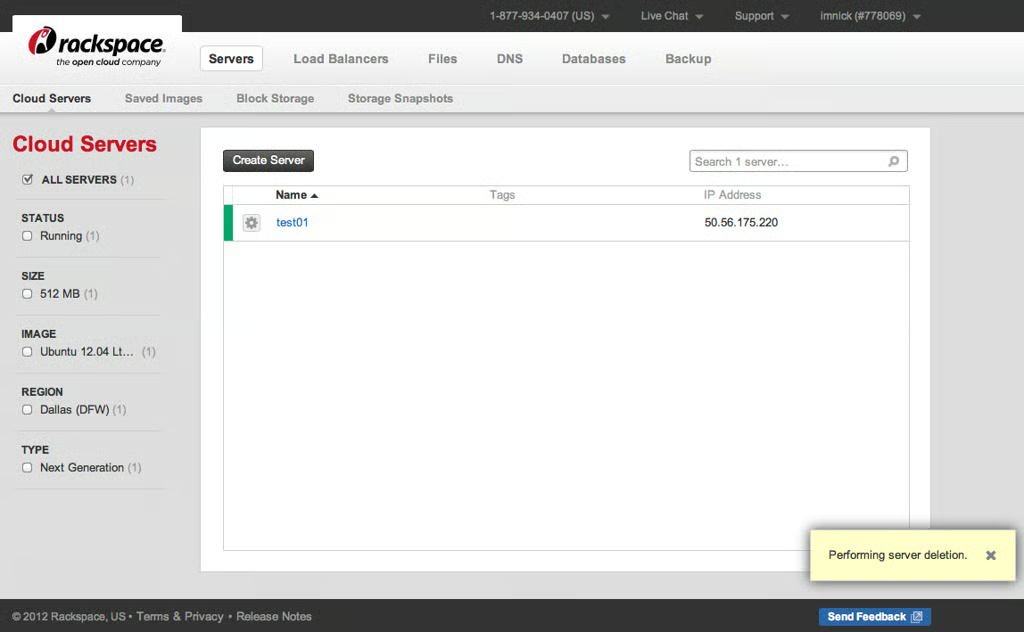
\n\tThe Server deletion process only takes seconds.
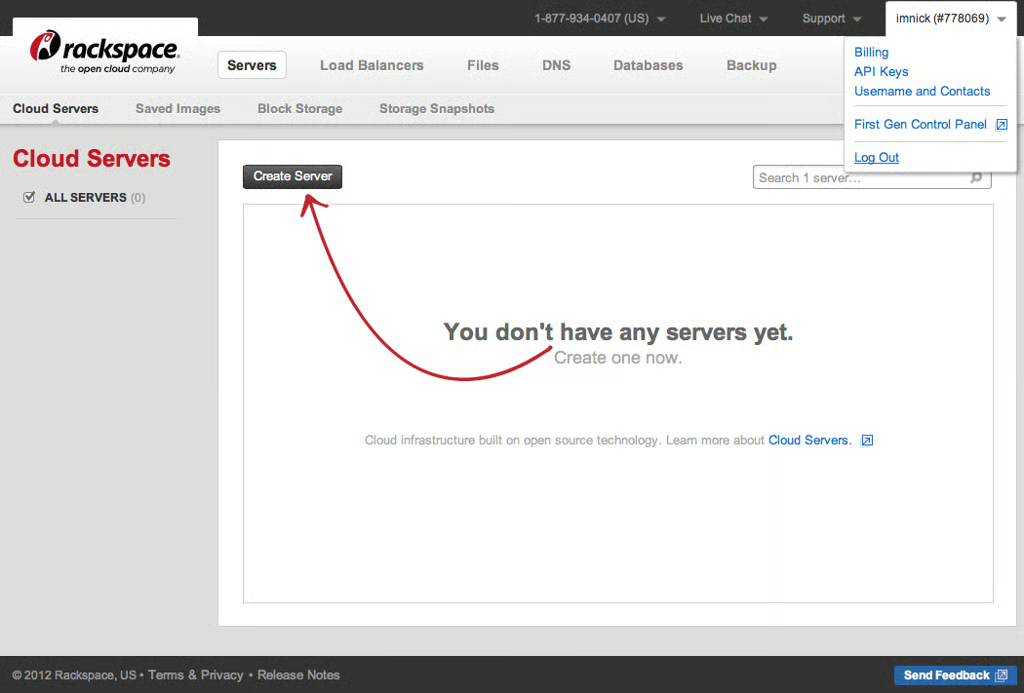
\n\tClose your session and you are done.
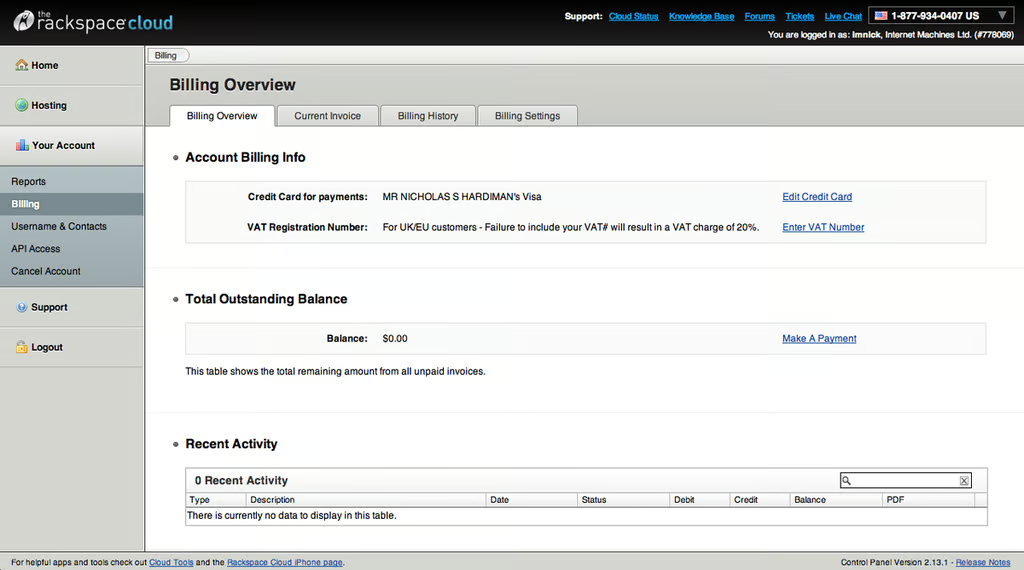
\n\tKeep an eye on your bill. The billing pages are still on the first generation control panel at https://manage.rackspacecloud.com/.

Nick Hardiman builds and maintains the infrastructure required to run Internet services such as the web. Nick deals with the lower layers of the Internet - the machines, networks, operating systems and applications. Nick's job stops there and he hands over to the designers and developers who build the top layer that customers use.


