Apple claims its new Safari 3.0 Windows Web browser loads pages faster than both IE 7 and Firefox 2.0. Here’s a look at the new Windows Safari interface and an overview of its many new features.
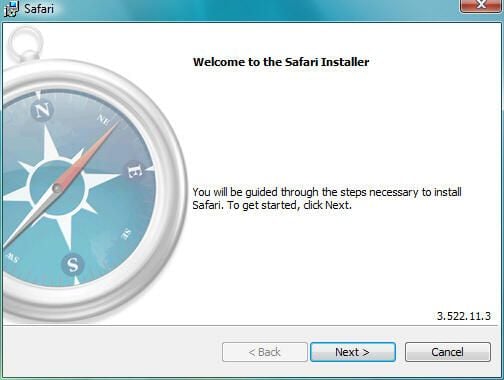
The Safari Setup program, about 8MB, features a simple installer.
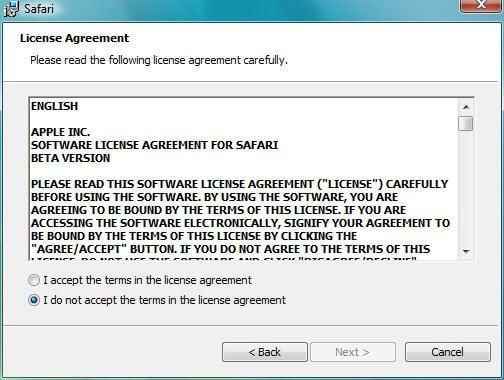
When installing the Safari Web browser for Windows, users must accept Apple’s licensing agreement.
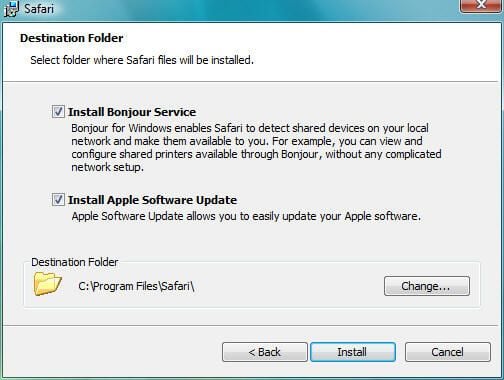
When installing the Safari Web browser in Windows, users can choose to include Apple’s Bonjour service (which assists in locating network resources) and the Apple Software Update application (which helps keep Apple applications current with the latest updates).
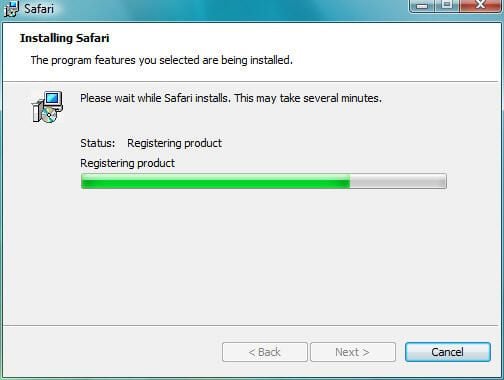
Once users specify installation options, Safari installs itself.
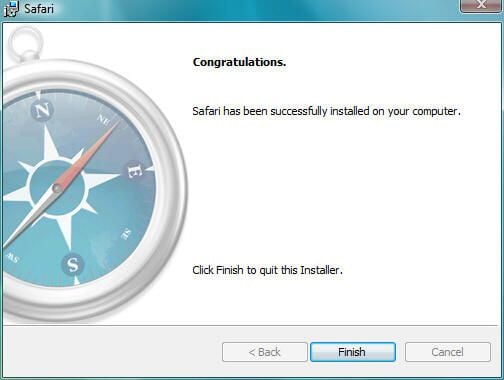
Upon completing installation, the Safari setup program displays this confirmation screen.
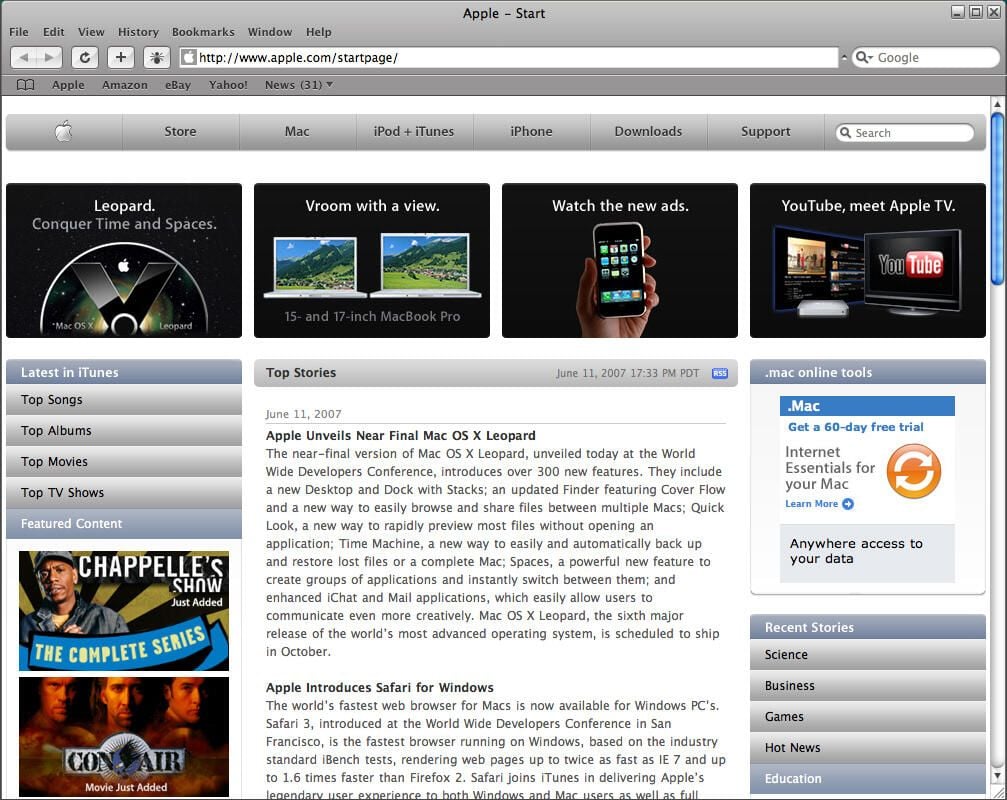
Safari loads pages quickly in Windows. By default, it’s set to feature the Apple Web site as the user’s homepage.
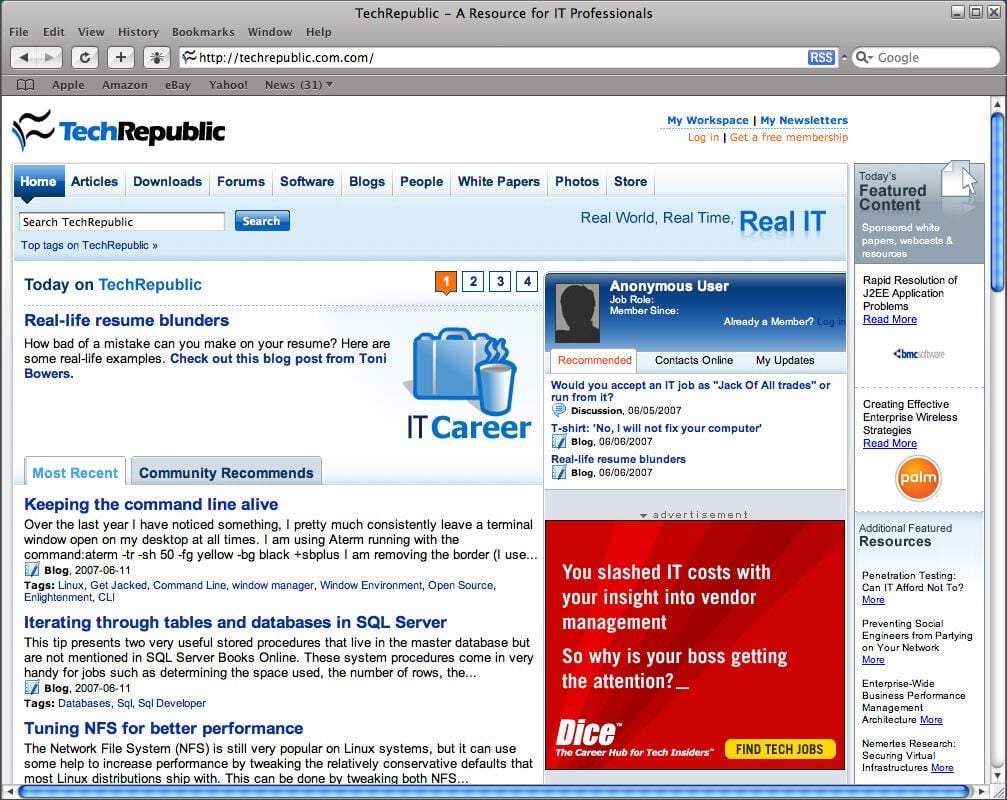
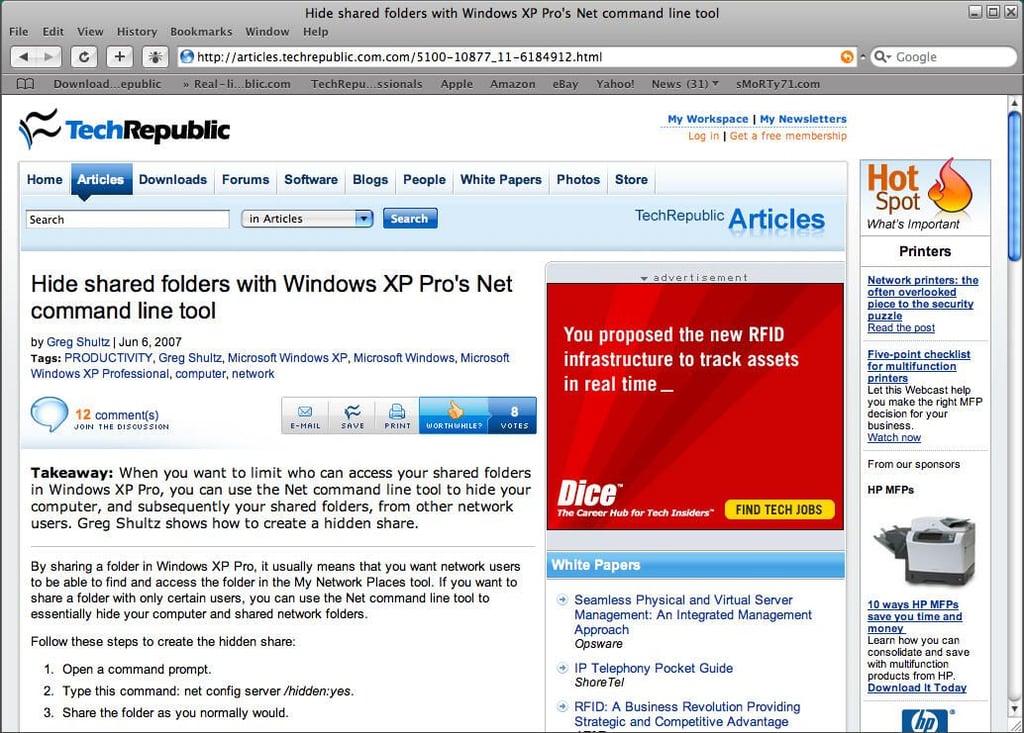
Safari has come a long way, displaying wide varieties of sites properly without error. Here you can see how Safari displays the TechRepublic Web site.
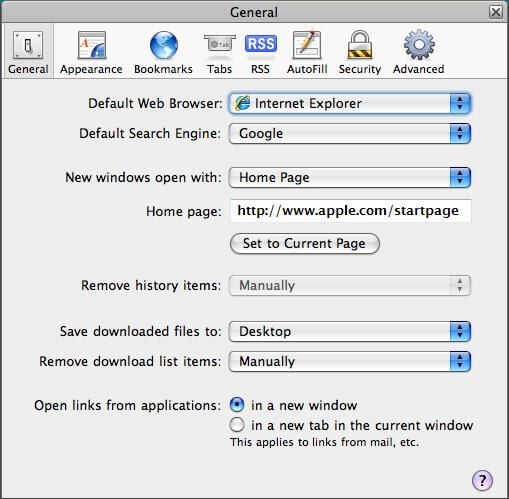
Users configure Safari settings by clicking Preferences from the Edit menu (or by pressing the CTRL and , keys simultaneously).
From the General menu, users set the default Web browser, default search engine, specify how new Windows open, set the home page, clear browser History, specify where downloaded files are to be saved, clear the list of downloaded items and specify how links are to be opened.
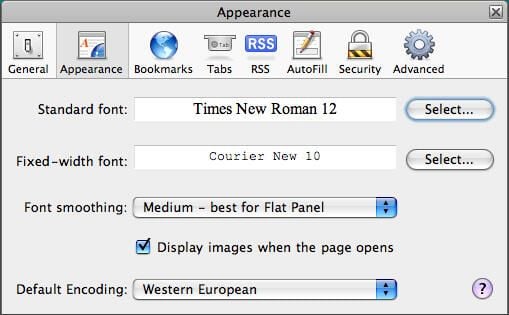
From the Appearance menu, users configure font settings and whether images are to be displayed when pages open.
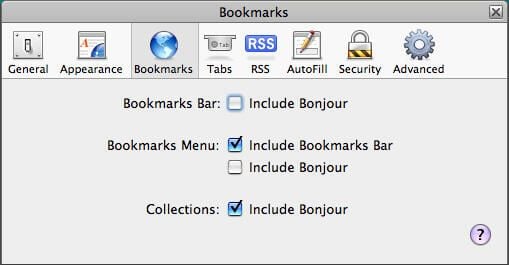
From the Bookmarks page, users configure bookmarks settings. For example, users specify whether Bonjour is included in the Bookmarks Bar, whether the Bookmarks Bar is included in the Bookmarks Menu, and more.
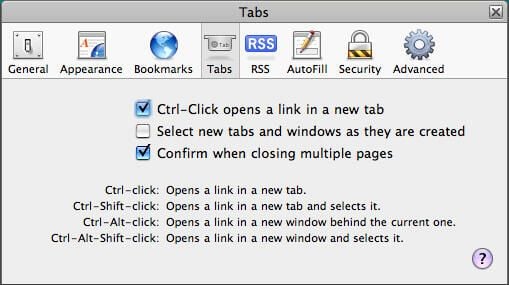
From the Tabs preferences menu, users configure tab behavior. Users can specify that holding the CTRL key while clicking a link forces a new tab, among other options.
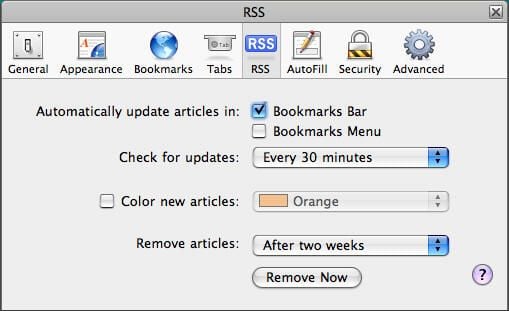
From the RSS page, users specify whether update articles automatically appear in the Bookmarks Bar and Bookmarks Menu, how often Safari should check for updates, the color in which to display new articles and how often articles should be removed.
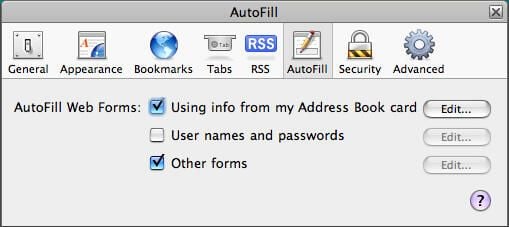
From the AutoFill page, users specify whether AutoFill should use information from the user’s Address Book card to automatically complete Web forms and whether AutoFill should help complete user name and password fields and other forms.
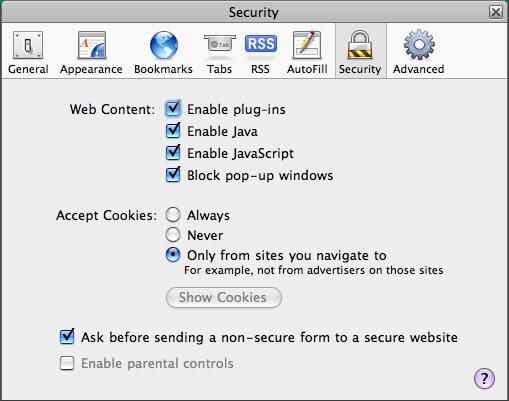
Using the Security Preferences page, users configure a variety of security settings. In addition to enabling plug-ins, Java and JavaScript and blocking pop-up windows, from this menu users can refuse cookies and receive a reminder before sending an insecure form to a secure Web site.
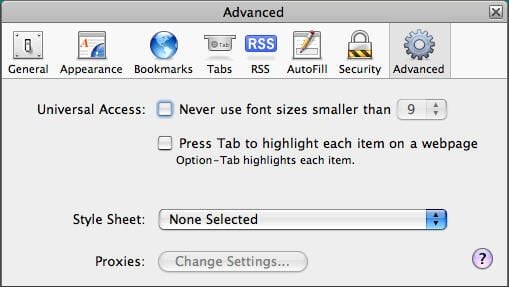
From the Advanced menu, users specify accessibility features, including the smallest font size that should be used. Style Sheet settings and proxy settings are also configured from the Advanced Preferences tab.
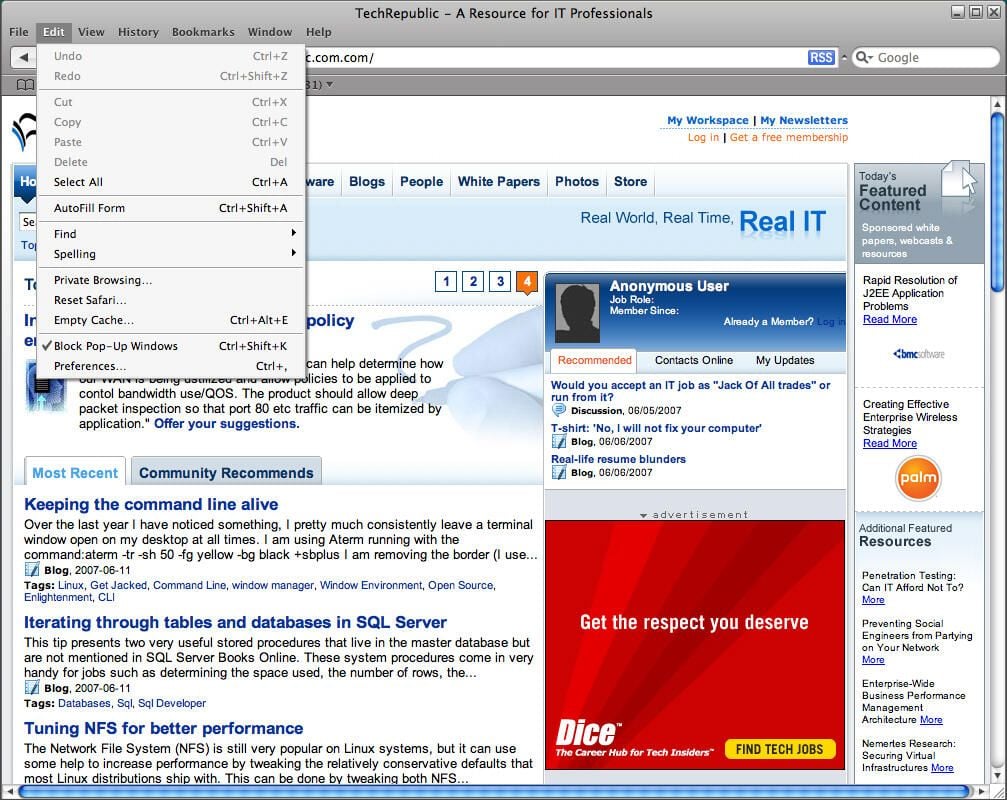
By default, Safari is set to automatically block pop-up menus. The feature is easily disabled, if desired. Users need only click Edit and uncheck the Block Pop-Up Windows option.
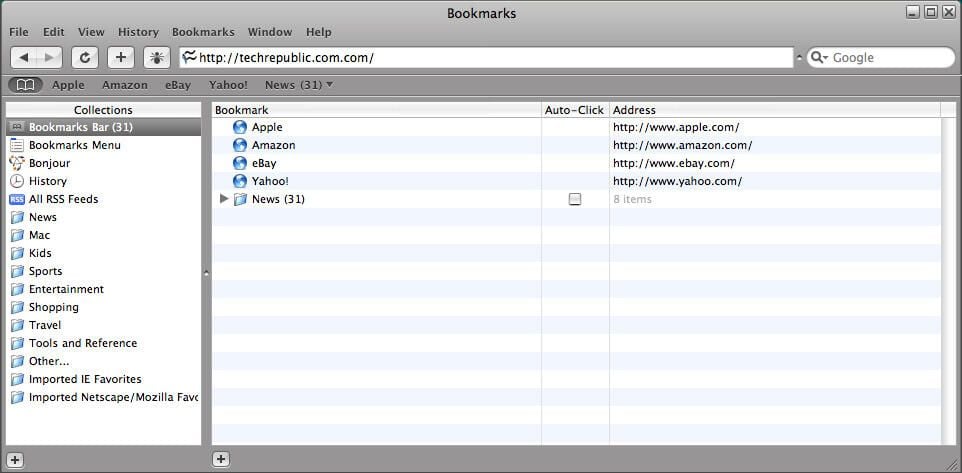
Clicking Safari’s Bookmark icon (from the Bookmark toolbar) displays the menu you see here. The Bookmarks page is used to add, edit and remove bookmarked sites and RSS feeds.
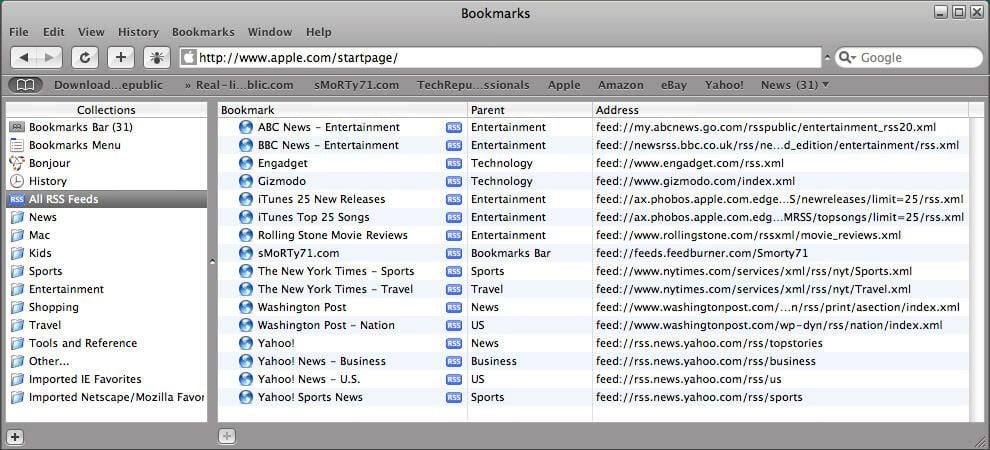
Safari makes it easy to configure and maintain RSS feeds.
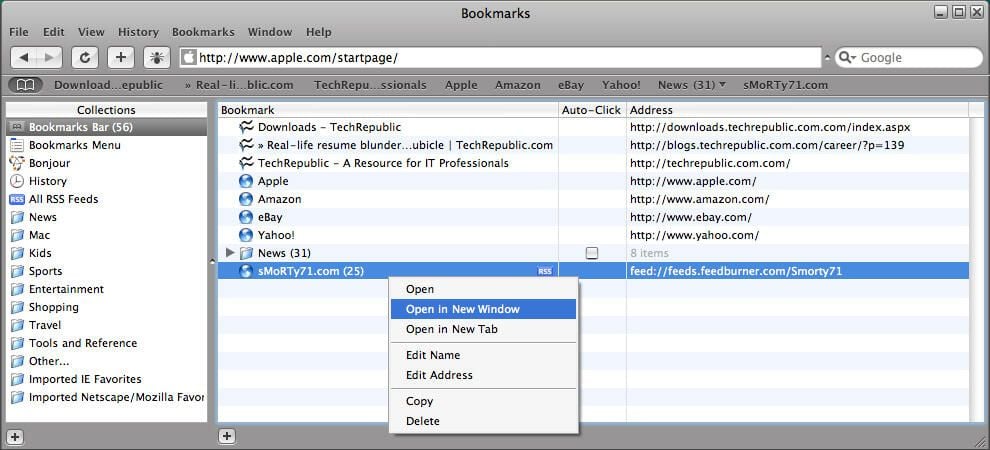
Right-clicking any RSS feed provides several options from a pop-up menu, including Open, Open In A New Window, Open In A New Tab, Show In Collections, Copy, and Delete.
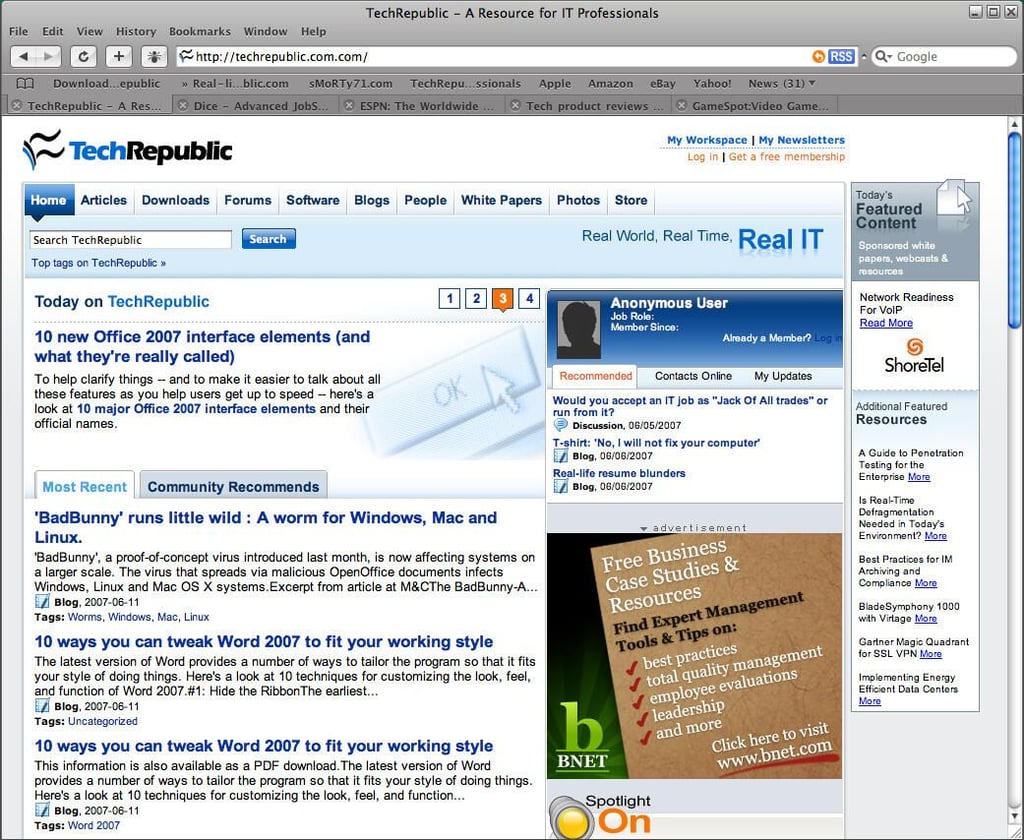
Just like Internet Explorer 7 and Firefox 2.0, Safari readily supports surfing the Web using multiple tabs.
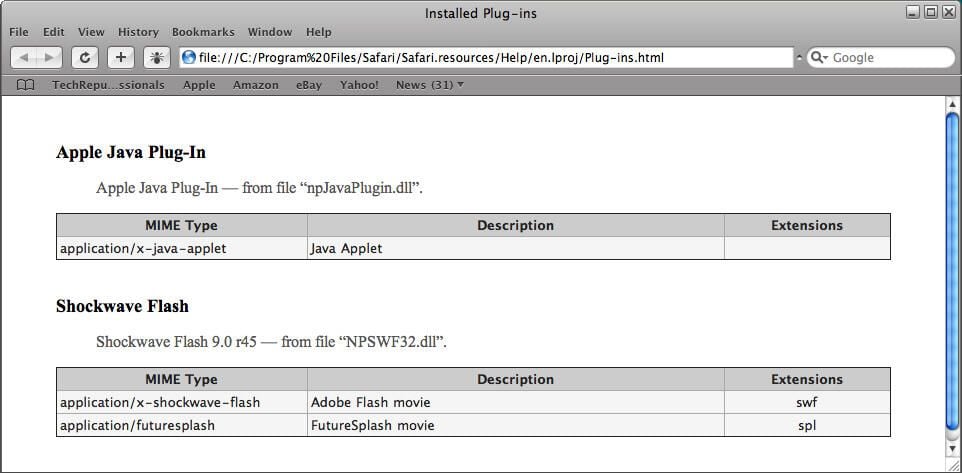
Users can view information regarding each installed Safari plug-in using the Installed Plug-ins feature. To access the menu seen here, just click Help and select Installed Plug-ins.
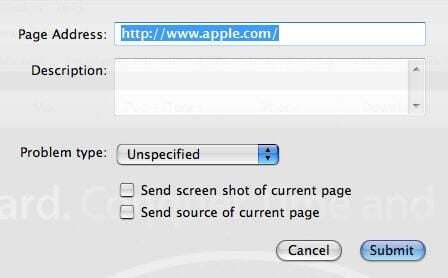
Apple developers added a bug icon to Safari’s toolbar. The goal is to make it easy for users to report problematic Web sites.
When encountering errors, users can click the bug icon (or click Help and select Report Bugs To Apple) to call this menu and provide Apple with additional information regarding the problem.
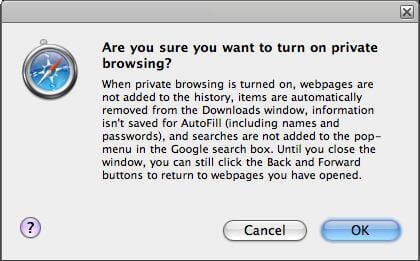
Safari includes a Private Browsing feature. When enabled, users can surf the Web without storing history, download, AutoFill or search information.
The Private Browsing feature is enabled by clicking Edit | Private Browsing and clicking OK.
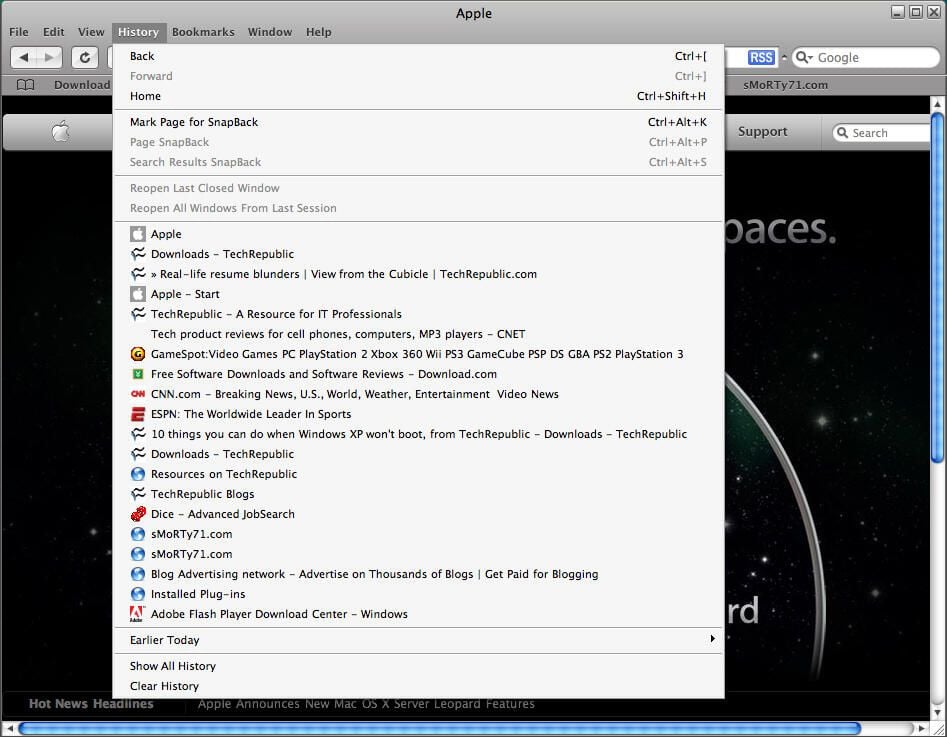
If Private Browsing is disabled, Safari tracks users’ browser activity within its History, as shown here.
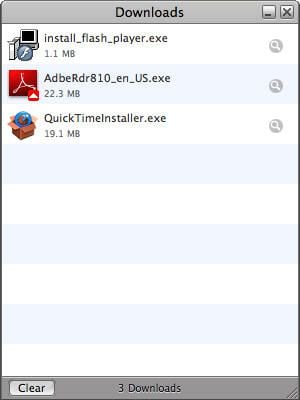
Just as Safari tracks browser activity, so, too, does it track download history. To clear a file from the Download history, users can right-click the item in question and select Remove From List.
Safari also includes a new Snapback feature. From the History menu, users can mark a page for Snapback.
When marked as a Snapback page, that page can be quickly accessed again. To quickly return to the Snapback page (marked by an orange circle with a left-pointing arrow, as seen in the Address bar here), users can press the CTRL+ALT+P keys simultaneously.
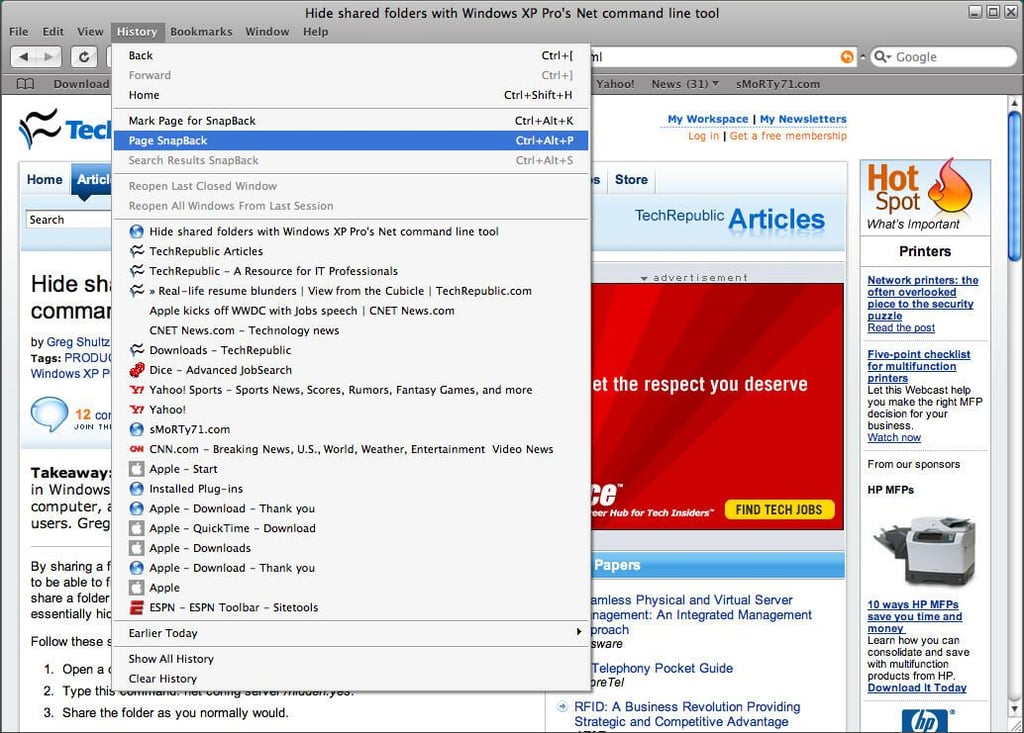
Users can set and access Snapback pages using the Mark Page For Snapback and Page Snapback links found within the History menu.
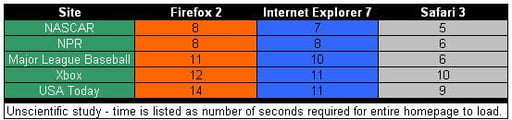
In an unscientific study, a handful of common Web sites were visited using the Firefox 2, Internet Explorer 7 and Safari 3 Web browsers. True to Apple’s word, Safari loaded each site most quickly.
With its ease of use, clean interface, simple but powerful security settings and widespread compatibility, Apple’s Safari 3 Web browser, while just in beta, is the Right Tool for most any Web surfing project.

Erik Eckel is a managing partner at Louisville Geek and president of Eckel Media Corp. He previously served as Executive Editor at TechRepublic. He received Microsoft Engineer accreditation from Sullivan University and earned his Bachelor's Degree in English from the University of Louisville. He's earned Network+, Windows NT 4.0 MCP+I and MCSE, and Windows 2000 Professional MCP accreditations.


