\n\tThis gallery is also available as an entry in the Windows and Office Blog.
\n
\n\tOver the last several years, password management has become increasingly more difficult. Thanks to the Web and to cloud applications, there are far more passwords to remember than ever before. Furthermore, passwords are often archaic and must be frequently changed. Fortunately, there are a number of Single Sign On (SSO) and password management utilities available. This article outlines five such utilities that are targeted for use by individuals or small businesses.
\n
\n\t\n\n
\n
\n\tCredit: Images by Brien Posey for TechRepublic
\n
\n
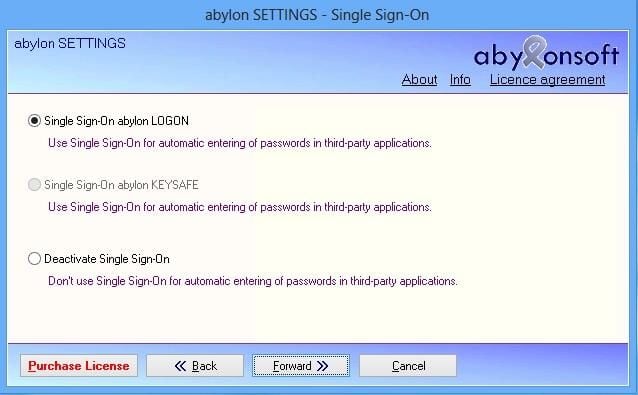
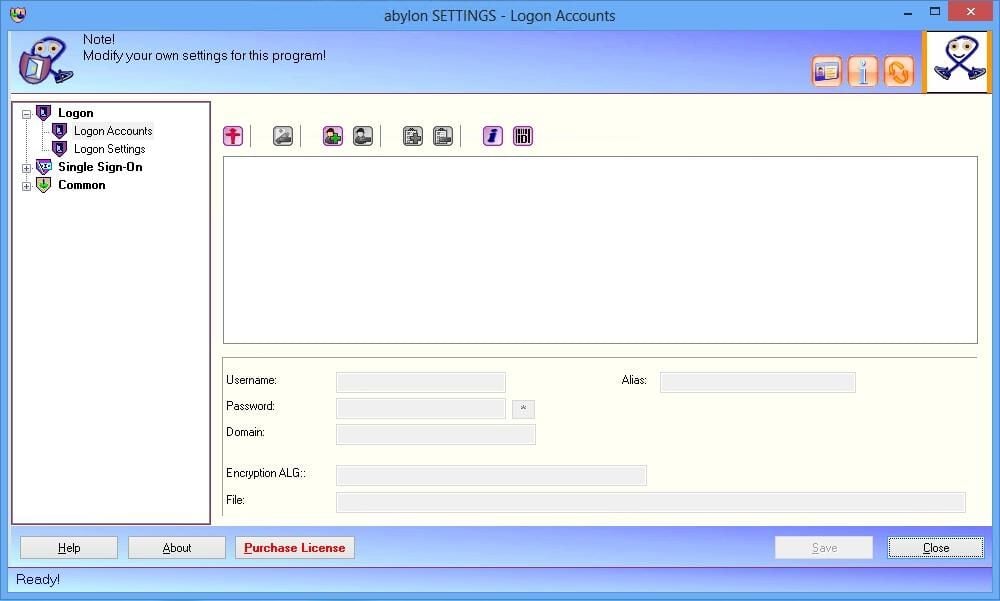
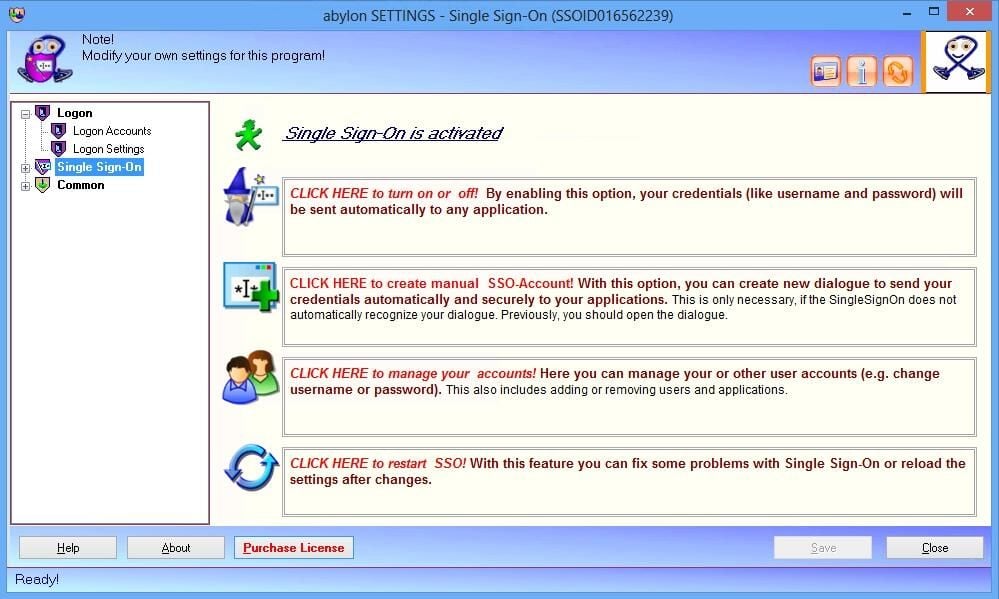
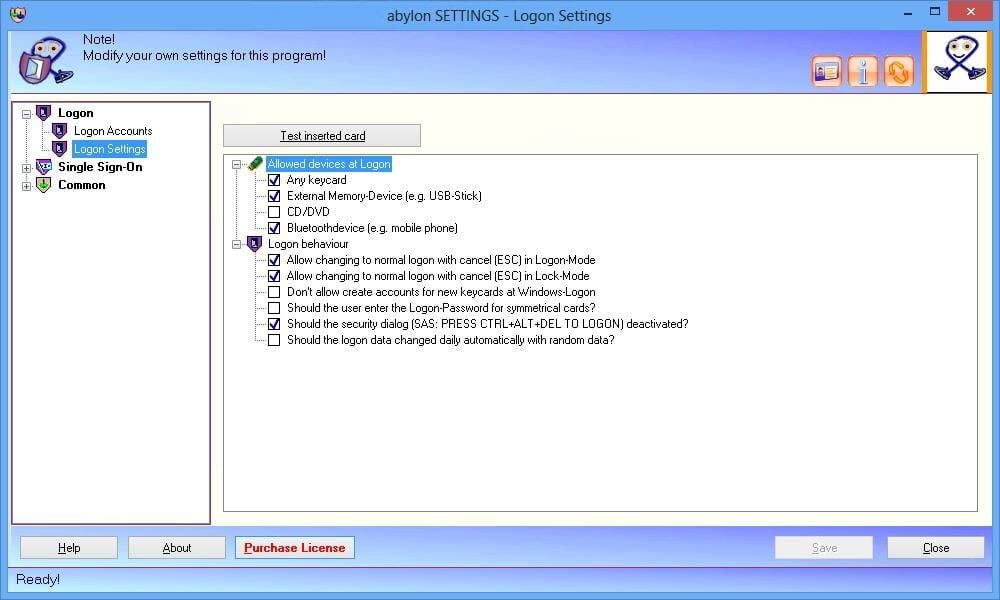
\n\tAbylon Logon SSO Home is a Single Sign On utility for Windows environments. The most impressive thing about this utility is that unlike many of the lower end single sign on utilities, it allows the use of removable media. Furthermore, application settings can be backed up and restored, or can be exported to another computer. These features make it easy for users to move from one computer to another and take their passwords with them.
\n
\n\tAbylon Logon SSO Home sells for about $35US (25.95 Euros), but a free trial version is available for download.
\n
\n\tCredit: Images by Brien Posey for TechRepublic
\n\tCredit: Images by Brien Posey for TechRepublic
\n\tCredit: Images by Brien Posey for TechRepublic
\n
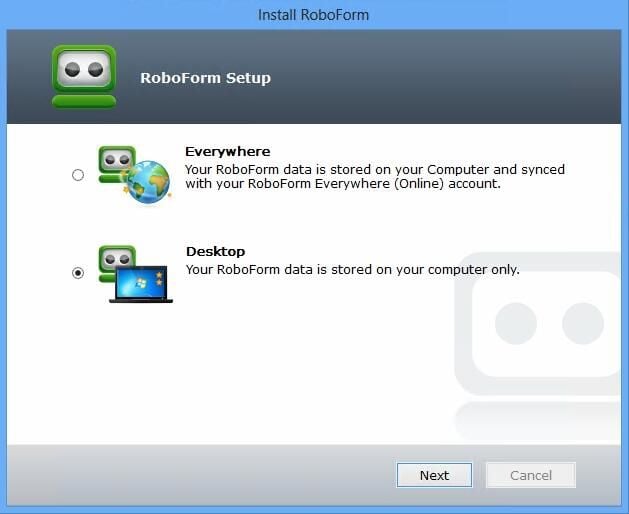
\n\tRoboForm is technically a tool that is designed to make it easier to fill in Web forms. However, RoboForm also offers SSO capabilities.
\n
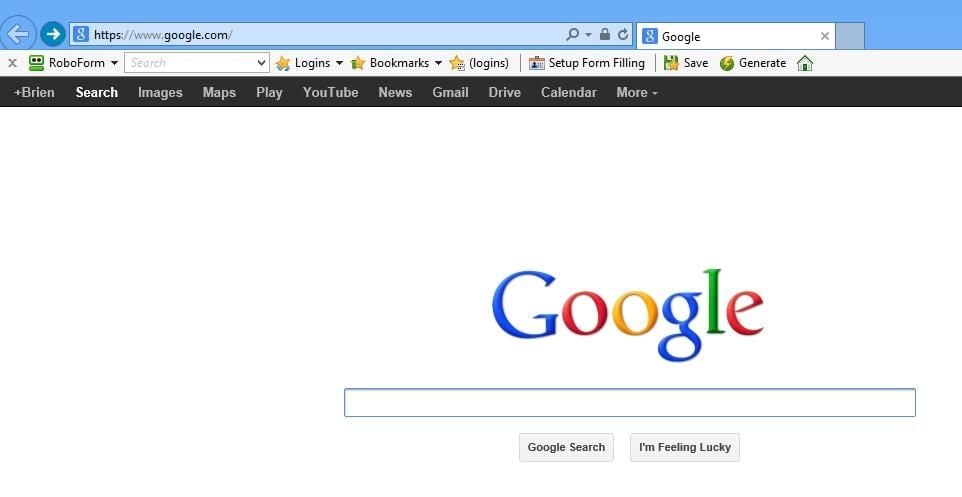
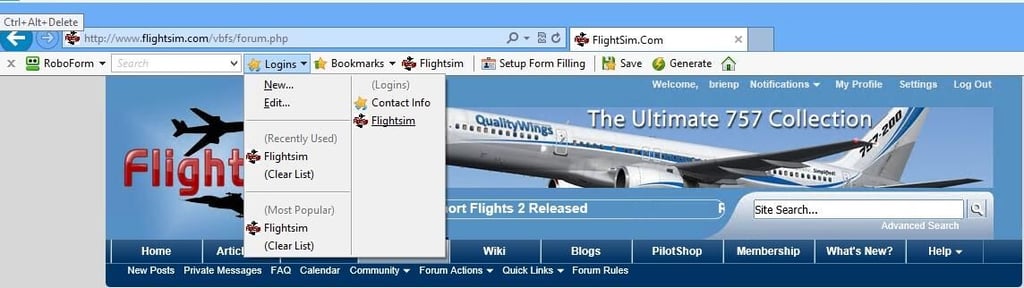
\n\tThe tool’s interface takes the form of a browser toolbar, which is surprisingly unobtrusive. When you log into a Web site, RoboForm detects the login and asks you if you want to save the password. The software also gives you the option to never save passwords for the site. The next time that you return to the site, you can automatically log in simply by selecting the site from the Logins drop down list.
\n
\n\tRoboForm sells for $29.95, but a free 30 day trial is available for download.
\n
\n\tCredit: Images by Brien Posey for TechRepublic
\n\tCredit: Images by Brien Posey for TechRepublic

\n\tCredit: Images by Brien Posey for TechRepublic
\n\tCredit: Images by Brien Posey for TechRepublic

\n
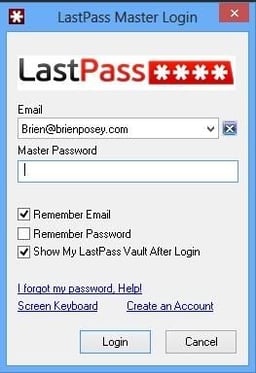
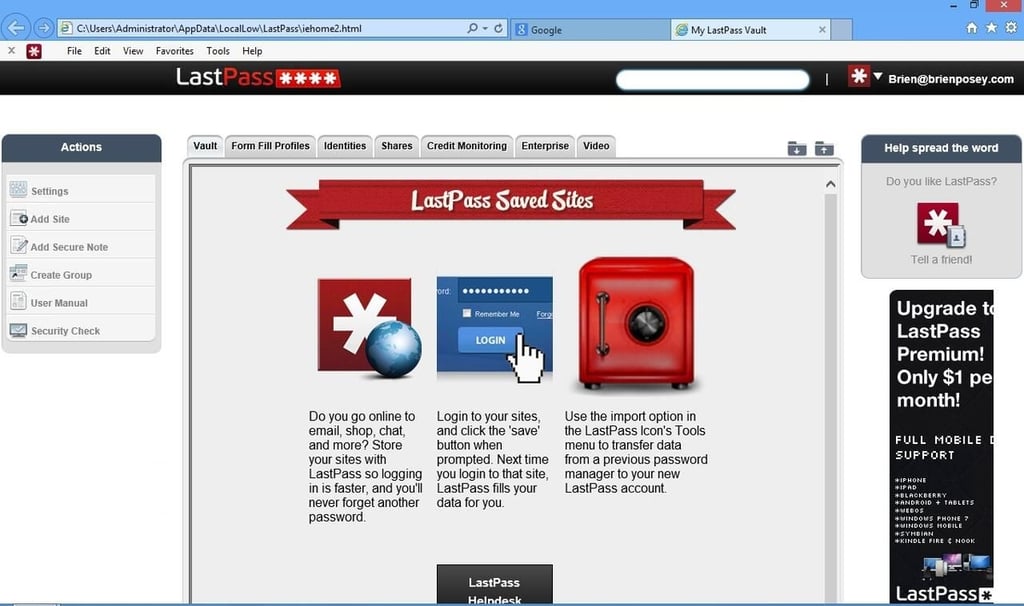
\n\tLastPass Password Manager is a free utility for managing passwords and providing single sign on capabilities. In order to use LastPass, you will have to set up a LastPass account. This is a cloud based account used for storing your passwords. In other words, your passwords are sent to LastPass, which some might find a bit unnerving. The benefit of course, is that because your LastPass account is cloud based, it is accessible from anywhere.
\n
\n\tLastPass places a single, unassuming icon on the Internet Explorer tool bar. You can click on this icon to log into your LastPass account. Once you are logged into LastPass, it will monitor Web activity for login prompts. The first time that you log into a site, LastPass will ask you if it should remember the password.
\n
\n\tCredit: Images by Brien Posey for TechRepublic
\n\tCredit: Images by Brien Posey for TechRepublic
\n\tCredit: Images by Brien Posey for TechRepublic

\n\tCredit: Images by Brien Posey for TechRepublic
\n
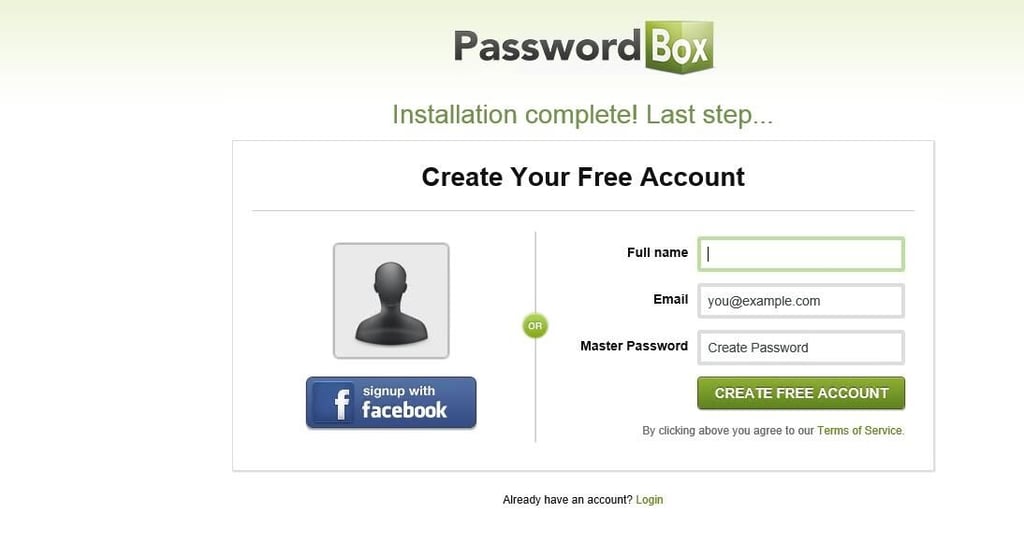
\n\tPasswordBox Free Password Manager is a free utility for managing your passwords and for providing Web single sign on capabilities.
\n
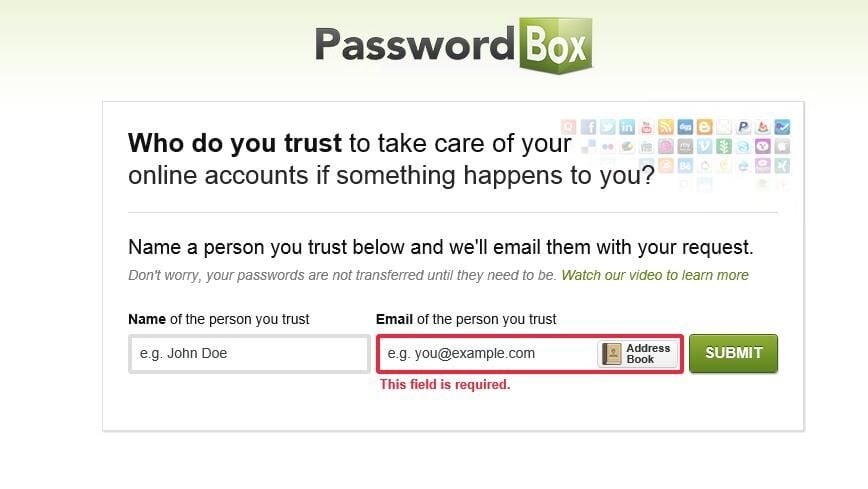
\n\tLike LastPass Password Manager, PasswordBox requires you to set up a cloud based account. The thing that is unique, however, is that in doing so, you are also asked to provide an E-mail address for someone that you trust. This person will be able to access your accounts in the event that something happens to you. Unfortunately, there is no way to skip this step. If you do happen to like the idea of designating one person to preserve your digital legacy, you can designate multiple people.
\n
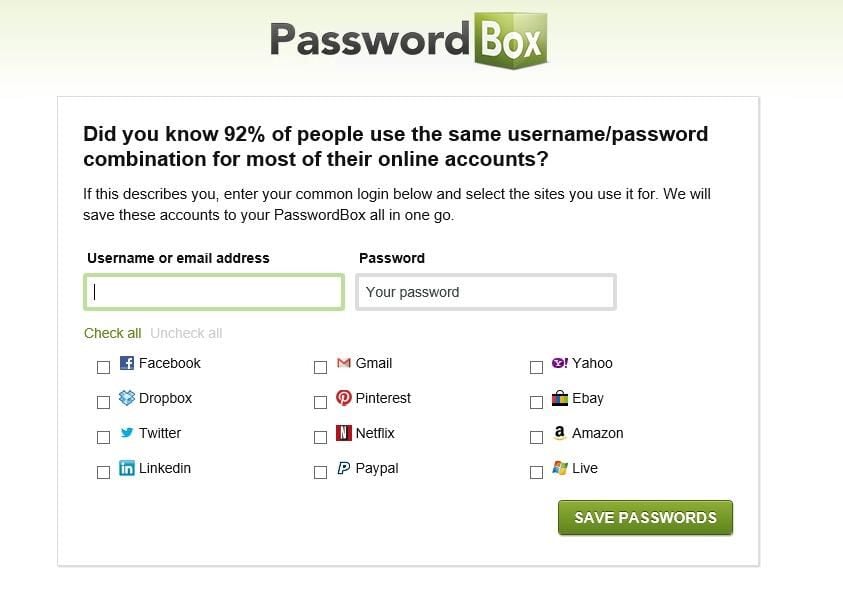
\n\tAnother thing that was unique about PasswordBox was that it acknowledges the fact that many people use the same login name and password for multiple sites. As a time saver, PasswordBox allows you to enter your most common username and password and select the sites for which you use it.
\n
\n\tCredit: Images by Brien Posey for TechRepublic
\n\tCredit: Images by Brien Posey for TechRepublic
\n\tCredit: Images by Brien Posey for TechRepublic
\n
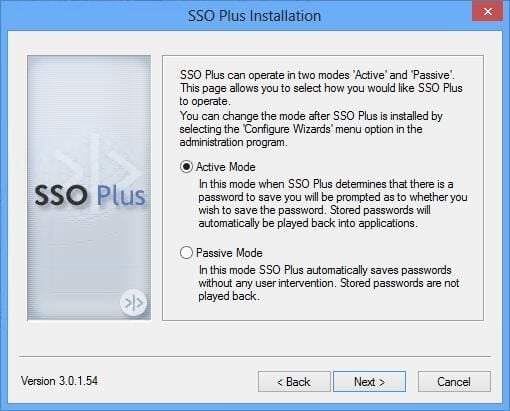
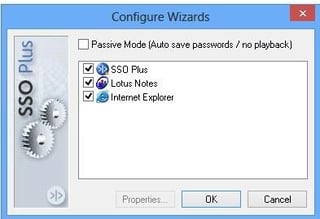
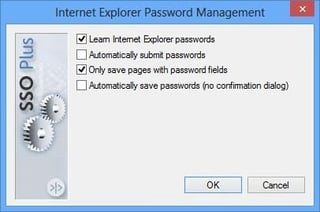
\n\tSSO Plus is a free utility for managing passwords. SSO Plus is able to operate in two different modes. Active Mode is a true single sign on mode. When the utility is in active mode, it automatically detects password prompts and inserts the password into the prompt. In passive mode passwords are automatically saved to the program’s database, but automatic logons are disabled.
\n
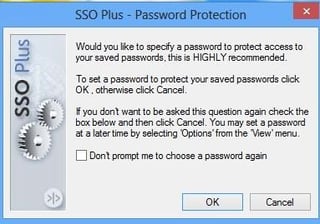
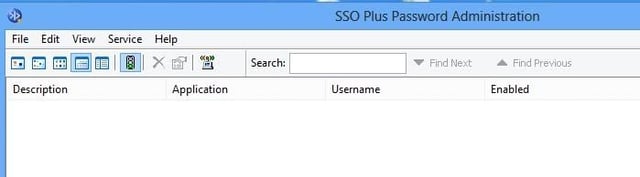
\n\tAll in all this utility is simple to use. It is designed to work with Internet Explorer and Lotus Notes. The utility’s behavior is fully configurable, and there is even a function that lets you back up the password database.
\n
\n\tCredit: Images by Brien Posey for TechRepublic
\n\tCredit: Images by Brien Posey for TechRepublic
\n\tCredit: Images by Brien Posey for TechRepublic
\n\tCredit: Images by Brien Posey for TechRepublic
\n
\n\t
\n\t
\n
\n
\n\tCredit: Images by Brien Posey for TechRepublic

* 1988 - Started teaching myself about computers \ * 1992 - Mainframe programmer for an insurance company \ * 1993 - Network Administrator for a different insurance company \ * 1996 - Author for The Cobb Group \ * 1998 - Network Administrator for Fort Knox \ * 1999 - CIO for chain of hospitals \ * 2000 - Gave up the corporate rat race to work out of my home. I have been a full time technical author ever since. Visit my Web sites at http://www.brienposey.com and http://www.relevanttechnologies.com \


