\n\tThis screenshot gallery is also available as a post in the Windows and Office Blog.
\n
\n\tAs you may remember, Windows 7 came with Windows Virtual PC and Windows XP Mode allowing you to download and install a fully functional copy of Windows XP SP3 in a virtual machine running inside of Windows 7 Professional, Enterprise, and Ultimate. XP Mode was designed to ease migration and compatibility issues by allowing you to easily run Windows XP application in Windows 7.
\n
\n\tThe XP Mode for Windows Virtual PC included specialized integration components designed to allow applications installed in the Windows XP virtual machine to appear as if they were running directly in Windows 7 – the applications even appeared on the Windows 7 Start menu. When you launch such an application from the Start menu, the virtual Windows XP loads in the background without any UI and it looks and feels as though you are running the application directly in Windows 7. Microsoft calls this feature Seamless Mode.
\n
\n
\n\tAs I explained in my last blog post, Create a test machine in Windows 8 Client Hyper-V, Microsoft has done away with Windows Virtual PC in favor of focusing on Hyper-V, which is a much more powerful and feature rich virtualization platform and also is the main virtualization platform in Windows Server. However, as a side effect of doing so, the XP Mode capability has also gone by the wayside.
\n
\n\tNow, before you get all excited, losing XP Mode was not part of some evil plan by Microsoft to push folks away from Windows XP. In fact, the reason for the disappearance of XP Mode is related to the differences in the hypervisor platforms used by Windows Virtual PC and Windows 8’s Client Hyper-V. Windows Virtual PC uses Type-2 hypervisor while Hyper-V is a Type 0 hypervisor. The differences in Hyper-V’s hypervisor type means that it can’t provide the same access that made XP Mode’s integration feature possible.
\n
\n\tHowever, that doesn’t mean that you can’t still run a Windows XP on a virtual machine in Windows 8. In this post, I’ll show you how to install Windows XP in Windows 8 Client Hyper-V virtual machine. As I do, I’ll show you some of the neat features in Client Hyper-V.
\n
\n\tAs I work through this article, I am going to assume that you have read my previous article, have already installed Windows 8’s Client Hyper-V, and are familiar with the basic steps that I covered on setting up a virtual machine.
\n
\n\tThis blog post is also available as a TechRepublic Photo Gallery.
\n
\n
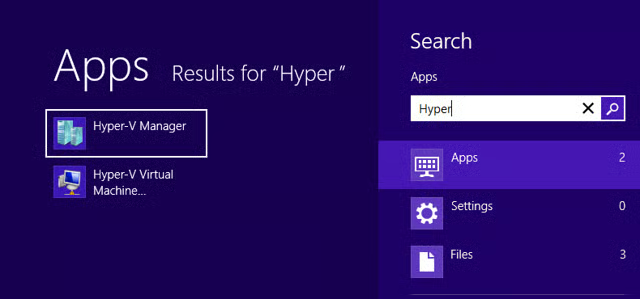
\n\tTo begin, just press the [Windows] key to bring up the Start Screen. Then, type Hyper and press [Enter] when Hyper-V Manager appears, as illustrated.
\n\t
\n\tCredit: Images by Greg Shultz for TechRepublic
\n
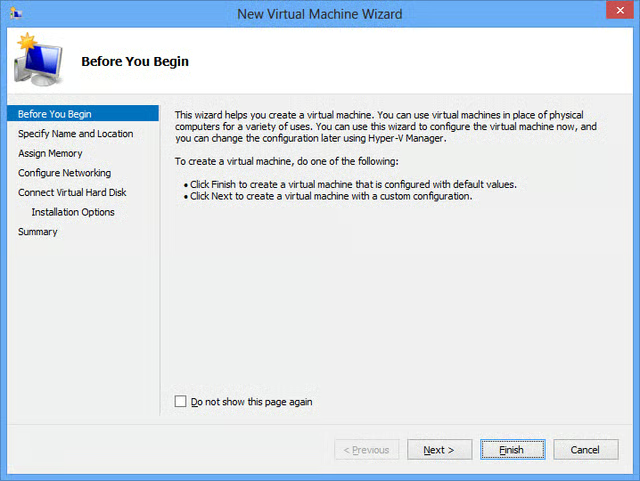
\n\tIn last week’s article, I told you that there are two ways that you can create a virtual machine from the New Virtual Machine Wizard. You can work through the wizard to create a virtual machine or you can quickly create a virtual machine using the preconfigured default settings, which you can then change later. Since we worked through the wizard to create a virtual machine last time, we’ll create a virtual machine using the preconfigured default settings. We’ll then edit the virtual machine’s settings. While going this route is a bit more time consuming, it will allow us to take a look at some of the features available in the virtual machine Settings window.
\n
\n\tAfter you launch the Hyper-V Manager, navigate to the Actions pane and select the New | Virtual Machine command. When the first screen of the New Virtual Machine Wizard appears, just click the Finish button, as shown , to immediately create a virtual machine with preconfigured default settings.
\n
\n\tCredit: Images by Greg Shultz for TechRepublic
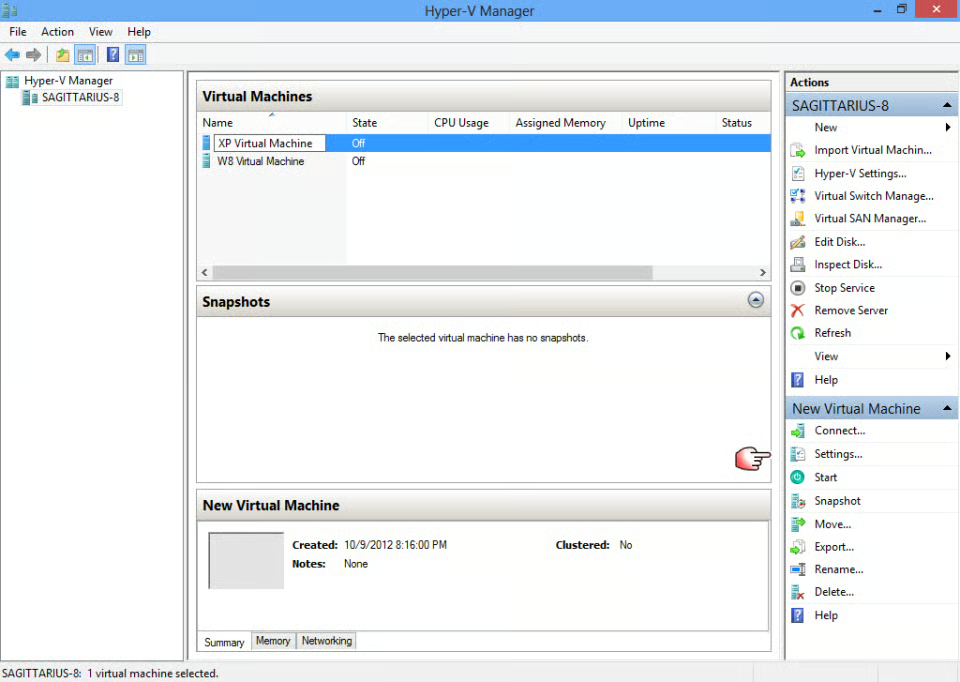
\n\tWhen you see the new virtual machine appear in the Virtual Machines list, right click the name and rename it to something like XP Virtual Machine, then go back to the Actions pane and click the Settings command.
\n
\n\tCredit: Images by Greg Shultz for TechRepublic
\n
\n\tWhen the Settings window appears, you’ll see that there are a multitude of settings that you can configure to customize how your virtual machine will work. For the purposes of this article, I’ll just cover the basic settings that you need to get started with your Windows XP virtual machine.
\n
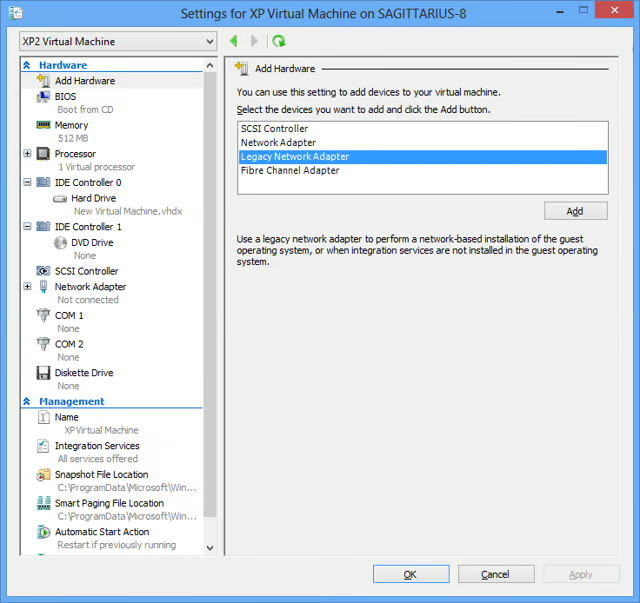
\n\tBecause Windows XP is an old operating system, it isn’t compatible with Hyper-V’s network adapter. As such, the first thing that you will need to do is add a legacy network adapter. Select the Legacy Network Adapter item, as shown, and click the Add button.
\n\t
\n\tCredit: Images by Greg Shultz for TechRepublic
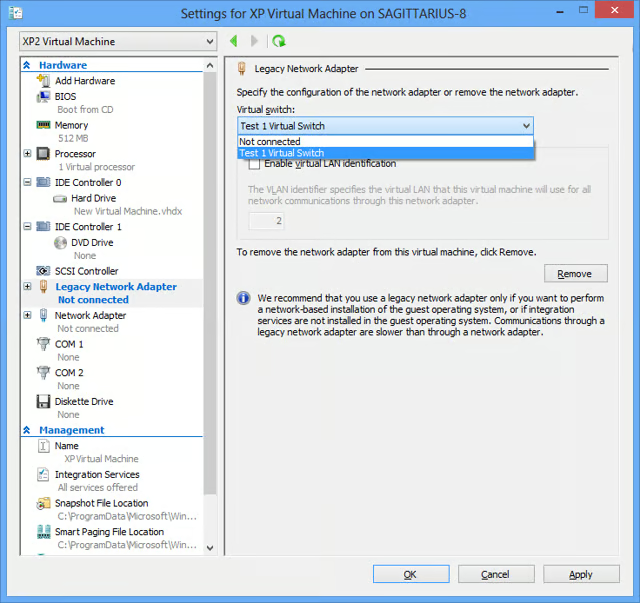
\n\tWhen you do, Hyper V will add the Legacy Network Adapter to the Hardware list and immediately take you to that section. Since I already created a virtual switch for my last article, I’ll select the Test 1 Virtual switch from the virtual switch drop down, as shown. Then, click Apply to save your changes. If you haven’t already set up a Virtual switch for the Network Adapter, you can do so at any time. (See my blog post, Create a test machine in Windows 8 Client Hyper-V.)
\n\t
\n\tCredit: Images by Greg Shultz for TechRepublic
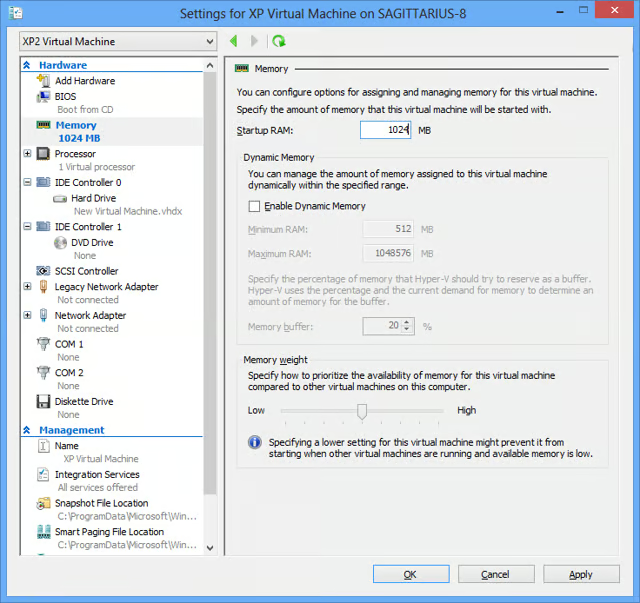
\n\tNow, move up the Hardware list and select the Memory section. I’m going to specify 1GB of RAM for my XP Virtual Machine. As you can see, I’ve specified 1024 in the Startup RAM text box and left the Enable Dynamic Memory check box unselected. Even though the text box is titled Startup RAM, in the case of the Windows XP operating system, this will be the total amount of available RAM.
\n
\n\tIn other words, it will essentially be static memory. Being an older operating system, Windows XP is not supported by Hyper-V’s Dynamic Memory feature, so you’ll need to leave that check box unselected. The Memory Weight slider is designed to allow you to prioritize memory usage but it is related to the Dynamic Memory feature and so in the case of Windows XP we’ll just leave it as it is in the middle.
\n\t
\n\tCredit: Images by Greg Shultz for TechRepublic
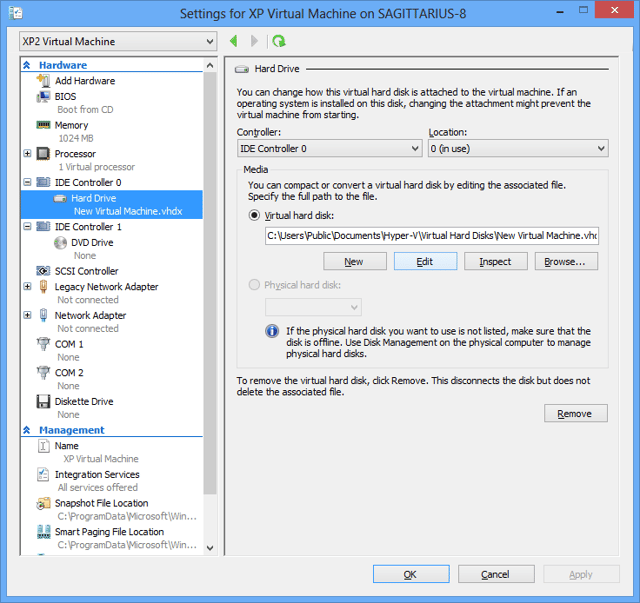
\n\tTo continue, go ahead and click Apply to save your settings. Then move down to the IDE Controller 0 | Hard Drive section.
\n
\n\tWhen you arrive at the Hard Drive section, the only thing that you may want to do is increase the size of the hard disk. By default, the hard disk is set to 127GB in size. For this example machine, I want to increase the size of the hard disk to 500GB. To do so, click Edit button.
\n
\n\tCredit: Images by Greg Shultz for TechRepublic
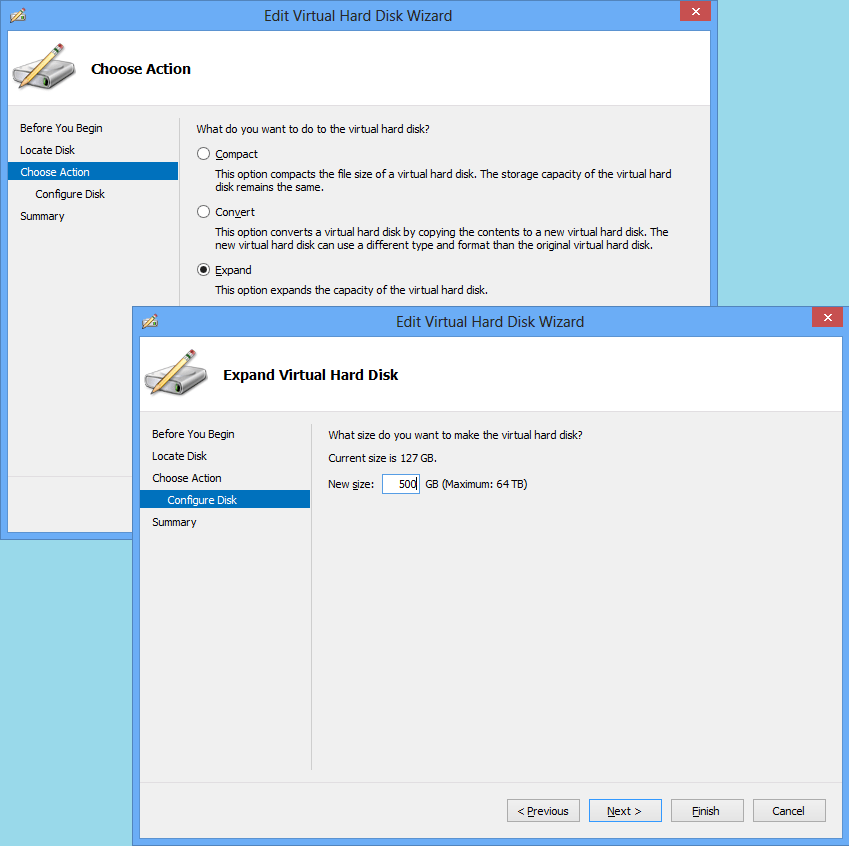
\n\tWhen the Edit Virtual Hard Disk Wizard appears, you’ll see that it immediately advances to the Choose Action page. You’ll then select the Expand option, click Next, and then specify the size as 500GB. These two steps are illustrated. To complete the operation, click the Finish button. When you return to the Settings window, click Apply to save your changes.
\n
\n\tCredit: Images by Greg Shultz for TechRepublic
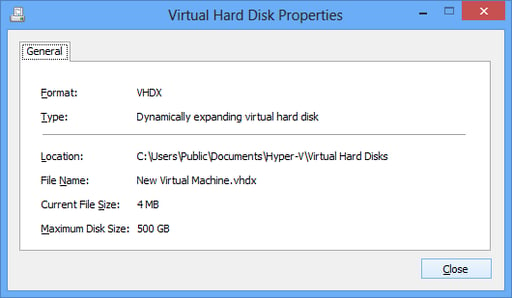
\n\tKeep in mind that Hyper-V creates dynamically expanding virtual hard disks. This means that the hard disk only takes up as much room as needed and can only grow to the specified size. For example, clicking the Inspect button (next to the Edit button in the Hard Drive section) displays the Virtual Hard Disk Properties dialog box. As you can see, at this point the size of the virtual hard disk file is 4MB. As I install the operating system and applications, the virtual hard disk will grow in size until it reaches the maximum size of 500GB.
\n
\n\tCredit: Images by Greg Shultz for TechRepublic
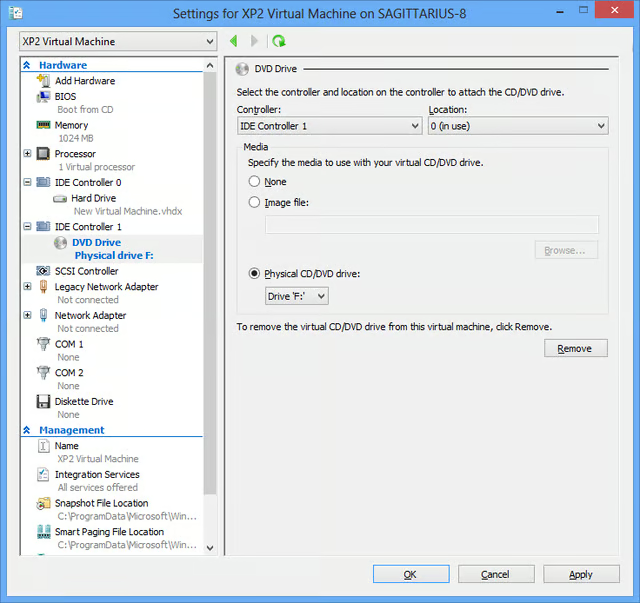
\n\tAt this point, move down to the IDE Controller 1 | DVD Drive section and choose how you want to install the operating system and applications on your virtual machine. You can use ISO images files or the physical CD/DVD drive. As shown, I’ve selected the Physical CD/DVD drive option and indicated the appropriate drive letter. This will make it easy to install Windows XP from the optical disc. Click Apply to save your changes.
\n
\n\tCredit: Images by Greg Shultz for TechRepublic
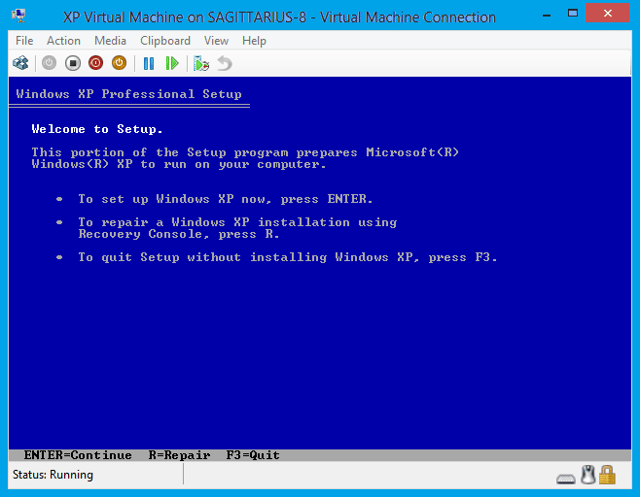
\n\tYou’ll then see the installation begin.
\n
\n\tCredit: Images by Greg Shultz for TechRepublic
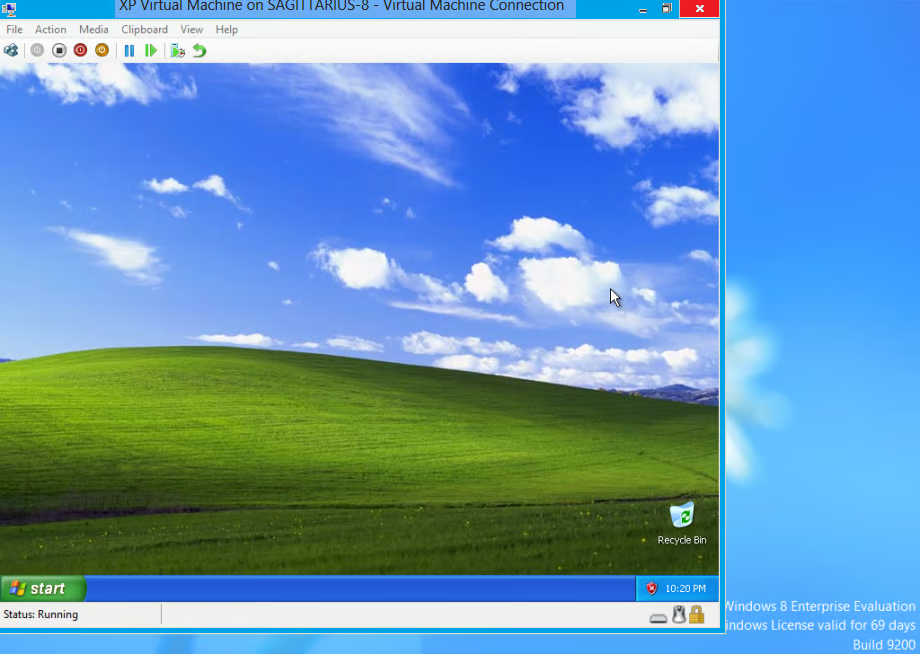
\n\tOnce the installation is complete, you’ll see the Windows XP desktop in a virtual machine in Windows 8, as shown.
\n
\n
\n\tHave you had a chance to experiment with Windows 8 Client Hyper-V yet? Will you install Windows XP in a Hyper-V virtual machine in Windows 8? As always, if you have comments or information to share about this topic, please take a moment to drop by the TechRepublic Community Forums and let us hear from you.
\n
\n
\n\t
\n\t
\n
\n
\n\tCredit: Images by Greg Shultz for TechRepublic

My first computer was a Kaypro 16 \"luggable\" running MS-DOS 2.11 which I obtained while studying computer science in 1986. After two years, I discovered that I had a knack for writing documentation and shifted my focus over to technical writing.


