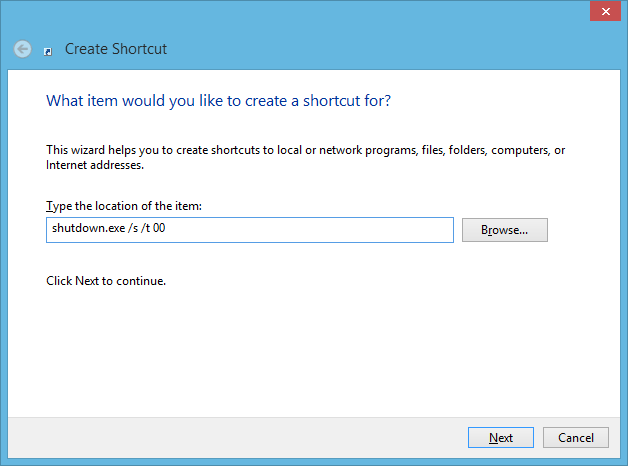
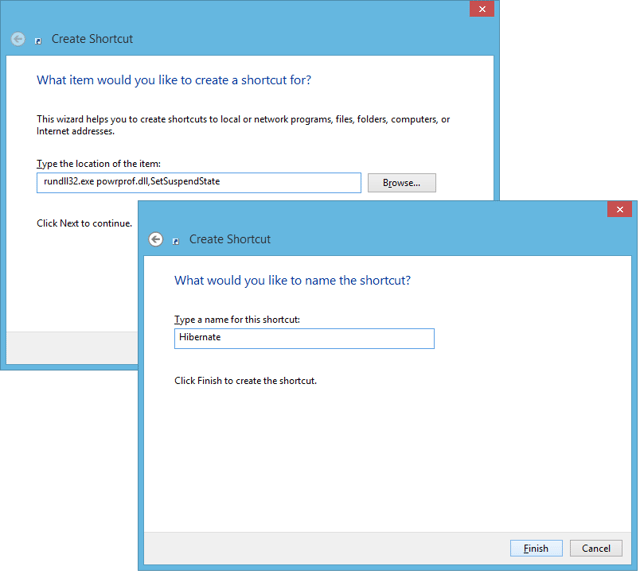
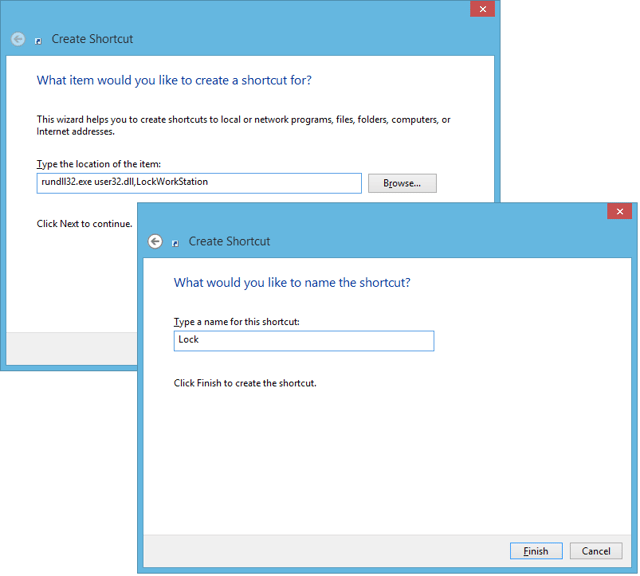
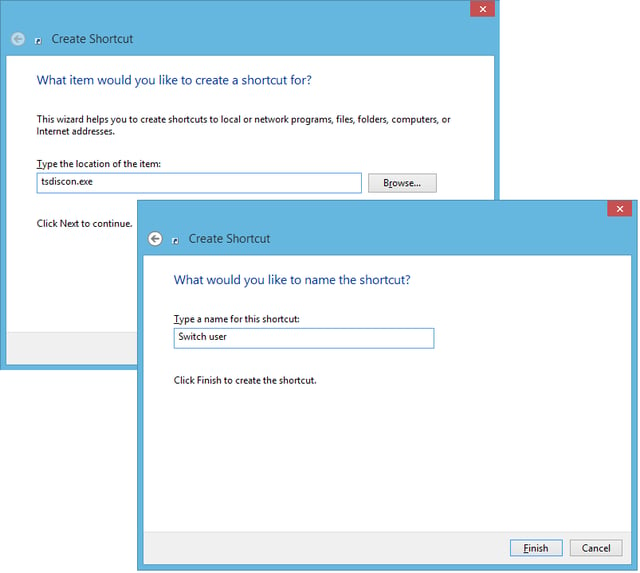
Type the first command from Table A in the text box
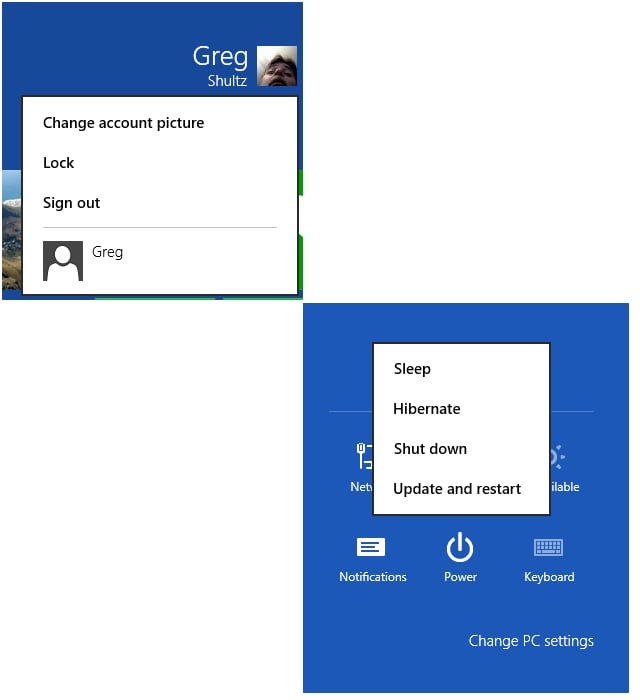
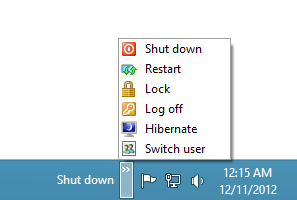
\n\tI began investigating this possibility and have found a technique that will allow you to recreate a reasonable facsimile of the Shut down pop-up menu on Windows 8’s desktop. The technique involves creating a series of shortcuts using special commands, saving them to a folder, and then specifying that folder as a taskbar toolbar. Let take a closer look.
\n
\n\t\n\n
\n
\n\tThe special commands
\n
\n\tAs you may know, Windows comes with a command line utility called Shutdown.exe that, along with special parameters, can be used to create the majority of the options for our Shut down menu. To create the other options we’ll use two other command line utilities: Rundll32.exe and Tsdiscon.exe. These commands and their parameters are shown in Table A.
\n
\n\tTable A
\n
\n\t
\n\t\t
\n\t\t\t
| \n\t\t\t\t
\n\t\t\t\t\tMenu option
\n\t\t\t |
\n\t\t\t
\n\t\t\t\t
\n\t\t\t\t\tCommand
\n\t\t\t |
\n\t\t
\n\t\t
\n\t\t\t
| \n\t\t\t\t
\n\t\t\t\t\tShut down
\n\t\t\t |
\n\t\t\t
\n\t\t\t\t
\n\t\t\t\t\tshutdown.exe /s /t 00
\n\t\t\t |
\n\t\t
\n\t\t
\n\t\t\t
| \n\t\t\t\t
\n\t\t\t\t\tRestart
\n\t\t\t |
\n\t\t\t
\n\t\t\t\t
\n\t\t\t\t\tshutdown.exe /r /t 00
\n\t\t\t |
\n\t\t
\n\t\t
\n\t\t\t
| \n\t\t\t\t
\n\t\t\t\t\tLog off
\n\t\t\t |
\n\t\t\t
\n\t\t\t\t
\n\t\t\t\t\tshutdown.exe /l
\n\t\t\t |
\n\t\t
\n\t\t
\n\t\t\t
| \n\t\t\t\t
\n\t\t\t\t\tSleep or Hibernate
\n\t\t\t |
\n\t\t\t
\n\t\t\t\t
\n\t\t\t\t\trundll32.exe powrprof.dll,SetSuspendState
\n\t\t\t |
\n\t\t
\n\t\t
\n\t\t\t
| \n\t\t\t\t
\n\t\t\t\t\tLock
\n\t\t\t |
\n\t\t\t
\n\t\t\t\t
\n\t\t\t\t\trundll32.exe user32.dll,LockWorkStation
\n\t\t\t |
\n\t\t
\n\t\t
\n\t\t\t
| \n\t\t\t\t
\n\t\t\t\t\tSwitch user
\n\t\t\t |
\n\t\t\t
\n\t\t\t\t
\n\t\t\t\t\ttsdiscon.exe
\n\t\t\t |
\n\t\t
\n\t
\n
\n
\n\tSleep vs. Hibernate
\n
\n\tThe differences between activating Sleep and Hibernate from the command line in Windows 8 can be tricky, so be aware.
\n
\n\tAs you can see the same command line is used to initiate Sleep and Hibernate. If you have the Hibernate feature enabled, then this command line will put the system into Hibernation mode. If you have the Hibernate feature disabled, then this command line will put the system into Sleep mode.
\n
\n\tKeep in mind that if the Hibernate feature is disabled, then the only power saving option you will have available is Sleep mode. If the Hibernate feature is enabled, then both power saving options, Hibernate and Sleep, will be available – just not both from the command line.
\n
\n\tIf you leave the Hibernate feature enabled, then you can use a shortcut to activate the Hibernation mode and can then activate Sleep mode from the Power Charm or by configuring the power button on the computer to activate Sleep mode. As such, I chose to leave the Hibernate feature enabled.
\n
\n\tNow, if you want to disable or enable the Hibernate feature, you will press [Windows]+X to bring up the Tools menu and then select Command Prompt (Admin). Then, you will use one of the following commands:
\n
\n\tpowercfg -hibernate off
\n
\n\tpowercfg -hibernate on
\n
\n\tCreating the shortcuts
\n
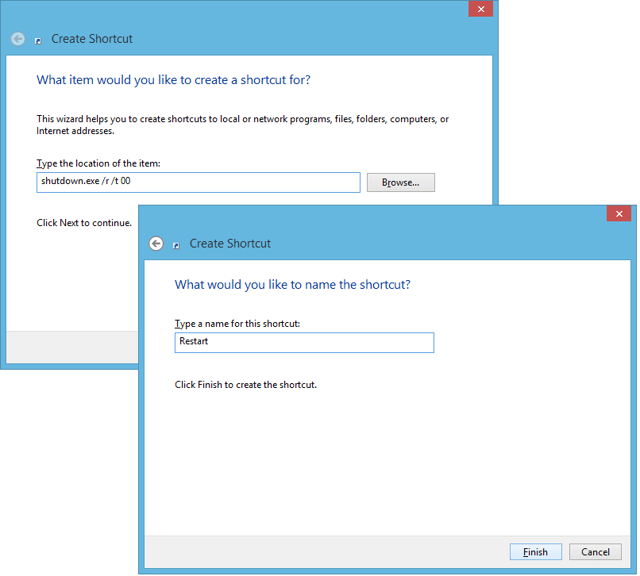
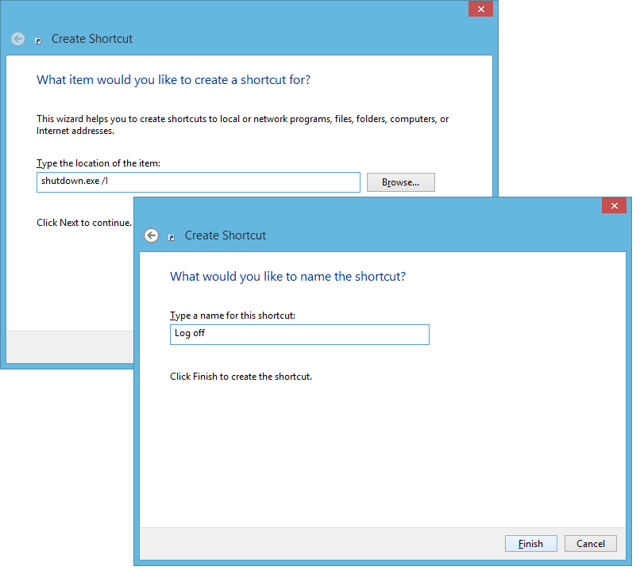
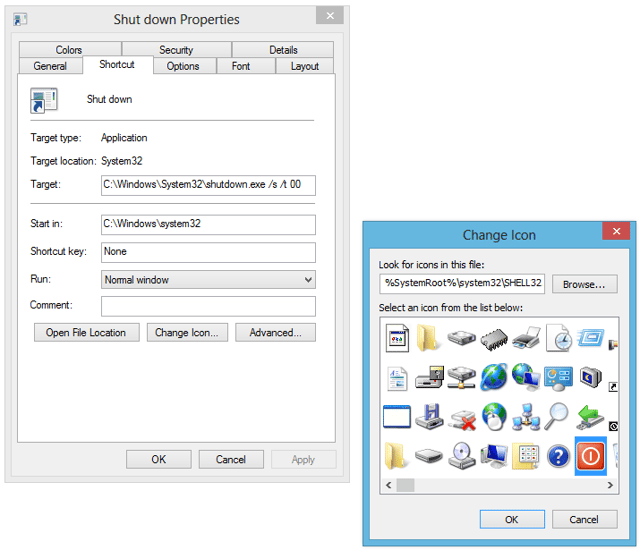
\n\tIn order to use the taskbar toolbar, you’ll need to create all your shortcuts in a single folder. To make it simple, I created a folder called Shut down and then used Create Shortcut wizard to create my shortcuts in that folder. To do so, just right click on the background and choose the New | Shortcut command. When you see the first screen in the Create Shortcut wizard, type the first command from Table A in the text box, as shown in Figure B.
\n
\n\tCredit: Images by Greg Shultz for TechRepublic