Data protection is paramount, yet many Windows users don’t possess the time or knowledge necessary to properly safeguard files, databases, and other information. Simply Safe Backup provides a free option home users can employ to direct backups to an FTP server, back up databases, use Zip, tape and even CD and DVD drives for backups and more.
You may download the free version of Simply Safe Backup here.
A (very reasonably priced) Professional Edition is also available for business use. The Free version will meet many Windows users needs, however. Here’s why it’s often the right tool for protecting important data.
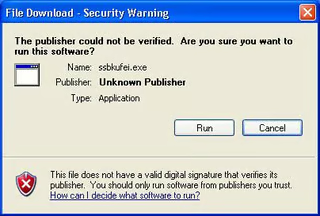
The Simply Safe Backup Free version is triggered using the ssbkufei.exe file.
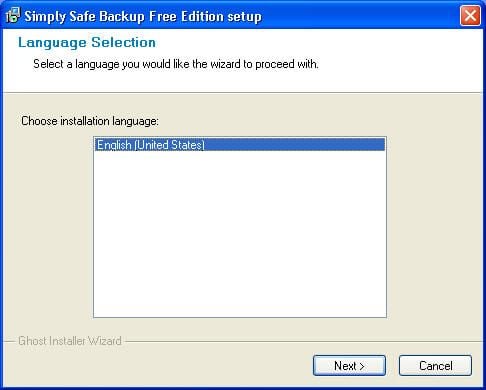
The first action users must complete installing Simply Safe Backup Free Edition is to choose the installation language.
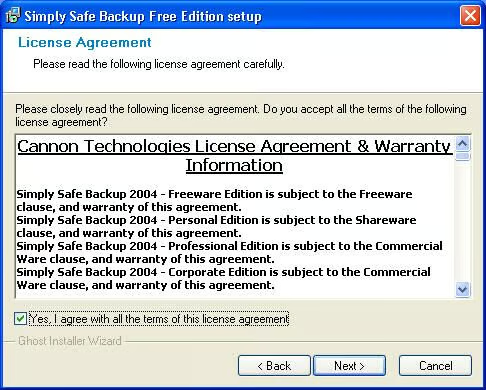
Users must accept the license agreement before installing and using Simply Safe Backup.
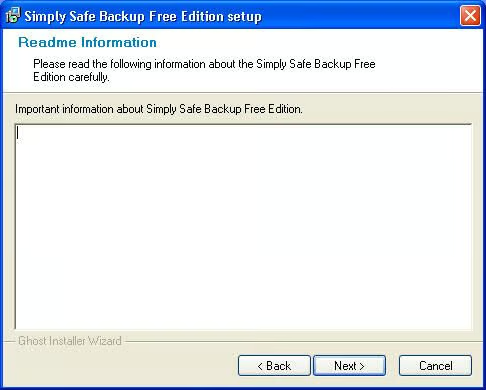
Simply Safe Backup isn’t the most polished backup application. Here you can see the setup program includes a Readme Information page, but the application fails to display any data. I’ve also encountered difficulty getting the program’s Restore Files Wizard to recognize its own backup sets.
That said, the application’s engineers collect user’s e-mail addresses in an attempt to track down and eliminate as many bugs as possible.
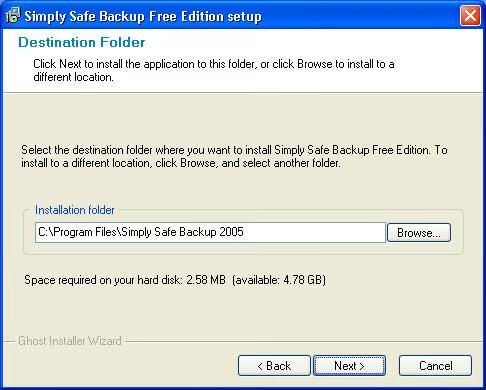
Users must specify the destination folder where the Simply Safe Backup files should be installed.
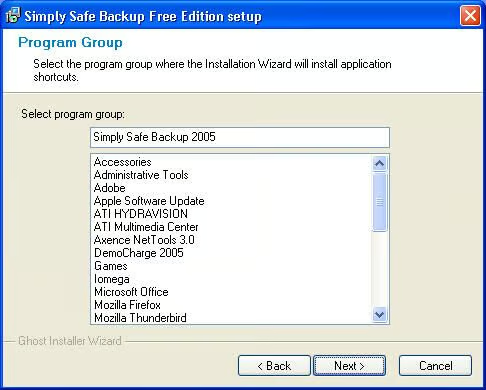
Users must also specify the name of the program group to be used by Simply Safe Backup.
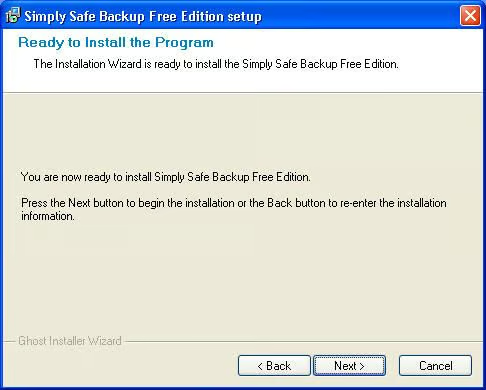
After accepting the licensing agreement and specifying the installation location and program group name, users can install the program.
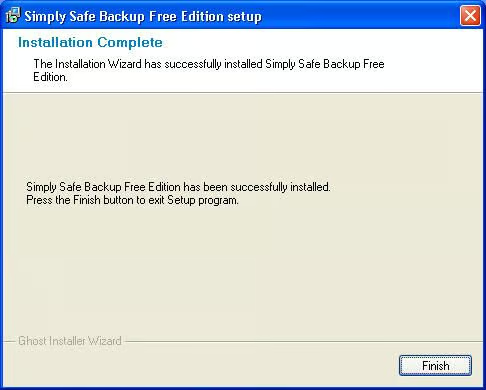
Upon completing Setup, Simply Safe Backup displays this confirmation page.
Simply Safe Backup presents this splash screen whenever the program starts up.

Simply Safe Backup engineers have included error reporting functionality within the application to help improve reliability and performance.

Simply Safe Backup alerts users when newer versions are available, as shown here.
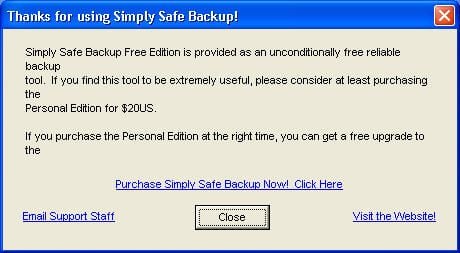
While the Simply Safe Backup Free Edition is free for personal use, the developer’s will still accept contributions. The ($19.99) Personal Edition supports backing up 399,999 files at once (versus 40,000 with the Free Edition) and increases the encryption level from 40/60-bit to 128-bit.
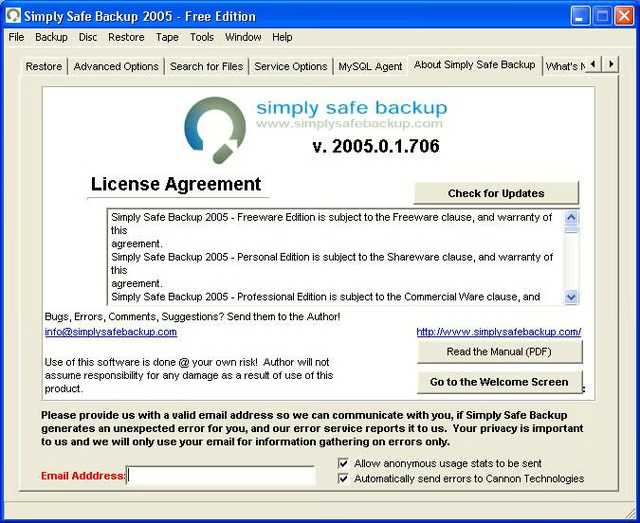
Users can check for updates from the About Simply Safe Backup tab, as well as read (PDF) manual and sign up to participate in the manufacturer’s error-reporting campaign.
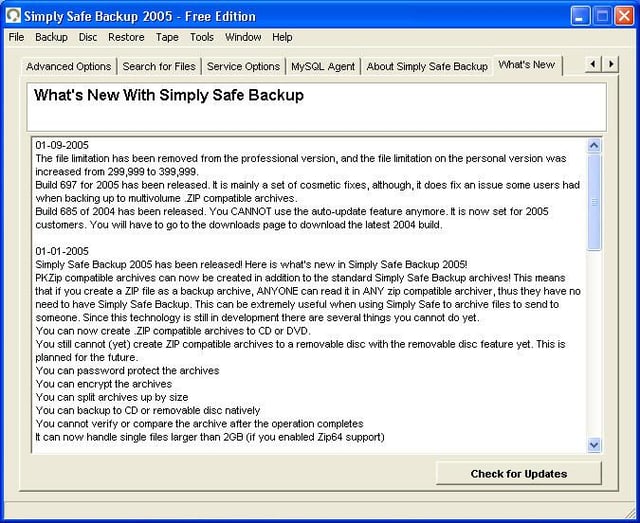
Users can catch up on new features and improvements by reviewing the list the developers include within the What’s New tab.
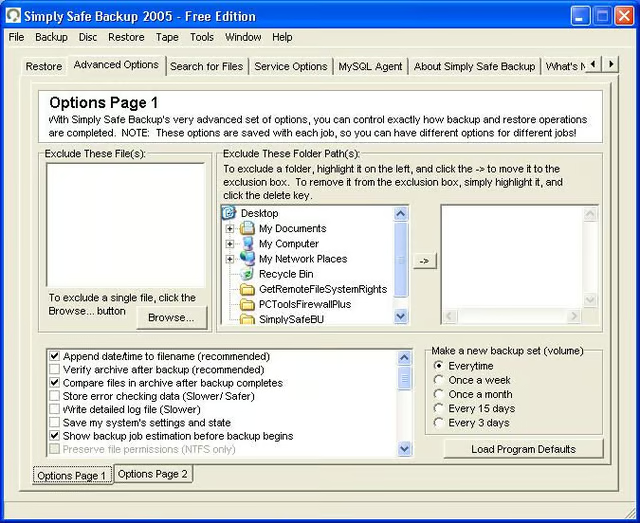
Using the Advanced Options tab (which includes two Options pages, as can be seen toward the bottom of the screen), users can specify folders that should be excluded from backups. In addition, users can exclude single files, specify how often backup sets are to be created and return to program defaults.
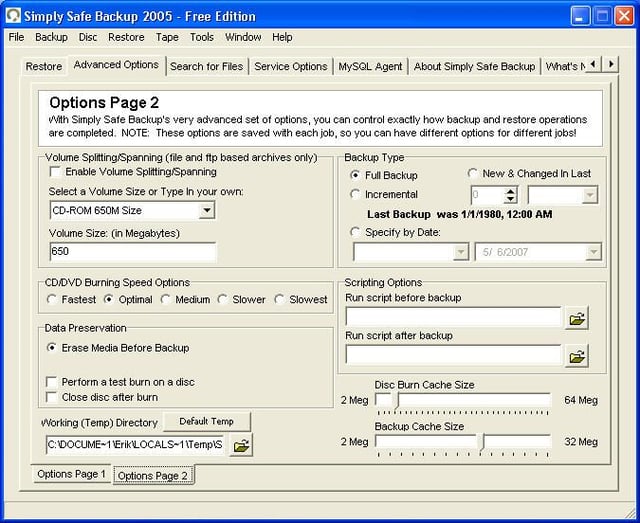
The second Options Page tab within Advanced Options enables readers to specify volume spanning options, set backup types (full versus incremental), enter scripting options and specify working directories and cache sizes.
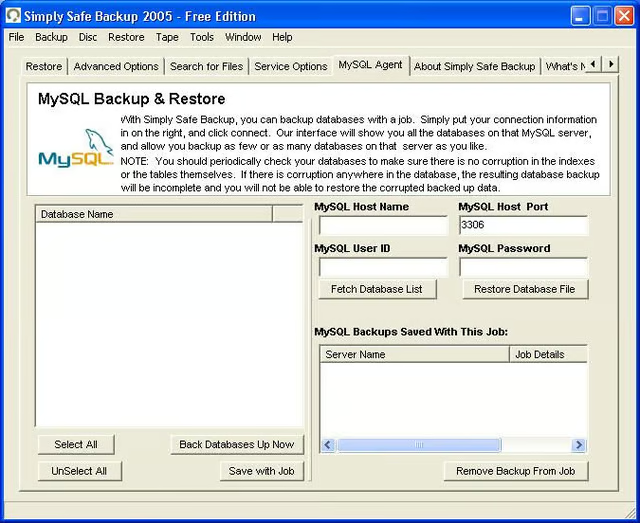
Simply Safe Backup supports backing up databases. Users need only specify the appropriate MySQL server information to connect to and back up specific databases.
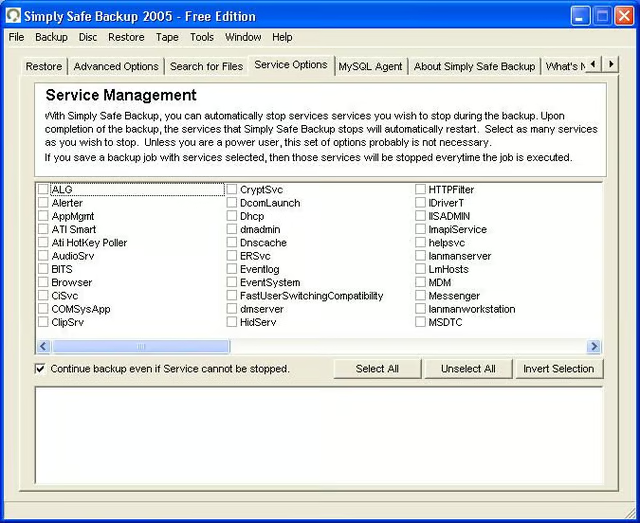
Simply Safe Backup enables users to suspend specific services while a backup operation runs. Once the backup operation completes, Simply Safe Backup returns the respective services to operation.
Using this feature, power users and others may suspend services that might interfere with completing backups of specific files or application data.
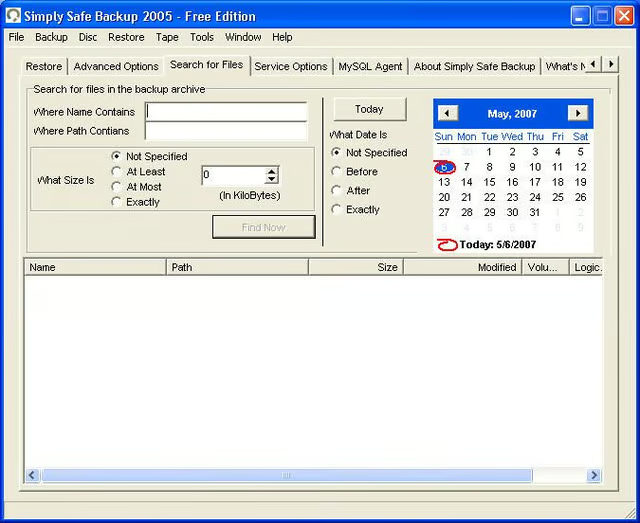
Simply Safe Backup includes a search feature that allows users to search for specific files within backup archives. Unfortunately, I encountered difficulty getting the search utility to successfully return any results (even after opening a backup archive using the Restore feature).
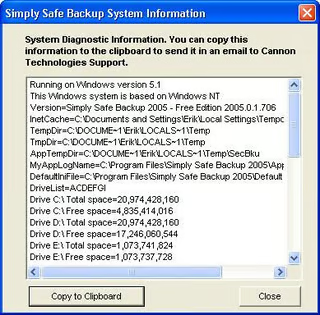
Simply Safe Backup includes a system diagnostic tool you can use to help troubleshoot failures and errors. By copying the system data to the clipboard, Cannon Technologies makes it easier to provide Simply Safe Backups engineers with information that may help track incompatibilities and other issues.
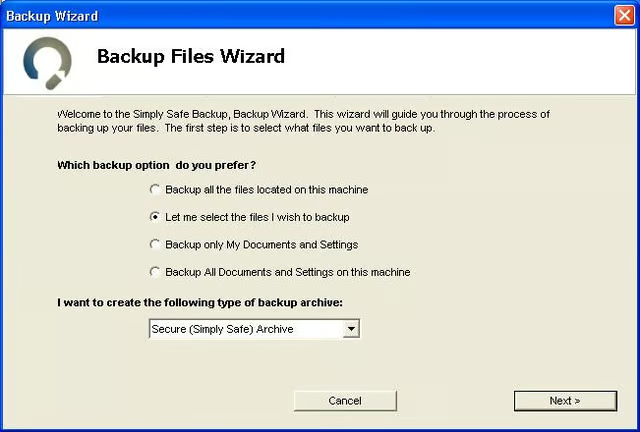
Simply Safe Backup includes a Backup Files Wizard designed to simplify the process of selecting, scheduling and backing up data. The first step involves specifying a backup option and selecting archive type.
In my experience, this backup wizard proved the simplest way to navigate Simply Safe Backup’s many features and capabilities.
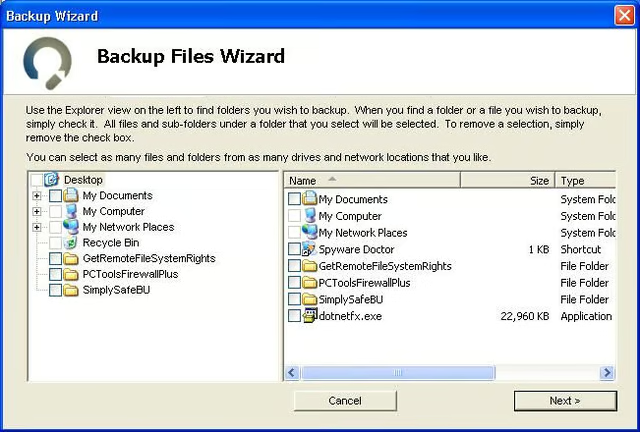
Next, using the Backup Files Wizard, users must specify the files/folders they wish to back up.
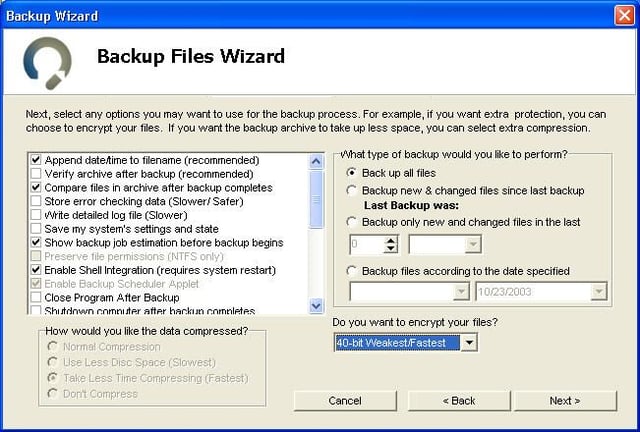
Next, users must specify backup options. In addition, users can opt to set encryption levels using the supplied drop-down box (the Free Edition supports 40 and 60-bit encryption).
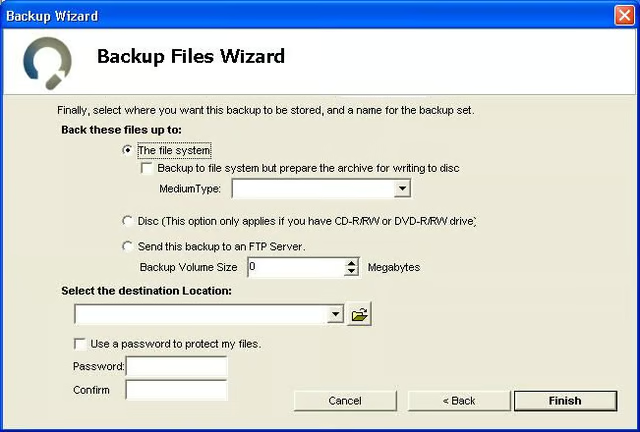
The next step of the Backup Files Wizard requires that users specify the backup medium, destination location and a password (if so desired).
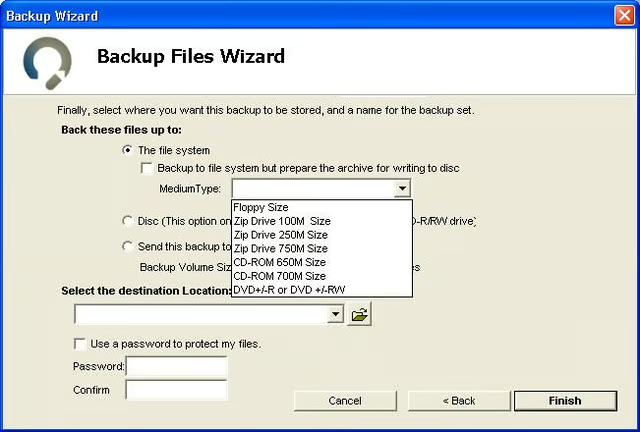
Among the media that may be selected from the Medium Type drop-down box are floppies, Zip 100M, 250M, and DVD+/-R and RW drives.
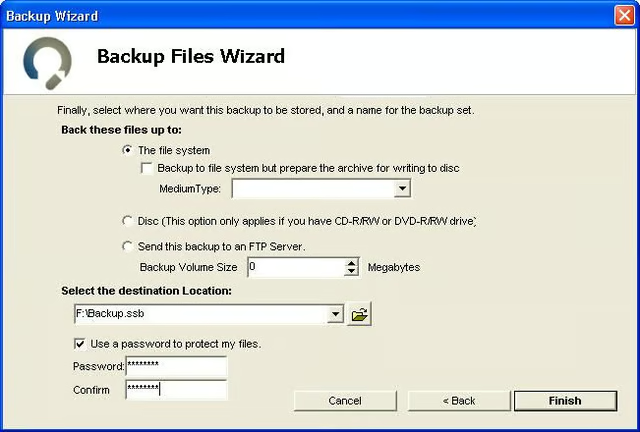
As mentioned before, users can add an extra step of security by requiring a password to open a backup archive. Using the password feature requires that users check the Use A Password To Protect My Files box and enter and confirm the password.

Once the backup wizard is complete, Simply Safe Backup displays this confirmation dialog box.
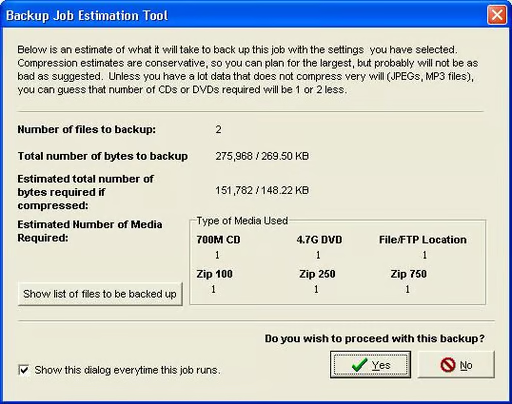
The Simply Safe Backup application includes this Backup Job Estimation Tool. The page lists the number of files that will be backed up, as well as the amount of required disk space and media.
I found this estimation tool a particularly nice addition (especially in a free application), as it helps ensure you’re prepared for the backup before it runs. In other words, the estimation feature helps eliminate surprises (which are not what you want when working with backups).
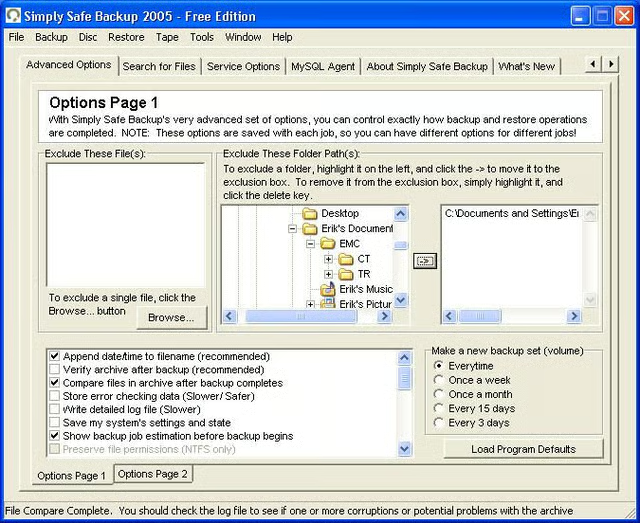
As mentioned earlier, Simply Safe Backup includes an option to exclude specific files and folders from a backup. To exclude files, users need only click the Browse button within the Exclude These Files section. Exluding entire folders, meanwhile, is completed by navigating to the folder within the Exclude These Folder Path(2) section, highlighting the appropriate folder and clicking the arrow to place that folder within the exclusion box.
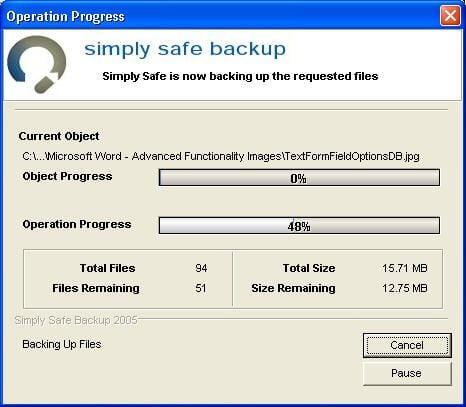
Once all back up options are set, backups are manually triggered by clicking Backup and then Backup Selected Files Now from the application’s file menu.

Upon completing a backup operation, Simply Safe Backup displays this dialog box confirming backup and verification processes completed normally.
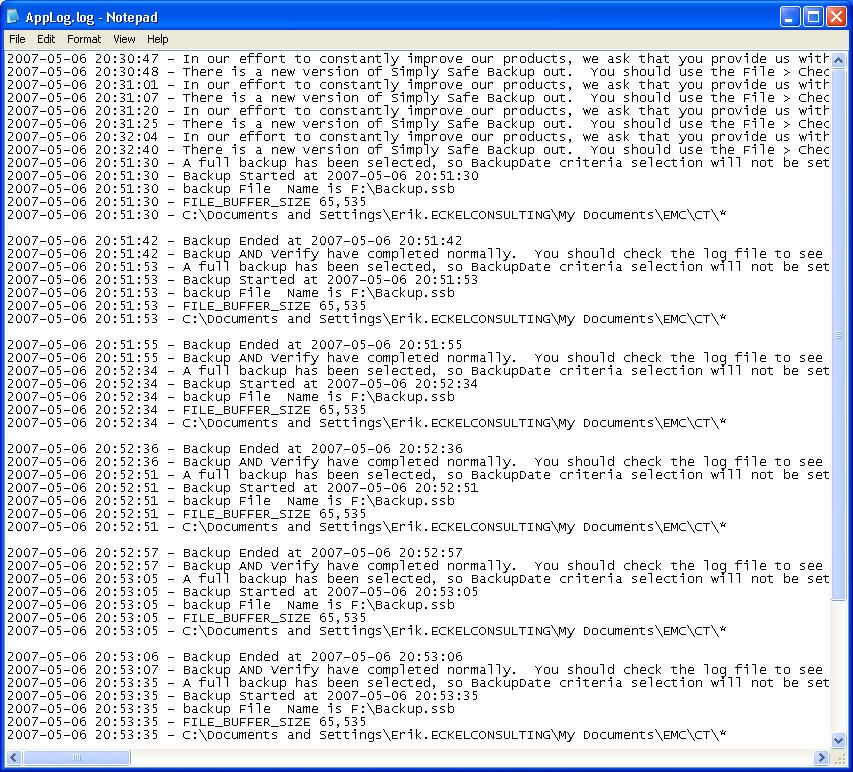
Simply Safe Backup tracks backup, update and other activities within its logs files. Here you can see the application tracks backup activity, as well as backup file names and locations.
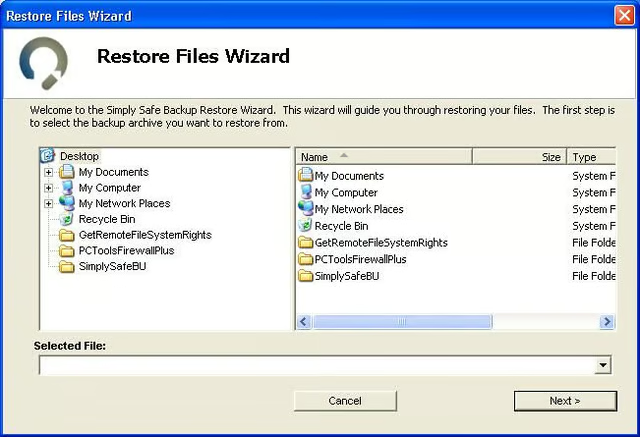
The Restore Files Wizard is the counterpart to the Simply Safe Backups Backup Files Wizard. Accessed from the file menu by clicking Restore, the Restore Files Wizard walks users through recovering backup archives created bby Simply Safe Backups.
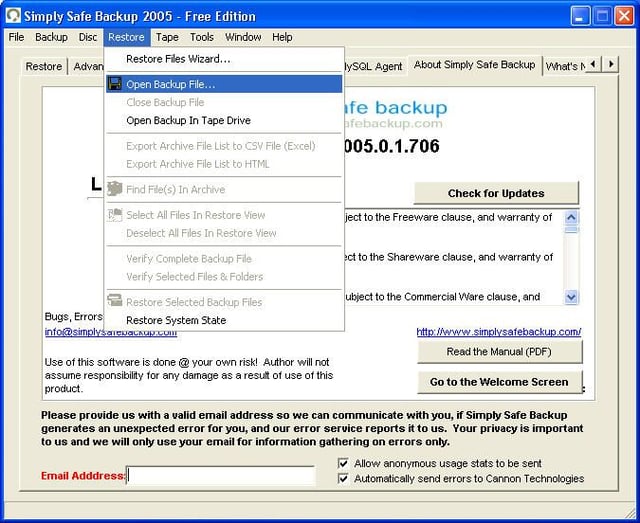
Another method of recovering a backup is to select Restore from the Simply Safe Backup file menu and clicking Open Backup File. In my experiences testing the application, this method proved the fastest way to access backup archives.
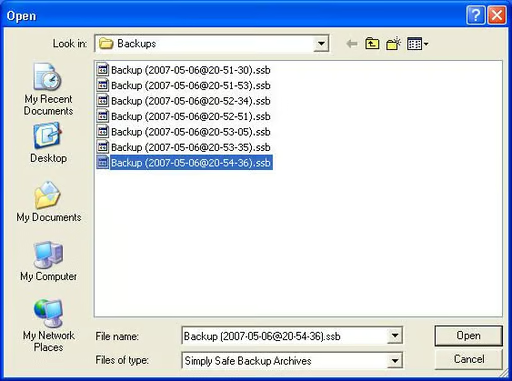
When choosing to open backup files directly (Simply Safe Backup creates files with the .SSB extension, by default), you must navigate to the location of the backup files. Here you can see several backup files that have been created by Simply Safe Backup.
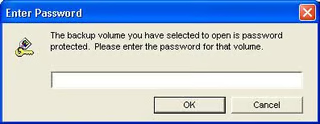
When restoring a backup archive in which a password was supplied during creation, you must supply the password to access the backup.
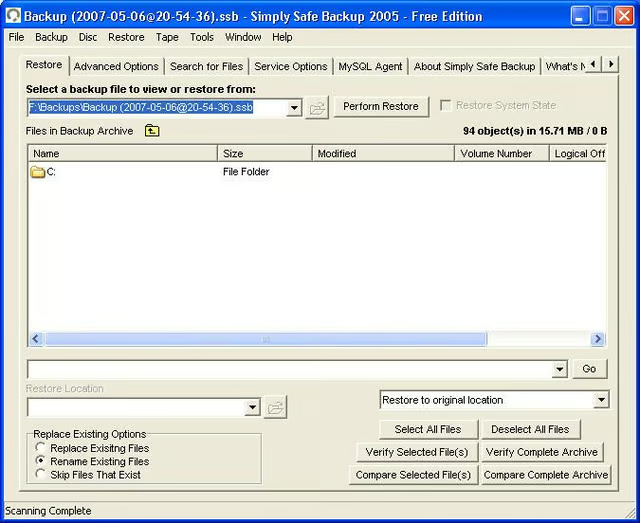
Once you’ve specified the backup file location (and the password if required), you can navigate that backup archive’s contents using the Simply Safe Backup Restore tab (as shown here).
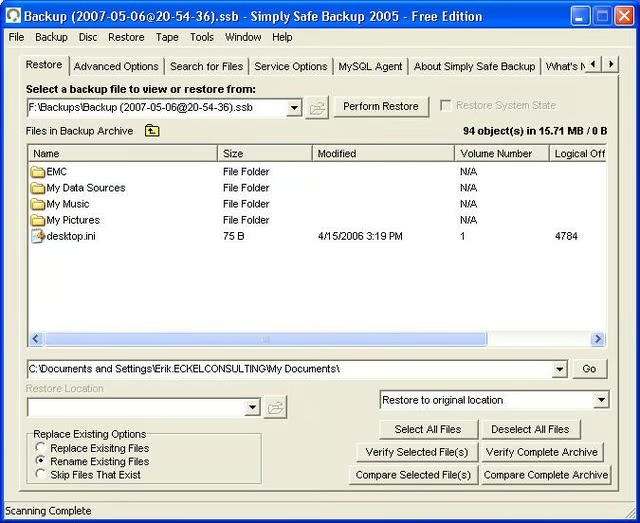
After opening a backup file using the application’s Restore feature, you can replace existing files, rename existing files or skip recovering files that exist. The latter can prove a helpful feature when working to recover accidentally deleted files (a fairly common occurrence in my life as an IT consultant).
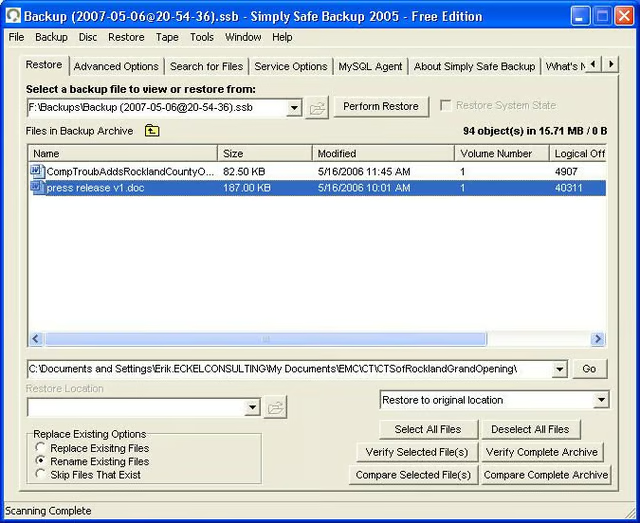
The Simply Safe Backup restoration feature enables one to drill down all the way to individual file level. This feature, in particular, proves handy when working to recover specific files.
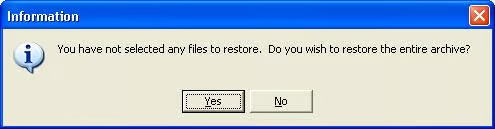
If individual files aren’t selected for restoration, the option exists to restore the entire archive. In such circumstances, users will see this dialog box before Simply Safe Backup recovers an entire backup archive.
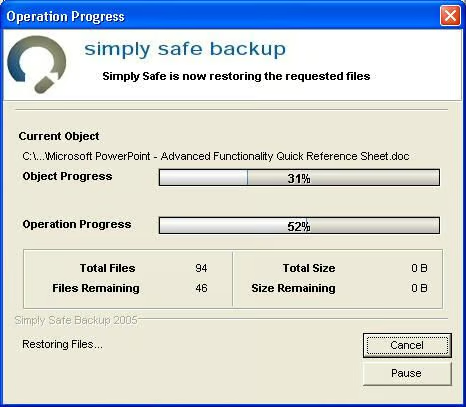
Just as Simply Safe Backup tracks its progress creating backup archives, so too does it track its progress restoring a backup archive.

Upon completing a Restore operation, Simply Safe Backup presents this confirmation dialog box. Restored files are then ready for use.
Is Simply Safe Backup Free Edition the Right Tool for the Job?
Simply Safe Backup Free Edition proved capable processing simple backups. However, despite its many and numerous options and capabilities, issues I encountered attempting to recognize (and open) SSF files using the Restore Files Wizard (and trouble I experienced with the application’s search feature) make me believe Simply Safe Backup is the right tool for smaller backup jobs. When working with critical business data, users would likely be best served using Cannon Technologies’ Professional Edition or an alternative utility.

Erik Eckel is a managing partner at Louisville Geek and president of Eckel Media Corp. He previously served as Executive Editor at TechRepublic. He received Microsoft Engineer accreditation from Sullivan University and earned his Bachelor's Degree in English from the University of Louisville. He's earned Network+, Windows NT 4.0 MCP+I and MCSE, and Windows 2000 Professional MCP accreditations.


