\n\tThis gallery was originally published in June 2012.
\n
\n\tUp until recently, I have been using Windows 8 on system with a single monitor. In that type of configuration I was constantly confronting the Metro Start Screen and feeling like my familiar desktop was playing second fiddle. However, when I installed Windows 8 on a system with a multiple monitor configuration, I definitely began seeing the operating system in a totally different way. In fact, I found that I can essentially forget about the Metro Start screen as it will only be visible on one monitor and then only when click the Start Screen button or press the [Windows] key on your keyboard. Otherwise all you see is miles and miles of the beloved desktop.
\n
\n\tNot only does a multiple monitor configuration give Windows 8 a better feel on a desktop system, but all the new multiple monitor features that Microsoft has endowed the operating system with are really great! For example, you no longer need to have a third-party utility to put a Taskbar on each monitor or have a different wallpaper image on each desktop. Plus, there are a number of other features built into Windows 8 that are designed to boost productivity when using multiple monitors.
\n
\n\tFor all the details, see my Windows Desktop Report article.
\n
\n\tIn this gallery, I’ll show you screen shots of Windows 8 running on my multiple monitor set up, which consists of a 23-inch LG E2350 wide screen monitor flanked by two 21-inch ViewSonic VP211b monitors, as I described in the article.
\n
\n\tImage created by Greg Shultz for TechRepublic, all rights reserved.
\n\t
\n
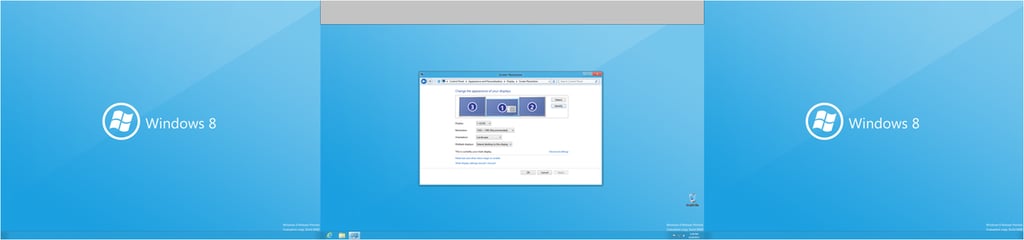
\n\tHere, you can see how my multiple monitors are set up in Windows 8’s Screen Resolution dialog box.
\n
\n\tImage created by Greg Shultz for TechRepublic, all rights reserved.
\n\t
\n
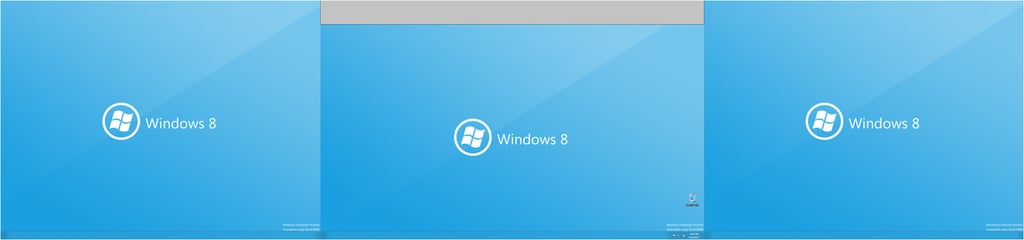
\n\tWith Metro minimized, Windows 8 on a multiple monitor system is miles and miles of desktop.
\n
\n\tImage created by Greg Shultz for TechRepublic, all rights reserved.
\n\t
\n
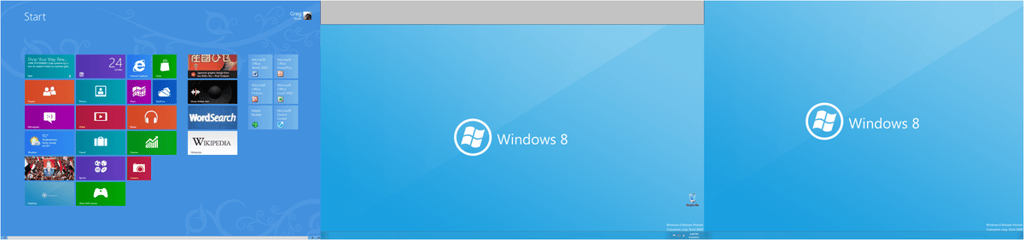
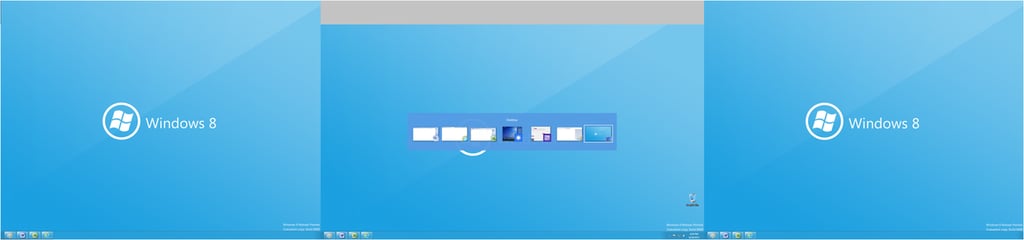
\n\tConfining Metro to the left monitor and then exclusively accessing it with the [Windows] key on my keyboard, allowed me to essentially treat Metro like it is running in a window on my desktop.
\n
\n\tImage created by Greg Shultz for TechRepublic, all rights reserved.
\n\t
\n
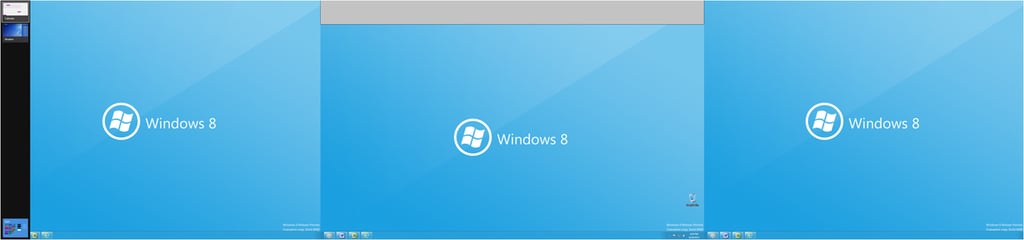
\n\tWhile running a combination of Metro apps and Windows applications at the same time, I found myself becoming very adept at using the two task switching keystroke combinations to quickly access what I needed. Using [Alt]+[Tab] I can switch between all running apps and applications and even to access the desktop running beneath Metro.
\n
\n\tImage created by Greg Shultz for TechRepublic, all rights reserved.
\n\t
\n
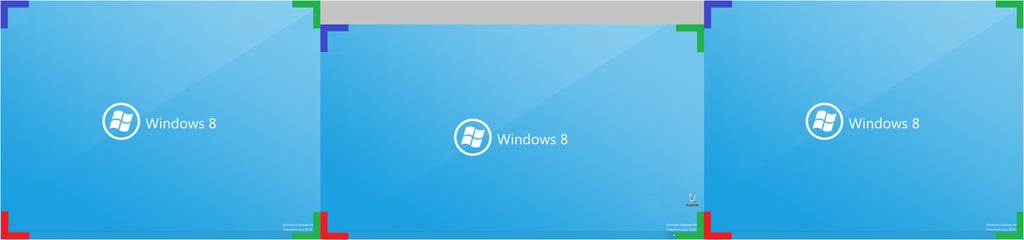
\n\tUsing [Windows]+[Tab] works to only switch between apps running in Metro and can also be used to access the desktop running beneath Metro.
\n
\n\tImage created by Greg Shultz for TechRepublic, all rights reserved.
\n\t
\n
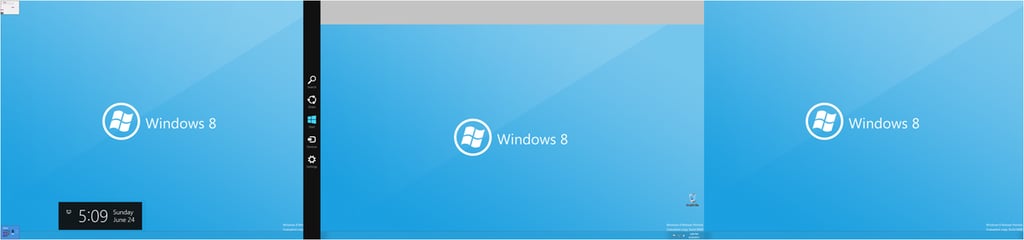
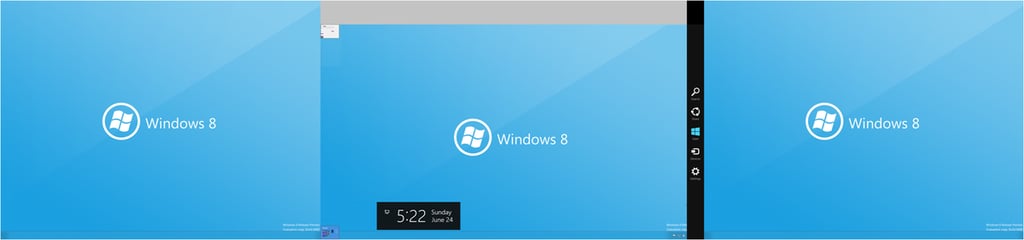
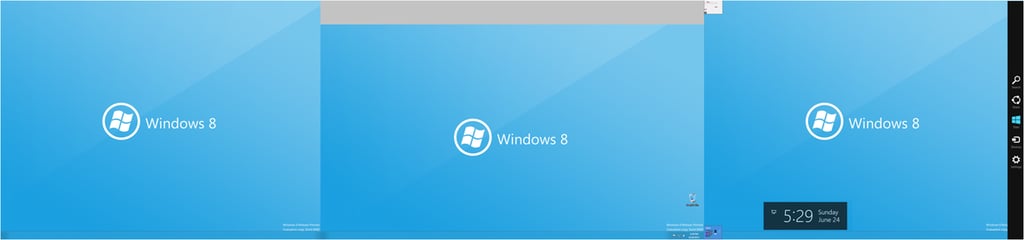
\n\tOne of the multiple monitor features in Windows 8 is that all of the monitors have hot corners. Having hot corners on all monitors is designed to make it easy to access the hot corner items: Start Screen button (Red) the Charms bar (Green), and the Metro app switching (Blue) from any monitor. (I’ve colored coded the hot corners for simplicity.)
\n
\n\tImage created by Greg Shultz for TechRepublic, all rights reserved.
\n\t
\n
\n\tIn this composite image, you can see all three hot corners being activated on the left monitor.
\n
\n\tImage created by Greg Shultz for TechRepublic, all rights reserved.
\n\t
\n
\n\tIn this composite image, you can see all three hot corners being activated on the center monitor.
\n
\n\tImage created by Greg Shultz for TechRepublic, all rights reserved.
\n\t
\n
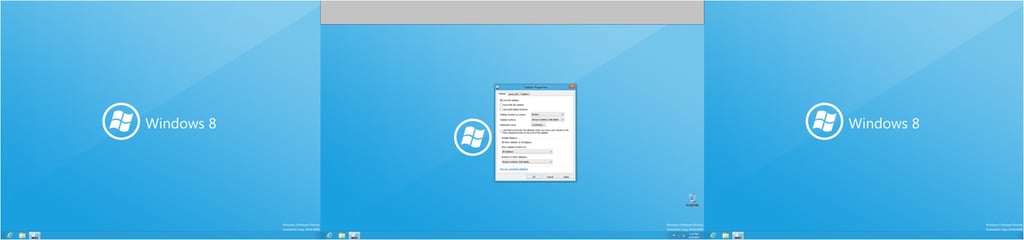
\n\tIn this composite image, you can see all three hot corners being activated on the right monitor.
\n
\n\tImage created by Greg Shultz for TechRepublic, all rights reserved.
\n\t
\n
\n\tBy default Windows 8 is configured to show a taskbar on all monitors.
\n
\n\tImage created by Greg Shultz for TechRepublic, all rights reserved.
\n\t
\n
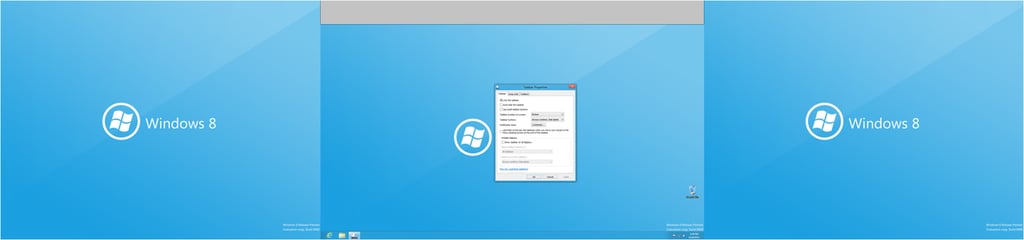
\n\tHowever, if you prefer, you can reconfigure Windows 8 to have only one Taskbar.
\n
\n\tImage created by Greg Shultz for TechRepublic, all rights reserved.
\n\t
\n
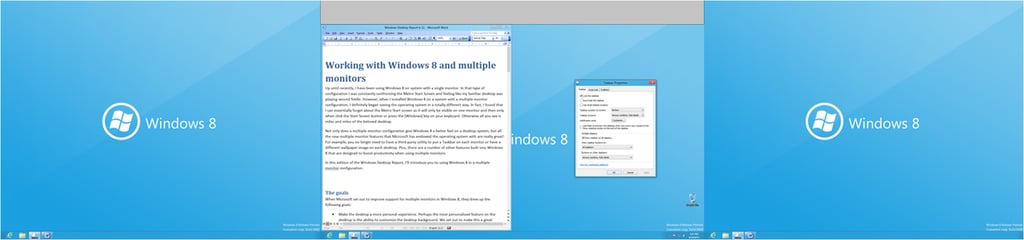
\n\tBy default the Show taskbar buttons on setting is configured to All taskbars. In this configuration, icons for all running applications appear on all taskbars. This means that when I launch Word and use it on the main monitor, icons for Word show up on the taskbars on the other two monitors. While I can use any of the icons to access the application, Word’s window remains on the main monitor.
\n
\n\tImage created by Greg Shultz for TechRepublic, all rights reserved.
\n\t
\n
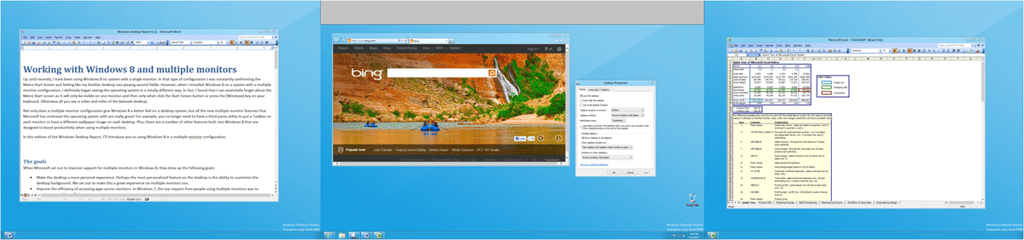
\n\tWhen the Show taskbar buttons setting is Main taskbar and taskbar where window is open, the taskbar on the main monitor shows icons for all running applications but the other monitors only show icons for the applications displayed on those monitors. Here I have Word open on the left monitor, Excel open on the right monitor, and Internet Explorer open on the main monitor. In this case the taskbar on the main monitor shows icons for Word, Excel, and Internet Explorer, the taskbar on the left monitor only shows an icon for Word, and the taskbar on the right monitor only shows an icon for Excel
\n
\n\tImage created by Greg Shultz for TechRepublic, all rights reserved.
\n\t
\n
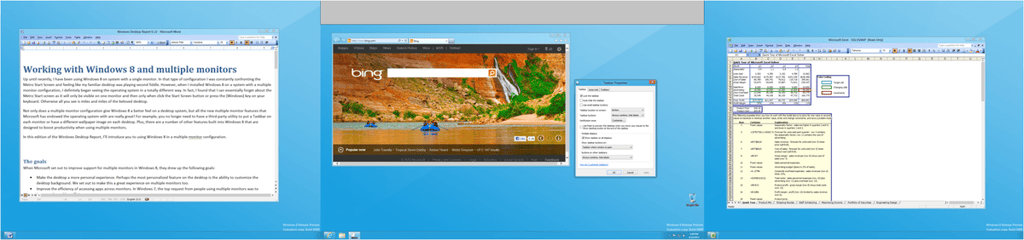
\n\tWhen the Show taskbar buttons setting is Taskbar where window is open, each monitor’s taskbar only contains icons for the application that is displayed on that monitor. Here I have Word open on the left monitor, Excel open on the right monitor, and Internet Explorer open on the main monitor. In this case the taskbar on the main monitor shows an icon for Internet Explorer, the taskbar on the left monitor shows an icon for Word, and the taskbar on the right monitor shows an icon for Excel.
\n
\n\tImage created by Greg Shultz for TechRepublic, all rights reserved.

\n\t
\n
\n\tYou can configure Windows 8 to display the same image for each monitor’s desktop background.
\n
\n\tImage created by Greg Shultz for TechRepublic, all rights reserved.

\n\t
\n
\n\tYou can set up different background image for each monitor by right clicking on an image and choosing Set for monitor #.
\n
\n\tImage created by Greg Shultz for TechRepublic, all rights reserved.

\n\t
\n
\n\tYou can span an image across all your monitors using the Span setting. Windows 8 Release Preview includes a couple panoramic images (3840×1200) that are perfect for experimenting with the Span setting.
\n
\n\tImage created by Greg Shultz for TechRepublic, all rights reserved.

My first computer was a Kaypro 16 \"luggable\" running MS-DOS 2.11 which I obtained while studying computer science in 1986. After two years, I discovered that I had a knack for writing documentation and shifted my focus over to technical writing.


