\n\tThis photo gallery is also available as a post in the Windows and Office Blog.
\n
\n\tWould you prefer to have Windows 8 bypass the Start Screen and boot straight to the desktop? If so, you can do so using a technique that takes advantage of a feature that is built right into the operating system – no third-party tools required. All you have to do is create a specially configured task that is scheduled to run at log on.
\n
\n\tIn this post, I’ll walk you through the steps required to make Windows 8 boot straight to the desktop using a specially configured scheduled task.
\n
\n
\n
\n\tIf you were working with/testing Windows 8 during the Preview/Beta period, you may know that a similar trick allowed you to make Windows 8 boot straight to the desktop and that the loophole that allowed that trick was closed when the Windows 8 code was finalized.
\n
\n\tAs you may recall, in previous versions of Windows, a special shortcut called Show Desktop appeared on the Quick Launch menu. This shortcut was a standard text file that contained five lines of code and was saved with the file extension SCF. The fifth line of that code was Command=ToggleDesktop.
\n
\n\tDuring the Preview/Beta period, it was discovered that if you recreated that shortcut in Windows 8 and set it up as a scheduled task that ran at log on, the operating system would run the SCF file and boot to the desktop rather than the Start Screen. Once the Windows 8 code was finalized, that particular shortcut was no longer recognized by the operating system. Whether Microsoft did that on purpose or whether the contents of the SCF represented legacy code that was never intended to be a in the final code is unknown.
\n
\n\tIn any case, it seemed there would be no way to get Windows 8 to boot to the desktop without a third-party tool, such as Stardock’s Start8 utility, which, once installed, bypasses the Start Screen as well as revives the Start Menu.
\n
\n\tConvinced that there had to be another way to make Windows 8 boot to the desktop using a scheduled task, I began experimenting with different shortcuts and executables. Then, it dawned on me that explorer.exe is still the heart and soul of the Windows desktop. I figured that if anything could trump the Start Screen, it would be explorer.exe. So I tried it and found that it worked.
\n
\n\tDuring my experimentation with this technique, I haven’t found any serious side effects or other problems. However, that doesn’t mean that sometime down the road, Microsoft might release a patch that will disable or even invalidate this technique.
\n
\n\tCatch up with all of TechRepublic’s Windows 8 tips on our focus page.
\n
\n
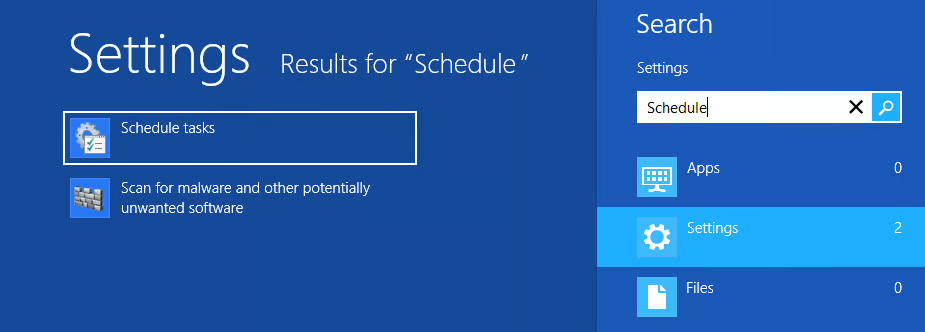
\n\tTo begin you’ll need to launch the Task Scheduler tool. To do so, just press the [Windows] key, type Schedule, select Settings, and click Schedule tasks, as illustrated in Figure A. When you do, the Task Scheduler will appear.
\n
\n\tCredit: Images by Greg Shultz for TechRepublic
\n
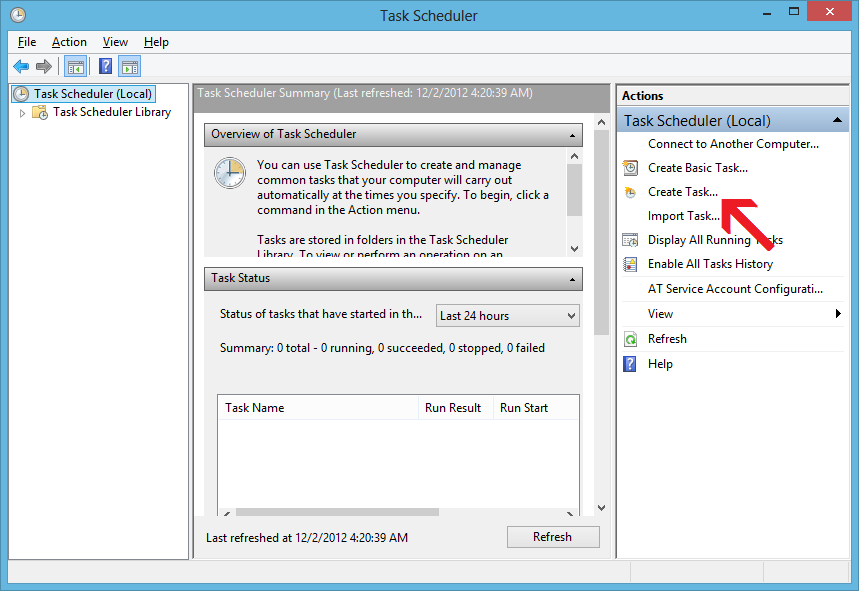
\n\tOnce you have the Task Scheduler up and running, you’ll begin by clicking the Create Task command in the Actions panel, as shown in Figure B.
\n
\n\tCredit: Images by Greg Shultz for TechRepublic
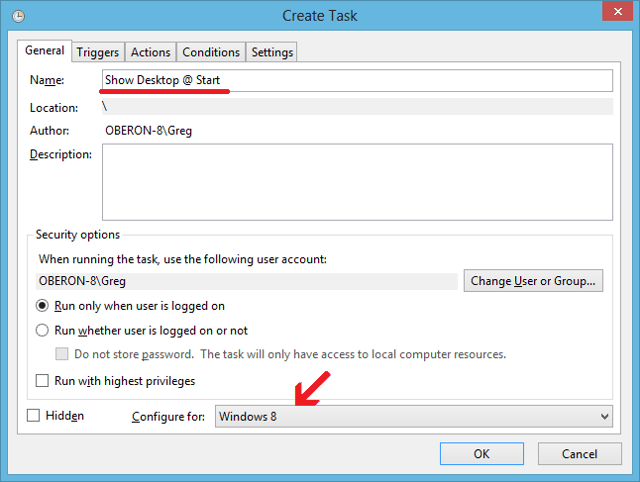
\n\tWhen the Create Task dialog box appears, you’ll see that the General tab is selected and will first assign the task a name in the Name text box. As you can see, I choose Show Desktop @ Start. Then, towards the bottom of the page, select Windows 8 from the Configure for drop down menu, as shown in Figure C. You can leave the Security options set to Run only when user is logged on.
\n
\n\tCredit: Images by Greg Shultz for TechRepublic
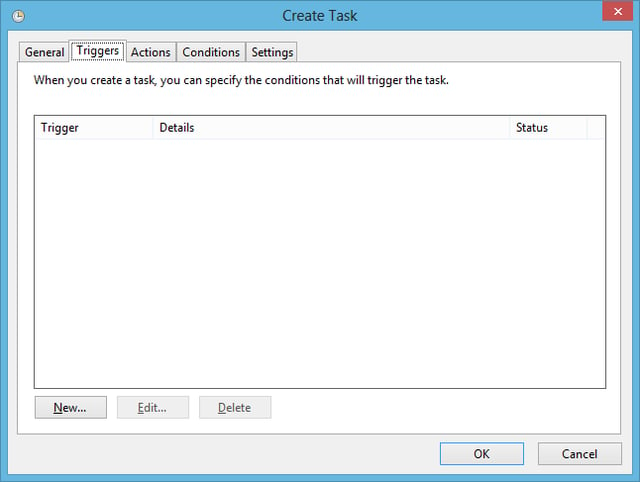
\n\tTo continue, select the Triggers tab to access that page, as shown in Figure D. Now, click the New button towards the bottom of the page.
\n
\n\tCredit: Images by Greg Shultz for TechRepublic
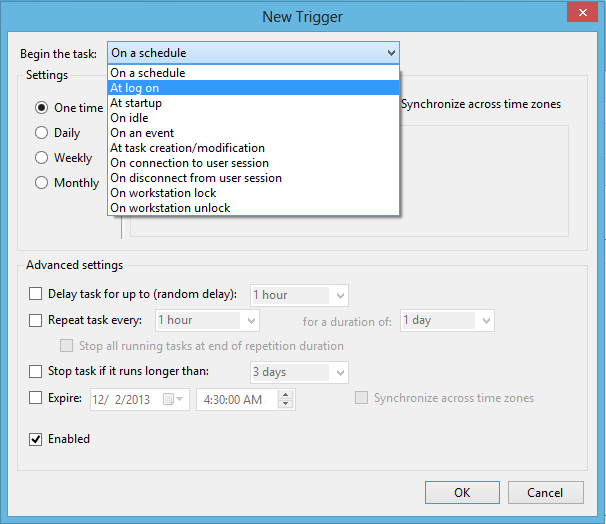
\n\tWhen you see the New Trigger dialog box, select the At log on item from the Begin the task drop down menu, as shown in Figure E.
\n
\n\tCredit: Images by Greg Shultz for TechRepublic
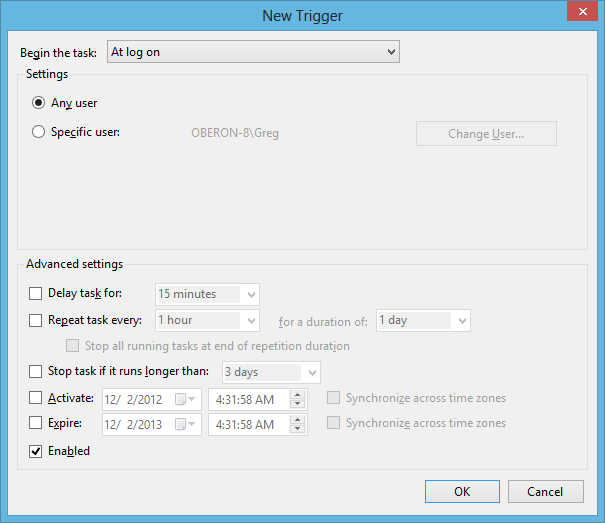
\n\tAs soon as you do, the New Trigger page will refresh and display the settings for the At log on option, as shown in Figure F.
\n
\n\tCredit: Images by Greg Shultz for TechRepublic
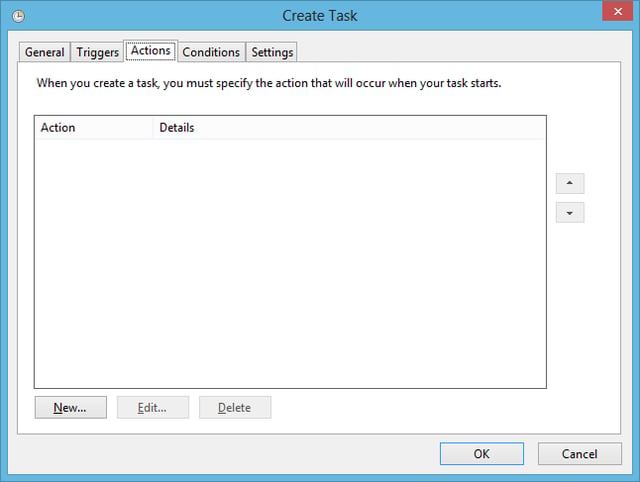
\n\tBy default, the Any user option in the Settings panel and the Enabled check box in the Advanced Settings are selected. Just leave them as they are and click OK to continue. When you return to the Create Task dialog box, select the Actions tab, as shown in Figure G. Then, click the New button towards the bottom of the page.
\n
\n\tCredit: Images by Greg Shultz for TechRepublic
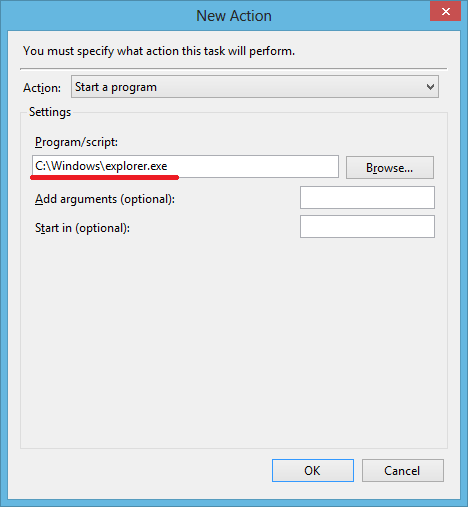
\n\tWhen you see the New Action dialog box, you’ll find that the Action setting is by default set to Start a Program. So, in the Settings panel, you can just type c:\\Windows\\explorer.exe in the Program/script text box, as shown in Figure H. You can also use the Browse button to locate and select the explorer.exe program. At this point, just click OK to return to the Create Task dialog box.
\n
\n\tCredit: Images by Greg Shultz for TechRepublic
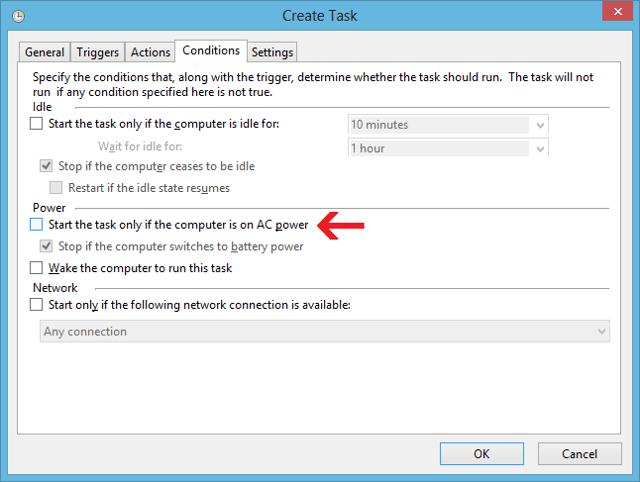
\n\tNow, IF you are running Windows 8 on a laptop, select the Conditions tab and in the Power panel, clear the Start the task on if the computer is on AC power check box, as shown in Figure I.
\n
\n\tCredit: Images by Greg Shultz for TechRepublic
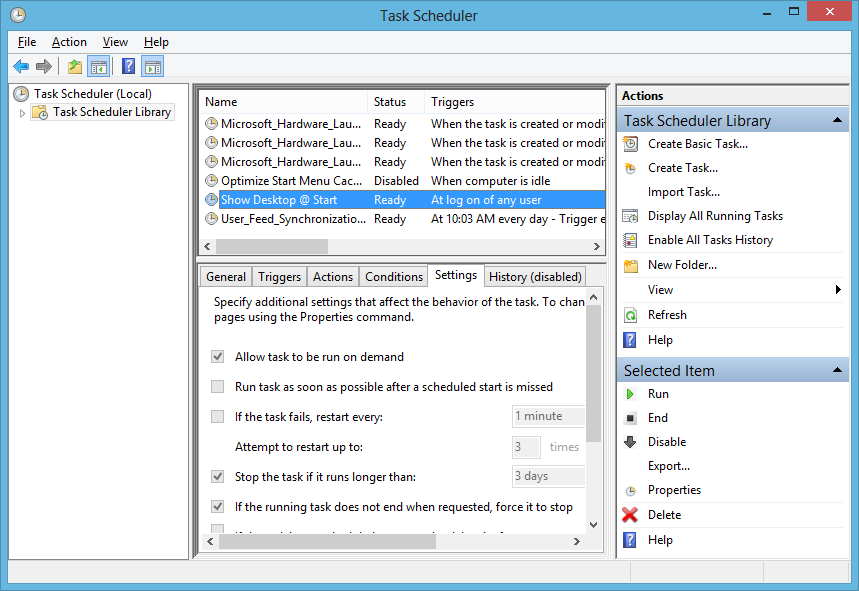
\n\tThere is nothing that you need to change on the Settings tab so, at this point, you are done and can just click the OK button to complete the scheduled task operation. When you return to the Task Scheduler window, you’ll see the new task that you just created on the Task Scheduler Library, as shown in Figure J. You can now close Task Scheduler.
\n
\n\tCredit: Images by Greg Shultz for TechRepublic
\n
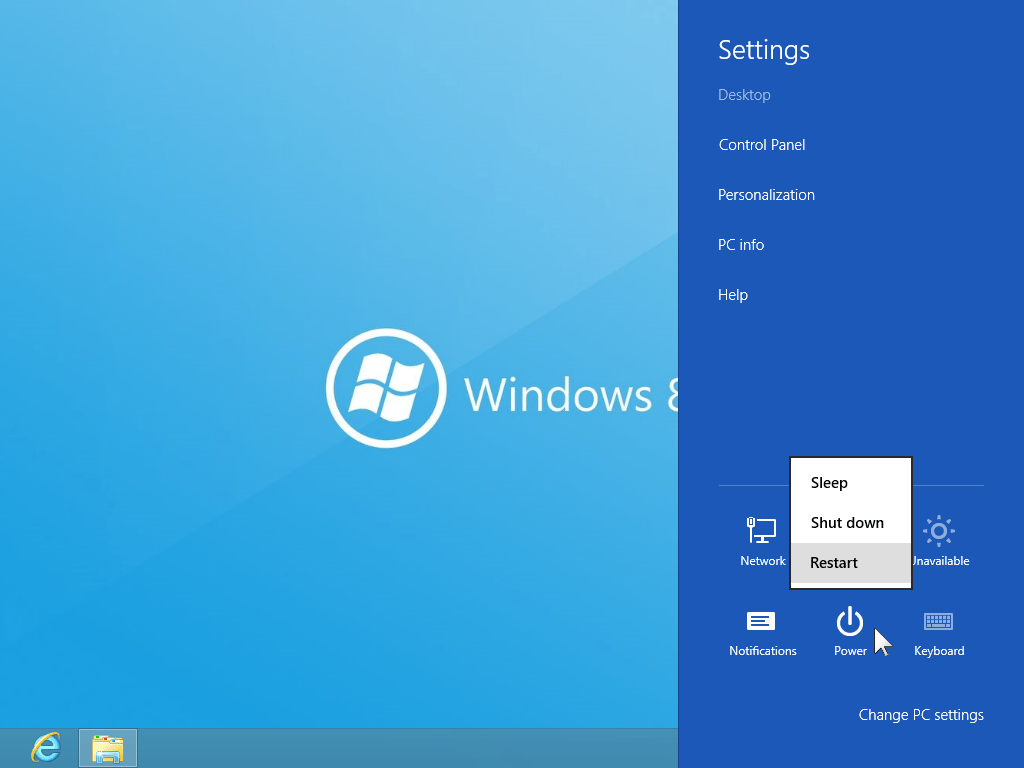
\n\tAs soon as you have created your scheduled task, you can test it out. You can either Restart your system from the Power Charm, as shown in Figure K, or you can just log off and then log back on.
\n
\n\tCredit: Images by Greg Shultz for TechRepublic
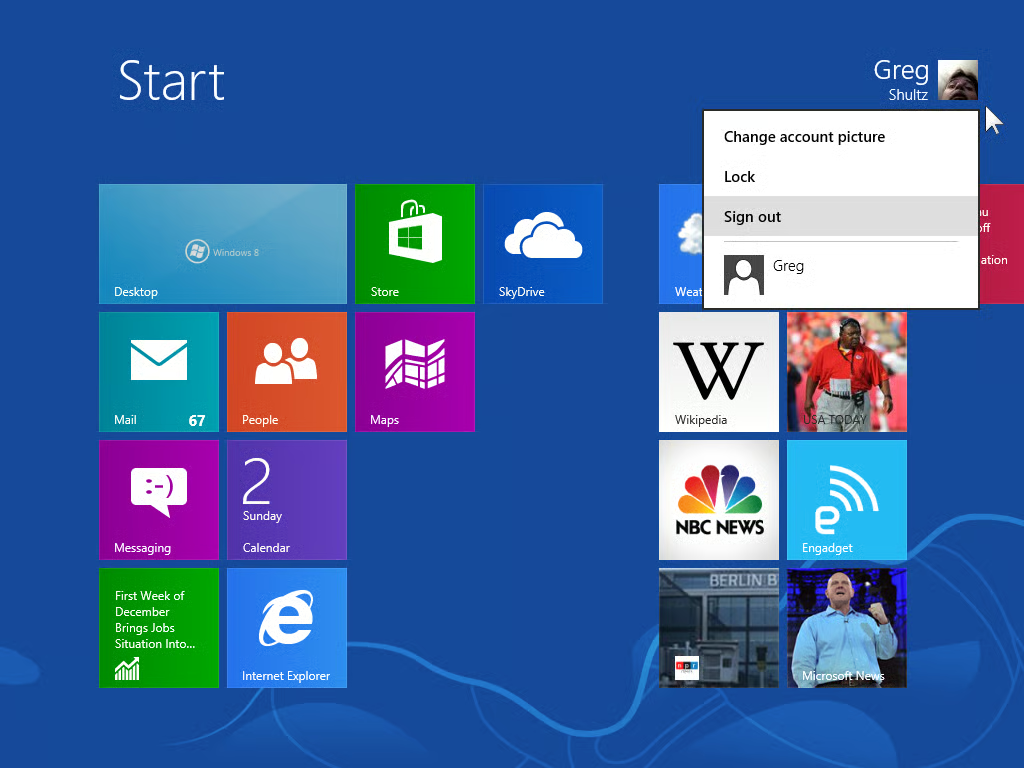
\n\tWhile the Log off command used to be located with the other power options in previous version of operating system, in Windows 8 it now resides on the Start Screen and has been renamed to Sign out. When at the Start Screen, right click on your user picture in the upper right. When you do, you’ll see a menu and will select the Sign out command, as shown in Figure L.
\n
\n\tCredit: Images by Greg Shultz for TechRepublic
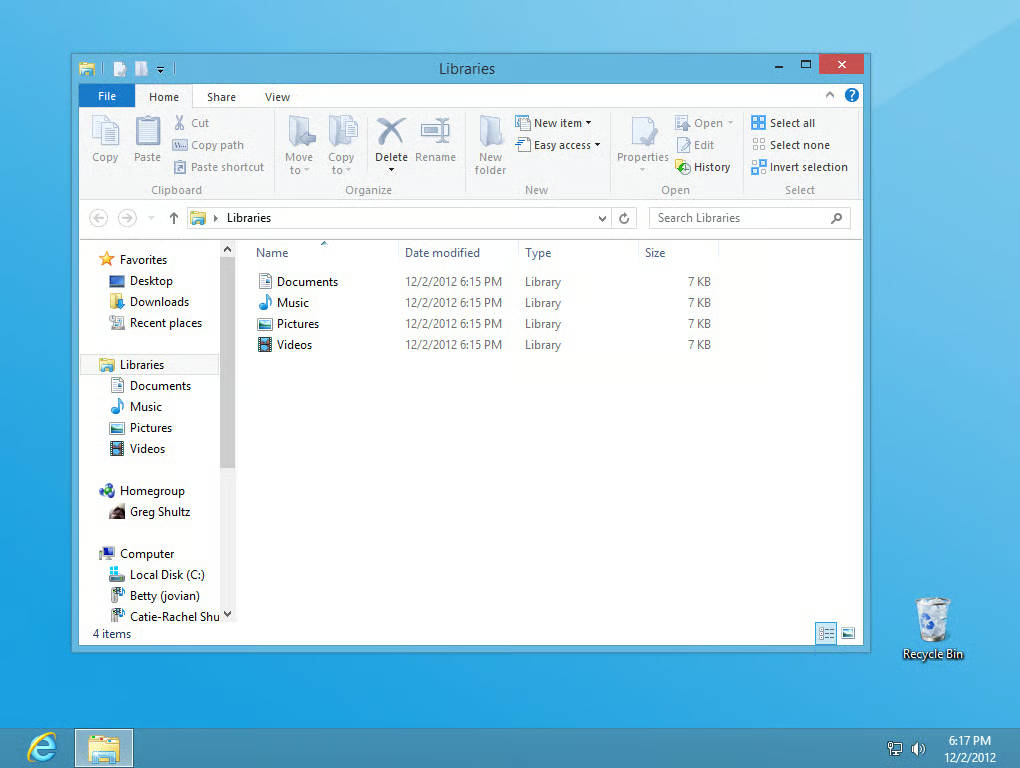
\n\tWhen Windows 8 restarts, you’ll immediately see the Desktop with a File Explorer window targeted on Libraries, as shown in Figure M. You will not see the Start Screen at all.
\n
\n\t(Keep in mind that when you see the File Explorer window targeted on Libraries, the Documents Music, Pictures, and Video icons may shuffle around a bit. The reason for this is because when the File Explorer window appears on the screen, the operating system is still doing a bit of housework in the background.)
\n
\n\tDepending on how you launch your applications, you can now launch them right from the desktop. For example, if you chose to pin your application icons to the Taskbar, then they are readily available.
\n
\n
\n\tWould you prefer to have Windows 8 boot straight to the desktop? Will you use this technique to make Windows 8 boot straight to the desktop? As always, if you have comments or information to share about this topic, please take a moment to drop by the TechRepublic Community Forums and let us hear from you.
\n
\n
\n\t
\n\t
\n
\n
\n\tCredit: Images by Greg Shultz for TechRepublic