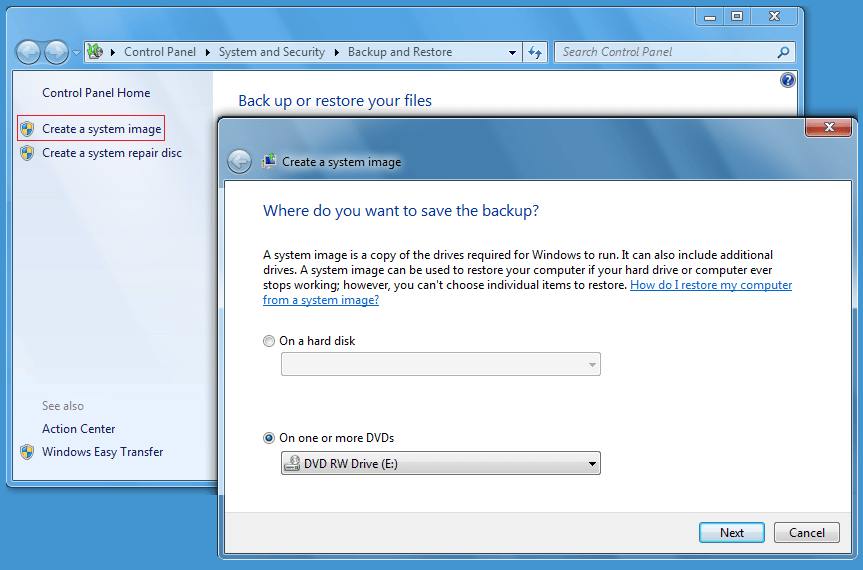
On my test system, I'll use DVDs to create my system image
\n\tIn this edition of the Windows Desktop Report, I’ll use my new system to show you how to prepare and configure your Windows 7 system to dual-boot Windows 8. While I’ll be using the Windows 8 Release Preview for this article, I’ve heard that the procedure should be very similar with the actual release version. Even so, I’ll revisit this topic in the near future once Windows 8 is available to the general public.
\n
\n\t\n\n
\n
\n\tThis slideshow is also available in the blog format in the Windows and Office Blog.
\n
\n\tPrerequisite
\n
\n\tFor this article, I’m going to assume that you have already visited the Windows 8 Release Preview site and followed Microsoft’s instructions for downloading and converting the ISO file to a DVD in Windows 7. If you haven’t, you should do so before you get started with this article. The process is pretty straightforward and Microsoft has documented the steps you need to follow.
\n
\n\tCreating a System Image
\n
\n\tThe first thing that you’ll want to do is create a System Image from within Windows 7’s Backup and Restore. When you do, you’ll end up with a complete image of your hard disk. That way, if anything out of the ordinary were to occur as you follow the steps for creating a dual-boot system, you will be able to return to your current configuration. Furthermore, I recommend that you also create a separate backup of your data. Maybe just make copies of all your data files on CD/DVD or on an external hard disk. While it may sound like overkill, having an extra backup will give you peace of mind.
\n
\n\tTo create a system image, you’ll need to have a CD-RW/DVD-RW drive, an external hard disk, or access to a network drive. To access Backup and Restore, click the Start button, type Backup in the Search box, and press [Enter] when Backup and Restore appears in the result pane.
\n
\n\tOnce you have Backup and Restore up, select the Create a System Image option and choose your backup location. As you can see, I used a DVD-RW drive on my system.