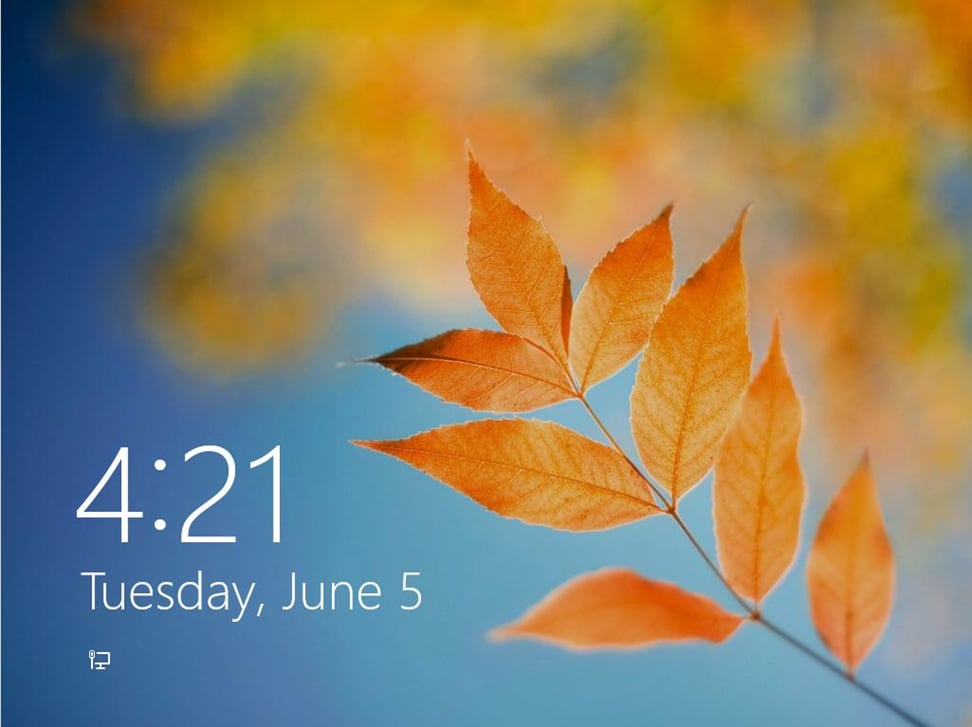
\n\tIn last week’s blog post, Make the Windows 8 Start Screen work like the Start Menu, I showed you how to get rid of all the tiles on the Start Screen and populate it with application shortcut icons so that you can essentially use the Start Screen as a replacement for the Start Menu. What I didn’t tell you was that I had initially begun my search for reviving the Start menu in the Local Group Policy Editor. Alas, there is no setting for disabling the Start Screen or enabling the Start menu.
\n
\n\tHowever, I did find a setting that will allow you to do away with another possibly annoying feature designed for touch screen tablets and not necessarily for desktops – the Lock screen.
\n
\n\t\n\n
\n
\n\tThe Lock screen appears when Windows boots up and displays the date as well as notifications. While this screen is useful on a tablet, it just adds one more step to the process of getting to work on a desktop. You have to click the screen, before you can get to the Login screen. While this may not sound like a big deal, many users just want to log in without messing with another Metro doodad. Fortunately, you can disable the Lock screen from the in the Local Group Policy Editor.
\n
\n\tThis slideshow gallery is also available as a post in the Microsoft Windows Blog.
\n
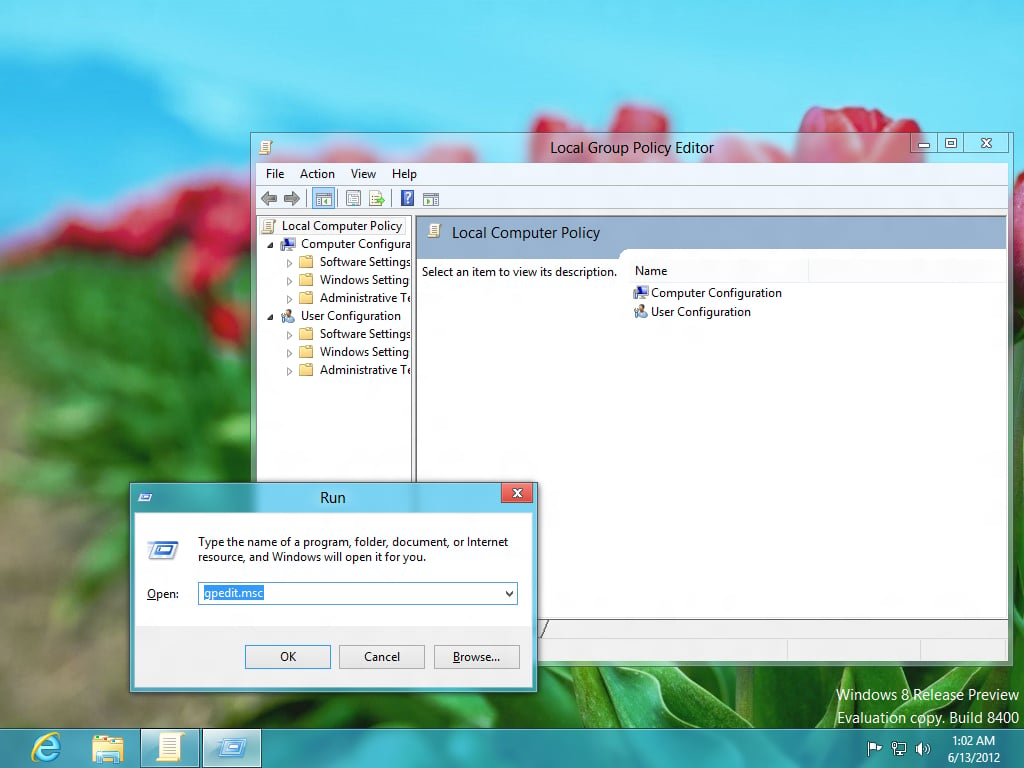
\n\tGetting to the Local Group Policy Editor in Windows 8 is pretty easy. Just press [Windows]+R to bring up the run dialog box. Then, type gpedit.msc in the Open text box and click OK. In a moment, the Local Group Policy Editor window will appear on the screen, just like it did in Windows 7 and earlier Windows versions.
\n
\n\tNow, before I show you how to disable the Lock screen from the in the Local Group Policy Editor, let me take a moment to show you a little trick.
\n
\n\tThere are quite a few new settings for Windows 8 in the Local Group Policy Editor that you might be interested in learning about, but finding them can be time consuming due to the fact that there are still a lot of settings in Local Group Policy Editor that are designed only for previous versions of the operating system. You can narrow down the number of settings to only those that work in Windows 8 by using Filters. Keep in mind that this filtering feature will include settings that were designed for earlier operating system but still work in Windows 8.
\n
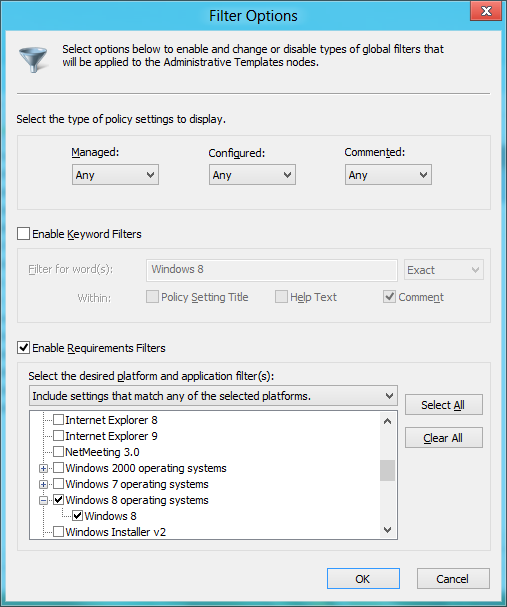
\n\tOnce Local Group Policy Editor is up and running, pull down the Actions menu and select the Filter Options command. When you see the Filter Options dialog box, select the Enable Requirements Filters check box, and then select the Windows 8 operating systems check box.
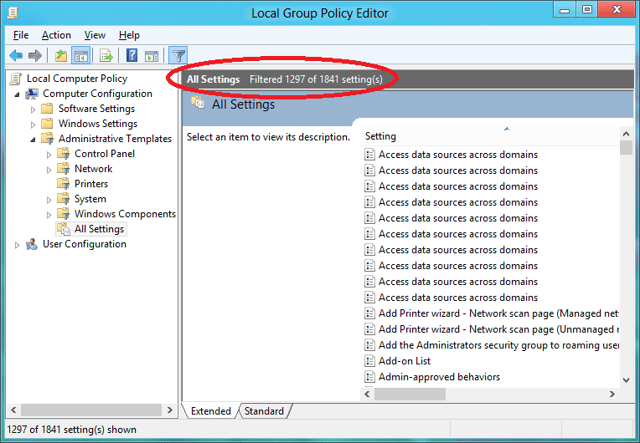
\n\tNow navigate down the Local Computer Policy tree to the All Settings folder in either the User Configuration branch or the Computer Configuration branch and you see that the number of settings has been filtered down. For example, you can see that Computer Configuration | Administrative Templates | All Settings folder is now displaying 1297 out of 1841 settings. In other words, there are 544 settings that do not specifically apply to Windows 8.
\n
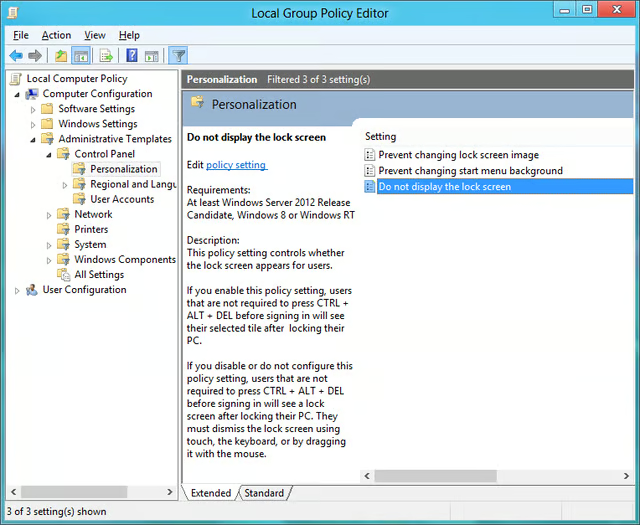
\n\tTo disable the lock screen in Windows 8, navigate down the Local Computer Policy tree to the Computer Configuration | Administrative Templates | Control Panel | Personalization folder and there you’ll find the Do not display the lock screen setting. Notice the Requirements section lists this setting as being for Windows 8 as well as for Windows Server 2012 RC and Windows RT.
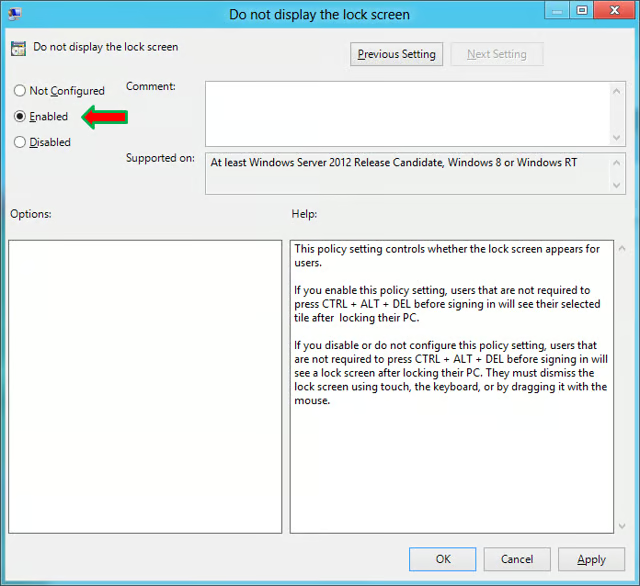
\n\tAfter you double click the setting you’ll see the configuration page and will need to select the Enabled radio button, then click OK and close the Local Group Policy Editor.
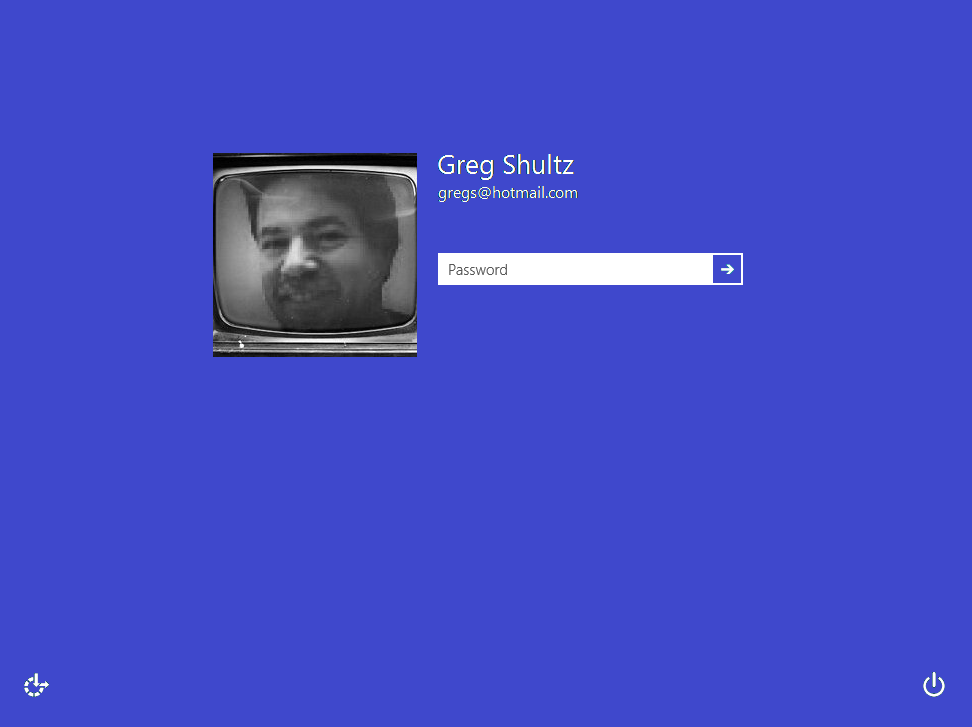
\n\tNow when you start Windows 8, you’ll immediately see the Windows 8 Login screen, like the one shown, instead of the Lock screen.

My first computer was a Kaypro 16 \"luggable\" running MS-DOS 2.11 which I obtained while studying computer science in 1986. After two years, I discovered that I had a knack for writing documentation and shifted my focus over to technical writing.


