\n\tThis photo gallery is also available as a post in the Windows and Office Blog.
\n
\n\tAs you may recall, when Microsoft was preparing Windows 8, the company announced that it had decided not to include Windows Media Center in the operating system anymore and instead would make it available as a separate download for a nominal fee once Windows 8 was released. While this raised the ire of quite a few long time Windows Media Center users, Microsoft made a fairly reasonable case for removing the application from the operating system in this blog post on the Building Windows 8 web site. After reading this post, many folks that I spoke with at the time shifted their point of contention from the removal to the cost of the add-on pack, which Microsoft vaguely described as in line with marginal costs.
\n
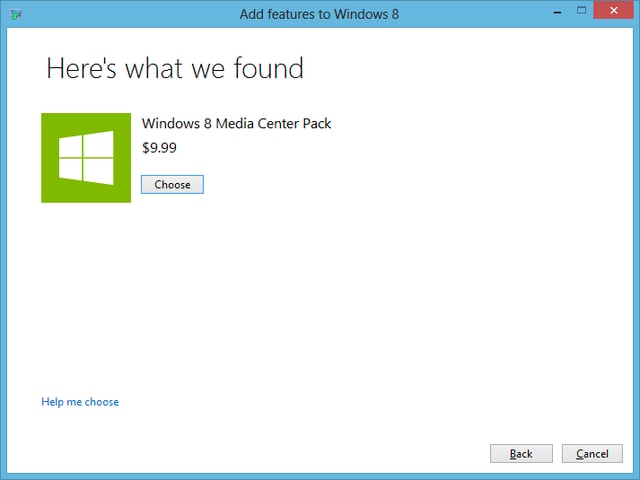
\n\tFortunately, Microsoft did remain true to their word. If you go to the Add features to Windows 8 tool in Windows 8 Pro, you’ll see that the Windows 8 Media Center Pack will cost $9.99.
\n
\n\tCredit: Images by Greg Shultz for TechRepublic
\n\tHowever, between now and January 31, 2013, if you are running Windows 8 Pro, you can download and install the Windows 8 Media Center Pack for FREE. While you won’t have to spend a penny to get the Windows 8 Media Center Pack during this period, you will have to spend some time waiting.
\n
\n\tIn this post, I will show you the steps involved in downloading and installing the Windows 8 Media Center Pack in Windows 8 Pro. As I do, I’ll explain why you must be prepared to wait.
\n
\n
\n
\n\tJust in case you are wondering, if you have the Base edition of Windows 8, you can get Windows Media Center by getting the Windows 8 Pro Pack, which will upgrade your operating system to Windows 8 Pro and add Windows Media Center. You can get the Windows 8 Pro Pack for the discounted price of $69.99. (It normally would sell for $99.99) This is also a limited time offer that expires on January 31, 2013.
\n
\n
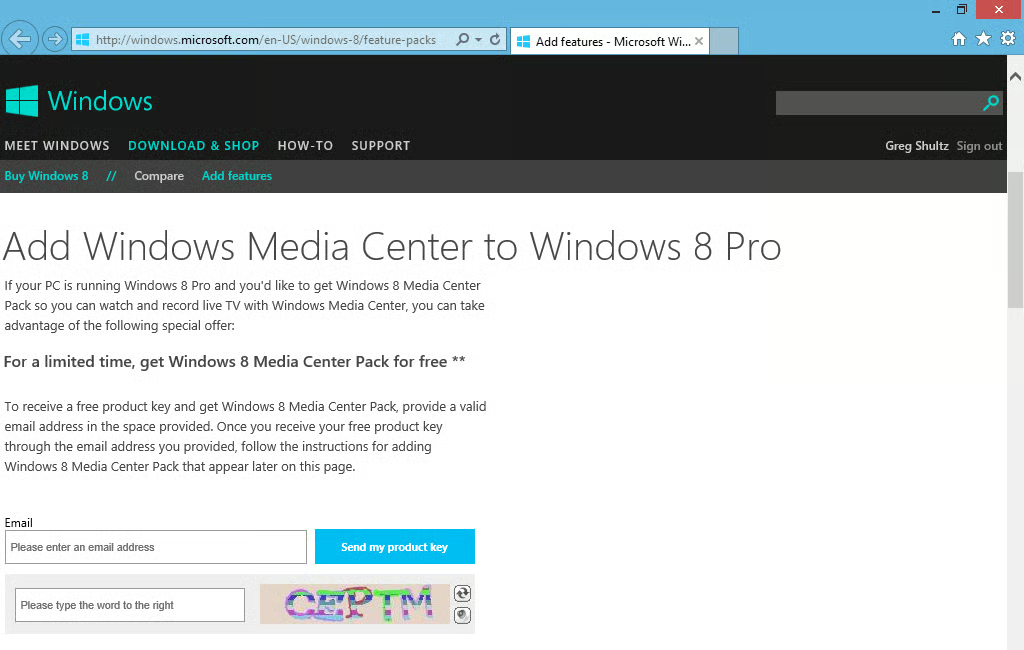
\n\tGetting your free copy of the Windows 8 Media Center Pack is pretty straightforward procedure. On your Windows 8 system, launch Internet Explorer and point it to the Add features page on the Microsoft Windows 8 site. When you arrive at the page, read the introductory information and then scroll down to the Windows 8 Pro section as shown. Then, enter your email address, type the BotDetect CAPTCHA characters, and click the Send my product key button.
\n
\n\tCredit: Images by Greg Shultz for TechRepublic
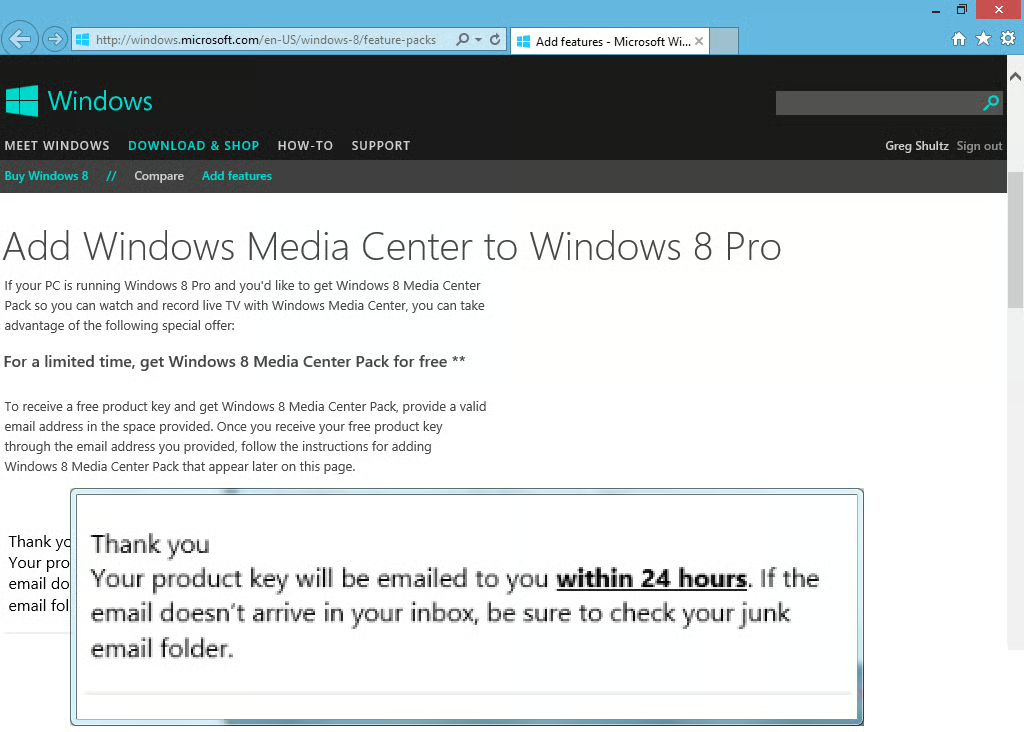
\n\tOnce you click the button, you’ll see the message shown in Figure C appear on the screen. (I’ve magnified the message so you could read it.) When I first read the message, I was confused. Thinking that it must be a just in case disclaimer type of message, I went directly to my email and clicked Send/Receive a couple of times, sure that the email would appear. But it didn’t. In fact, I didn’t receive the email containing the product key for close to 48 hours.
\n
\n\tCredit: Images by Greg Shultz for TechRepublic
\n\tI found this extremely annoying! I’ve never had to wait 48 hours just to get a verification email message – they always appear within the few minutes. For instance, when I filled out the request for the $15 Windows 8 Pro Upgrade Offer, I received the email containing the Promo Code almost immediately.
\n
\n\tSo, my advice to you is to plan ahead. If you want to install the free Windows 8 Media Center Pack on a Saturday when you have time to play around with it, make sure that you order the pack on a Wednesday to allow plenty of time for the email to arrive.
\n
\n\tAll griping aside, I must admit that being able to get Windows 8 Media Center Pack for free is a very nice little perk.
\n
\n
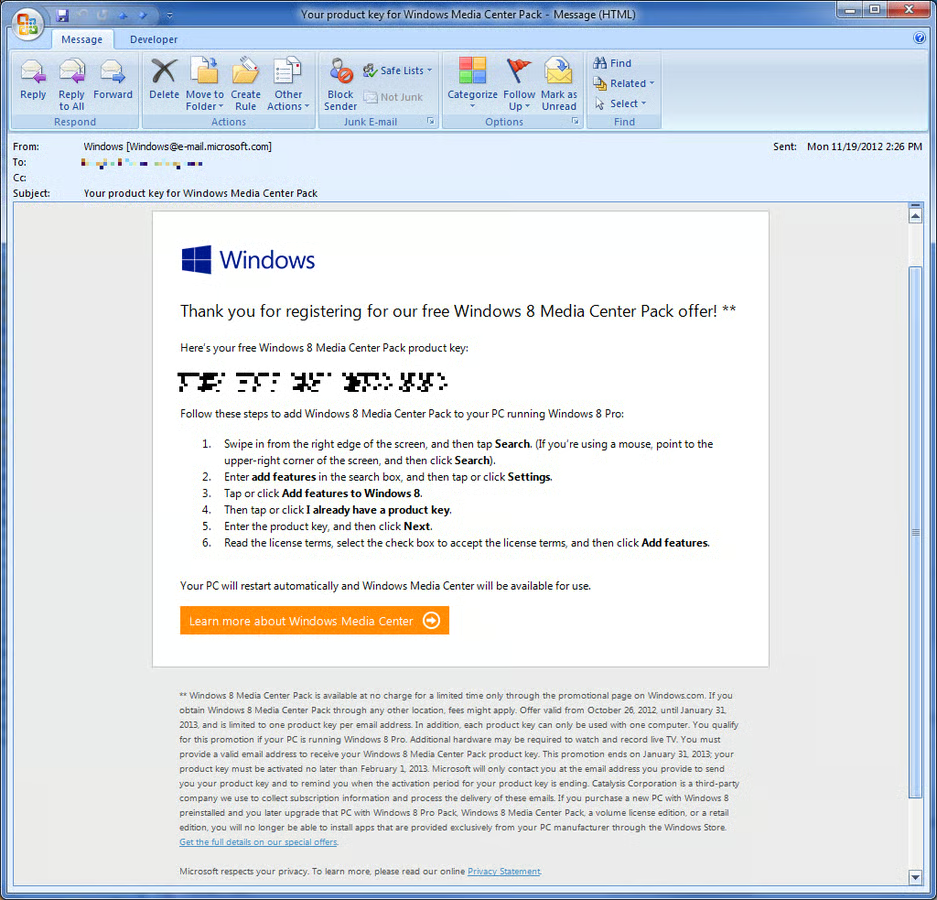
\n\tWhen you do receive the email, you’ll find your Windows 8 Media Center Pack product key, as shown.
\n
\n\tCredit: Images by Greg Shultz for TechRepublic
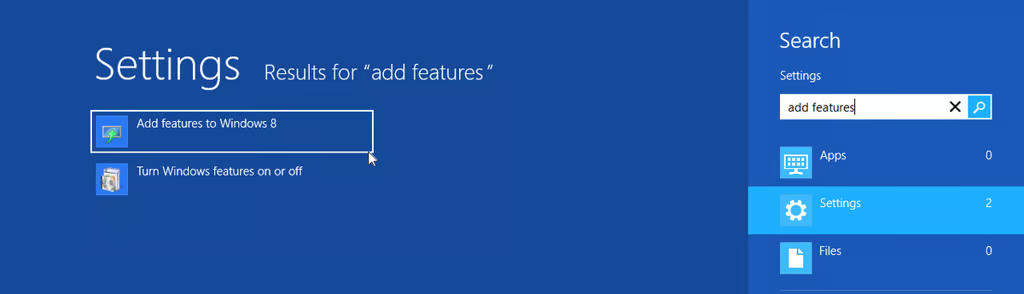
\n\tYou’ll use the Add features to Windows 8 tool in the Control Panel to download and install it. To do so, just press the [Windows] key, type Add features, select Settings, and click Add features to Windows 8, as shown.
\n
\n\tCredit: Images by Greg Shultz for TechRepublic
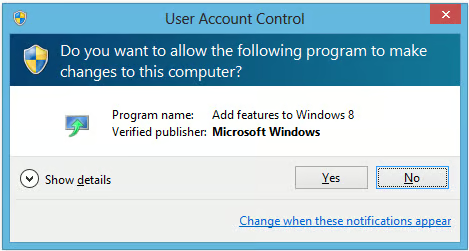
\n\tWhen you do, you’ll encounter a UAC. To continue, just click the Yes button.
\n
\n\tCredit: Images by Greg Shultz for TechRepublic
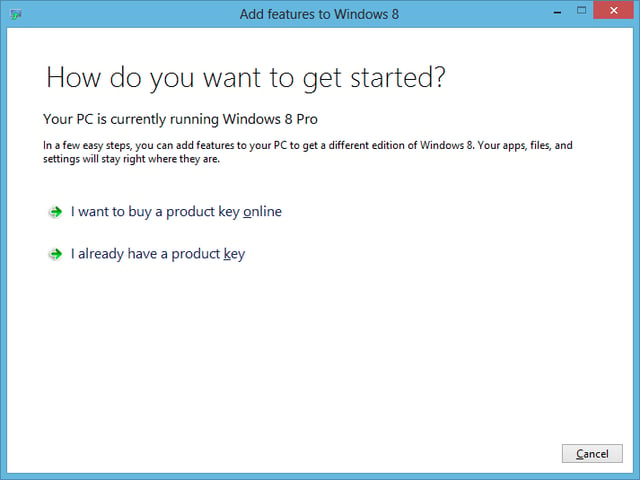
\n\tYou’ll then see the first screen in the Add features to Windows 8 wizard, which asks you whether you need to purchase a product key or you already have one. Just click the “I already have a product key button” to continue.
\n
\n\tCredit: Images by Greg Shultz for TechRepublic
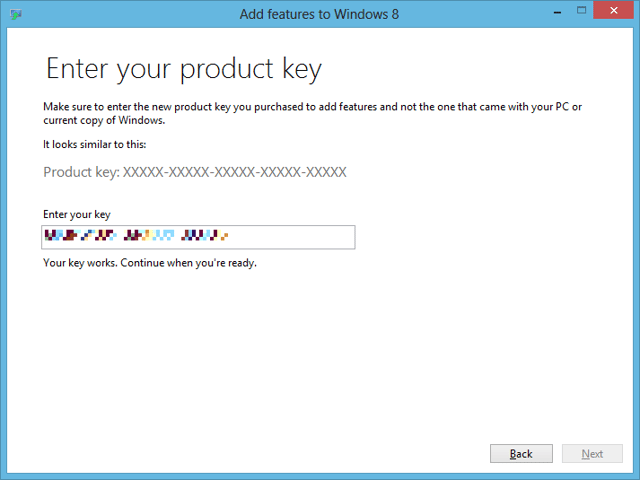
\n\tYou’ll then enter the product key on the next screen. Then, click Next.
\n
\n\tCredit: Images by Greg Shultz for TechRepublic
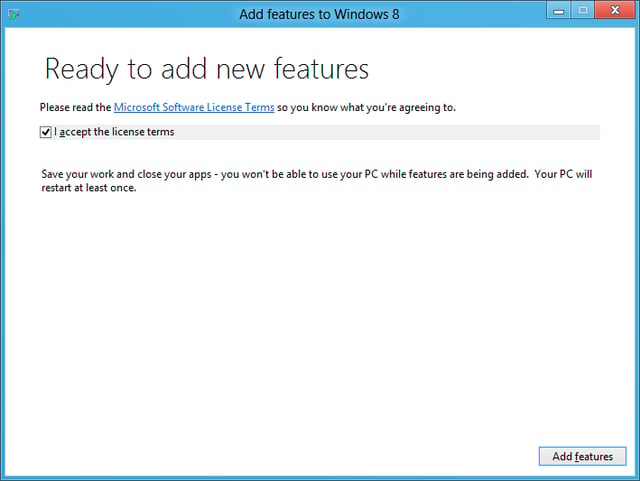
\n\tOn the next screen, you have to accept the license terms, as shown, and then click Add features button.
\n
\n\tCredit: Images by Greg Shultz for TechRepublic
\n
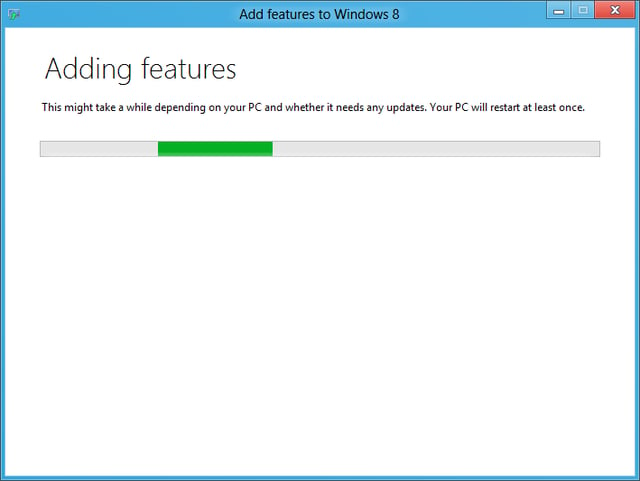
\n\tIn a moment, you’ll see a progress bar in the Add features to Windows 8 wizard screen.
\n
\n\tCredit: Images by Greg Shultz for TechRepublic
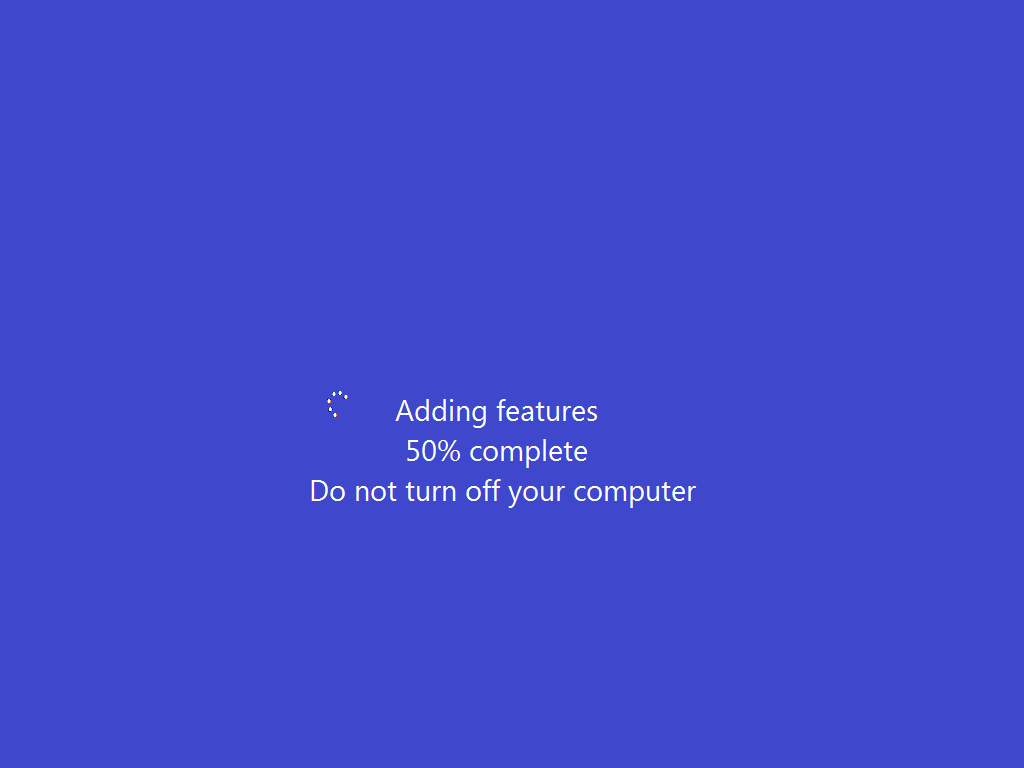
\n\tAs the installation progresses, Windows 8 will shut down the user interface and display a screen like the one shown, before it restarts. You can sit back for a few minutes while the download, installation and several of these restarts occur.
\n
\n\tCredit: Images by Greg Shultz for TechRepublic
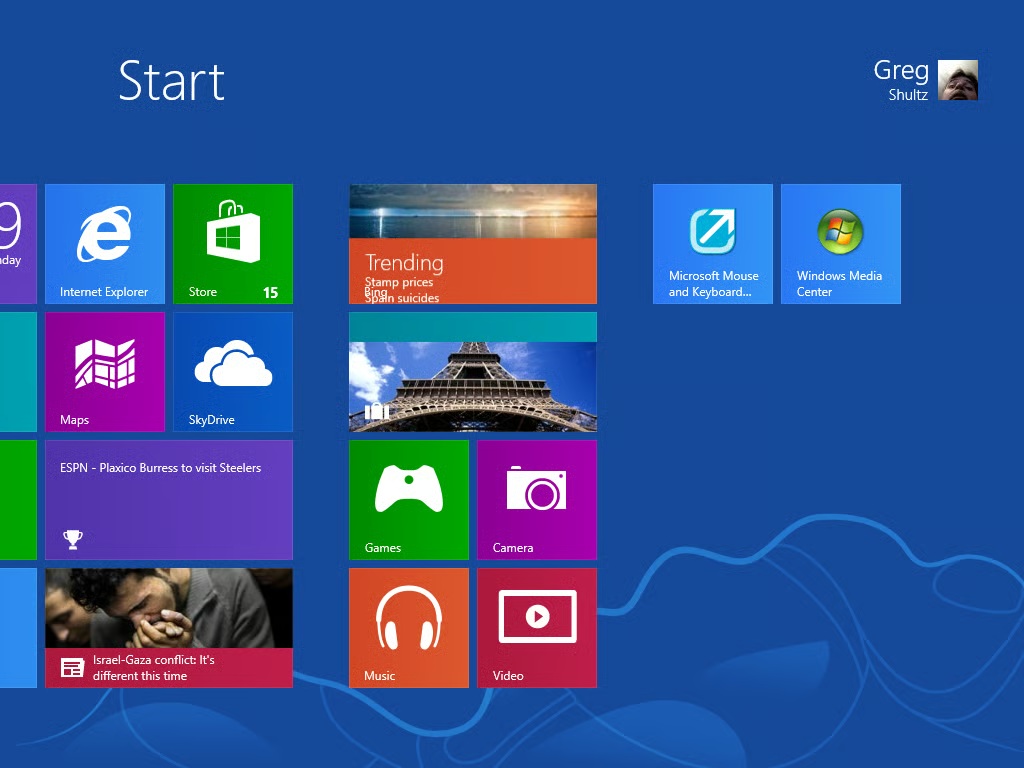
\n\tAfter the last restart, you’ll logon normally and will see that Windows Media Center appears as a tile on the Start screen.
\n
\n\tCredit: Images by Greg Shultz for TechRepublic
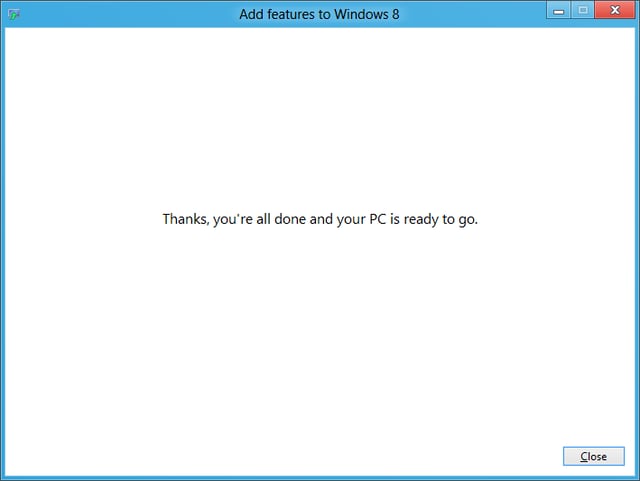
\n\tOnce you return to the Desktop, you’ll see the last screen in the Windows Media Centerinstallation wizard is waiting for you to click Close.
\n
\n\tCredit: Images by Greg Shultz for TechRepublic
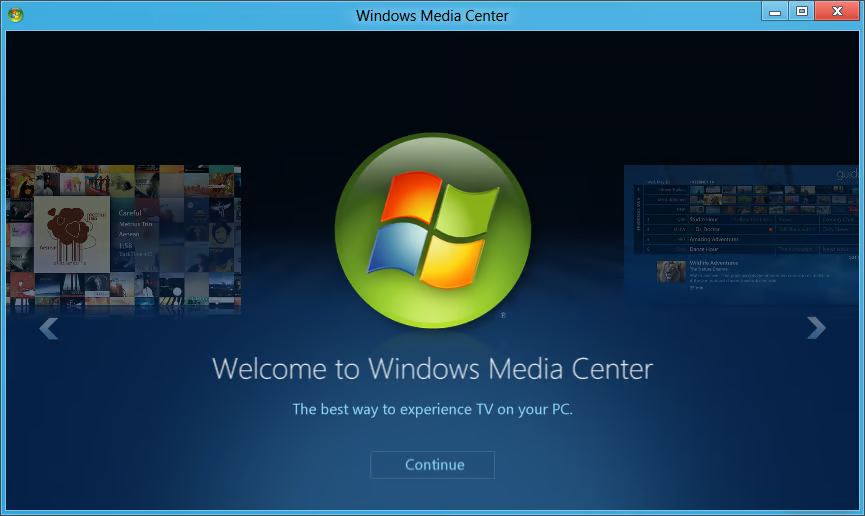
\n\tWhen you launch Windows Media Center in Windows 8, as shown, you’ll find that it works exactly as you would expect and you can begin recording TV programs or watching DVD movies.
\n
\n\tCredit: Images by Greg Shultz for TechRepublic
\n\tI immediately inserted one of my favorite DVD movies and sat back and enjoyed the show.
\n
\n
\n\tWhen you download and install your free copy of the Windows 8 Media Center Pack, there are a few things that you will need to keep in mind.
\n
\n\t
\n\t
\n\t
\n
\n
\n
\n\tWill you be downloading a free copy of the Windows 8 Media Center Pack? Have you done so already? If so, what has been your experience? As always, if you have comments or information to share about this topic, please take a moment to drop by the TechRepublic Community Forums and let us hear from you.
\n
\n\tCredit: Images by Greg Shultz for TechRepublic

My first computer was a Kaypro 16 \"luggable\" running MS-DOS 2.11 which I obtained while studying computer science in 1986. After two years, I discovered that I had a knack for writing documentation and shifted my focus over to technical writing.


