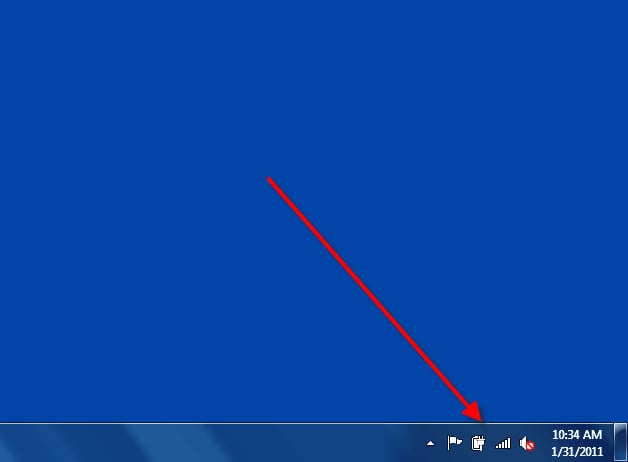
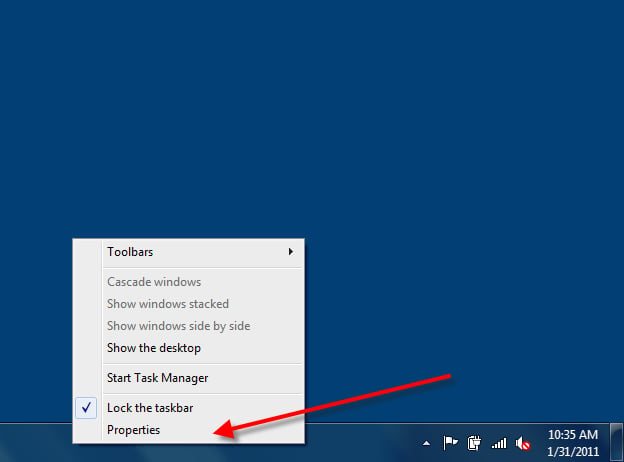
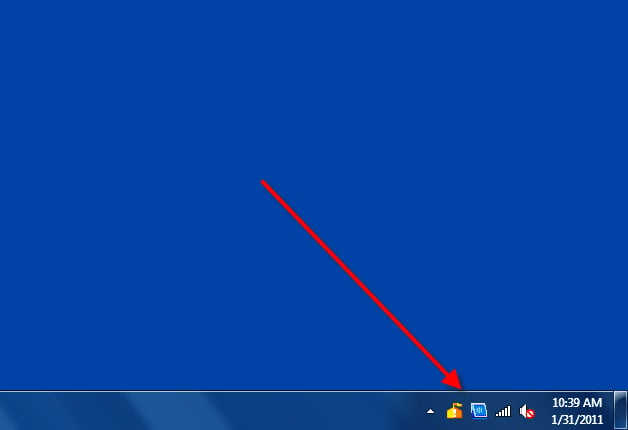
\n\tMicrosoft Windows 7 provides users with a simple tool for managing which icons display in the Notification area located in the lower right corner of the typical Windows Desktop. The behavior of icons in area are generally determined by whether they are trying to alert a user that some application or system process requires attention. However, a user can exert some control over this area through Taskbar properties.
\n
\n\tCustomize icon behavior
\n
\n\tThe default icon behaviors in Notification area are usually adequate, but you may want to make some changes based on your preferences.
This gallery is also available as a TechRepublic blog post and download. Image created by Mark Kaelin for TechRepublic.
\n\t
\n
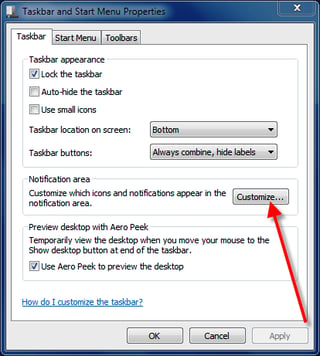
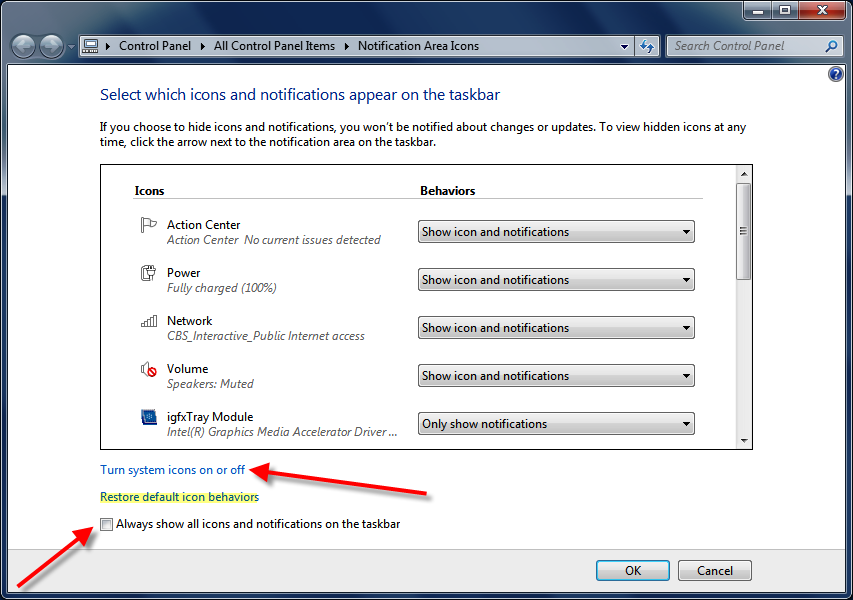
\n\tClick the Customize button to get to the next screen where you can customize which icons will appear in the Notification area and what behavior those icons will use while they are displayed there.
\n
\n\tYou have three choices for each icon in the list:
\n
\n\t
\n\t
\n
\n
This gallery is also available as a TechRepublic blog post and download. Image created by Mark Kaelin for TechRepublic.
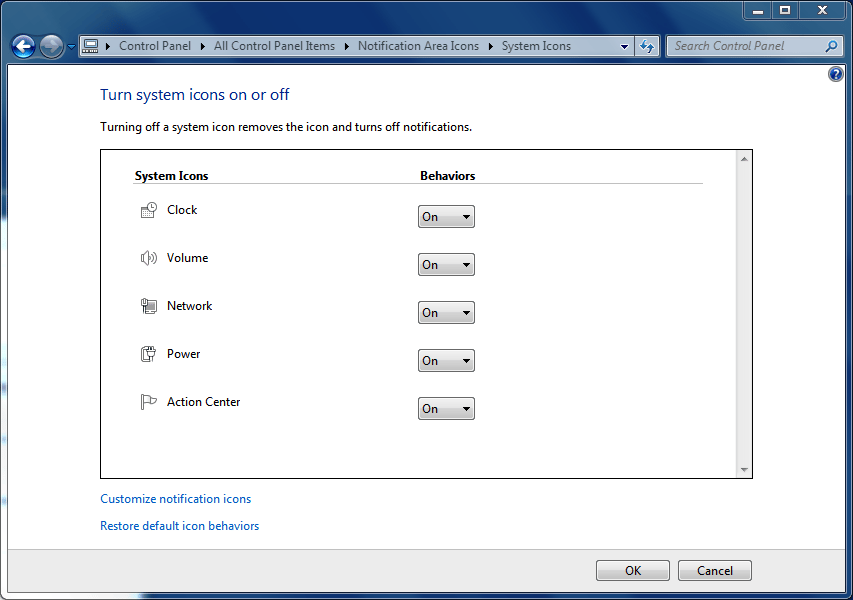
\n\tThere is also a link on the configuration screen that will take you to another screen where you can turn off and on system icons in the Notification area.
\n
\n\tThere is also a link on the configuration screen that will reset the icons in the Notification area to their default values.
\n
This gallery is also available as a TechRepublic blog post and download. Image created by Mark Kaelin for TechRepublic.

Mark W. Kaelin has been writing and editing stories about the information technology industry, software, hardware, gaming, finance, accounting, and technology geekdom for more than 30 years.


