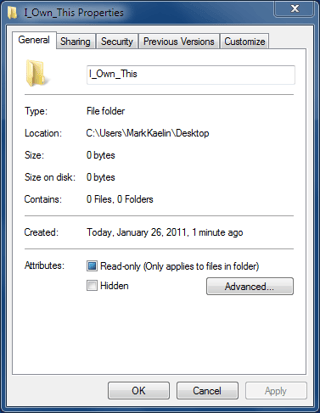
\n\tBy default, the creator of a file of folder in Microsoft Windows 7 is the owner of that file or folder. As owner, that user can allow or deny access to non-administrator users. However, there are times when an administrator, or a user with administrator privileges and/or Take Ownership permission, will want to take ownership of a file or folder.
\n
\n
\n\tIf you are an administrator, or otherwise have the proper privileges, you can change ownership with these steps:
\n
\n\t1. Right-click on the file or folder to get the context menu and then click the Properties menu item.
\n
\n\t
\n\tThis gallery is also available as a TechRepublic blog post and download. Image created by Mark Kaelin for TechRepublic.
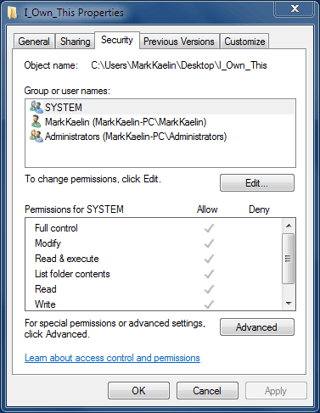
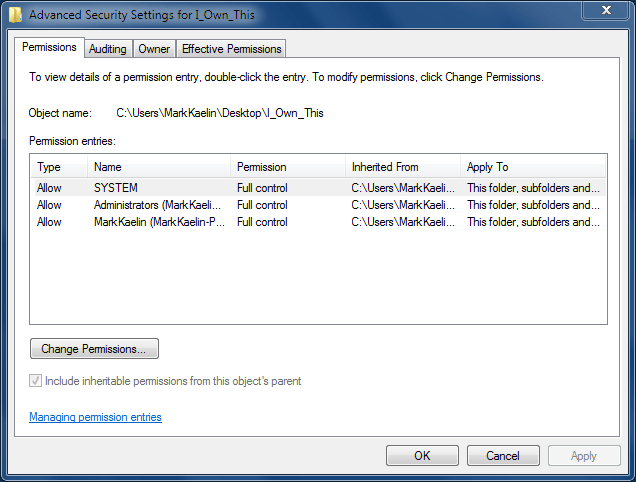
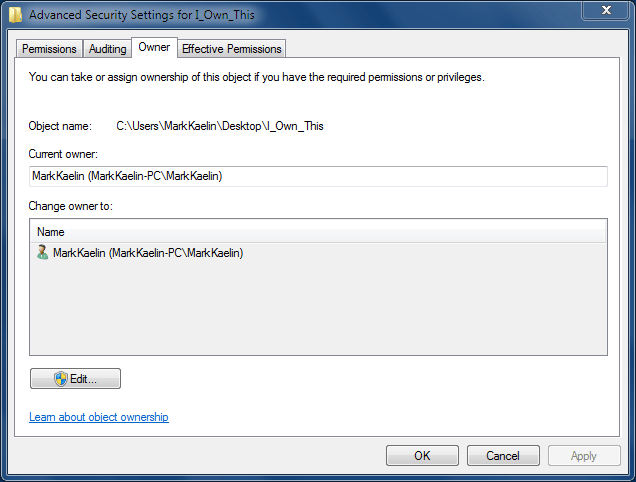
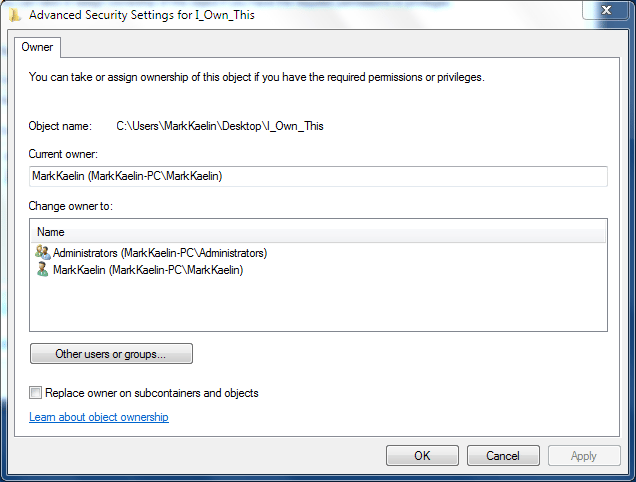
\n\t4. On the next screen, select a new owner from the Change owner to list (Figure E). Note, if you need to take ownership for sub-folders located within the folder, click the “Replace owner or subcontainers and objects” check box.
\n
\n\t5. Click OK on the opening screens and ownership of that folder or file should be transferred.
\n
\n\tThis gallery is also available as a TechRepublic blog post and download. Image created by Mark Kaelin for TechRepublic.

Mark W. Kaelin has been writing and editing stories about the information technology industry, software, hardware, gaming, finance, accounting, and technology geekdom for more than 30 years.


