
\n\tThis gallery is also available as a post in the Windows and Office Blog.
\n
\n\tAs you probably know by now, one of the many changes in Microsoft Windows 8 includes an updated version of Windows Explorer that has been rechristened as File Explorer. In addition to its new name, the file management tool has been given a slightly new user interface that features a Ribbon toolbar instead of a traditional drop down menu system.
\n
\n\tHowever, while the Ribbon is the most prominent new feature in File Explorer, the basic functionality of Windows Explorer remains virtually unchanged – there is still a Tree pane on the left and File pane on the right. There are also a host of other new features sprinkled throughout the new File Explorer that add great functionality to all the typical file management operations you are likely to perform.
\n
\n\tIn this edition of the Windows Desktop Report, I will introduce you to the Windows 8’s new File Explorer. As I do, I’ll only touch on some of the main features – there are just too many new features to cover everything in one blog. I’ll continue with additional details next week in Part II.
\n
\n
\n
\n\tTo begin with, I know that the Ribbon is not the most popular interface feature that Microsoft has added to their products. In fact, I must admit that when I first encountered the Ribbon in Office 2007 I was disconcerted by what I initially thought would be a big learning curve, but once I adapted to the Ribbon, I found that I really liked it.
\n
\n\tIn fact, I’ve found that I’ve become very adept at using the File Explorer’s Ribbon and have come to depend on it – so much so that whenever I go back to a Windows 7 or Windows XP system I find myself struggling with the old Windows Explorer interface. Of course, I remember when I first began using the new Ribbon interface it took me a while to adapt and I know that you will too. However, I can say with confidence that once you get used to it, you’ll wonder how you ever got along without its feature set.
\n
\n\tTo the naysayers, I have to point out that it appears that the Ribbon is gaining momentum and not going away, so you really need to stop grumbling so much and embrace the advantages that it brings to the table. Really, once you learn your way around a Ribbon, you’ll definitely come to appreciate its design. This is especially true with the new Ribbon in Windows 8’s File Explorer – it’s truly a much more efficient navigational system.
\n
\n
\n\tThe first new feature in File Explorer that I want to talk about is really an old feature. Of course, I’m referring to the Up button.
\n
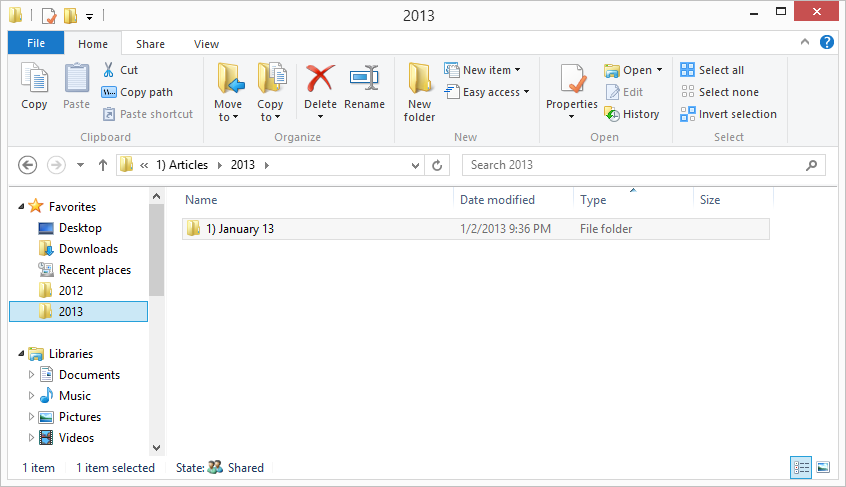
\n\tAs you may remember, one of the mistakes that the Windows Vista developers made was to remove the Up button from Windows Explorer. While a lot of users complained about the missing Up button, it remained MIA in Windows 7. However, in Windows 8 the developers heard our complaints and put the Up button back in File Explorer. As you can see in Figure A, the Up button appears right next to the Back and Forward buttons just like it did in Windows XP.
\n
\n\tJust click the Up button and File Explorer will display the parent folder. You can also still use the breadcrumb if you want.
\n
\n\tCredit: Images by Greg Shultz for TechRepublic
\n
\n\tIn Windows 8’s File Explorer, you’ll discover that the Ribbon contains one menu and a set of Core tabs that always appear in the Ribbon along with the Contextual tabs, which appear based on the type of object that you have selected, such as a location, a folder, or a file, and then provide related commands. This system is designed to expose close to 200 different file management commands in File Explorer without having them buried in numerous nested menus, popups, dialog boxes, or right-click context menus.
\n
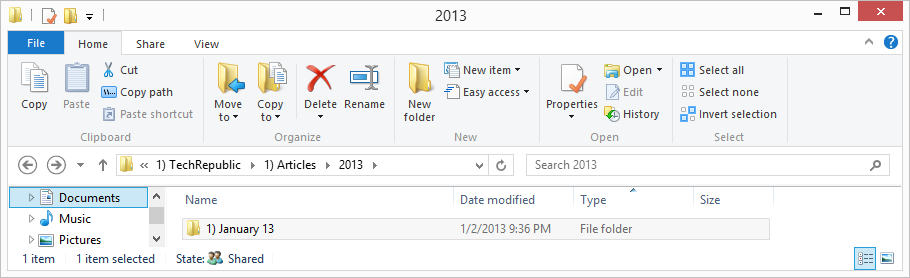
\n\tThe Ribbon in File Explorer includes the File menu and three Core tabs titled Home, Share, and View, as shown in Figure B. Let’s take a closer look.
\n
\n\tCredit: Images by Greg Shultz for TechRepublic
\n
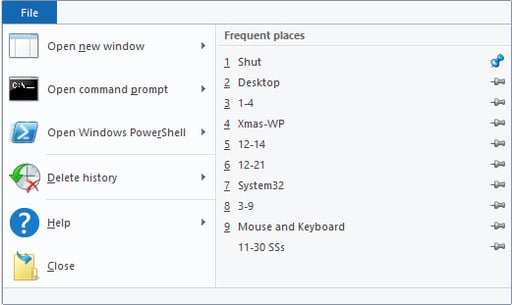
\n\tThe File menu, shown in Figure C, is designed to provide you with quick access to some of the more general commands in File Explorer. When you access the File menu, you’ll see a set of commands on the left side and Frequent places on the right side. The Frequent places show the most recently accessed folders and remains visible until you select a command that has a submenu. The submenu overlays the Frequent places space and provides you with related options.
\n
\n\tCredit: Images by Greg Shultz for TechRepublic
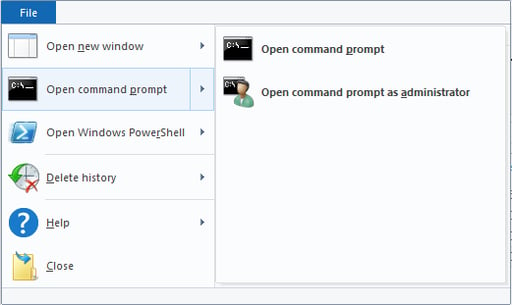
\n\tFor example, when you select Open command prompt, the submenu overlays the Frequent places and shows commands to open a regular or an administrator command prompt, as shown in Figure D. Both of the open a Command Prompt window selections are targeted on the currently selected folder.
\n
\n\tAs you can see, other commands on the File menu allow you to open a new Explorer window, open PowerShell, delete history, access the Help system, and close File Explorer.
\n
\n\tCredit: Images by Greg Shultz for TechRepublic
\n
\n\tThe first of the Core tabs is the Home tab, and as you can see in Figure E, it provides you with access to the most often used file management commands. The Clipboard group includes all the standard commands along with a very handy Copy Path command. Just select it and the current path is copied to the clipboard.
\n
\n\tIn the Organize group, you’ll find that the Move To and Copy To commands are readily accessible rather than being hidden away on the Edit menu as they were in Windows XP/Vista/7. You’ll also find that the Delete and Rename commands live in this group.
\n
\n\tMoving down to the New group you can, of course, create new folders and files of various types. Using the Easy Access command allows you to make things easier to find by pinning them to the Start screen, adding folders to a Library or to the Favorites, as well as by mapping a drive letter to a network location. This menu also contains items for configuring and using Offline files and folders.
\n
\n\tIn addition to the Open and Edit commands, which function just like before by launching the associated application and loading the selected file, the Open group also provides you with quick access to the Properties dialog box.
\n
\n\tThe History command provides access to the new File History feature. (File History is a new feature in Windows 8 that works like a combination of Previous Versions and Windows Backup and Restore. File History continuously monitors files stored in Libraries, Desktop, Favorites, and Contacts folders and when it detects changes in any file it then makes a backup copy to another location – such as an external hard disk or a network drive. I’ll cover File History in more detail in a future article.)
\n
\n\tThe Select group provides you with a set of commands for selecting groups of files and folders.
\n
\n\tCredit: Images by Greg Shultz for TechRepublic
\n
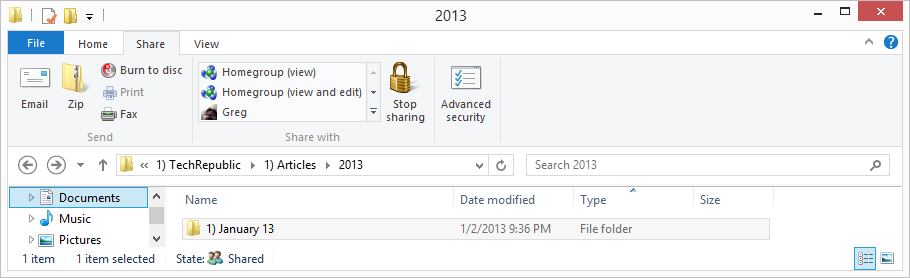
\n\tThe Share tab, shown in Figure F, is your one-stop location for any command related to sharing files with others. For example, within the Send group, you can create a Zip file and email it. You can burn files to an optical disc as well as print or fax documents.
\n
\n\tIn the Share With group you’ll find a gallery that allows you to share files and folders with your Homegroup or with specific users. The Advanced Security command opens the Security tab where you can lock down sharing by setting specific permissions.
\n
\n\tCredit: Images by Greg Shultz for TechRepublic
\n
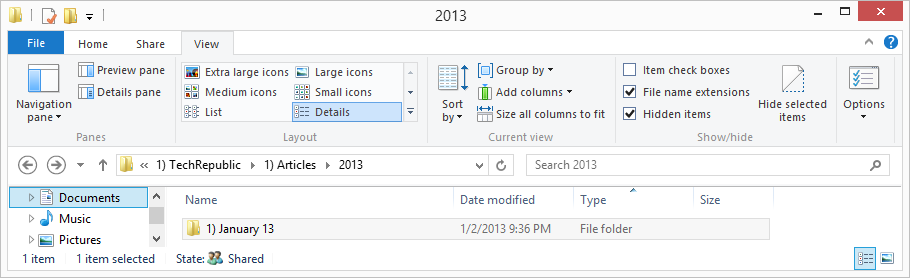
\n\tOn the View tab, you’ll find a host of commands, as shown in Figure G, that you can use to configure the way you want File Explorer to display files. In the Panes group you can configure the Navigation pane as well as enable or disable the Preview pane or the Details pane – the latter now appears in the same space as the Preview pane rather than on the bottom of the window.
\n
\n\tThe Layout group sports a live preview gallery for choosing your icon display – just hover over an option in the gallery and the file display changes accordingly. The Current View group exposes several great commands. First, the Group By and Sort By commands, which give you neat ways to narrow and organize the display of your files, are readily available. Second, when you are using the Details layout, the Add Columns and Size All Columns to Fit commands come in real handy for getting a better look at the available file and folder details in File Explorer’s display.
\n
\n\tThe Show/Hide group brings several valuable items that were previously hidden in the Folder Options dialog box to light. The Item check boxes option allows you to enable the check box file selection feature. When you want to show or hide file extensions on the fly, just select the File Name Extensions check box. When you need to quickly see hidden files, just select the Hidden Items check box. The Hide Selected Items command allows you to quickly set the Hidden attribute – no more going to the Properties dialog box
\n
\n
\n\tWhat do you think about Windows 8’s File Explorer? Are you ready to embrace the Ribbon or are you going to complain about it? It’s your choice! As always, if you have comments or information to share about this topic, please take a moment to drop by the TechRepublic Community Forums and let us hear from you.
\n
\n\tCredit: Images by Greg Shultz for TechRepublic

My first computer was a Kaypro 16 \"luggable\" running MS-DOS 2.11 which I obtained while studying computer science in 1986. After two years, I discovered that I had a knack for writing documentation and shifted my focus over to technical writing.


