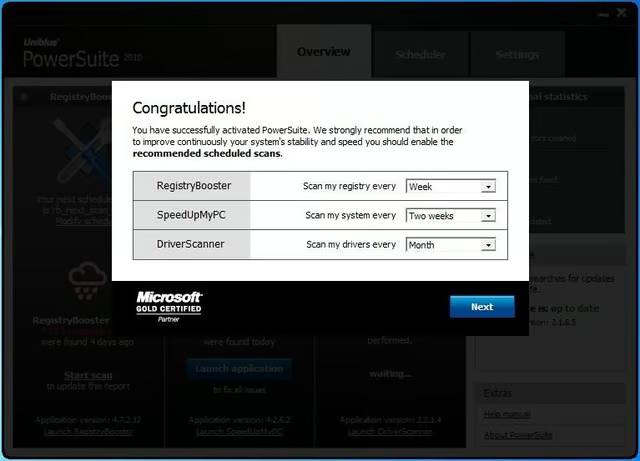
When UniBlue PowerSuite is first launched, you are asked to set up the regular scans.
For a full review of UniBlue PowerSuite, check out the TechRepublic Product Spotlight Blog.
Screenshot of UniBlue PowerSuite taken by Wally Bahny for TechRepublic
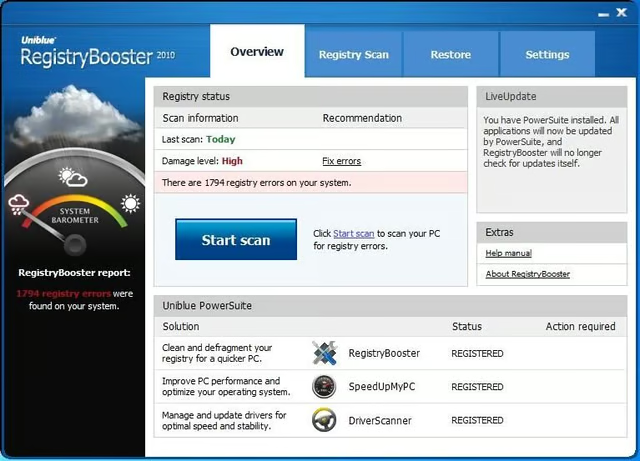
RegistryBooster is the first application within PowerSuite. Each application has its own dashboard overview screen.
For a full review of UniBlue PowerSuite, check out the TechRepublic Product Spotlight Blog.
Screenshot of UniBlue PowerSuite taken by Wally Bahny for TechRepublic
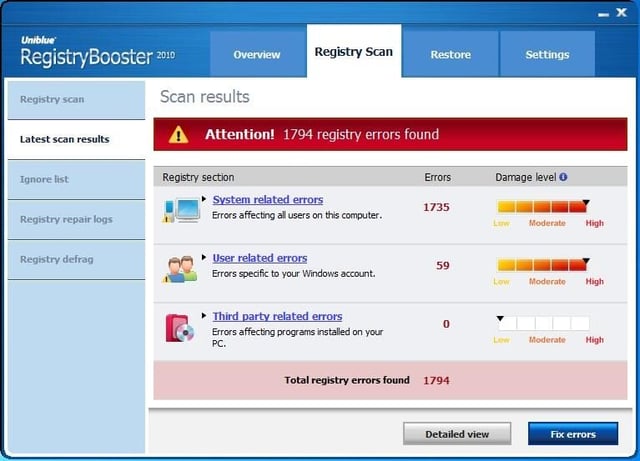
The initial registry scan revealed almost 2000 errors.
For a full review of UniBlue PowerSuite, check out the TechRepublic Product Spotlight Blog.
Screenshot of UniBlue PowerSuite taken by Wally Bahny for TechRepublic
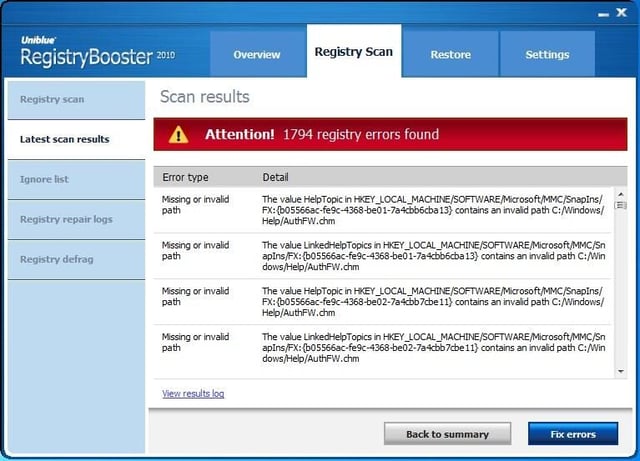
The Registry Scan details view shows exactly what is wrong with your registry.
For a full review of UniBlue PowerSuite, check out the TechRepublic Product Spotlight Blog.
Screenshot of UniBlue PowerSuite taken by Wally Bahny for TechRepublic
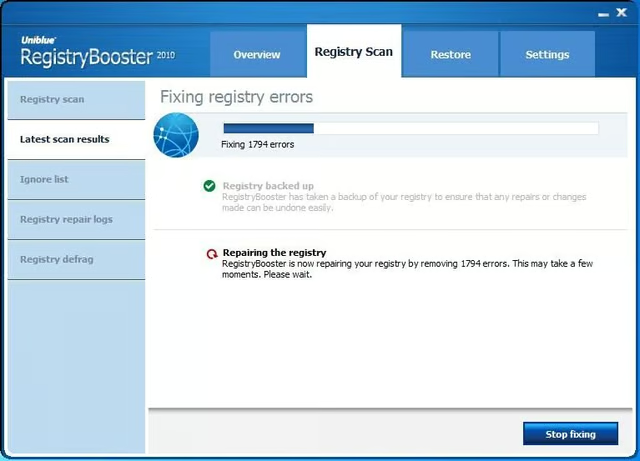
The registry clean takes a couple minutes. Fortunately, RegistryBooster does a backup first.
For a full review of UniBlue PowerSuite, check out the TechRepublic Product Spotlight Blog.
Screenshot of UniBlue PowerSuite taken by Wally Bahny for TechRepublic
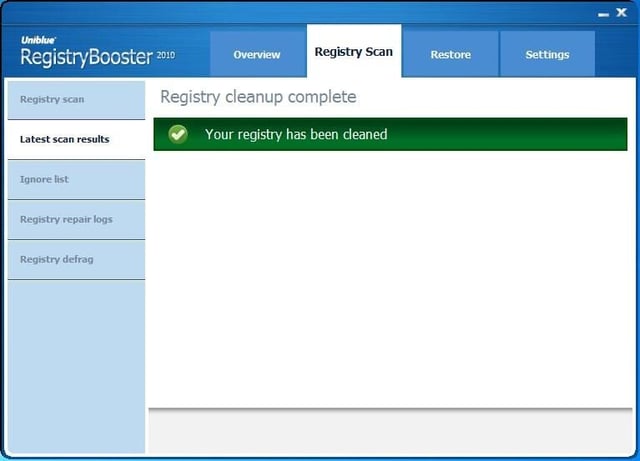
A friendly notice telling you the registry clean is finished.
For a full review of UniBlue PowerSuite, check out the TechRepublic Product Spotlight Blog.
Screenshot of UniBlue PowerSuite taken by Wally Bahny for TechRepublic
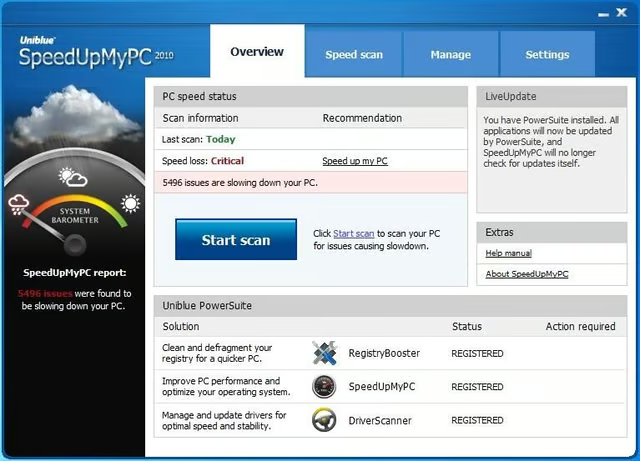
SpeedUpMyPC’s dashboard is similar to RegistryBooster.
For a full review of UniBlue PowerSuite, check out the TechRepublic Product Spotlight Blog.
Screenshot of UniBlue PowerSuite taken by Wally Bahny for TechRepublic
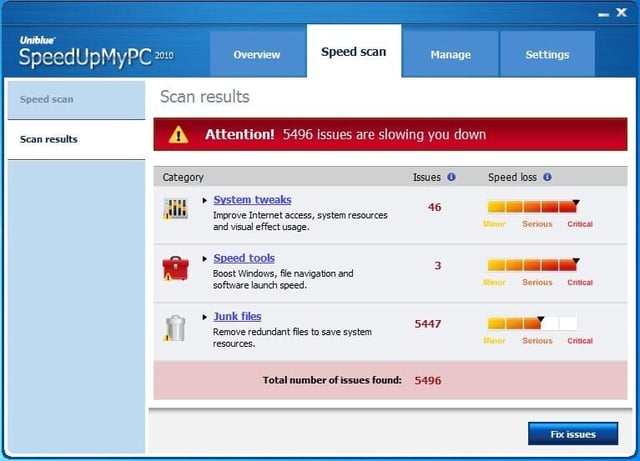
SpeedUpMyPC scan results is also similar. As you can see, it found over 5000 items, most of which are junk files (temp folders, etc).
For a full review of UniBlue PowerSuite, check out the TechRepublic Product Spotlight Blog.
Screenshot of UniBlue PowerSuite taken by Wally Bahny for TechRepublic
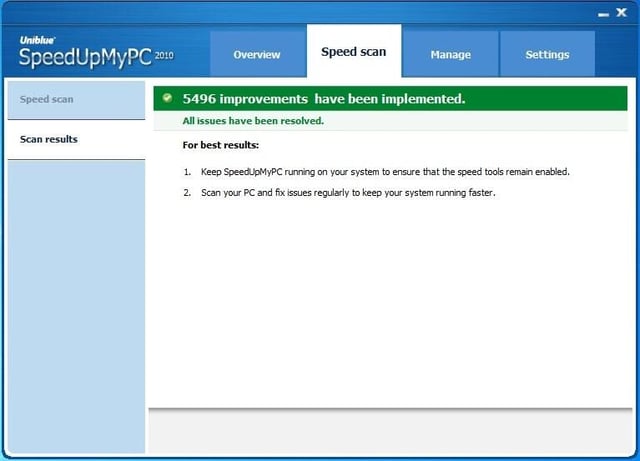
Another friendly notice telling you the cleanup finished.
For a full review of UniBlue PowerSuite, check out the TechRepublic Product Spotlight Blog.
Screenshot of UniBlue PowerSuite taken by Wally Bahny for TechRepublic
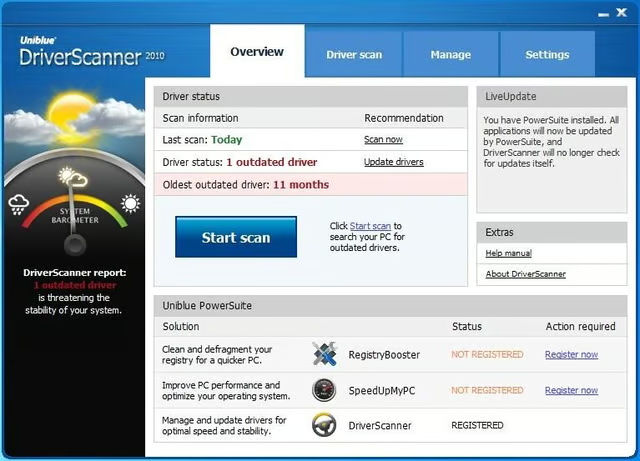
The third application, DriverScanner, also has a friendly dashboard.
For a full review of UniBlue PowerSuite, check out the TechRepublic Product Spotlight Blog.
Screenshot of UniBlue PowerSuite taken by Wally Bahny for TechRepublic
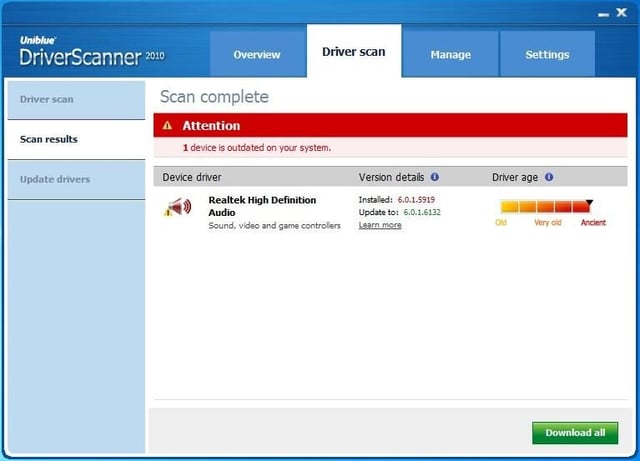
The scan found only one driver that was out-of-date. Good news there. You can download the update and start the install right from this console.
For a full review of UniBlue PowerSuite, check out the TechRepublic Product Spotlight Blog.
Screenshot of UniBlue PowerSuite taken by Wally Bahny for TechRepublic
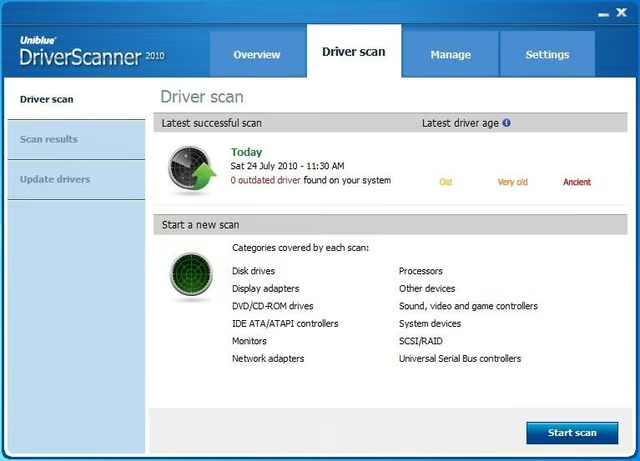
After the drivers are all updated, this screen tells you all of your drivers are up-to-date.
For a full review of UniBlue PowerSuite, check out the TechRepublic Product Spotlight Blog.
Screenshot of UniBlue PowerSuite taken by Wally Bahny for TechRepublic


