\n\tThis photo gallery is also available as a post in the Windows and Office Blog.
\n
\n\tBack in June of this year, Microsoft announced that they would be offering a $15 Windows 8 upgrade to anyone who purchased a new Windows 7 PC on or after June 2. And best of all, rather than having the program administered by the OEMs, this time Microsoft is handling the whole process themselves.
\n
\n\tWell, back in August I purchased a new system and recently decided to investigate the $15 Windows 8 upgrade. While the procedure was fairly easy, there were a lot of steps and some uncertainty here and there. As such, I decided to document the entire procedure in an article so that anyone wanting to go this route will know exactly what to expect. In this post, I’ll show you all of the steps involved in using the $15 upgrade offer to download Windows 8 Pro and burn it to a DVD.
\n
\n\tKeep in mind that the upgrade program will run until January 31, 2013, so you have plenty of time.
\n
\n
\n
\n\t
\n\t
\n
\n
\n
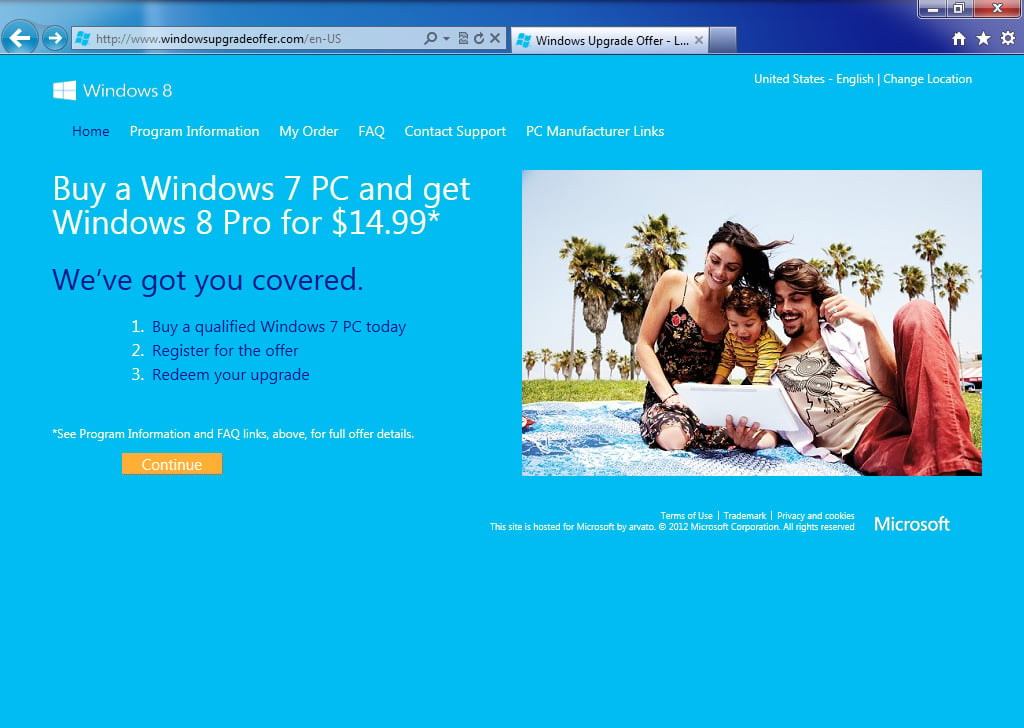
\n\tTo begin the process, launch your browser and head on over to Microsoft’s Windows 8 Upgrade Offer page. As you can see, I have provided you with a direct link to the United States \u2013 English page. However, if you are from another country, just click the Change Location link at the top right. Otherwise, just click the Continue button.
\n
\n\tCredit: Images by Greg Shultz for TechRepublic
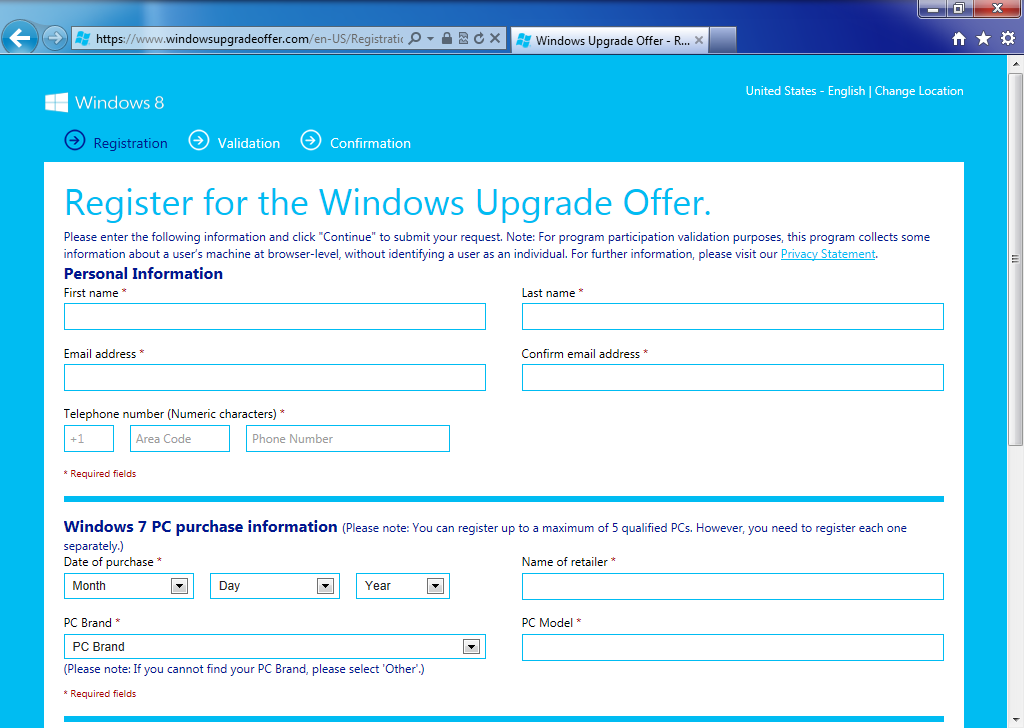
\n\tWhen you get to the registration page, you’ll need to fill in the requested personal information as well as some basic information about your Windows 7 PC. As you can see, in addition to the PC brand and model number, you’ll need to specify the date of purchase as well as the name of the retailer where you purchased the system.
\n
\n\tCredit: Images by Greg Shultz for TechRepublic
\n\tYou’ll then scroll down the page and will have to type the characters that you see in a blurry image in order to prove that you are a person and not an automated program. You’ll then select a check box to agree to the terms of use and click the Continue button.
\n
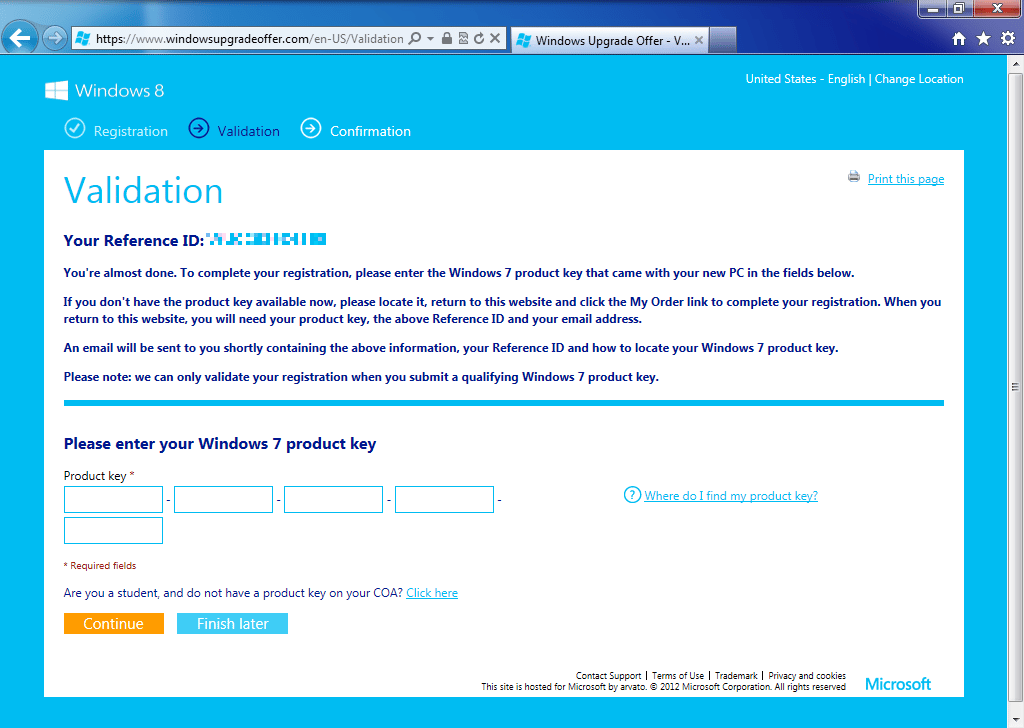
\n\tOn the validation page you’ll first want to make note of the Reference ID number at the top of the page. (I’ve blurred the number in this screen shot.) Then, you need to enter the 25 character Windows 7 product key from the machine that you are upgrading. After you do, click the Continue button.
\n
\n\tCredit: Images by Greg Shultz for TechRepublic
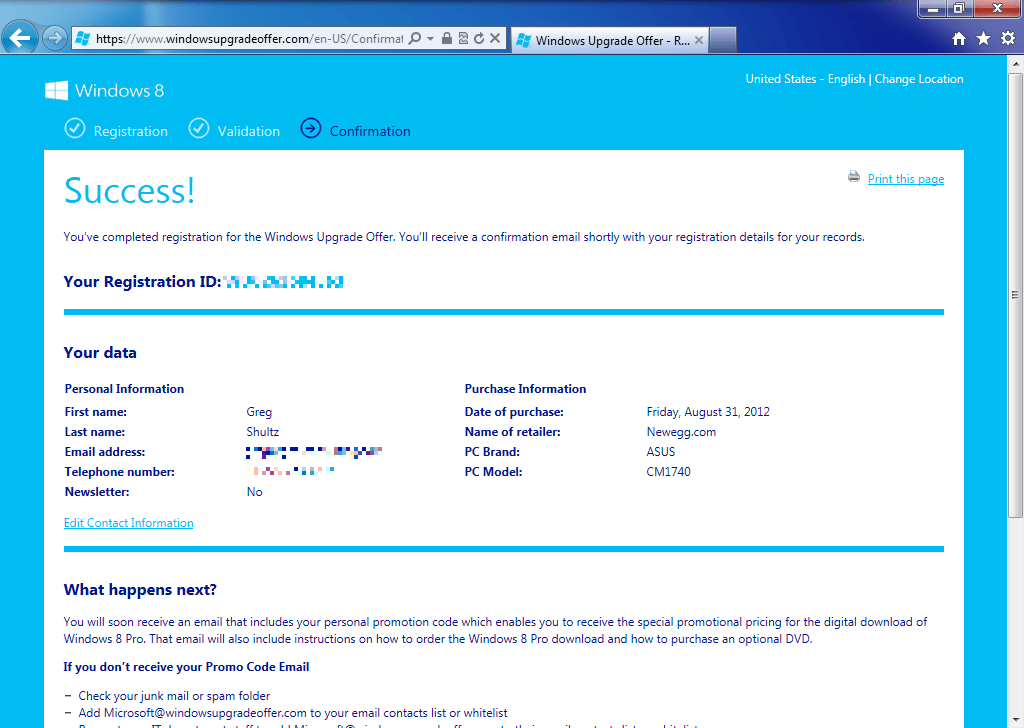
\n\tOn the success page you’ll see the personal and purchase information that you entered. When you scroll down the page, you’ll find information that informs you what will happen next. Basically, you’ll need to wait a few moments for an e-mail message that includes your Promo Code. At this point, just click the Close button that appears at the bottom of the screen.
\n
\n\tCredit: Images by Greg Shultz for TechRepublic
\n
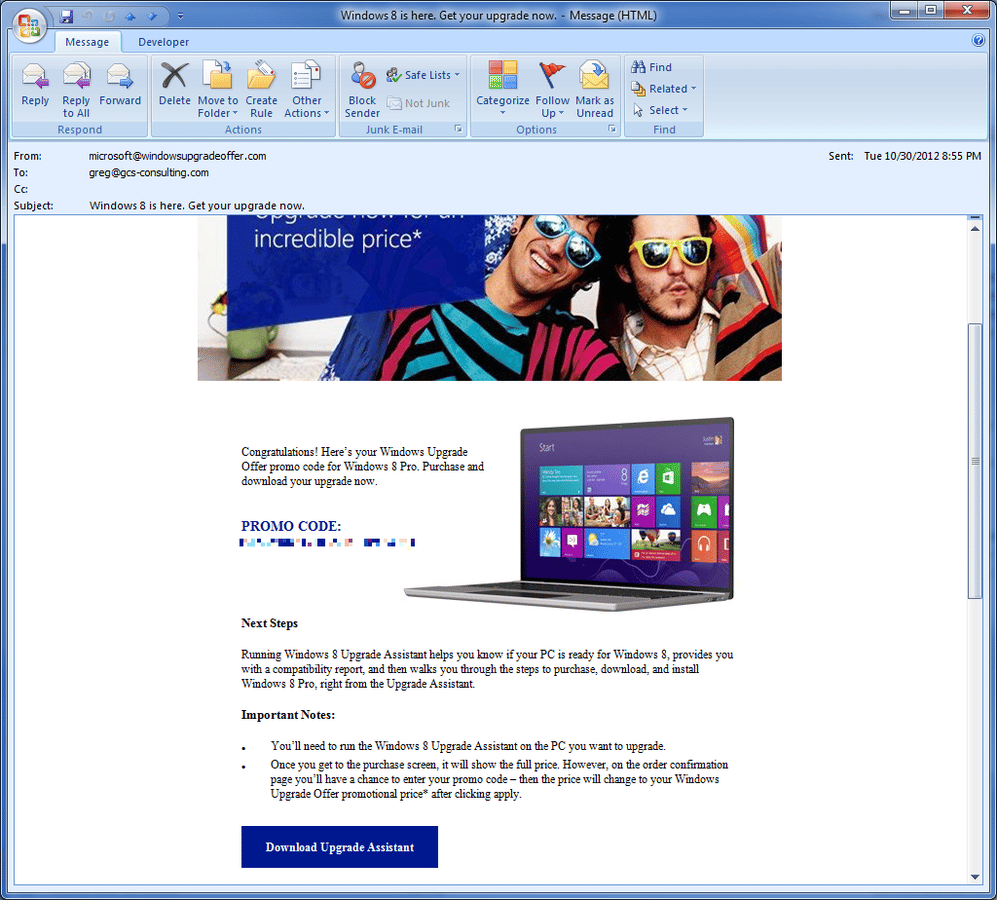
\n\tA few minutes after you click the Close button, you’ll receive two email messages. The first one serves as your registration confirmation and includes your registration number (This is the same number as the Reference ID number you saw on the validation page.) The second email message contains your Promo Code and a link to the Upgrade Assistant page. Make note of the Promo Code as you’ll need it later on. To continue, click the Download Upgrade Assistant button.
\n
\n\tCredit: Images by Greg Shultz for TechRepublic
\n
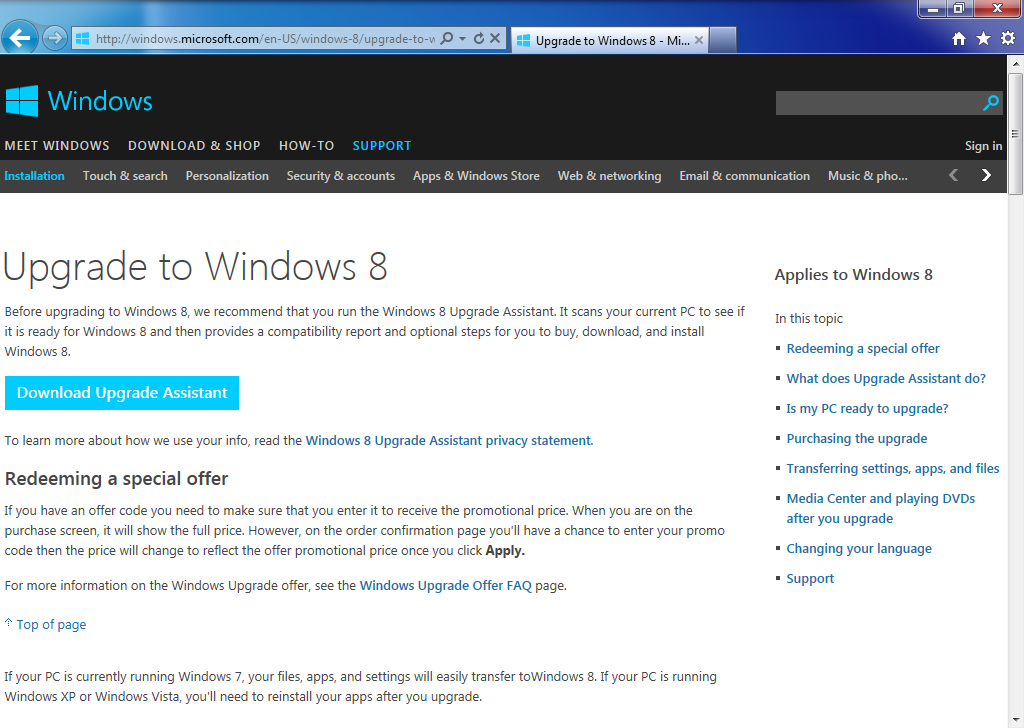
\n\tWhen you arrive at the Upgrade to Windows 8 page you’ll see the Download Upgrade Assistant button. You would think that if you know that your PC is compatible and ready for Windows 8 that there would be a way to bypass the Upgrade Assistant, but after reading through the information on the page, it seems that the only way to proceed is through the Upgrade Assistant.
\n
\n\tCredit: Images by Greg Shultz for TechRepublic
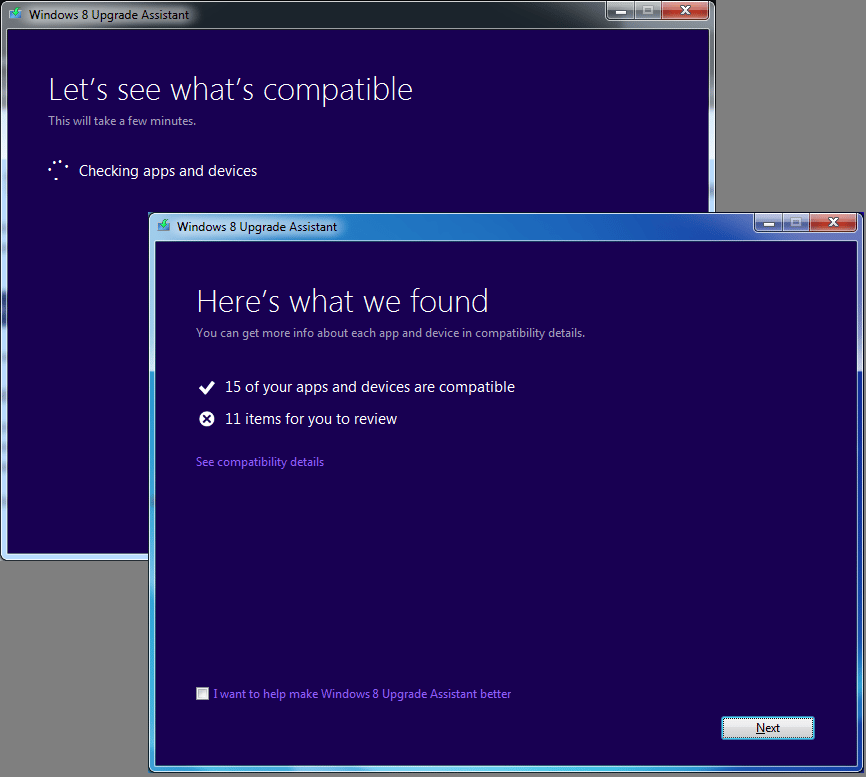
\n\tClicking the button brings up a UAC. Once you work through the UAC, the Windows 8 Upgrade Assistant, which runs in a wizard interface, immediately goes to work checking you applications and devices. As you can see, on my test system, 15 apps and devices are compatible with Windows 8 and that are 11 items for me to review.
\n
\n\tCredit: Images by Greg Shultz for TechRepublic
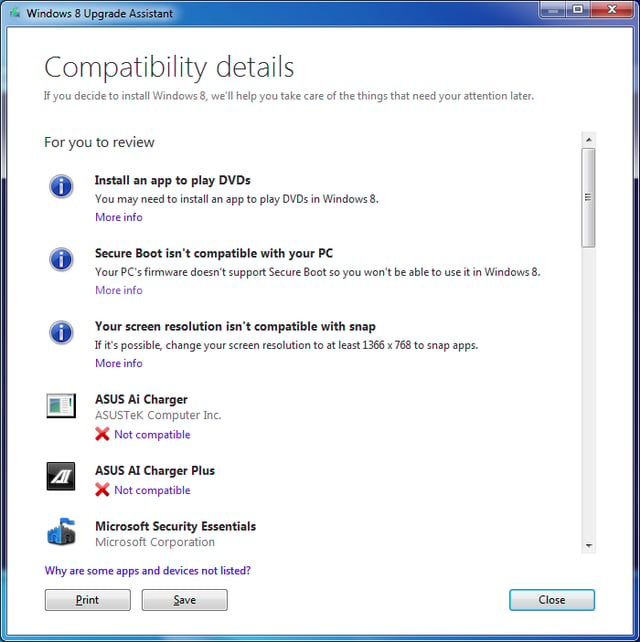
\n\tClick the See compatibility link and you’ll see a report similar to the one shown. You can print this report or save it to your hard disk as and HTML document.
\n
\n\tCredit: Images by Greg Shultz for TechRepublic
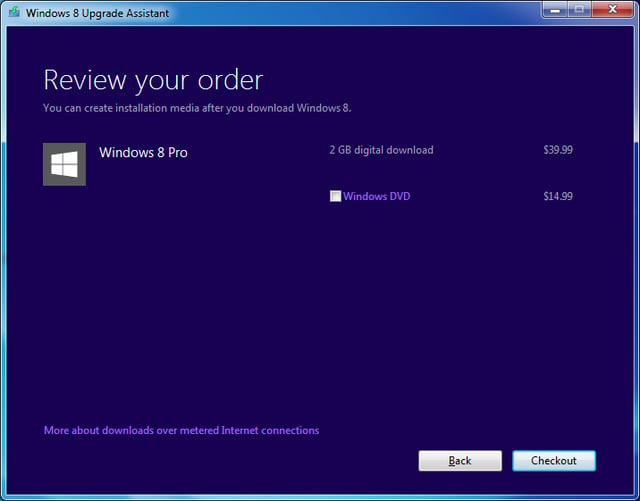
\n\tWhen you close the report window and click Next, you’ll be prompted to choose what you’ll want to keep and the wizard will recommend which version of Windows 8 you should choose. However, this screen and the next are superfluous as the Windows 8 Upgrade Offer only allows you to download Windows 8 Pro. When you proceed, you’ll be prompted to review your order. As you can see this page lists the cost as $39.99 and gives you the option of ordering a DVD for an additional $14.99. You can ignore this price and disregard the DVD offer, as the promo code will reduce the cost and you’ll be able to burn your own DVD in a moment.
\n
\n\tCredit: Images by Greg Shultz for TechRepublic
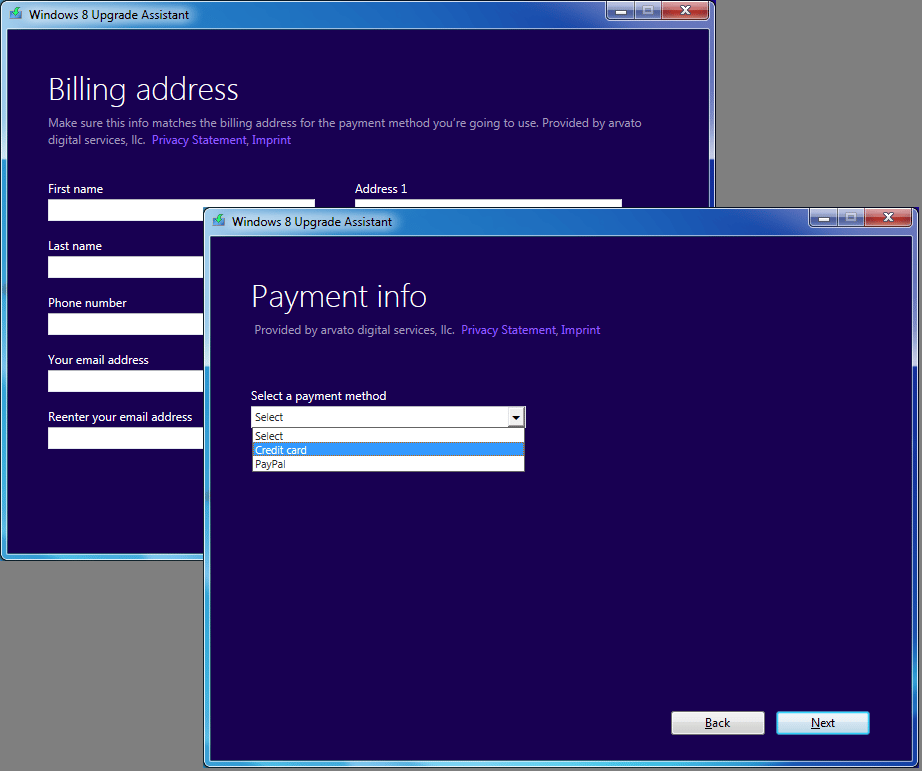
\n\tWhen you click the Checkout button, you’ll be prompted to fill in your billing address and select your payment method. These two steps are shown. Note that in addition to using a credit card, you can use PayPal as your payment method.
\n
\n\tCredit: Images by Greg Shultz for TechRepublic
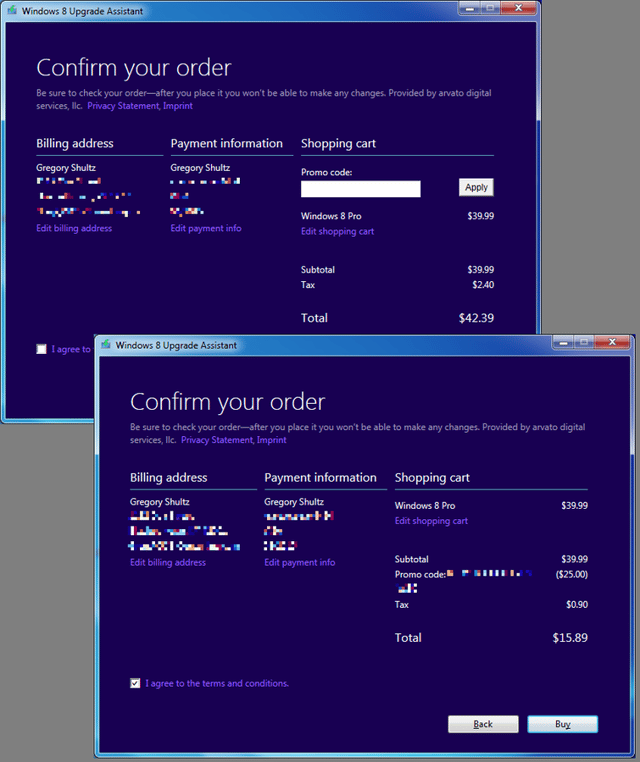
\n\tAfter you choose you payment method and click Next, you’ll be able to enter your Promo Code. When you do, you’ll see the discounted price appear. These two steps are shown. To continue, just click the Buy button.
\n
\n\tCredit: Images by Greg Shultz for TechRepublic
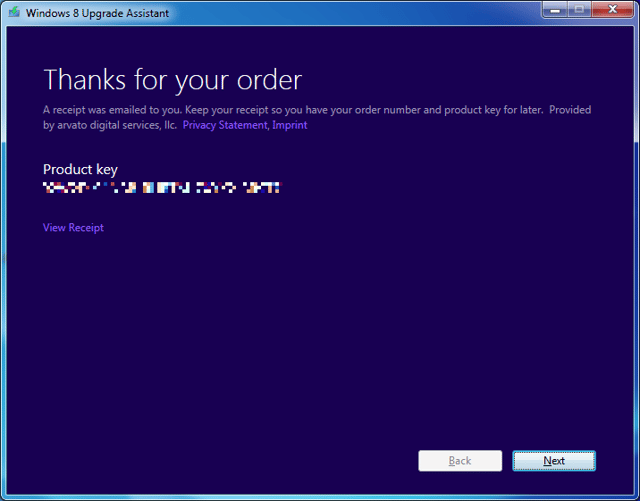
\n\tYou’ll then see the Thanks for your order page, which contains your 25 character Windows 8 Product key. Even though you will see it again, go ahead and make note of the Product key. If you wish, you can click the View Receipt link. The page that appears will contain a Print button, so you can have a hard copy if you wish. Microsoft will also send you a receipt via e-mail.
\n
\n\tCredit: Images by Greg Shultz for TechRepublic
\n
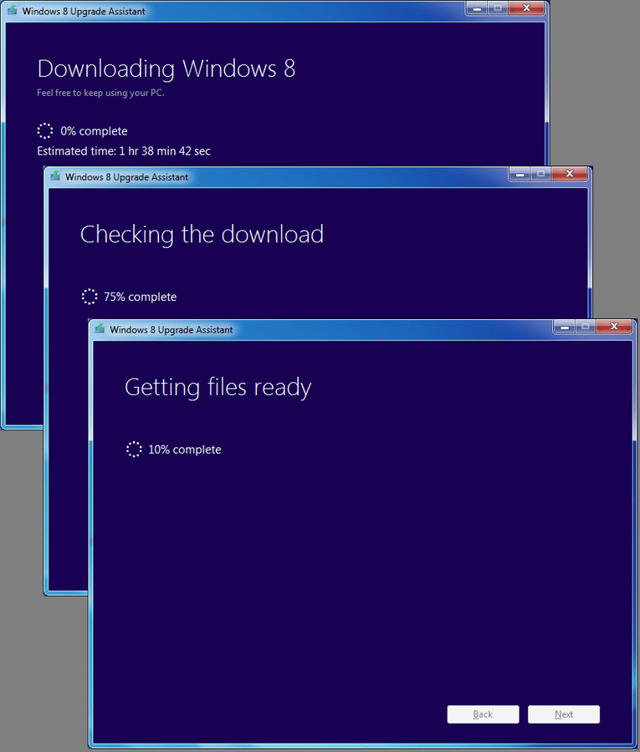
\n\tAs soon as you complete the purchase, the download will begin. For me, the download was estimated to be 1 hour, 38 minutes, and 42 seconds and it turned out to be a pretty accurate estimate. Once the download was complete, the Upgrade Assistant checked the download, and then prepared the files. These steps are illustrated.
\n
\n\tCredit: Images by Greg Shultz for TechRepublic
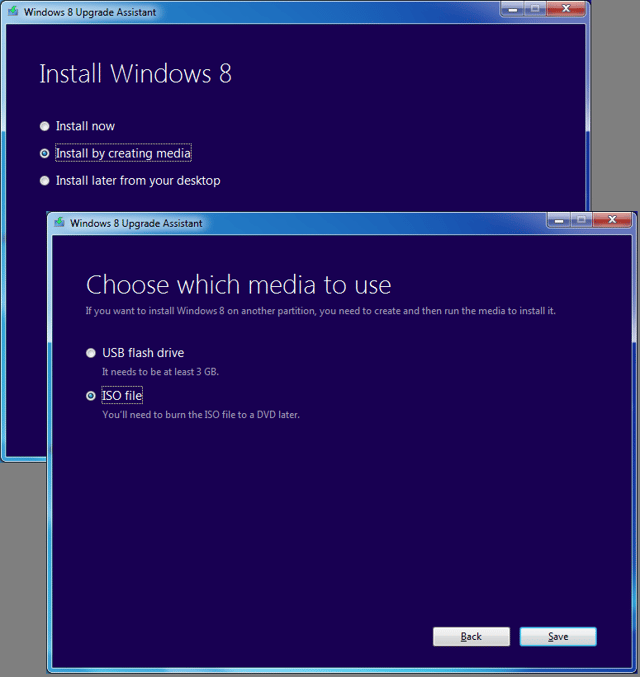
\n\tOnce the files were prepared, the Windows 8 Upgrade Assistant, prompted me to choose how I wanted to install the new operating system. Rather than immediately beginning the install or saving the installation files on my desktop, I chose to create an ISO file to burn to a DVD, as illustrated. As you can see, I could also have put Windows 8 on a USB flash drive. Call me old fashioned, but I just prefer to have a DVD for installing an operating system.
\n
\n\tCredit: Images by Greg Shultz for TechRepublic
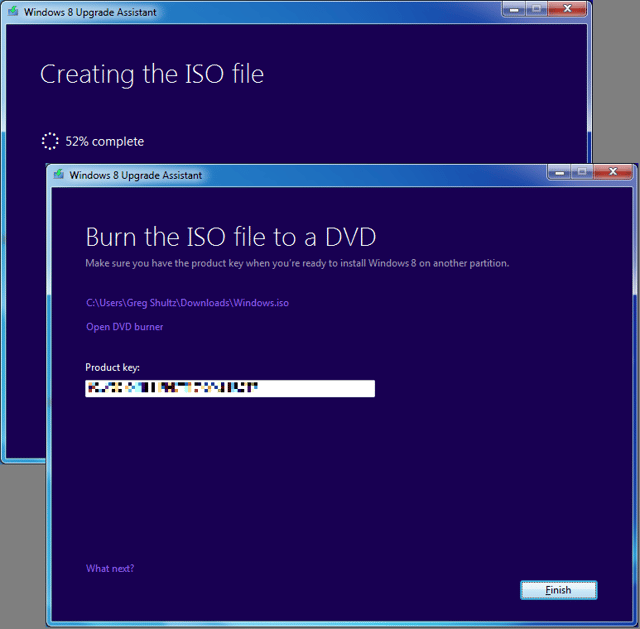
\n\tAfter specifying a location on my hard disk to create the ISO file, the Windows 8 Upgrade Assistant created the ISO file, reminded me of the Product key, and prompted me to Open the DVD burner. However, I chose to click Finish.
\n
\n\tCredit: Images by Greg Shultz for TechRepublic
\n
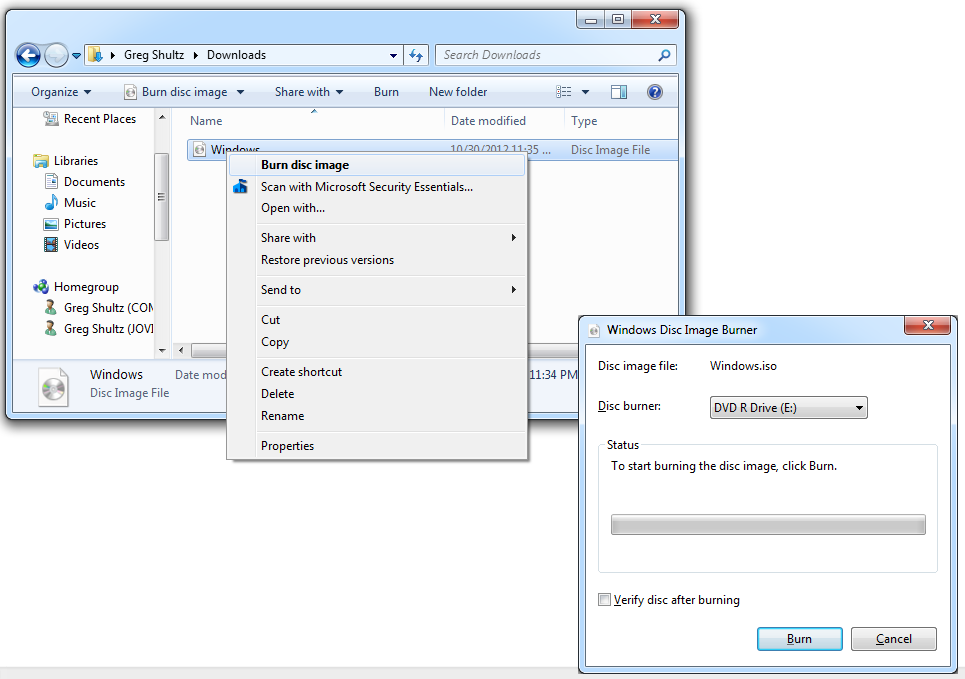
\n\tBurning the ISO to DVD in Windows 7 is an easy procedure with the built-in Windows Disc Image Burner. Just right-click on the ISO file and select the Burn disc image command from the context menu. When you see the Windows Disc Image Burner window, insert a DVD disc, and select the Verify disc after burning check box. Then click the Burn button. The burn operation will take a few minutes to complete. These steps are illustrated.
\n
\n\tWith the Windows 8 Pro safely burned to a DVD, I can later install it on my PC.
\n
\n
\n\tWill you take advantage of the $15 Windows 8 Upgrade Offer? As always, if you have comments or information to share about this topic, please take a moment to drop by the TechRepublic Community Forums and let us hear from you.
\n
\n
\n\t
\n\t
\n
\n
\n\tCredit: Images by Greg Shultz for TechRepublic

My first computer was a Kaypro 16 \"luggable\" running MS-DOS 2.11 which I obtained while studying computer science in 1986. After two years, I discovered that I had a knack for writing documentation and shifted my focus over to technical writing.


